Electronic lock groups - how to efficiently set up more 2N Fortis devices in an installation
2N Fortis Cylinders and Handles use the MIFARE ® DESFire® EV1/EV2/EV3 RFID cards.
One such 2N RFID access card can be used for access to up to 90 doors with the 2N Electronic locks, depending on the number of time profiles applied.
However, the 2N Fortis Cylinders and Handles can be grouped since the Access Commander 3.5 version, so the 2N RFID access card can be used for more accesses.
In this FAQ, we will go through the configuration.
Applying the changes to the 2N Fortis devices through the 2N Fortis Commander
Standard configuration
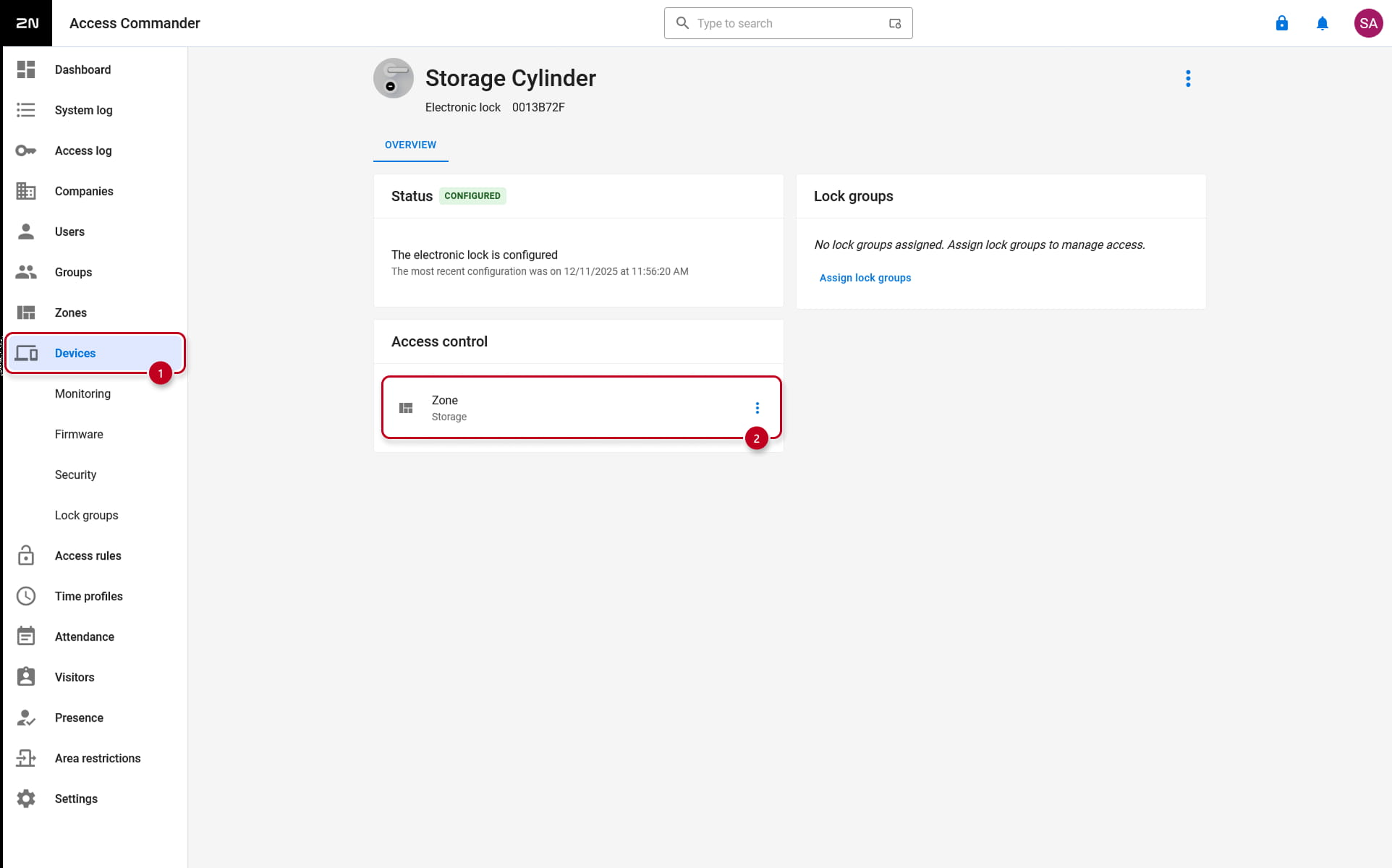
Standardly, it is possible to assign 2N Fortis Cylinders and Handles to a Zone, the same as other 2N OS devices in the 2N Access Commander, in the "Devices -> device -> Access Control" section.
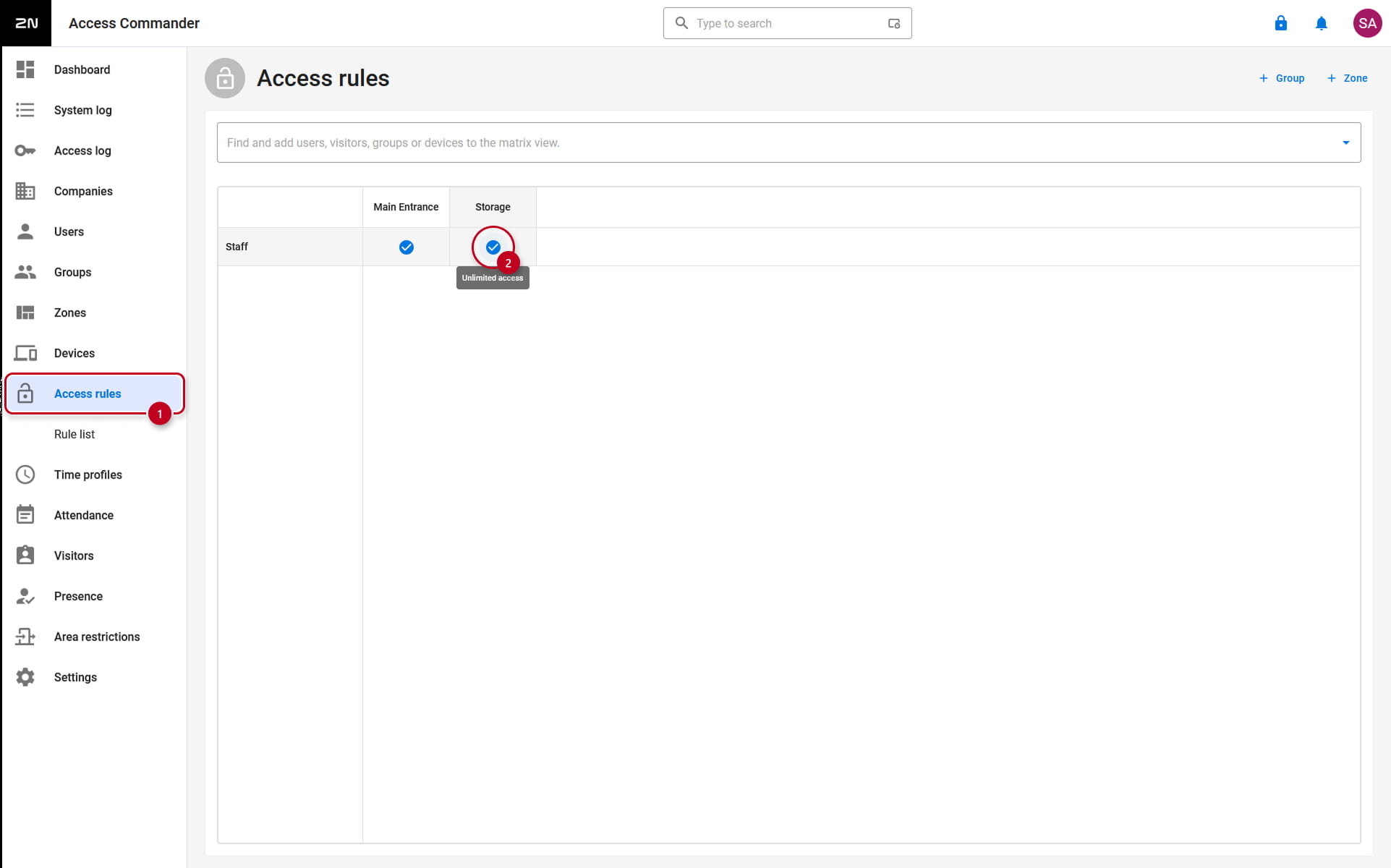
That way, the Group of users have access to the specific Zone with devices through configured Access Rules.
Lock groups
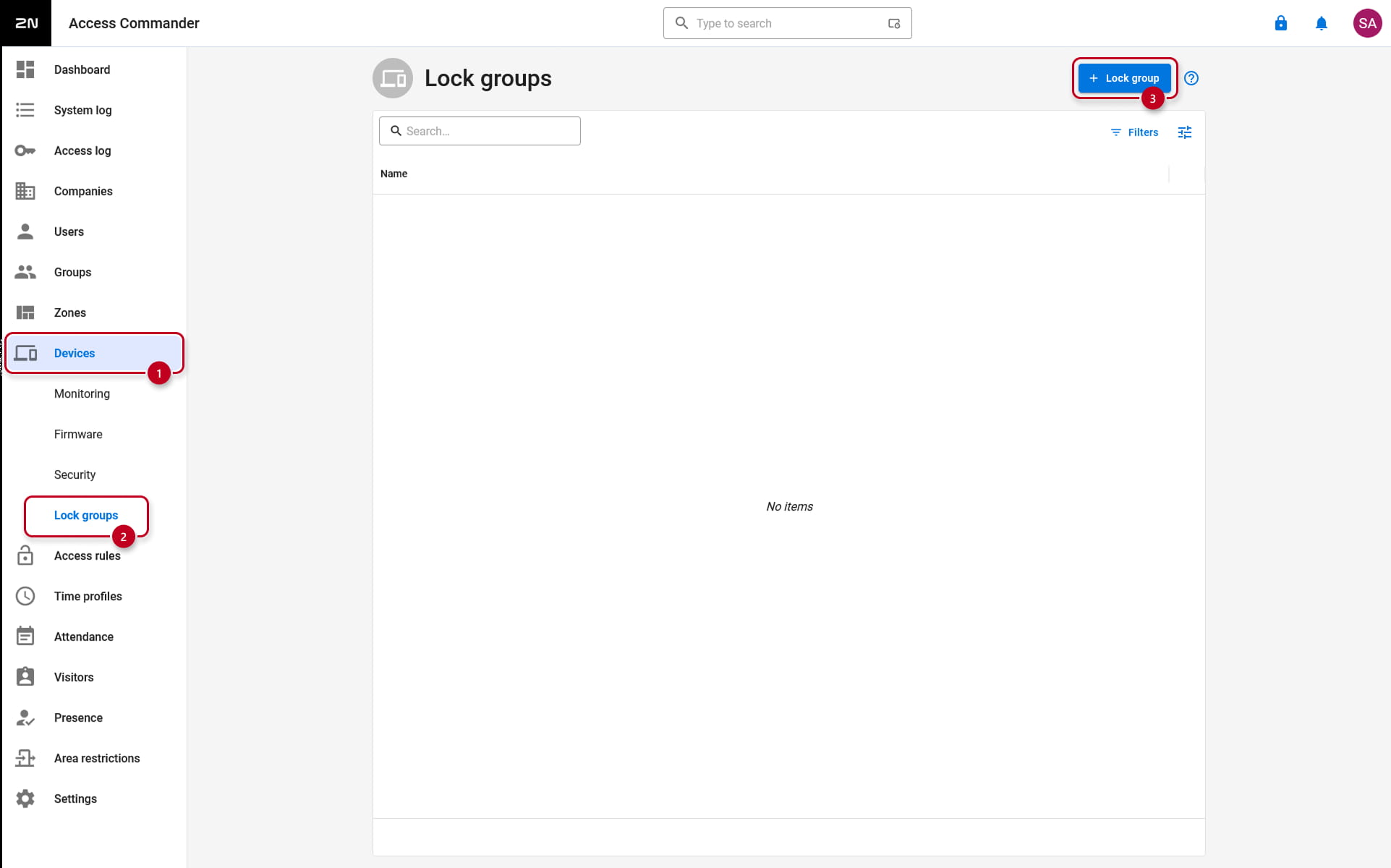
To use the RFID access card for more accesses, it is necessary to create Lock groups by clicking on the +Lock group button in the "Devices -> Lock groups" section of the 2N Access Commander.
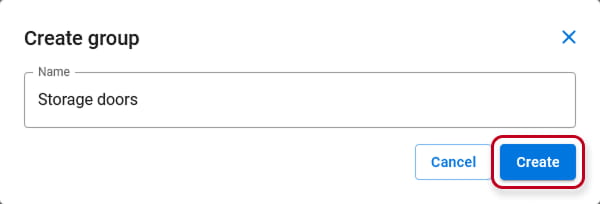
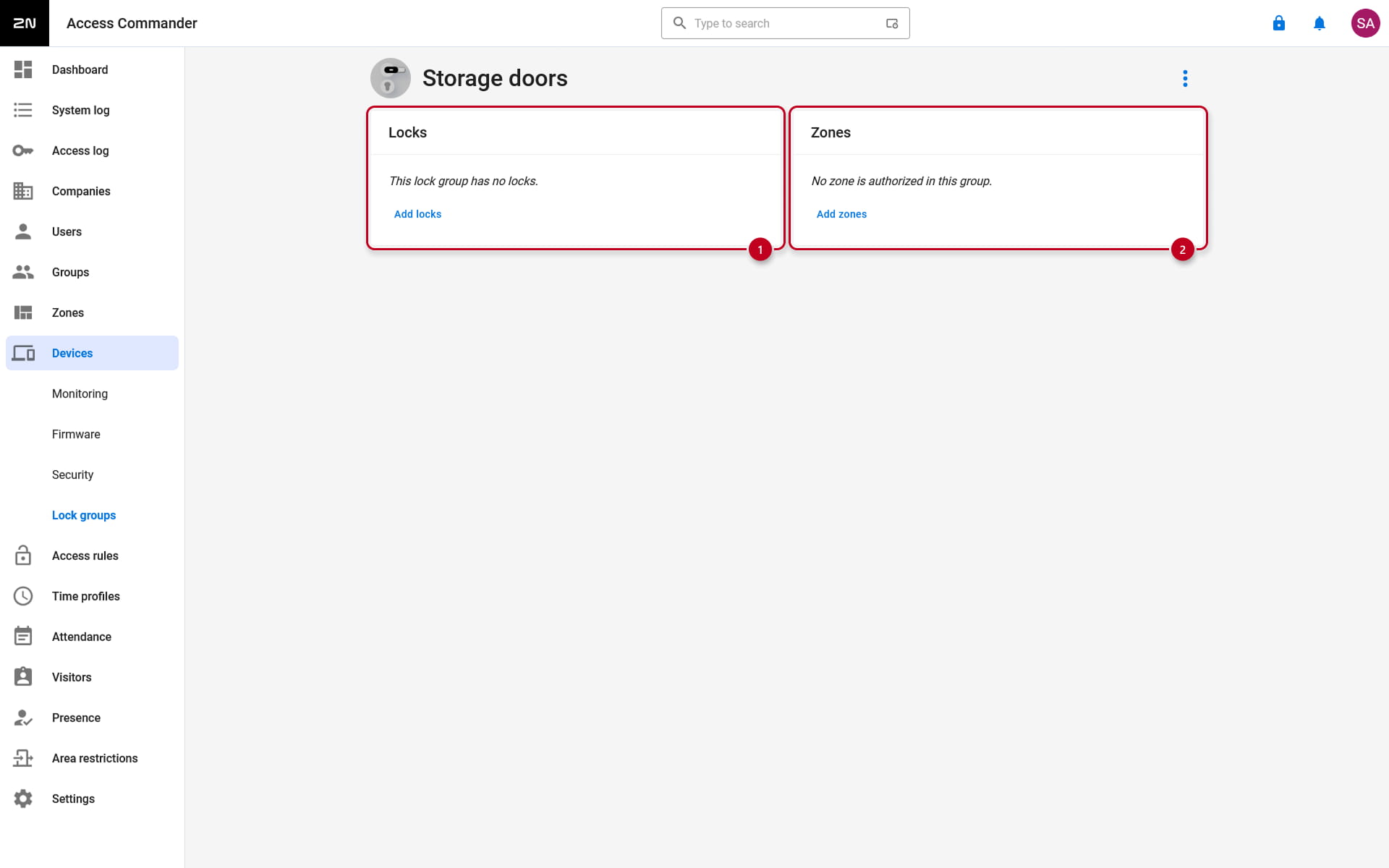
After naming the group and creating it, it is possible to see the Locks (1) and Zones (2) sections.
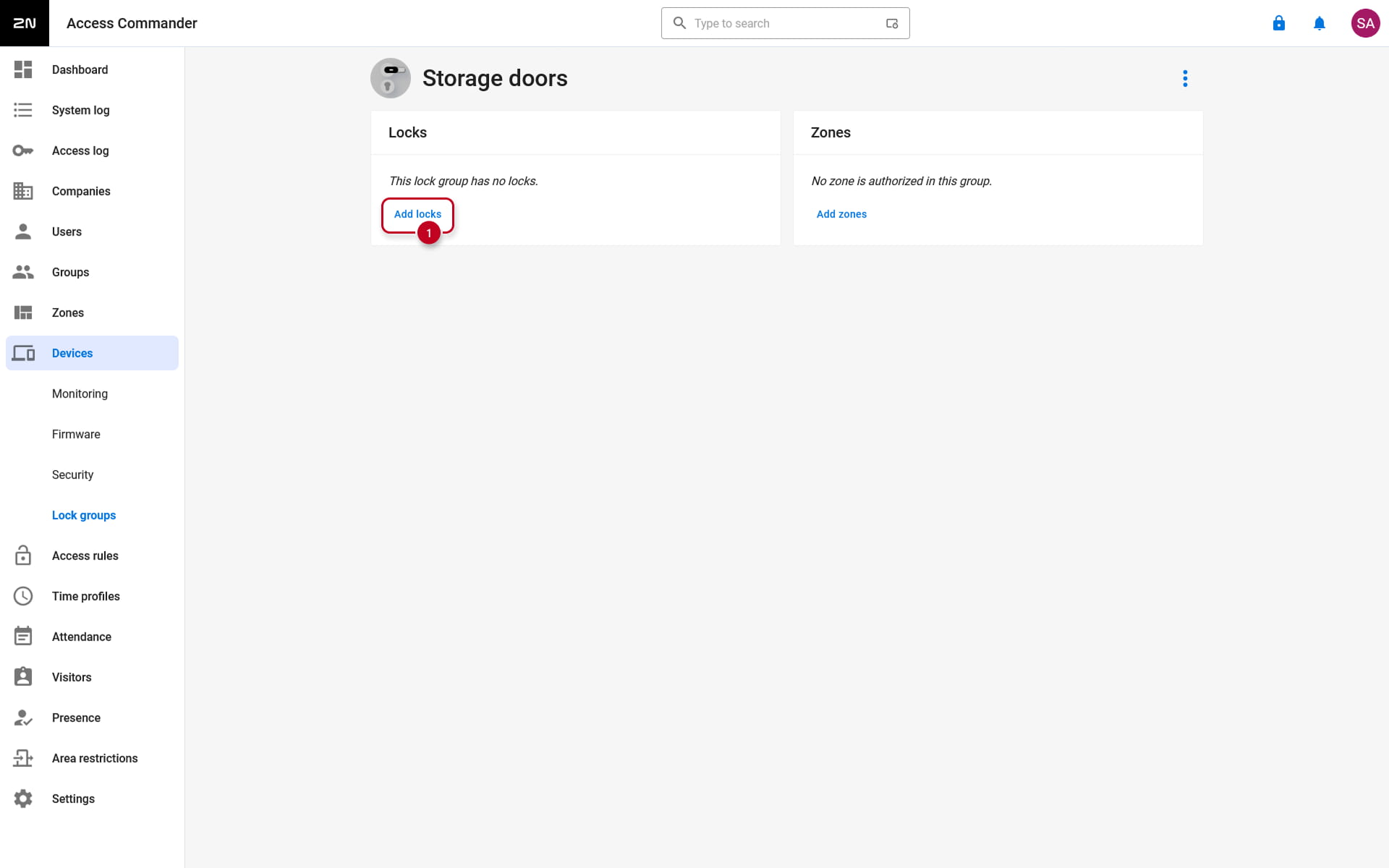
To group the 2N Electronic locks and assign them to a Zone, simply add the locks to the Locks section and select the Zone for the Lock group.
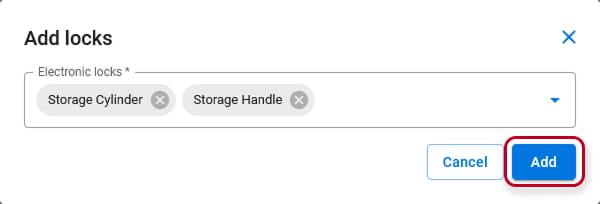
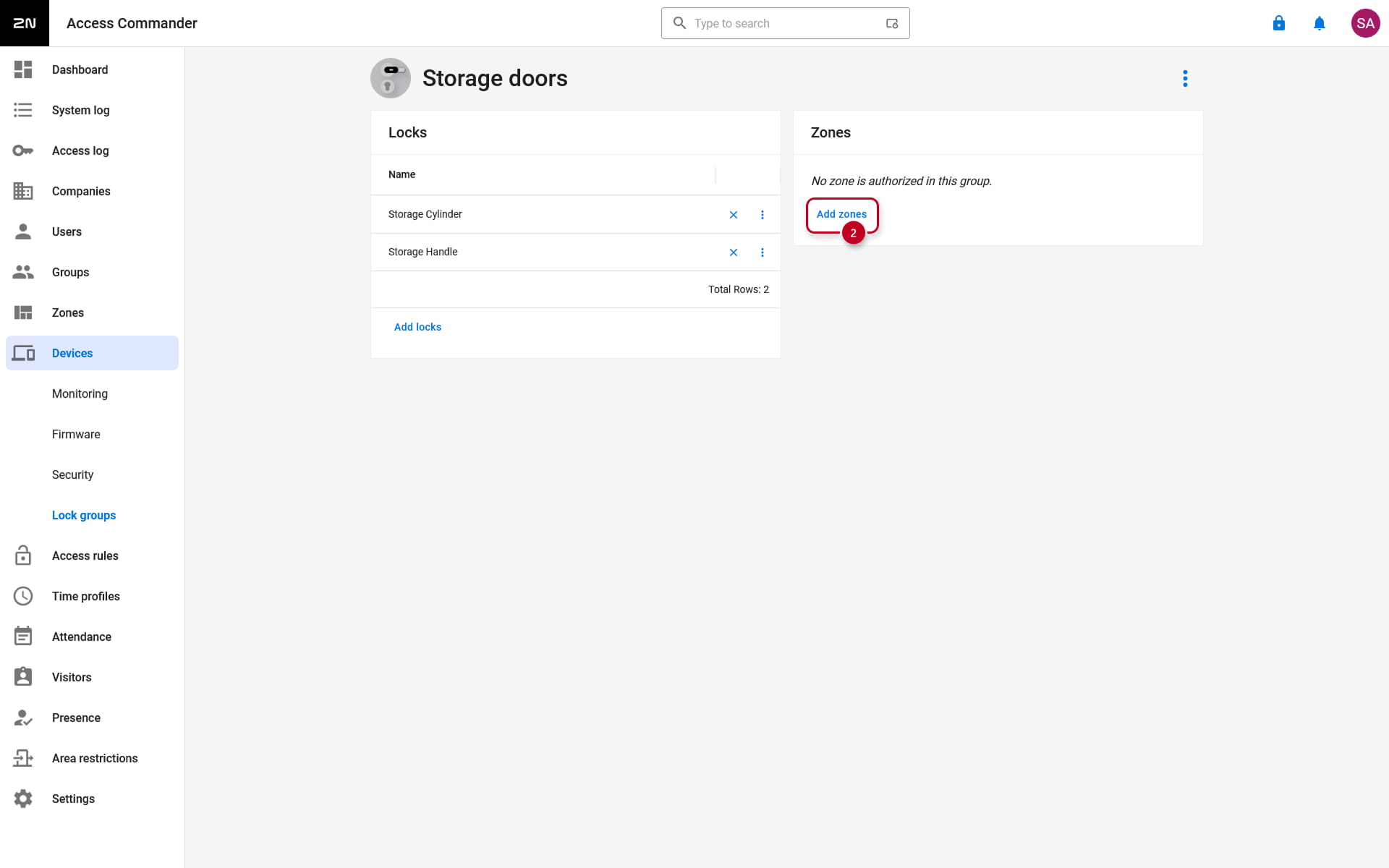
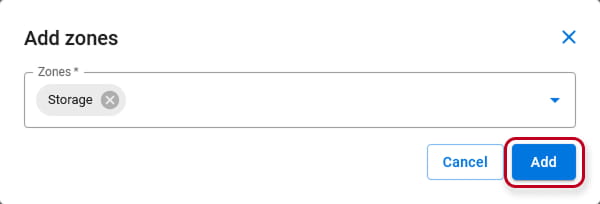
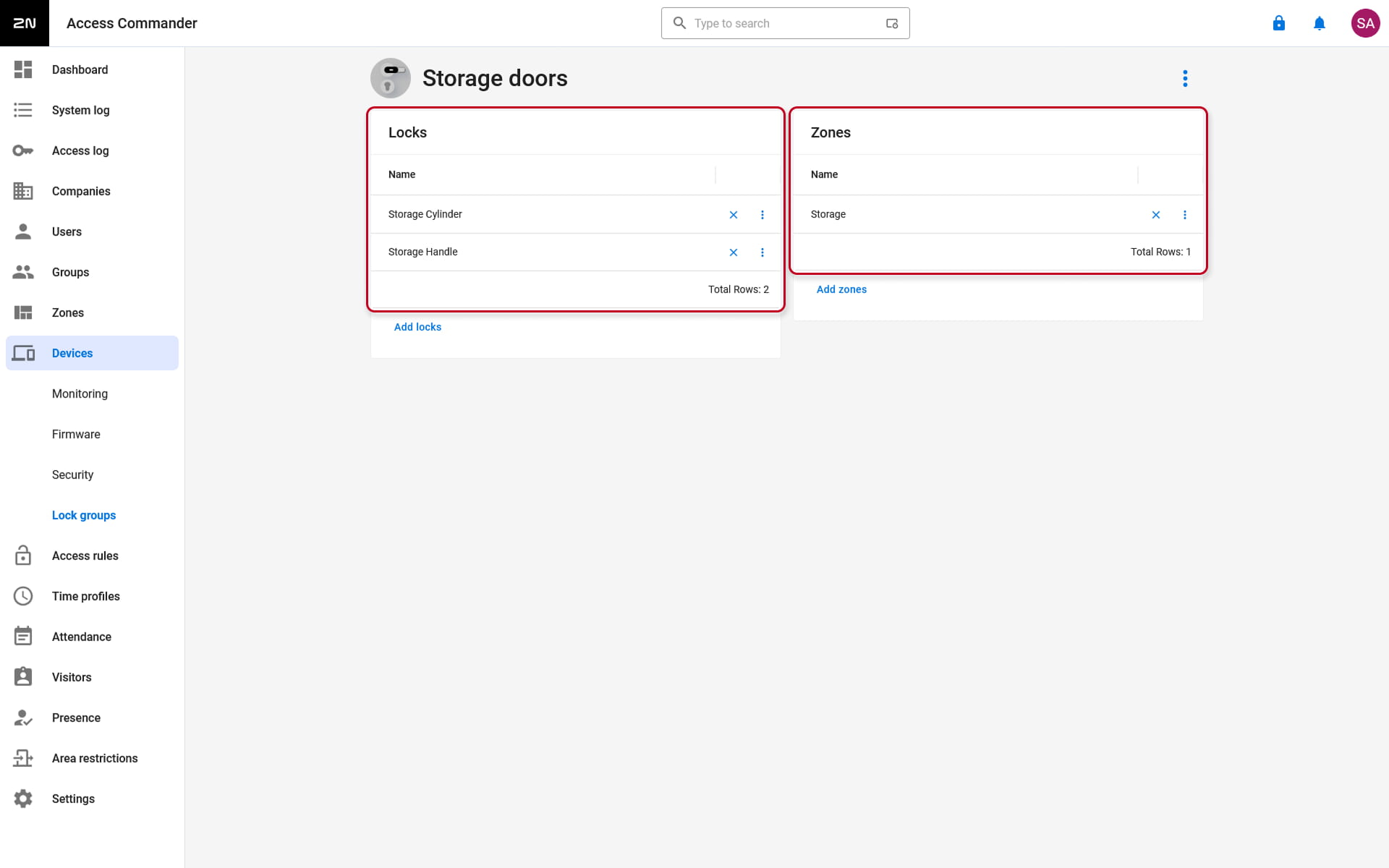
It is also possible to assign the Electronic lock to the Lock group in the device's detail in the "Devices -> device -> Lock Groups" section.
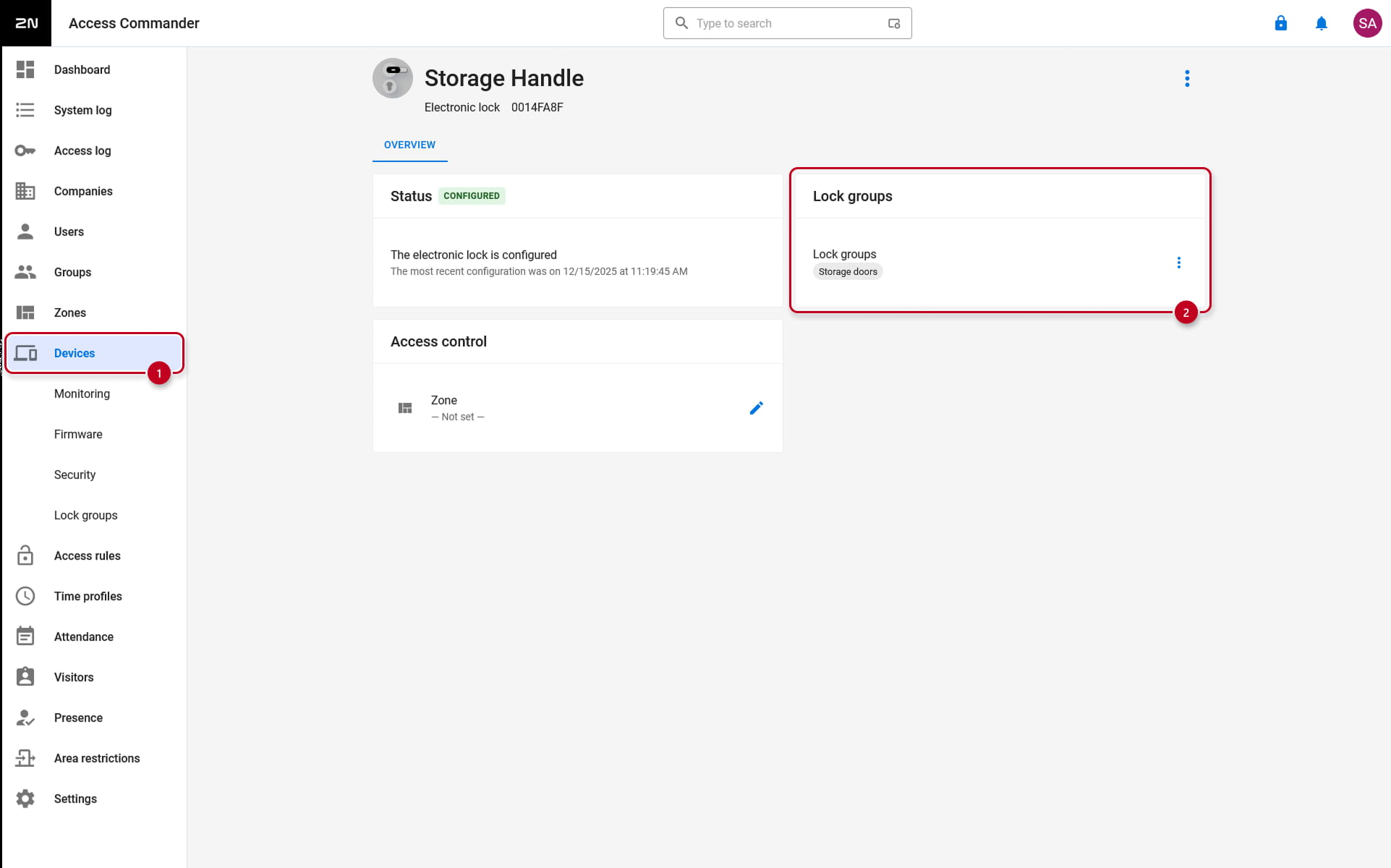
Applying the changes to the 2N Fortis devices through the 2N Fortis Commander
For the lock group configuration to be applied to the 2N Fortis devices, it is necessary to use the 2N Fortis Commander software and connect to the affected 2N Fortis devices.
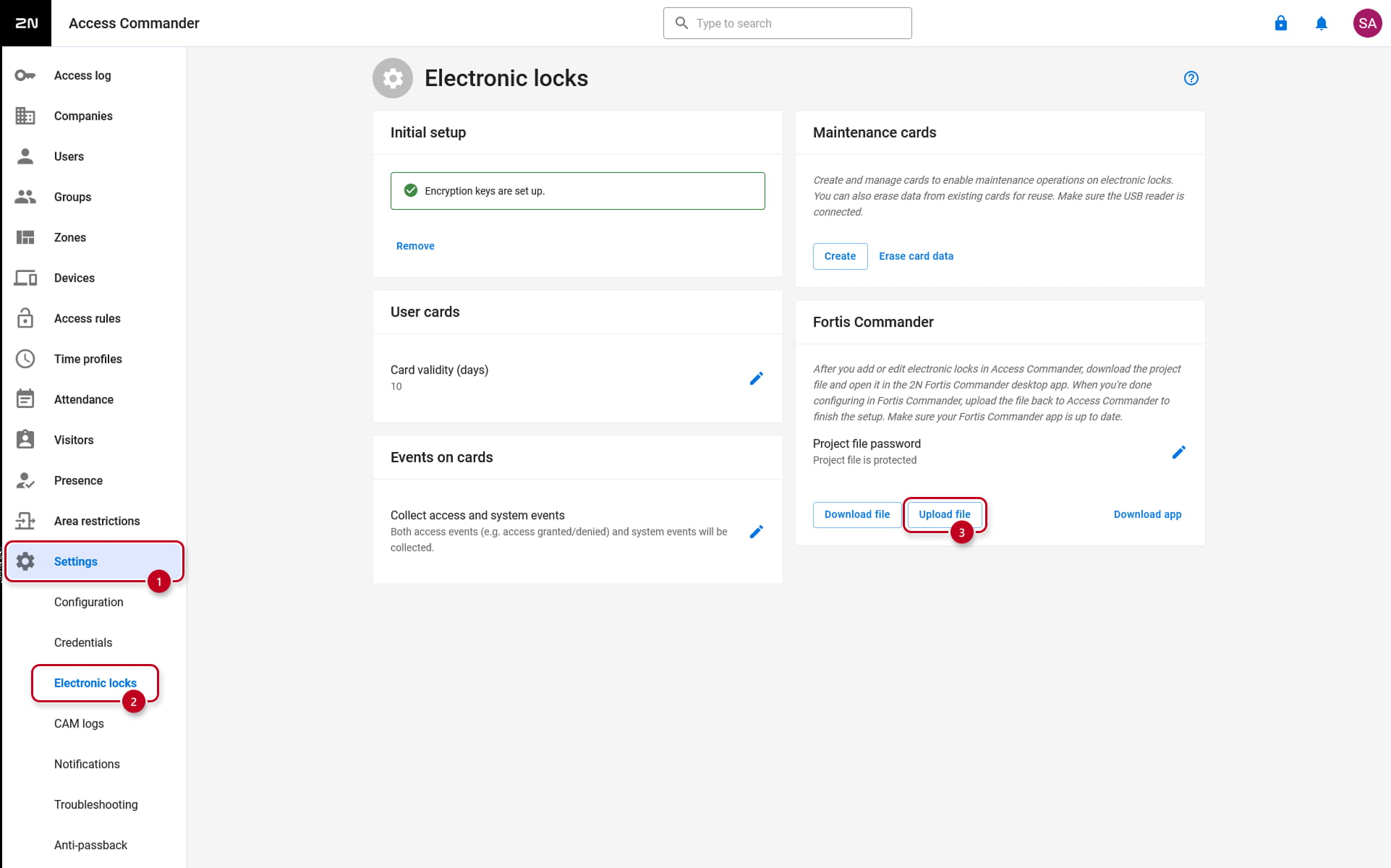
First, export the 2N Fortis Commander project file in the "Settings -> Electronic Locks -> Fortis Commander" section
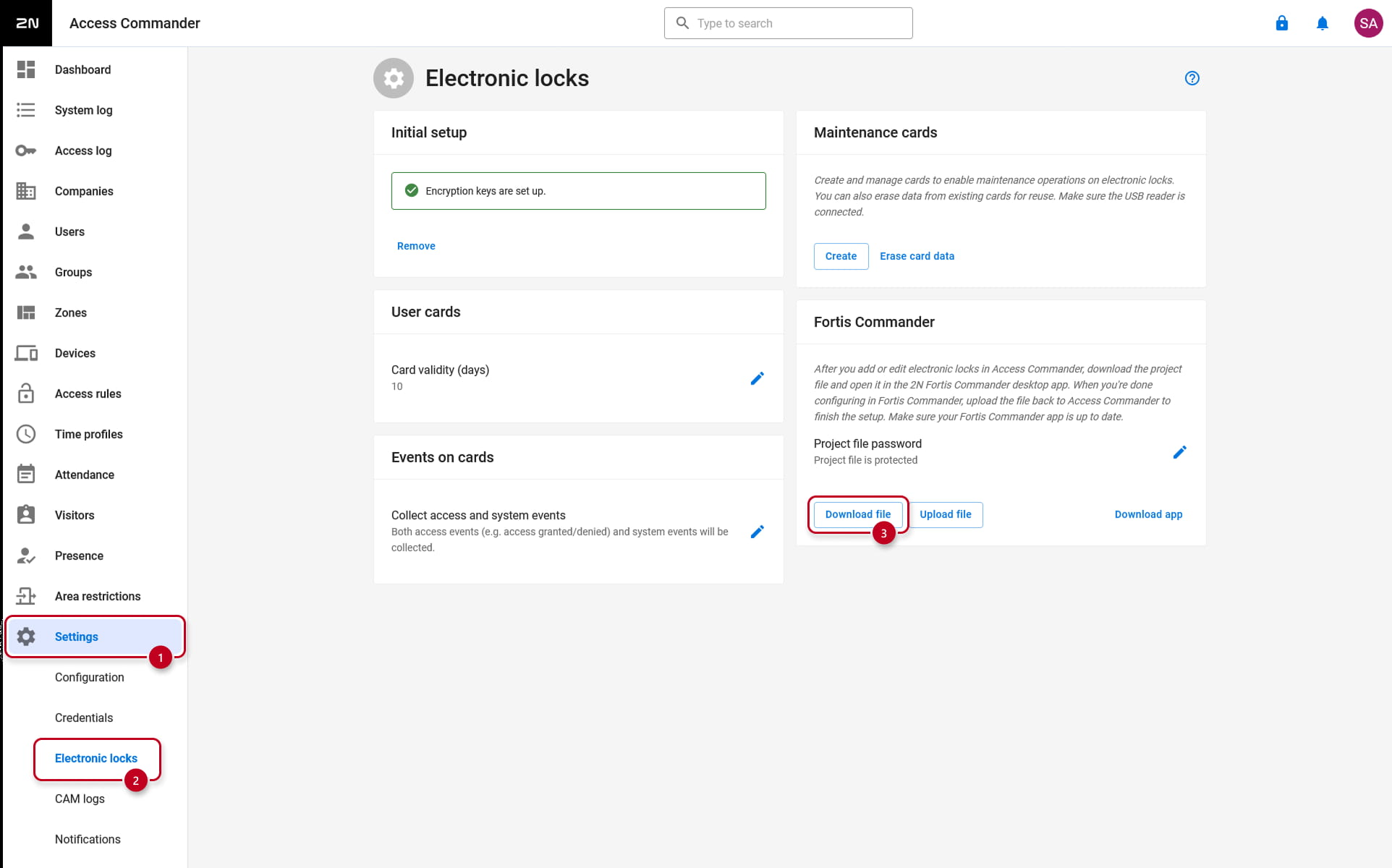
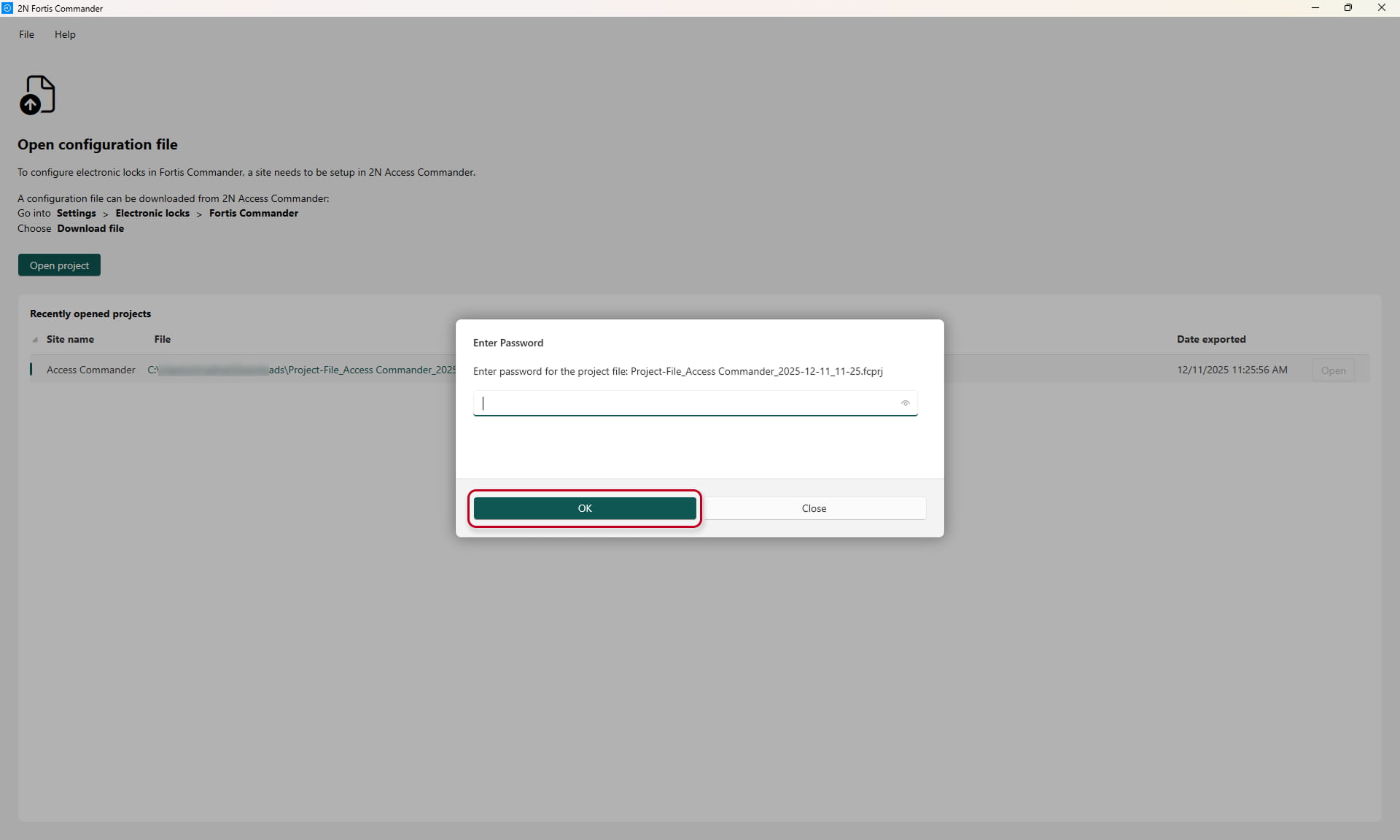
Open the 2N Fortis Commander project file with the 2N Fortis Commander software and enter the previously configured password for the project file.
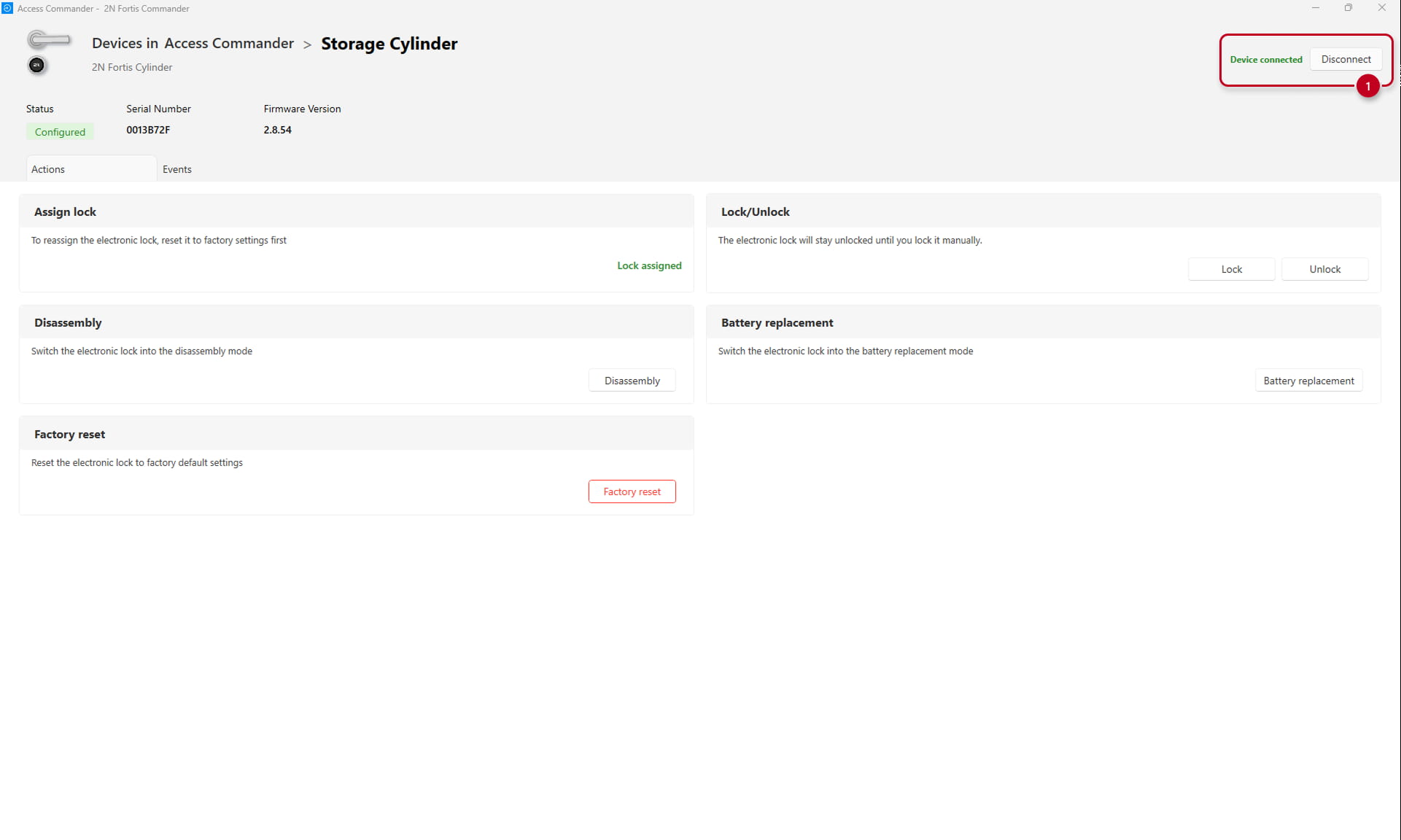
Connect to the 2N Fortis electronic locks, which were assigned to the groups, by clicking on "Connect to device" and presenting the Lock setup & Service card on the 2N Fortis electronic lock.
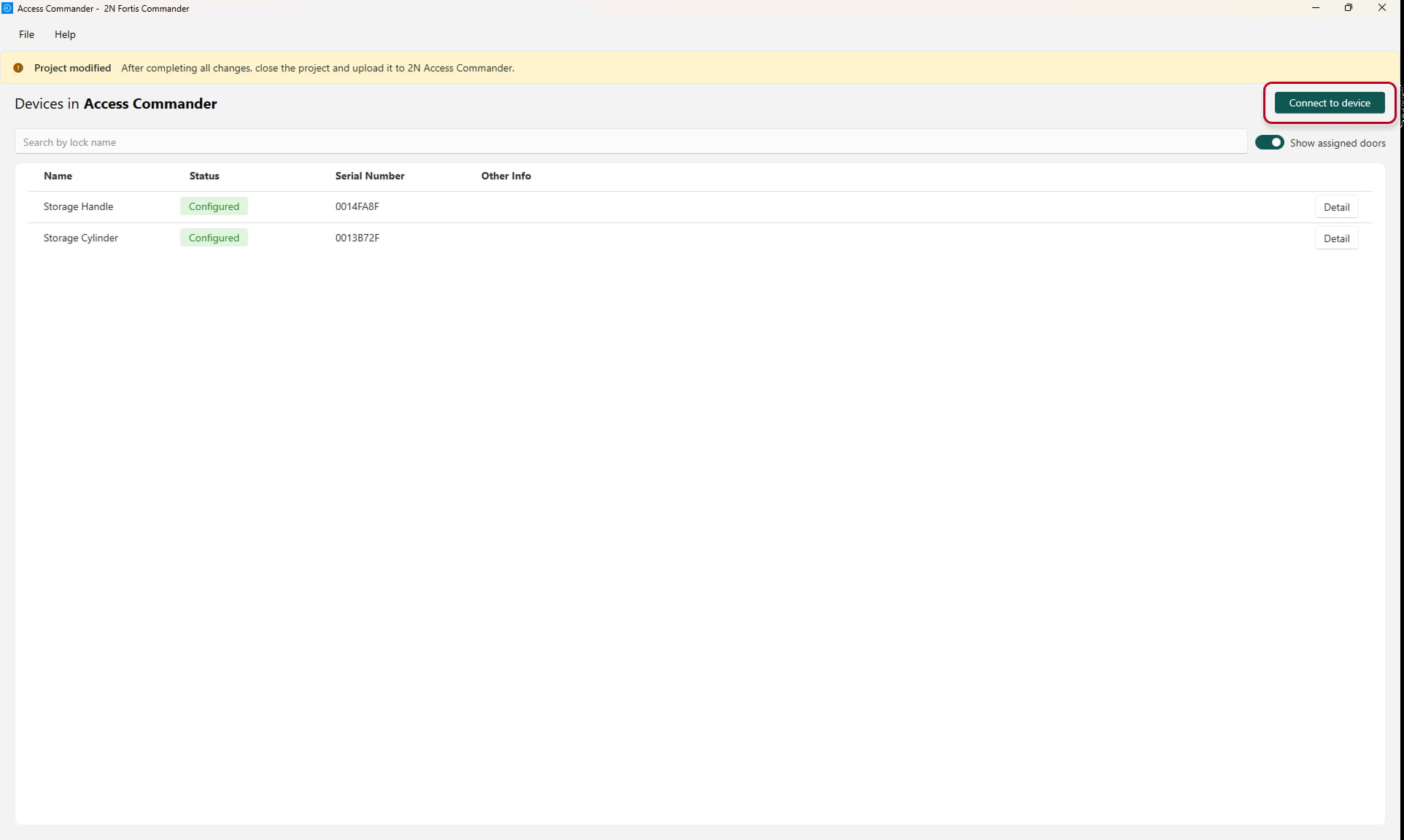
Disconnect from the device - the 2N Fortis Commander has already updated the electronic lock's configuration when it was connected.
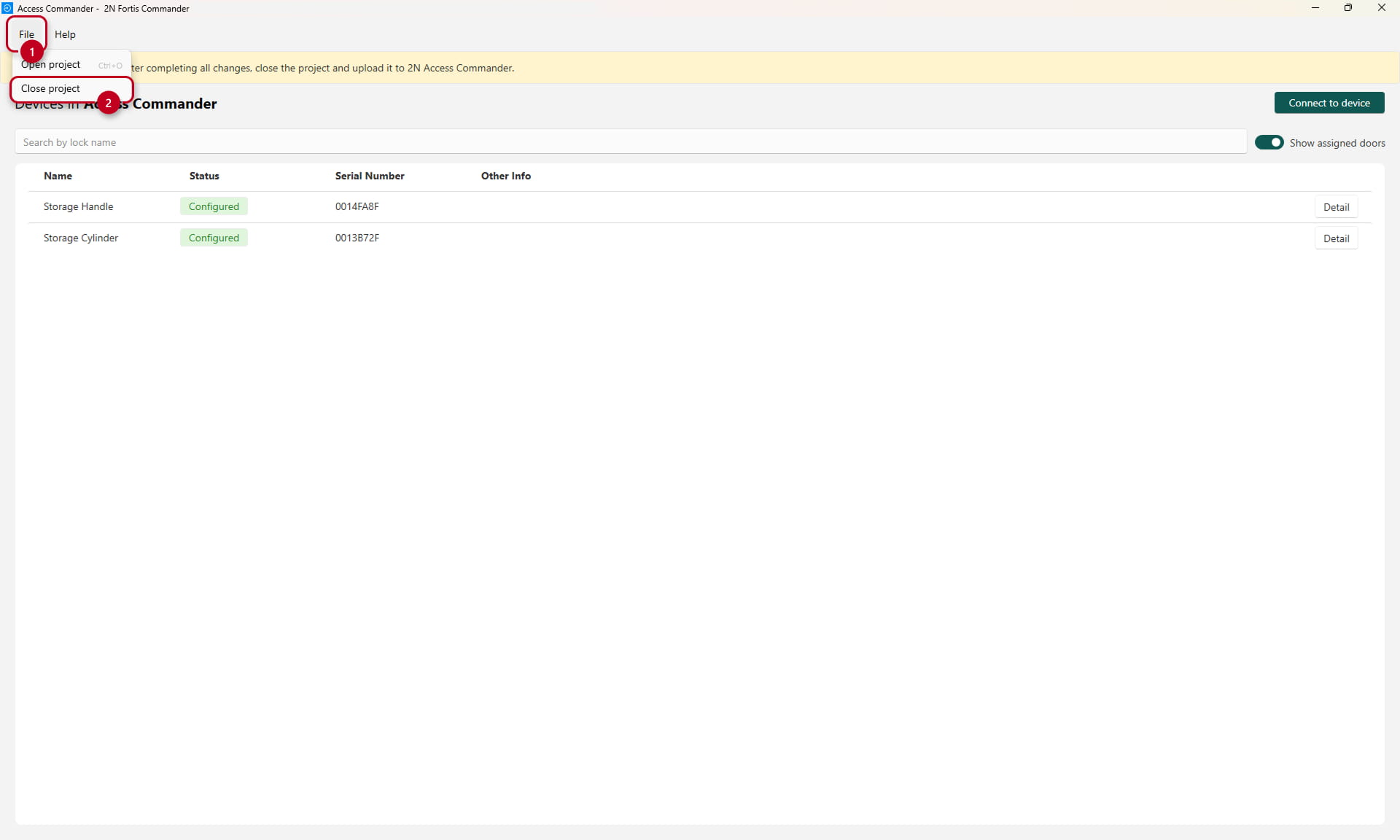
Then close the project and import it back into the 2N Access Commander.