Multifactor Authentication (MFA) - How to enable and use it in My2N Platform
| If MFA is enabled, only mobiles or tablettes with at least iOS 3.9.0 App version and Android 3.7.4 will work. If in the whole company, one device does not fulfil the minimum prerequisites, the MFA won't be enabled. |
From now, all administrators will be able to enable and use Multifactor Authentication (MFA) in order to login their My2n account.
Here are the steps for enabling it and then to use it.
How to enable MFA
For that, the administrators will have to login in their account.
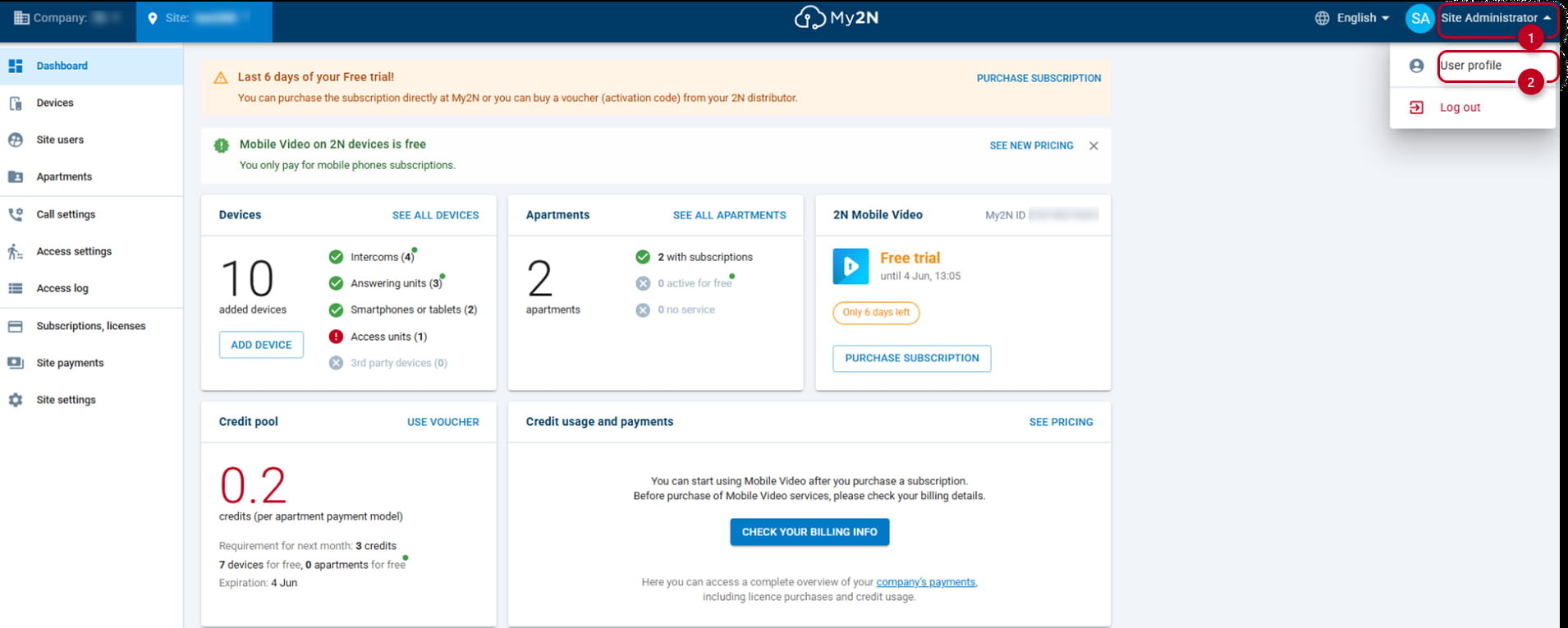
Onced logged, they will need to select to select their account (1), then select their User Profile (2):
He will see a new page, in which he he will be able to enable MFA (3), but at this moment Two-factors recovery codes are still greyed-out:

After selecting to enable Two-factors authentication, a pop-up window will appear asking to download a "safe" authenticator, if he still does not have any installed.
Moreover, he is warned that if he is using the My2N mobile app, setting up two-factor authentication will log him out of it. And he is invited to click on NEXT (4):
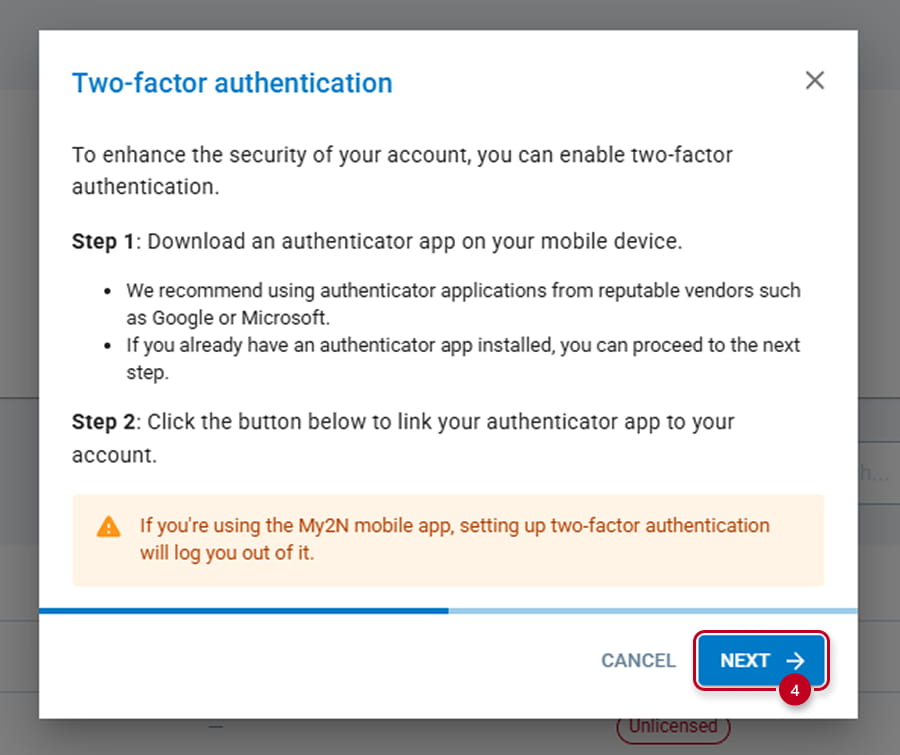
For this example, we have chosen to use Google Authenticator.
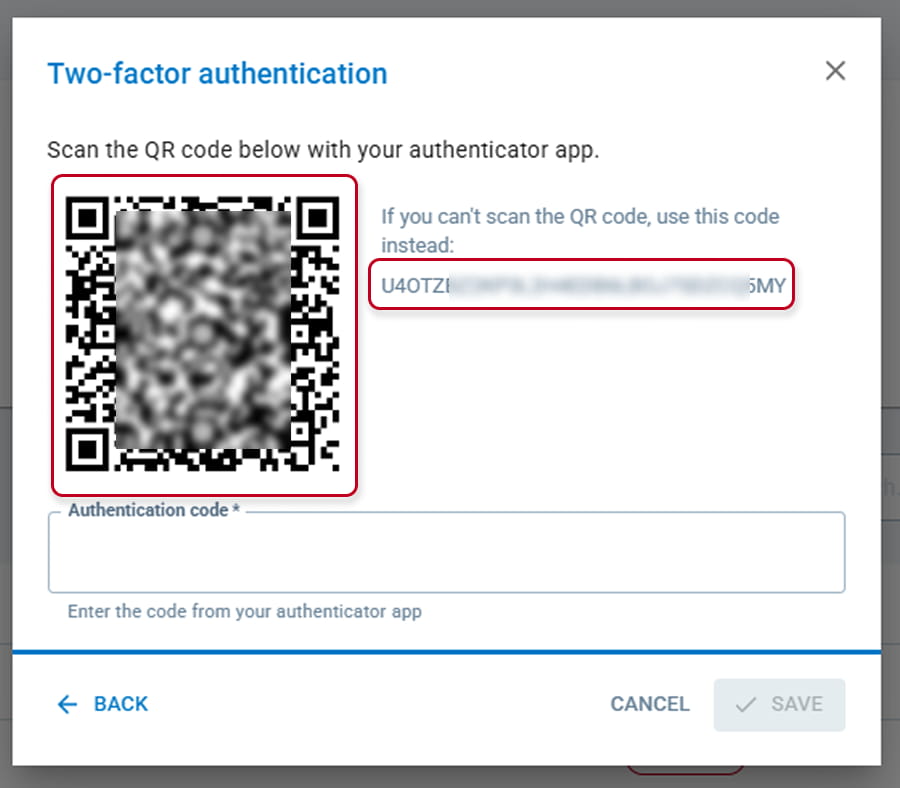
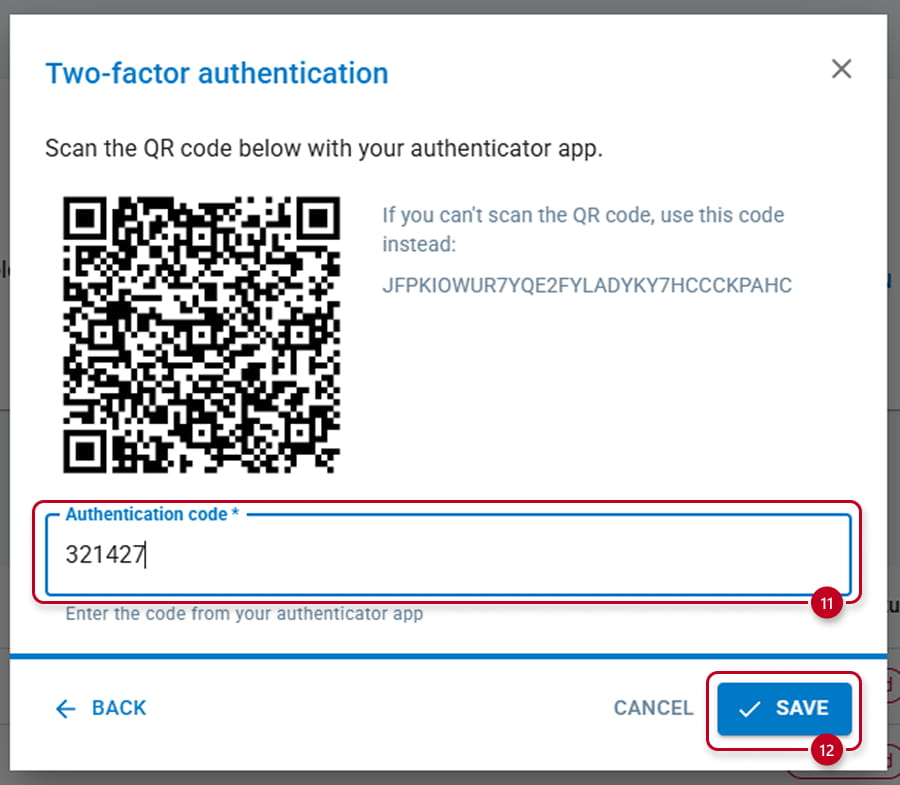
A new pop-up window appears with a QR code and a code to use in the Authenticator App:
On the Application, click on + sign (5), and choose which method you want to use, The QR code (7) or the setup key (6):
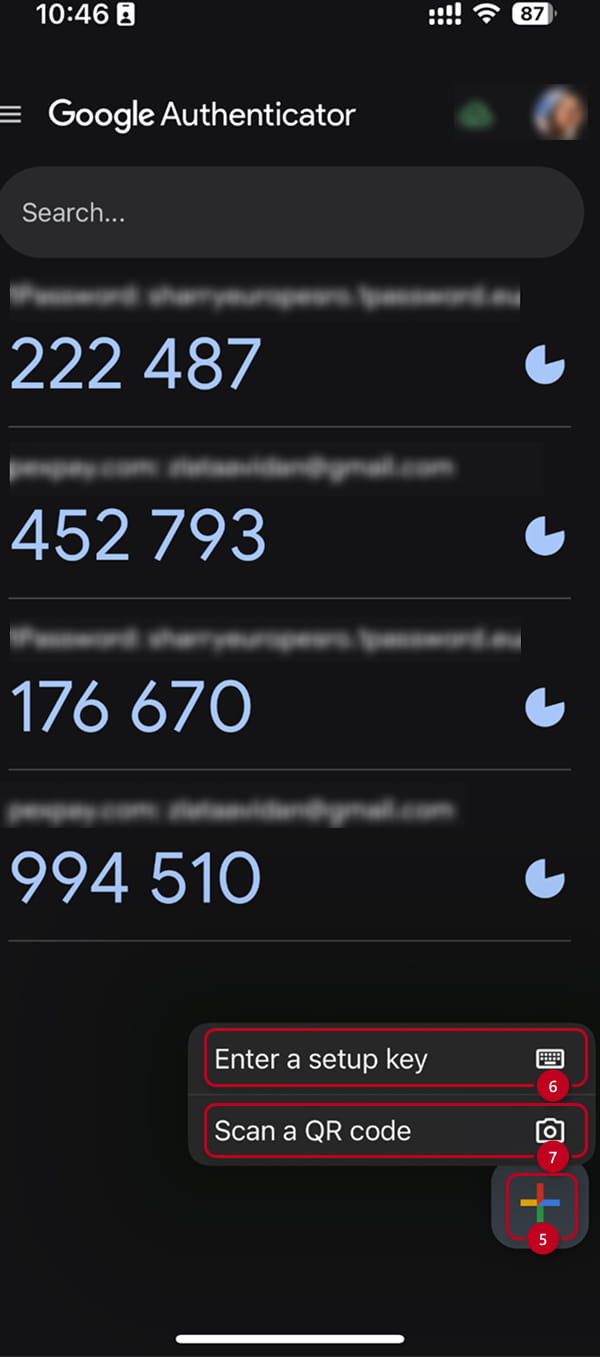
After scanning the QR code or entering manually the code, a new line will appear on your App with the account information (8) and the PIN (9) which can be used, and the time validity of this PIN (10)(max approx 30sec):
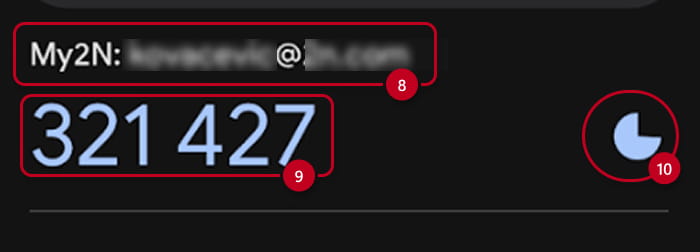
In case the PIN will shortly looses its validity (less than 10 sec), you will see that its color will change as its time validity. In this case, it migh be worth waiting few seconds and getting a new PIN:
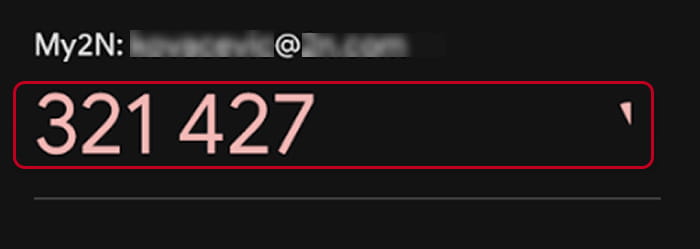
However, while the authentication code is valid, enter the value in the platform (11) and save (12):
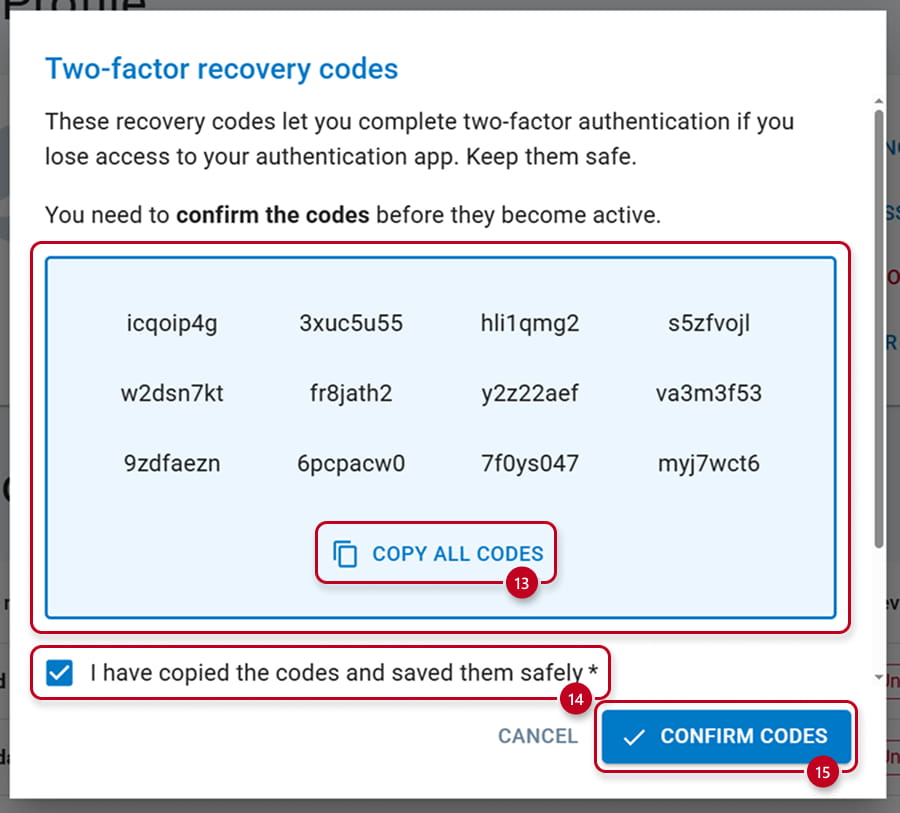
Then, finally, you will see a last pop-up windows with 12 recovery codes. You will, now, have the possibility to copy them in a safe place (13). You will be able to save them later, but once confirmed they are saved (14), you will be able to confirm them (15)
How to use MFA
Now, you have enabled Multifactor authentication and copied somewhere the recovery codes.
Next time you will need to long in, you will see the changes. The very first step is always the same.
Same URL, same user name (email) and same password and login page:
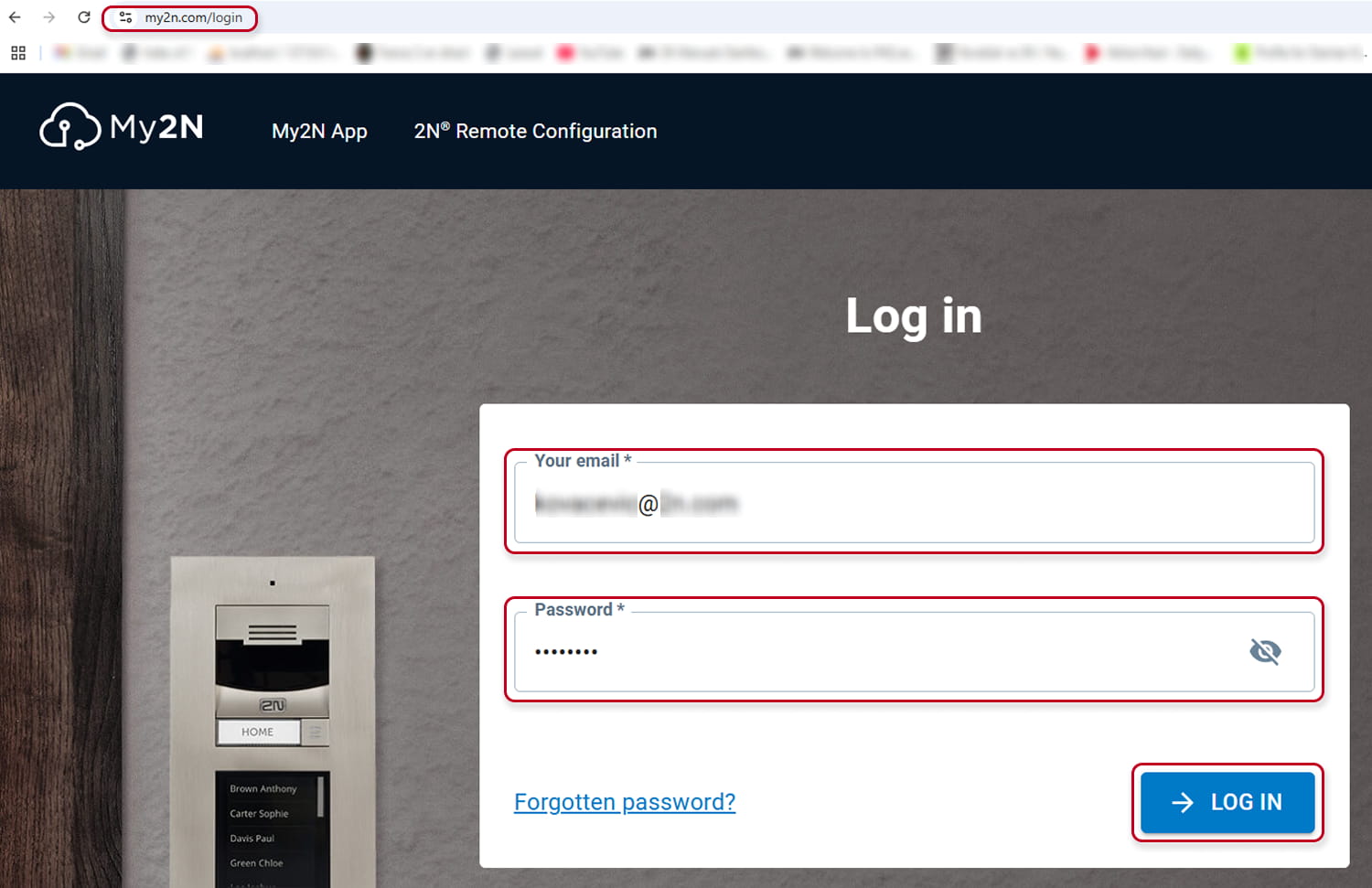
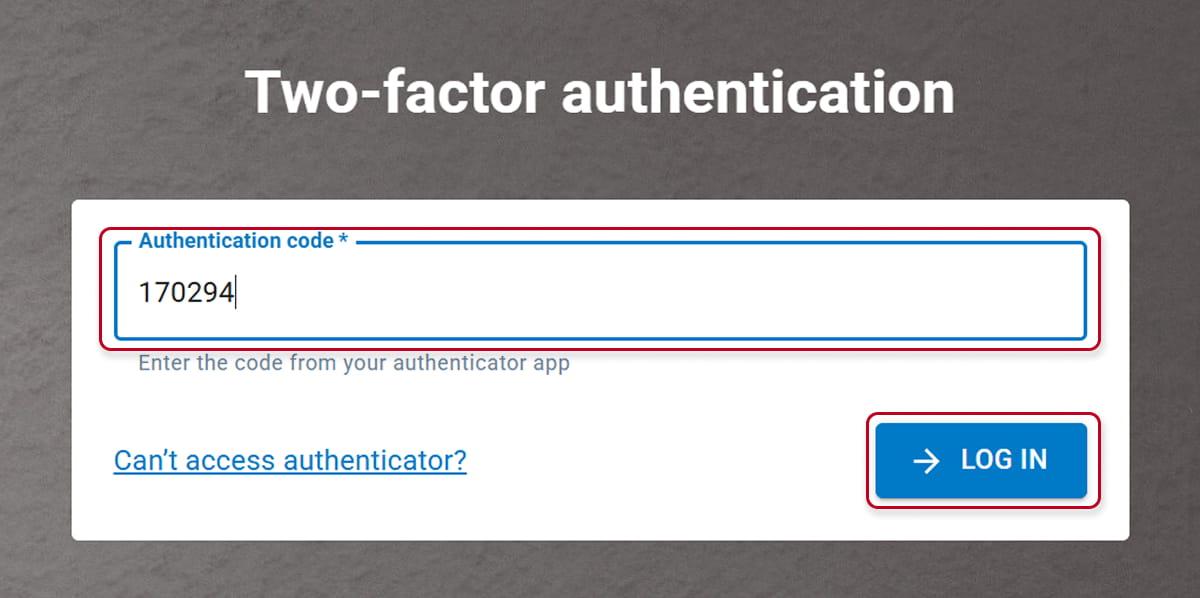
But, then, you will have to write down the code provided by the Authenticator App and, then, log in.
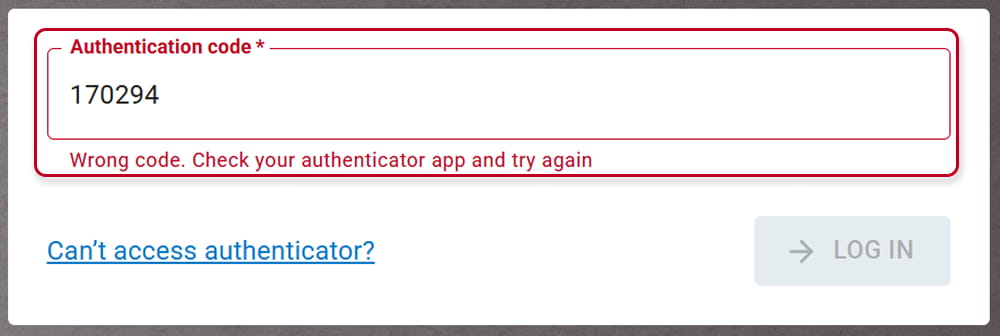
In case the code has expired you will see this message and you will have to write down a new code:
Finally, you are logged in.
In case you lost access to your Authenticator. You have lost your mobile, or forgot it, or any other reason, you can hit the Can't access authenticator link:
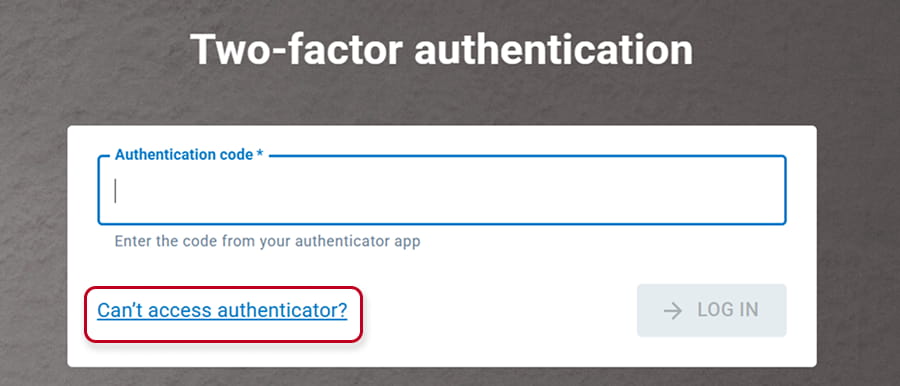
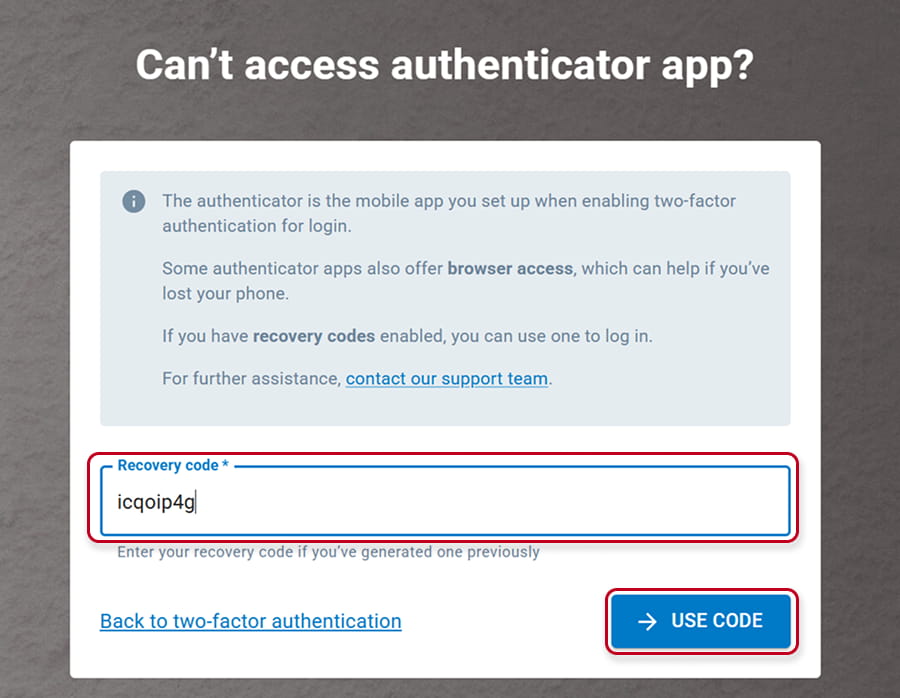
This is the moment to use the recovery codes you have already saved previously:
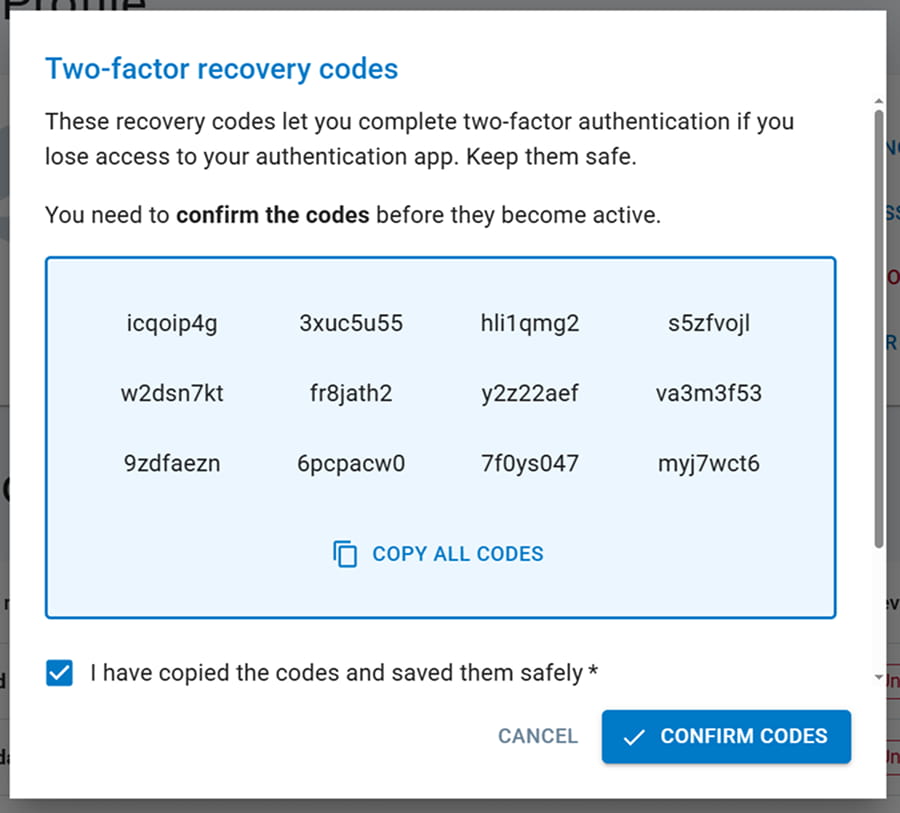
You can choose any of them and use it on the page you will get after clicking the link. I will use the first one, but any of them is valid:
You are now logged in again.
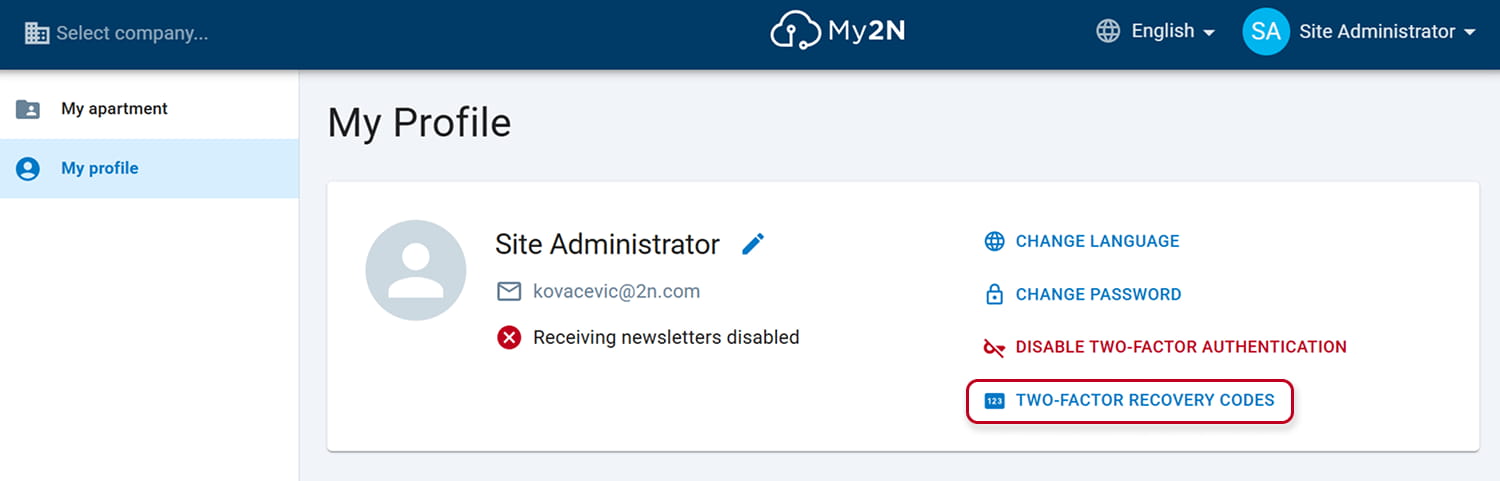
If you go under your account section/user profile, you can see the recovery codes codes:
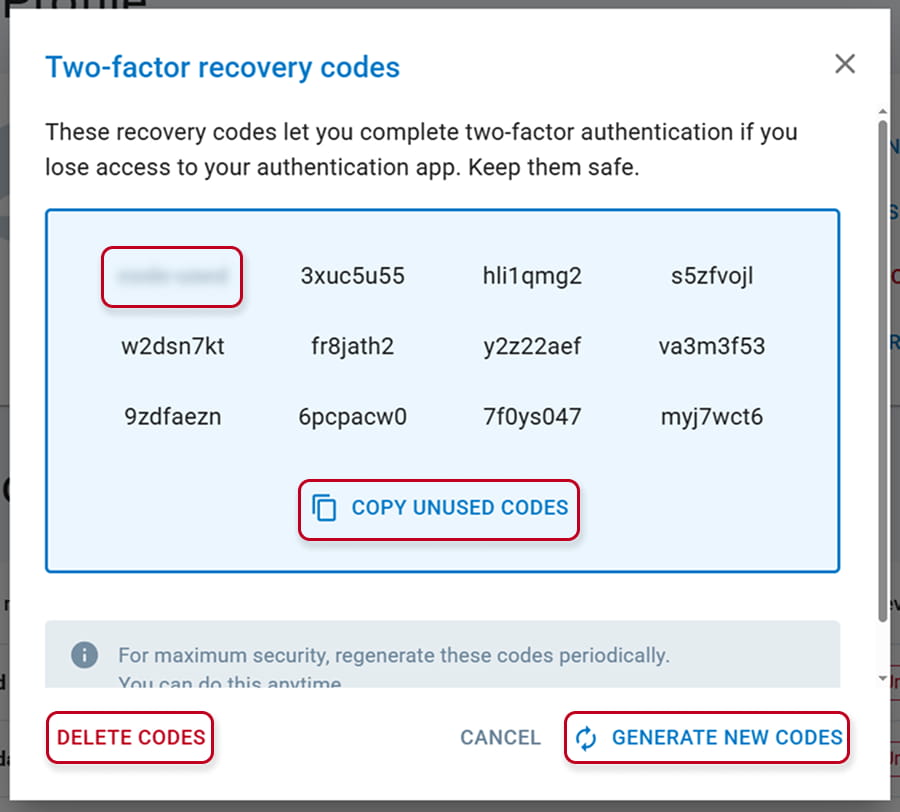
The one which has been already used is blurred. It is a one time code, so it is not valid any longer. But you can use, in future , any the of unused codes for the same purpose.
You can copy the remaining valid ones, delete all of them or generate new ones. In this case don't forget to save them again in a safe place.
Finally, you might want to momentally or always stop using the authenticator.
In this case, just go to the same section and hit Disable two-factor authentication :
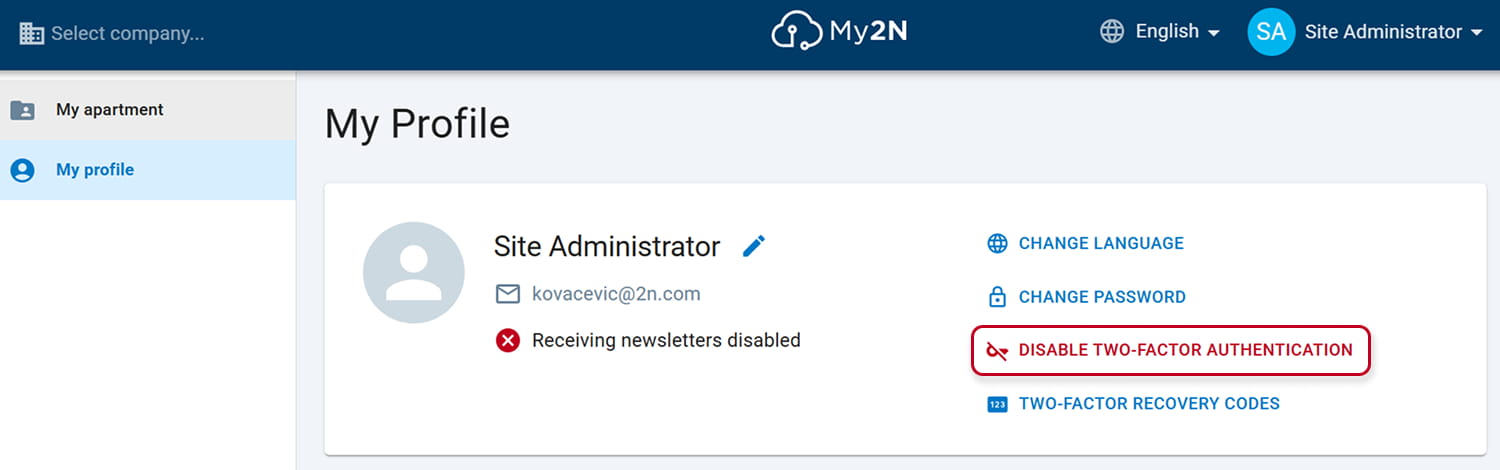
And you will have to confirm it, by hitting the unlink button:
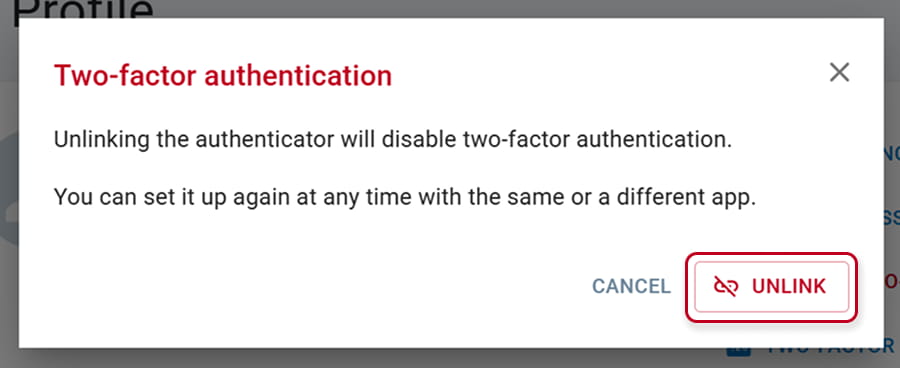
If you would need to use it again, you will need to re-enable it as shown at the beginning of the FAQ.
What if admins loses access to the MFA authenticator and does not have generated recovery codes
In case this situation happens, the admin will have to create a ticket to support by calling to the appropriate number or by filling the form on https://www.2n.com
Then:
- We will ask him for another admin on the site to prove that it is actually him that wants the reset of the MFA - Potentially for Site admins this can be company admin or another Site admin
- If there is no one else to confirm we will ask him for any other way to prove his identity (Call/ID etc.)
- Request will be created to the dedicated team (AiO) to remove the second factor from his profile
- Recommendation will be given to the admin to generate recovery codes next time