My2N - Low audio issue
The steps in this article require using the web interface of a 2N device. Please follow this manual in case this is your first time using the web interface.
Codec settings
Once added to My2N, the intercom is configured to support both the highest quality and most widely used codecs. This ensures that the audio is of the highest quality when calling the application, and it also ensures compatibility with most third party SIP devices.
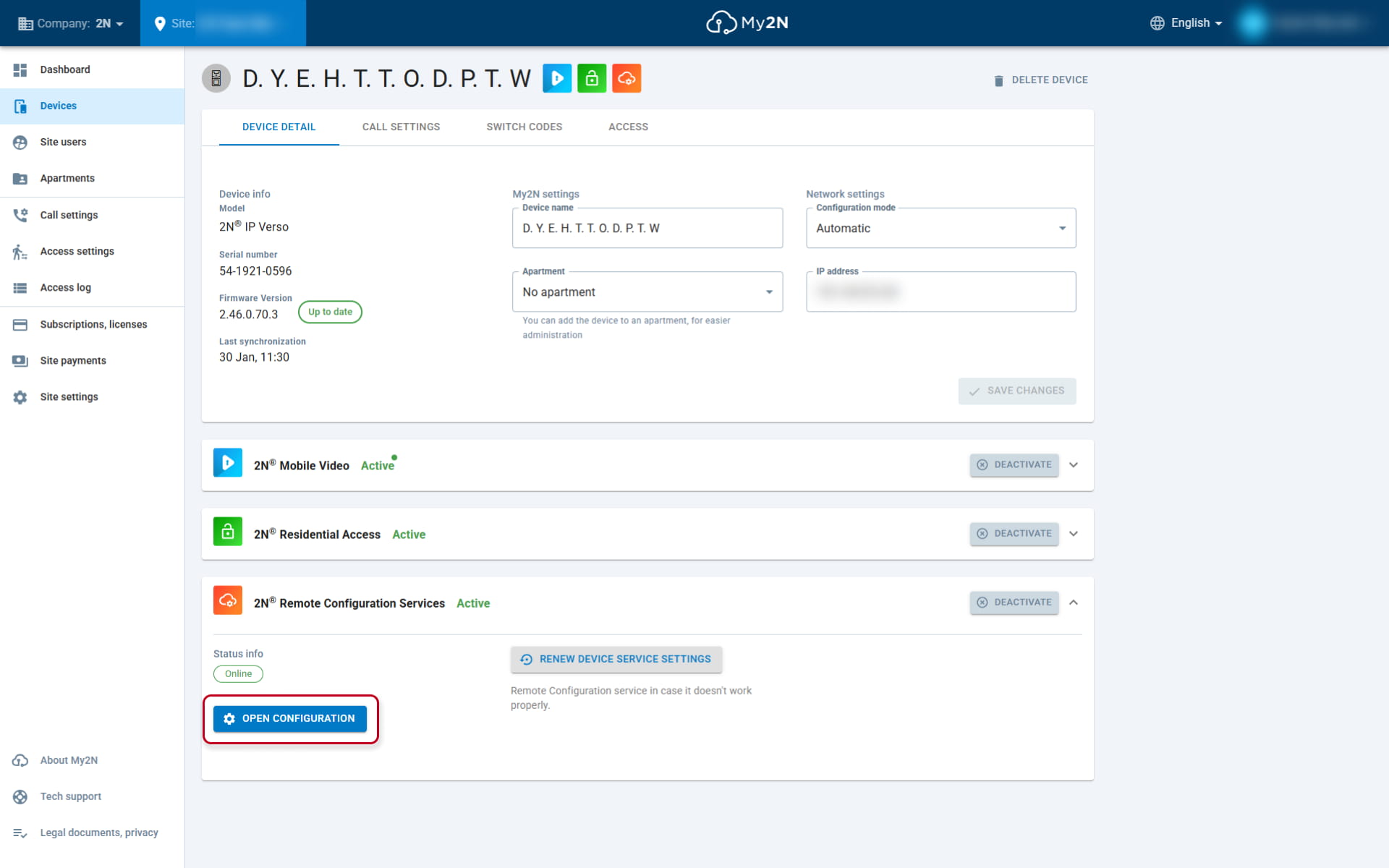
However, it may happen that your SIP device is using different codecs. That's why each of our intercoms offers individual codec settings. The settings can be accessed from My2N through the remote configuration, using the open configuration button.
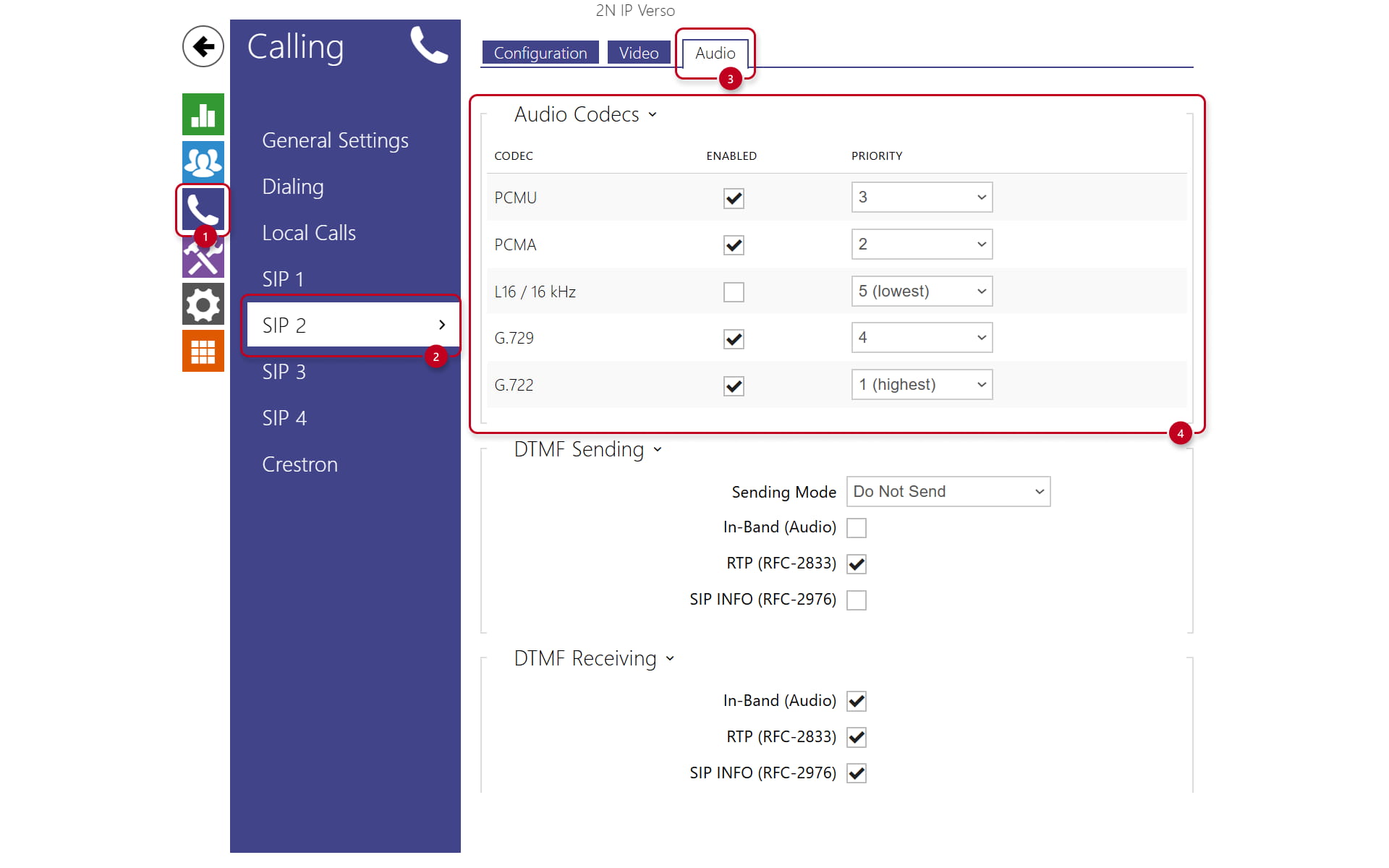
In the intercom Old Web Interface you have to click on the dark blue menu Calling -> SIP 2 -> Audio. Here you will see the codec settings.
In the intercom New Web Interface you have to navigate through Calling -> SIP 2 -> Audio.
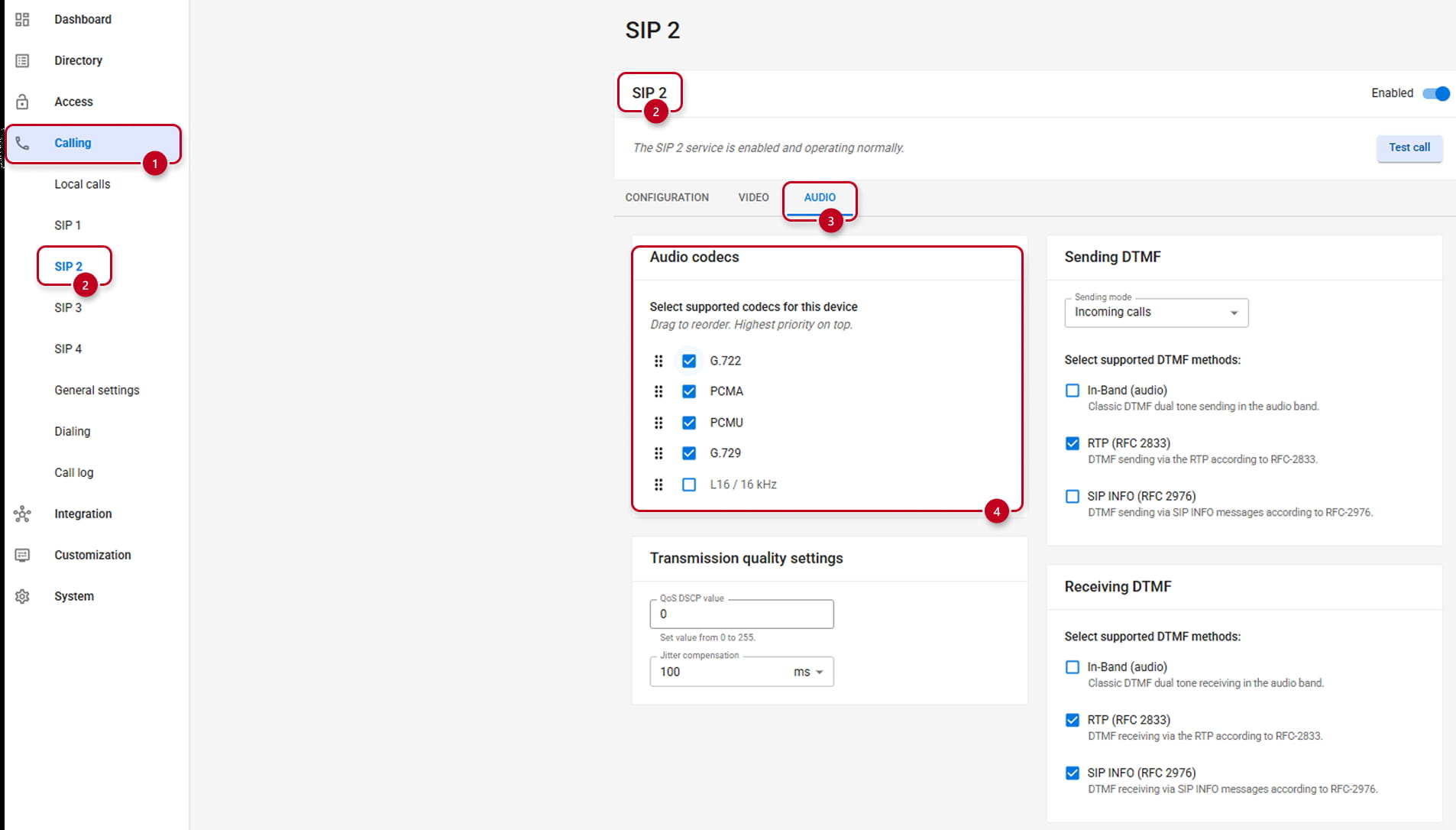
The G.722 codec is used for calls to the My2N app. However, not all SIP devices support this codec. For this reason, different codecs can be set to different priorities. Most of SIP devices uses G.711 (PCMA/PCMU), that is why they are set as priority 2 and 3 respectively.
It is very important to know, that the more codecs are enabled, the more the communication is prone to issues. It is not recommended to have all codecs enabled.
In case you are experiencing low volume issue with G722 audio Codec with highest priority, you can try this very audio codec configuration, and ususally, it solves significally the issue:
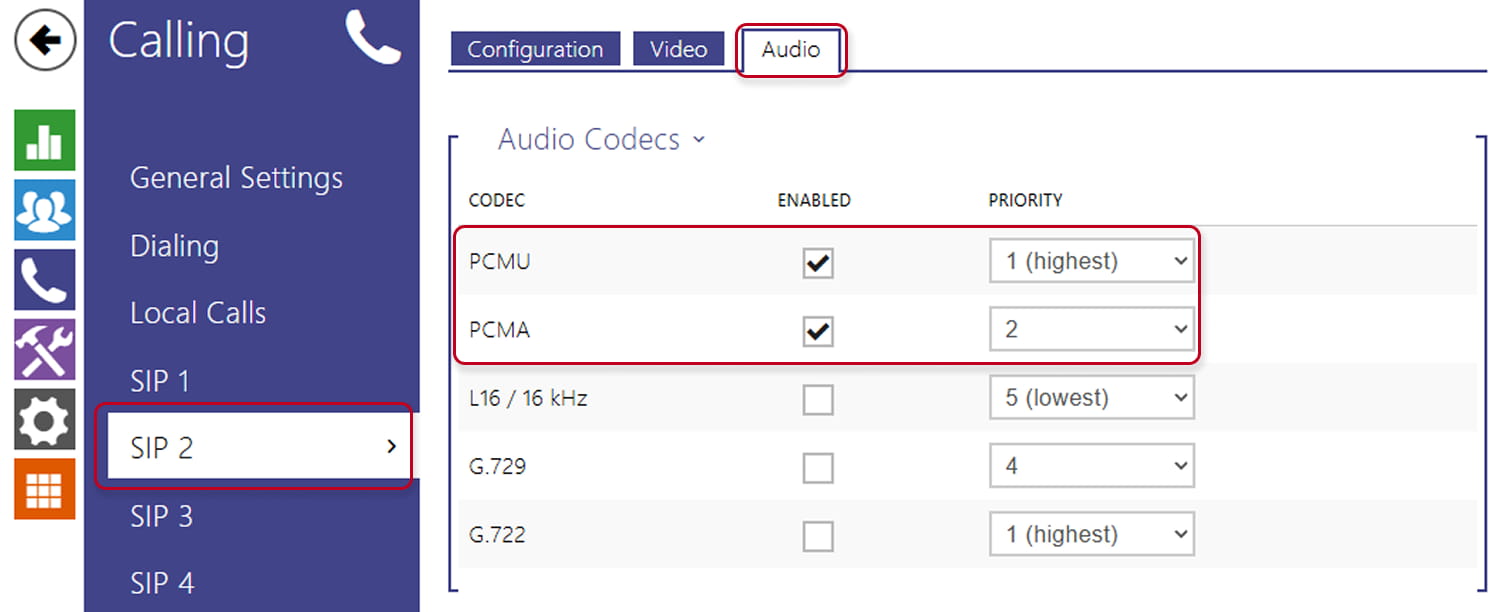
Or
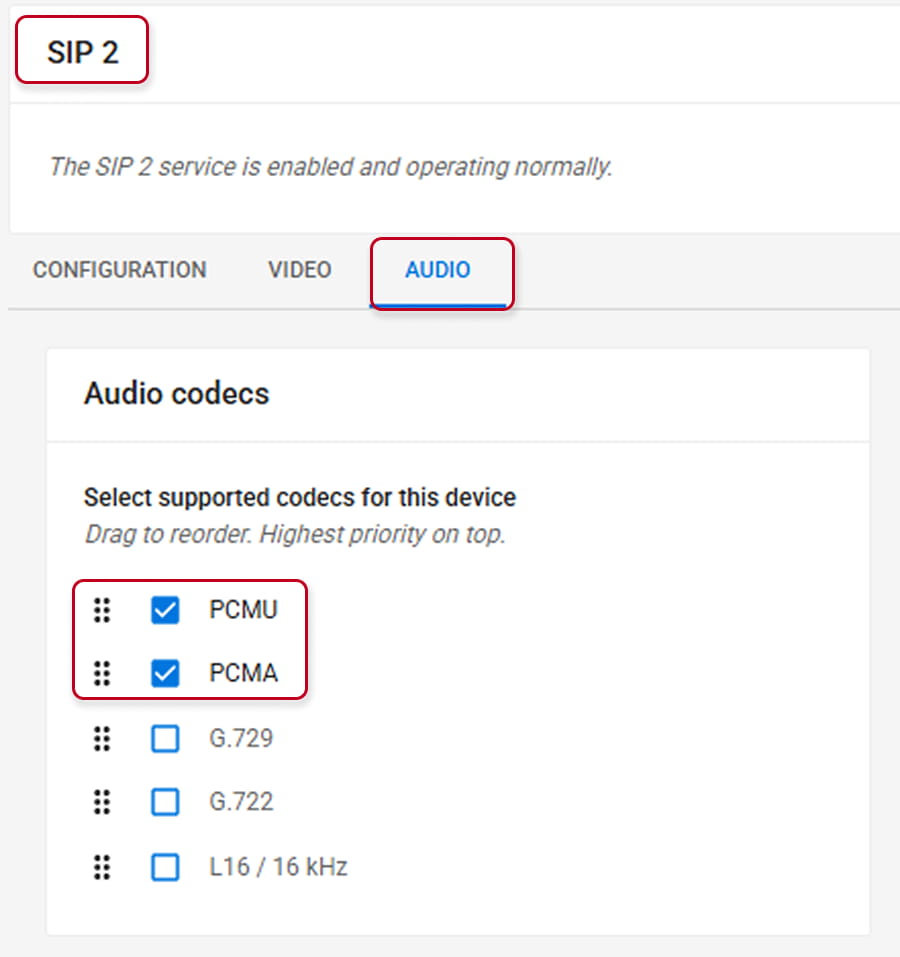
We just removed the G.722 codec from the available codecs and modified the priority with the others. You can use that model as example and try to modify or adjust accordingly with your local prerequisites.
Audio settings
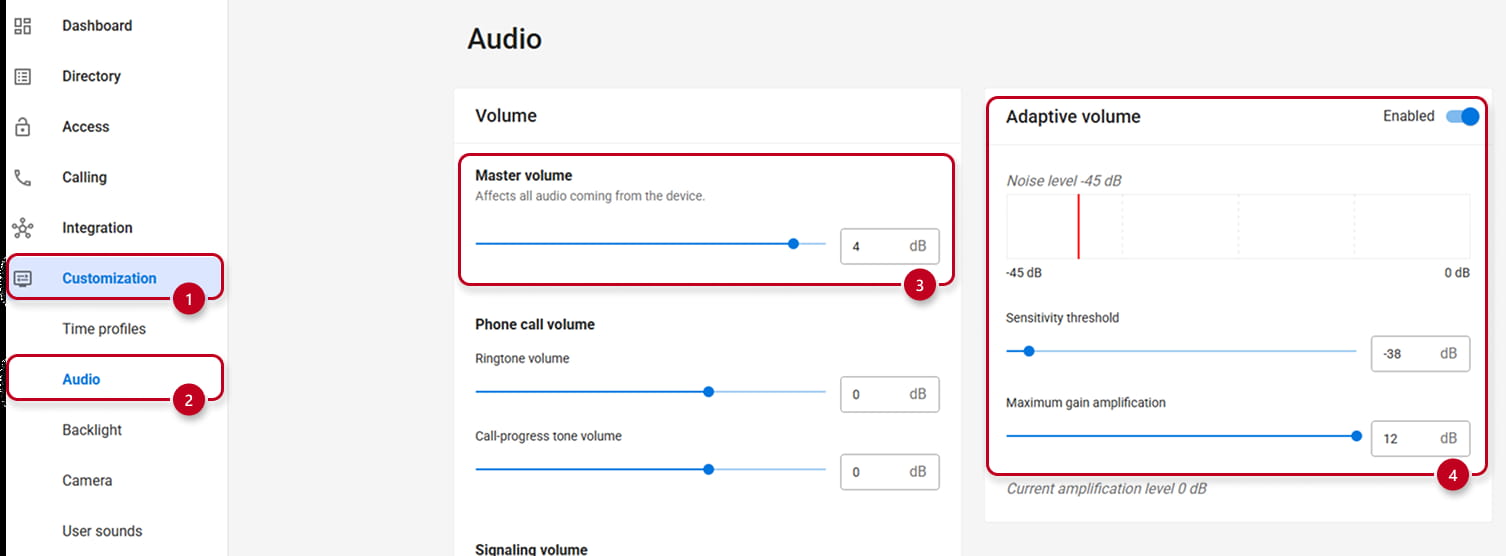
All 2N intercoms also do have their internal audio settings where you can increase the overall volume in the Master volume setting. Furthermore, you can adjust the sound properties even more in the Adaptive Volume. It can be set in a way it filters out the background noise that might interfere with the overall sound and it can also increase the gain of all sounds above a certain set treshold. This is ideal for noisy environments such as production halls or main roads.

Or
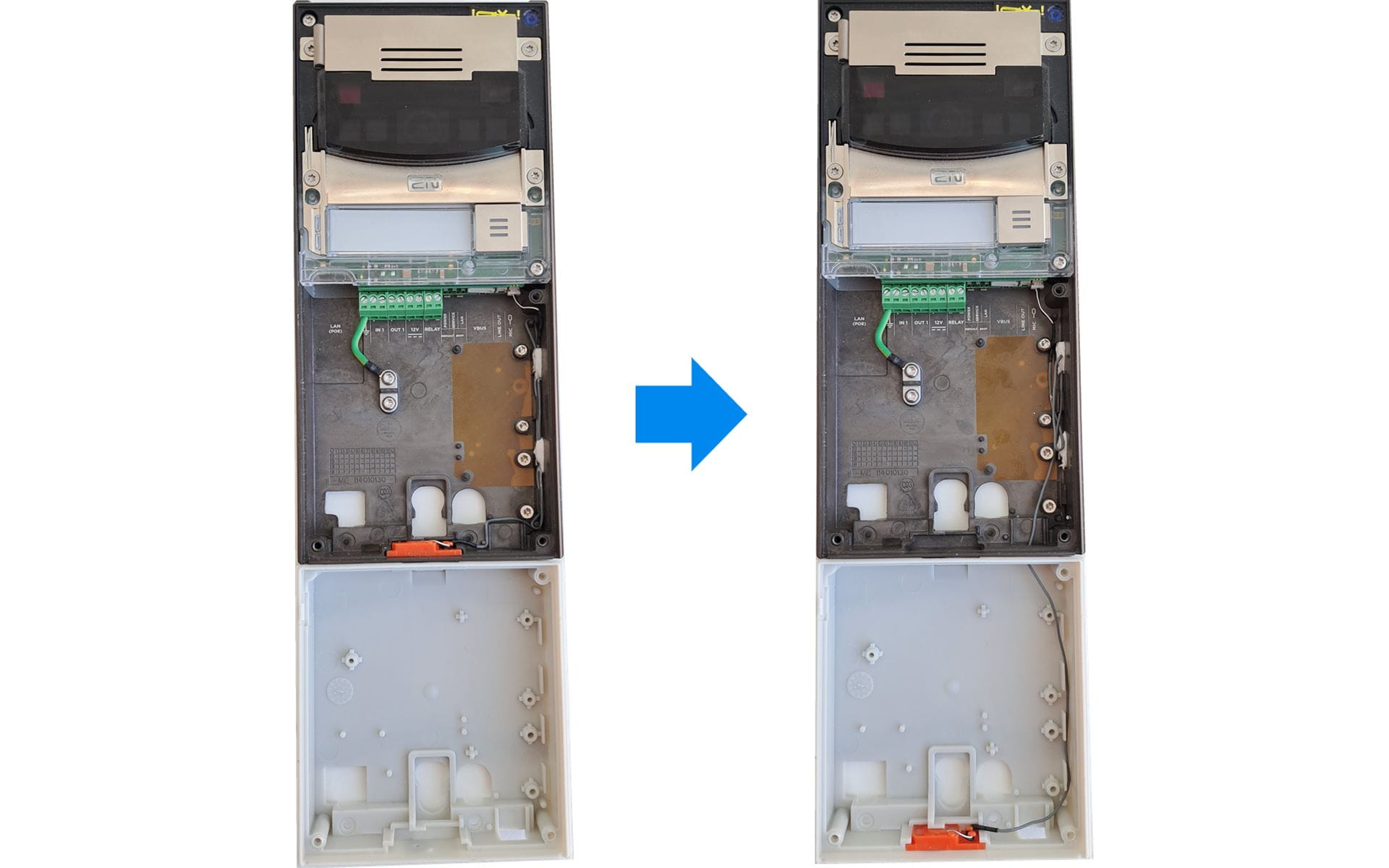
3 module IP Verso installation
When installing the IP Verso in the 3 module version, make sure the microphone is in the correct position as the picture bellow shows: