Basic description of this feature
-
How does SMS CallBack work with 2N VoiceBlue Lite device? Basically it is possible to send SMS to the telephone number of SIM card inserted in 2N VoiceBlue Lite device and receive a callback connecting to a specific SIP extension. After sending the SMS in correct form, the gateway will call to the telephone number from which the SMS has been received. Once the call is picked up, you will be automatically connected with the required extension. 120 in the example.
-
Call back from GSM to IP: GSMIP (VoIP)
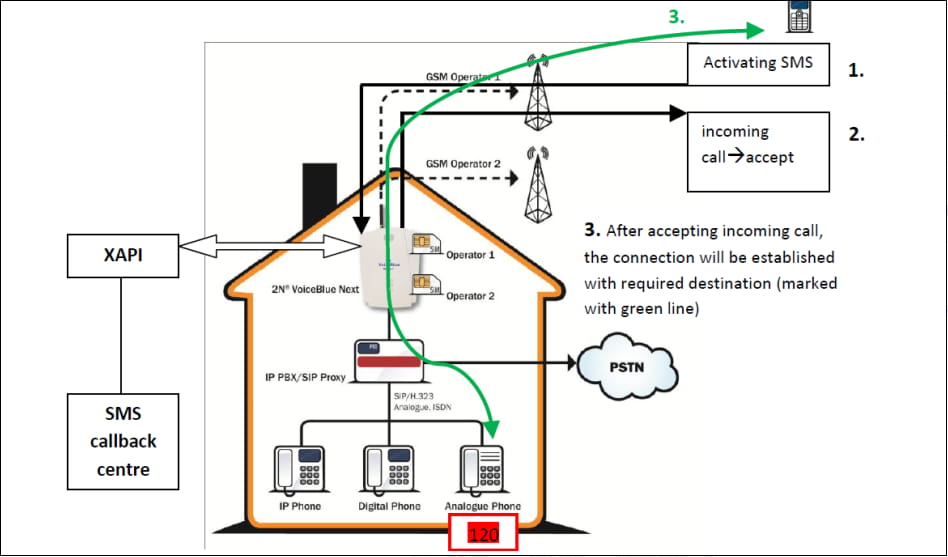
-
Necessary software:
-
2N XAPI Server v. 1.20A
-
SMS CallBack centre v. 1.0 → license needed
-
Installation of 2N XAPI server
-
On the link bellow you are able to find detailed manual how to install and set up 2N XAPI Server.
http://www.2n.cz/en/products/extras/sms-server/downloads/ -
Download sms-sever-manual-1en.pdf and follow the instructions from page 4 to page 8.
-
For a SMS Callback purpose please create a specific user with these features (check SMS and SMR). Select Firm: D-Callback-2N. Set desired Name and password (in this example: jarda/jarda).

Basic settings of 2N VoiceBlue Lite
-
On following pictures there is explained how it is recommended to set up the device in order to provide you SMS CallBack feature.
VoIP parameters

-
In SIP proxy (GSM->IP) set the IP address of PBX (192.168.50.5 in this case) and specify the listening port (5061 in the example). Remember that at least one extension must be connected to the PBX in order to receive the calls (we assigned 120).
GSM group assignment

-
GSM modules can be assigned up to 4 groups that can be independently assigned for incoming and outgoing calls. In this case all modules are assigned to Group 1.
GSM incoming groups

-
In option „Mode" in the top part of window choose Report to PC +dial tone. Then fill + to the clip field.
Prefixes

-
Make sure the prefix configuration is properly set for your operator. On the example below the /+420 prefix is added (international prefix for Czech Rep.)

LCR Table

-
Click to "Add" and fill required information in the first row (marked with red frame).
Form of activation SMS
-
Because of structure of 2N VoiceBlue Lite device you have send the SMS in this form
*sg*Phone number of destination -
SMS example: *sg*120
Settings of SMS CallBack centre
Logging to XAPI

-
It is necessary to login SMS Callback center to XAPI server. Username and password corresponds with XAPI server users settings. In this example it is jarda/jarda.

Users

-
Create a new user - fill the CLIP and in the field Tariffs of groups activate the interval 1.

Tariff templates

-
Create a new Tariff template by click to the button „New"

Groups

-
In the Group which we added a prefix is required. In the example the final destination is 120 so it is necessary to fill the prefix "1". Do not forget to set prefixes regarding the extension number which the call will be connected to.
-
Other settings: The rest of configuration regarding Prefixes to GSM, Prefixes to ISDN Settings and Routing is recommended to remain as default.