This FAQ describes how to add the 2N Easy Gate IP to the 2N Elevator Center.
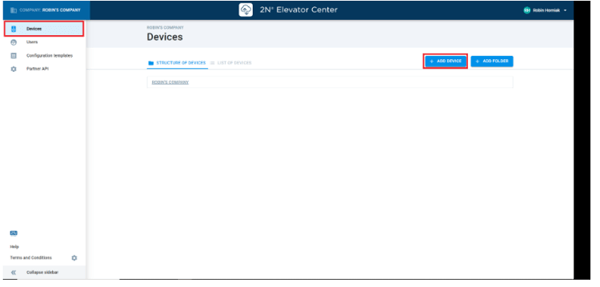
To add the device to your Elevator Center account, log in to your account and click Devices and then Add device, as you can see on this picture:
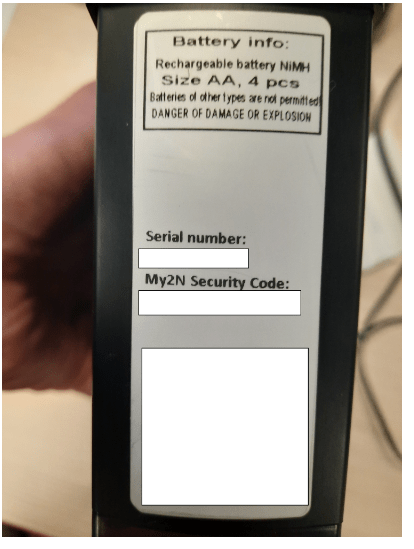
You will be asked to enter the serial number and My2N security code. You can find those on the sticker on the side of your Easy Gate IP:
Afterwards, your EGIP will be active. If the firmware version in the device is outdated, Elevator Center will automatically start a firmware upgrade, as you can see here:
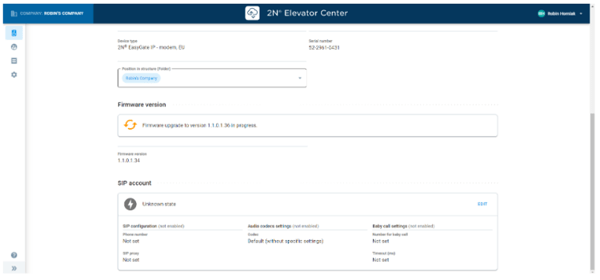
When the firmware is up to date, EC will configure your EGIP automatically according to the configuration template stored in your account. More information about configuration templates here: How to use configuration templates in 2N Elevator Center

If you need to change the phone number and password, click “Edit” in “SIP account”:

Now you can edit those parameters:

If the proxy address was set up by the configuration template, it is not visible in the device detail. However, proxy address was still set up correctly in the device.
If the device itself was not configured yet, you can do so by clicking “Go to device configuration”:
