A) 2N Network Scanner
- Use 2N Network Scanner which can be downloaded here.
-
If 2N Network Scanner can not find desired 2N Access Unit then:
-
the device can have static IP address from different IP address pool than your network
-
the device can be placed behind the router or firewall
-
there can be some troubles with you router (check IP address pool, firewall, DHCP server, etc)
-
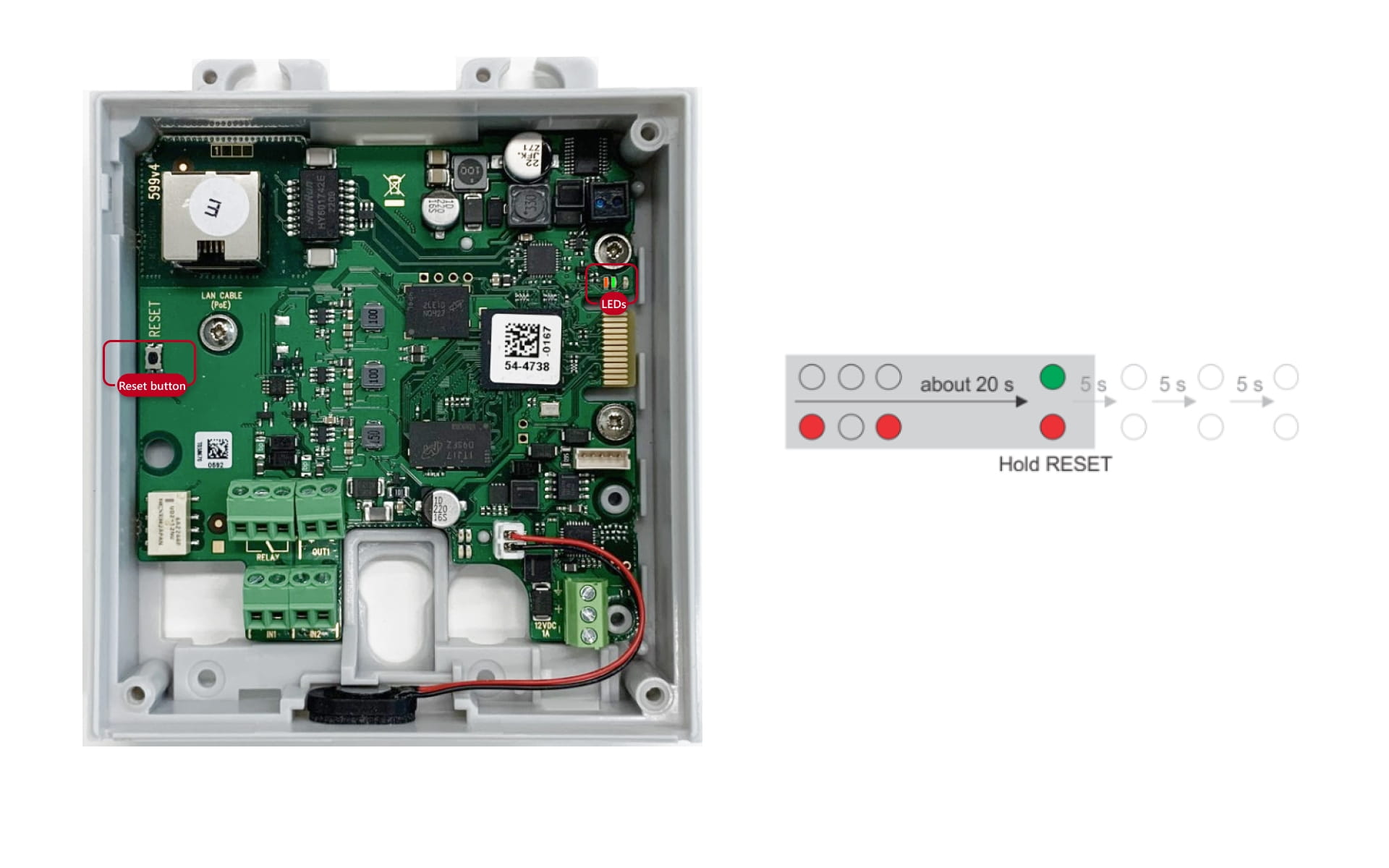
2N Access Unit is equipped with a RESET button. Follow the instructions below to identify the current IP address:
B) Hardware Procedure
- Press and hold the RESET button.
- Wait for the device do beep once (both the red and green LEDs will light up simultaneously)
-
Release the RESET button.
-
The device announces the current IP address via the speaker automatically.
-
If the address is 0.0.0.0, it means that the device has not obtained the IP address from the DHCP server.
This procedure can be applied to:
-
2N Access Unit
-
2N Access Unit 2.0
-
2N Access Unit M
This procedure does not apply to 2N Access Unit QR
-
2N Access Unit

Access Unit 2.0
Access Unit M
- Press the button shortly (< 1 s) to restart the system without changing configuration.
-
Proceed with steps mentioned above
