Web interface access when running old firmware on Indoor View
Recent versions of Chromium-based browsers such as Google Chrome have a stricter way of verifying certificates which may result in an inability to proceed to the web interface of devices with old firmware. We will show you how to bypass this to be able to update firmware to the latest version no have this issue no more.
Prerequisites
- 2N devices with 2N OS
(IP Intercoms, some 2N Answering units (Indoor View, Indoor Compact, Indoor Talk etc.), 2N Access Units, 2N SIP audio (except 2N SIP Mic))- without valid user certificate
- no additional license is required
How it should work
-
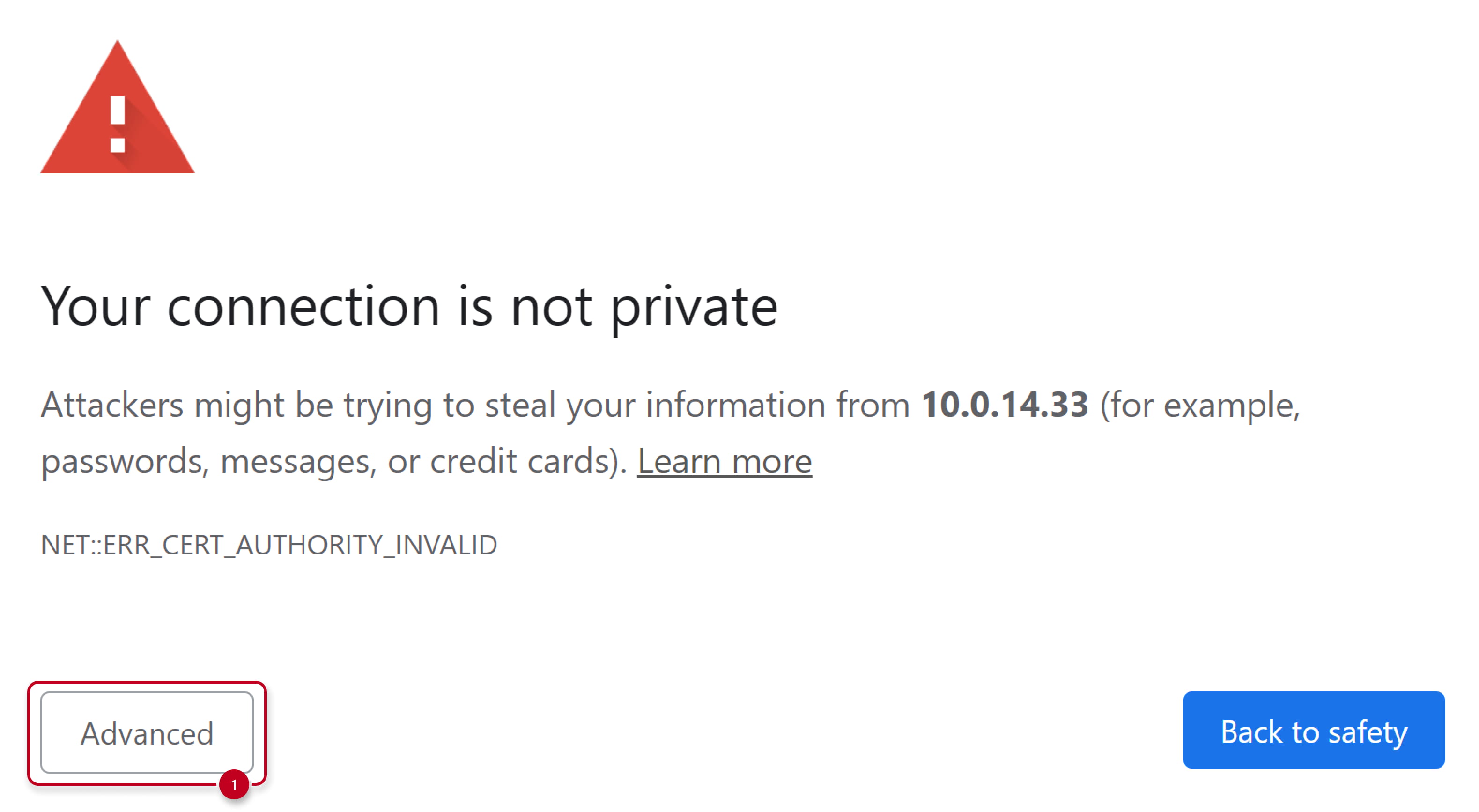
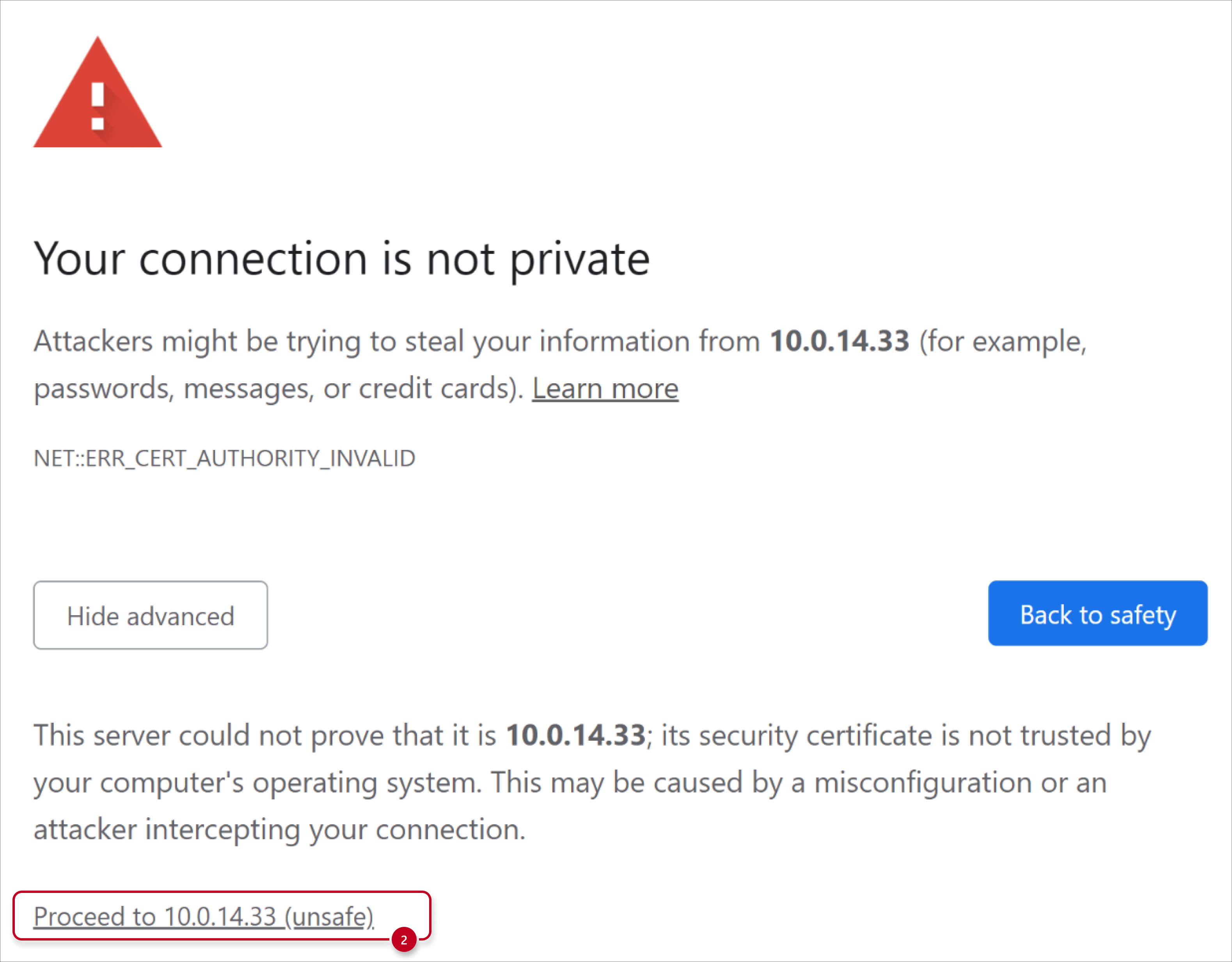
Normally, when you access 2N OS devices without valid user certificate, you get the following certificate warning: NET::ERR_CERT_AUTHORITY_INVALID.
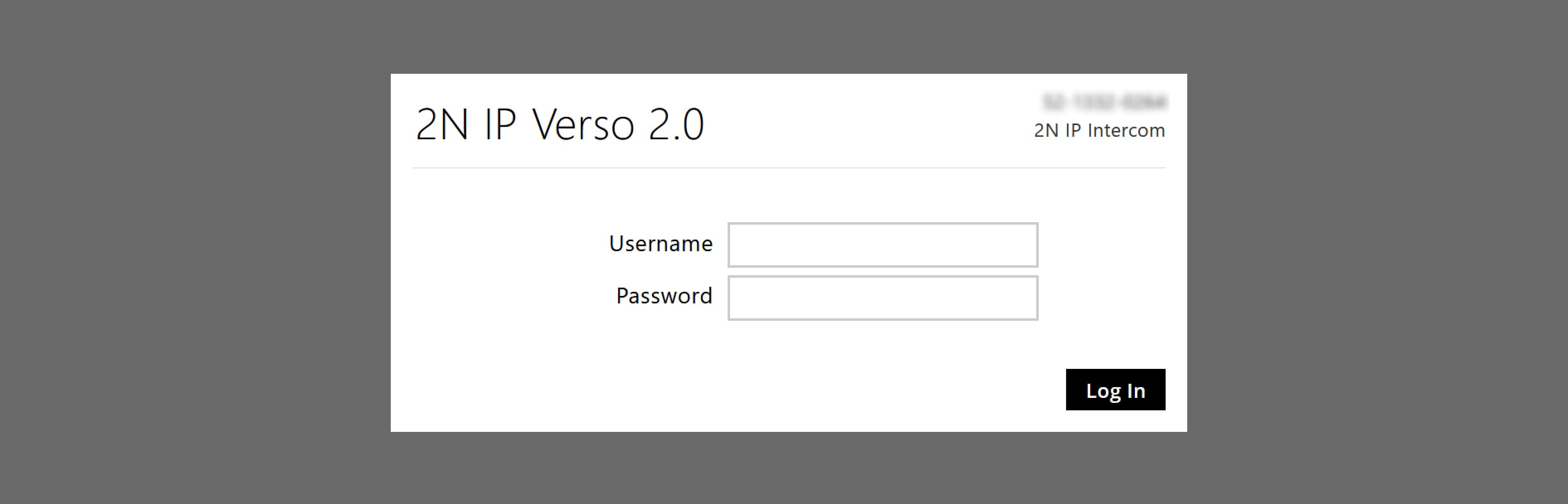
You can easily bypass it by clicking on Advanced and then on "Proceed to IP address (unsafe)".
Issue you can meet if there is old firmware
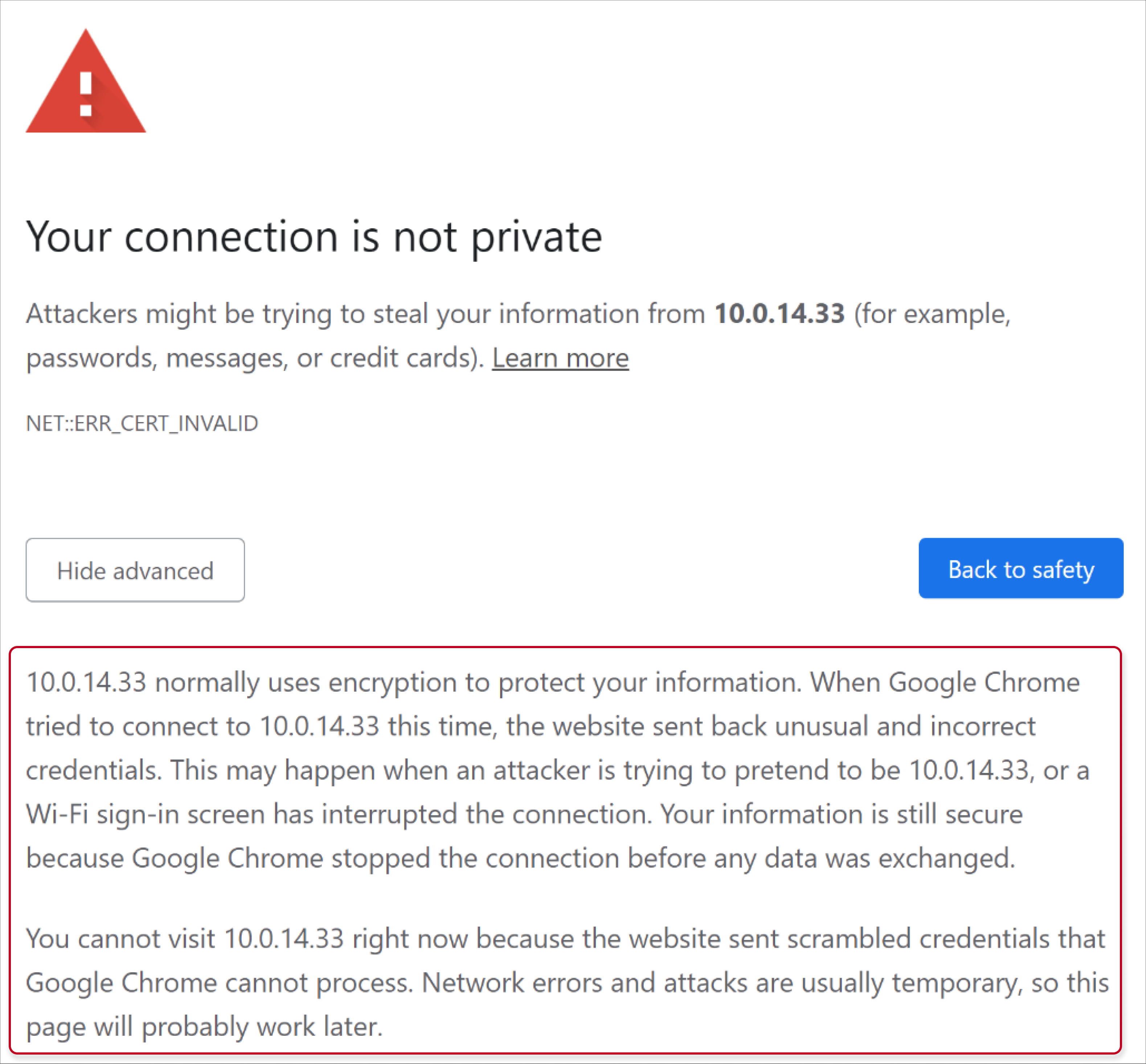
- The difference here is that when you click on Advanced, there’s no way to proceed to the web interface of the device.
It may also appear while trying to use HTTP API.
-
Bypassing the issue
- Using a different browser or device, such as your phone
- Clicking anywhere on the certificate warning page and typing: thisisunsafe
- Connecting to the device through My2N platform – Remote Configuration feature
2N IP intercom into My2N using the Security Code - Accessing the device via the “Configure Device” button in Access Commander
Firmware compatibility across 2N Access Commander versions
- Using a different browser or device, such as your phone
-
Resolving the issue
- Once you enter the web interface of the device, update the firmware to the latest version.
2N IP intercoms - Firmware upgrade - If you want to get rid of these certificate warnings altogether, you should consider using valid SSL certificates for your devices.
Certification for web authentication
- Once you enter the web interface of the device, update the firmware to the latest version.