-
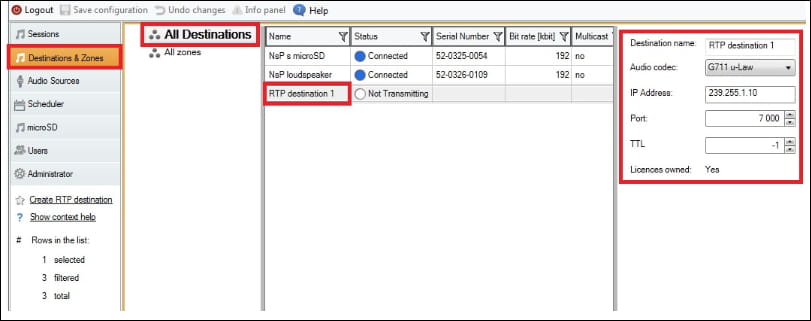
in menu Destinations & Zones go to bookmark All Destinations
-
Here you can create RTP destination: use right mouse click button (flow menu) in the field, where are displayed 2N Net Audio Decoder units or in left menu click on Create RTP destination.
-
Note: there is 1x RTP destination license for free. In case you would like to test multiple RTP destinations you need to get additional license. More information about the RTP license in this FAQ
-
-
after creating RTP destination you can edit its properties: Audio codec, IP address, Port, TTL parameter keep it in default (-1), or according your network setting you can change the value
-
Create the Session with some source e.g. playlist and in the field Destinations add your created RTP destination 1
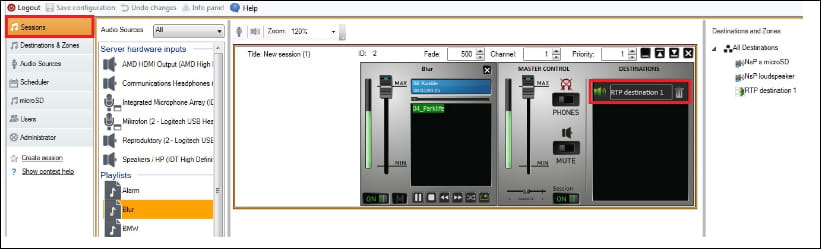
This is all what you need to setup in 2N IP Audio Control Panel
BARIX unit setting
-
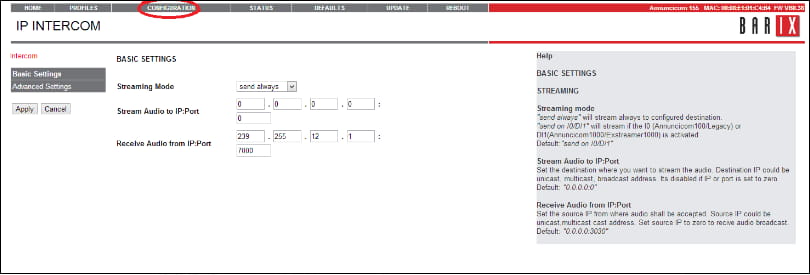
log in to the unit web interface
-
go to menu CONFIGURATION
-
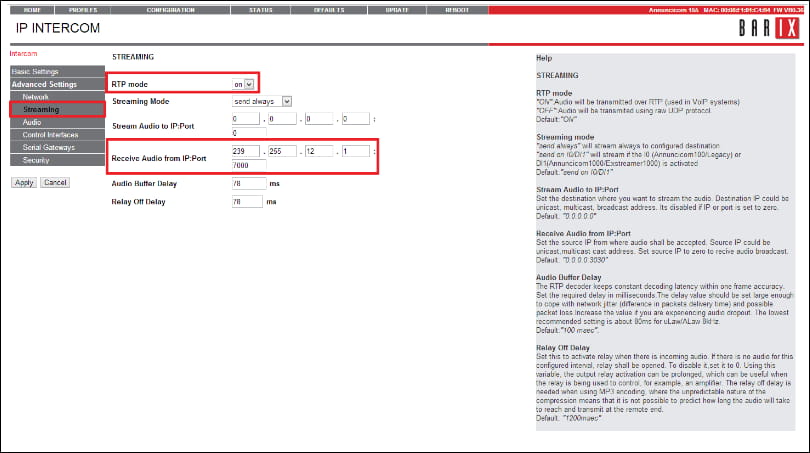
go to Advanced Settings
-
choose Streaming
-
setup RTP mode ON
-
setup Recieve Audio from IP: Port according your setting in RTP destination which you have created in 2N IP Audio Control Panel
-
-
check the Audio setting: uLaw / 8 kHz (G.711)
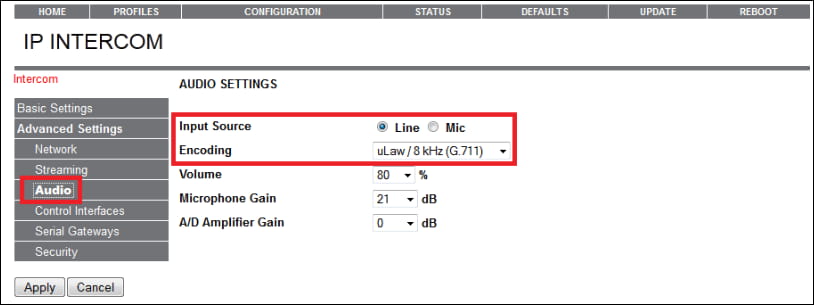
Now you can receive on BARIX unit an audio stream from 2N IP Audio Manager. Do not forget that you can use BARIX unit also as a source of RTP stream. This depends on the type of BARIX unit which you use.