2N Network Scanner - Locating 2N devices in the network
The 2N Network Scanner is a simple, freely available application for locating 2N devices in the network. After searching the network, the application shows the type, firmware version and IP address of all intercoms found on a chart. This simplifies the administration and installation of intercom systems.
Prerequisites
- A computer with Windows / MacOS operating system
- Supported 2N devices
- 2N Access Commander
- 2N Access Units
- 2N Answering units
- 2N IP Intercoms
- 2N LiftIP units (not for 2N Lift8)
- 2N SIP Speakers
Installation of 2N Network Scanner
- Download application from the product page and install it.
Locating 2N devices
-
After you run the software, it will scan connected networks and provide you with list of detected 2N devices.

-
If you need to rescan connected networks, please click on File - Refresh.


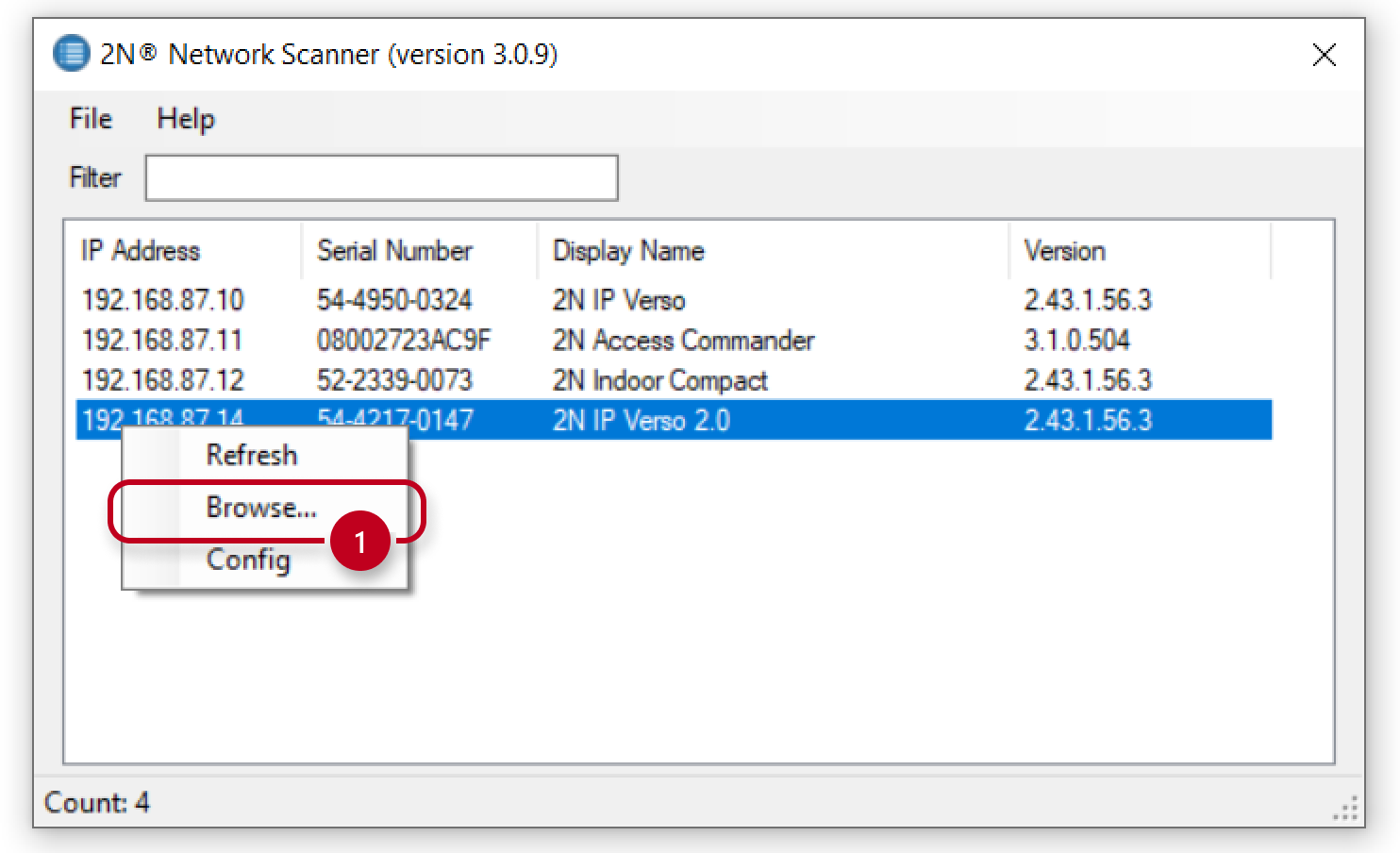
Or by right clicking on one device and choosing the Refresh option.

Changing IP settings of a detected 2N device
- Right click on the device and choose the Config option.
If the device is grayed out and you can´t see the Config option,
then the device does not support changing IP settings via 2N Network Scanner.

- In configuration, you can change between DHCP and static IP settings.
You need to confirm changes by entering a password used for the Admin user.

Browsing the web configuration of the device
- Double click on the detected device to browse its web configuration.

Or by right clicking on the device and choosing the Browse... option.
Filtering search results
- You have the option to filter search results by typing into the filter box.
You can filter for IP address, serial number, display name or firmware version.


