Attendance is supposed to monitor user's arrivals and departures in 2N Access Commander.
Presence tells, whether the user is currently present on premises, and it works only in the IN-OUT Attendance mode. Presence is disabled in the FREE mode.
Attendance monitoring can be activated as an additional licensed feature for 2N Access Commander with Advanced (since the version 2.0) license or higher.
You need to have correct time settings set in devices connected to the 2N Access Commander as well as in the Access Commander itself. If not, Attendance monitoring feature may malfunction.
-
Go to the web interface of the 2N Access Commander.
Attendace can operate in various modes:
Free mode:
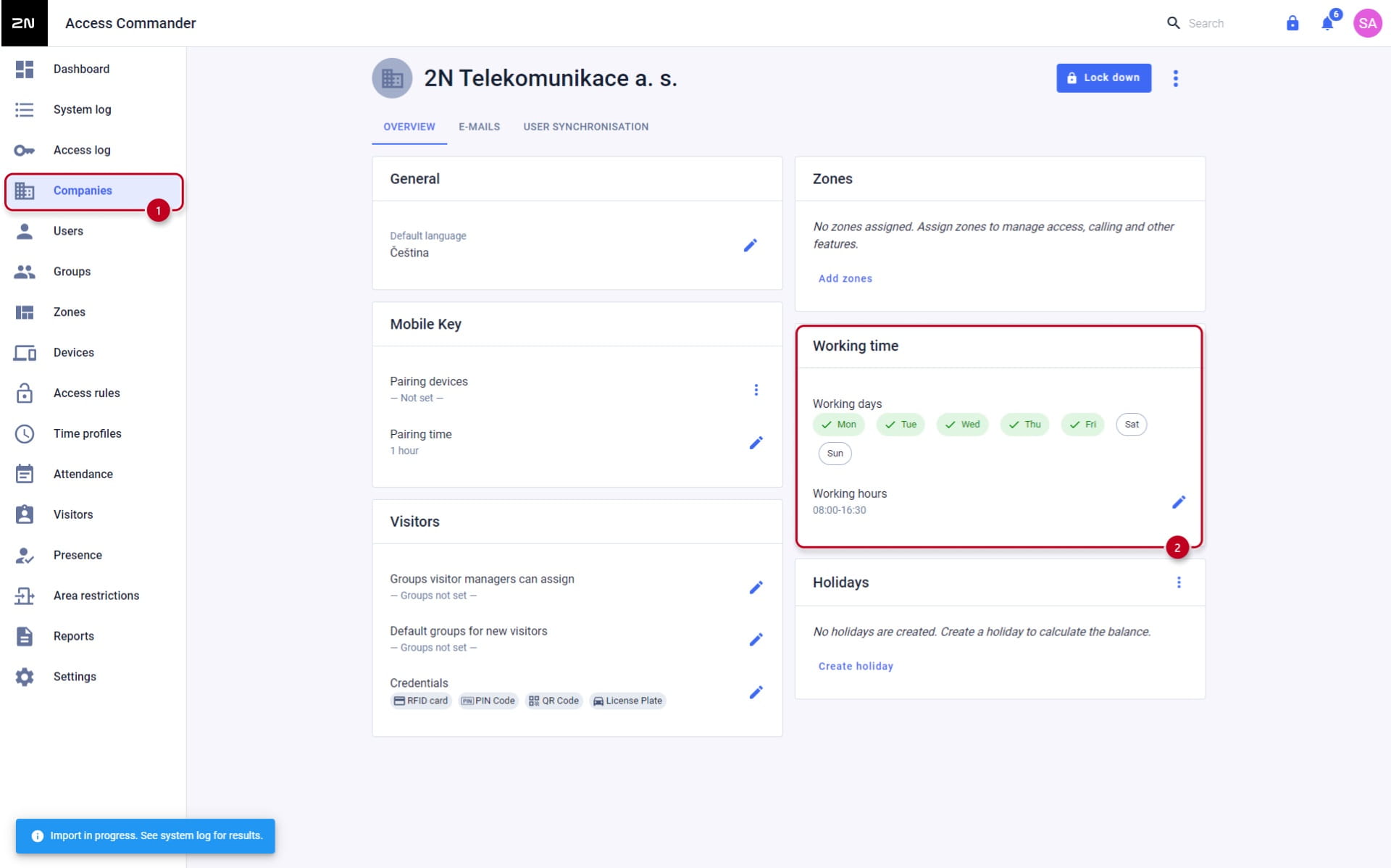
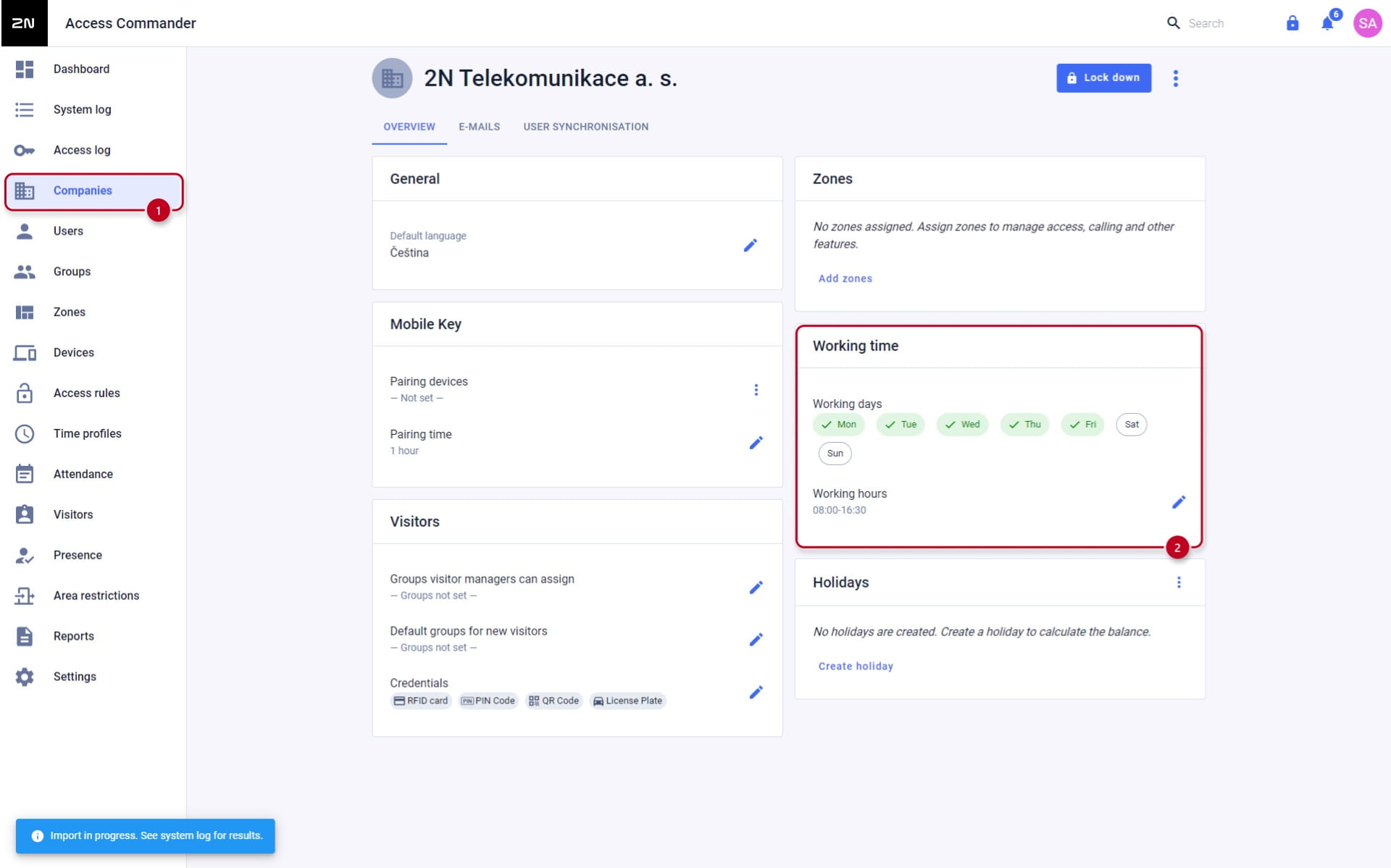
- Set working hours/days in the Companies → "Company" → Overview → Working time section as shown below:
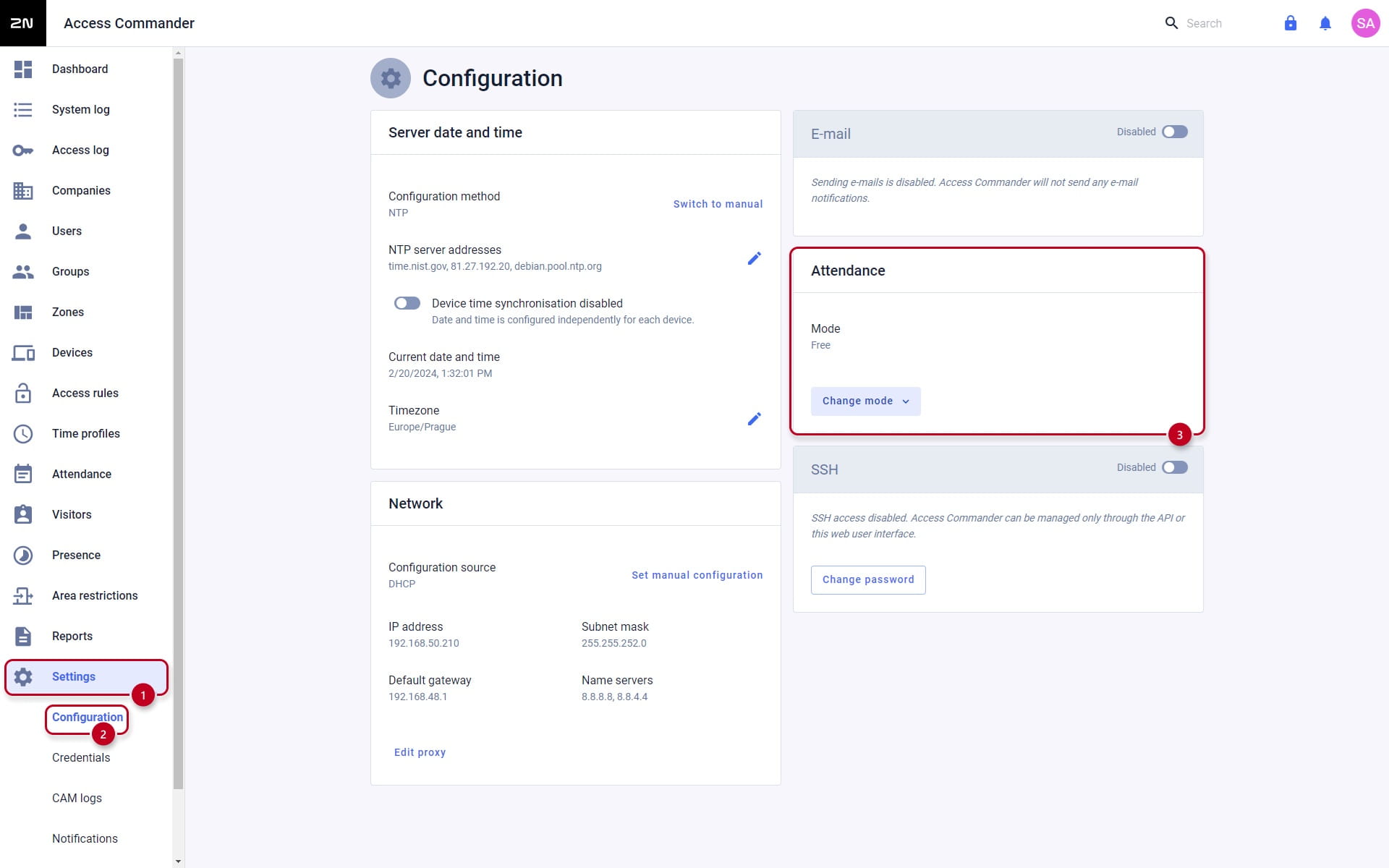
- Now set the FREE mode in the Settings → Configuration → Attendance section:
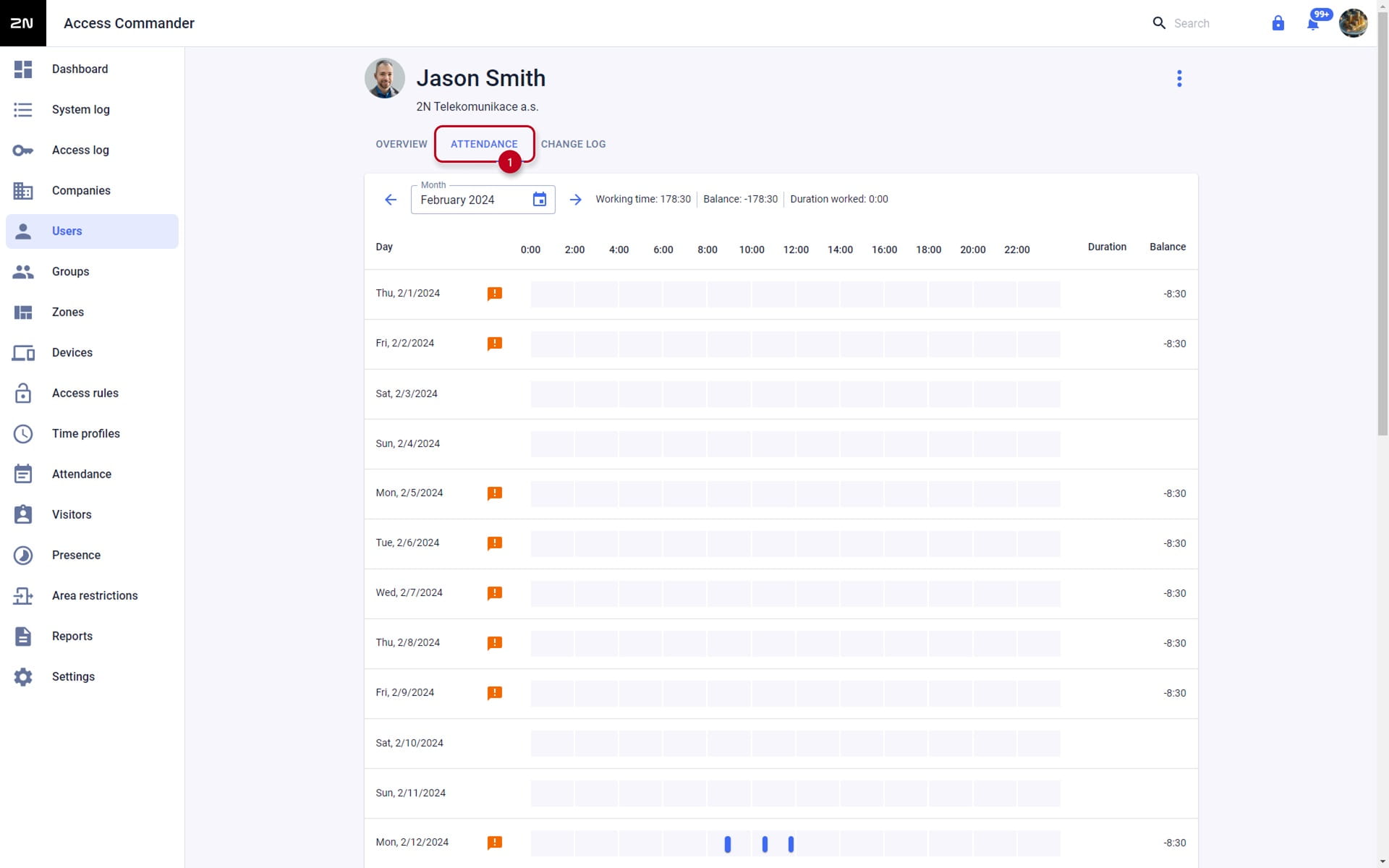
- Last step is allowing Attendance Monitoring on each user that you wish to monitor:

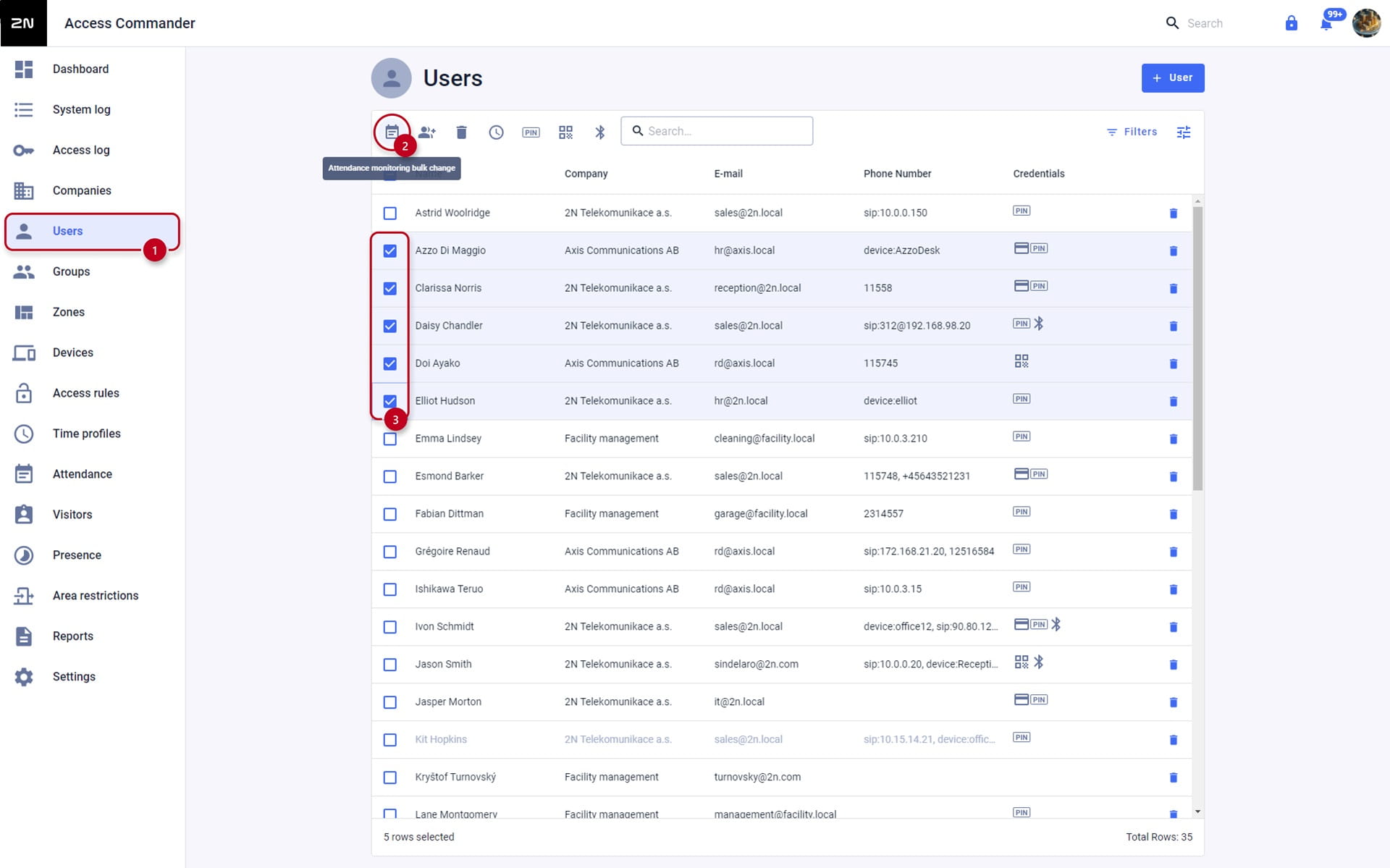
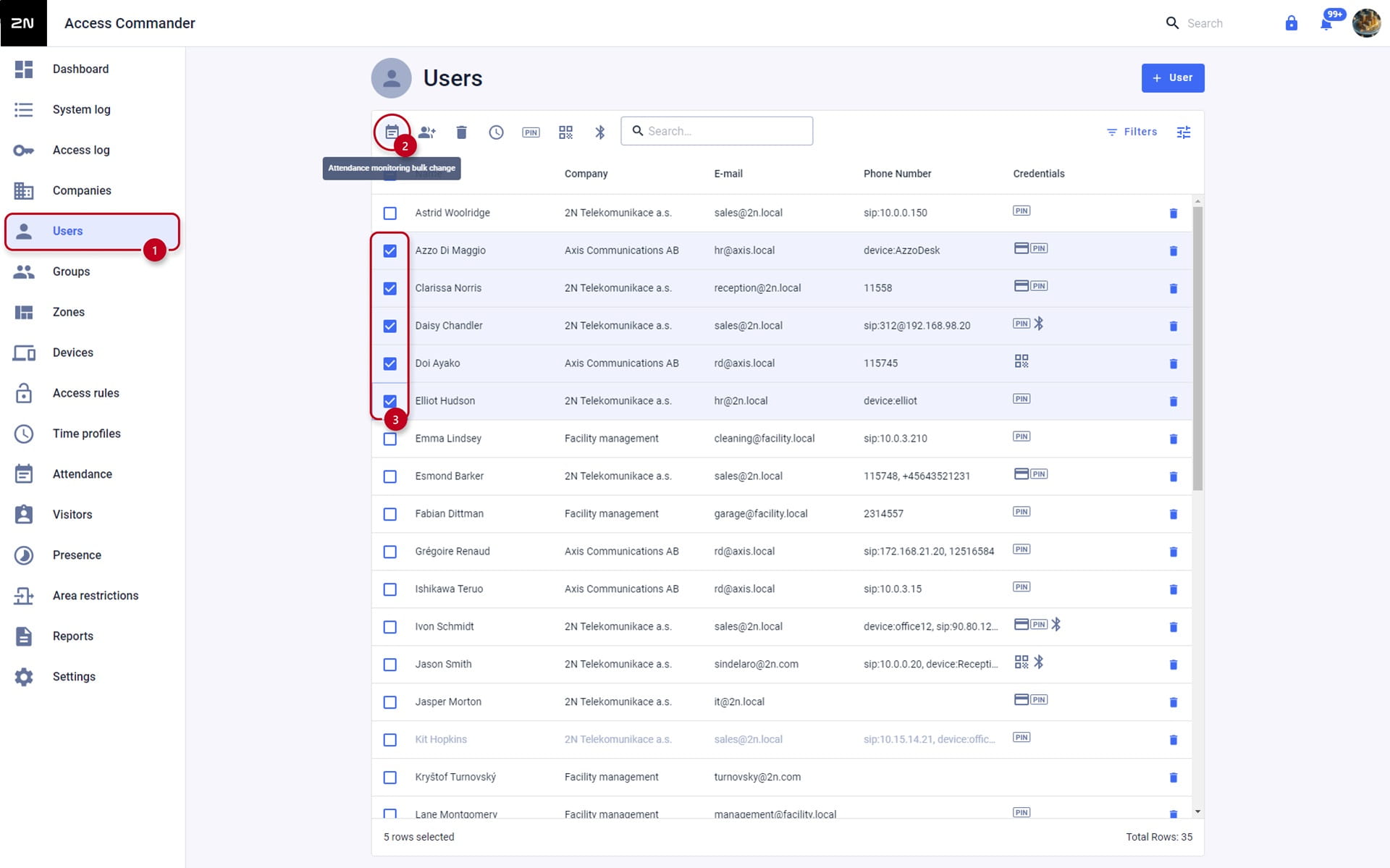
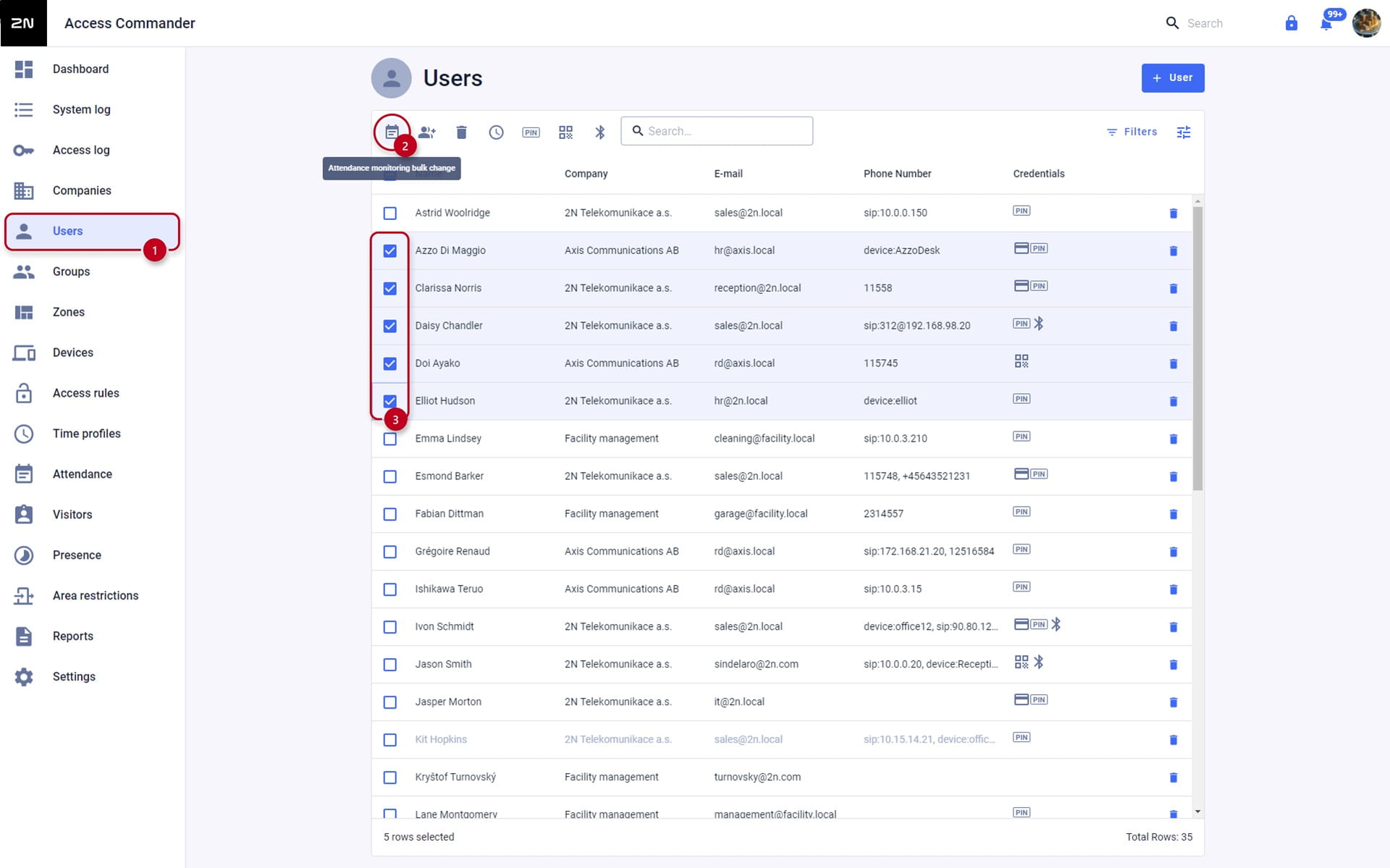
- It is also possible to enabled the attendance for selected users in the Users section:
IN-OUT mode for all devices:
- Set working hours/days in the Companies → "Company" → Overview → Working time section as shown below:
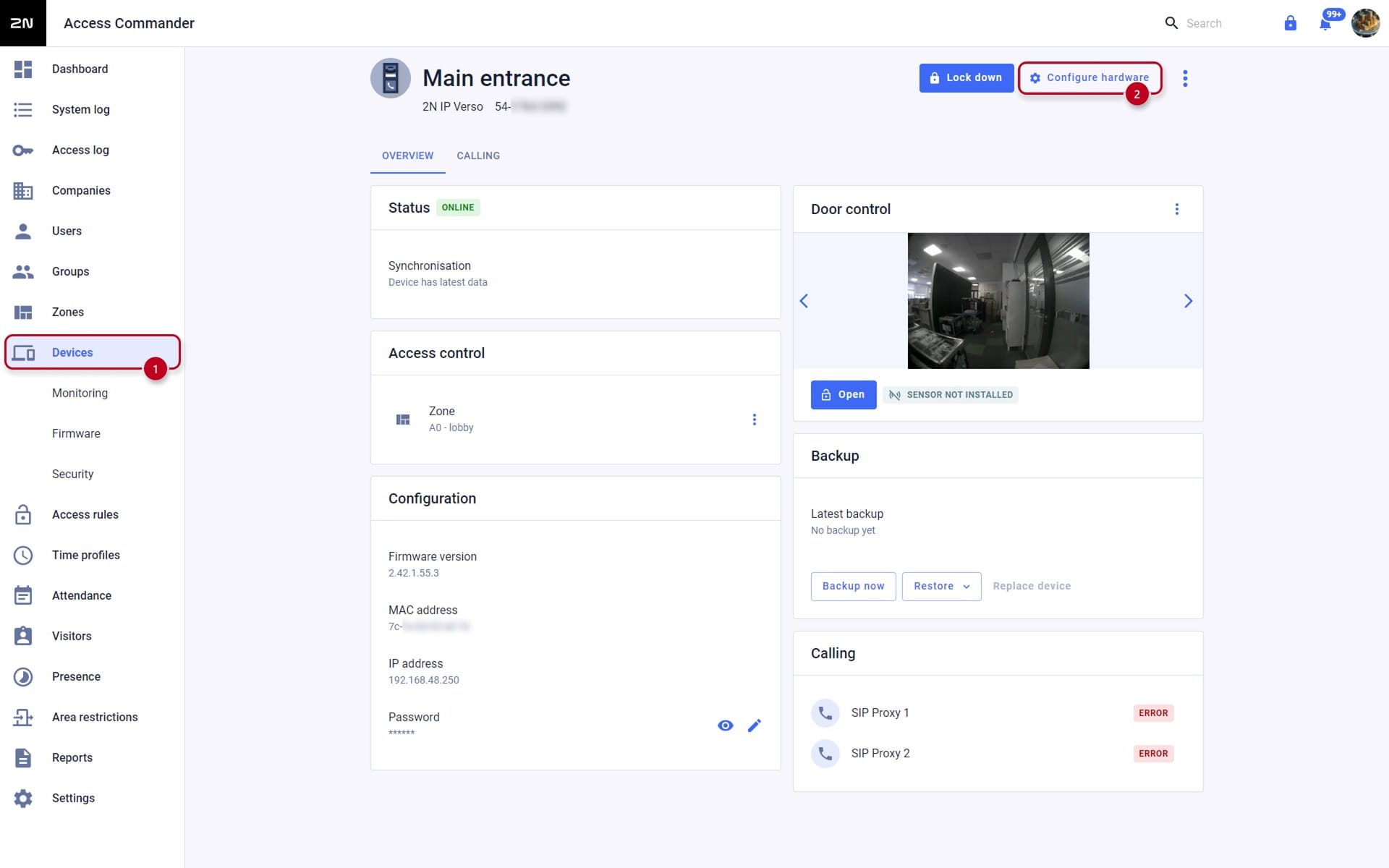
- The next step is to set the access devices themselves. Go to Devices, select the device and click on Configure hardware on the device you want to configure.
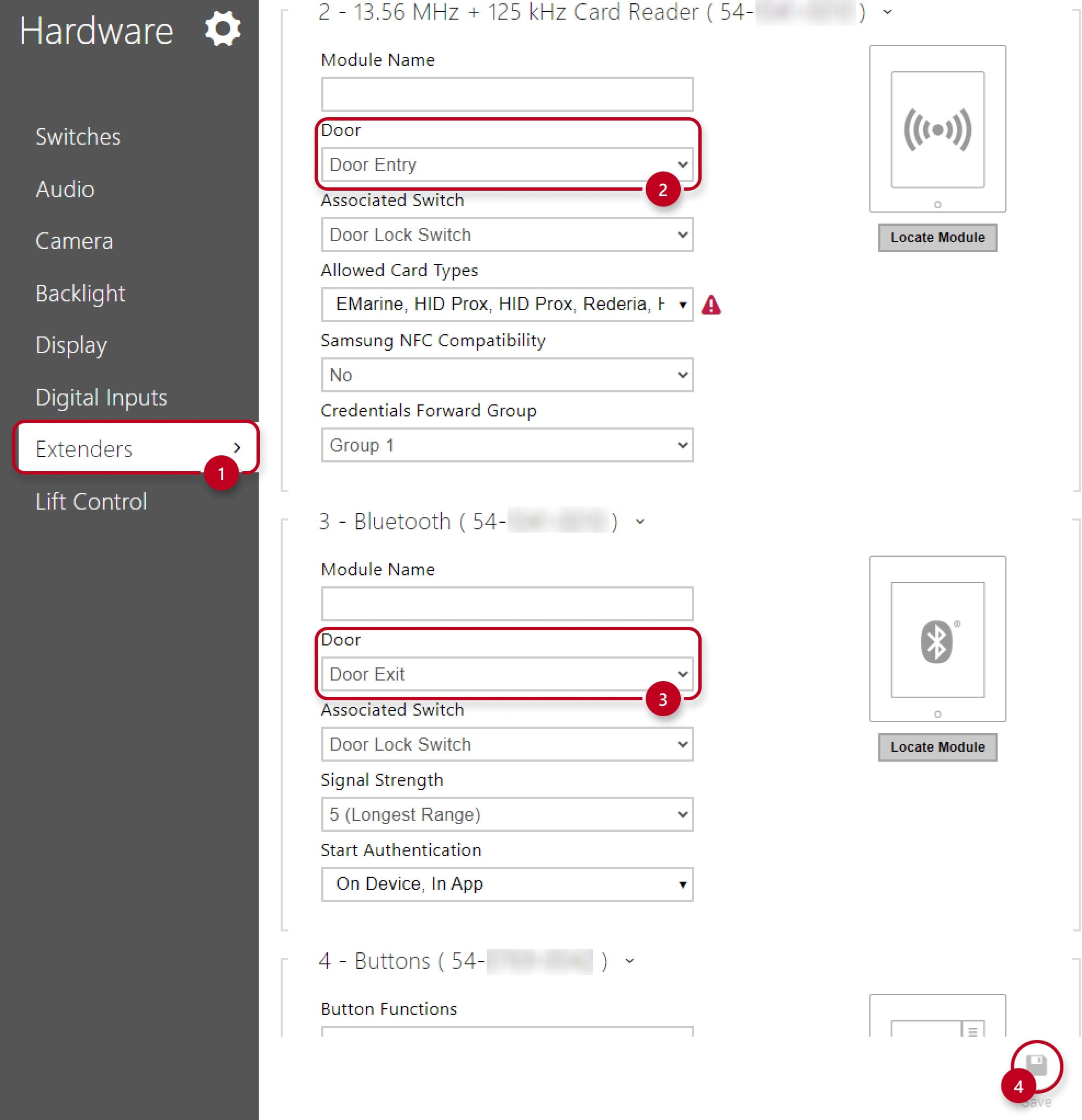
Then go to configuration of the device as shown below:
 Now set for example the card reader for "Door Entry", as shown below, and for a wished device set then "Door Exit":
- Then, Attendance needs to be set to IN-OUT for all devices:

- Last step is allowing Attendance Monitoring on each user that you wish to monitor:
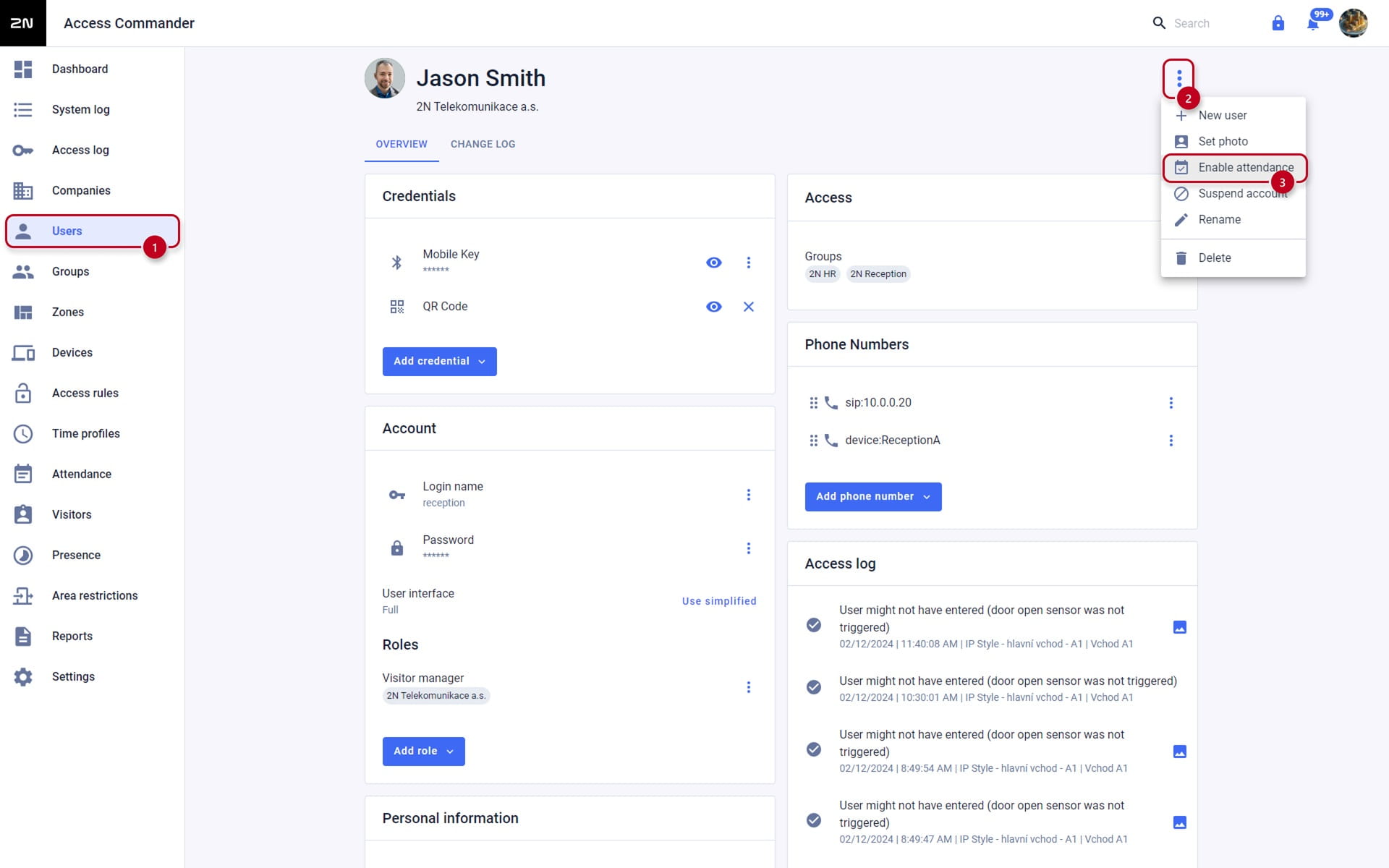

- It is also possible to enabled the attendance for selected users in the Users section:
IN-OUT mode for selected devices:
- Set working hours/days in the Companies → "Company" → Overview → Working time section as shown below:
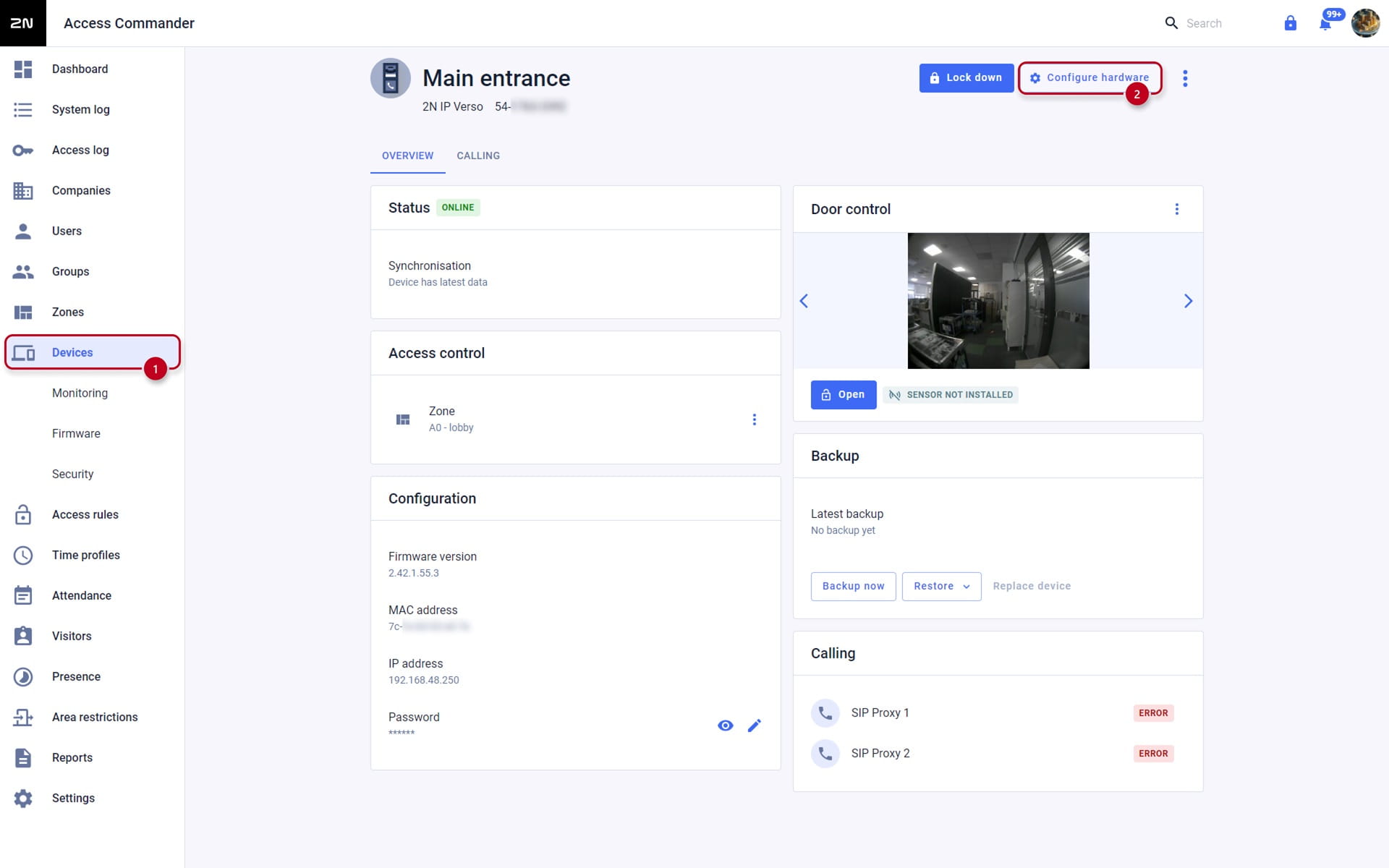
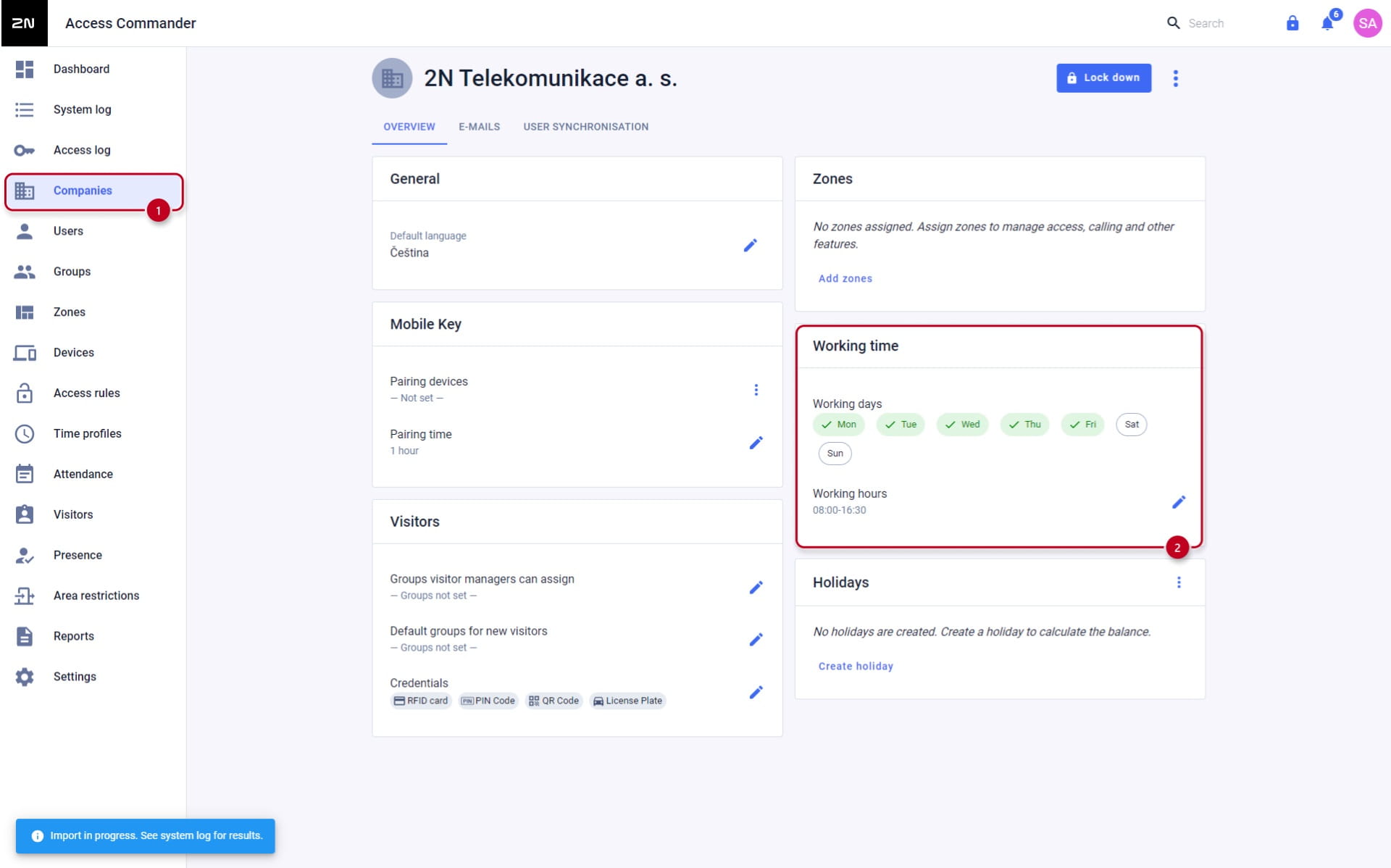 The next step is to set the access devices themselves. Go to Devices, select the device and click on Configure hardware on the device you want to configure.
Then go to configuration of the device as shown below:
- Now set for example the card reader for "Door Entry", as shown below, and for a wished device set then "Door Exit":
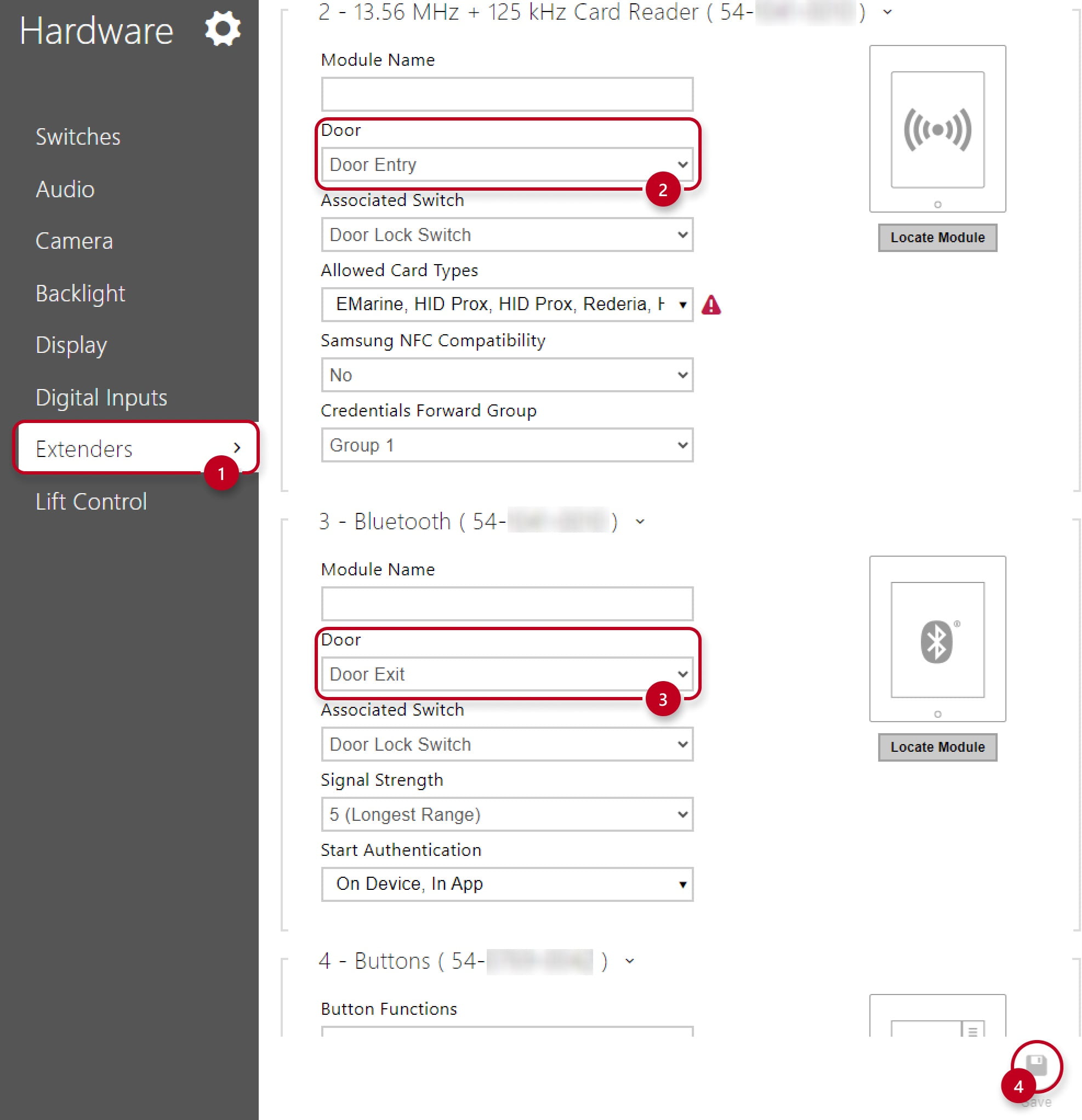
- Then, Attendance needs to be set to IN-OUT for selected devices:
- The next step is to set the access devices themselves. Go to Devices, select the device and click on Configure hardware on the device you want to configure.
Then go to configuration of the device as shown below:
- The next step is to set the access devices themselves. Go to Devices, select the device and click on Configure hardware on the device you want to configure.
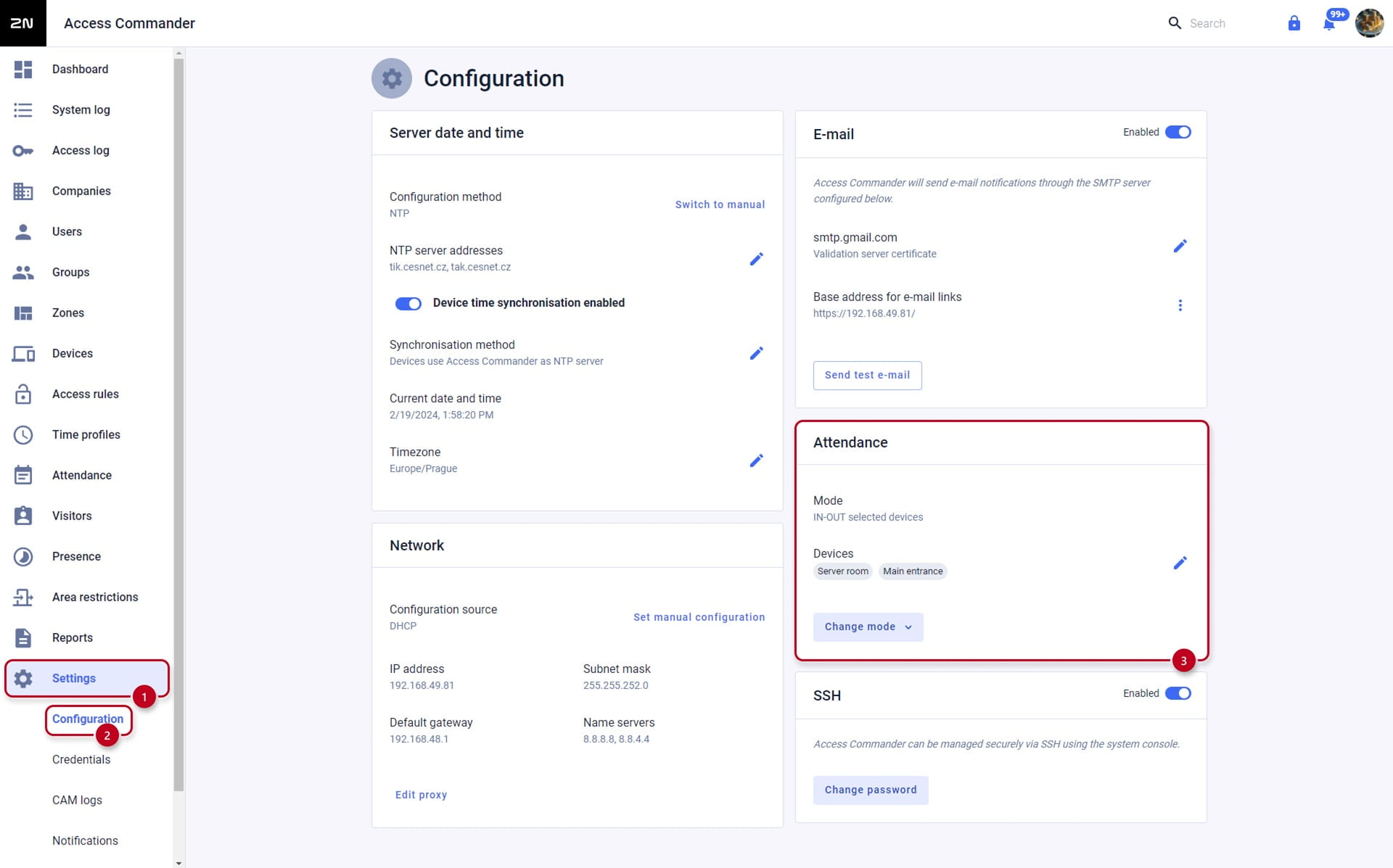
- Last step is allowing Attendance Monitoring on each user that you wish to monitor:
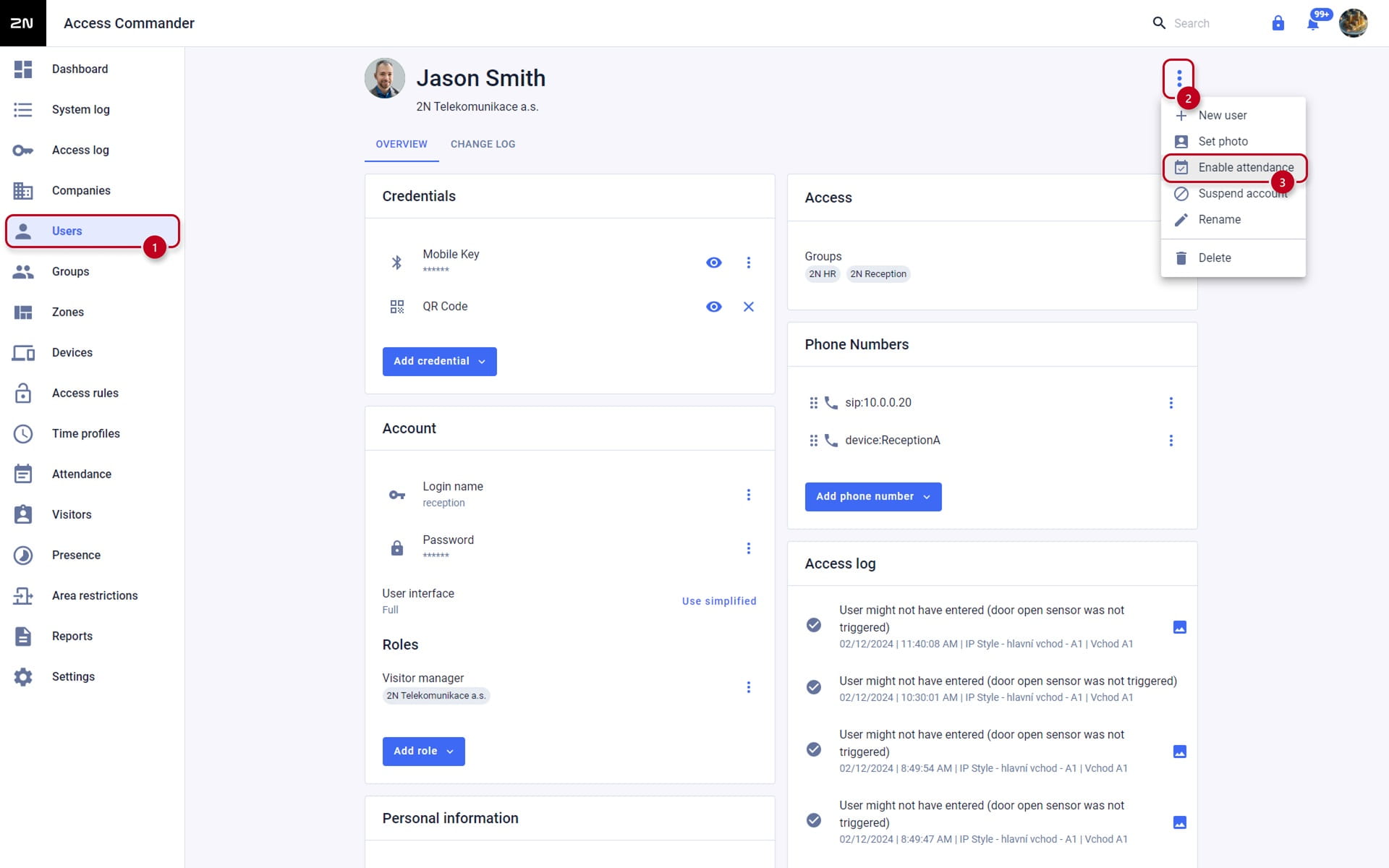
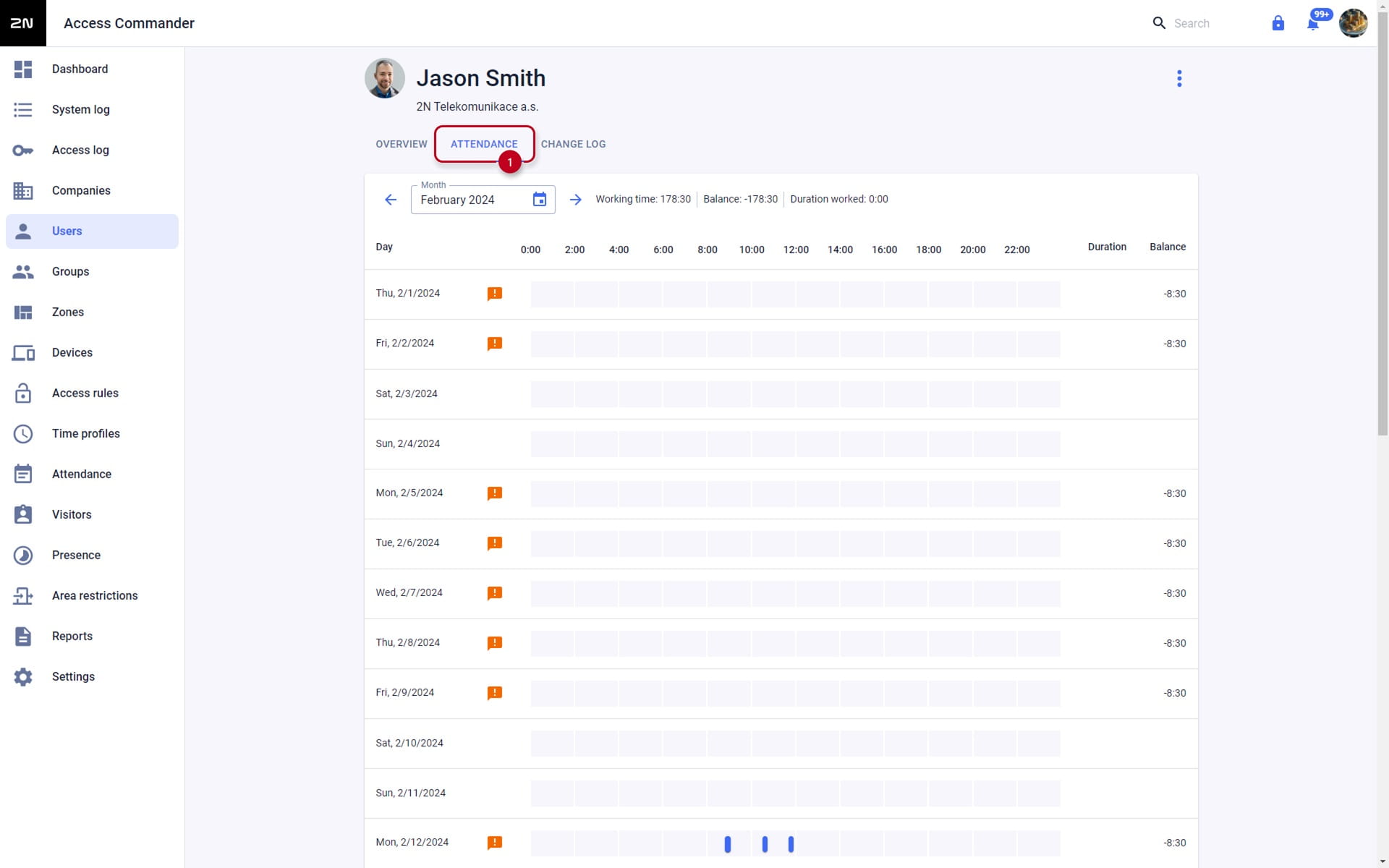
- It is also possible to enabled the attendance for selected users in the Users section: