The steps in this article require using the web interface of a 2N device. Please follow this manual in case this is your first time using the web interface.
This FAQ describes, what you have to check when issues with your My2N account and related devices appear. In most of the cases a malfunction is caused by some missing configuration.
Below you find the most common issues and their solutions. FAQ describes possible issues on side of My2N server, intercom or your mobile device.
Not all the steps will give you a solution, but some of them will give you a root of the problem, which you can later report via the support form in your My2N account.
What should I check on the side of the My2N
Are the devices successfully added, enabled and registered?
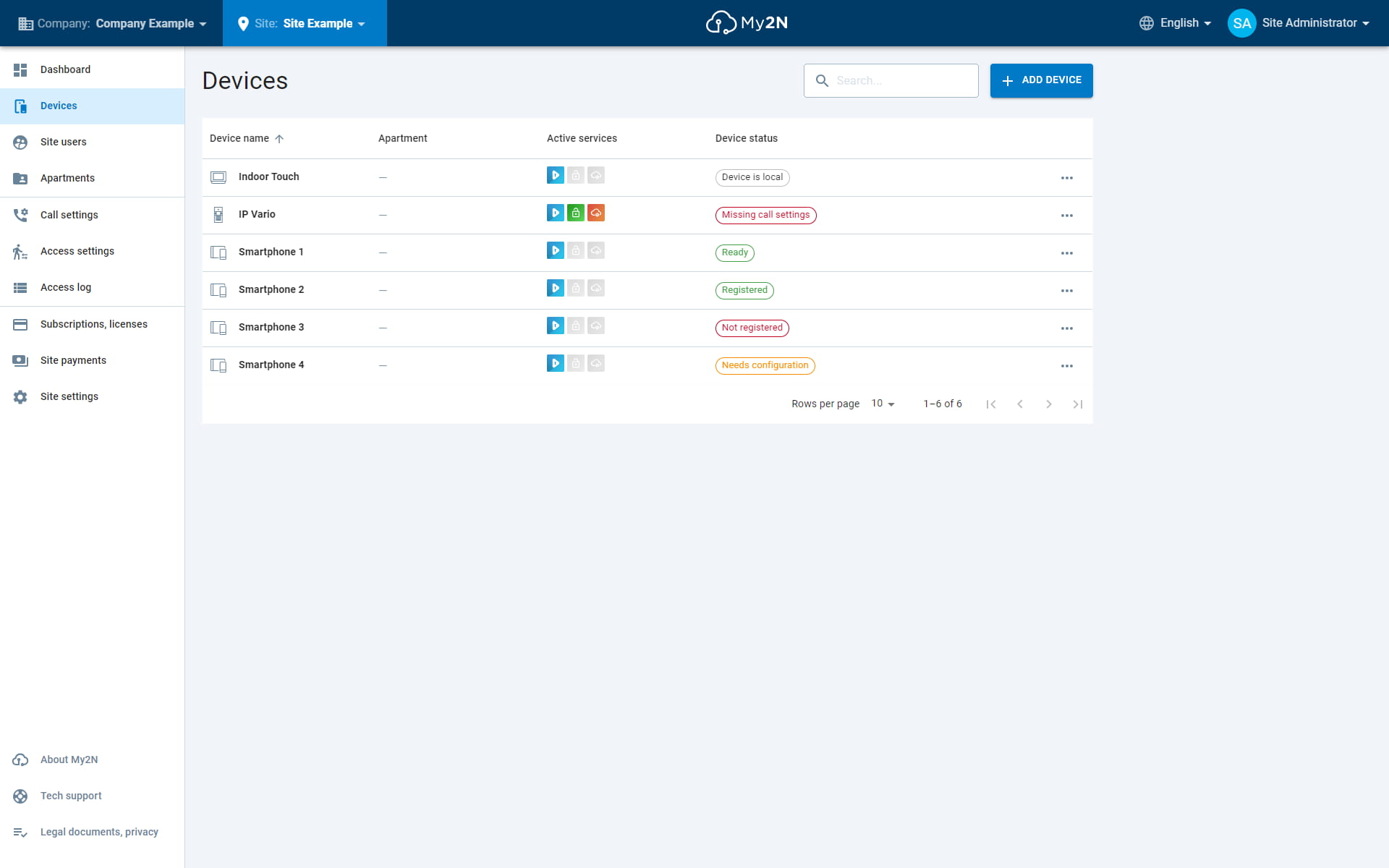
On the page "Devices" you can find overview of all the added devices
The column "Device status" shows current status of the device:
-
Registered - Device is successfully registered with the My2N server (In case of My2N mobile app it means that the app is currently opened and on the foreground)
-
Ready - This status is shown for the application registered with the My2N server but currently on the background of your mobile device
-
Not registered - Device was previously registered with the My2N server but it is no longer registered at the moment. Check the configuration and connectivity of the device, this can also refer to licence expire. Can be applied for all the types of devices.
-
Missing call settings - Intercom is registered with the My2N server, but you have not configured call settings. Edit the intercom and click on call settings. Then configure the buttons.
-
Credentials needed - This status means that device was created within the My2N server, but the device was not configured yet. Configure the device to register it with the My2N server.
Are subscriptions for the devices already purchased?
On the page "Devices" you can find overview of all the added devices. The columns
"Device status" shows the current status information of the device. Other device states from above are still applied:
-
Ready/Registered - Device is being used under the free trial period and/or the license has been paid. The device is working as intended
-
Deactivated - Device 2N Mobile Video has been disabled under the "Devices", "Device" and "2N Mobile Video" tab
-
Unlicensed - Together with Use Available Credit - Subscription was paid but the credit was not assigned to this device or apartment, you can click on Use Available Credit to use available credits in the site
- If you using Residential site model, make sure that the smartphone device is assigned to the corresponding apartment
-
Unlicensed - Together with PURCHASE - No subscription purchased, you can click on PURCHASE to buy a new subscription
- You can purchase subscription via entering a credit/debit card or by purchasing a credit voucher from your nearest 2N Distributor
Are there any Phonebooks created?
In case that everything from the previous step looks fine but you are not able to reach any device from your mobile app, then the devices are not in the Phonebook or in different one
- If not configured other way, app is using the default phonebook. You can check it on the page of the particular device
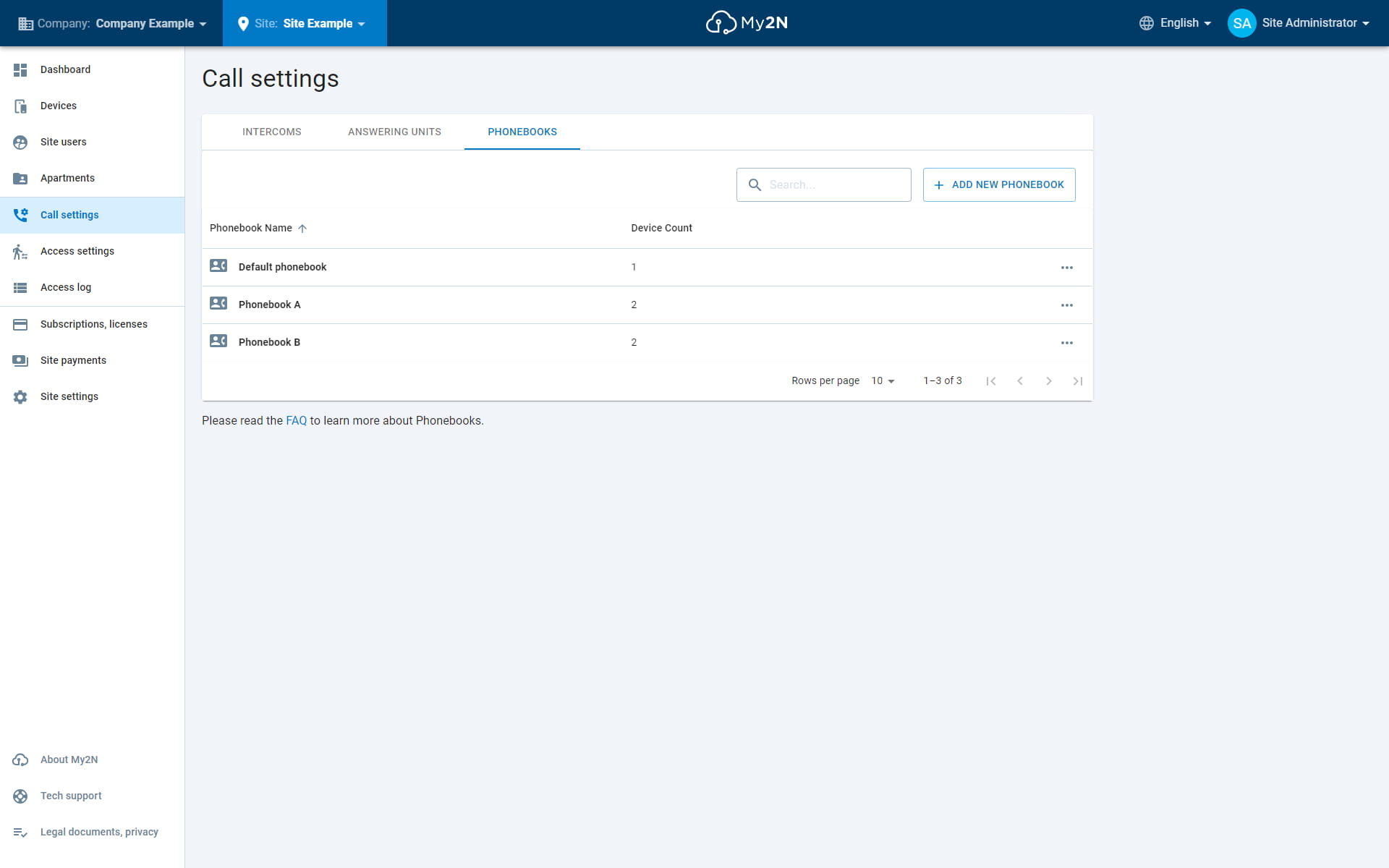
- In section "Call Settings" and "Phonebooks" you can check which devices are added to the default phonebook or create another one.
What should I check on the side of the My2N app
Always check whether you have the latest version of the app in Google Play for Android devices or in App Store for iOS devices, next steps:
-
When using My2N app always remember to uninstall the old 2N IP Mobile application. Also DO NOT use this app in combination with My2N app as it does not support push notifications
-
When everything looks fine, but you are still not able to register your app with the server, then test the same on different internet connections
-
Communication has to be fully transparent. Some mobile carriers can block SIP traffic or certain ports. If you were able to do successful test on different connections but your mobile data, then contact your operator about possibility to enable SIP traffic for you
-
If your phone does not ring when the app is on the background (status in the web interface of My2N server is Ready), then try to change something in your phonebook as described above and wait whether the change will be written into yours app phonebook or not
- Open My2N app, click on Settings and Advanced Settings:
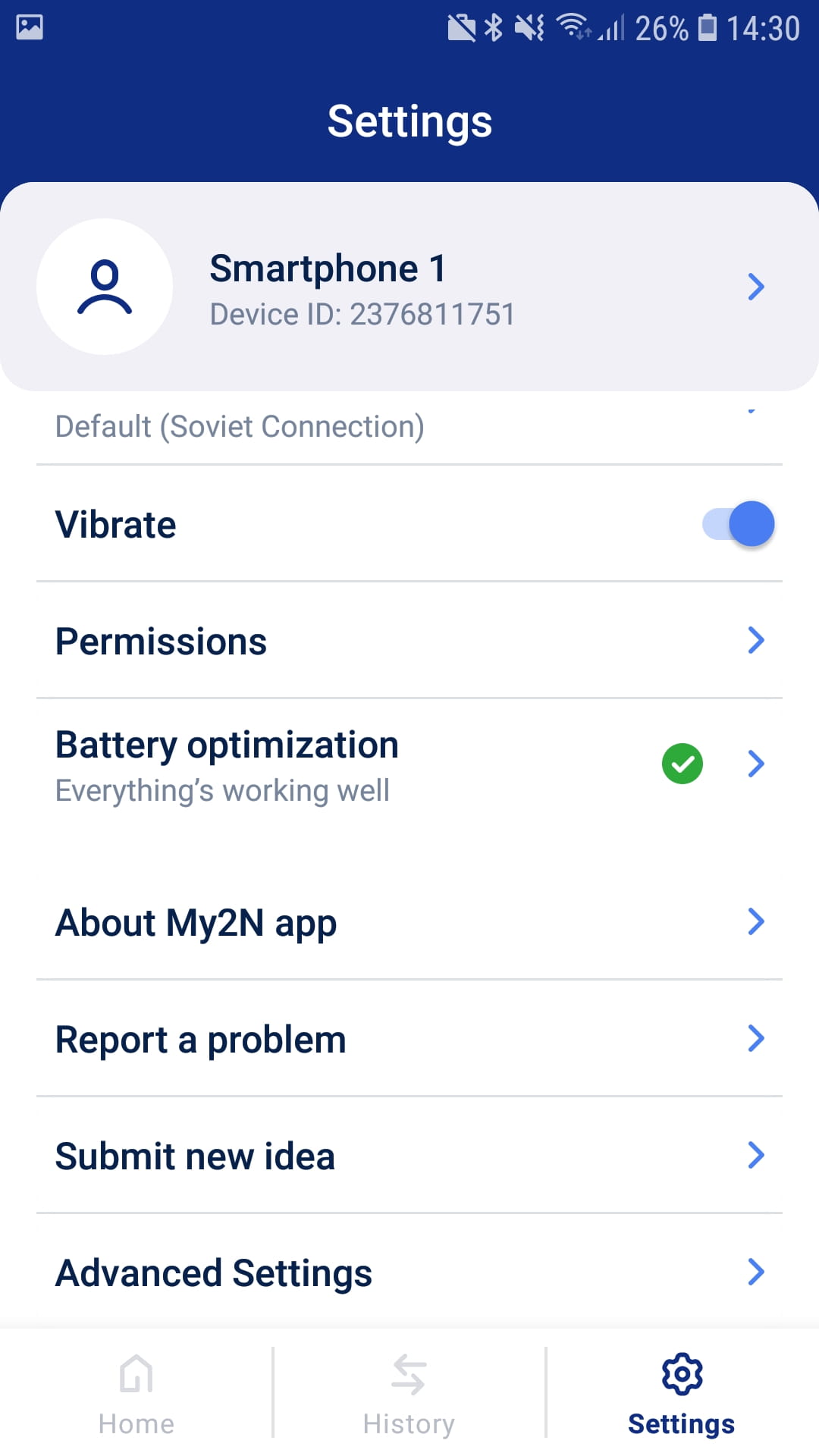
- The application registered:
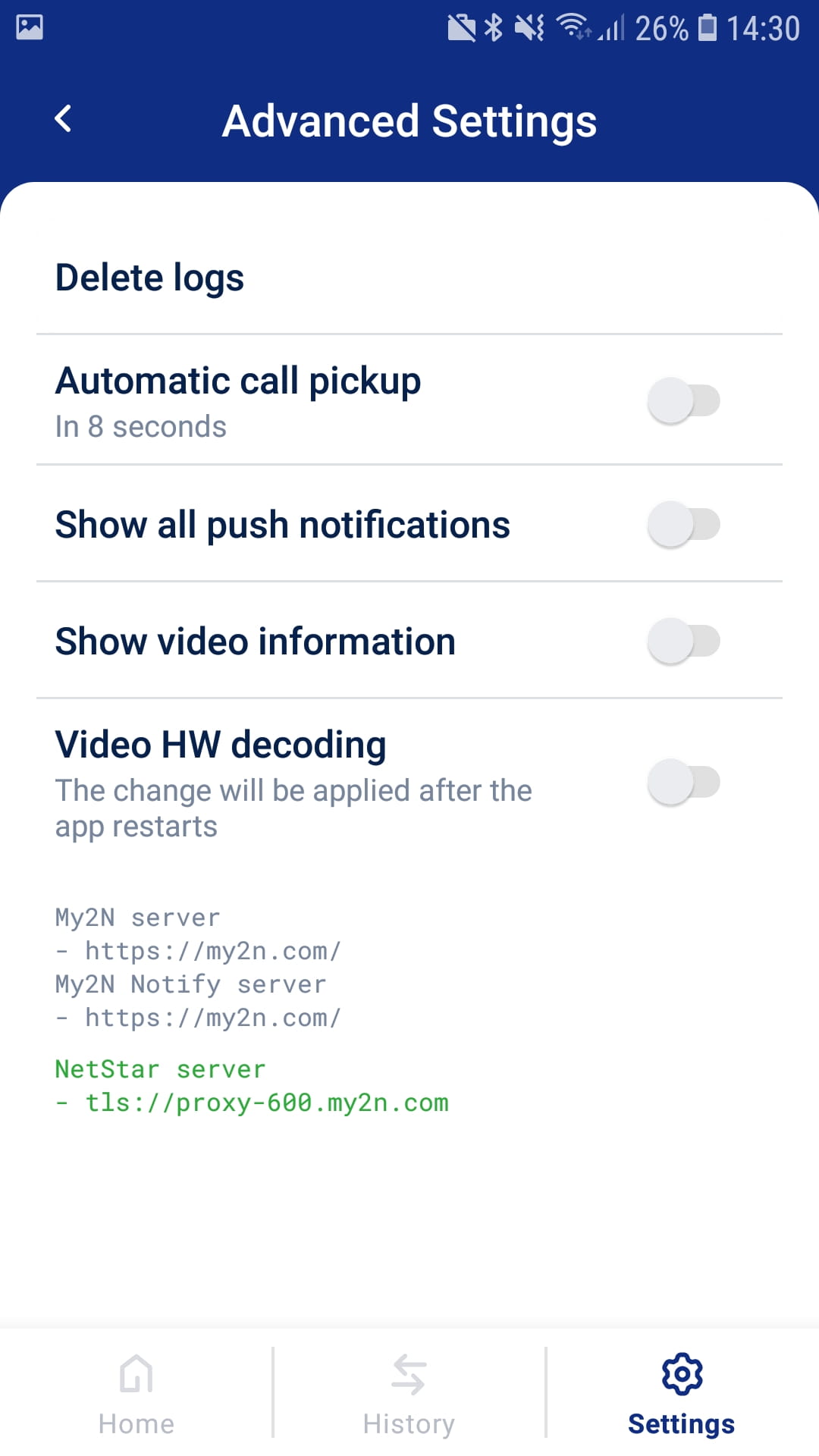
- The application is trying to register:
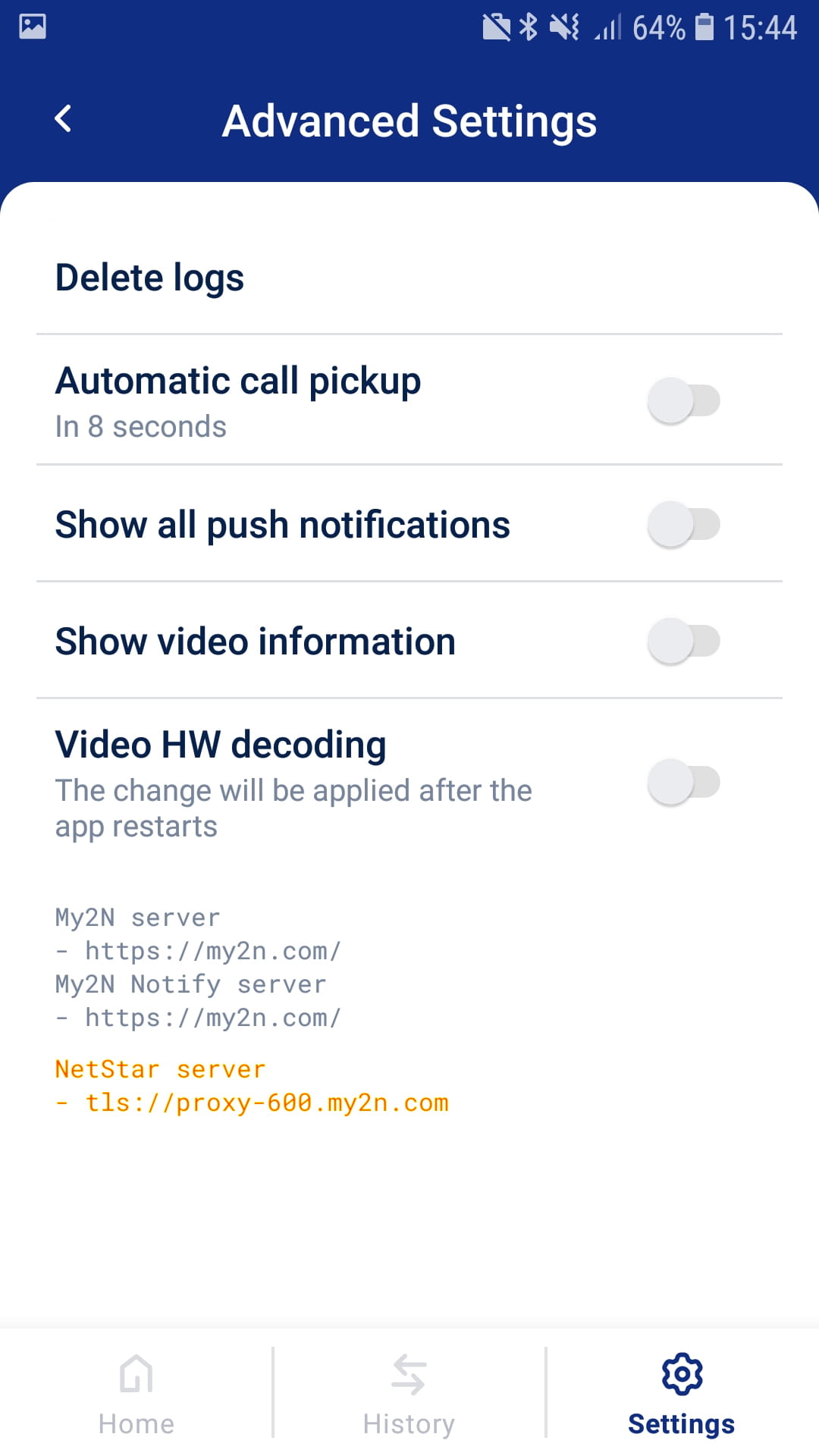
- The application is not registered and the previous registration failed:
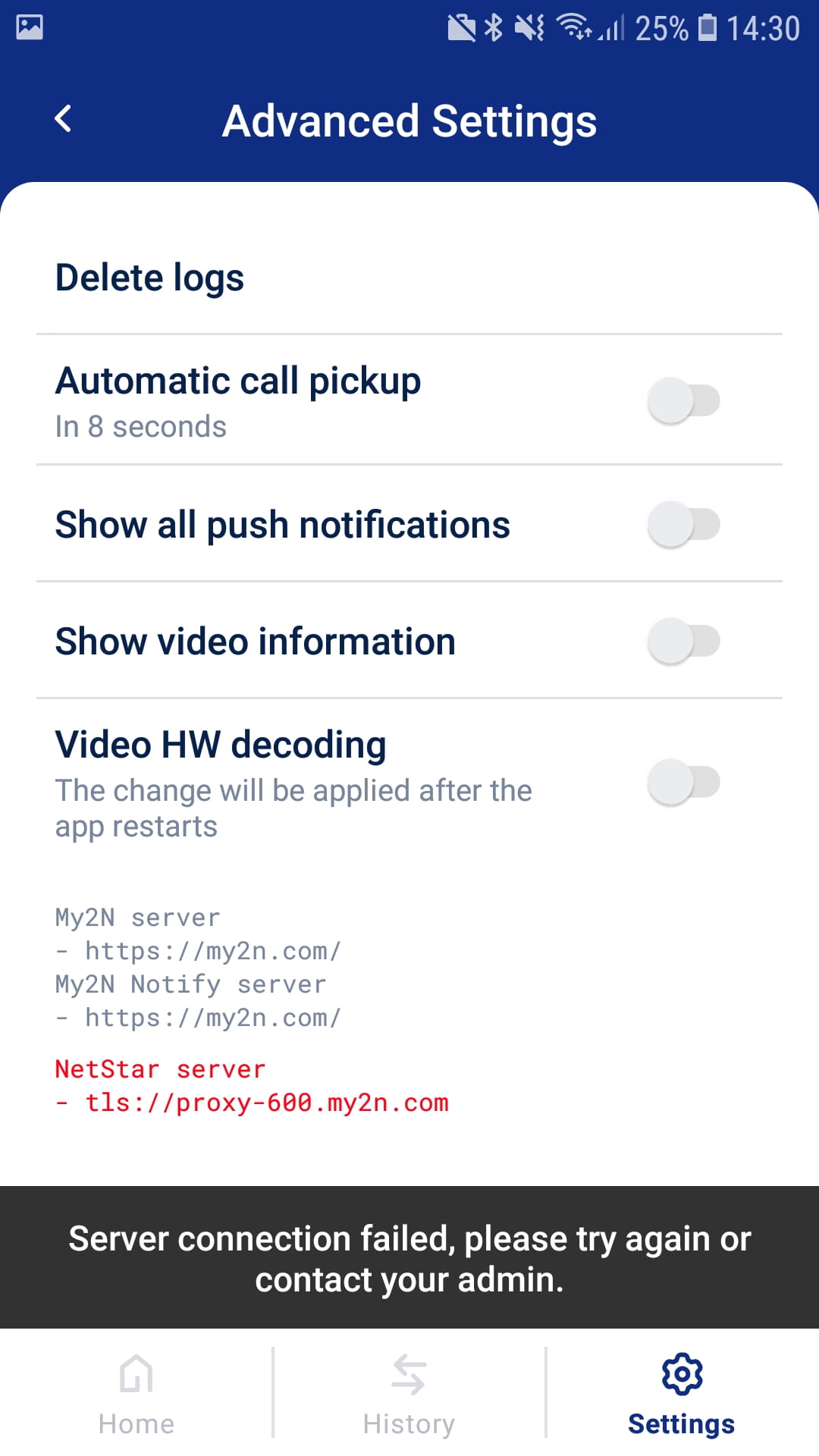
- If you are facing some troubles with the app - try to uninstall the app, restart the phone and install it again.
What should I check on the side of the 2N IP intercom
Below you will find a few steps which need to be checked on the side of the intercom in case of any issues. However, before you will continue with these steps always check whether the intercom has the current FW version!
- The latest FW version for the intercoms can be always downloaded from our website here.
Is the configuration of the intercom configured to automatic mode or manual?
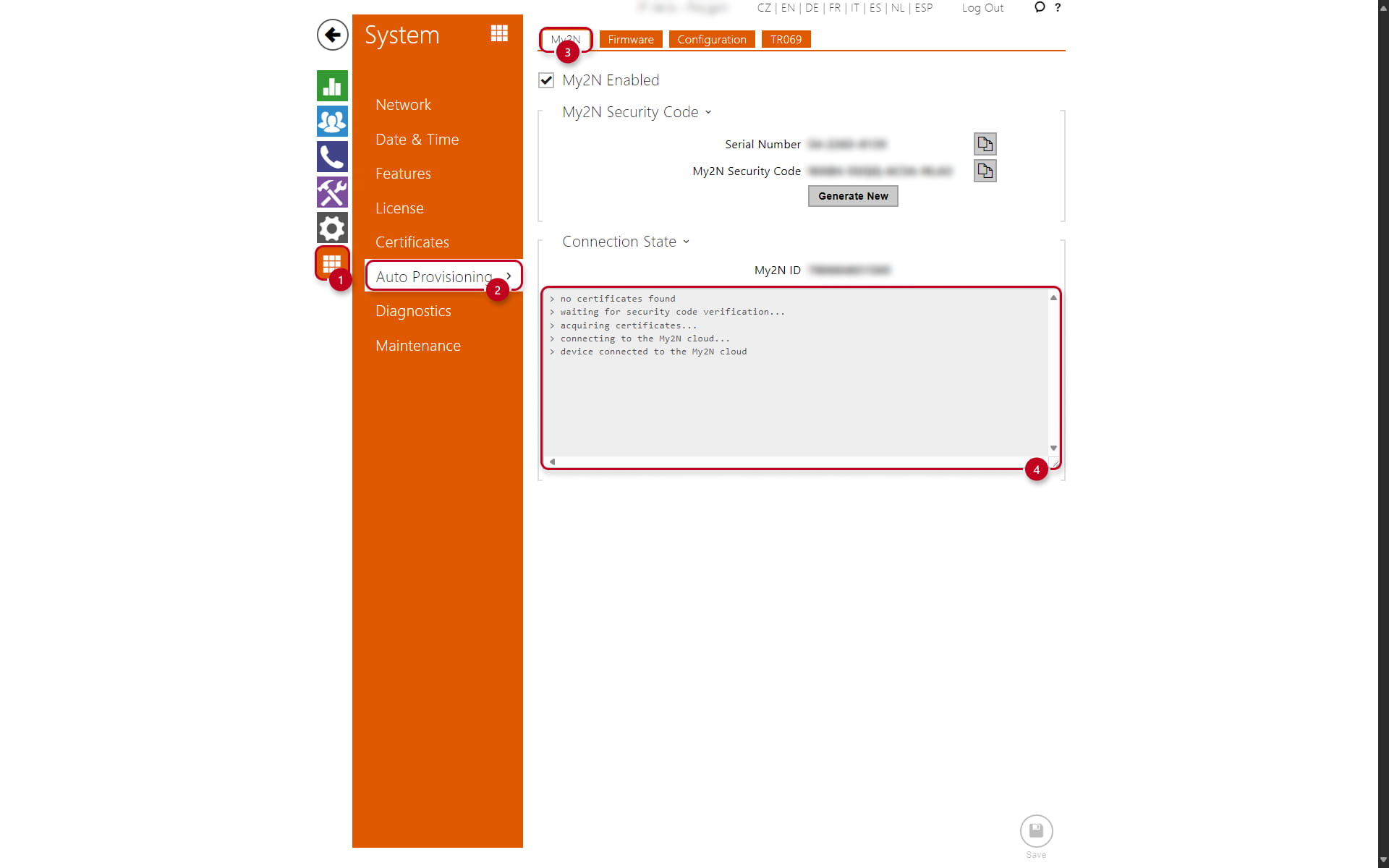
You have two options on how to configure the intercom. The first of them is via Auto Provisioning and you can enable/disable it in the section "System" (1), "Auto Provisioning" (2) and "My2N" (3):
-
When the feature is enabled, then the device is configured automatically by the My2N server regarding your call settings
-
Under the Connection State, you can check the My2N Status (4)
- It is recommended to keep this feature enabled:
Has the intercom proper connectivity to the internet?
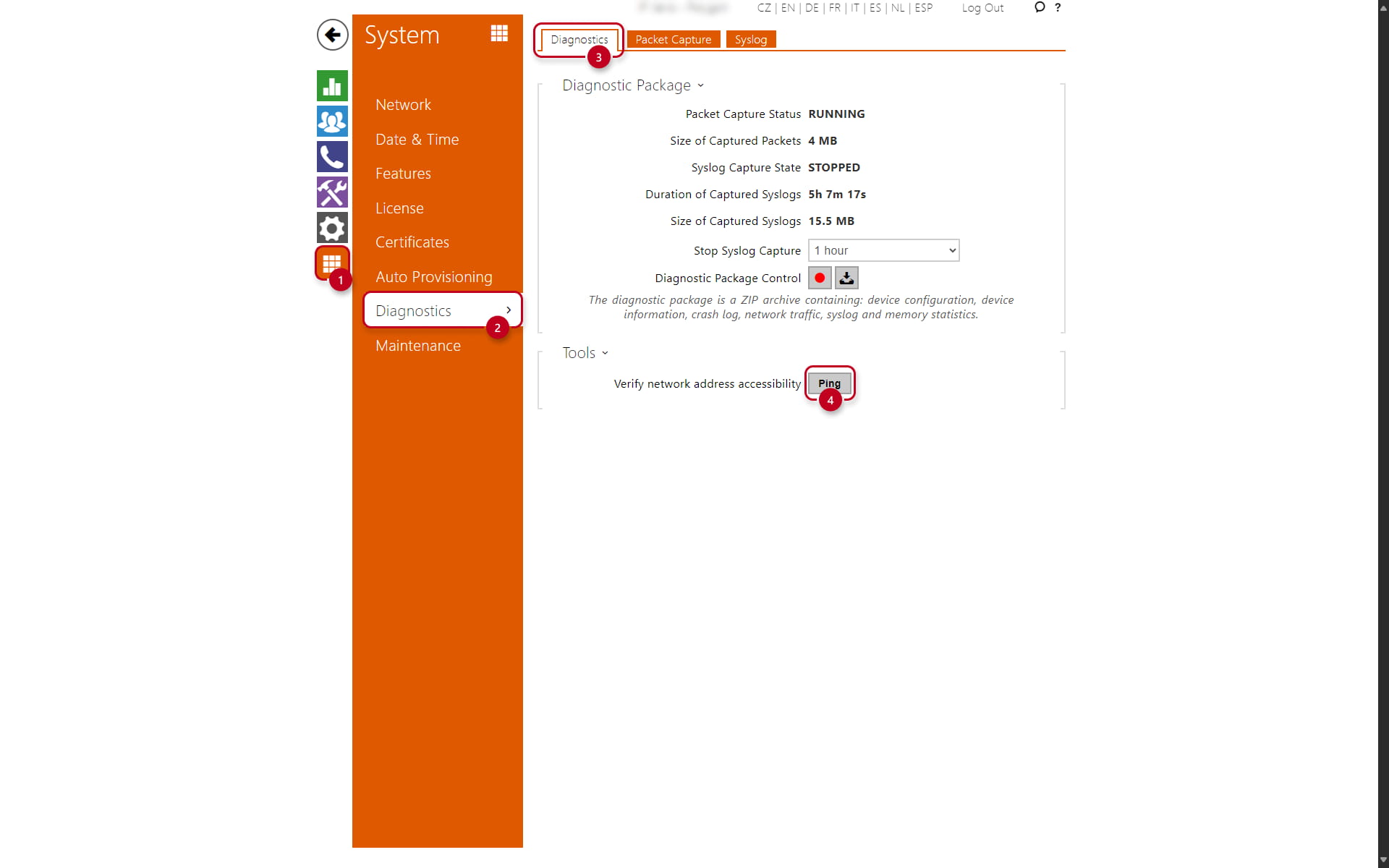
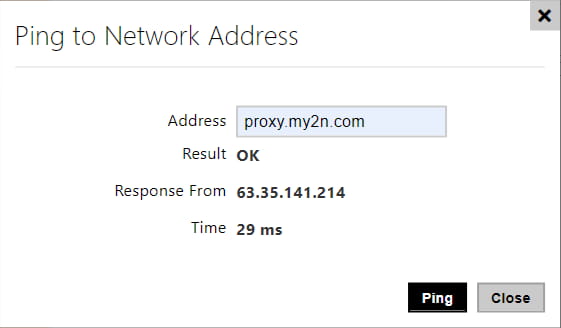
The simplest way how to check the internet connection for the intercom is by using the in-built ping tool:
-
It can be found in the section "System" (1), "Diagnostics" (2) and "Diagnostics" - "Diagnostic Package" (3)
-
You can ping the proxy server directly by clicking on the "Ping" (4)
-
Input the My2N proxy address and click on Ping
-
Ping result should return: OK
-
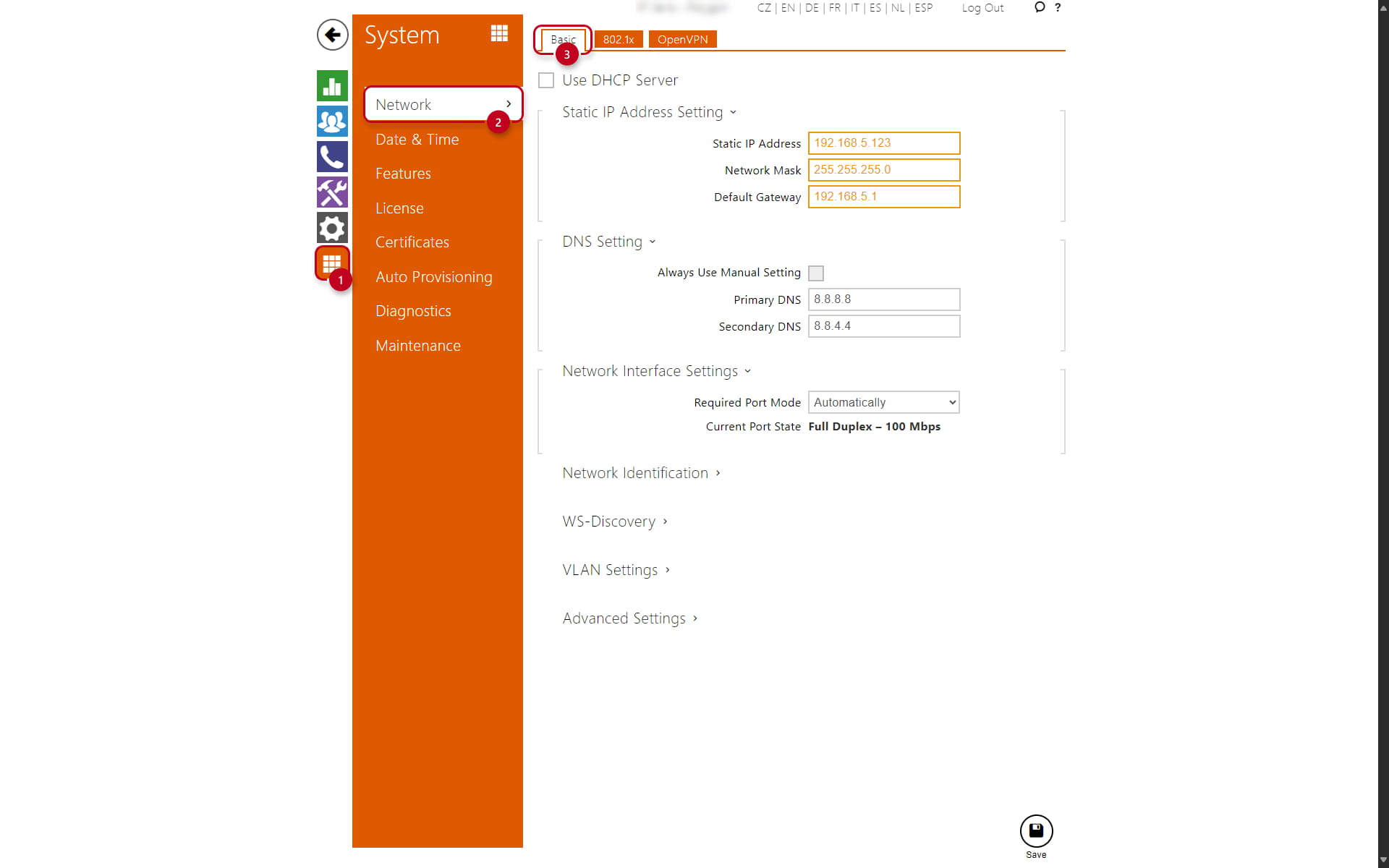
When you need to use a static IP address, do not forget to also fill in the DNS servers
-
If the DNS is not set correctly, then the intercom won't be able to ping the My2N server or even register with it, as it won't be able to resolve the domain
- You can set this up under the "System" (1), "Network" (2) and "Basic" (3)
-
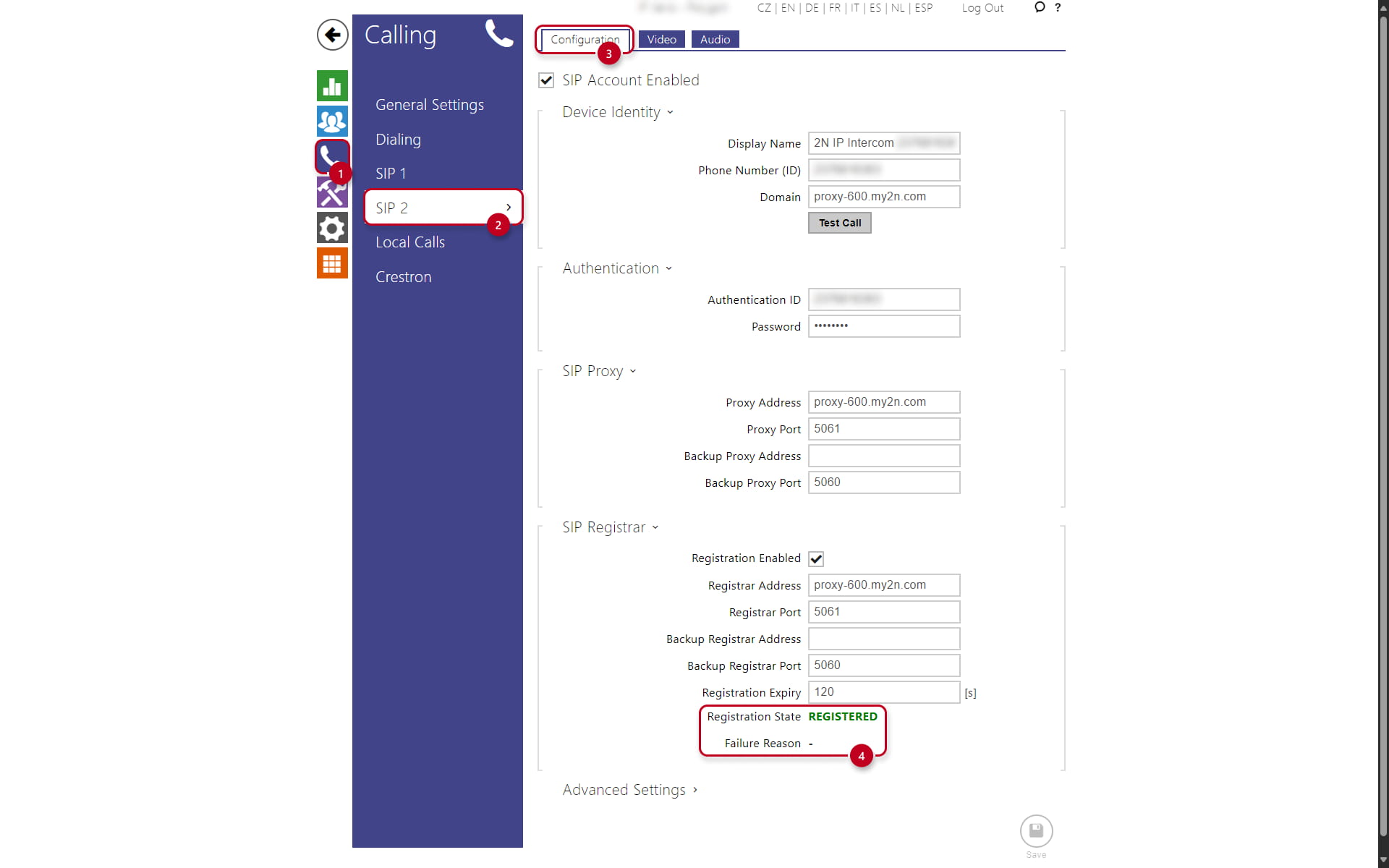
Once you will be sure about connectivity for the Intercom, you can also check registration status of the intercom in the section
-
Go under "Calling" (1), select "SIP2" (2) and then "Configuration" (3)
-
You can check the status on the bottom, under "Registration State" (4)
Router settings (for Mobile Video and Remote Configuration services)
If your router supporst SIP ALG and UPnP features please make sure that the settings of those parameters are following:
-
UPnP enabled
-
SIP ALG disabled
UPnP (Universal Plug and Play) - is a set of networking protocols that permits networked devices, such as personal PCs, printers, mobile devices and so on to seamlessly discover each other's presence on the network and establish functional network services.
SIP ALG (SIP Application Level Gateway) - This service is intended to prevent some of the problems caused by router firewalls by inspecting VoIP traffic and if necessary modifying it.
Firewall setting:
- Domain names: *.my2n.com (* = "any".my2n.com)
- You can specify the servers:
- my2n.com (SIP server for calling)
- acs.my2n.com (Auto Configuration Server - server for synchronisation and configuration)
- knock.my2n.com
- proxy-{x}.my2n.com ("x" is a number of the proxy server, you can find it in the section "Calling"->"SIP2")
- tribble.my2n.com (server for secured remote configuration )
- gw1.rc-vpn.my2n.com (server for remote configuration - it is not used if firmware in IP intercom is 2.32 and newer)
- gw2.rc-vpn.my2n.com (server for remote configuration - it is not used if firmware in IP intercom is 2.32 and newer)
-
Ports: 80, 443, 5060 TCP and UDP, 5061 TLS, 5062 TCP and UDP, 5666 TCP and UDP, 30000 - 31 999 UDP
-
Minimum upload and download speed: 640 kbps + some reserve
-
IPS(Intrusion Prevention System) has to be disabled or adjusted to be able to allow SIP communication.
Issues are still not resolved
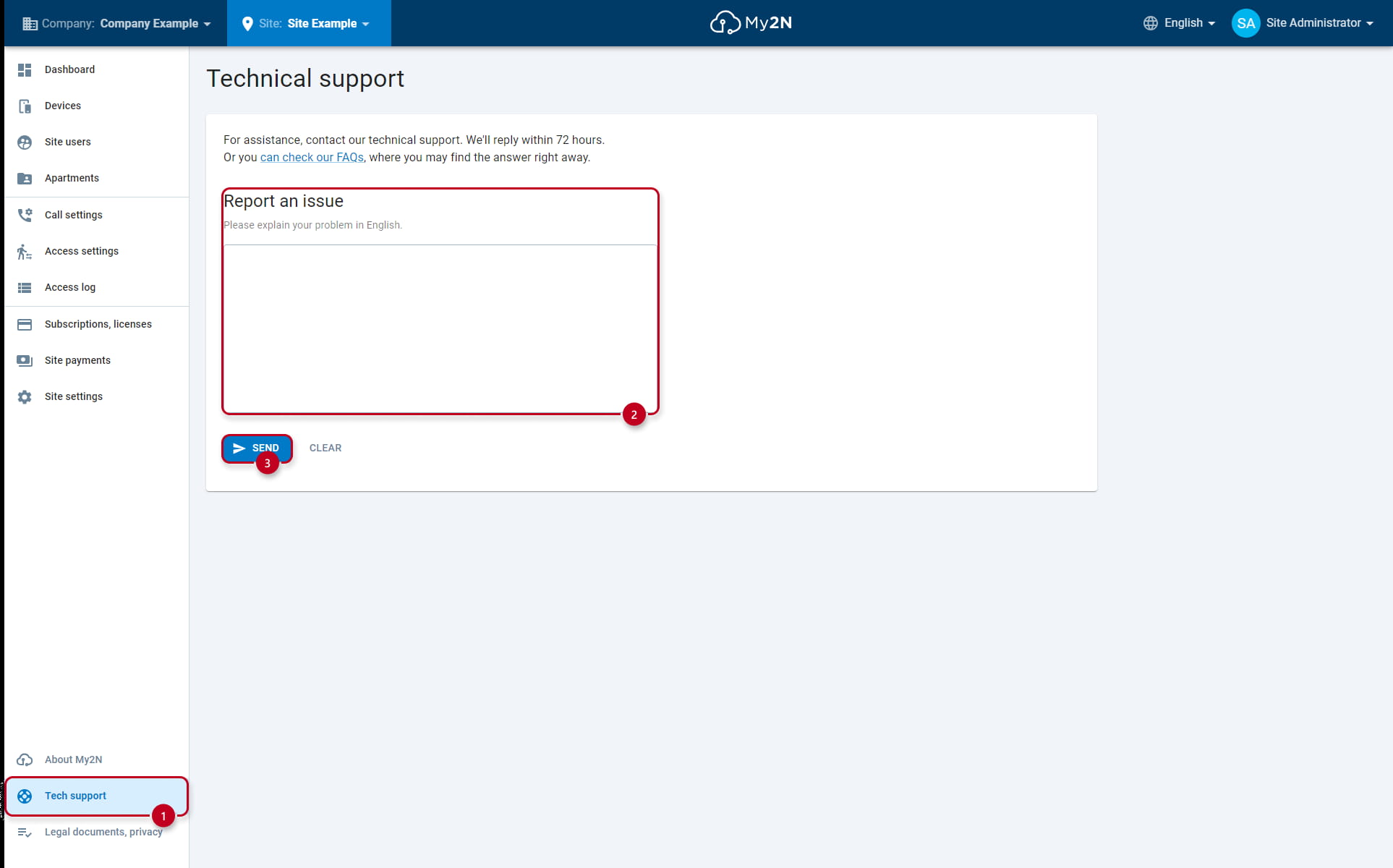
When you go trough all the steps mentioned above and also other FAQ's about My2N service and you are still not able to make the whole setup work, then you can contact 2N technical support directly from the My2N portal:
-
Support link is always at the left bottom corner (1) of the web page. Once you click on it, you can describe your issue via our online form
-
Always describe your issue in detail as the most possible (2) detailed info can speed up whole troubleshooting process
-
Once finished, hit "SEND" (3) and await response from the Technical Support on the email of the account you are currently logged as:
- Alternatively, you can visit 2N Website and Support | 2N
Which details you should provide to Technical Support?
To be able to identify the root cause of the issue it is always better to provide as much info as possible.
Here is the list of the most common questions that should be provided during the initial phase of the troubleshooting:
-
What type of phones (type, version of the system) have you tried?
-
And what were the results with each model?
-
-
What is the behavior of the audio/video issue?
-
Is audio/video working once you are connected into the LAN network?
-
Is the audio/video working once you are connected via 3G/4G/5G?
-
In which direction the audio/video does not work?
- Intercom to Smartphone or Smartphone to Intercom, or both?
-
What version of the app do you have?
- Have you tried updating the app?
-
Have you tried uninstall app, restart the phone and install it again?
-
What type of the internet provider do you use in case of LAN and in case of 3G/4G/5G?
-
Could you please also verify the following on your router:
-
UPnP is enabled
-
SIP ALG is disabled
-