The steps in this article require using the web interface of a 2N device. Please follow this manual in case this is your first time using the web interface.
We will show you how to add an external Axis IP camera directly into our 2N Indoor Touch
to easy switch between its stream and IP intercom´s internal camera stream during a video call.
Only Axis IP camera is supported, however you can still connect any IP camera with suitable parameters to an IP intercom
and switch between streams thanks to its automation function. For more information please visit the following FAQs.
Prerequisities
-
Axis IP camera (tested with Axis P3225-LVE MK II)
-
2N Indoor Touch with firmware version 3.3.0.2.0 or higher
Settings of 2N Indoor Touch
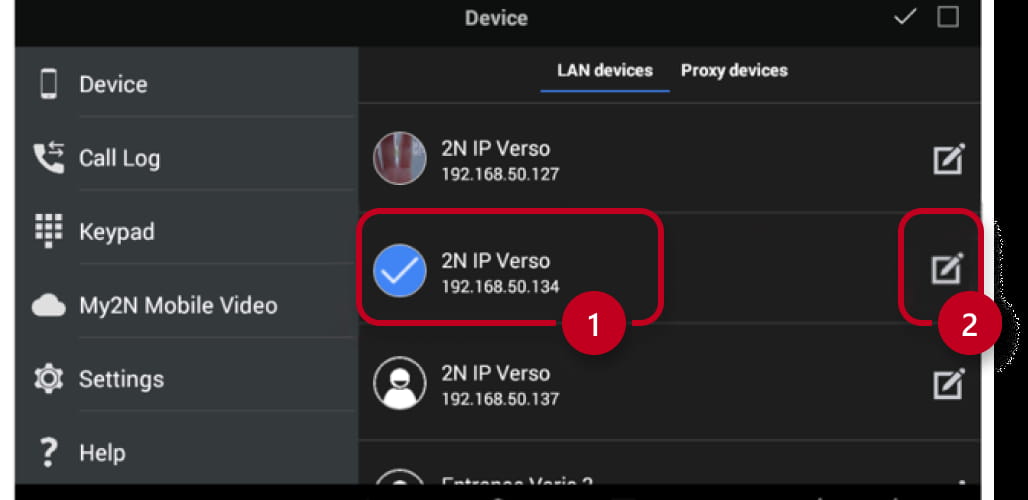
- Go to the on-screen menu and in the device list add a new device.

- Choose the intercom to which you would like to assign the camera and go into its details.
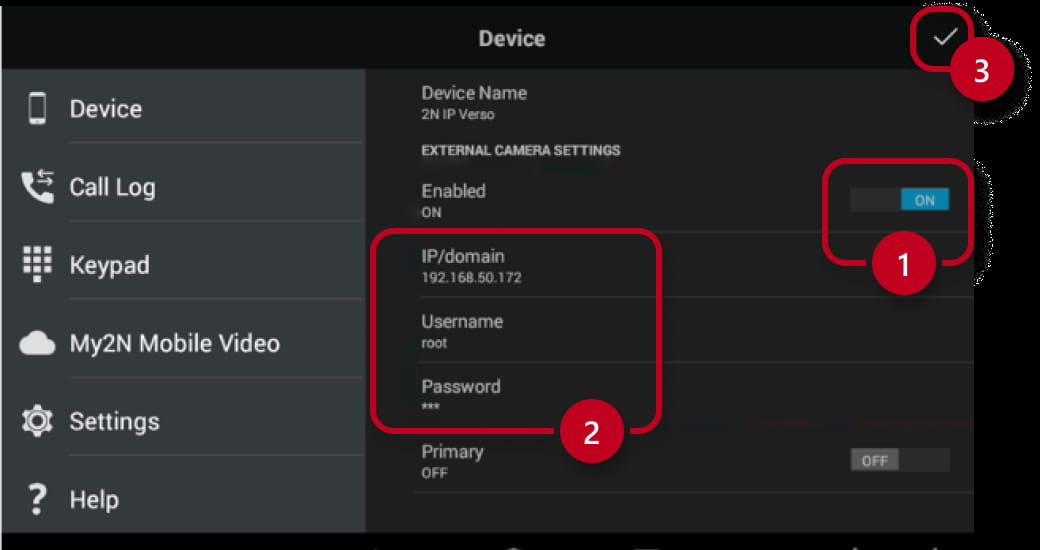
- Enable the external camera option and fill in IP camera´s IP address, login and password.
You don't need to know the streaming URL, just the IP address of the camera.
- Now you can switch between the video streams during the video call by using the camera button on the right upper corner.

Settings of Axis IP camera
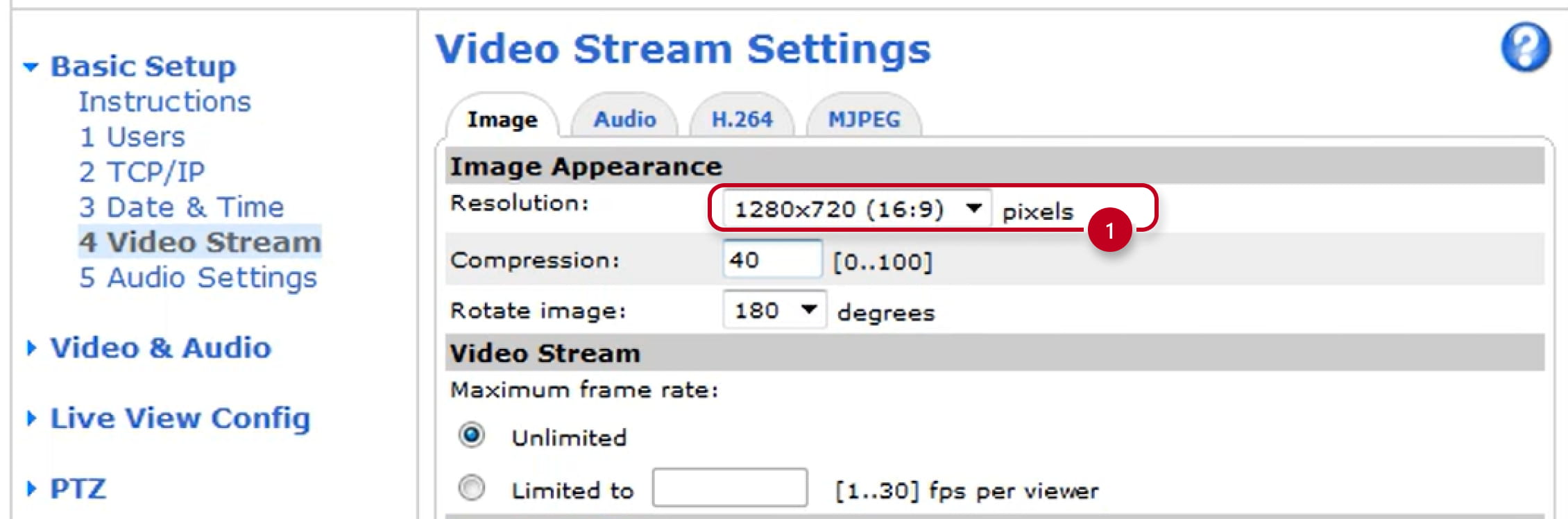
- You can change the resolution and codec type in the Axis camera in the following section.