In order to make calls from 2N Helios IP intercoms to other devices such as tablets and smartphones based on Android or iOS operating systems, you need to add them to My2N first.
Prerequisites
-
2N Helios IP intercom added in My2N account -
-
Android tablet or smartphone running Android operating system version 6 or newer or iOS tablet or smartphone running iOS operating system version 12 or newer
Step by step guide
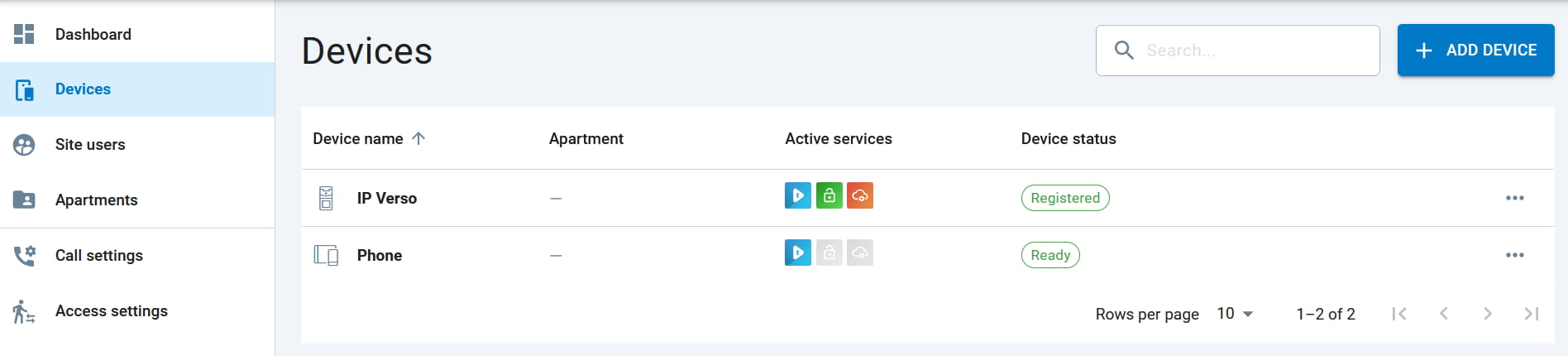
In My2N – Devices press the ADD DEVICE button in order to add your smartphone or tablet device to your My2N account.
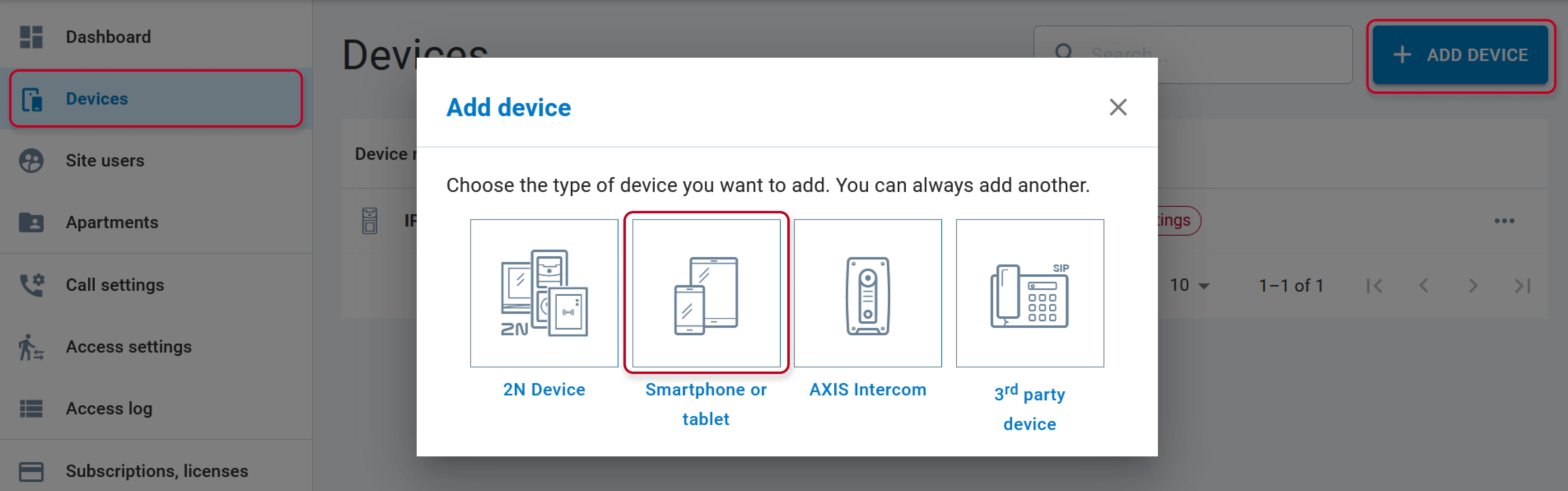
New window will appear. Please choose to add Smartphone or Tablet by clicking on it.
In the next step, you need to name your new device and assign its user. Usually it should be the holder of smartphone or tablet.
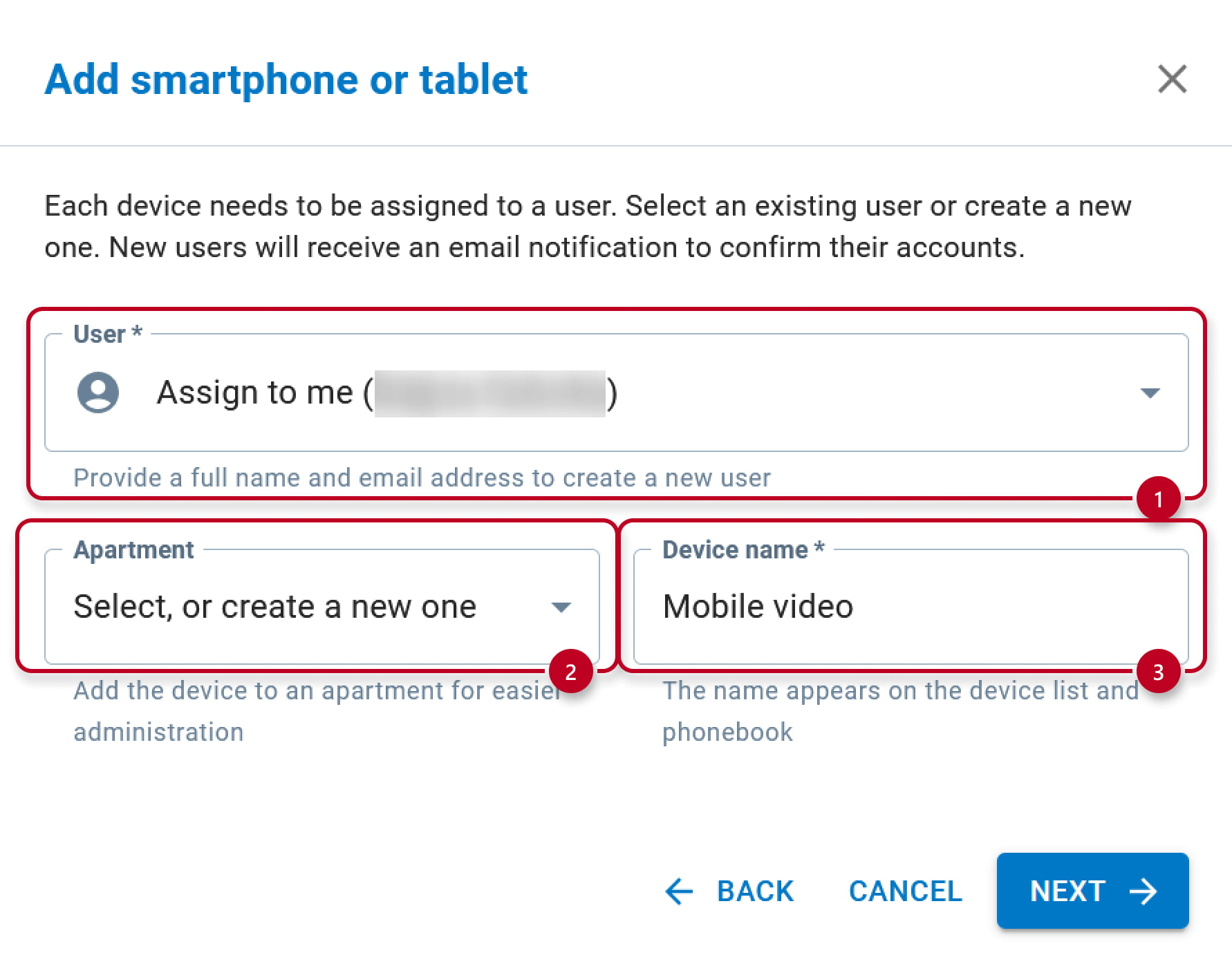

Device's login SIP credentials for My2N will be sent to selected user's email address.
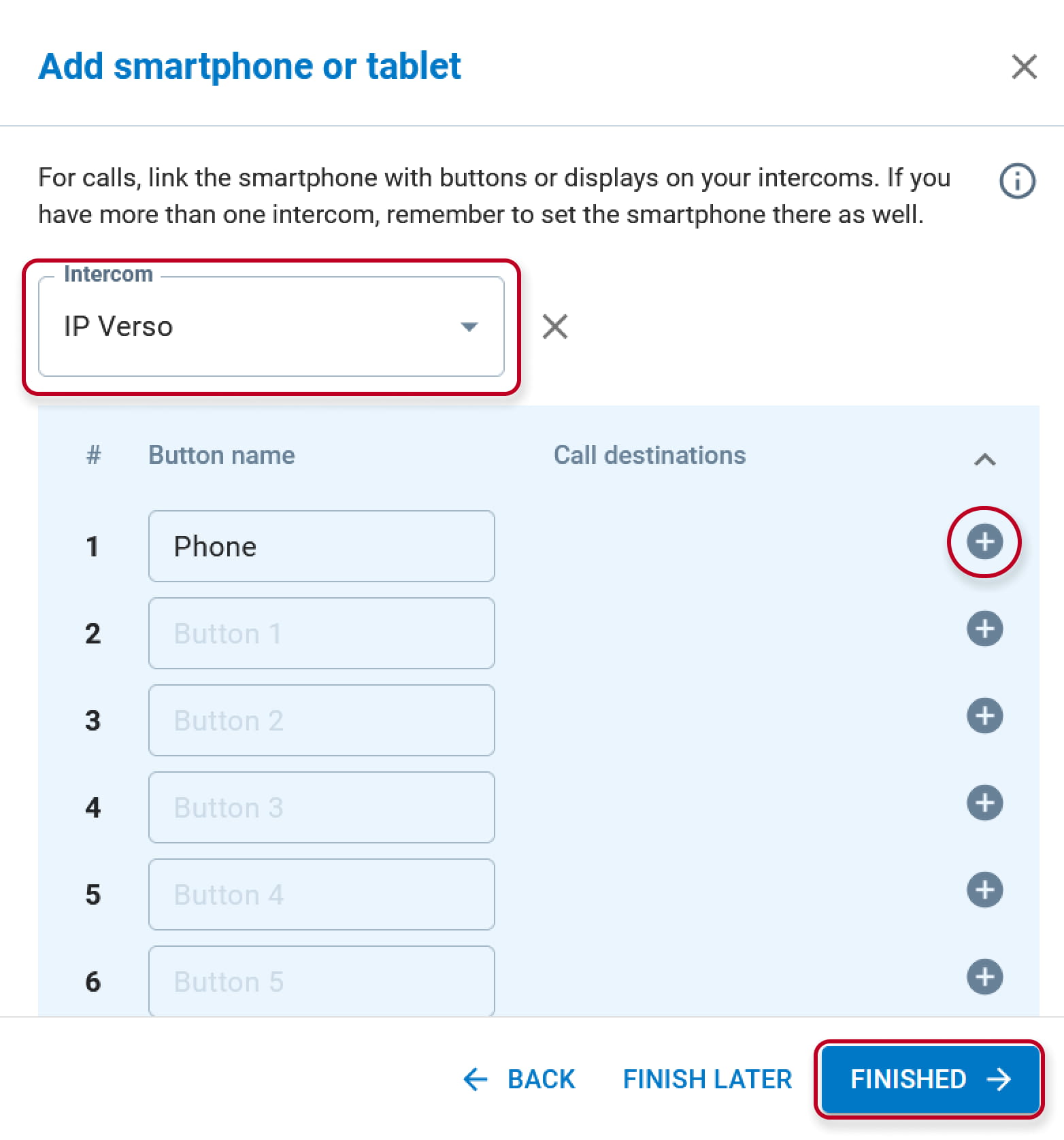
You can also add the new device to a button of an intercom here. Simply select the intercom and press the + button to add it. Confirm your choice by clicking on FINISHED button. After you finish, an email will be sent to user's email address and you will get a confirmation dialog window.
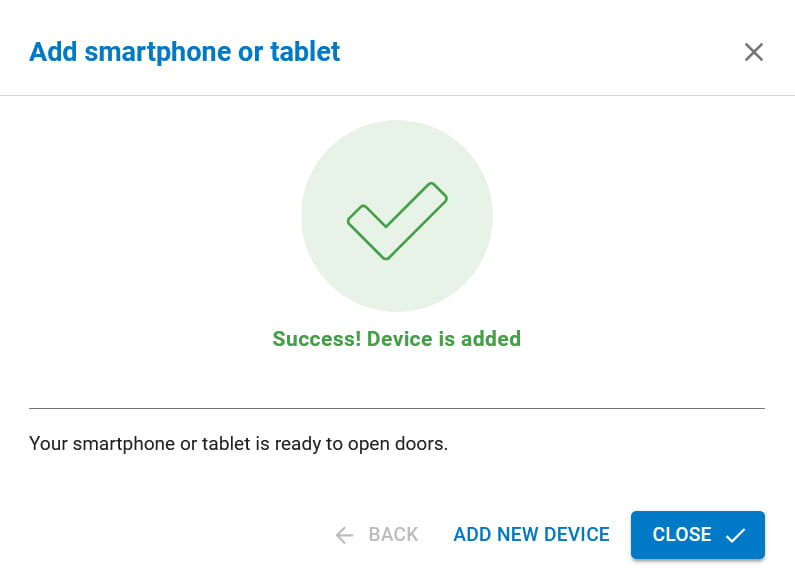
Now you have successfully added your smartphone or tablet to the My2N account.
You can add another device by repeating steps 1-5 and choosing a different device name.
In order to make calls from intercom to mobile devices over My2N, buttons on the intercom need to be configured to call correct mobile devices.
For detailed information how to set buttons, please visit the following article: How to configure call settings for the IP intercom