2N Access Commander enables emergency "lockdown" of connected units within
either single device, arbitrarily defined groups, given zones, companies or all devices (in all companies).
Does not work for: offline, inactive and devices with incompatible firmware older than 2.32.
If the device does not become online until after the lockdown has been applied, it will also automatically go into lockdown.

By the buttons at the given entities
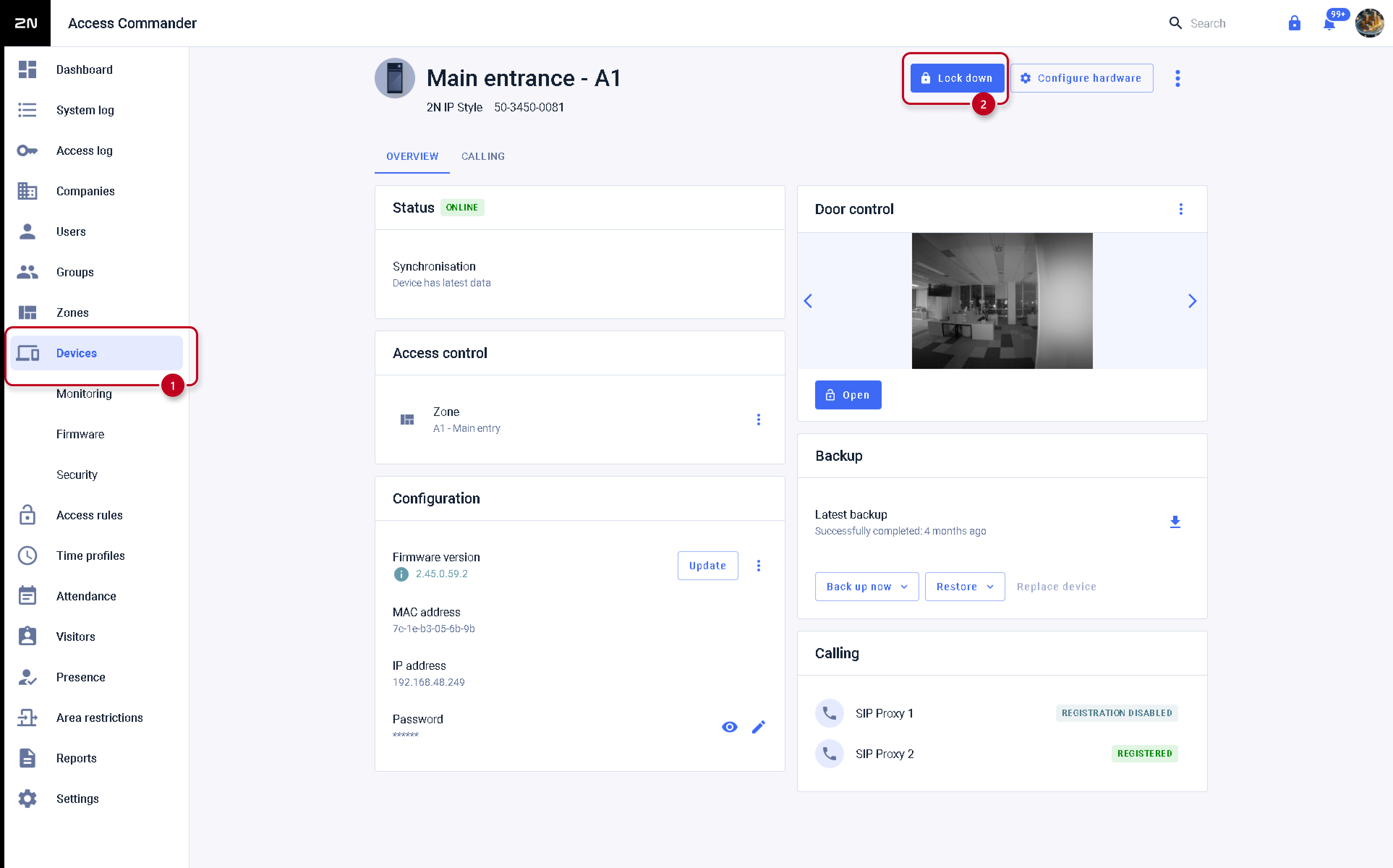
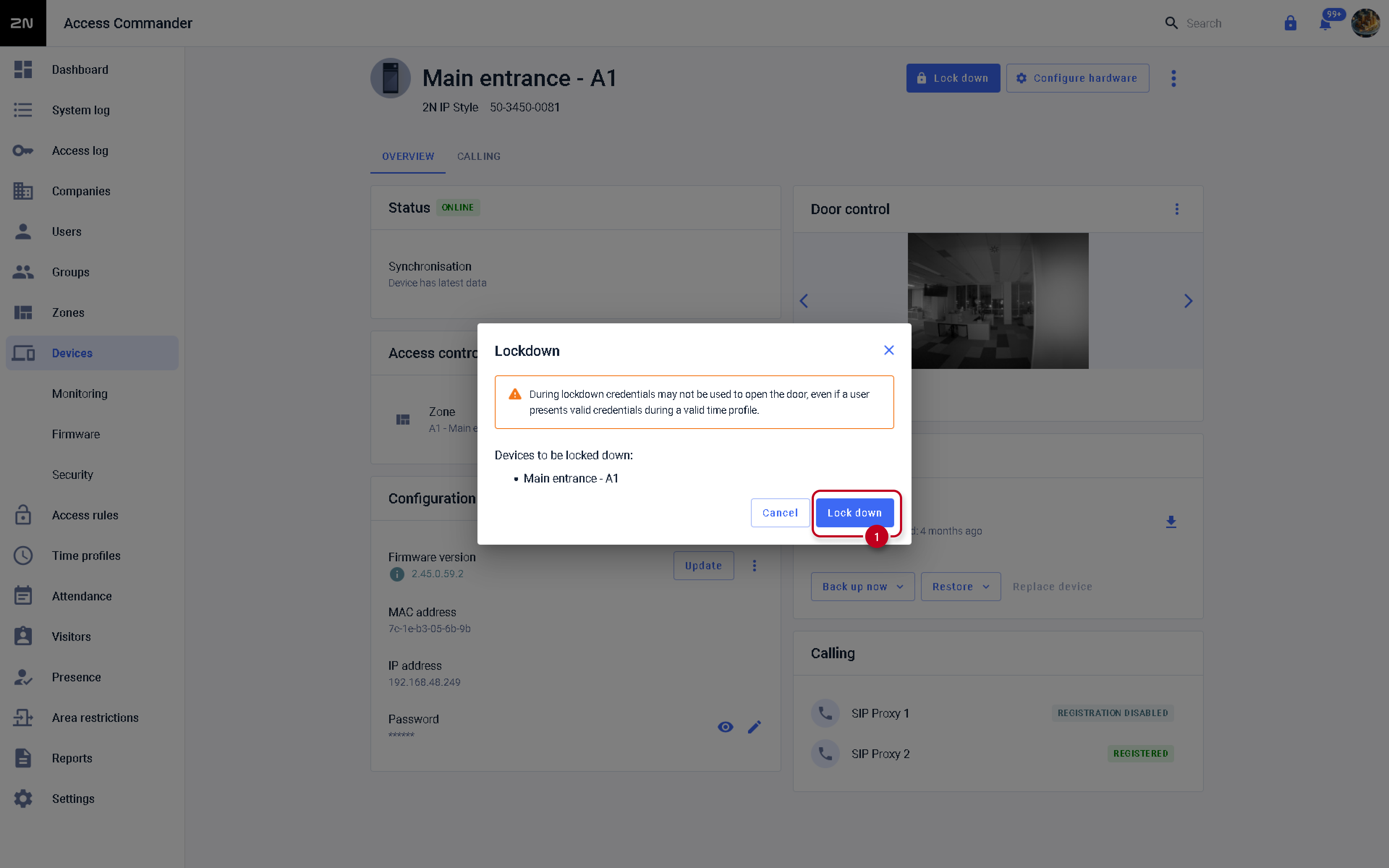
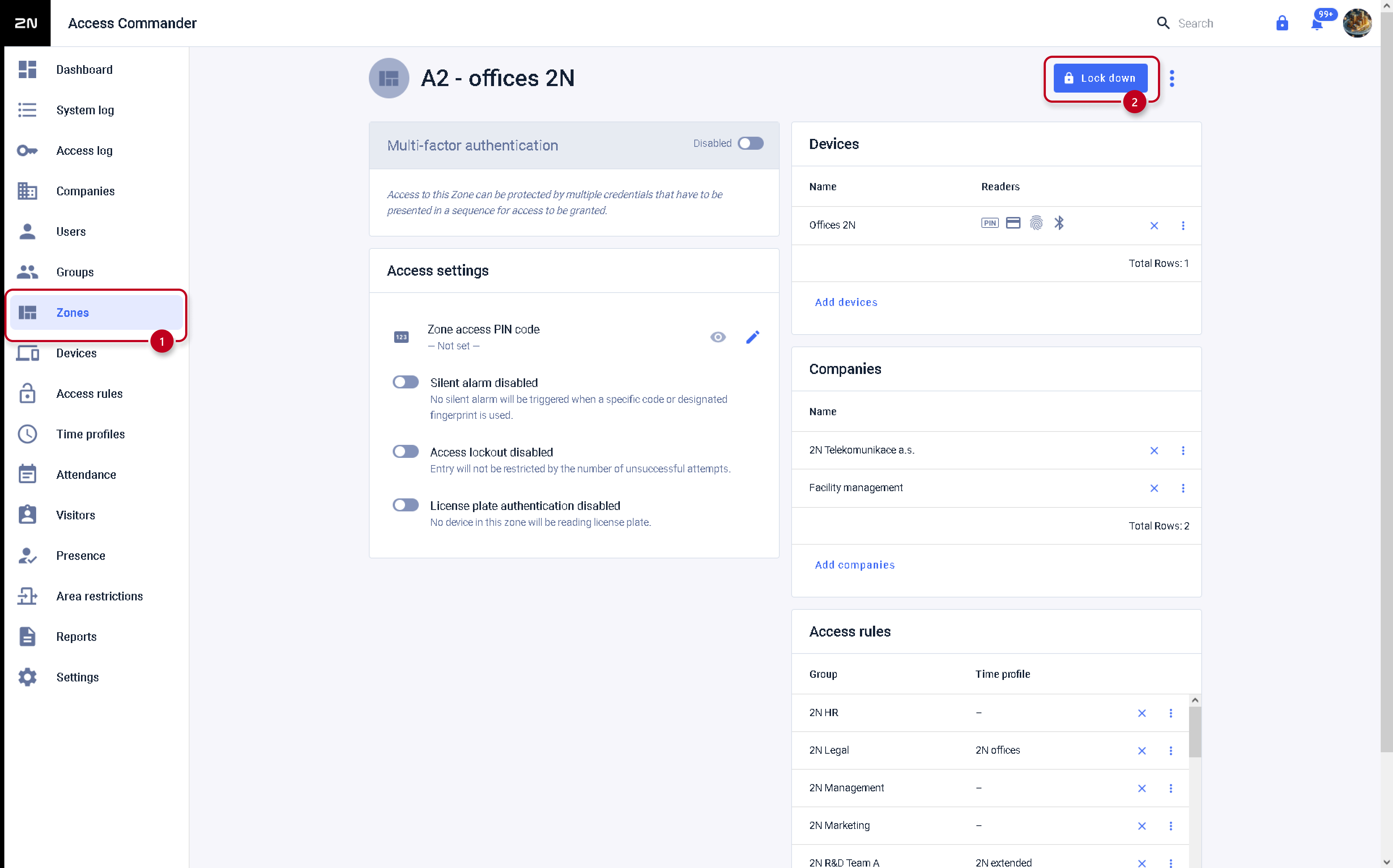
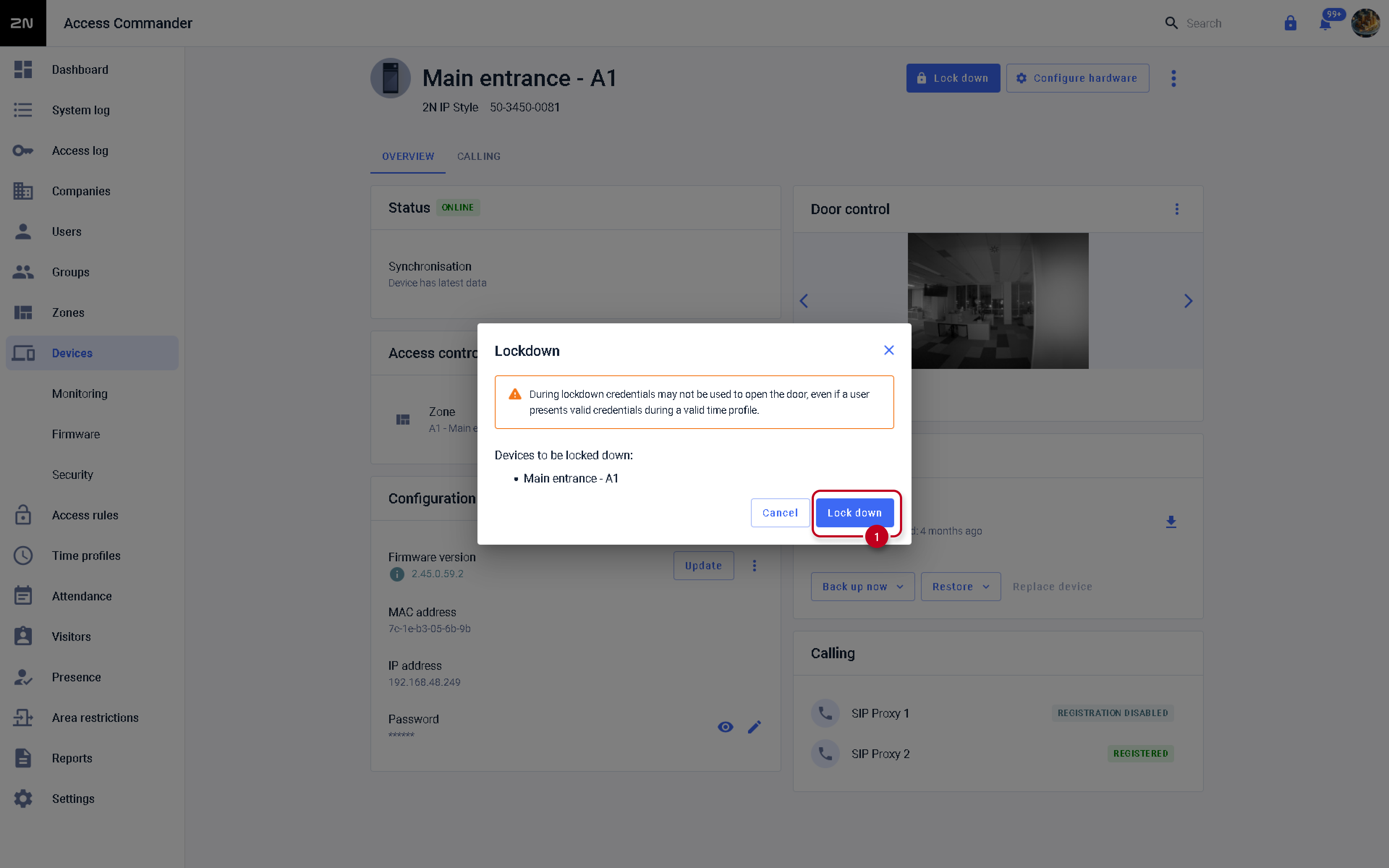
The button for lockdown is always located in the settings of the given entity (device / zone / company) in the relevant section of the 2N Access Commander's web interface.
See the following pictures:
-
Lockdown for particular device
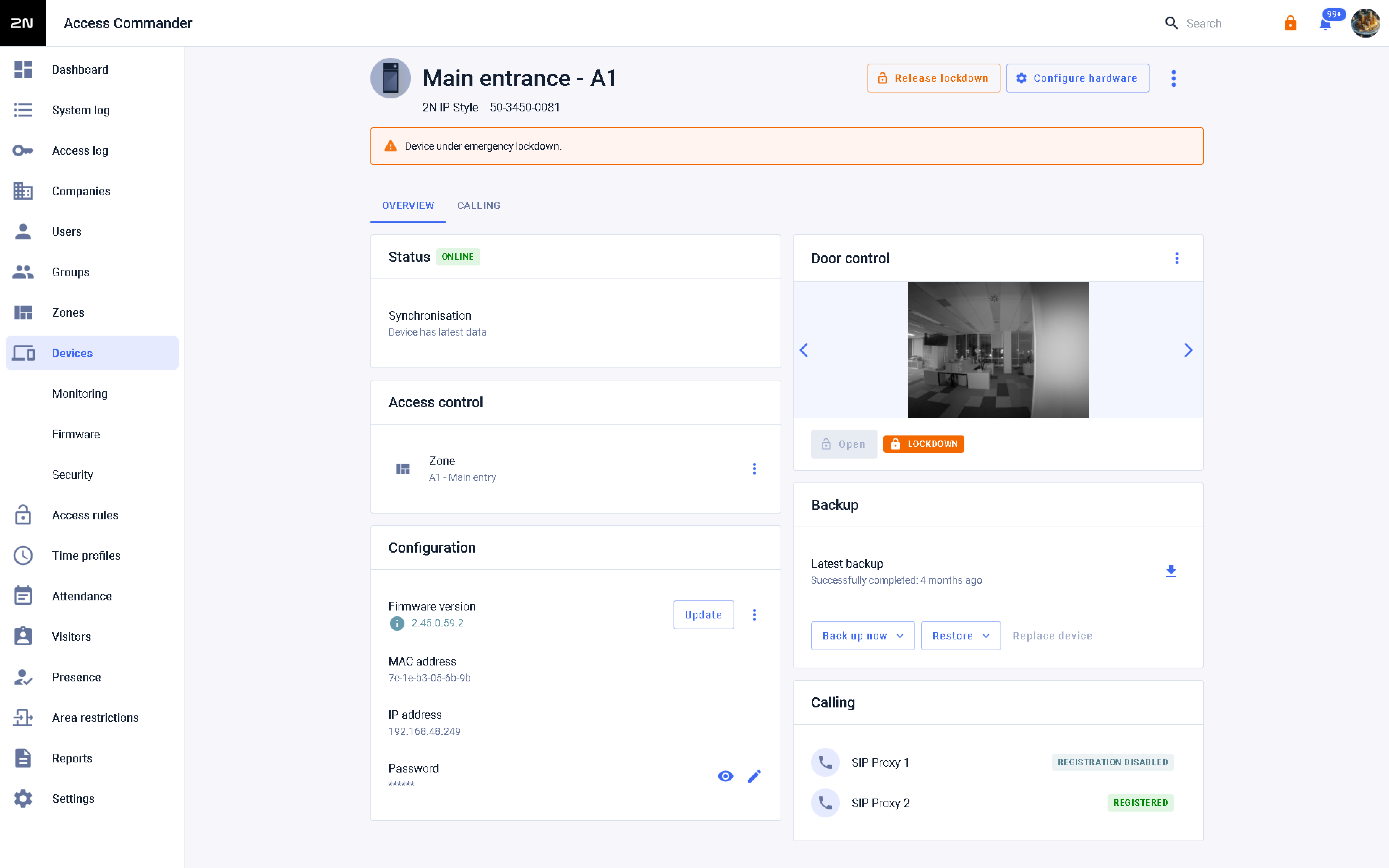 Lockdown release for particular device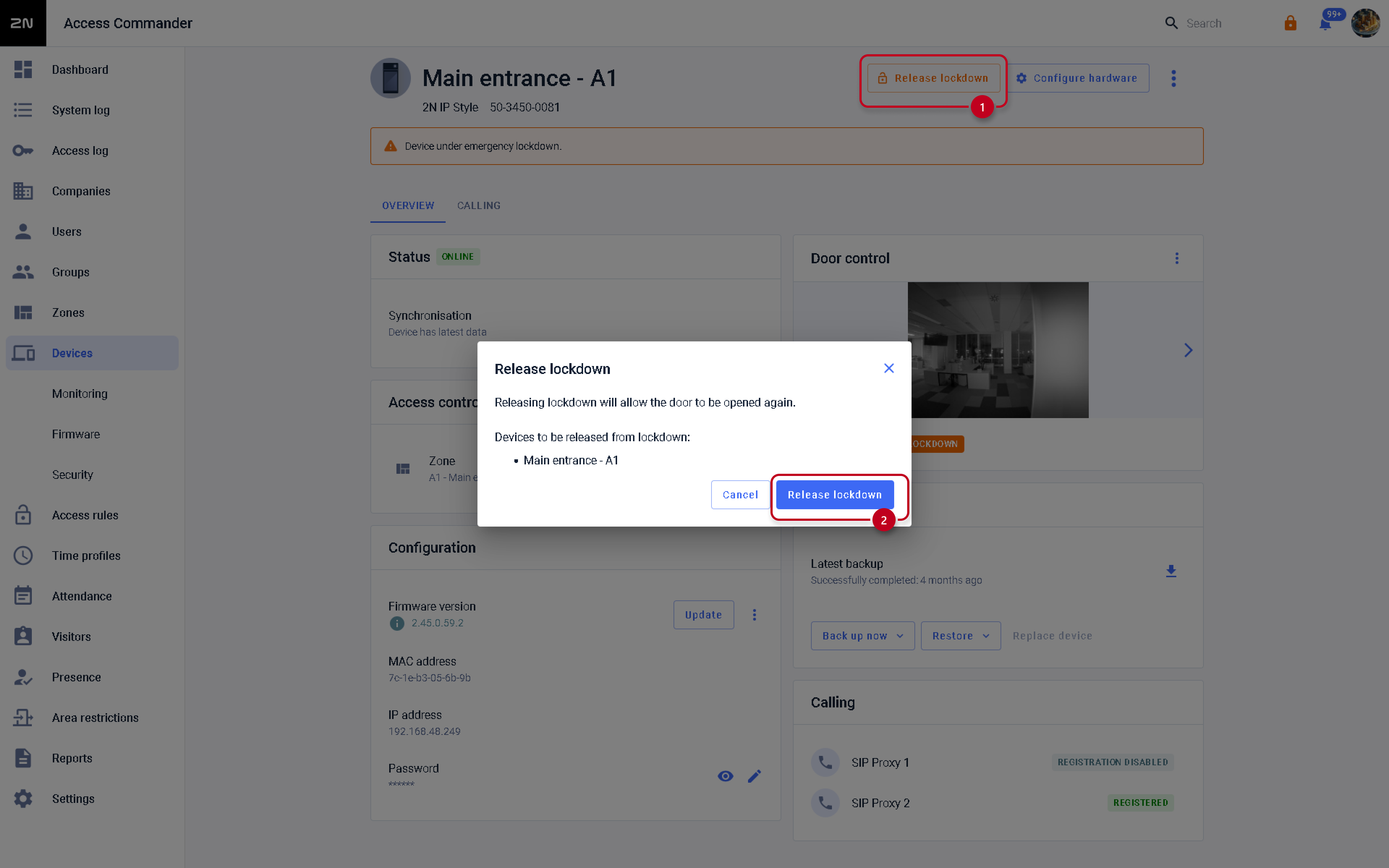
-
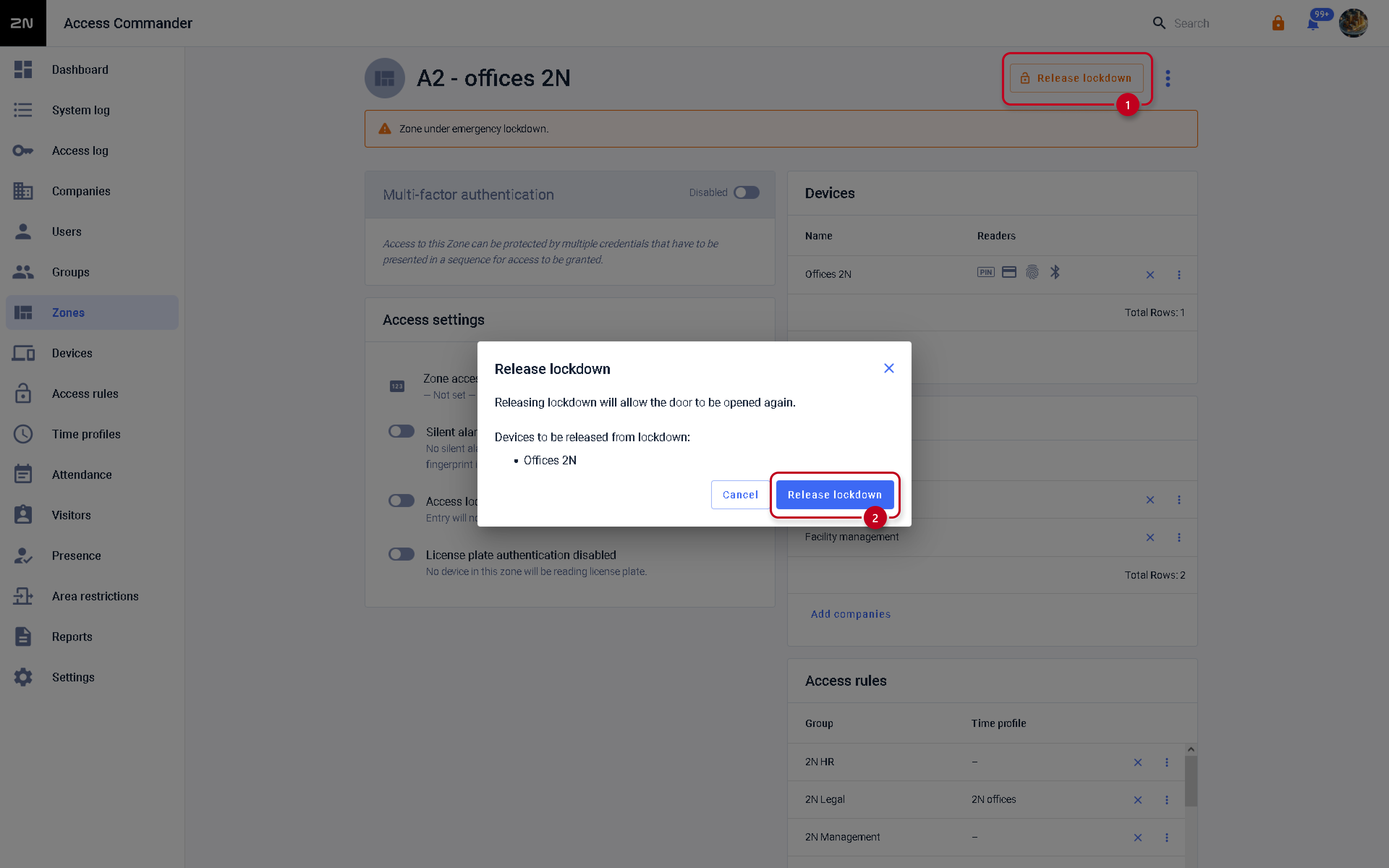
Lockdown for a zone:
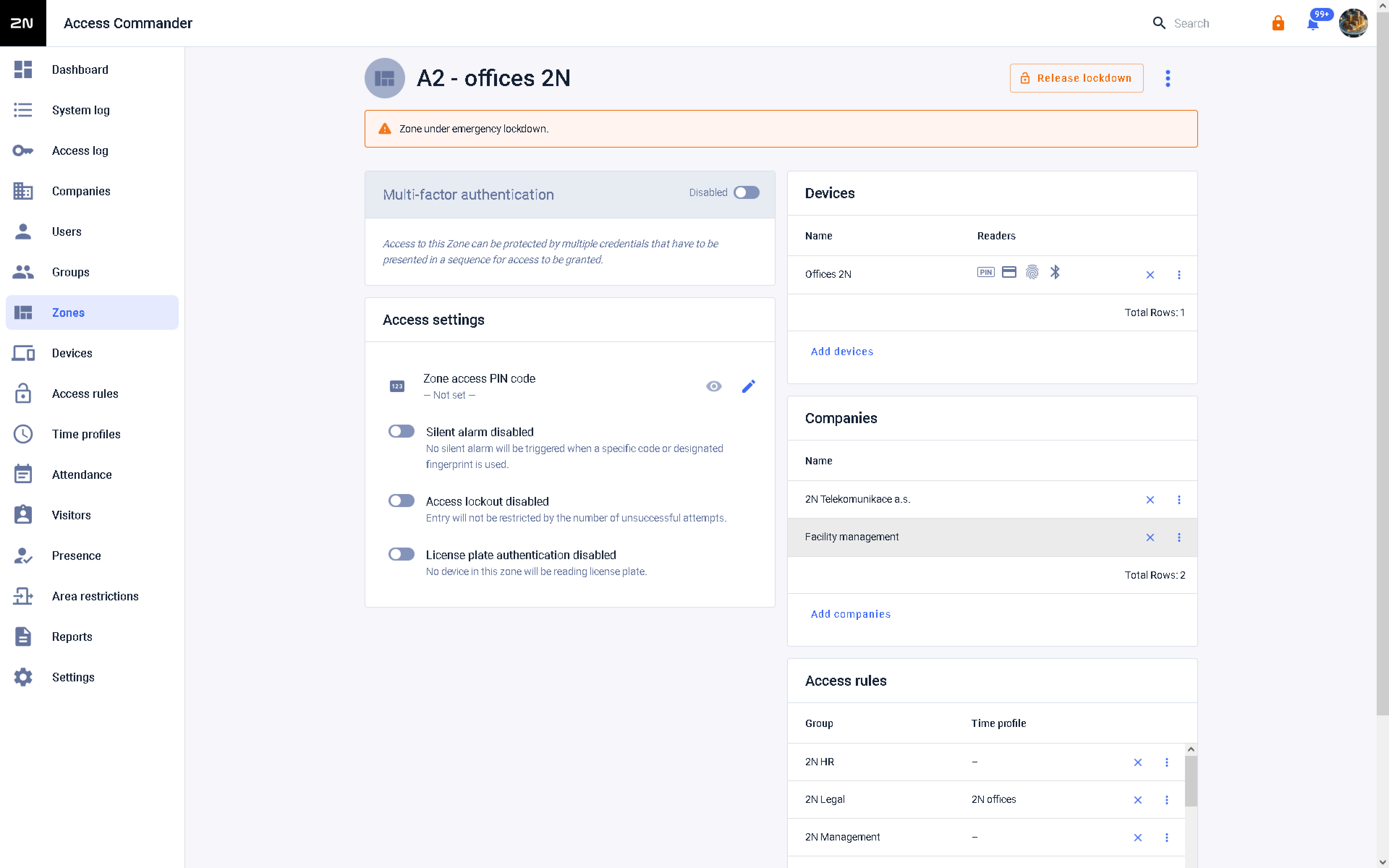
Lockdown release for a zone:
-
Lockdown for a whole company:
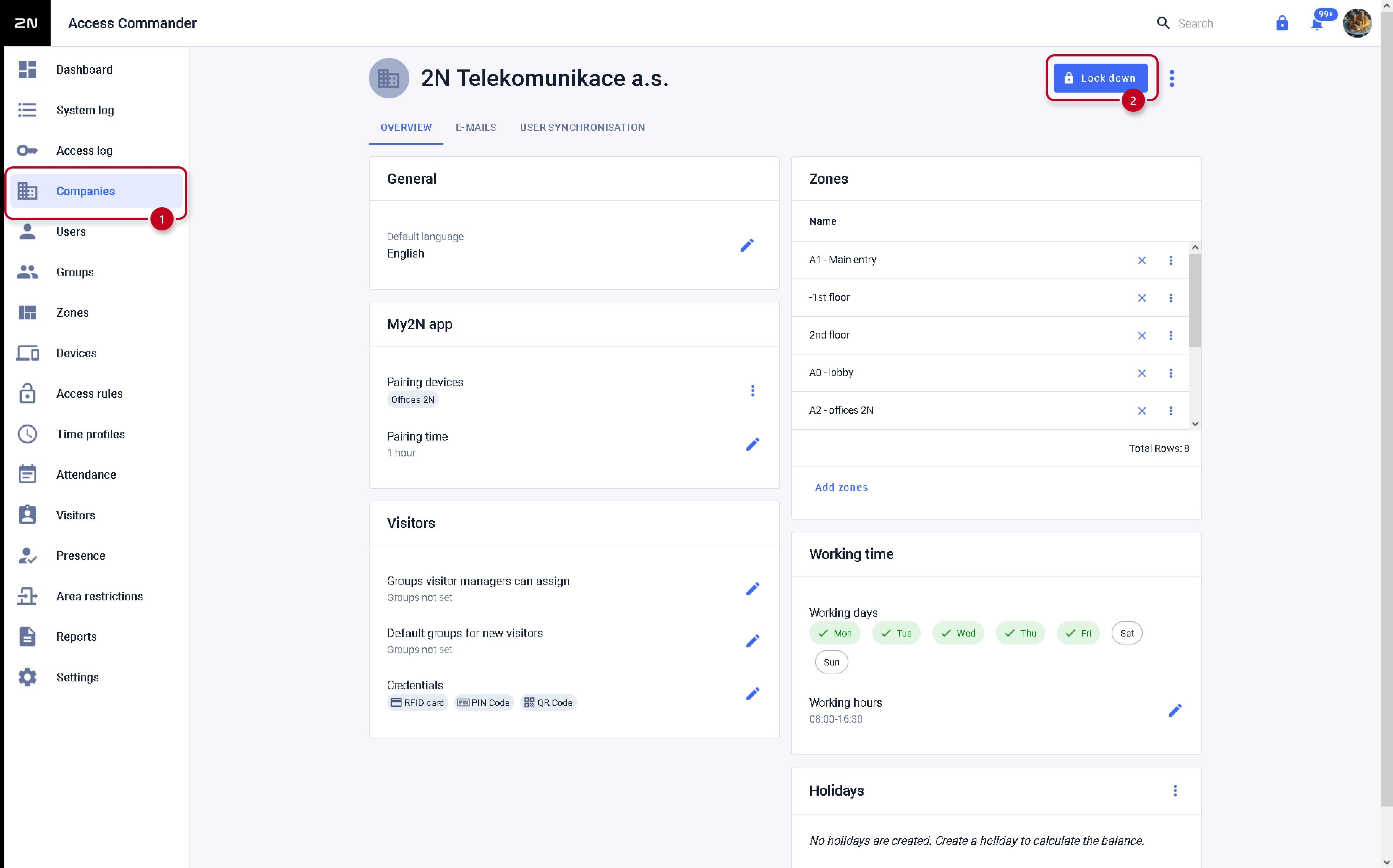
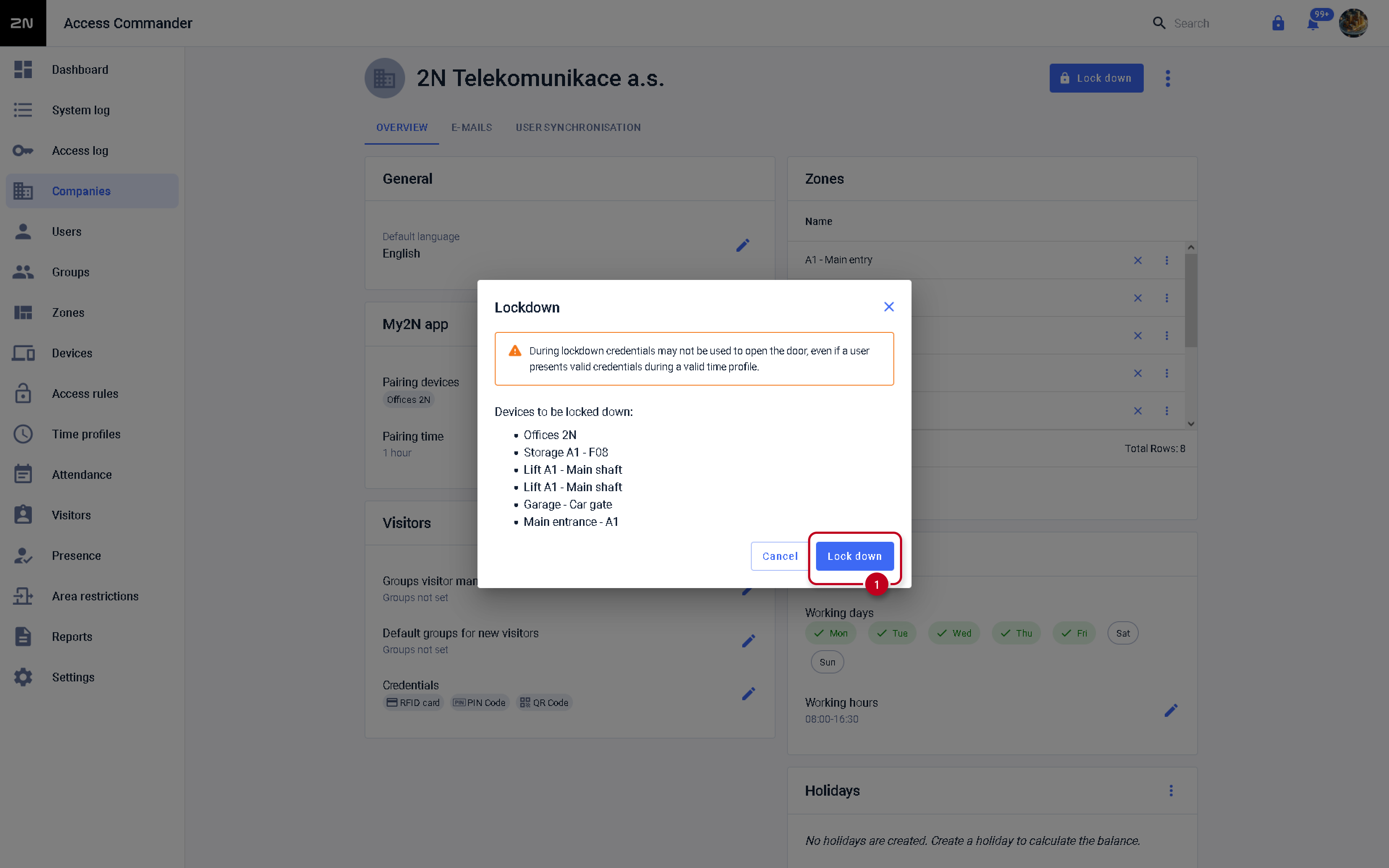
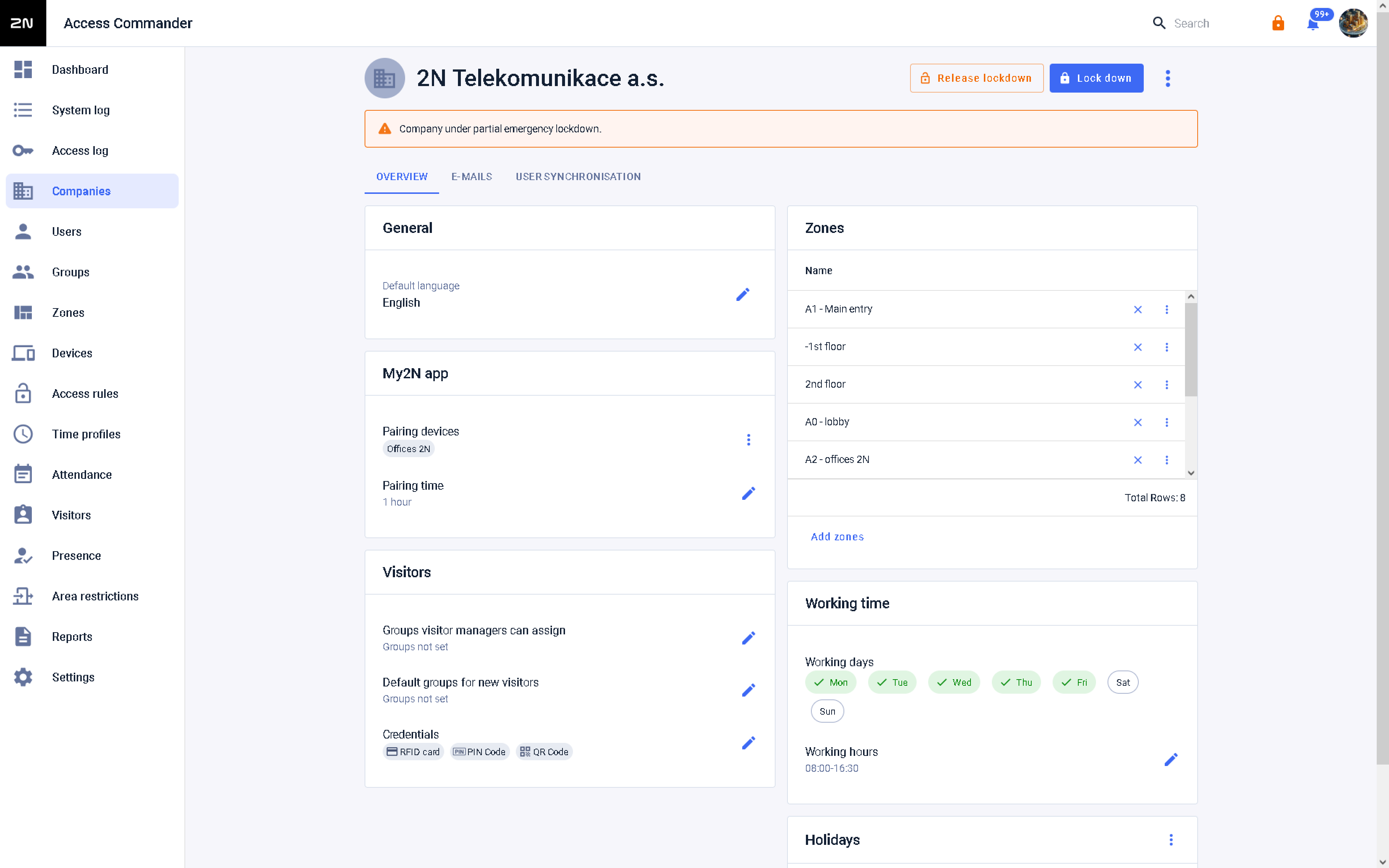
Lockdown release for a whole company:
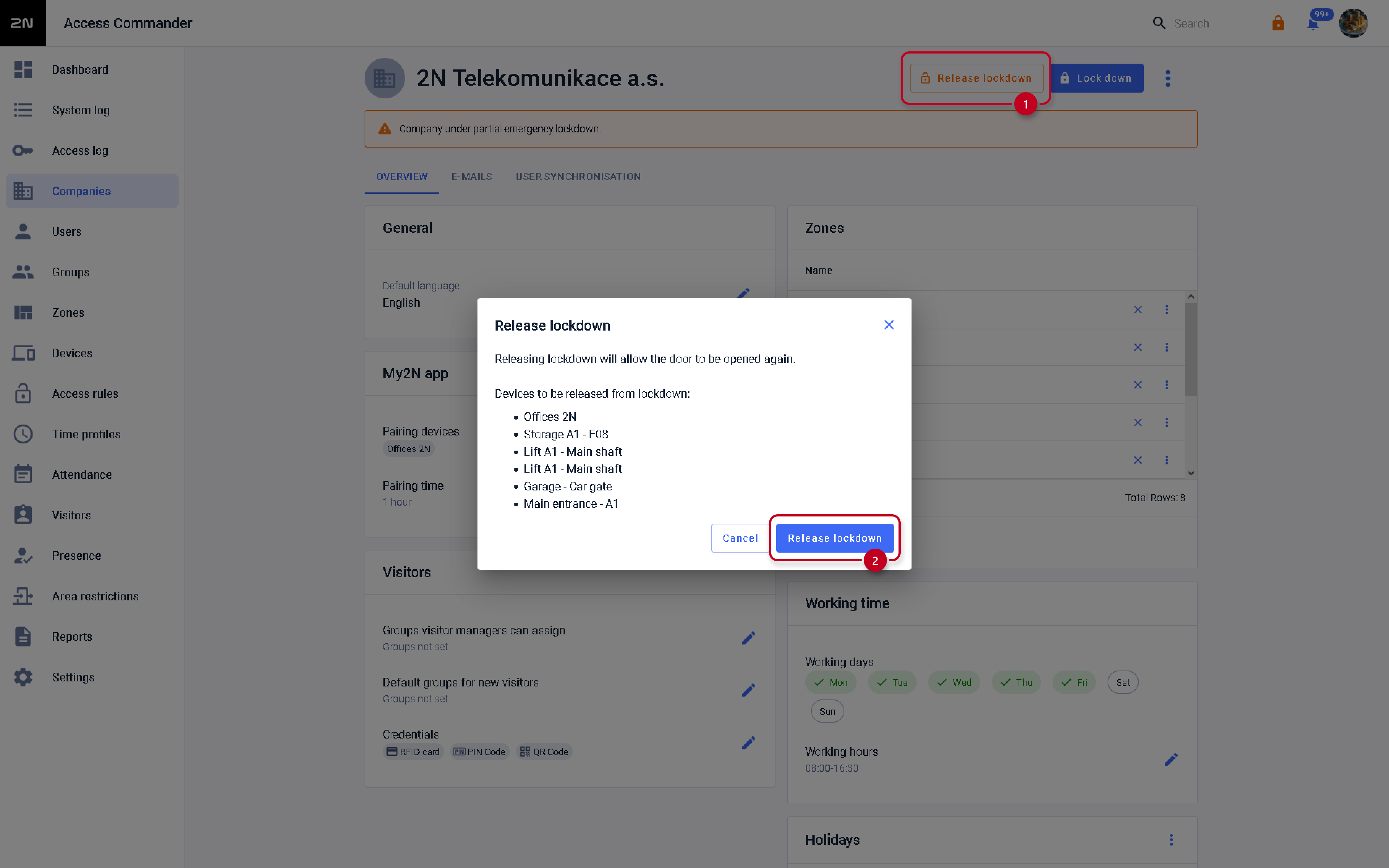
-
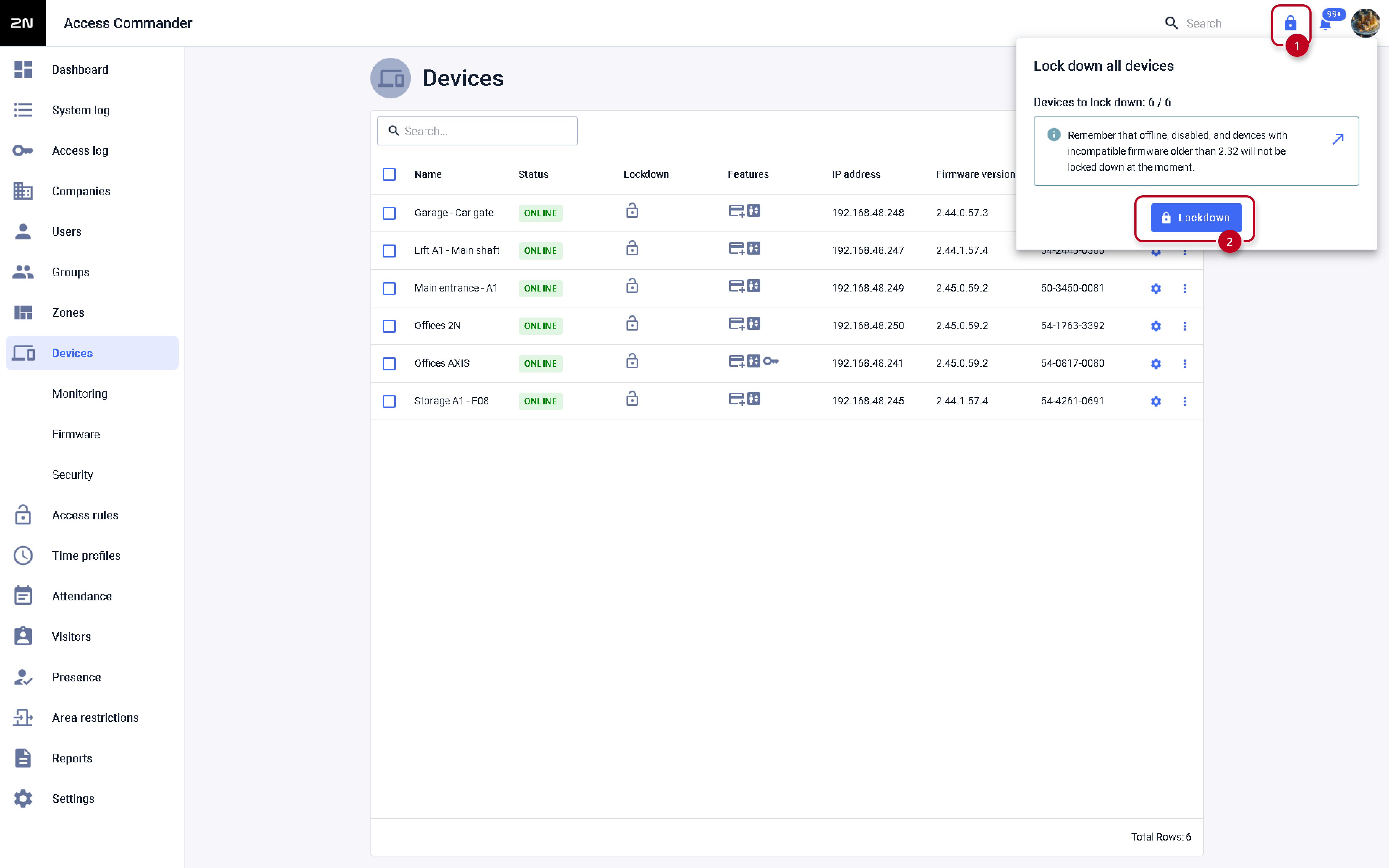
Lockdown for all devices connected to the 2N Access Commander:
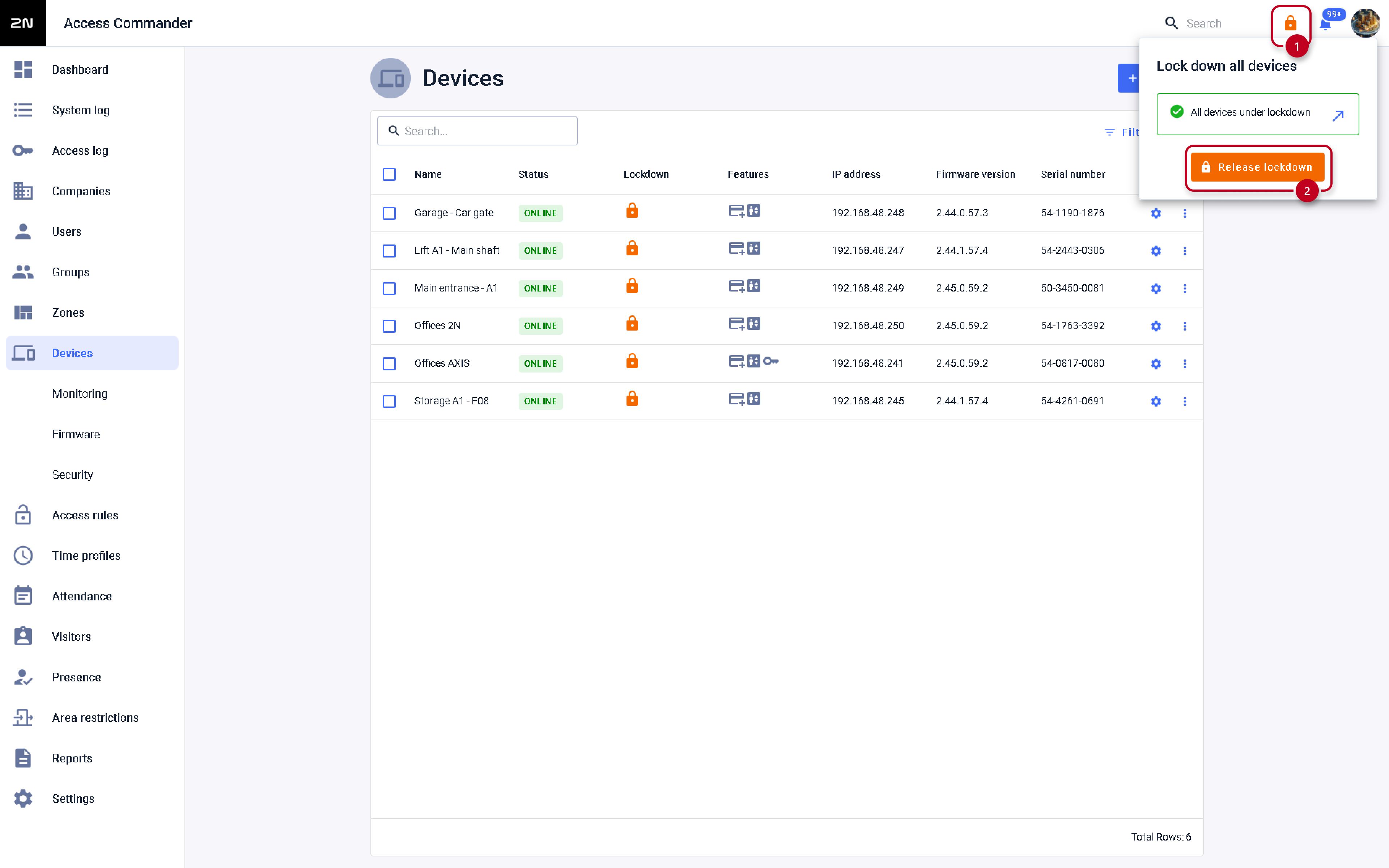
Lockdown release for all devices connected to the 2N Access Commander:
By widget on Dashboard
-
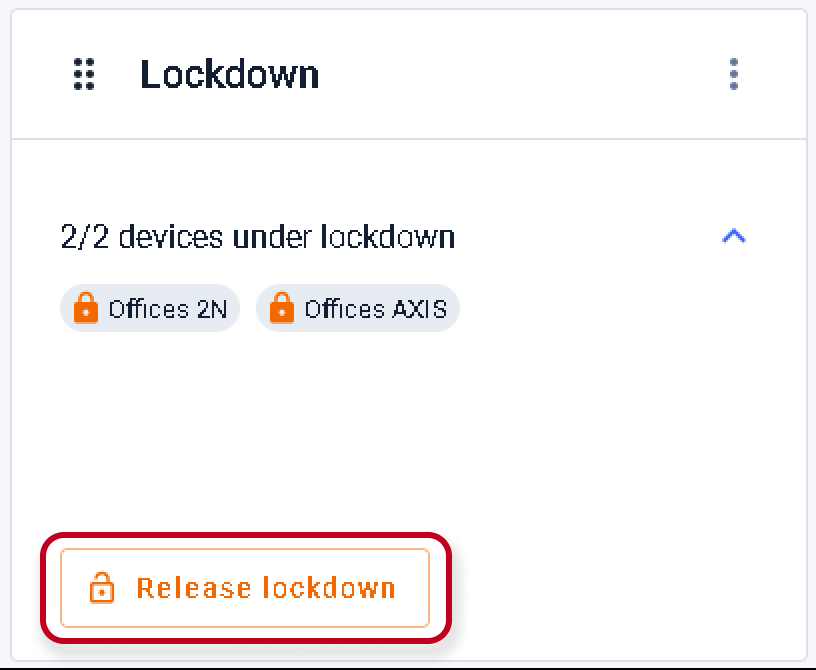
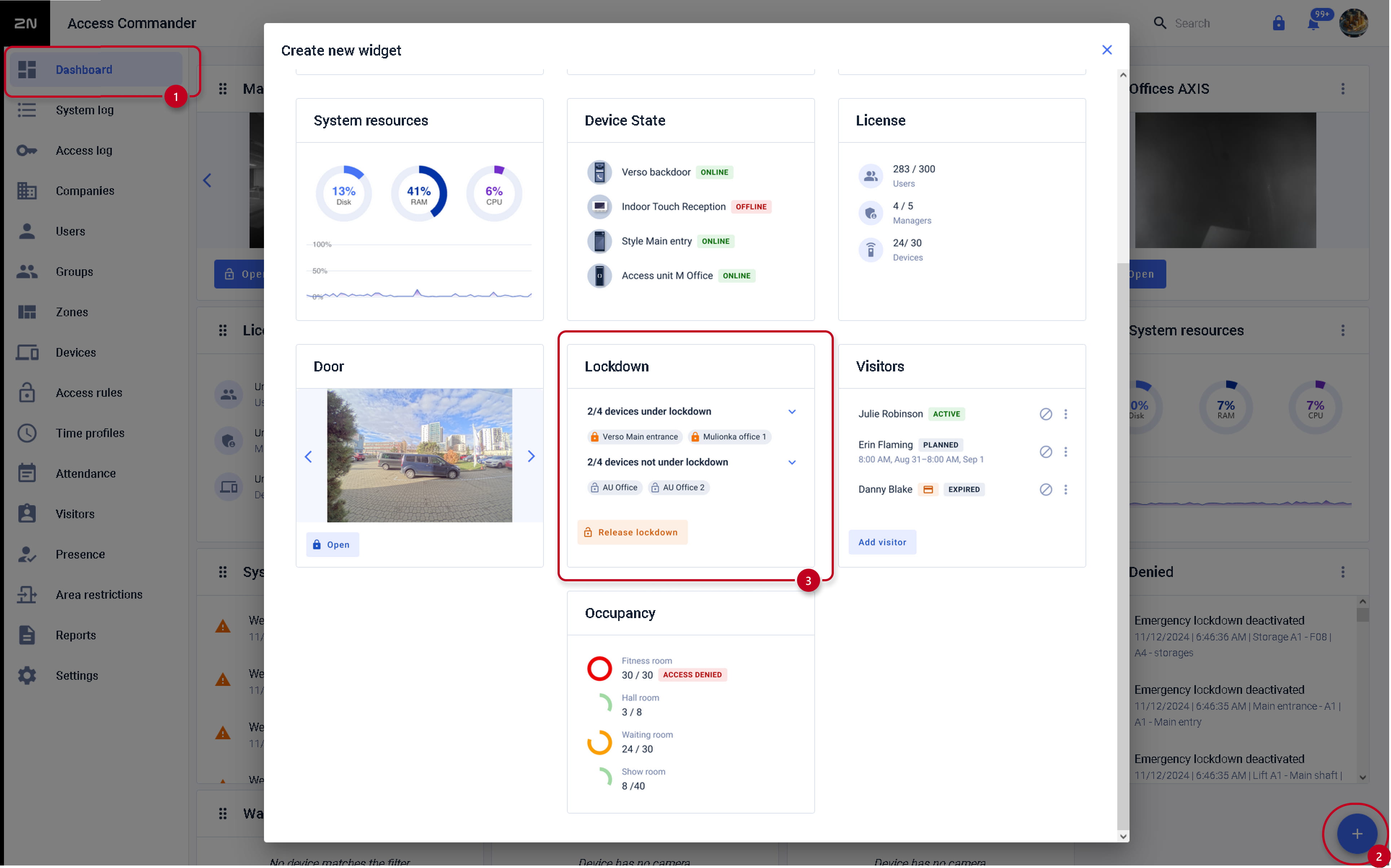
In the 2N Access Commander's web interface, in the Dashboard section, select the "Lockdown" widget:
-
We will add devices or zones for which we want to manage the lockdown using the widget (we can also name the widget):
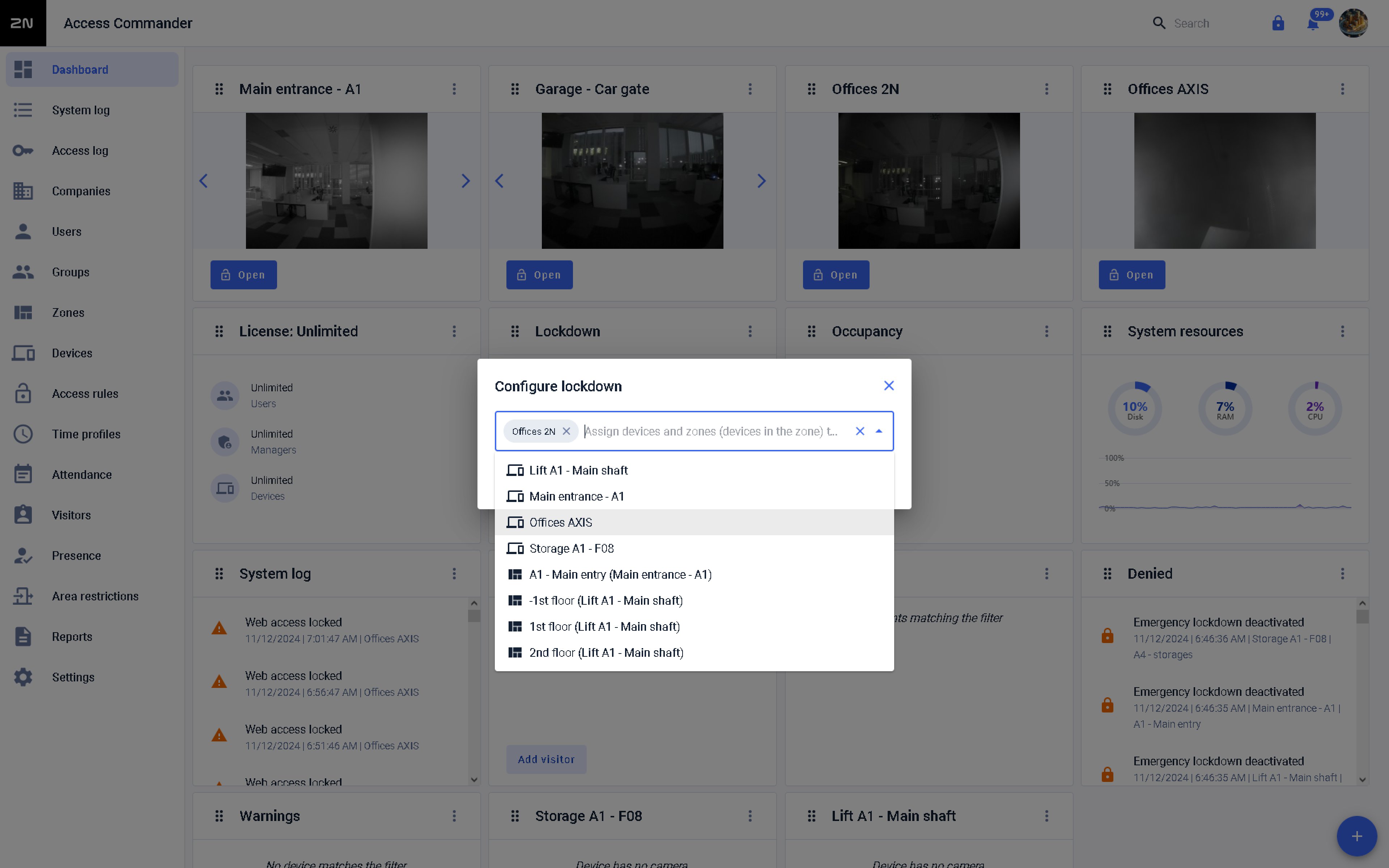
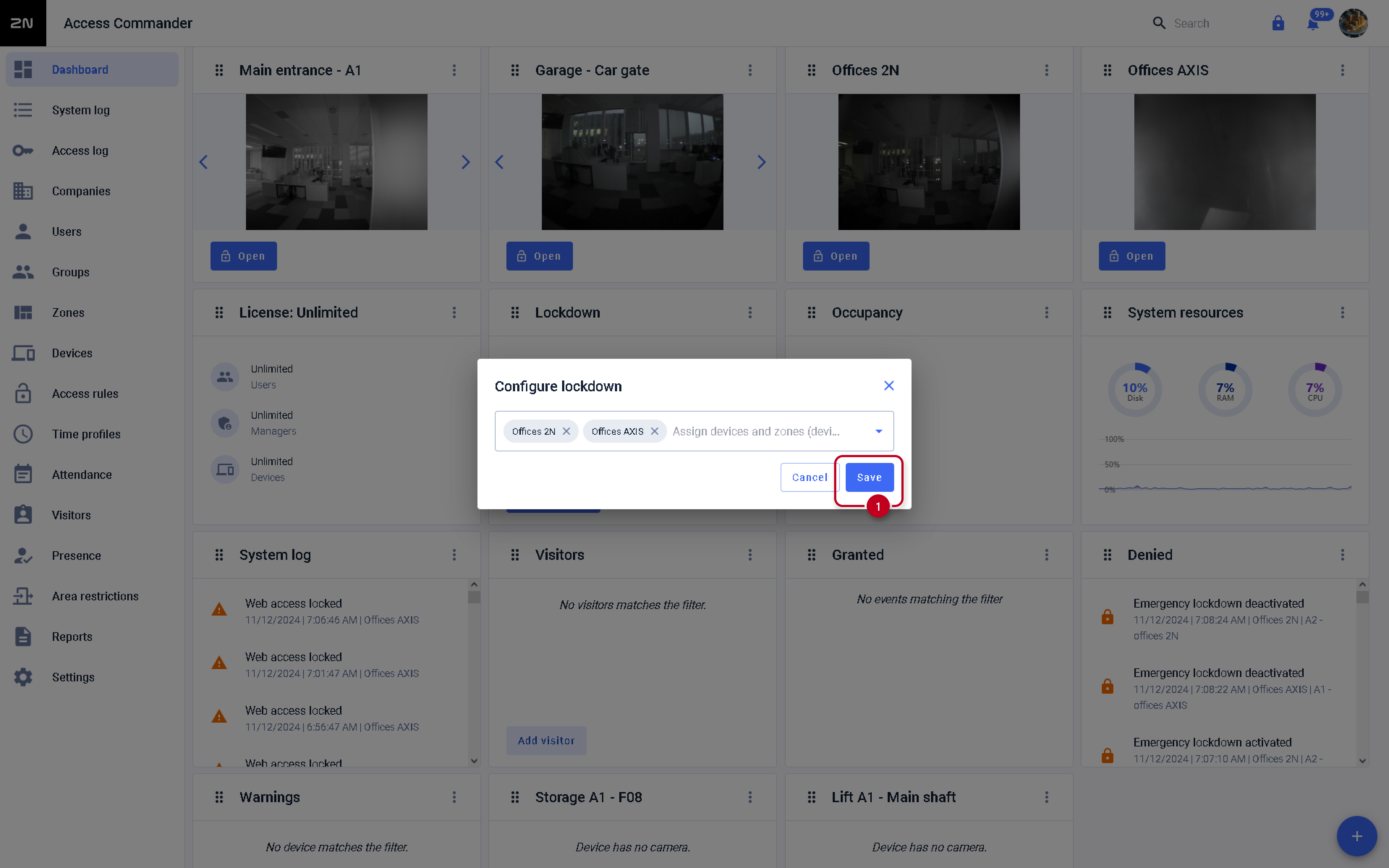
-
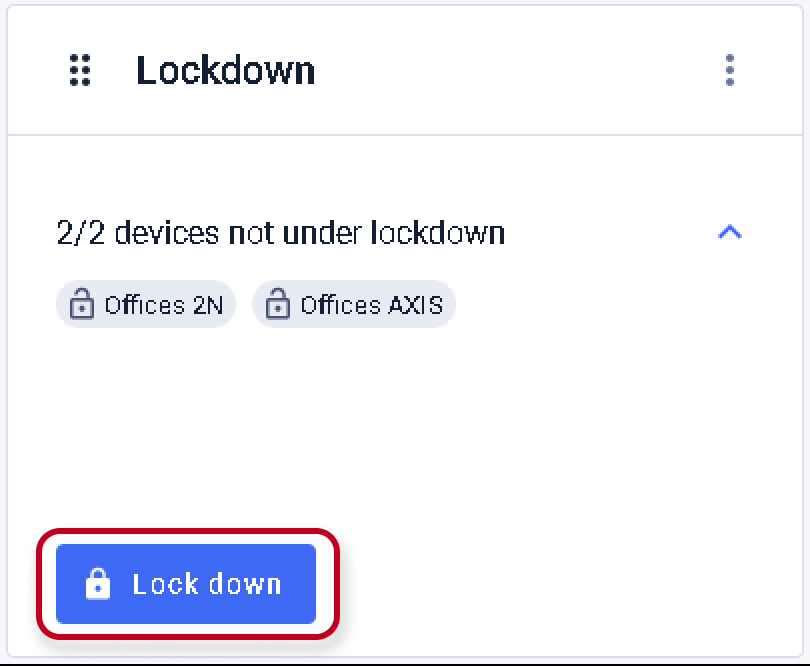
Emergency lock is then performed for the given units using the LOCKDOWN button:
-
Then we see the locked state of the devices and in the same way we can cancel the lockdown again: