SSH is used for secured remote access to computer systems.
That's why we introduced a new layer of security by disabling SSH access by default and enforcing the use of a stronger password when SSH is enabled.
Therefore, if you need SSH access to 2N Access Commander you need to enable SSH first. It is possible to enable the SSH from the web interface, but it can be set in the Linux of the virtual machine or BOX or BOX 2.0 as well.
This feature needs to be enabled to successfully import data between different installations of 2N Access Commander on installation from which data are imported.
Web interface set up
After you log in to the web interface of the 2N Access Commander you can find the SSH setting in the bottom section of the Settings - Configuration (1) tab.
The SSH is disabled by default so you need to enable it by clicking on the "Disabled" button (2).

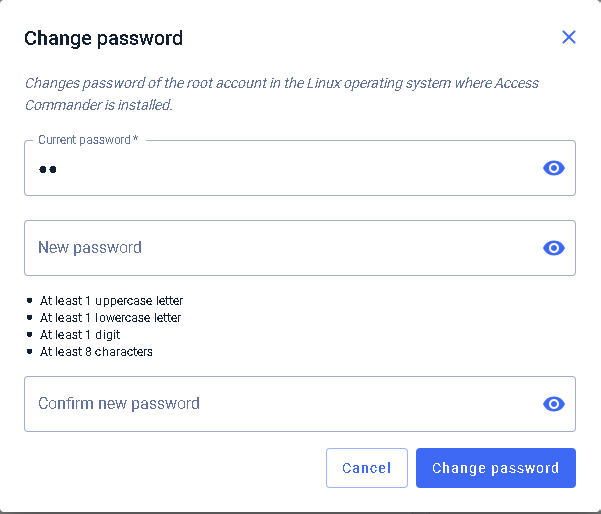
After setting a new password the SSH connecting will be enabled. You can change the root password for Linux Console and SSH connection by clicking on the "Change password" button.

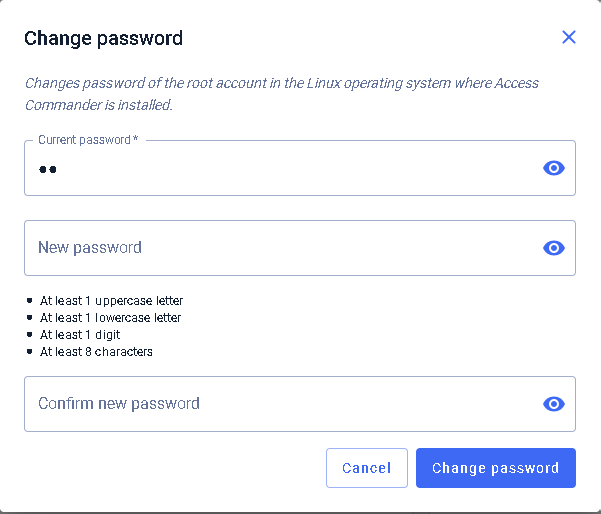
When clicking on the "Change password" button the "Set root user password" window will pop up and you will be asked to enter the current password, create a new one and repeat it for confirmation.
Now you will be able to connect to the 2N Access Commander box or virtual machine by entering the IP address of the 2N Access Commander to some SSH client with the set password. Here is an example with the MobaXterm SSH client.
Linux Console set up
In case of virtual machine you can do that by accessing the virtual machine terminal from virtualization.
In case of BOX or BOX 2.0 you can do that by connecting display and keyboard to the computer.
In both cases you need to login to the Linux as root user.
After logging in, please Select Advanced Menu in GNU/Linux Configuration Console


Go to ( ) Enabled, hit Space to set it to ( * ) Enabled it and then press Enter to <Apply> the change:

The SSH connection is secured with the root password to the Linux Console. After enabling it for first time you will be asked to change the password for root user, if that password is not secure one.
SSH is now enabled and you can now access the Linux of 2N Access Commander remotely.