The steps in this article require using the web interface of a 2N device. Please follow this manual in case this is your first time using the web interface.
Please verify the following settings:
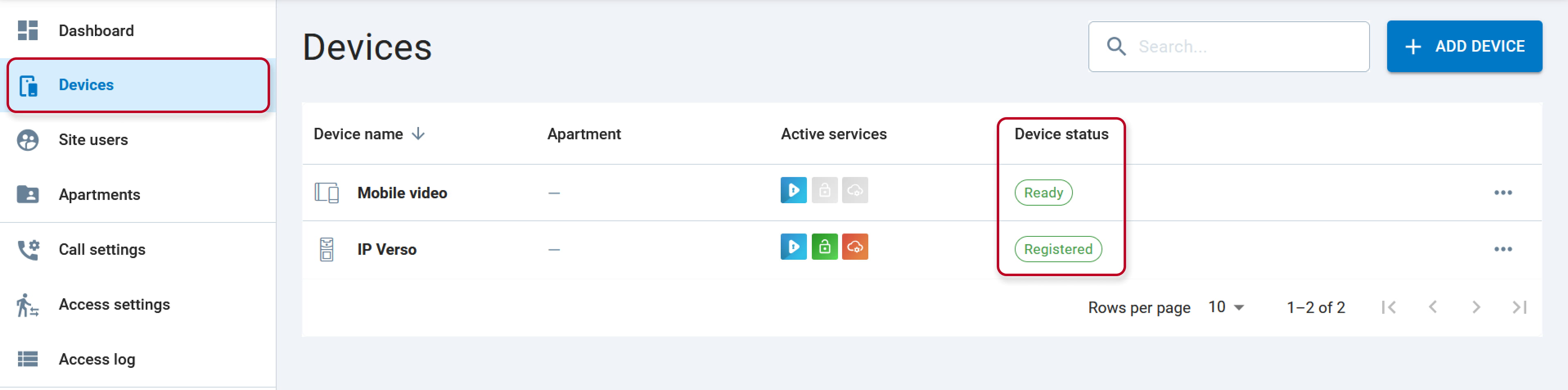
1. Make sure that your Mobile Video subscription/trial is active.
2. Make sure that your devices (intercom and smartphone) are connected to the network with internet connectivity and correctly registered and ready
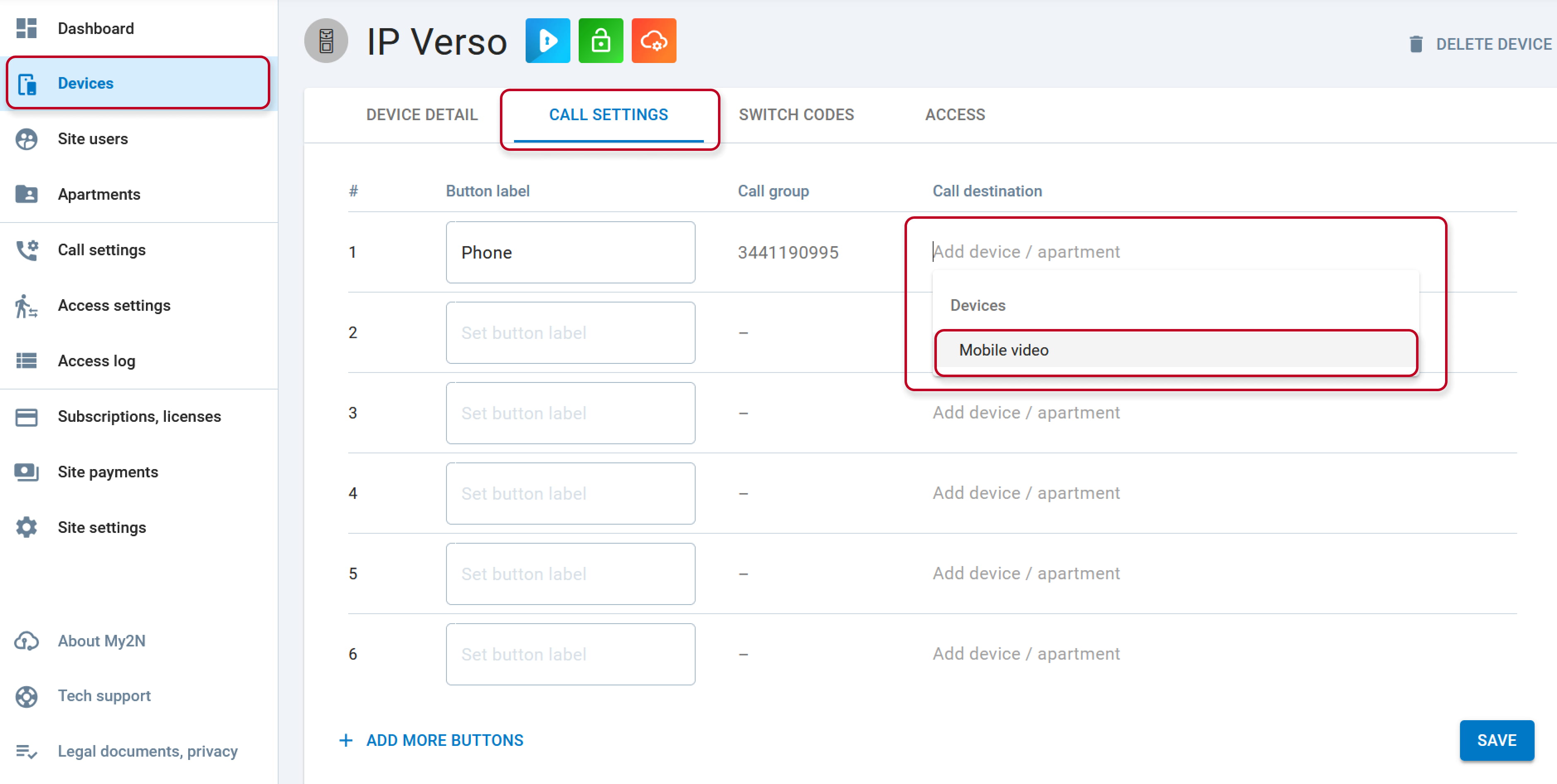
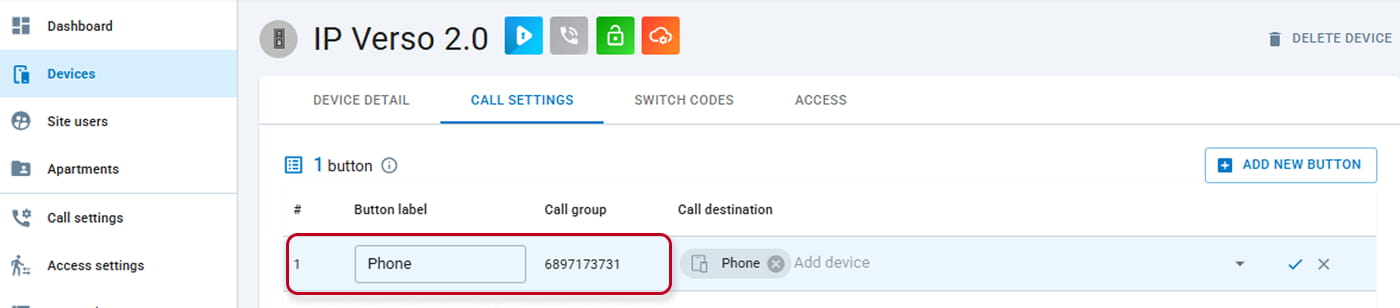
3. Check if the called device is set in the call setting.
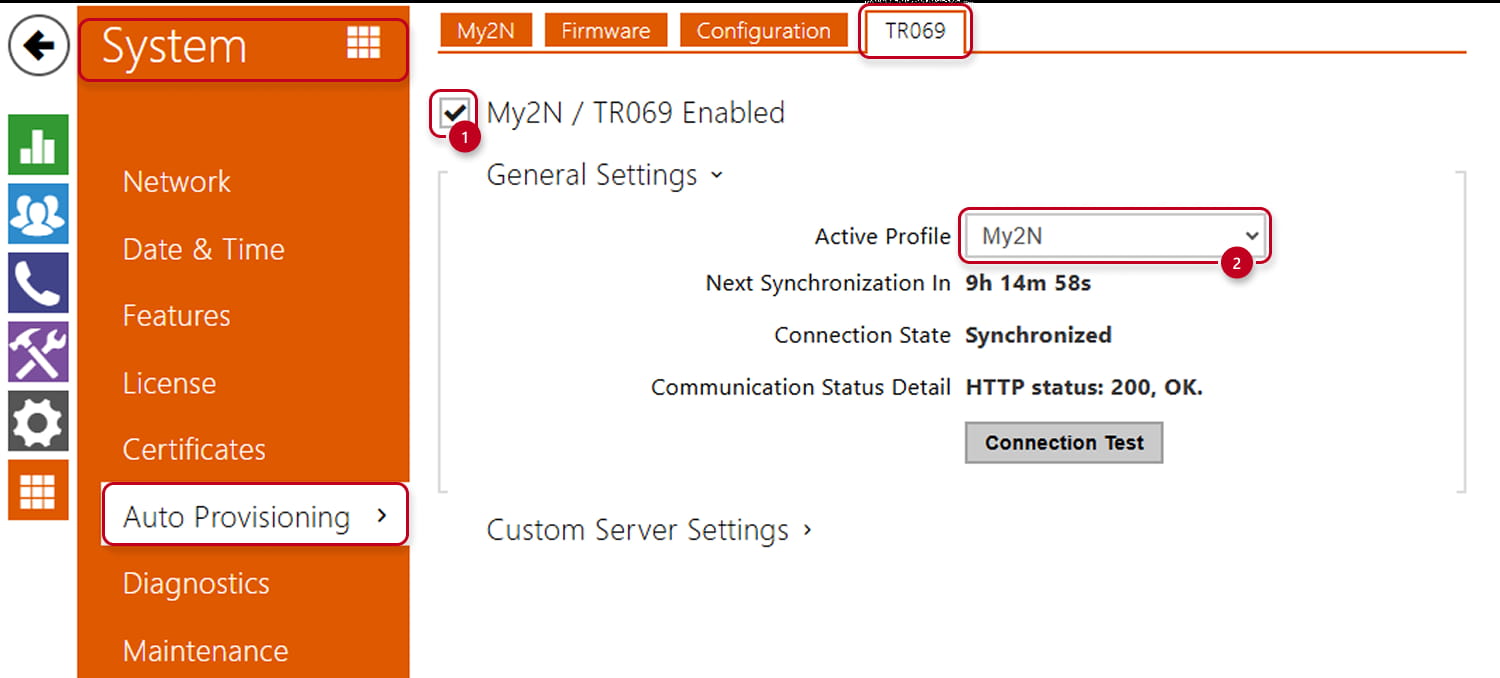
4. Make sure that the intercom is synchronized when you are using the automatic mode:
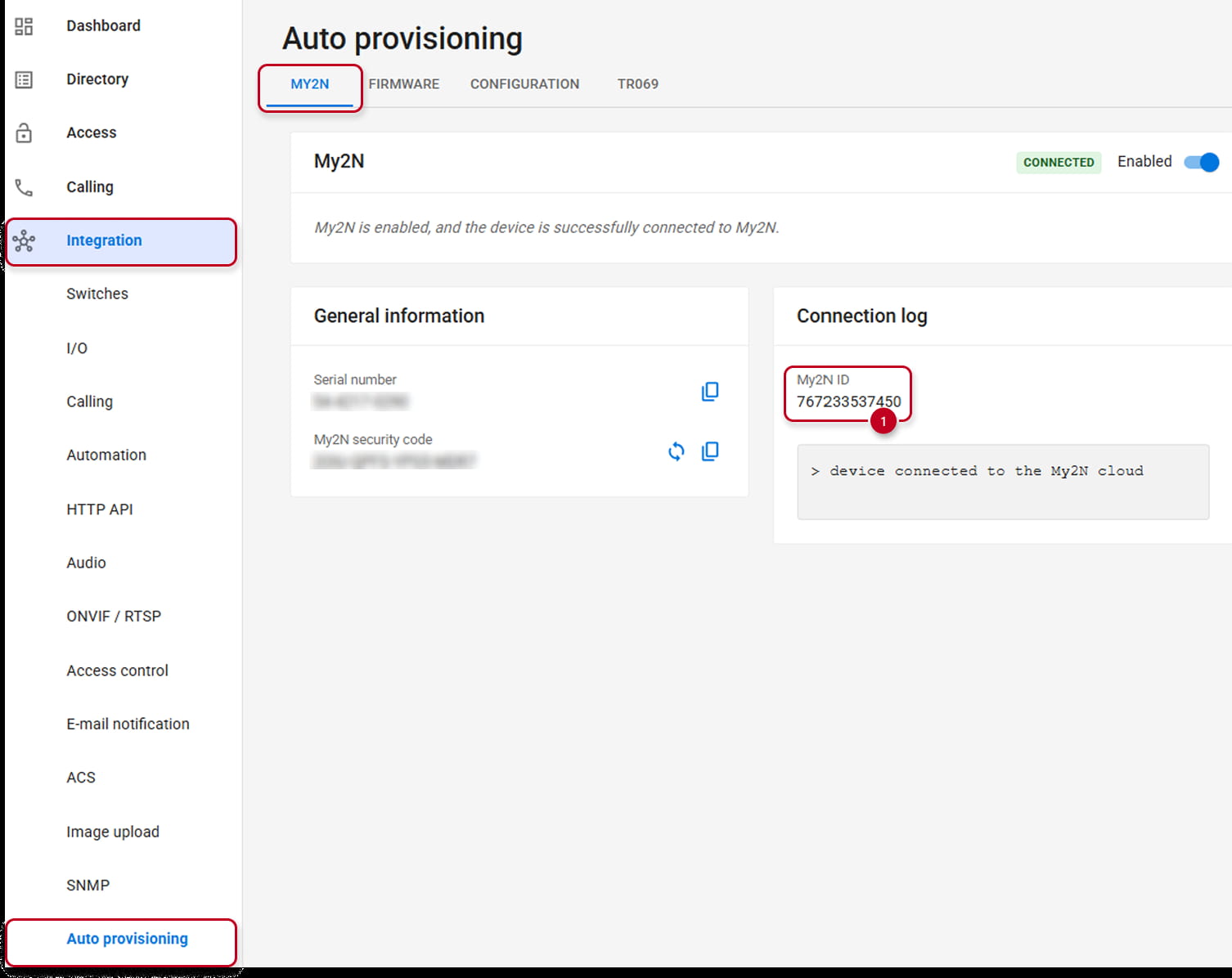
You can verify this in the web configuration interface of the intercom System (or Integration) / Auto-Provisioning / My2N. Connection status has to be in the Synchronised state. Correct parameters‘ values are:
- My2N/TR069 Enabled : True (1)
- Active Profile : My2N (2)
In the Old Web Interface:
In the New Web Interface:

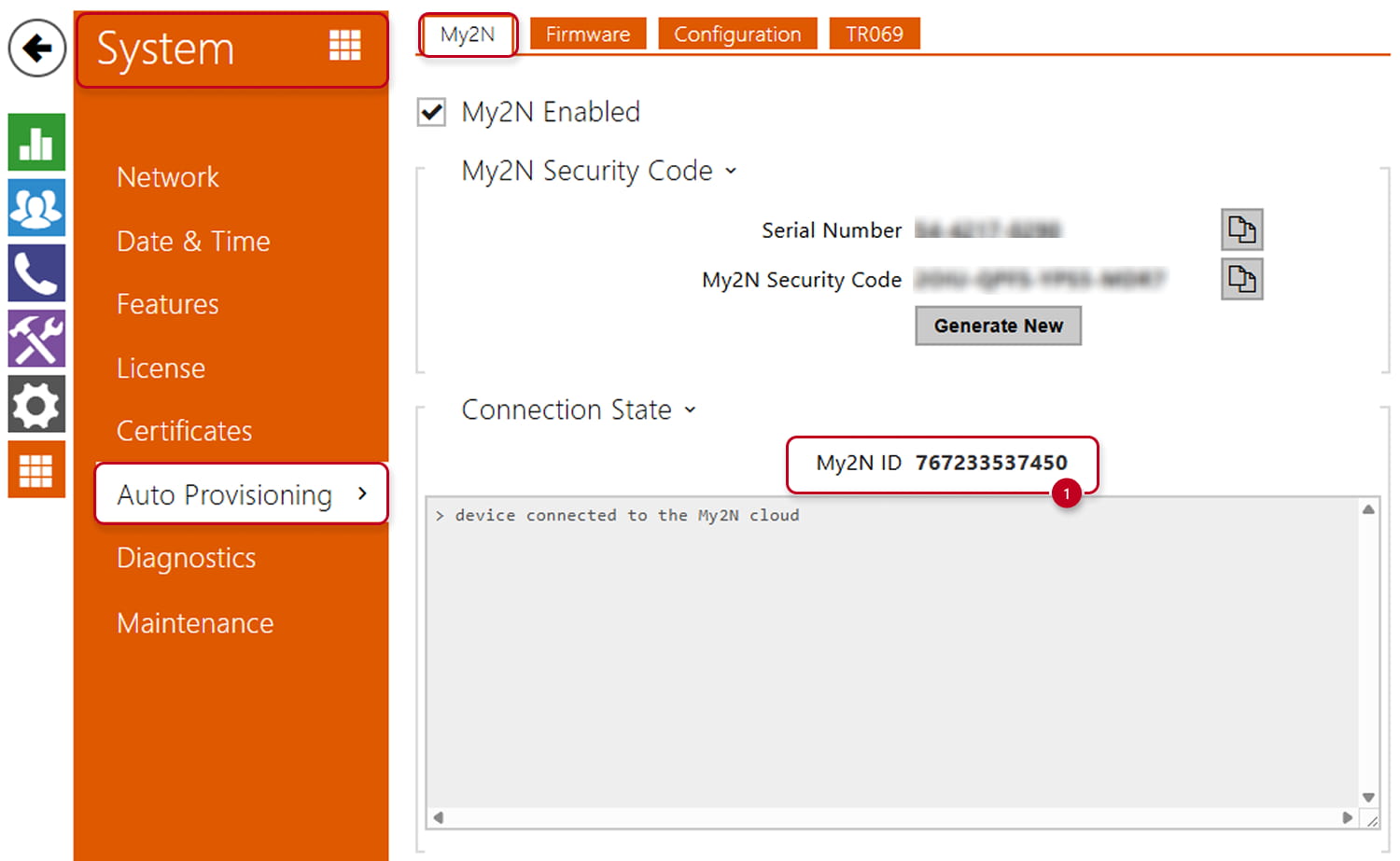
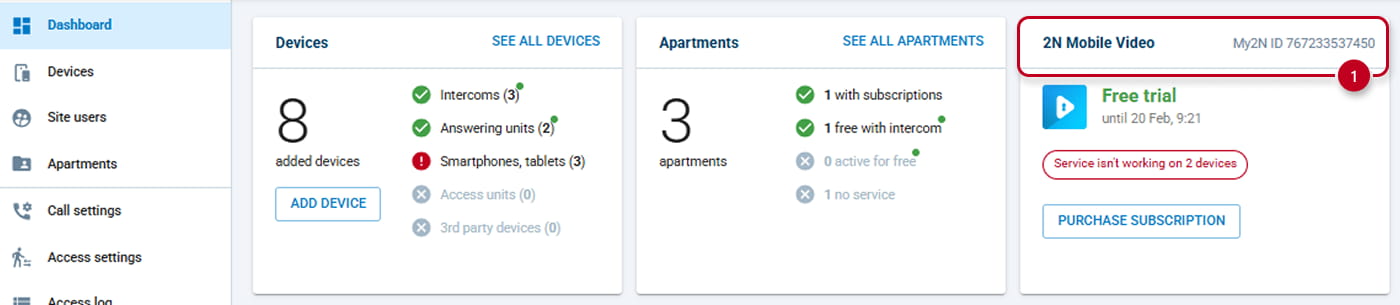
Also in System (or Integration) / Auto Provisioning / My2N :
- My2N ID : The ID of your My2N (1) service matches the ID visible on your My2N account.
In The Old Web Interface:
In the New Web Interface:
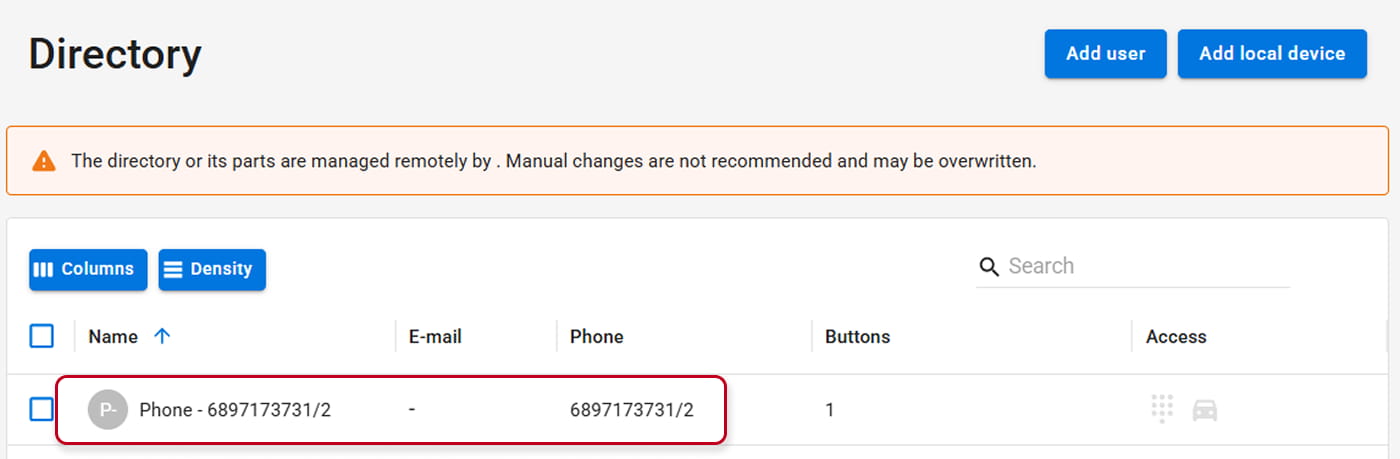
5. The user is created in the directory
In the Old Web Interface:

In the New Web Interface:
6. The user is under the calling button
In the Old Web Interface:

In the New Web Interface:
