2N IP phone D7A - upgrade to 2N FW version 150.86.57.8
The process of upgrading the device’s firmware to the latest version can be summed up in four steps. Each of these four steps can be further divided into several points. Follow these steps and refer to the screenshots included below to successfully complete the upgrade process. A few prerequisites are necessary.
Prerequisites
-
PoE switch or external power supply
-
DHCP server that provides an IP address to the phone
-
Internet connection for the firmware upgrade
-
PC with Internet browser
Start and upgrade to the global firmware version
-
Power up the device by connecting the ethernet cable to a PoE switch.
-
Swipe on the display and open the Settings.
-
In case the menu is in Dutch, you can change the language under “Tall & Invoer”.
-
In “General” you can find the IP address.
-
Type this IP address to a browser on your PC connected to the same network. Make sure to use HTTPS in the URL.
-
Log in to the web interface. The default username and password are “admin” and “admin”.

-
Download the latest global firmware version 150.86.0.50 here: https://support.yealink.com/en/portal/docList?archiveType=software&productCode=a6d02c62c24e43ed
-
In the web interface of your IP phone, go to Settings > Upgrade and click “Browse”.

-
Choose the file “T58W-150.86.0.50.rom”, click “Upload”, and confirm.
Restart
-
Wait for the upgrade to be completed. The blue bar shows progress.

-
A Firmware updating screen also appears on the display of the unit.
-
The device automatically restarts.
-
The login page appears after the firmware update is finished. Log in to the web interface.
Upgrade to the latest 2N firmware version
-
Download the proper 2N firmware version 150.86.57.8 from here: https://www.2n.com/en-GB/download/firmware150865782nipphoned7azip
-
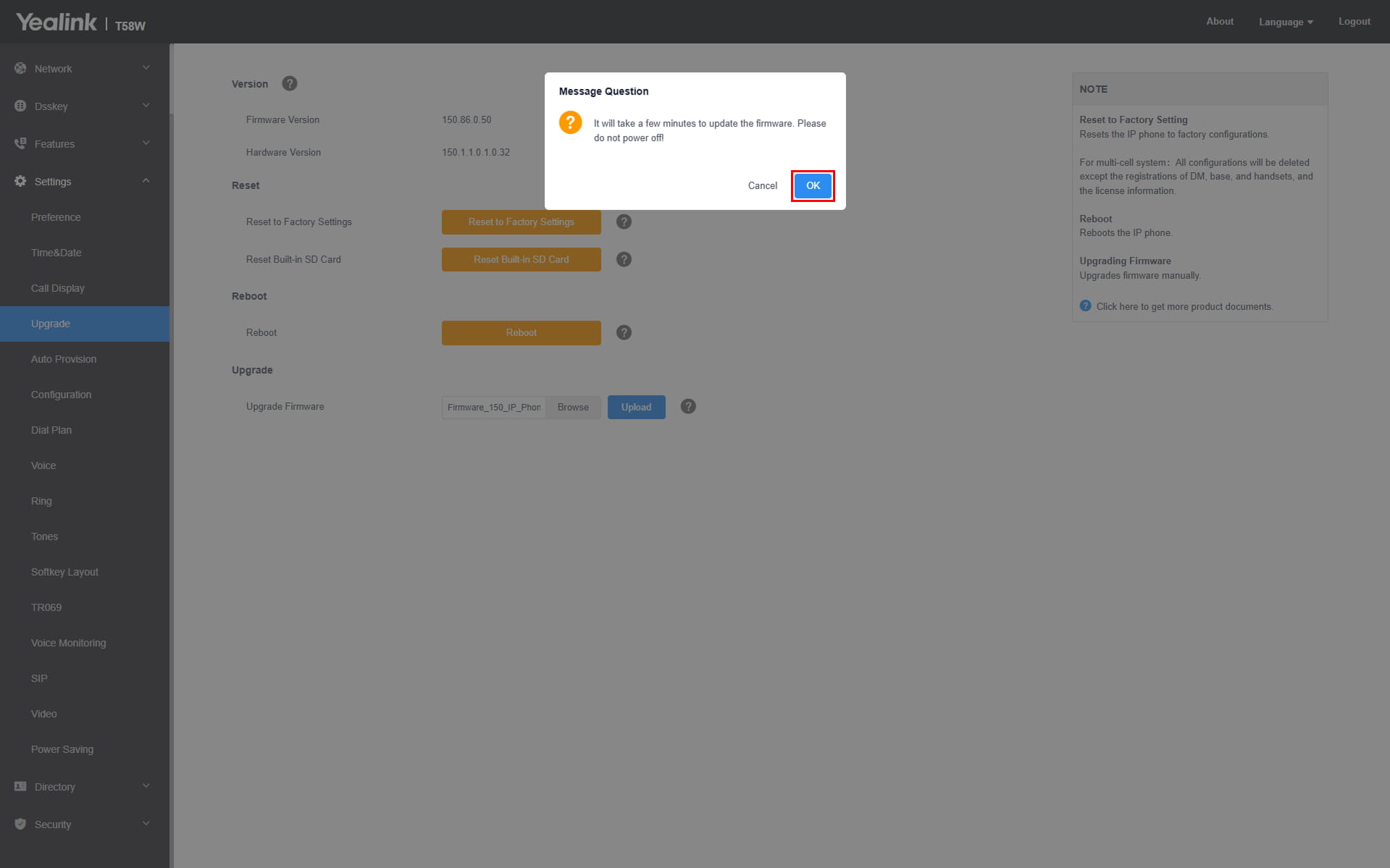
Upload the latest firmware version the same way as before. Go to Settings > Upgrade and click “Browse”.
-
Choose the file “Firmware_150_IP_Phone_D7A.rom”, click “Upload”, and confirm with "OK".
-
The same progress screens appear in the browser and on the display.
-
The device automatically restarts.
-
The login page appears after the firmware update is finished. Log in to the web interface.
Factory reset
-
As the last step, perform the factory reset. Go to Settings > Upgrade and click “Reset to Factory Settings” and confirm with "OK".


- Wait until the factory reset is done.

-
Wait for the login page to appear again.
-
Since the device runs firmware by 2N now, the default credentials are “admin” and password: “2n”. After logging in, you are asked to change the password.

-
The process is completed, and the unit became a regular 2N IP Phone D7A. You can check the firmware version in Settings > Upgrade and in Status > Status.
