CSV Import of users with their details

The steps in this article require using the web interface of a 2N device. Please follow this manual in case this is your first time using the web interface.

The nerve centre of our access control solution is 2N Access Commander. Use it for managing access to the building and monitoring the status of 2N access devices in real time.

It also allows uploading of users from a CSV file, including their contact and access (code and card number) details, so you can prepare a list of users, their cards, codes, etc. to a file and then upload them to Access Commander at once.


Prerequisities

  • 2N Access Commander the latest version

  • License Advanced / Pro / Unlimited for 2N® Access Commander


Feature properties

  • Users can be imported only to the Company, where the import will proceeded.

  • The function cannot delete users.
  • One-time import is proceeded via a CSV file uploaded via the web interface.
  • The following attributes can be imported:
    • user name,
    • email, 
    • 3 phone numbers,
    • code,
    • card number,
    • groups,
    • employee's ID.


CSV file preparing

  • In the Access Commander's web interface, go to Companies and open your company details.
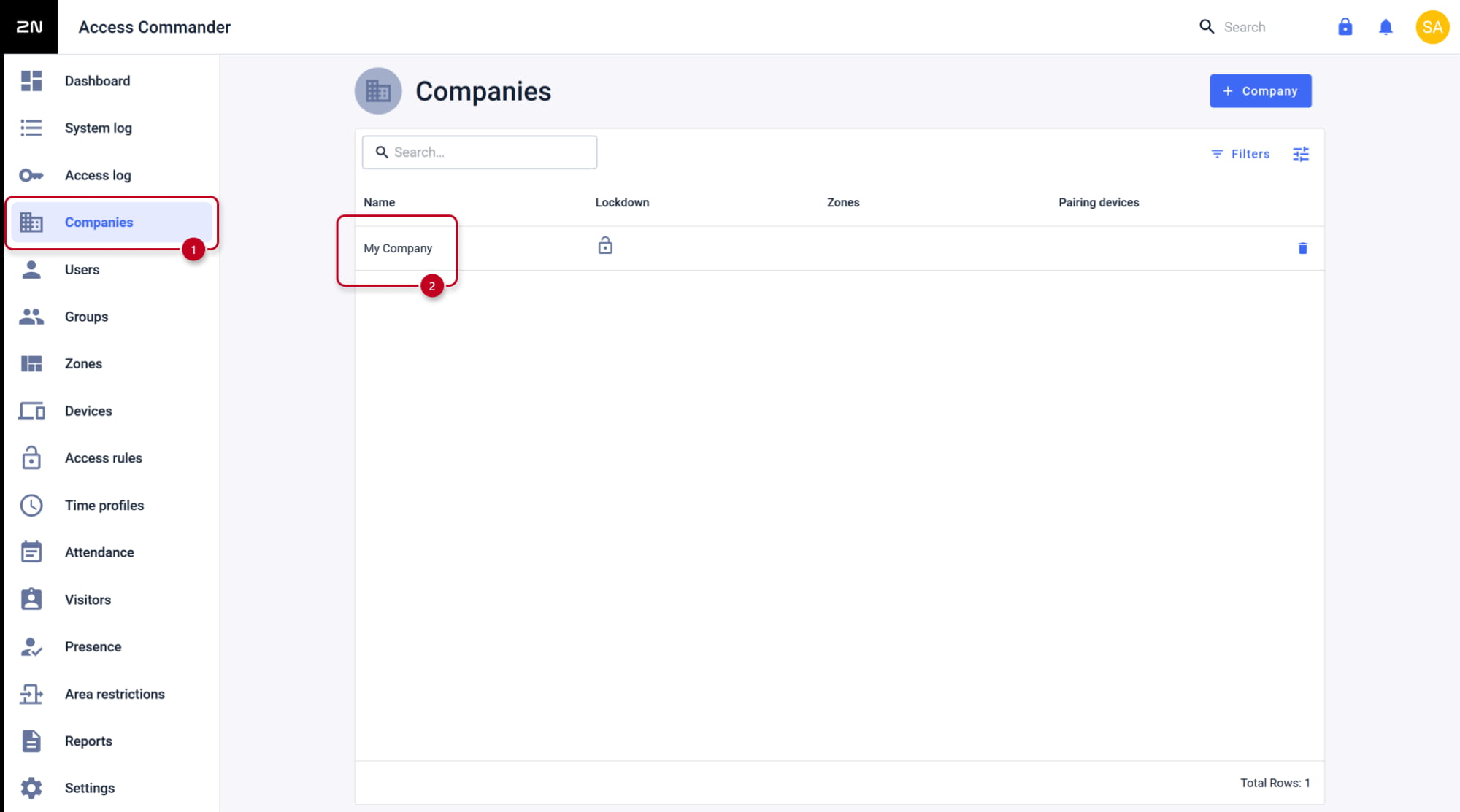
2N Access Commander - Companies - Open your company details


  • In the three dots menu select Import users from CSV. 
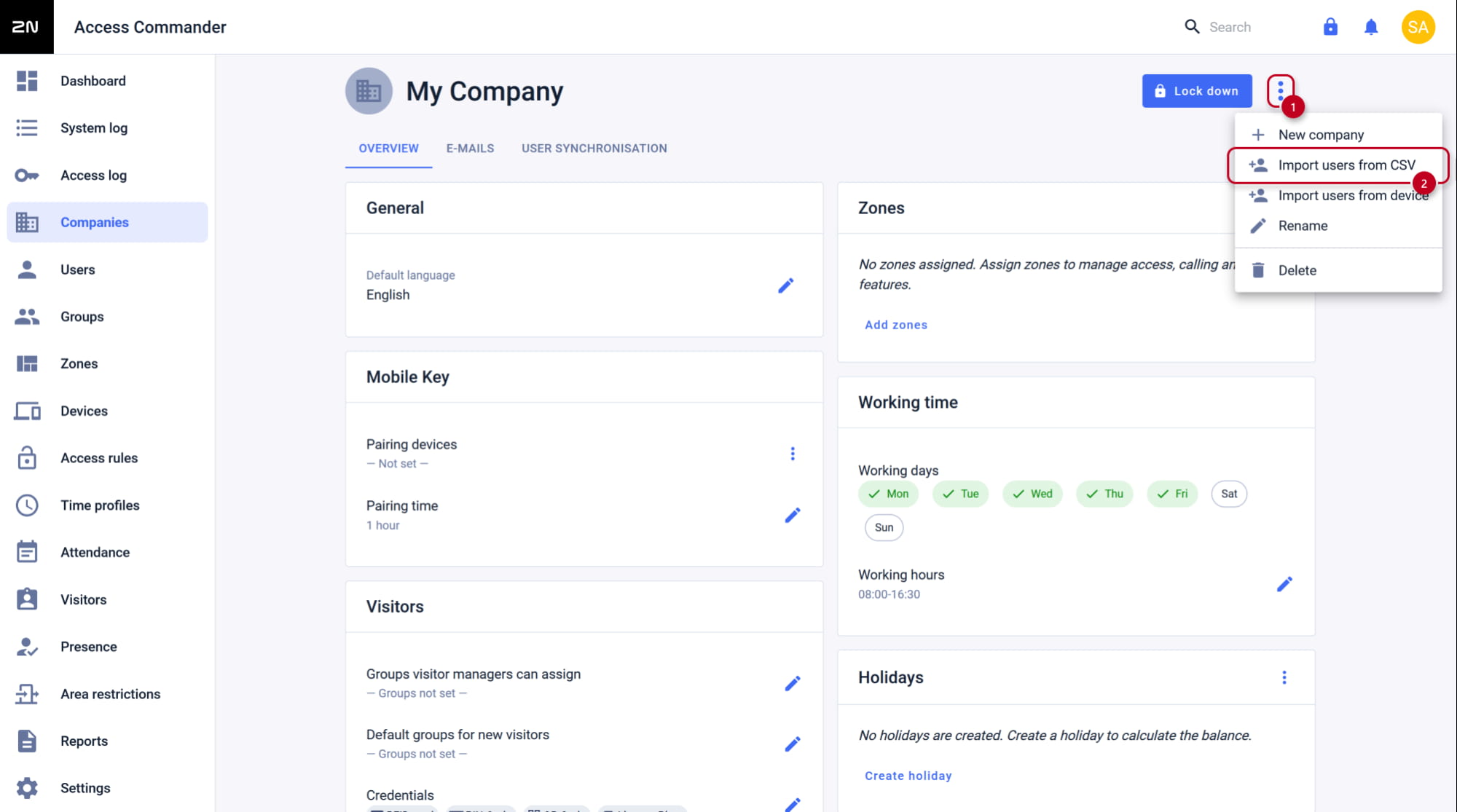
2N Access Commander - Company - Import users from CSV


  •  Download the sample CSV file, after opening you can see how to enter the parameters.
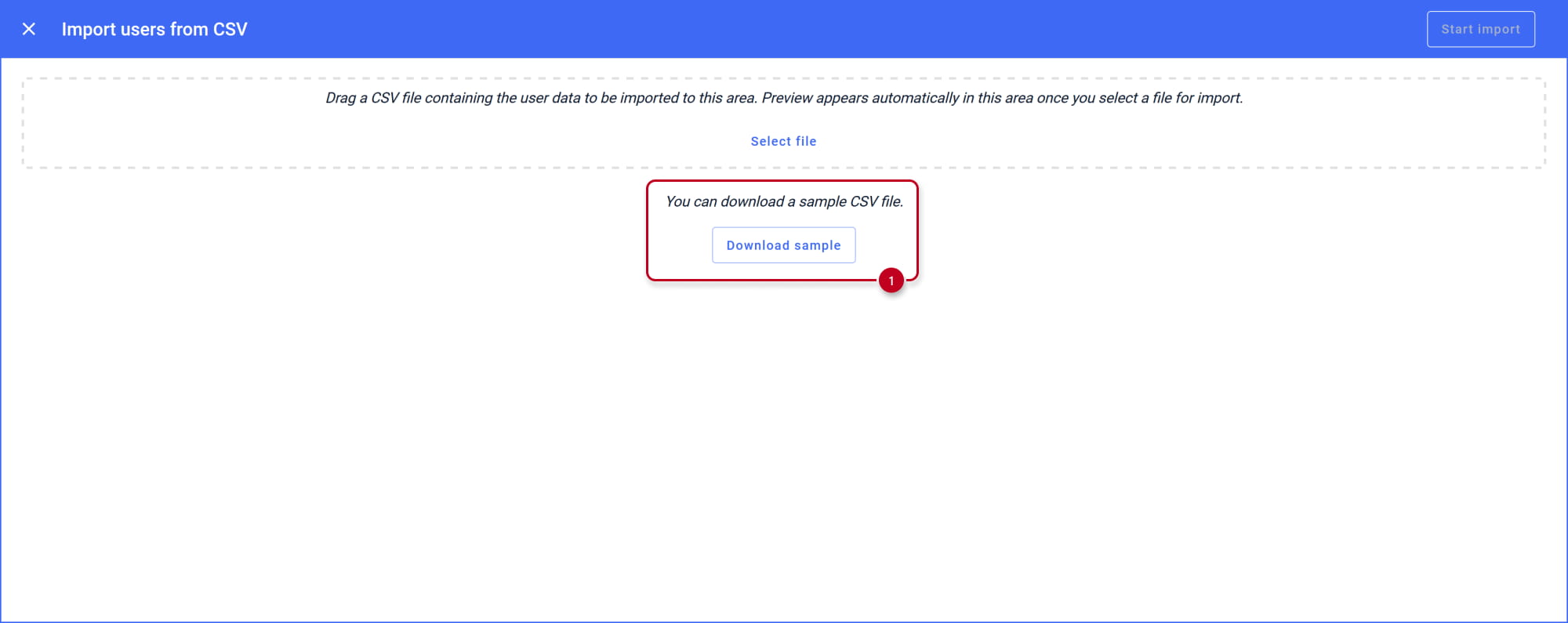
2N Access Commander - Company - Import users from CSV - Download sample CSV file

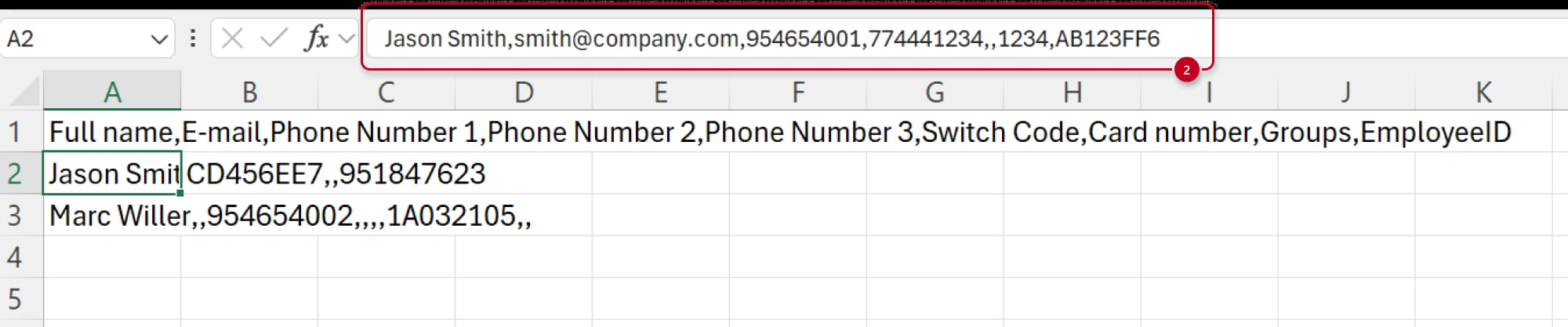
2N Access Commander - CSV import - Fill in CSV file 
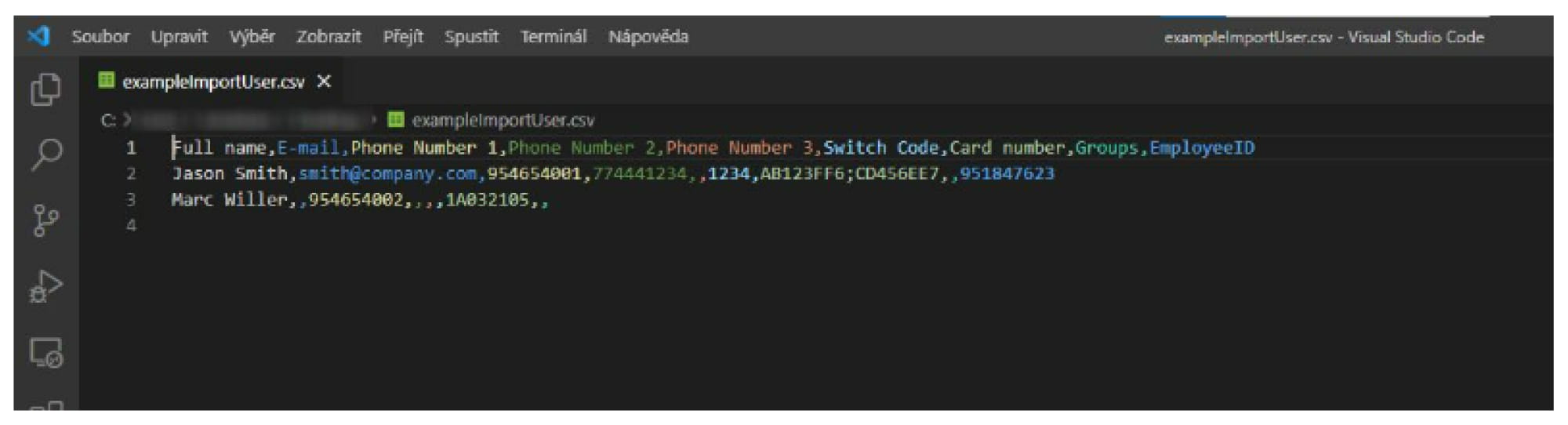
For a better orientation in the CSV file you can use a Visual Studio Code editor.
2N Access Commander - CSV import - CSV file in Visual Studio 
  • Enter the parameters and save.
    • comma separated, no spaces;

    • in the case of an unused parameter, we simply do not write anything, so there will be more commas in a row depending on how many parameters we omit;

    • in the case of two card numbers for the same user, do not write a comma between them, but a semicolon ";"
      • The file can get corrupted if you save it the wrong way.
        It is necessary to to save it in UTF-8 coding and with EOL conversion to UNIX.


    CSV file import

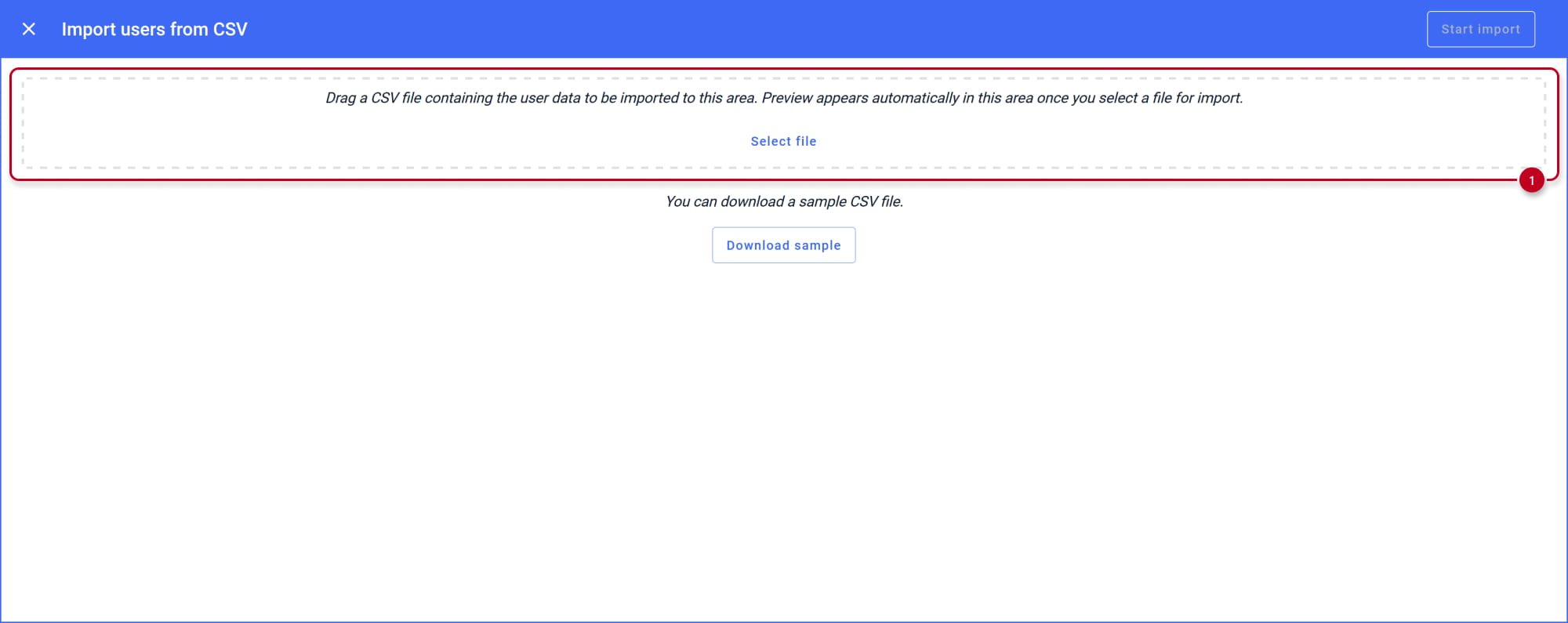
    • Let import your CSV file by clicking on the "Select file" and selecting the CSV file from your directory.
      Check the listed data and if all is fine, confirm by clicking on "Start import".
      If the data were written correctly, the users will be added to the "users" section of the Access Commander with the defined parameters. 
    2N Access Commander - Company - Import users from CSV - Select CSV file
     
    2N Access Commander - Company - Import users from CSV - Start import


    CSV file import check in System log

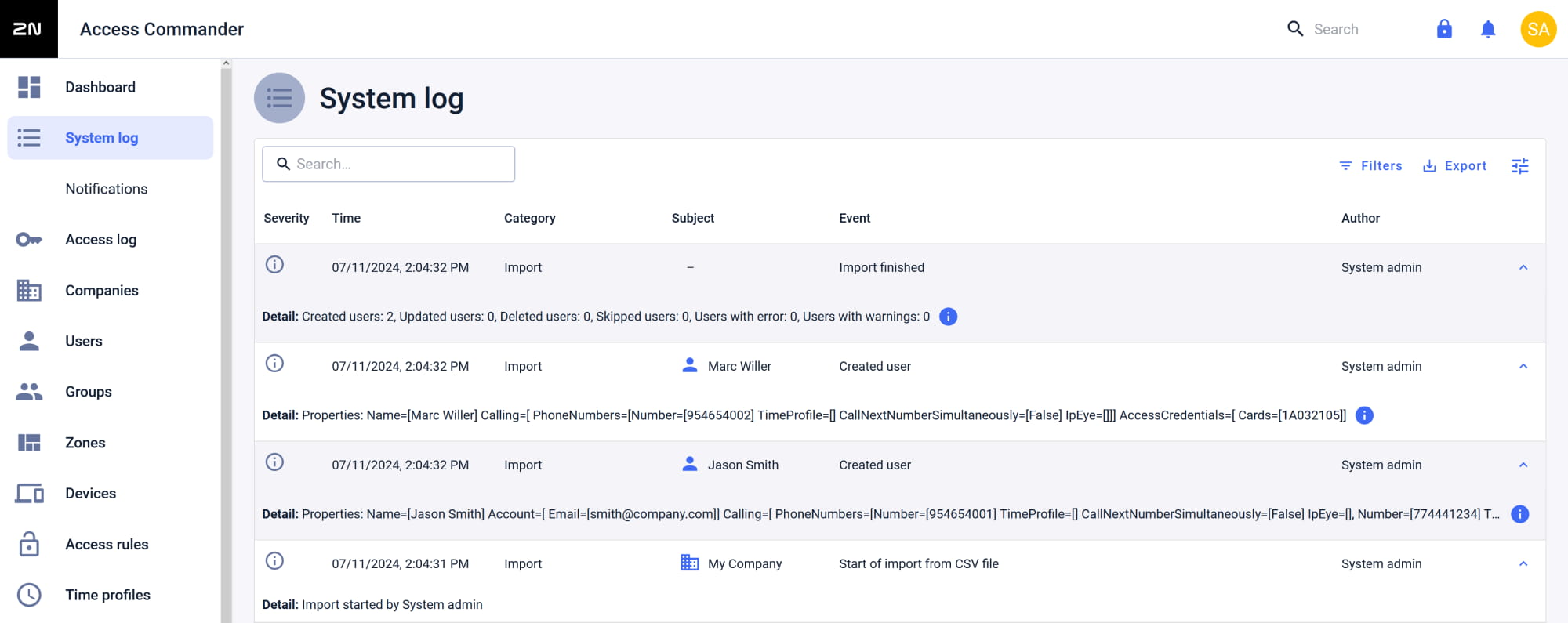
    • You can check the state of the import in System log.
     
    2N Access Commander - CSV import - System log


    Czy ta strona była pomocna?