Calls from 2N Indoor Touch to 2N IP Intercom

The steps in this article require using the web interface of a 2N device. Please follow this manual in case this is your first time using the web interface.

The 2N Indoor Touch unit is designed for audio/video communication with the 2N IP Intercoms.

You can browsee all intercoms connected to the same LAN, you are able to accept incoming audio/video calls, make outgoing calls to 2N IP Intercoms and also control locks/switches connected to the intercom.


2N IP Intercom configuration

  • Depending on the application, you can set up the calling via Local Calls or SIP (VOIP) Calls.

  • Main difference is the method of calling the other device.

  • For Local Calls use "Device ID", for SIP Calls use IP Address of the device

Intercom Local Calls

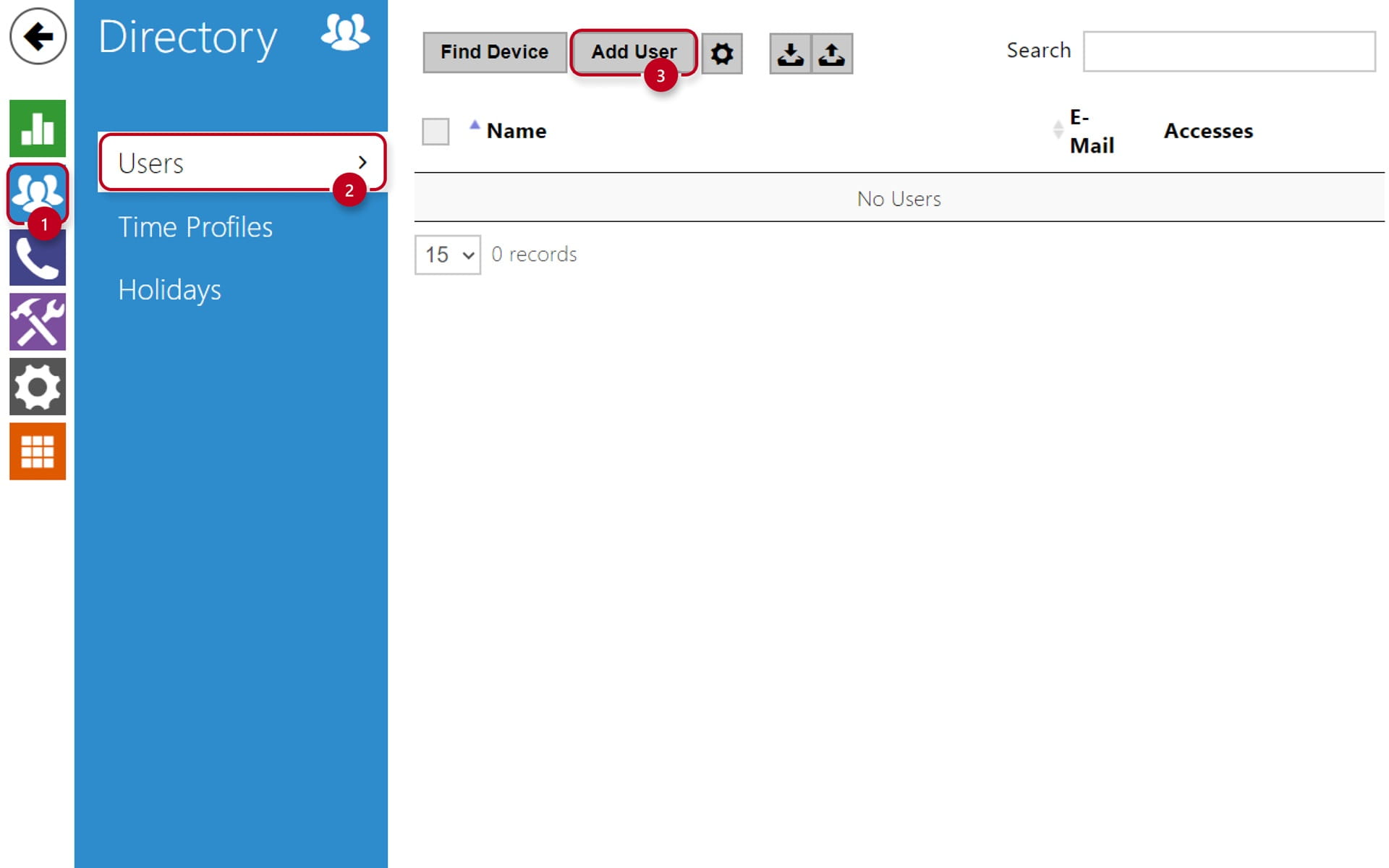
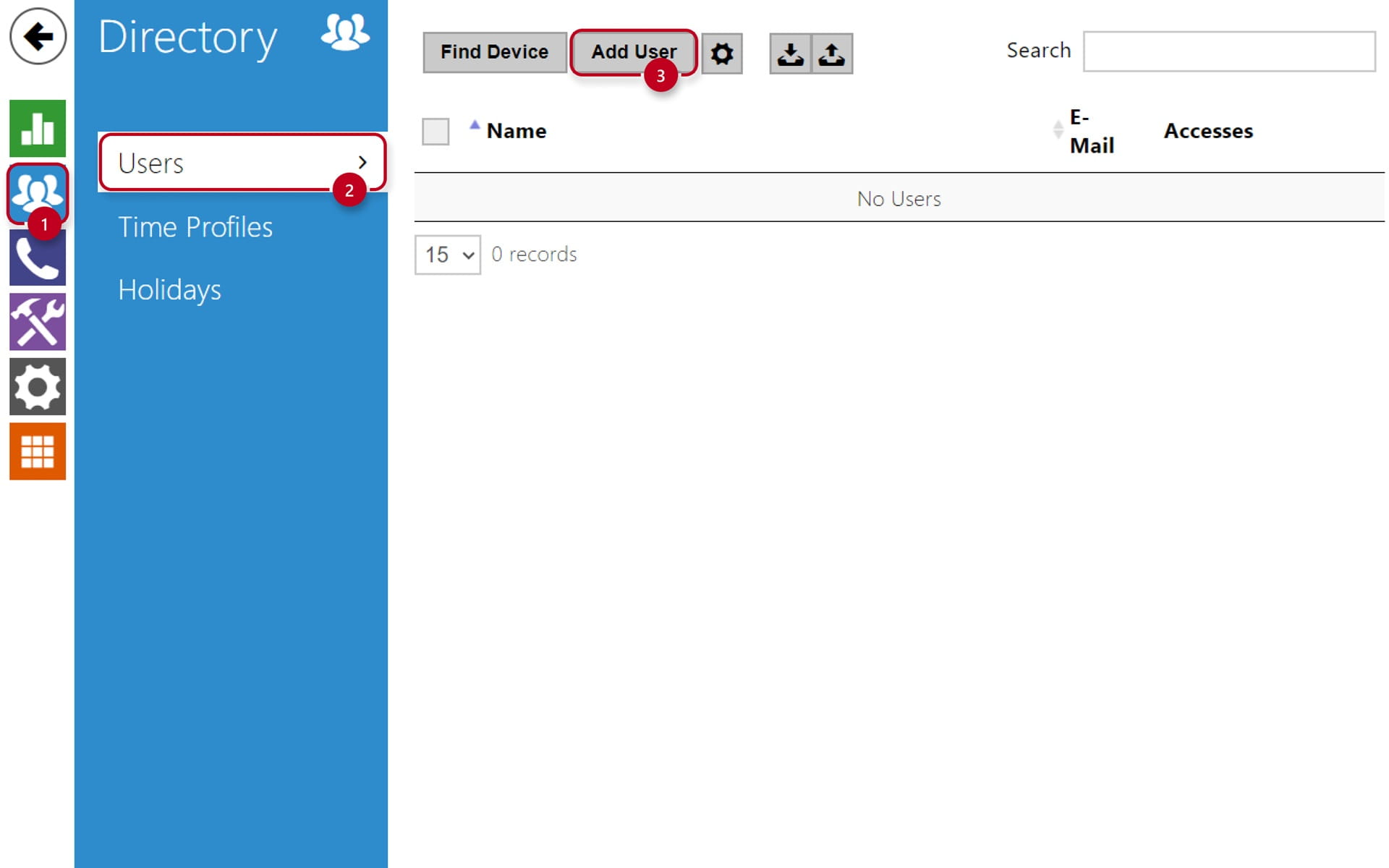
  • Navigate to the section "Directory" (1), then "Users" (2), create a new user and set the "Phone Number" (3) to be dialled once you press selected quickdial button on the Intercom:
2N OS Directory Configuration

  • Type in the "Name" (4) of the user you wish to create

  • If you want to call to the 2N Indoor Touch via Local Calls, the Phone Number (5) has to be filled in a format: "device:name"

  • In our example the device name "IDT" is used

  • Make sure to hit "Save" (6) once the configuration is done:
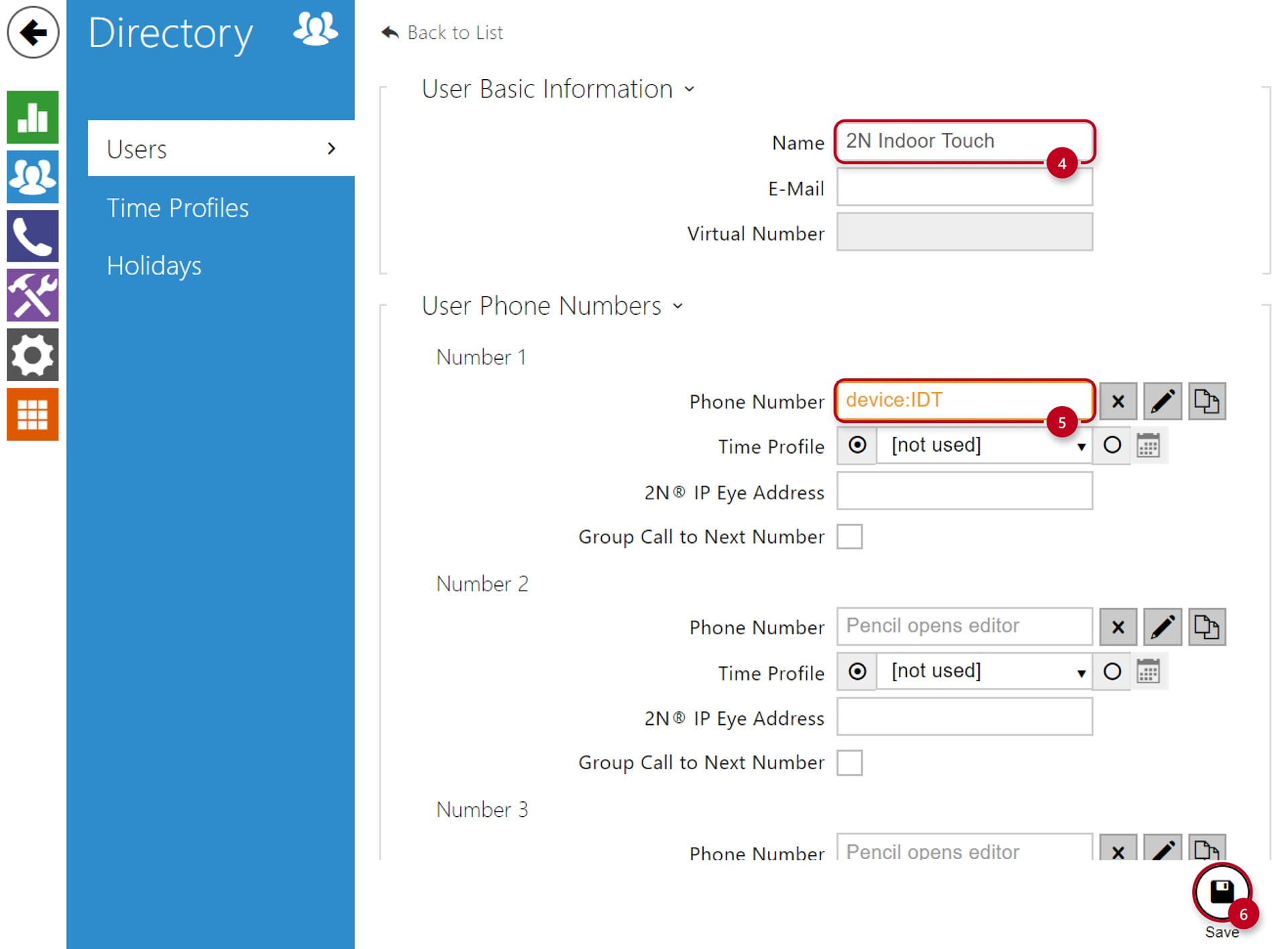
2N OS User Local Calls Setup

  • In the next step you can set the intercom to automatically pick up the incoming calls in order to easily reach it at any time

  • Go to the section "Calling" (7) and "General Settings" (8)

  • Enable Automatic Pickup for incoming local calls under "Local Call Receiving Mode" (9) and hit "Save" (10):
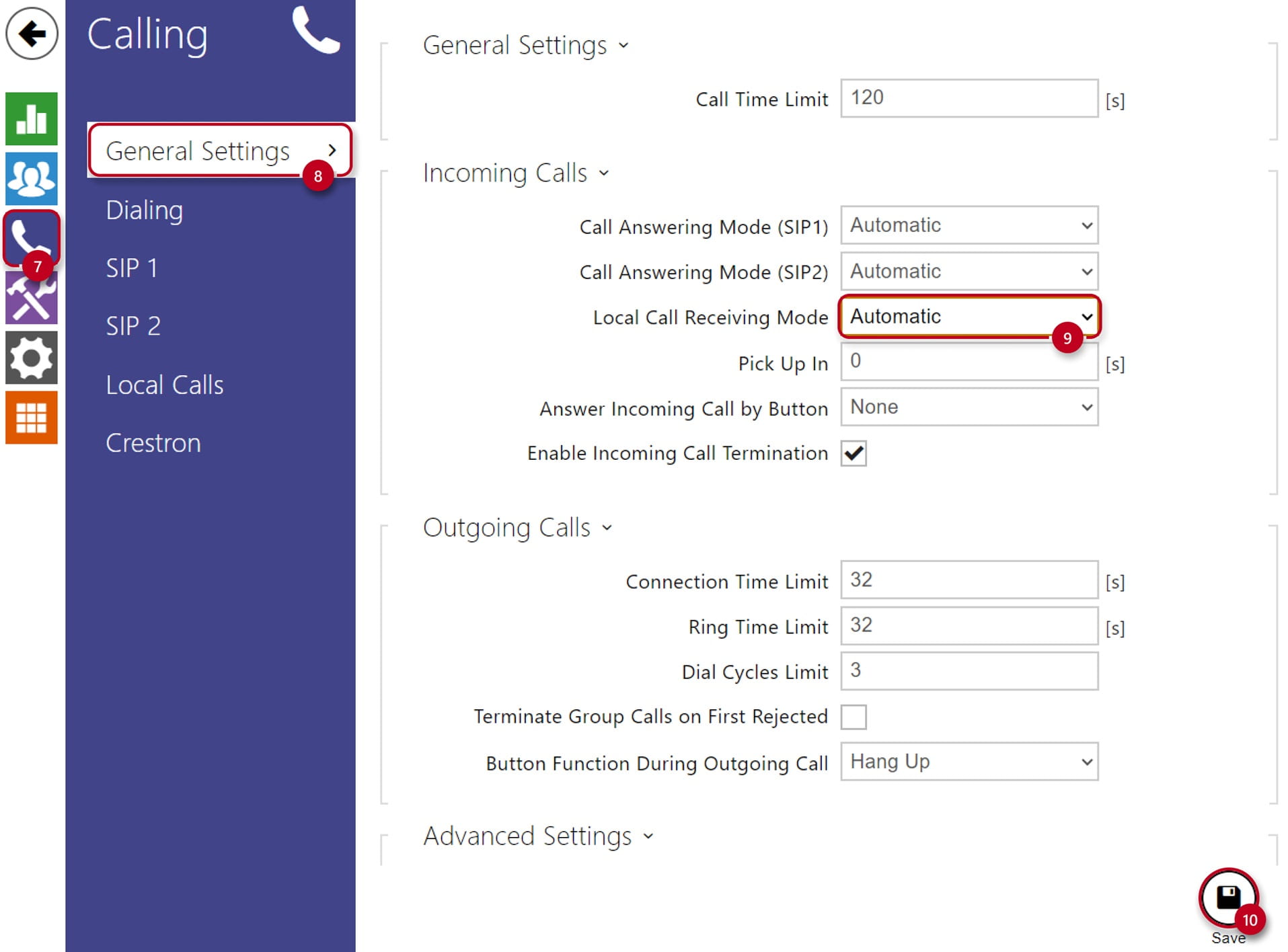
2N OS User Local Calls Setup

  • As a next step go to the section "Calling" (11) and "Local Calls"

  • Make sure the "Local Calls Enabled" (12) is selected and saved (13):
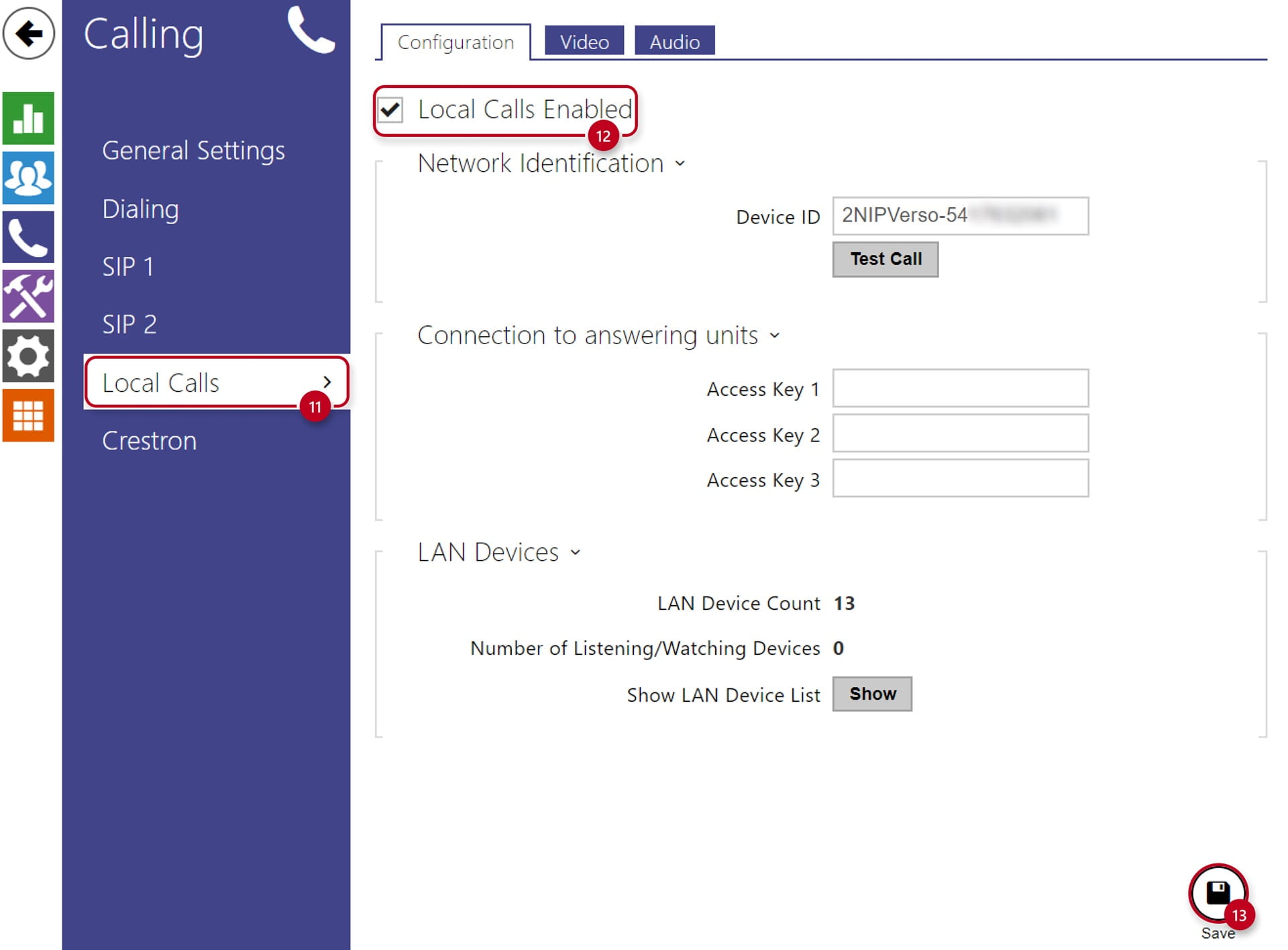
2N OS Local Calls

  • Last step is to assign the contact to a quick dial button under "Dialing" (14)

  • Click on the "+" (15) and select the user

  • Make sure to save the configuration (16):
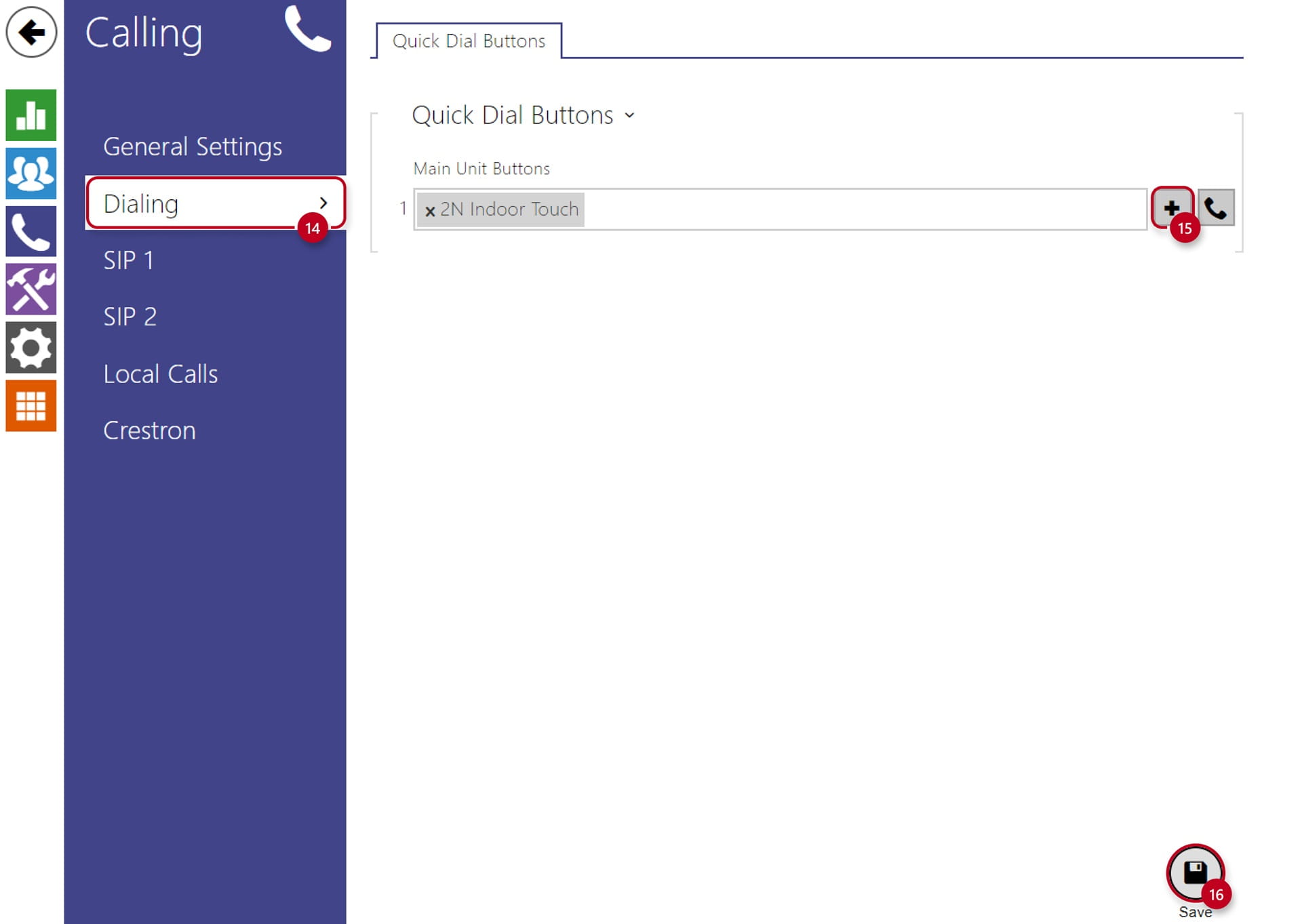
2N OS Local Calls Quick Dial Buttons

Intercom SIP Calls

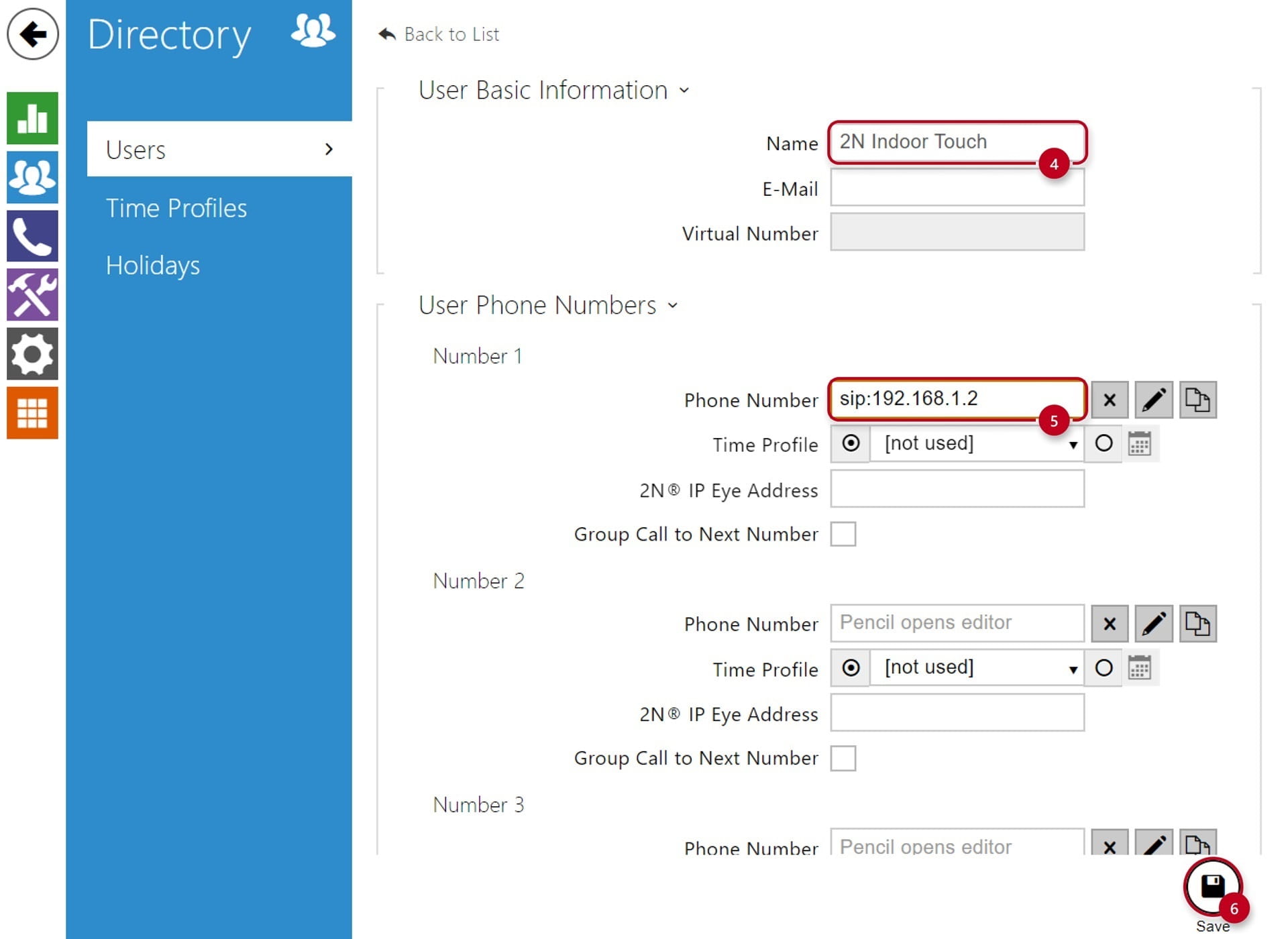
  • Navigate to the section "Directory" (1), then "Users" (2), create a new user and set the "Phone Number" (3) to be dialled once you press selected quickdial button on the Intercom:

2N OS Directory Configuration

  • For direct calls from the 2N IP Intercom to 2N IP Mobile application it is recommended to fill in the IP address of intercom as shown in the picture below (IP address of the intercom in this example is 192.168.1.2):

2N OS SIP User

  • In the next step you can set the intercom to automatically pick up the incoming calls in order to easily reach it at any time

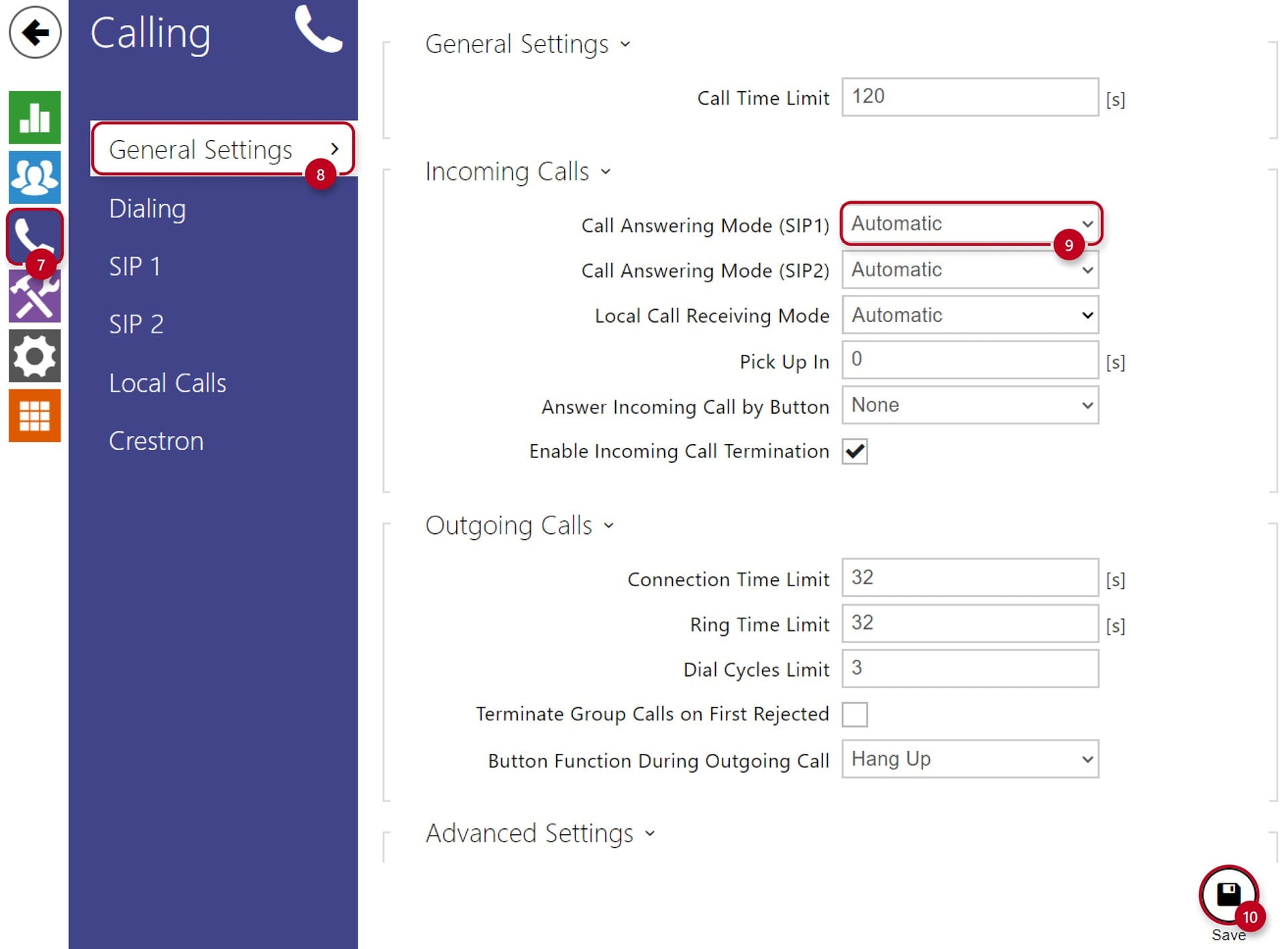
  • Go to the section "Calling" (7) and "General Settings" (8)

  • Enable Automatic Pickup for incoming local calls under "Local Call Receiving Mode" (9) and hit "Save" (10):

2N OS Calling General Settings Answering Modes SIP

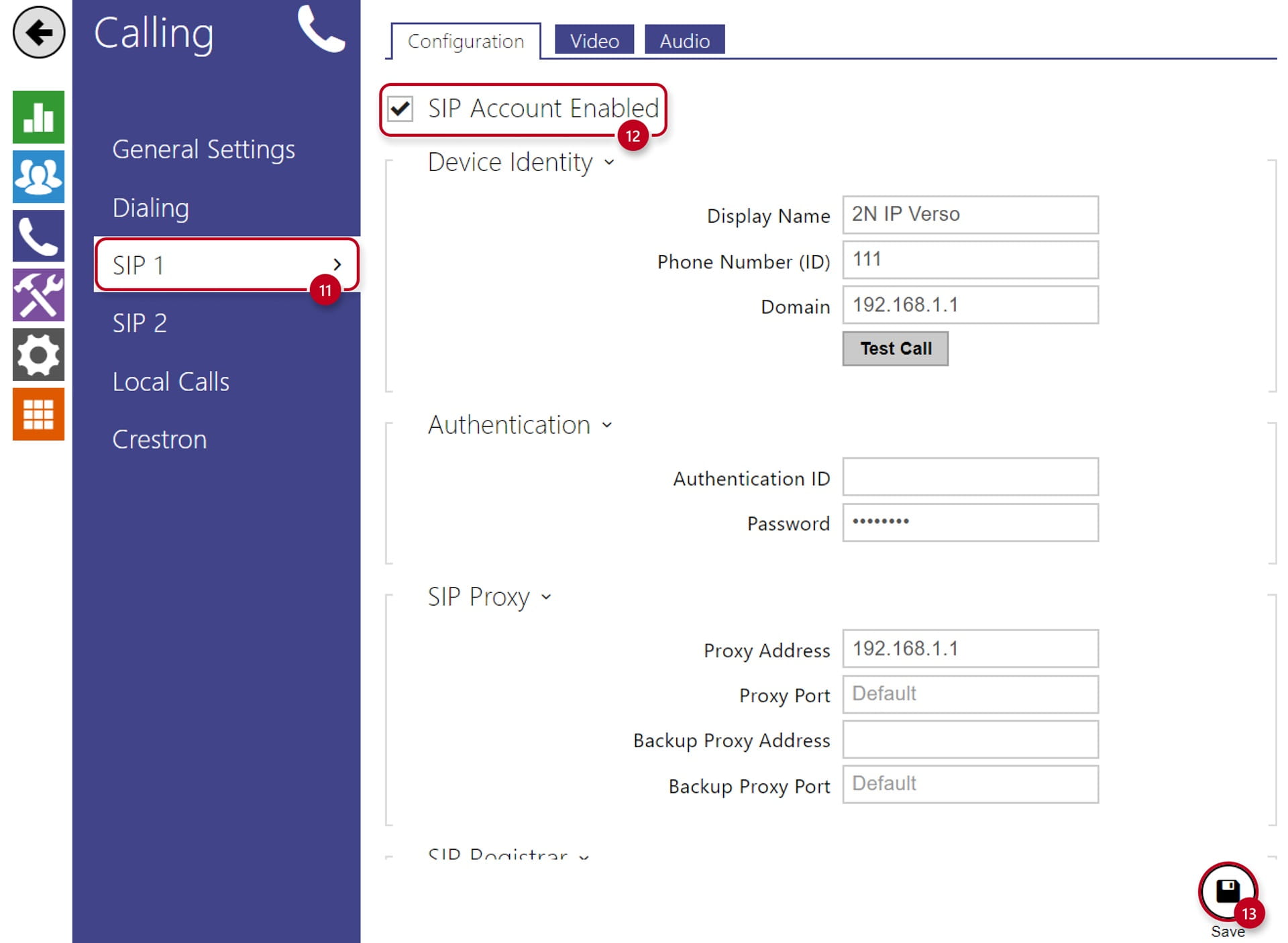
  • As a next step go to the section "Calling" and "SIP 1" (11)
  • Make sure the "SIP Account Enabled" (12) is selected

  • Save the configuration (13), as no other settings for simple SIP calling are needed to be changed:

2N OS Calling General Settings SIP Account

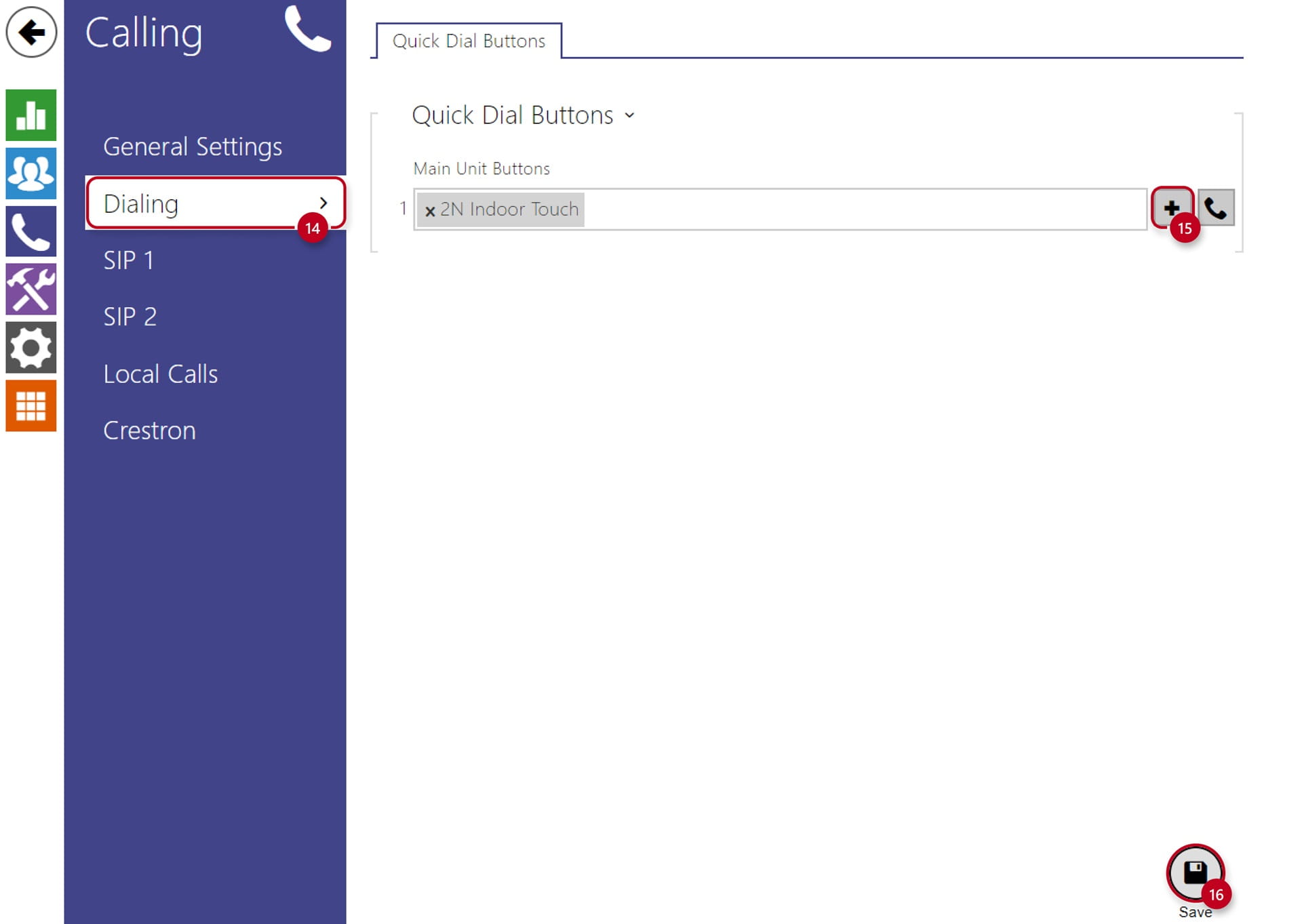
  • Last step is to assign the contact to a quick dial button under "Dialing" (14)

  • Click on the "+" (15) and select the user

  • Lastly make sure to save the configuration (16):
2N OS Local Calls Quick Dial Buttons

2N Indoor Touch - Web Configuration

Once the 2N Indoor Touch is connected to the local network and powered (over PoE or using an external 12V DC/2A power supply) you can configure it via Web Interface or through it's display.

Indoor Touch Web Configuration - Local Calls

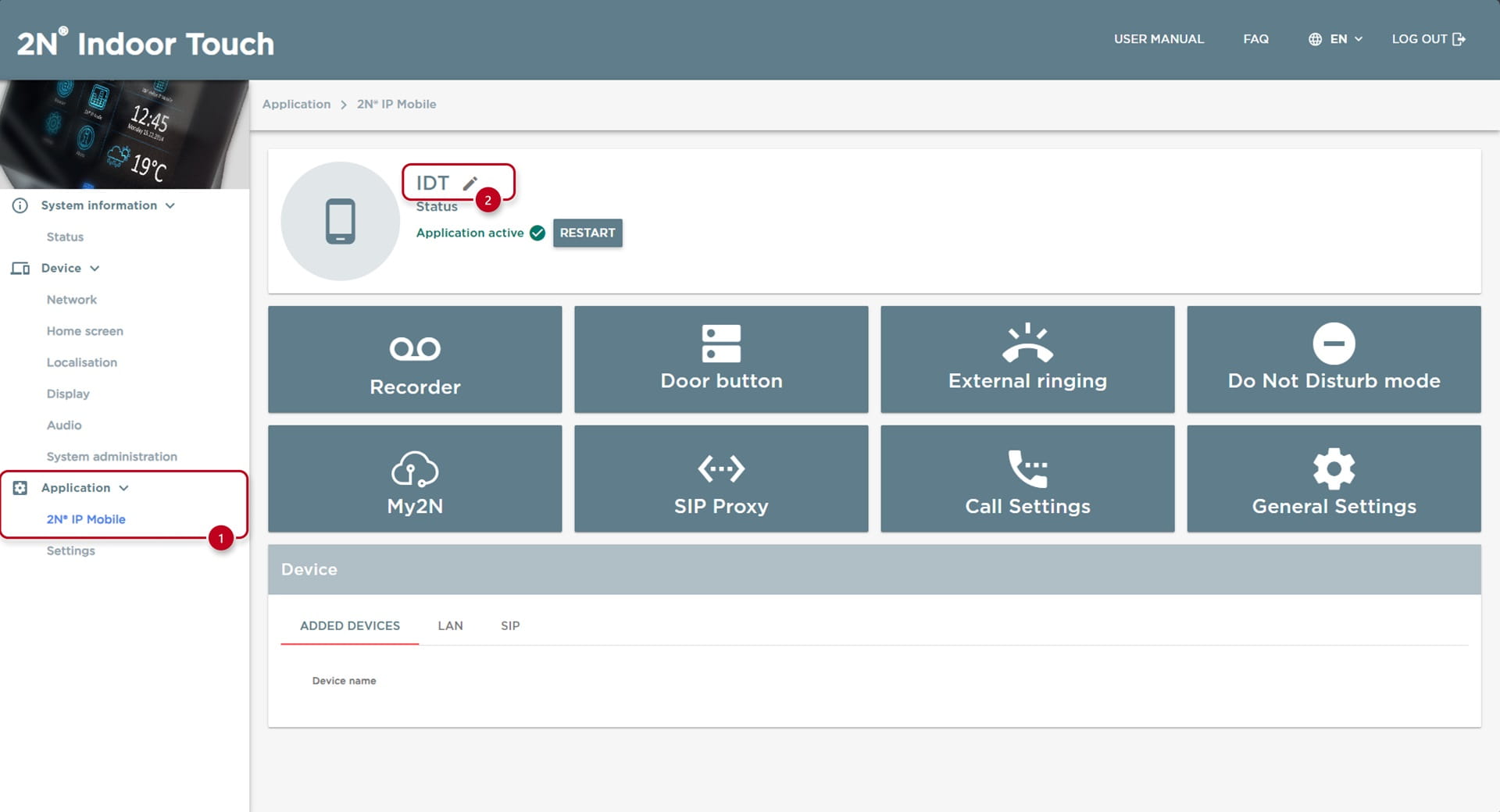
  • Go under the "Application" and "2N IP Mobile" (1)

  • Copy the "Device ID" on the top, in this case we edited it to "IDT" (2):

Indoor Touch Local ID

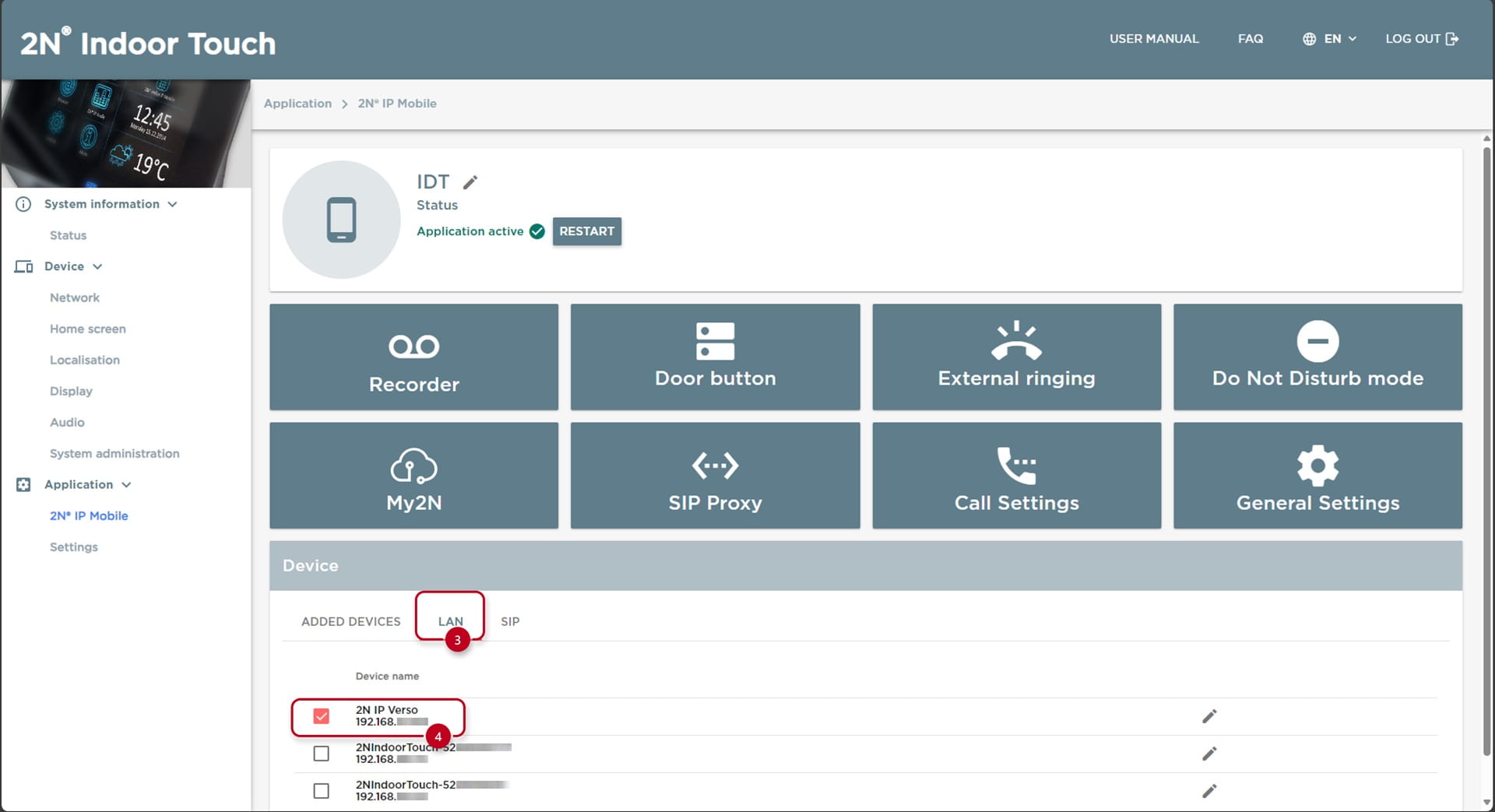
  • Next, click on "LAN" (3)

  • As you can see, some devices have appeared in the list

  • Click on the checkbox next to the device (4) to add it to the directory of the 2N Indoor Touch:

Indoor Touch Local LAN Devices

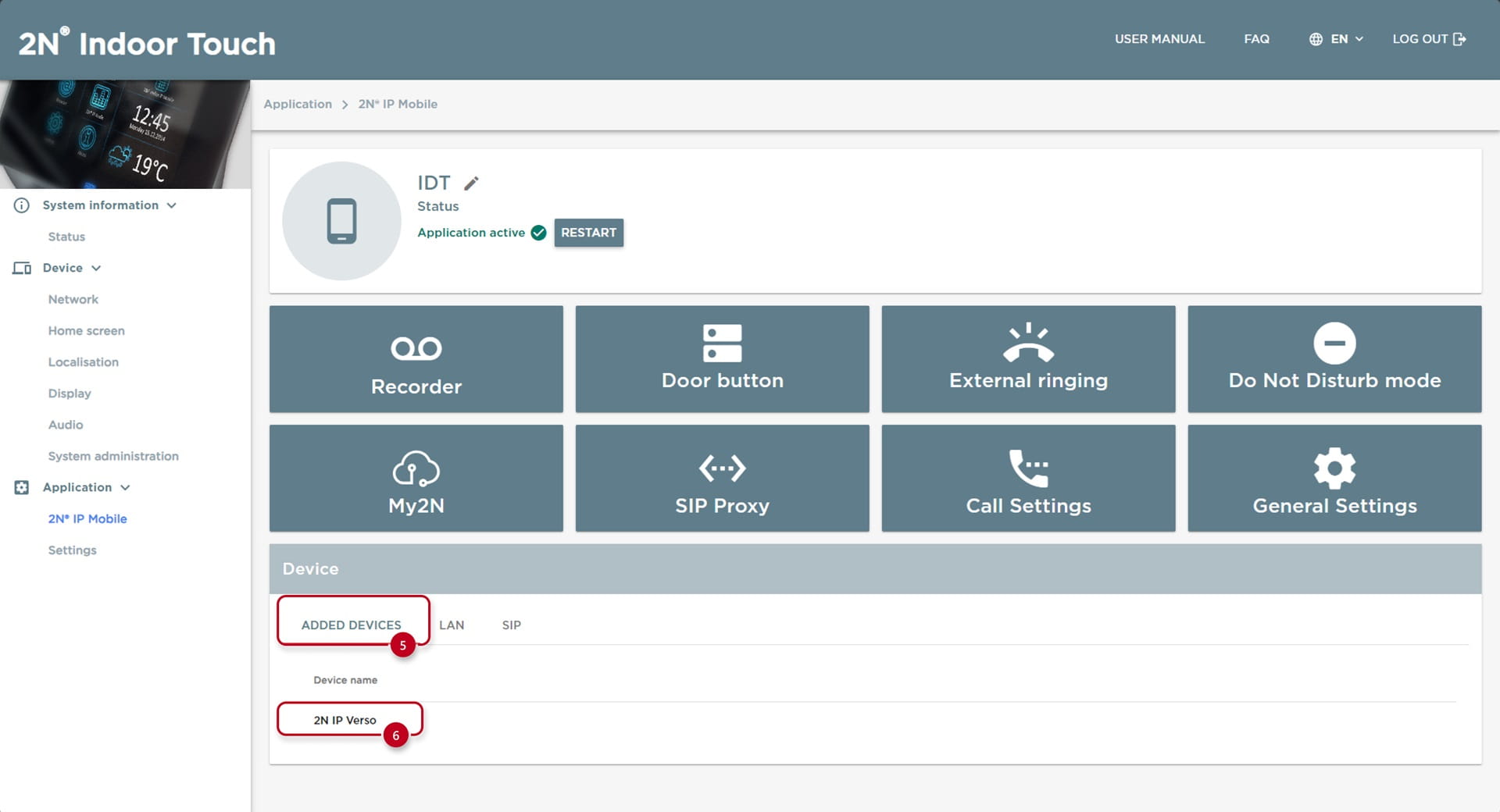
  • Next, click on "Added Devices" (5)

  • Selected devices (6) will show up on the display of the 2N Indoor Touch:

Indoor Touch Added Devices

Indoor Touch Web Configuration - SIP Calls

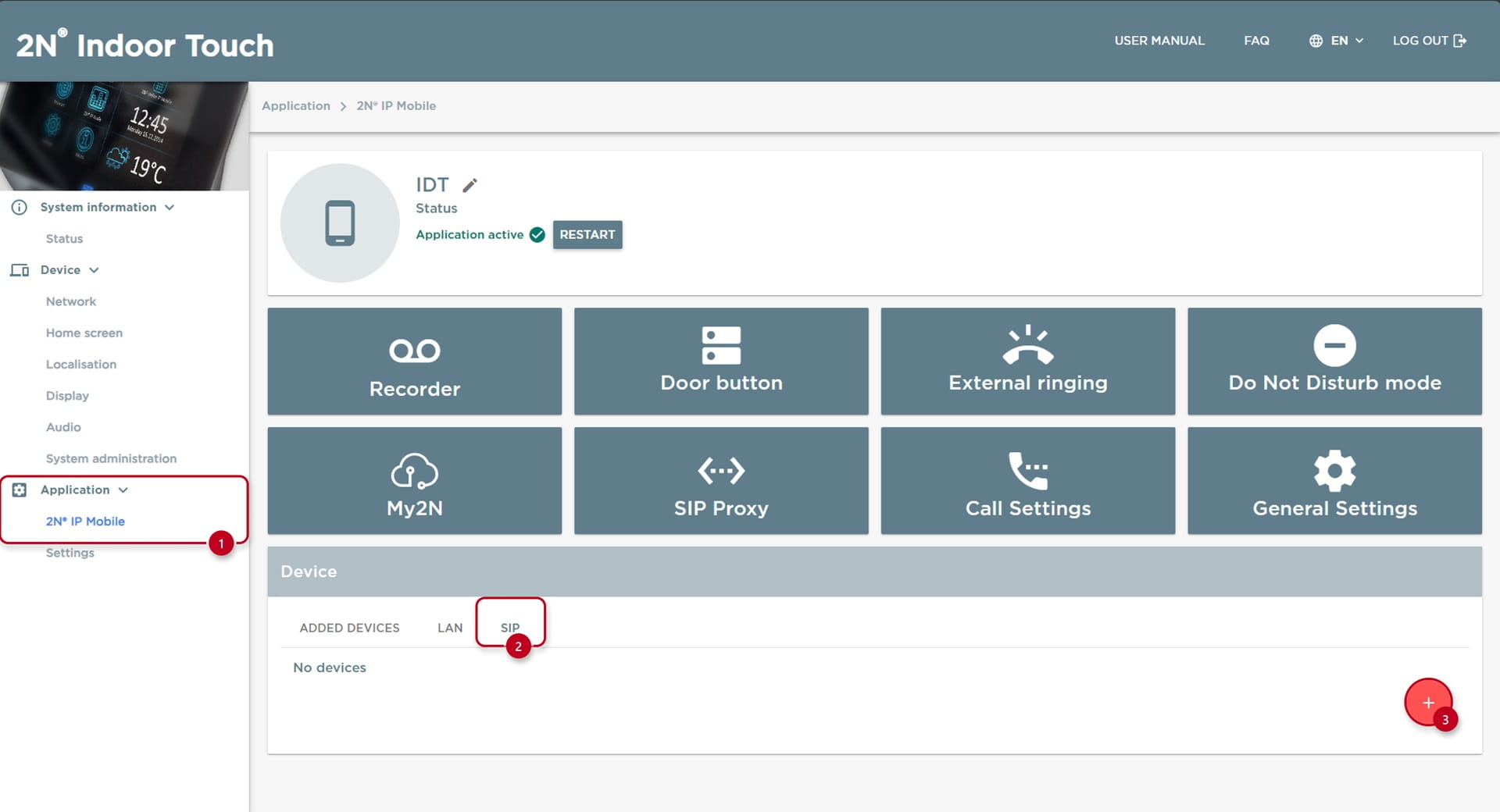
  • Go under the "Application" and "2N IP Mobile" (1)

  • Click on the "SIP" (2) tab, this shows the manually created SIP devices

  • Next, click on the "+" (3) to add a SIP device:

Indoor Touch SIP Device

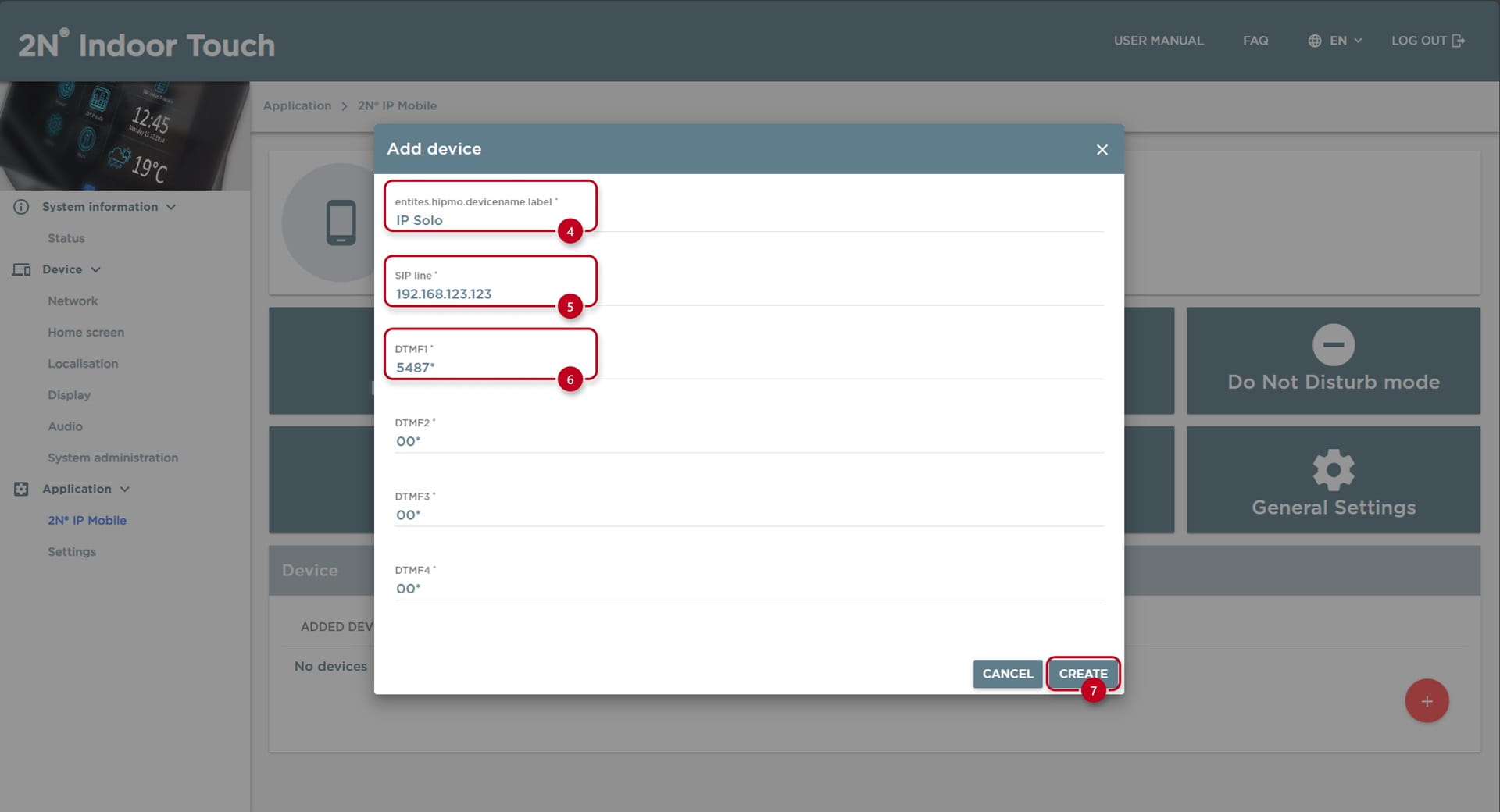
  • Type in the Label (4)

  • Input a IP address under the "SIP LINE" (5)

  • Optionally you can specify the Switch 1-4 DTMF code (6) or leave default on default value (00*)

  • Press "CREATE" (7):

Indoor Touch SIP Device Configuration

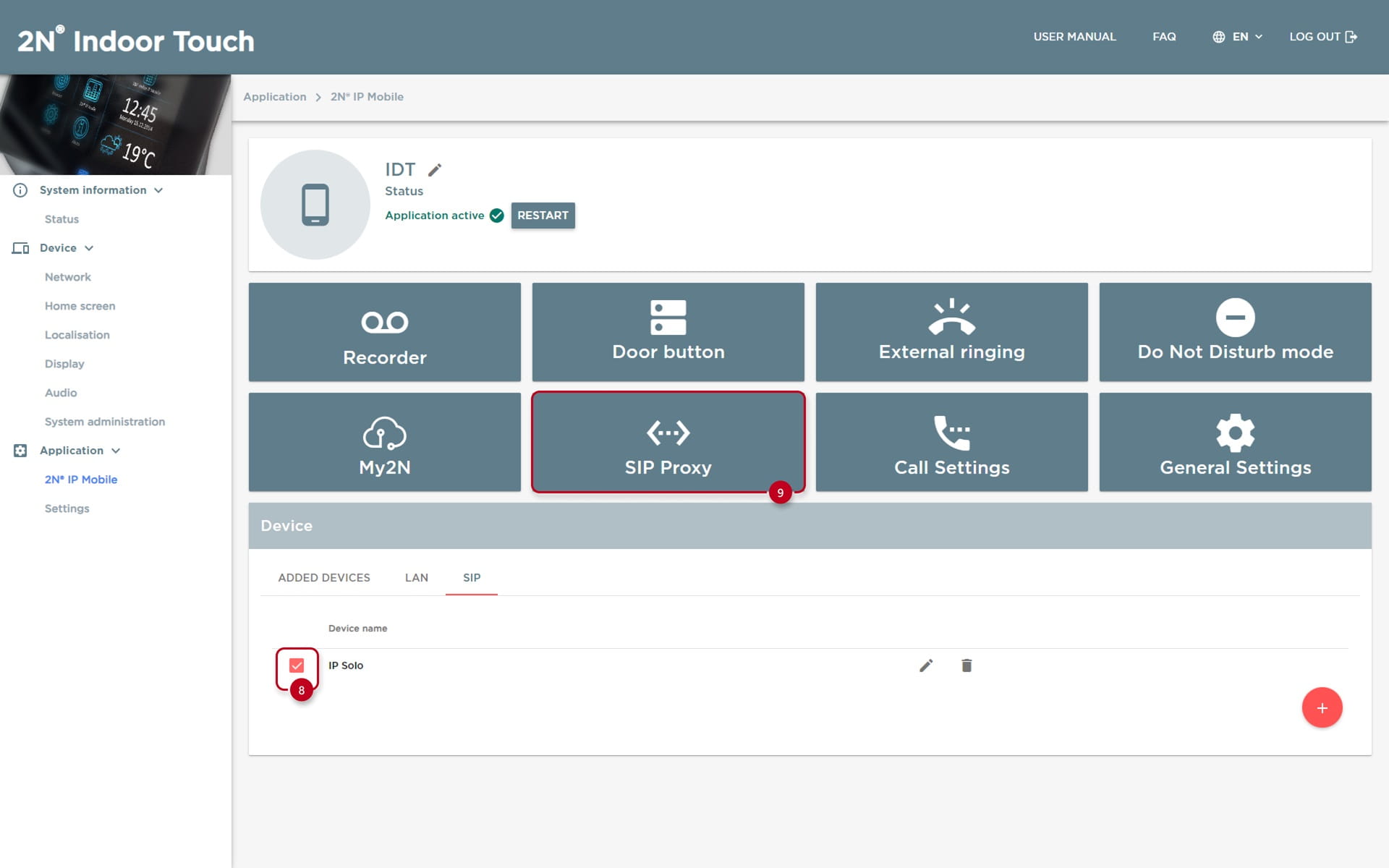
  • To show the device on the display of the Indoor Touch, make sure to select the checkbox (8) next to the device

  • To setup SIP calling a SIP proxy account (9) needs to be enabled, similarly to the 2N Intercom units: 

Indoor Touch SIP Setup

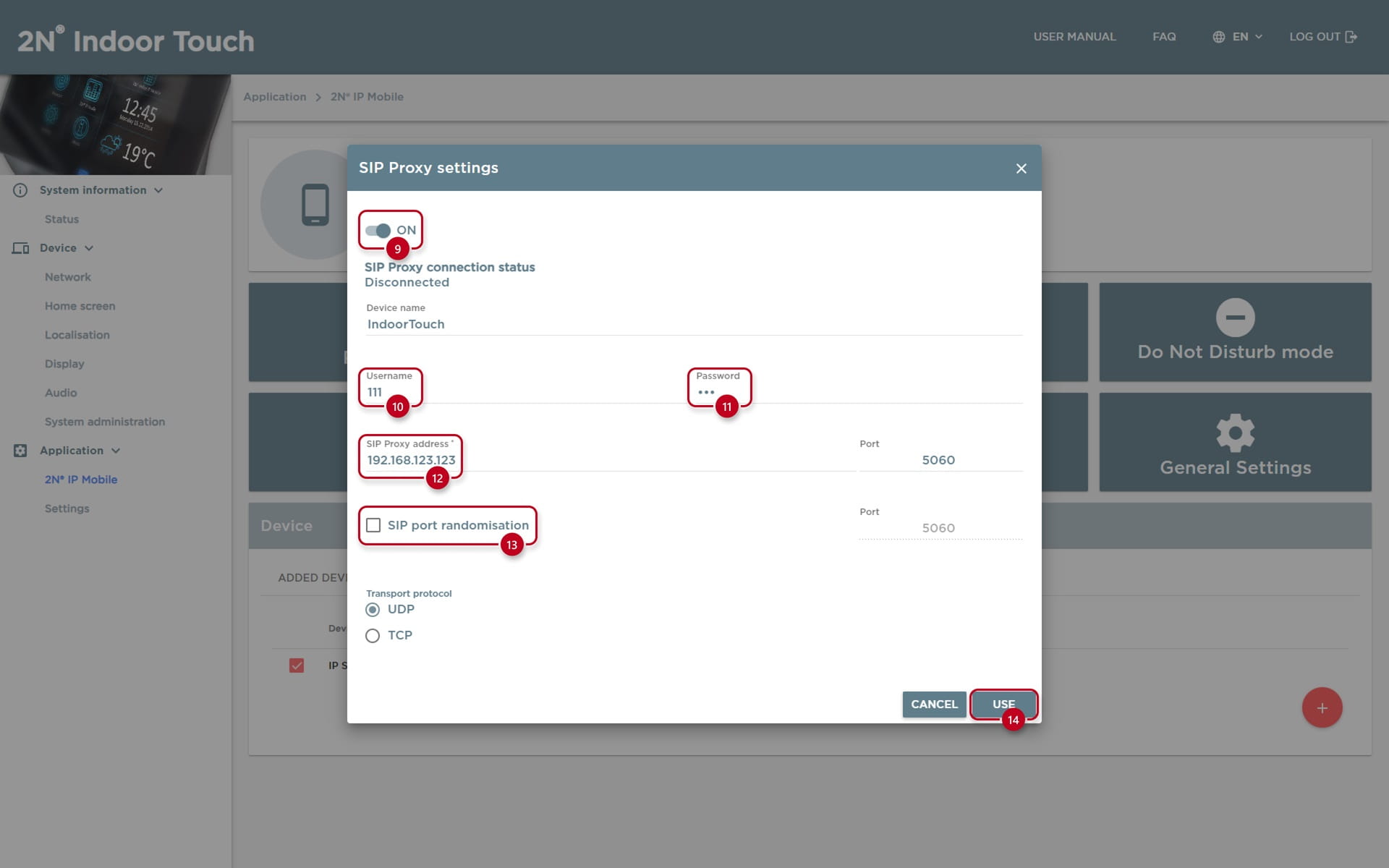
  • Next step is to set the SIP Proxy to "ON" (9)

  • Leave the default "Username" (10), input the same under "Password" (11)

  • Input the IP address of the Intercom you are trying to call to under the "SIP Proxy address" (12)

  • Make sure the "Port Randomization" (13) is off, otherwise you will not be able to call this unit

  • Finish the configuration by pressing on the "Use" (14) button:

Indoor Touch SIP Proxy

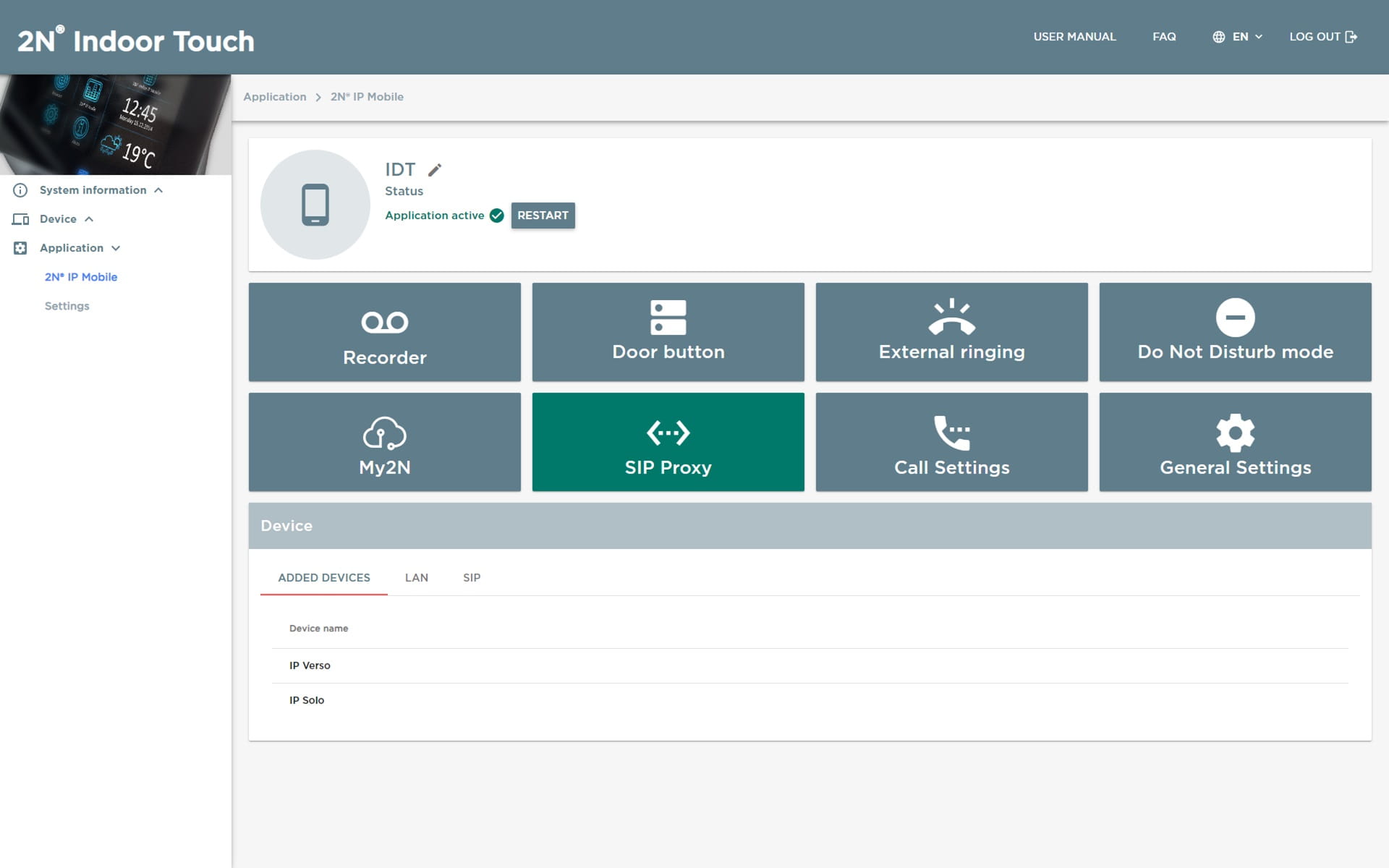
  • A successful configuration should look like so:

Indoor Touch SIP Configuration


2N Indoor Touch - Display Configuration

Once the 2N Indoor Touch is connected to the local network and powered (over PoE or using an external 12V DC/2A power supply) you can configure it via Web Interface or through it's display.

For Web interface configuration see 2N Indoor Touch - Web Configuration 

Make sure the By clicking on the 2N IP Mobile application icon in the right upper corner you can open it and access its settings.


Indoor Touch Display Configuration - Local Calls

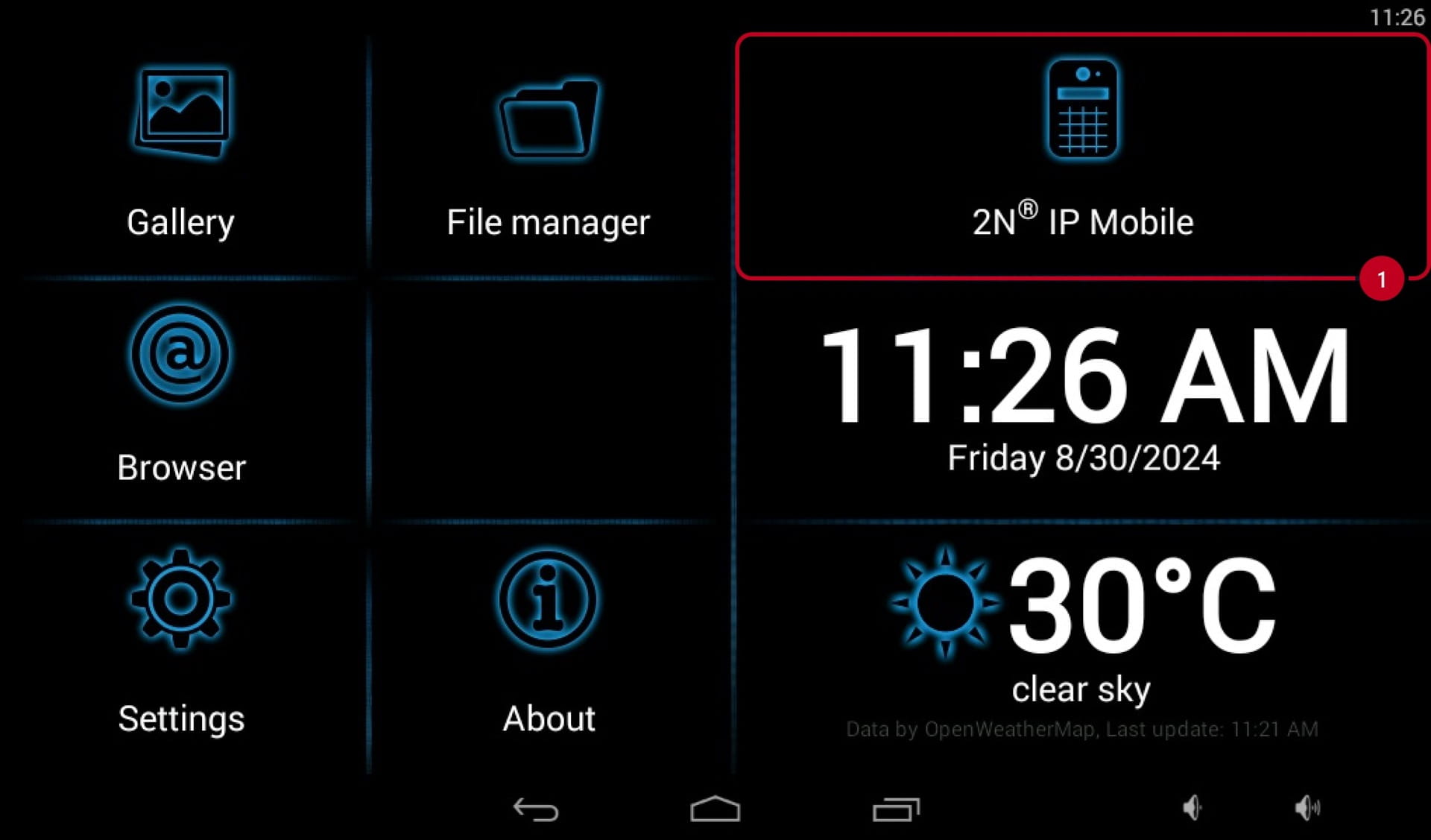
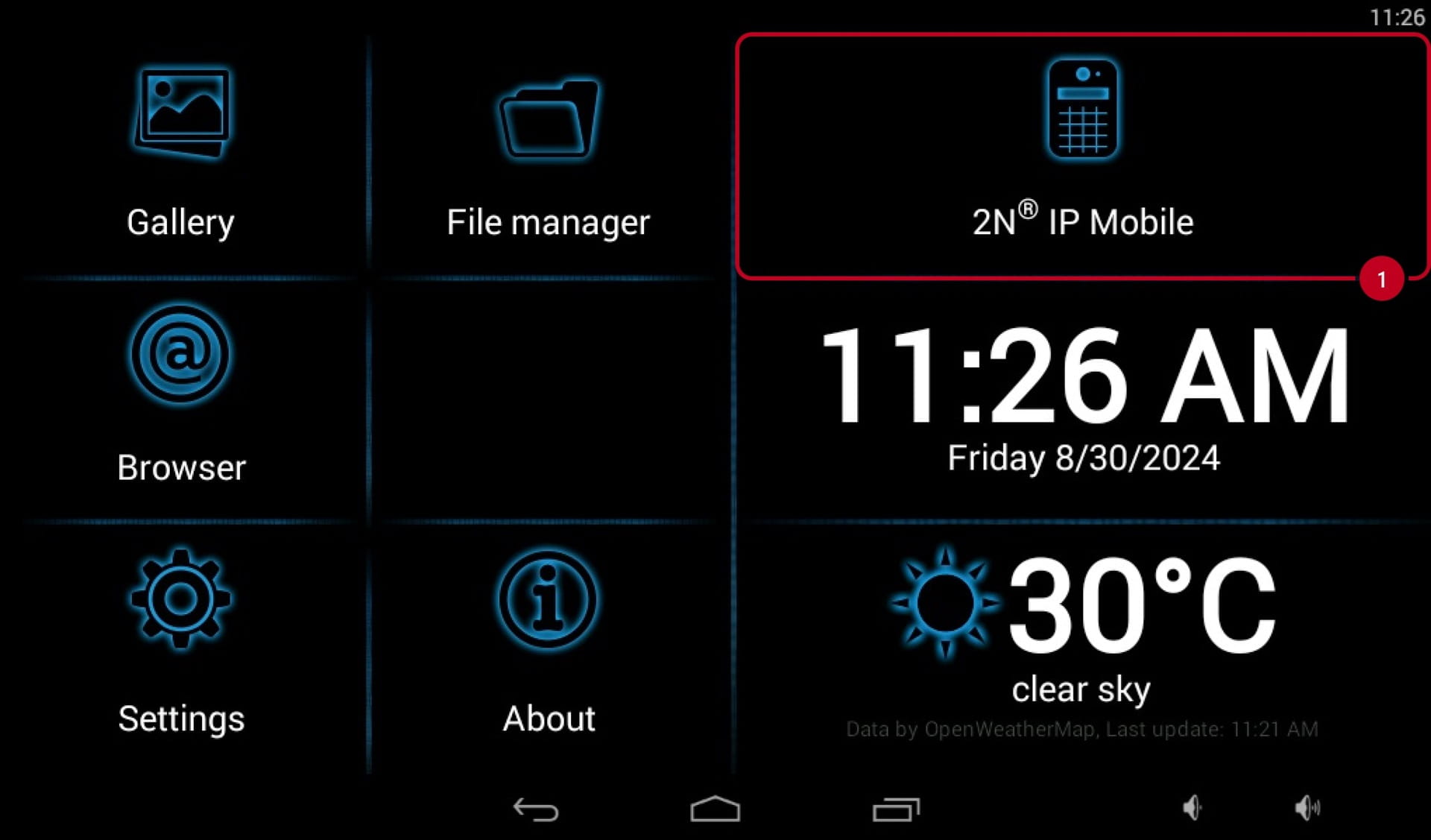
  • Select the "2N Helios IP Mobile" (1) app on the home screen:

2N Indoor Touch 2N IP Mobile

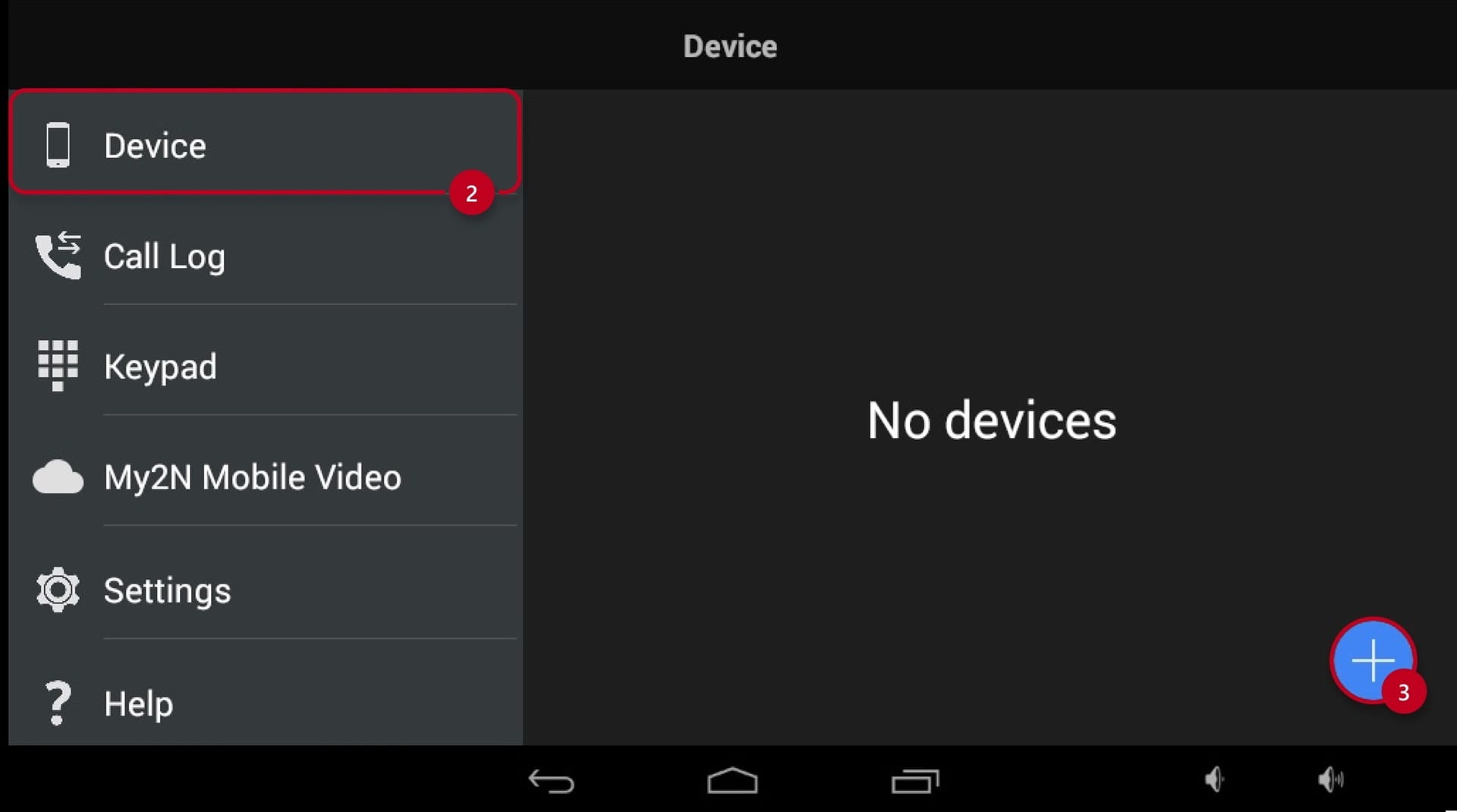
  • Locate and select device from "LAN devices" (2)

  • Click on the "+" (3) to add the device:

2N Indoor Touch Add Device

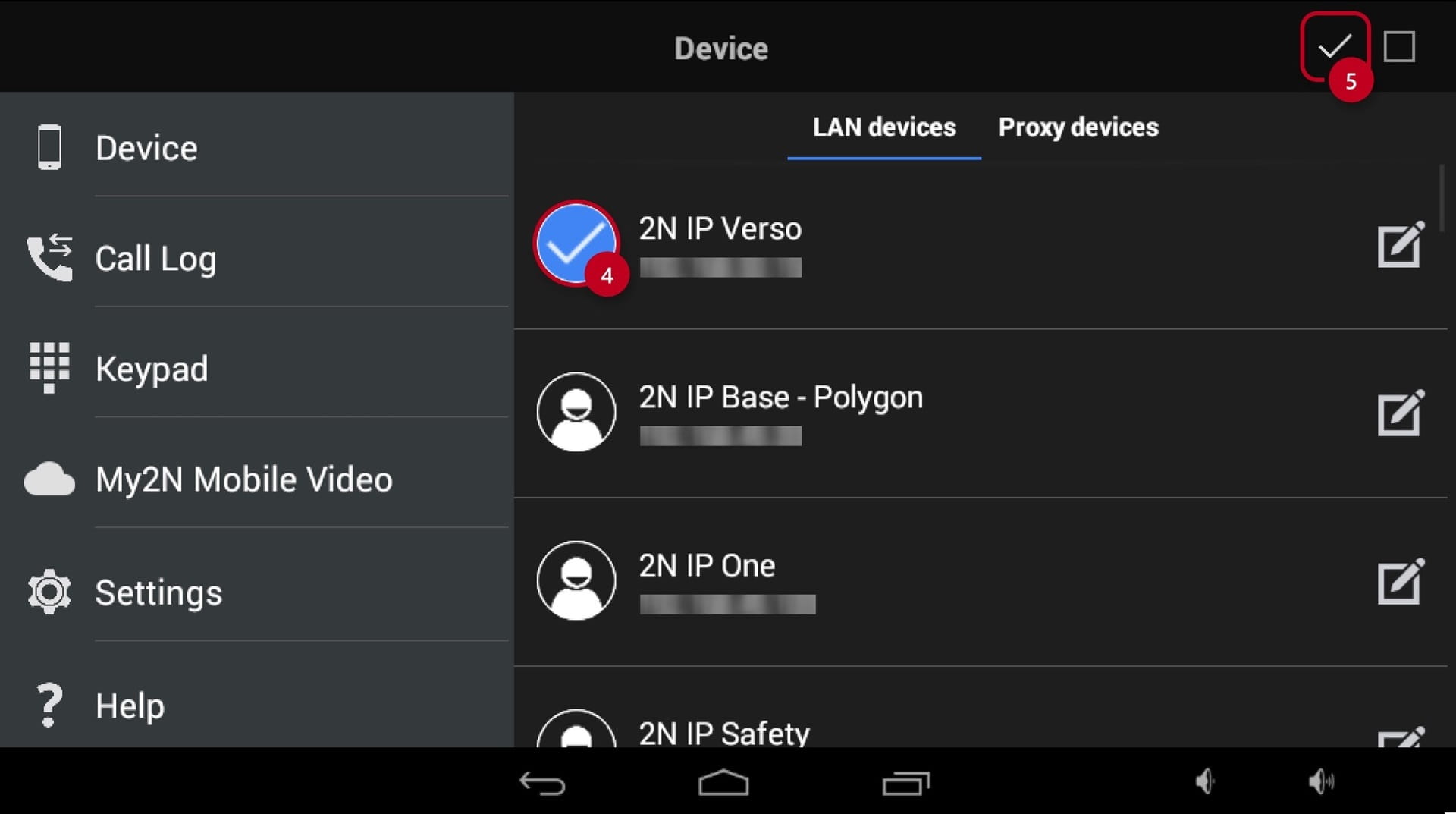
  • Select the device (4)

  • Click on the checkmark in the top right corner (5) to confirm the configuration:

2N Indoor Touch Configure Device

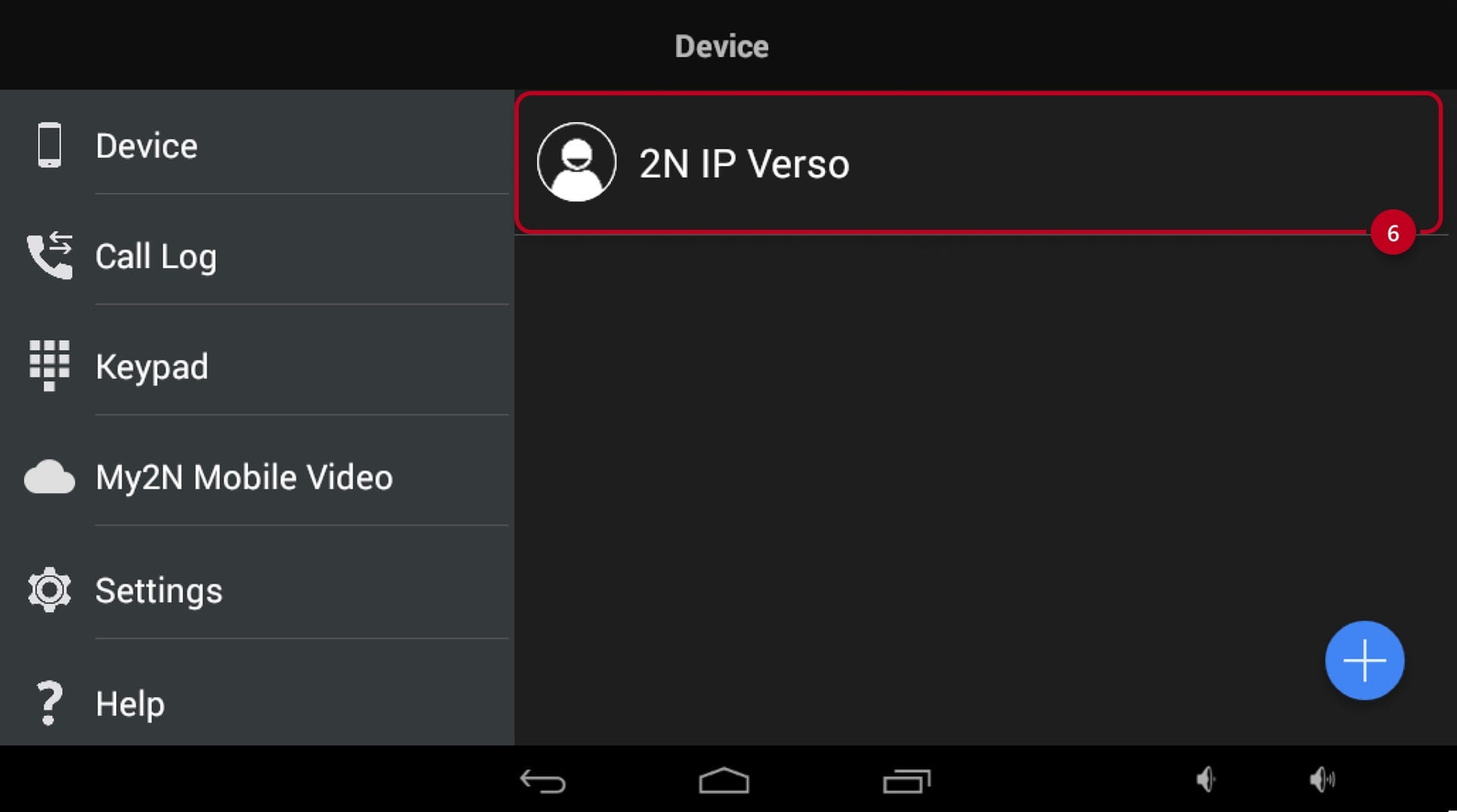
  • Selected device (6) is now available to be called on screen:

2N Indoor Touch Device Configured 
 

Indoor Touch Display Configuration - Device ID

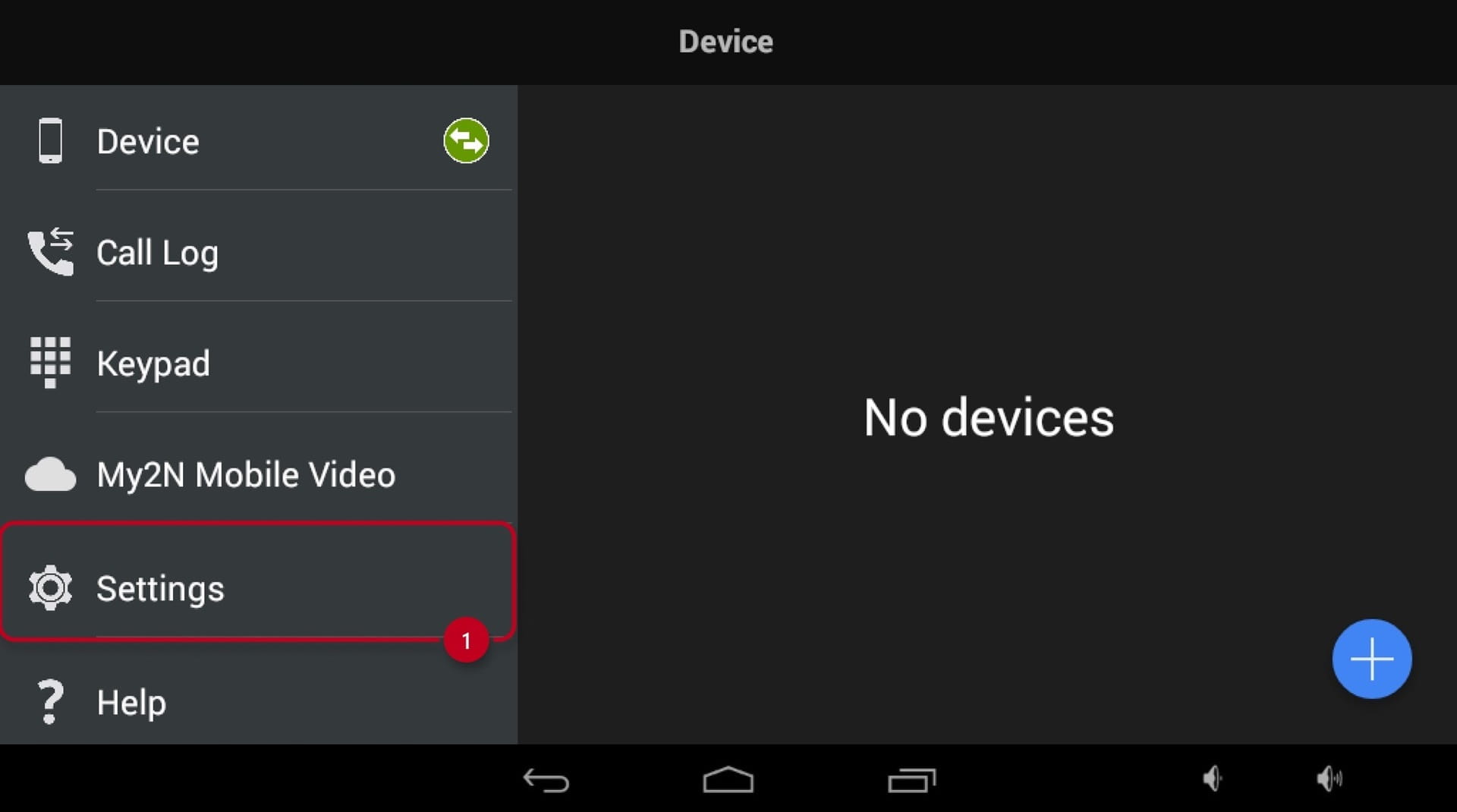
  • Go under "Settings" (1):

2N Indoor Touch Device ID

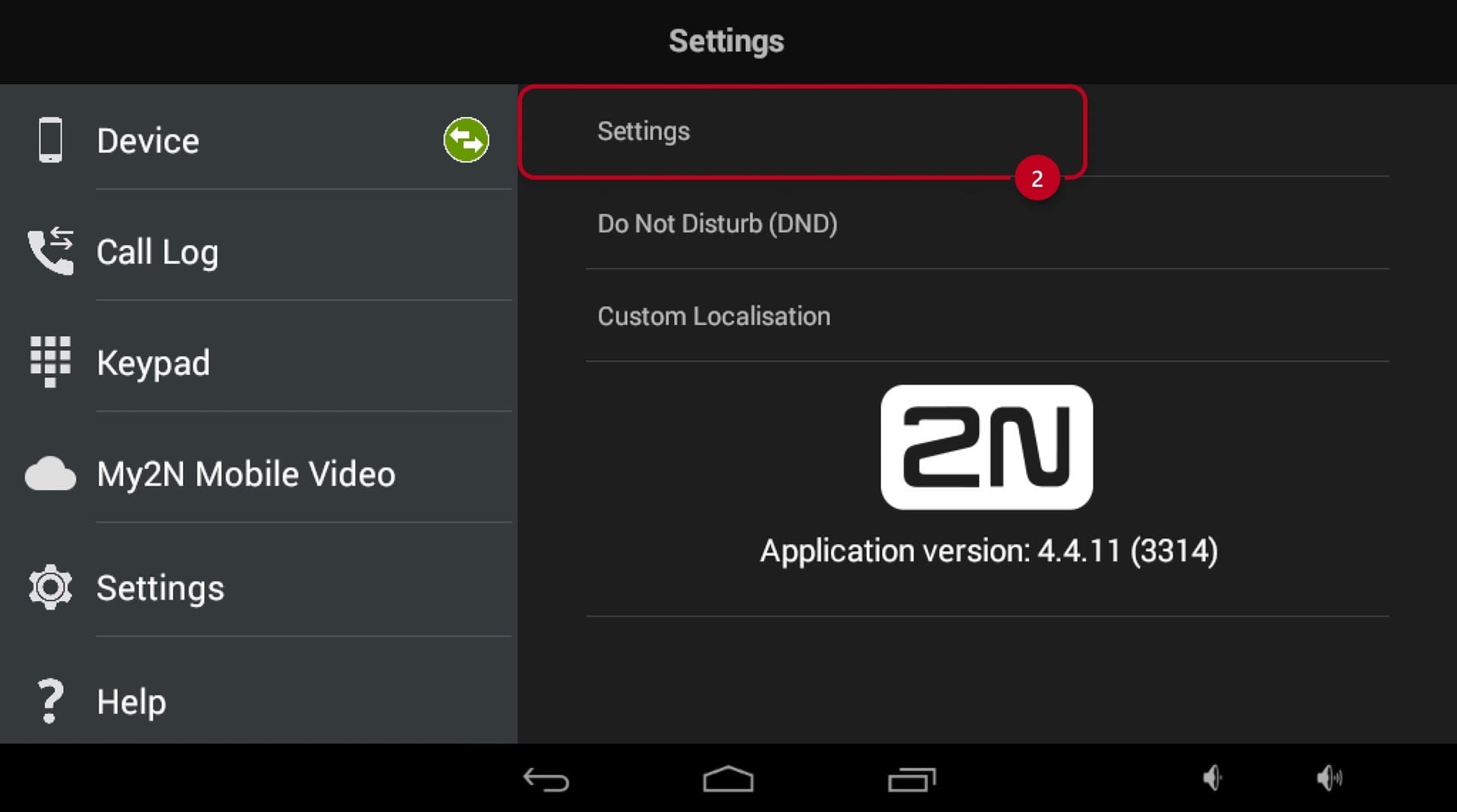
  • Select the "Settings" tab (2) once again:

2N Indoor Touch Settings

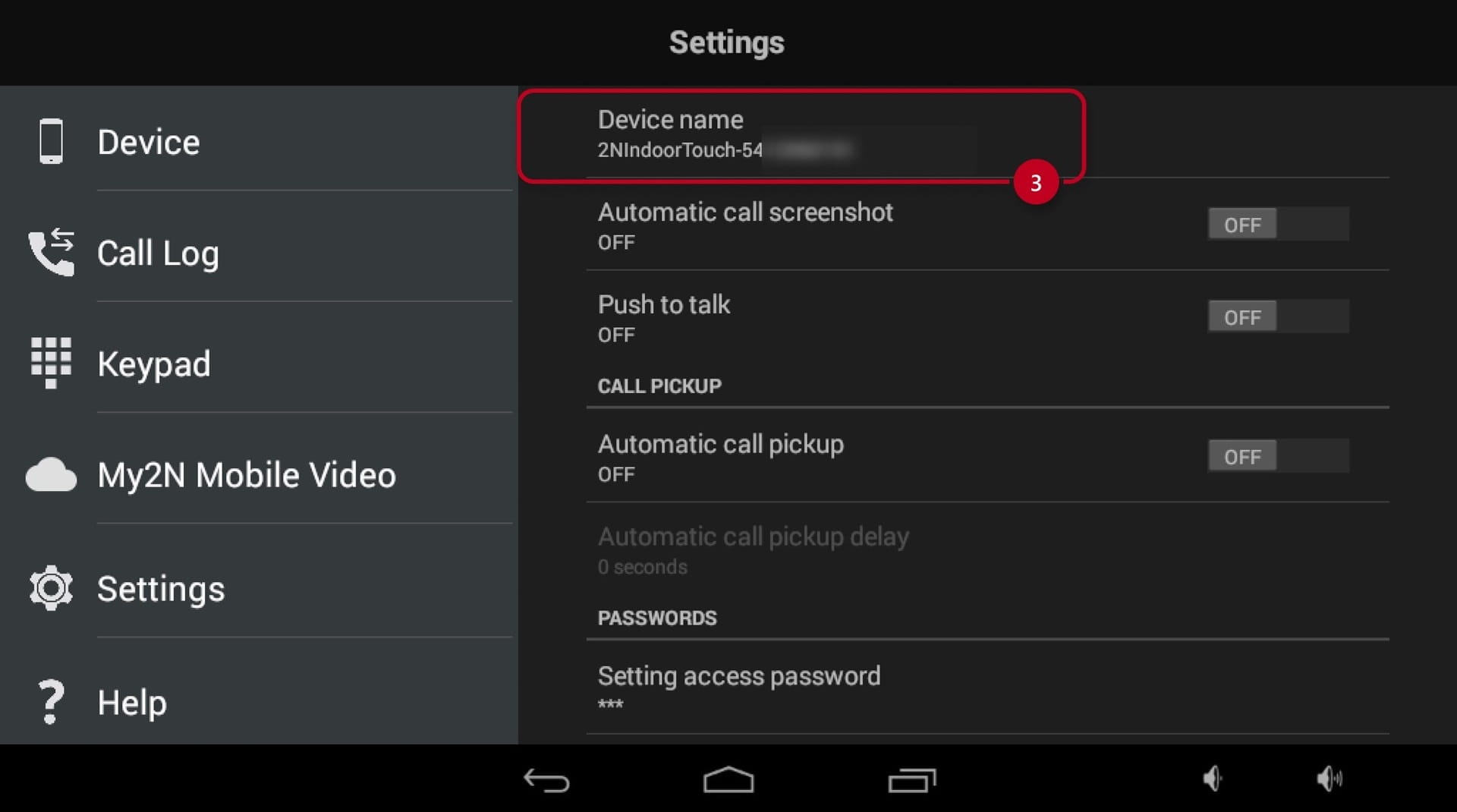
  • Locate the "Device Name" (3) tab:

2N Indoor Touch Setting Device ID

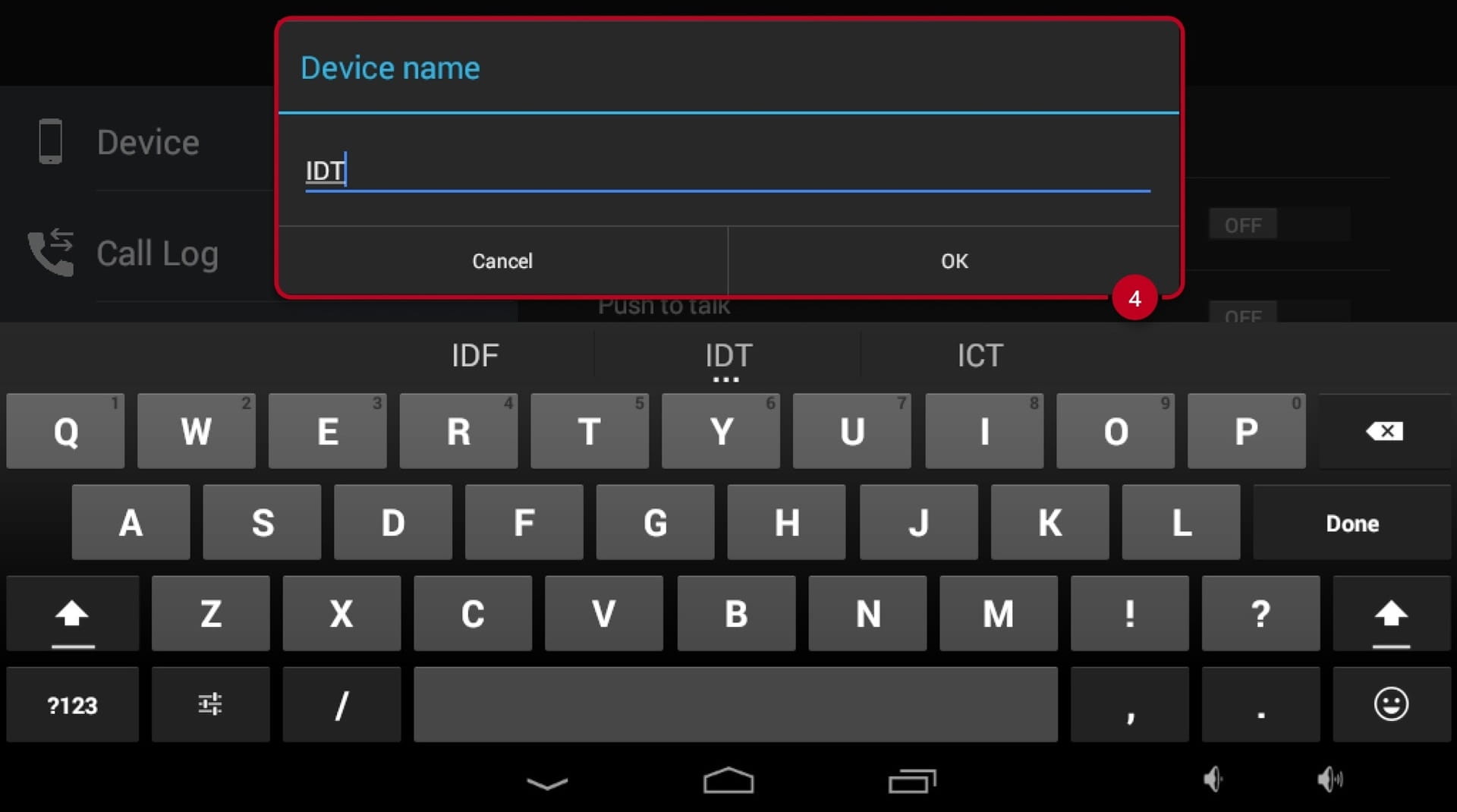
  • Tap and edit it, then hit "OK" (4):

2N Indoor Touch Device ID Configuration 

Indoor Touch Display Configuration - SIP Calls

  • Select the "2N Helios IP Mobile" (1) app on the home screen:

2N Indoor Touch 2N IP Mobile

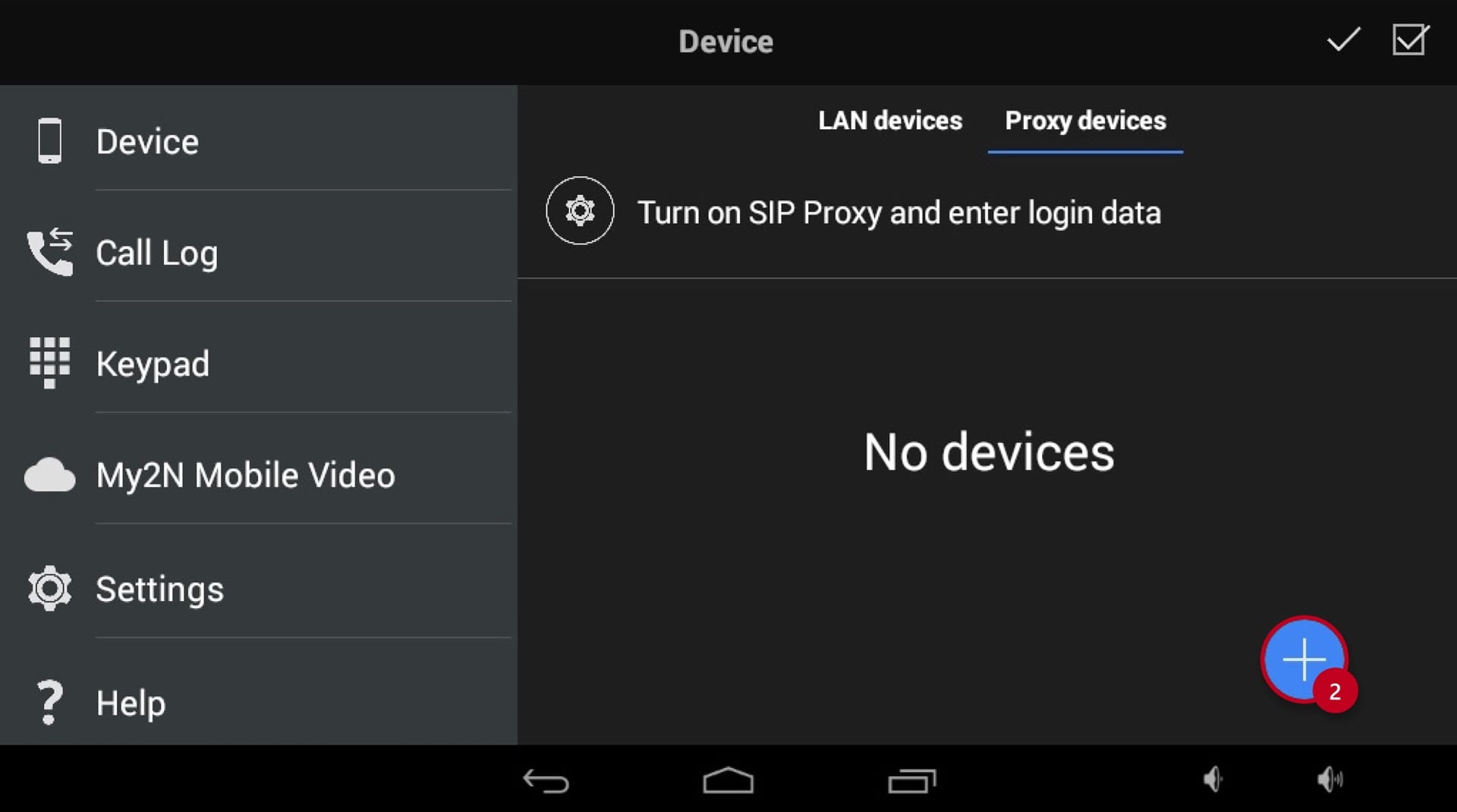
  • Click on the "+" (2) to add a SIP Device:

2N Indoor Touch SIP Device

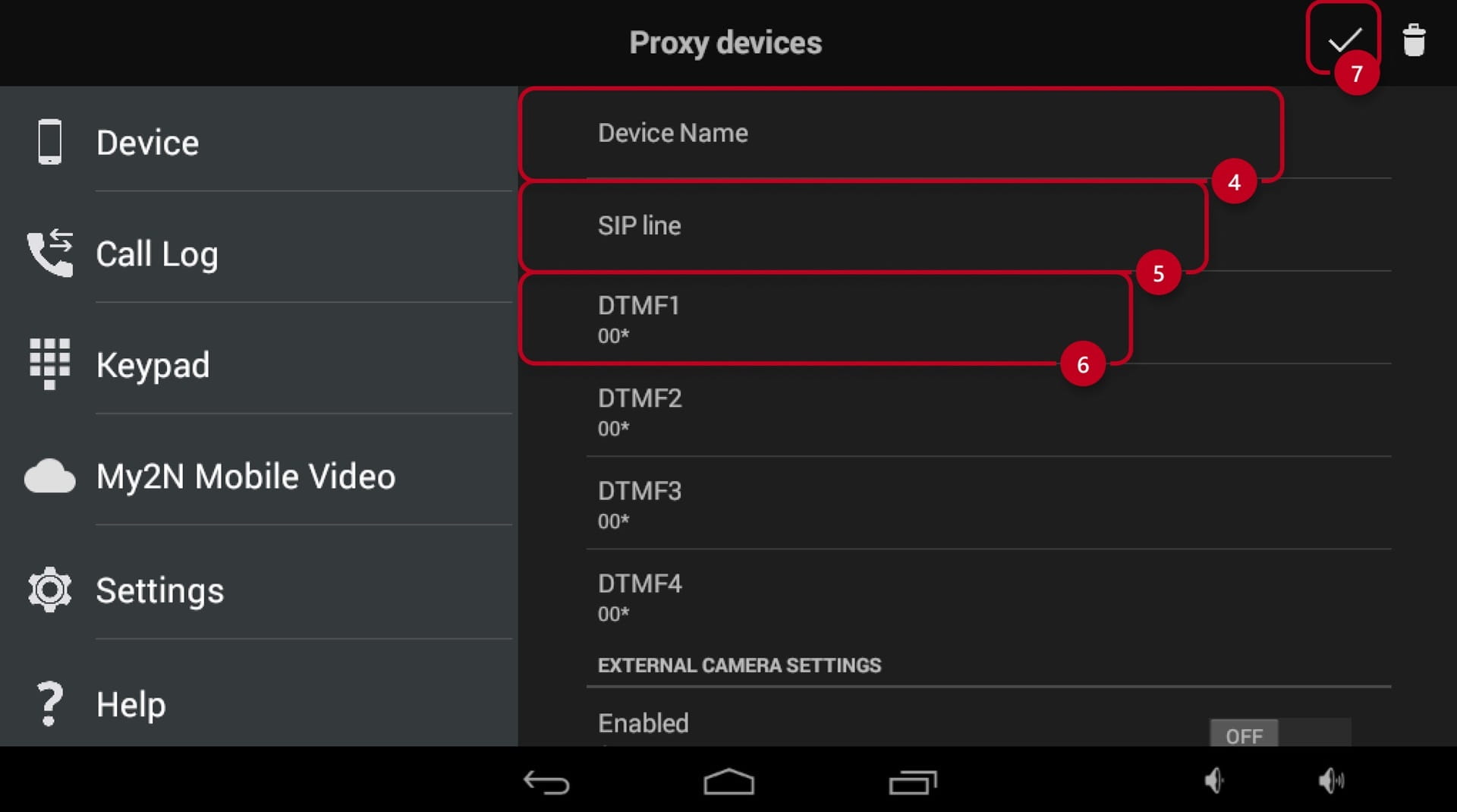
  • Fill out the "Device name" (4)

  • Next, input the IP address of the called device under "SIP line" (5)

  • Optionally you can specify the Switch 1-4 DTMF code (6) or leave default on default value (00*)

  • Save the configuration with a checkmark in the top right corner (7):

2N Indoor Touch SIP Device Configuration

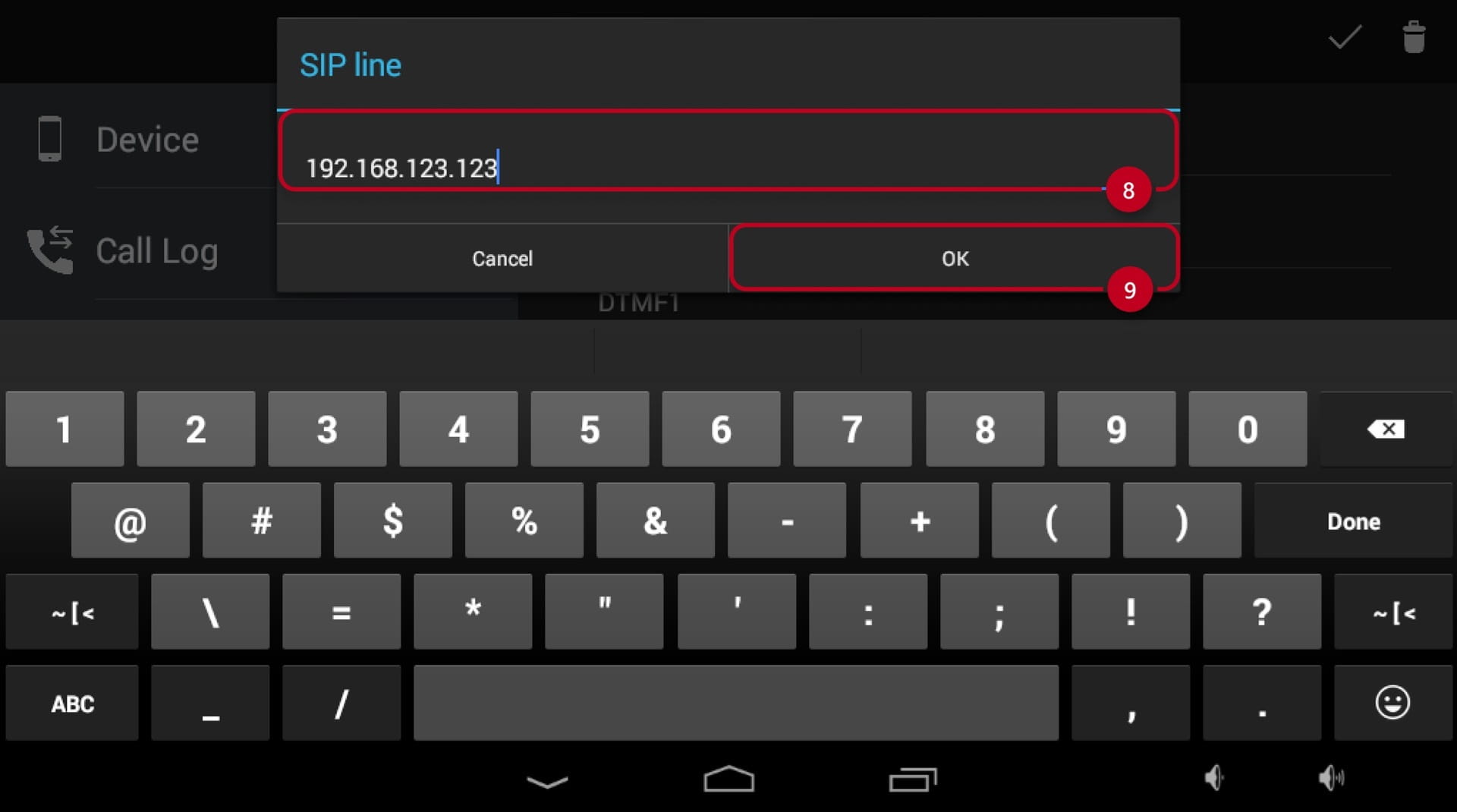
  • Enter the IP Address, for example "192.168.123.123" (8)
  • After inputting the IP Address, press the "OK" (9):

2N Indoor Touch SIP Line Configuration

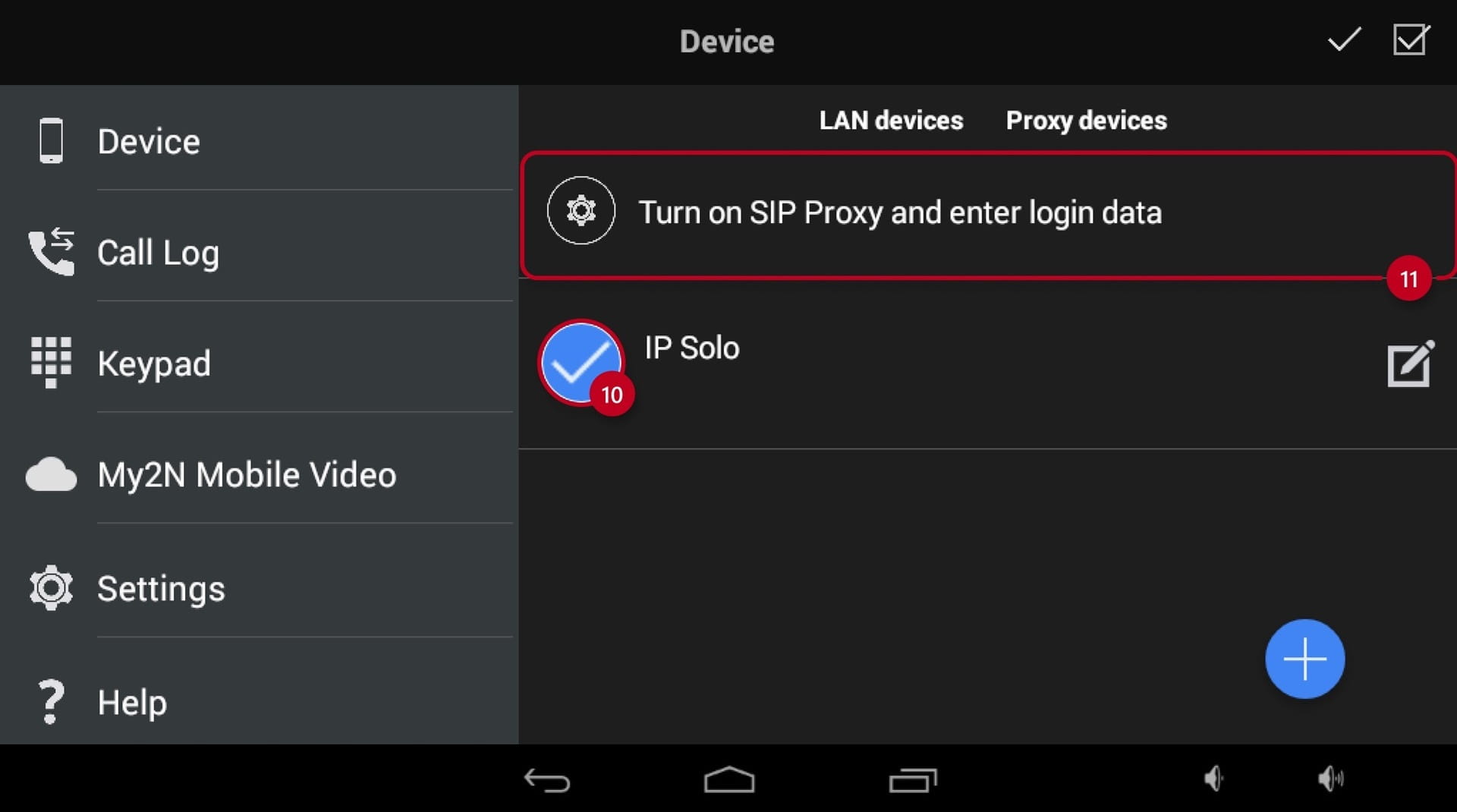
  • The device has been added and selected (10)
  • If the SIP Proxy has not been configured before, click on the "Turn on SIP Proxy and enter login data" (11):

2N Indoor Touch SIP Proxy Configuration

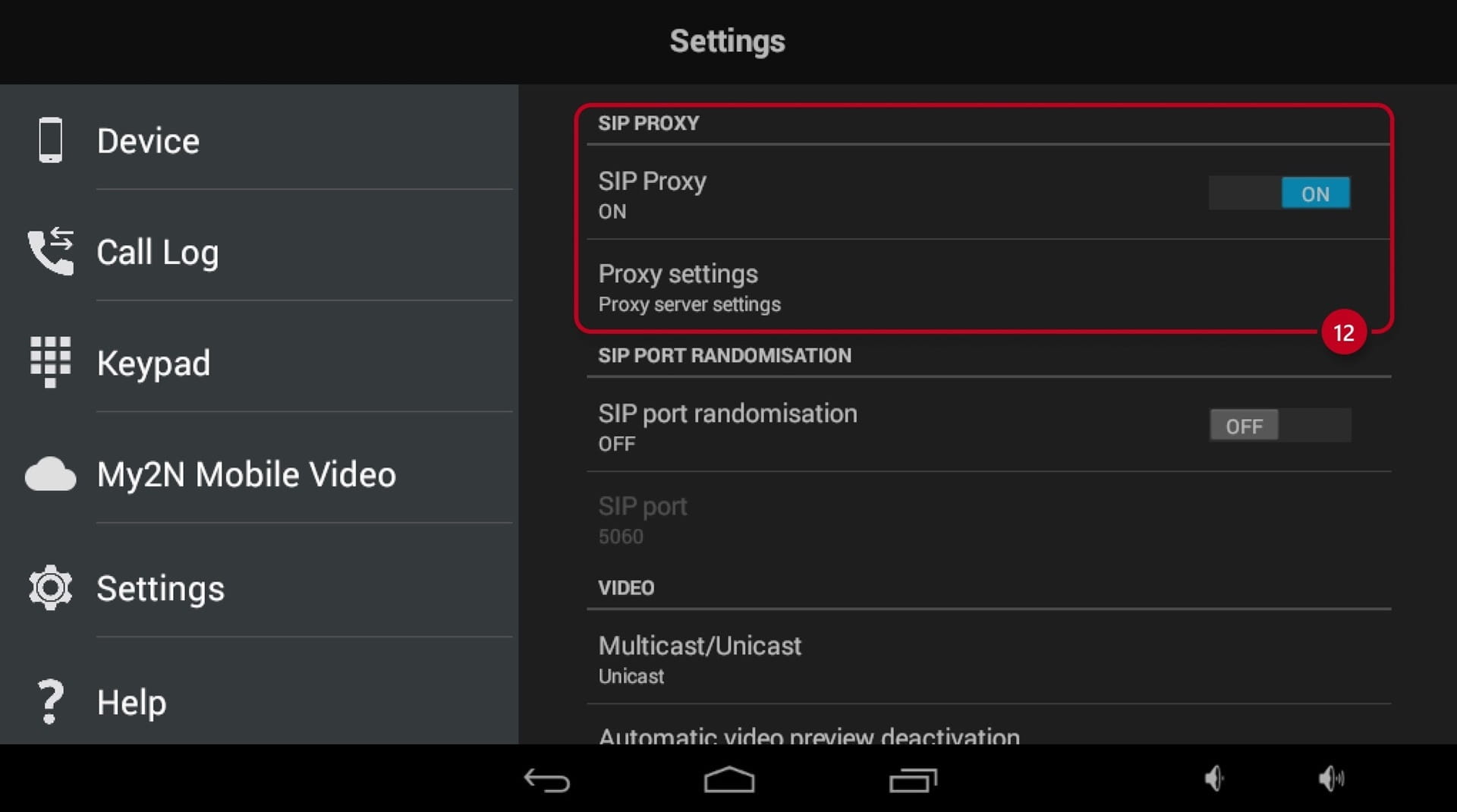
  • Locate "SIP PROXY" and turn it "ON", then click on the "Proxy settings" (12):

2N Indoor Touch SIP Proxy Settings

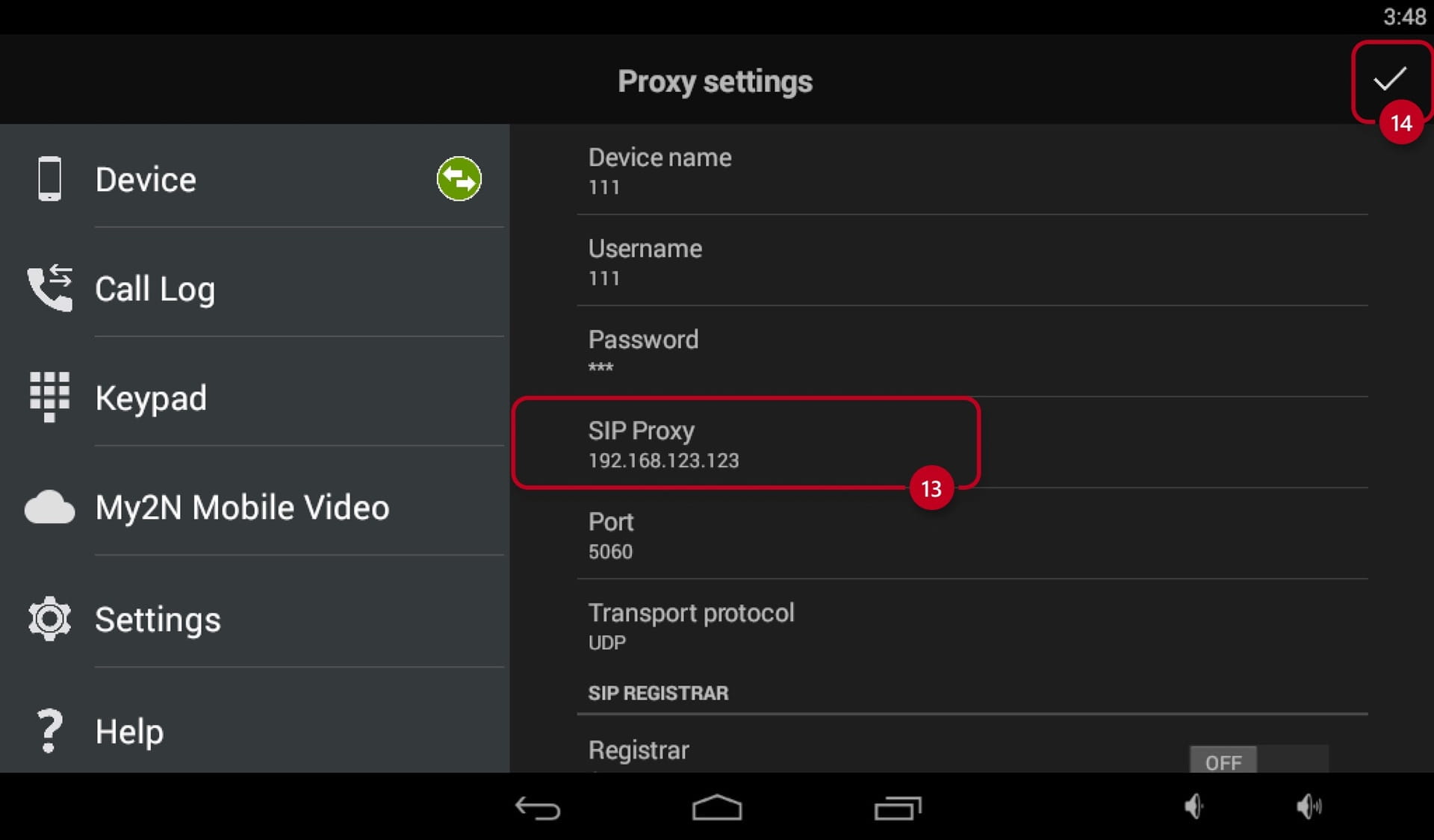
  • Input the IP address of the Intercom unit you are trying to call under the "SIP Proxy" (13)
  • Make sure to save the configuration with a checkmark (14) in the top right corner: 

2N Indoor Touch SIP Proxy Intercom

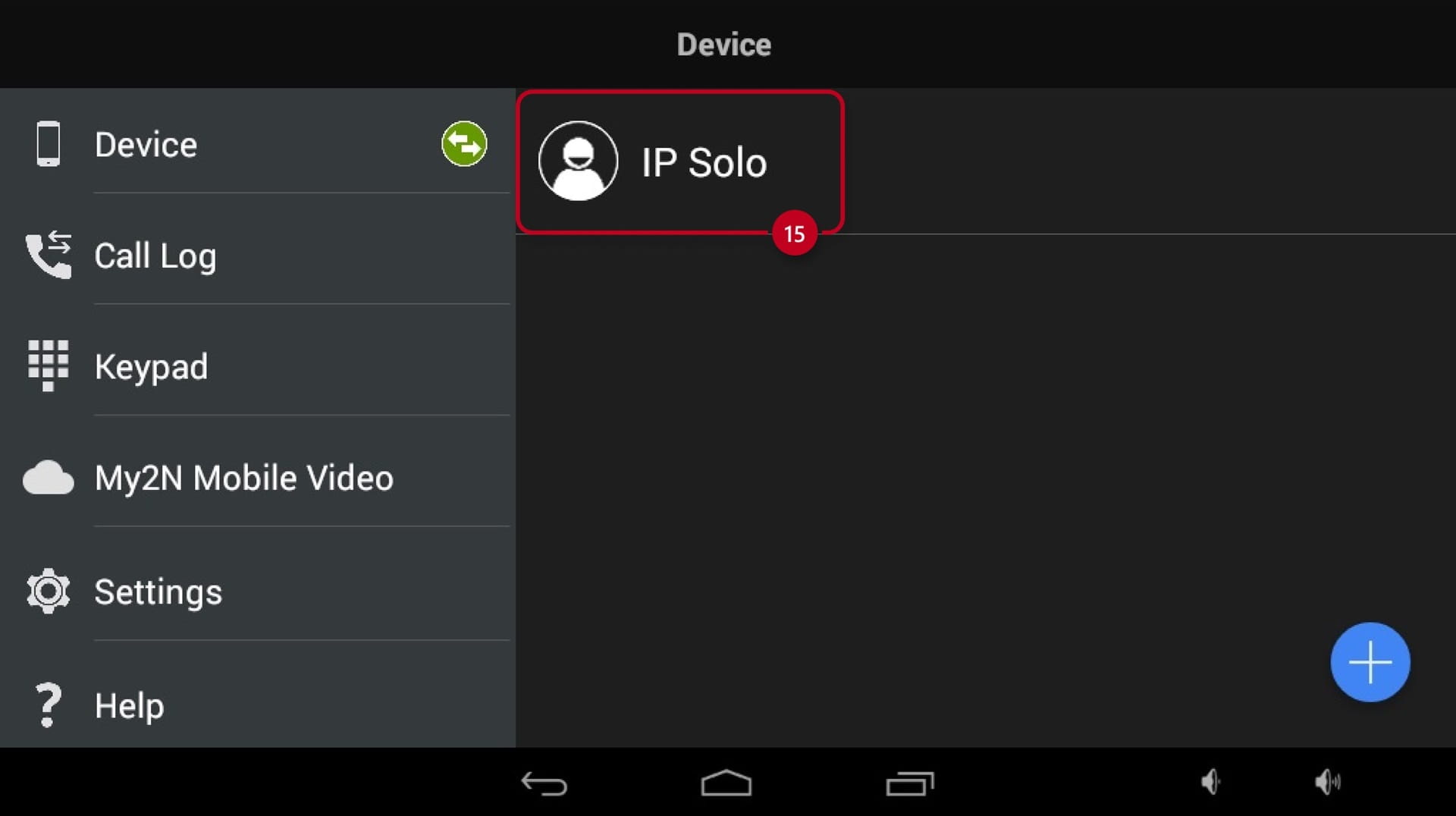
  • Now you can click on the device (15) itself to call it:

2N Indoor Touch SIP Device Configured

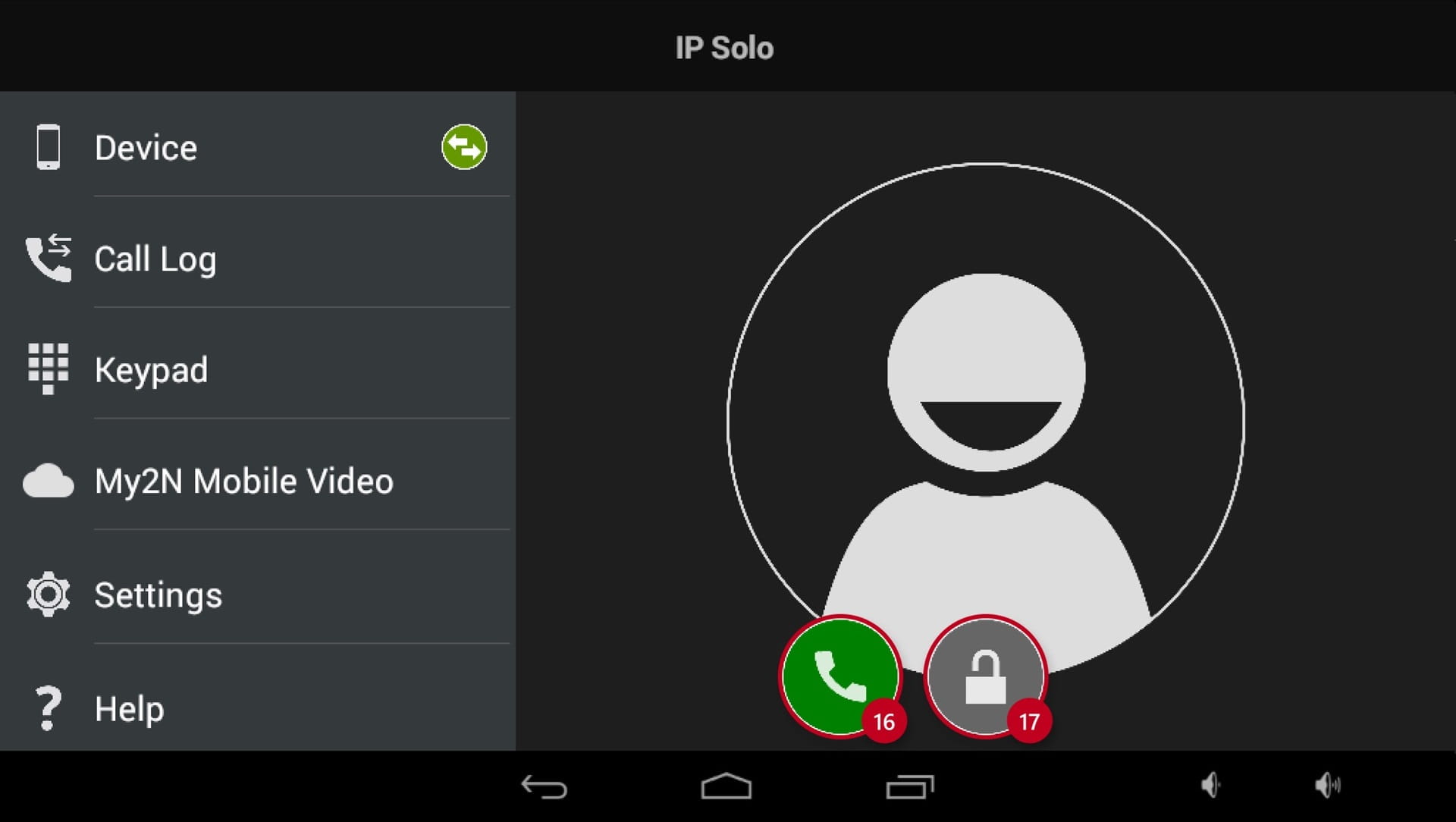
  • On the next screen you can choose to call (16) or unlock (17) the door of the called intercom:

2N Indoor Touch SIP Proxy Call

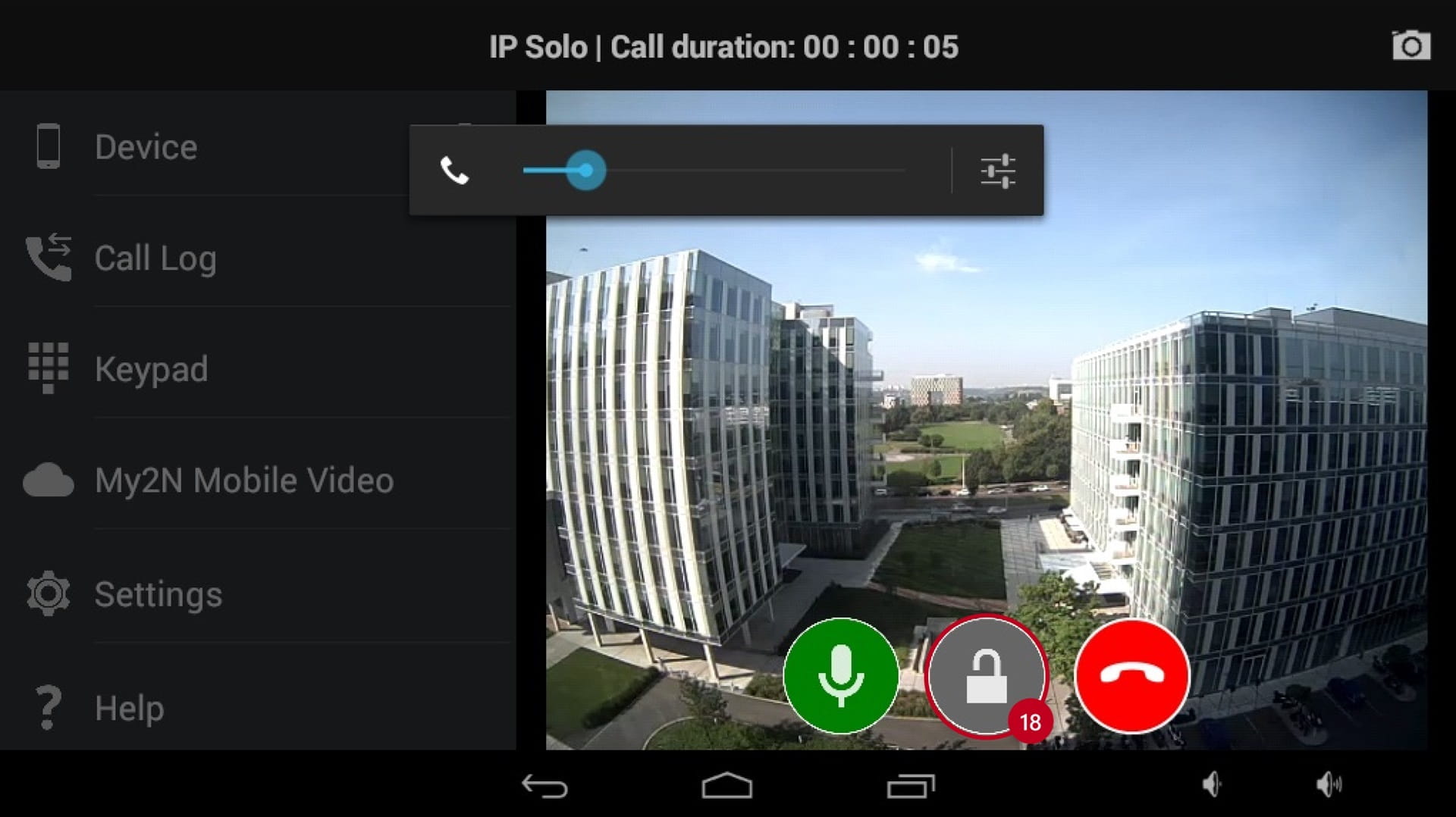
  • In call, you can adjust the volume, mute/unmute the microphone, hang up the call or activate the switch (18):

2N Indoor Touch SIP Call Screen

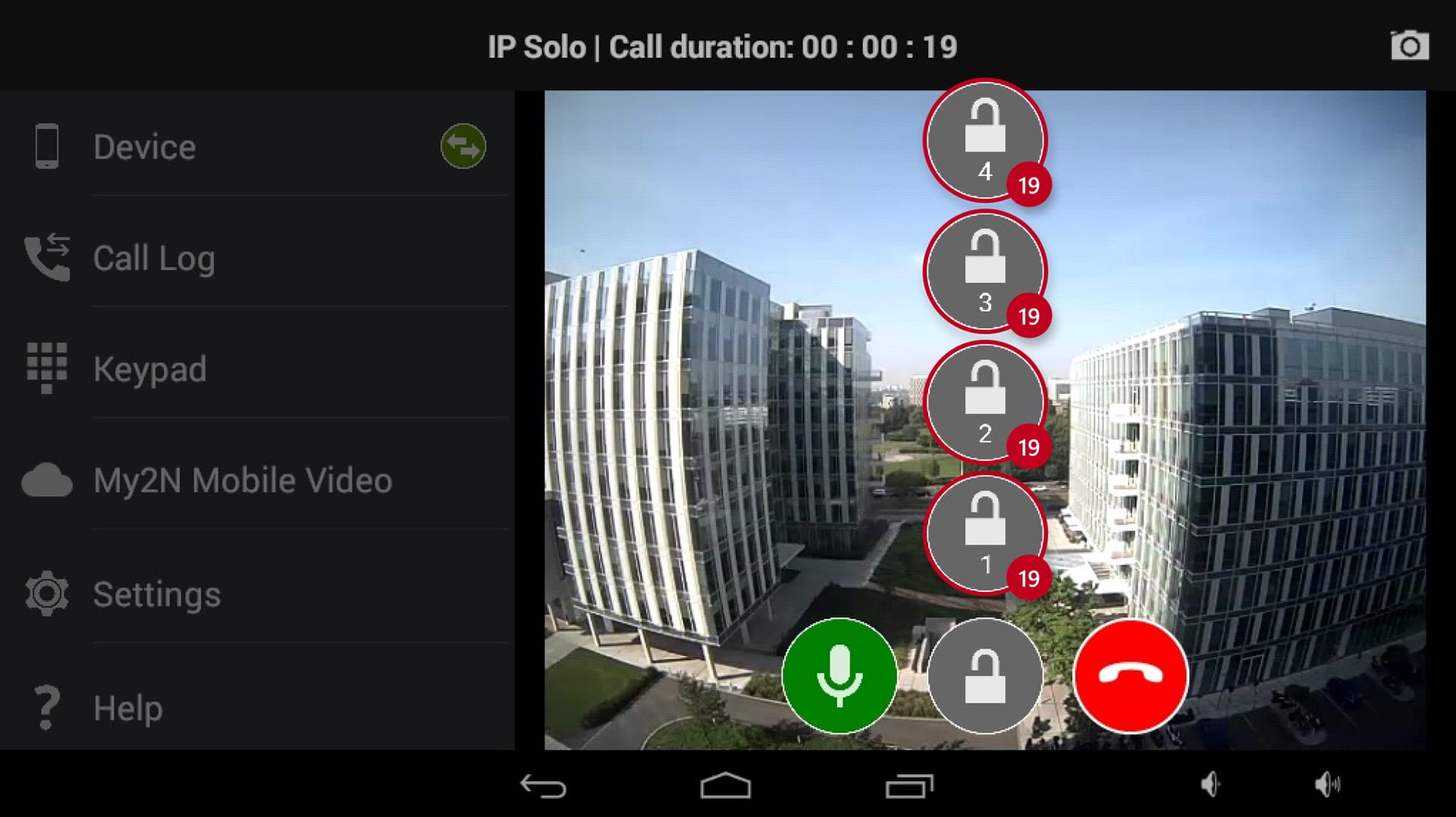
  • By pressing and holding the unlock button (18) for 2 seconds, you can show and activate other switches (19), if configured:

2N Indoor Touch SIP Call Unlocking

Czy ta strona była pomocna?