Gmail SMTP Service - How to configure with Intercom units

The steps in this article require using the web interface of a 2N device. Please follow this manual in case this is your first time using the web interface.


Requirements:

The E-mail (SMTP) functionality is available only with the Gold license


The 2N IP Intercom supports these ports:

  • 25

  • 587

Google account settings - Create an App password (with 2-Step Verification)

Google allows only the secure way to connect your Gmail account with the 2N IP Intercom. With this option, you will get a one-time password that you will use to log in to the SMTP settings in the 2N IP Intercom.

Google App Passwords Setup

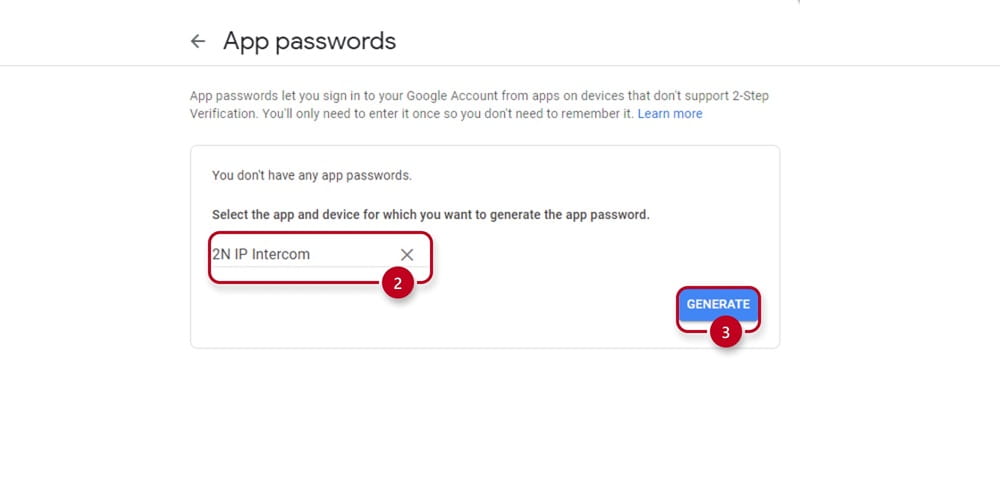
  • In the next step, you will have to select a Custom device and name it (2) for better identification

  • Then Click "Generate" (3):

Google App Passwords Generation

  • A unique password will be generated (4), that you'll use later in the 2N IP Intercom configuration

  • Note down the password, then press the "DONE" (5) button:

Google App Unique Password

2N IP Intercom Configuration

After you have set your Google account, you now need to set the 2N IP Intercom as well:

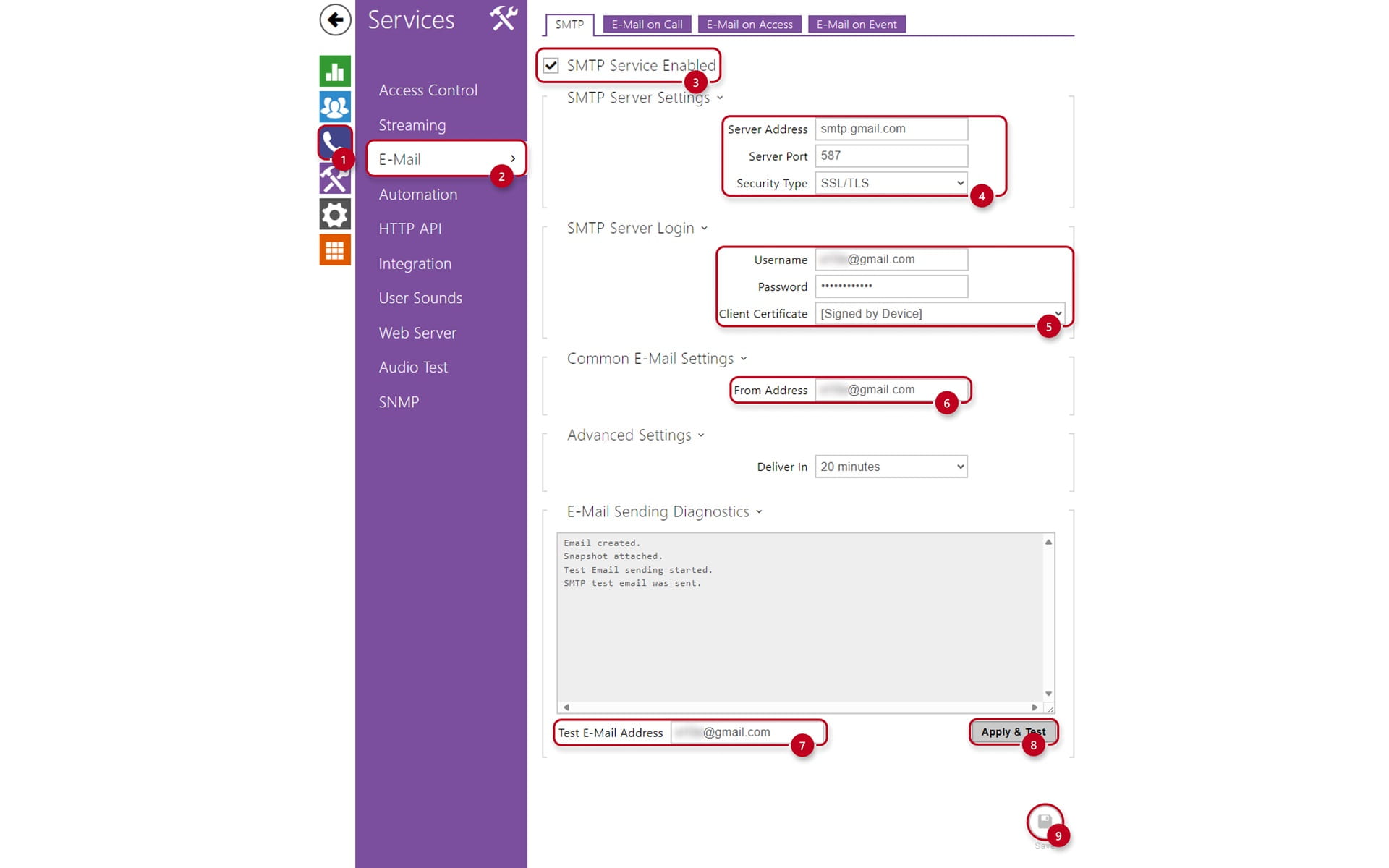
  • Go under the "Dialing" (1) tab and select "E-Mail" (2)

  • Enable the SMTP Service (3)

  • Fill out the "SMTP Server Settings" (4):

    • "Server Address" (SMTP server is smtp.gmail.com)

    • "Server port" is 587 (SSL/TLS encryption) or 25 (STARTTLS) 

    • Set the "Security Type" accordingly to the selected port

  • Fill out the "SMTP Server Login" (5):

    • "Username" is your email address complete with domain (@gmail.com)

    • "Password" is the unique password created under "App Passwords"

    • Set the "Client Certificate", by default the "Signed by Device" is selected

  • Enter the sender email address under "Common E-Mail Settings" and "From Address" (6)

  • You can test the configuration by entering your email under "Test Email Address" (7)

    • Click on "Apply & Test" (8), a test email will be sent to your inbox

  • Lastly, save the configuration (9)


2N OS Email Setup

  • If you get a message Test email FAILURE, please double check the validity of entered credentials to this manual, otherwise please contact our support: Technical Support - 2N
  • Make sure you have a Gold License activated, otherwise you can activate a Trial License (limited to 800 hours) to test out the features (System - License - Activate Trial License)

Czy ta strona była pomocna?