Two-factor (2FA) authentication in 2N Access Commander
Two-factor authentication provides a higher level of security for the Access Commander user account.
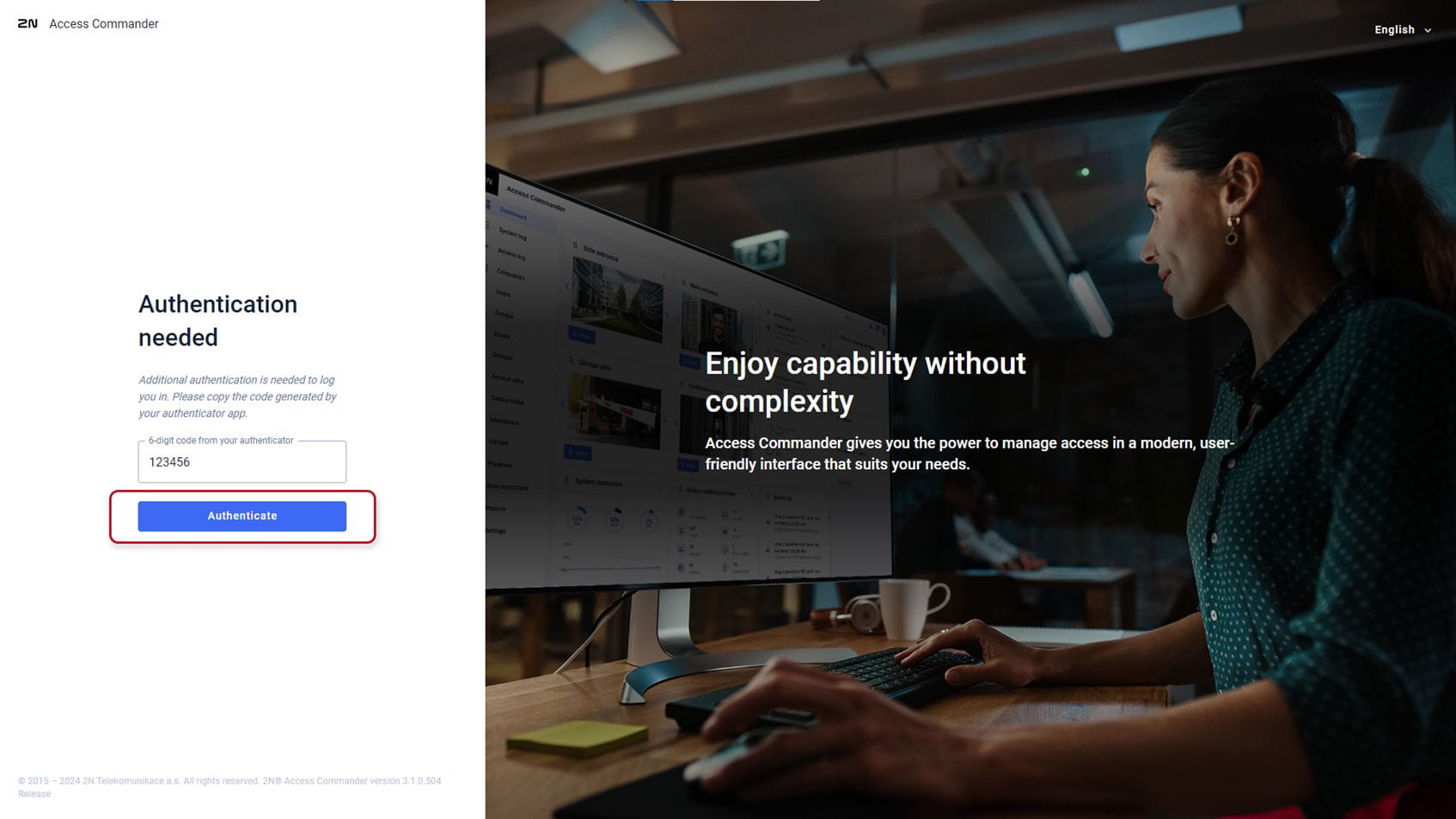
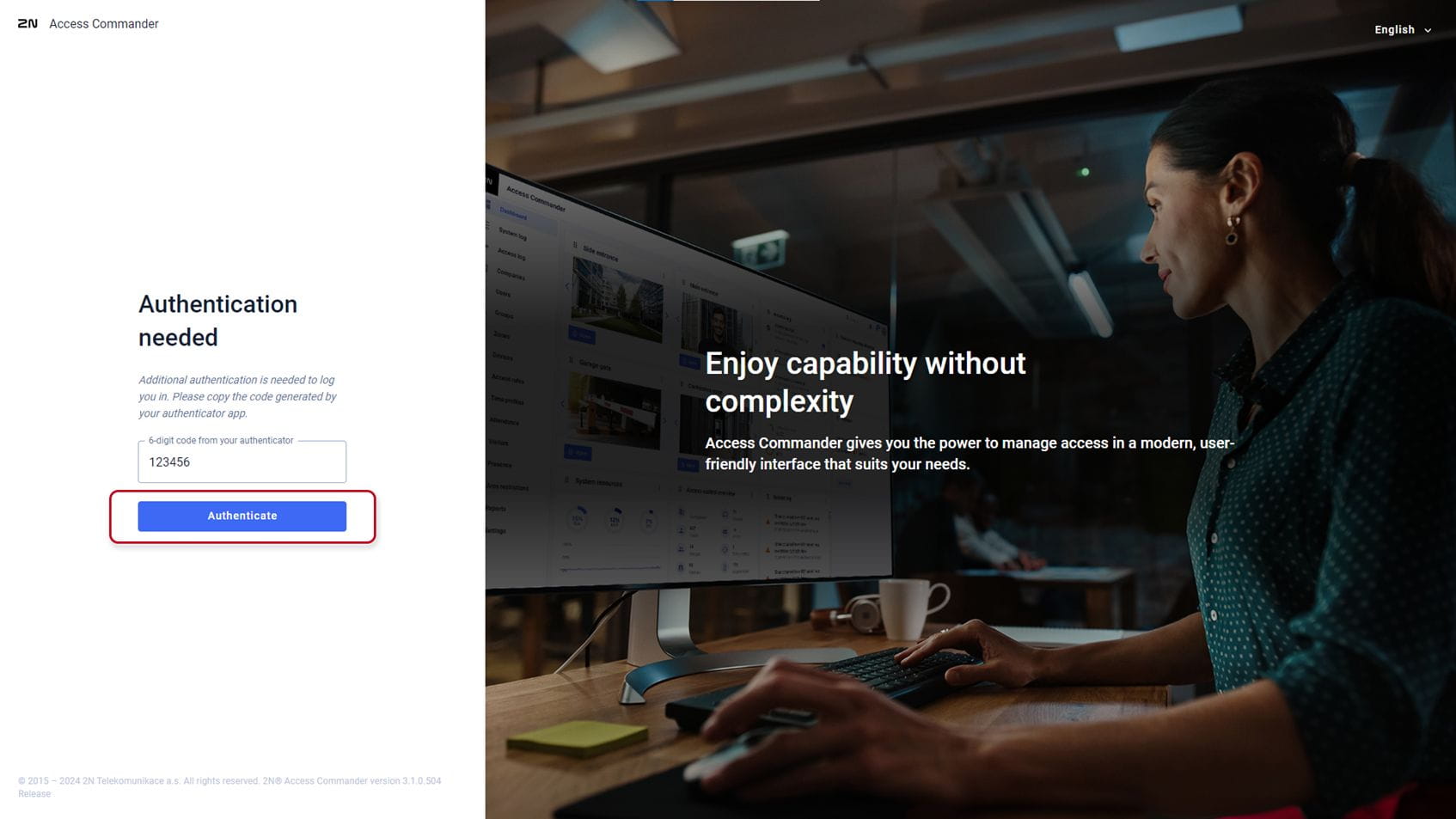
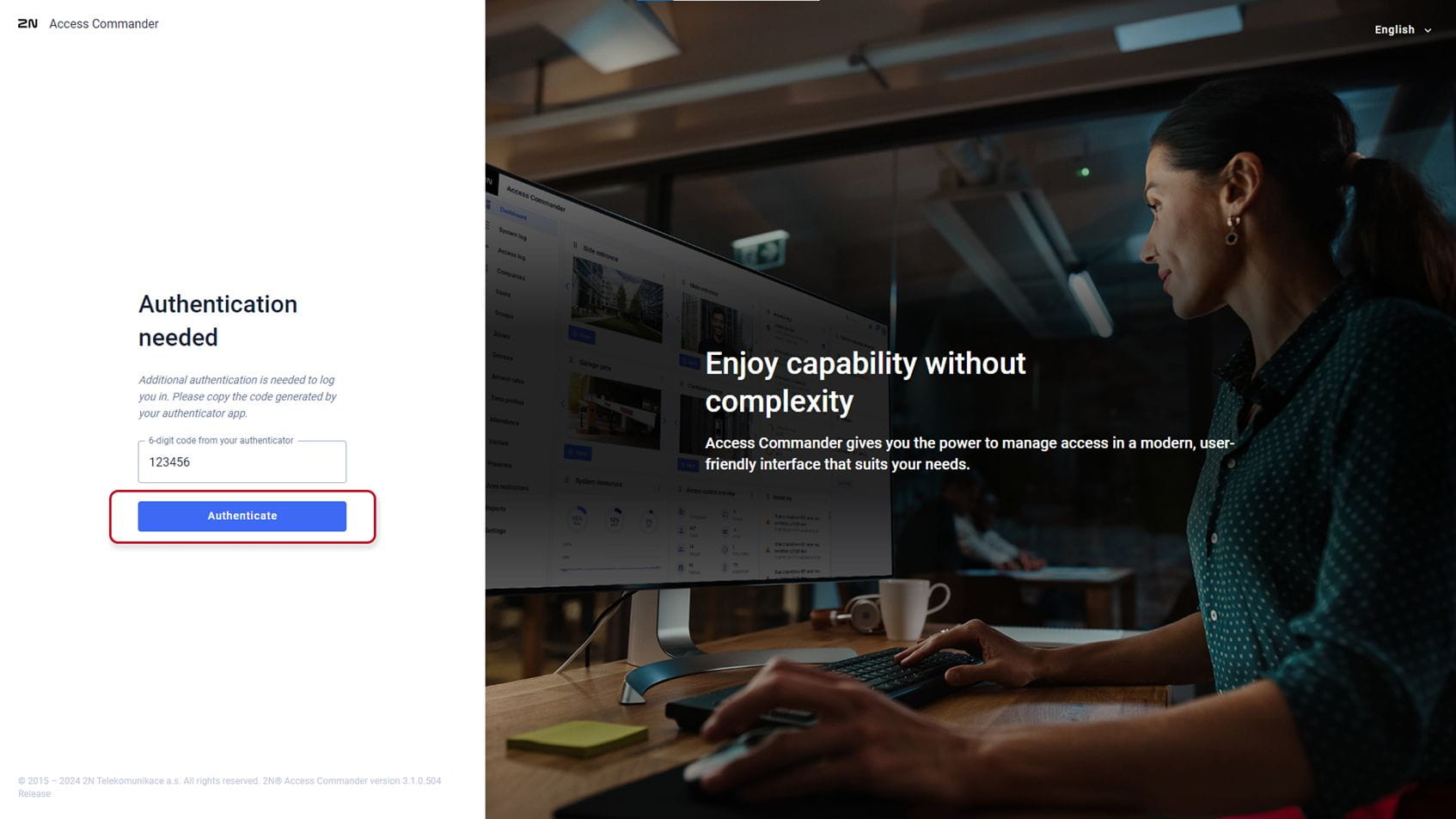
To log in, the user enters the login data and has to confirm the login using an authentication application.
Once the administrator turns on two-factor authentication, the user will be prompted to interconnect the user account with an authentication application of their own in the next login.
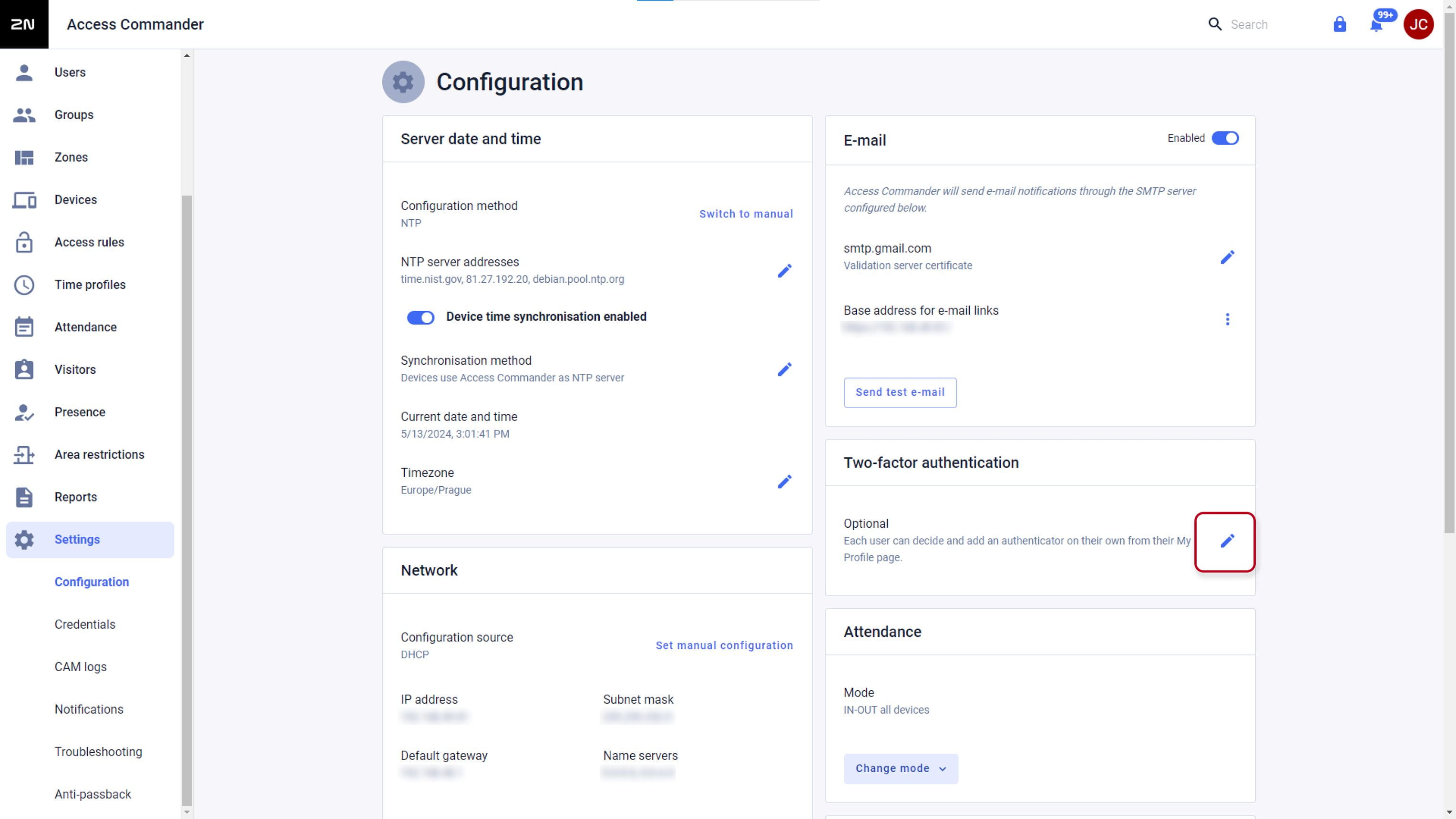
The administrator sets two-factor authentication in Settings > Configuration > Two-factor authentication.
The administrator can choose which users will be requested to use two-factor authentication.
Even unset by administrator, each user can use two-factor authentication optionally.
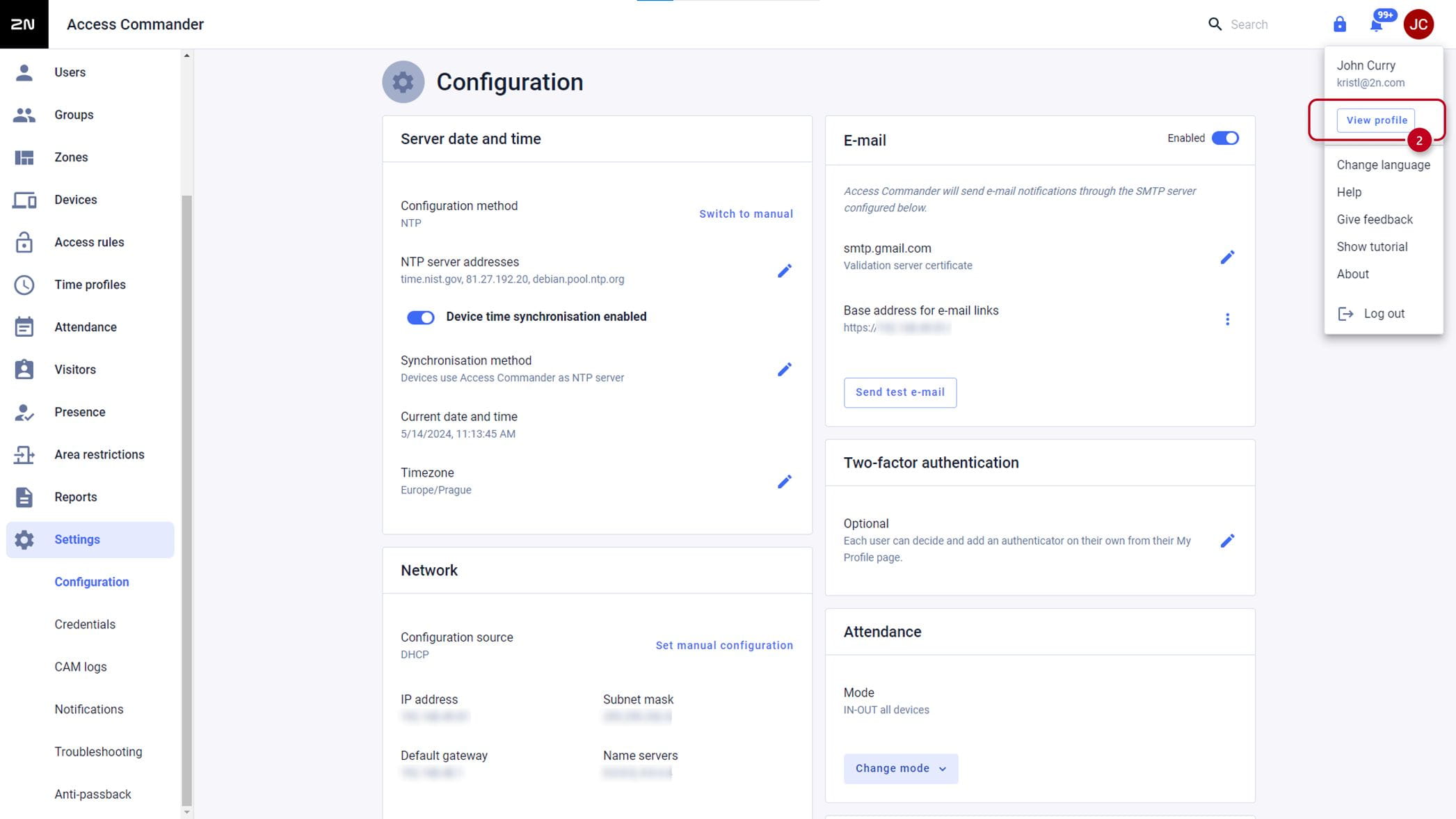
Any user logged in to Access Commander can setup the authenticator app in their profile (user icon positioned top right on the Access Commander page)
- Setting up 2FA authentication
- Optional authentication scope
- Mandatory for users with a role authentication scope
- Mandatory authentication scope
- Supported authenticator apps
Setting up 2FA authentication
As an administrator, navigate to Settings > Configuration > Two-factor authentication
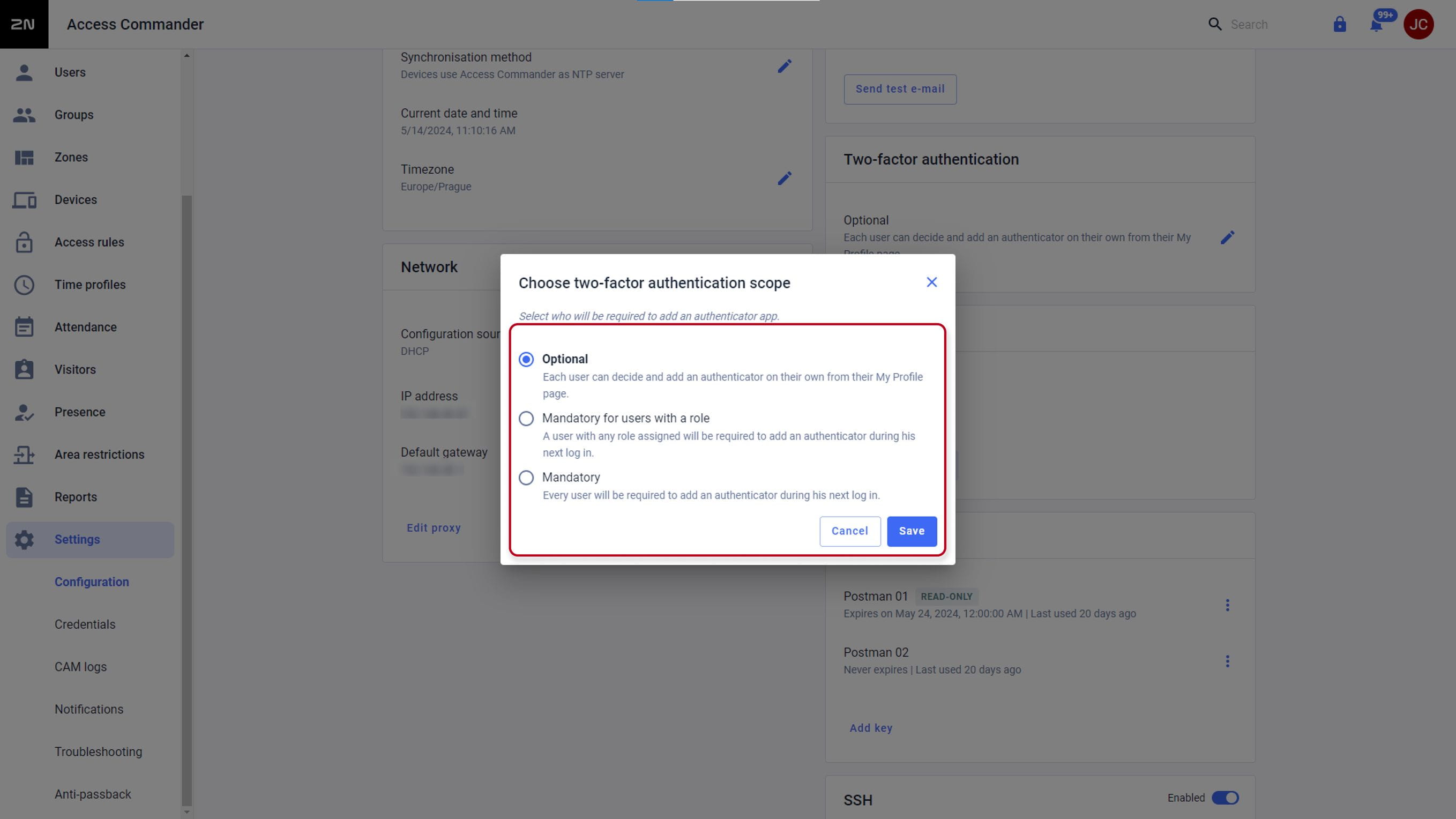
Optional authentication scope
Two-factor authentication is voluntary.
Users can enable two-factor authentication in their profiles, see Two-Factor Authentication Enable.
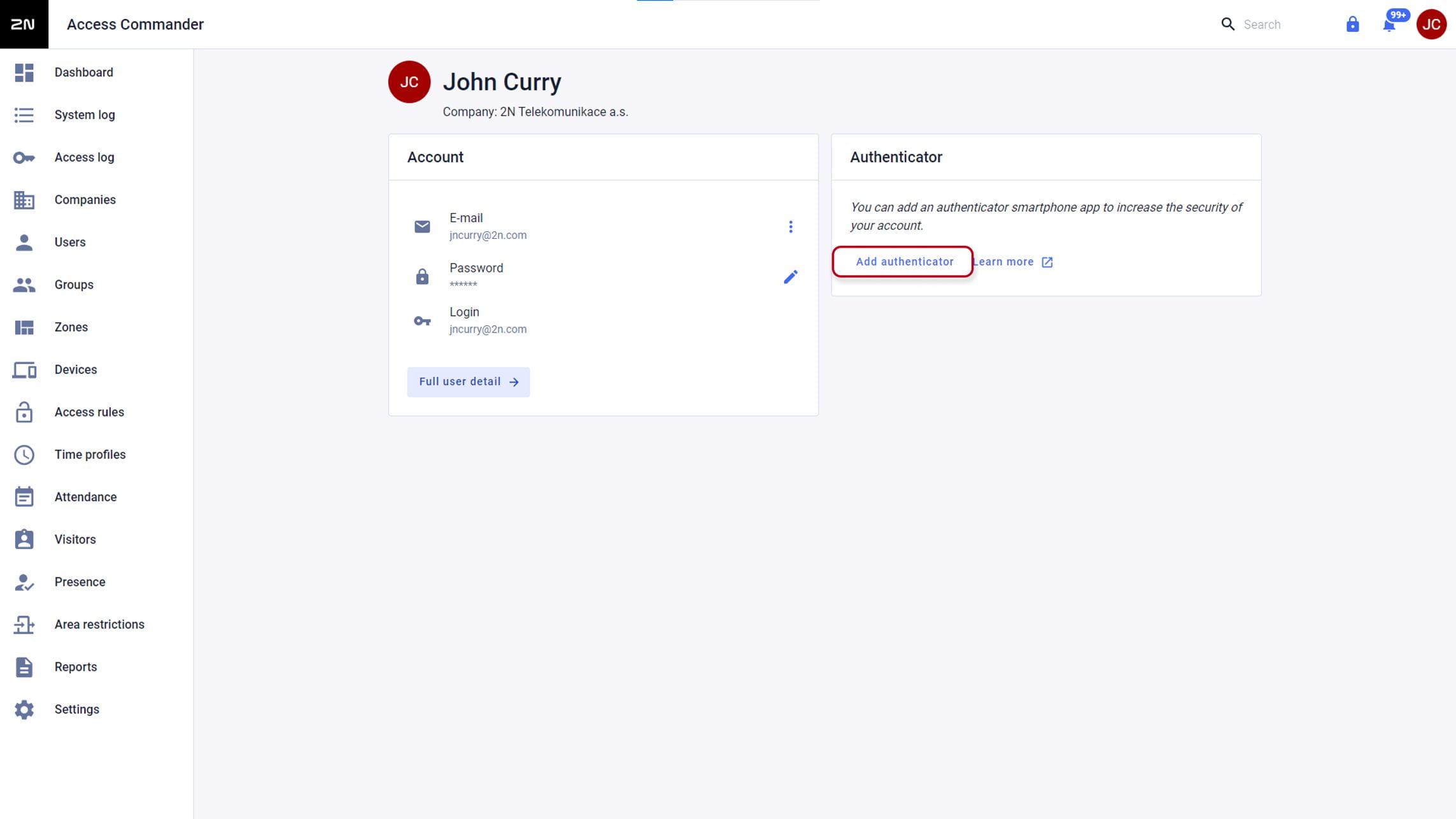
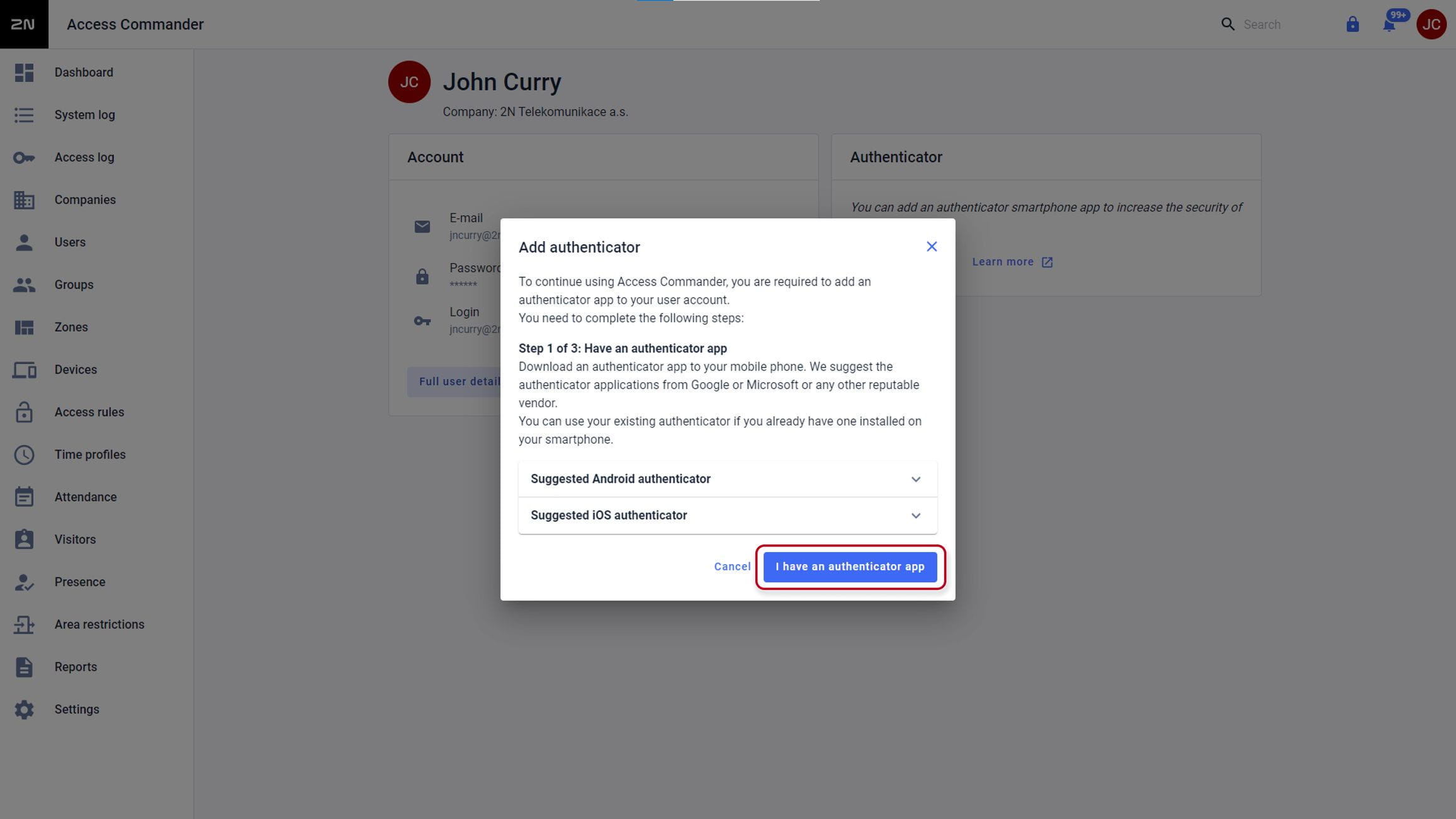
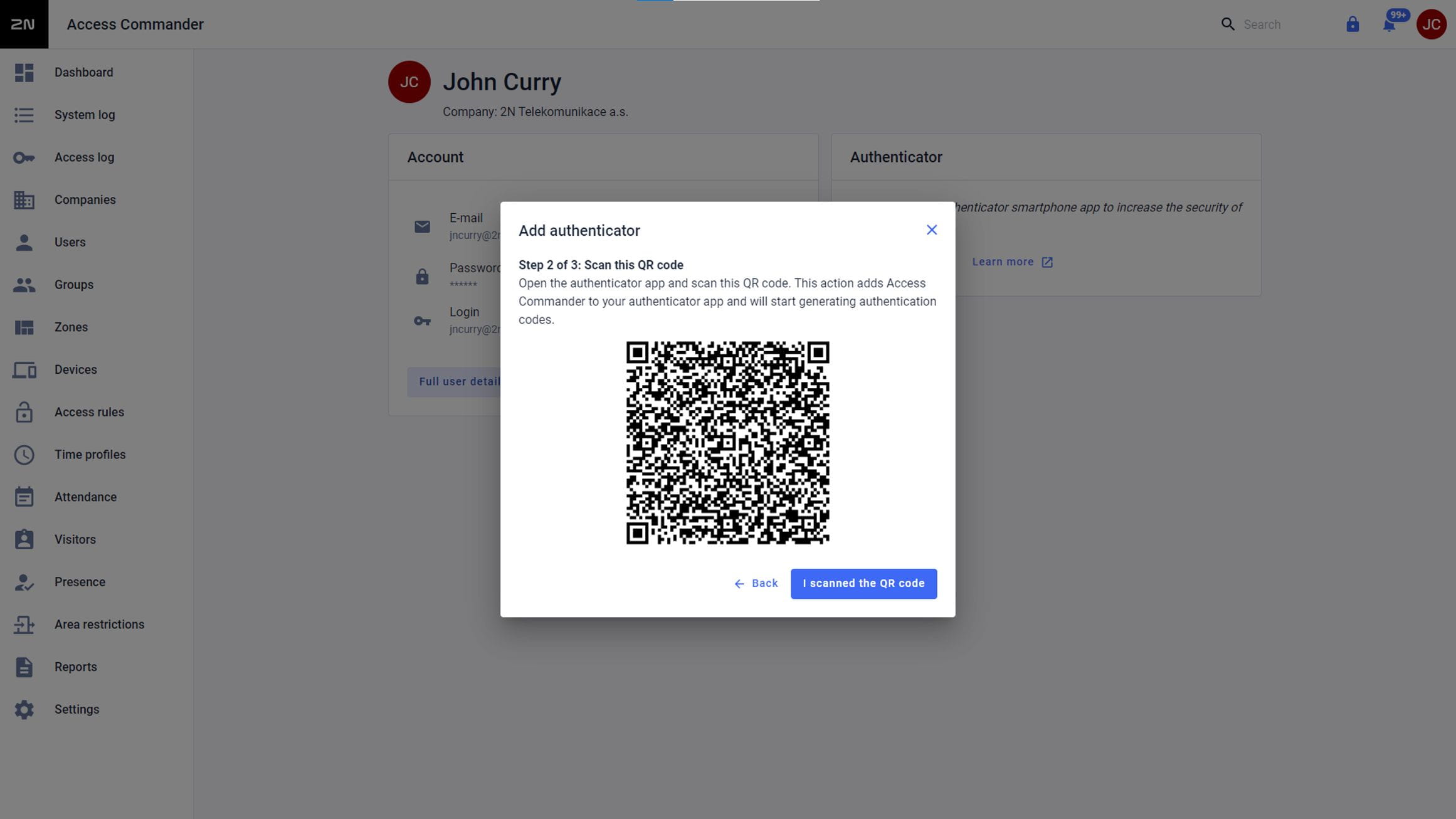
Scan offered QR code with authenticator app in your mobile phone and confirm adding it to Access Commander with code you receive in your authenticator app.
Mandatory for users with a role authentication scope
Every user that has been assigned a role has to verify the login using an authentication application.
After user with assigned role login in to Access Commander, the prompt for adding authenticator app will appear and have to be set.
Users with no role in Access Commander can add the authenticator app optionally after login in their profile.
Mandatory authentication scope
All users must verify their logins using an authentication application.
After any user login in to Access Commander, the prompt for adding authentication will appear and have to be set..
Supported authenticator apps
Most modern authenticator apps are supported such as Google authenticator app, Microsoft authenticator app, iOS built-in privacy and security and many others.