User defined functions (UDF) provides a user–defined set of conditions for 2NSmartCOM terminal that will trigger the set of actions. These conditions must be met to make it possible to send SMS and TCP messages or to set the relay to appropriate position on the given terminal. You can define up to 10 UDF conditions for one 2N SmartCOM terminal. Each condition is evaluated continuously and if it is met (True value) then defined action will be executed. For re-execution, the condition can´t be met (False status) or remain in the set status for a timer-defined period. That´s the reason why SMS will not be sent at every iteration.
How to configure 2N® SmartCOM?
First of all you have to connect to 2N SmartCOM via RS-232 serial interface or if you know the public IP address of SIM card then you can configure the device also remotely using the IP protocol (connection via Telnet). Then for the configuration of some conditions and actions in the terminal you have to use specific AT commands. Each AT command must include the condition syntax (<parameter1>sign<parameter2>) ended by the separator “:” and followed by action which will be executed (action type and action parameters). The maximum length of AT command is 80 characters.
Typical example of AT command can look as follows:
at^scudf="ADD","AIN1>=10:SMS P[+420777234567]m[alarm message] t[60]"
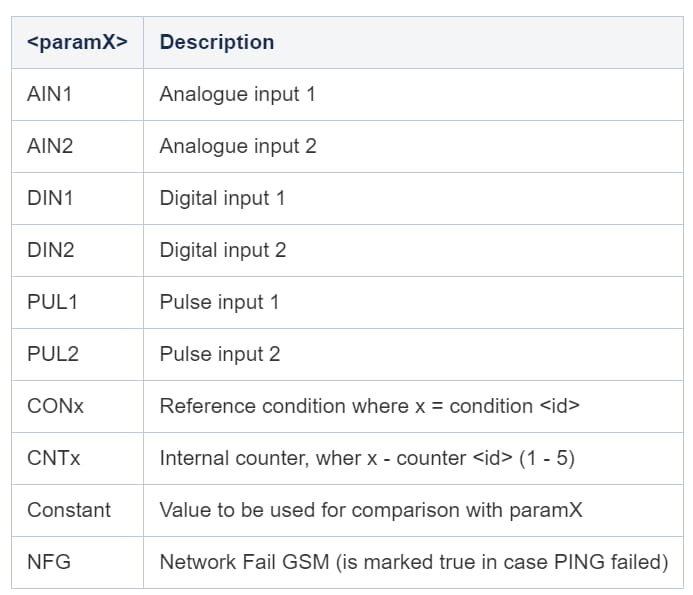
The UDF can work with the following parameters:
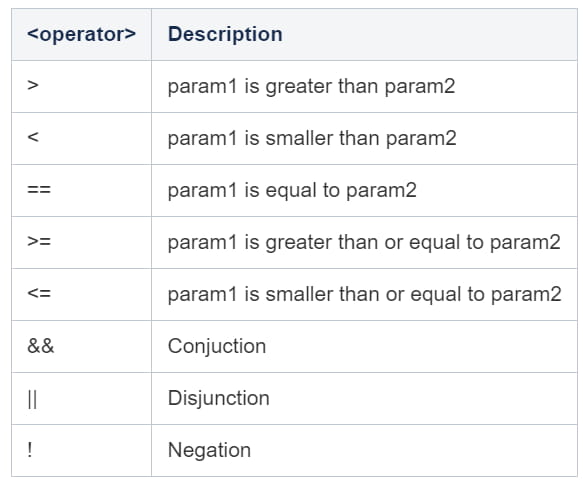
The following operators can be used for evaluation:
Note: more details about existing parameters, operators, values and syntax are available in configuration manual for 2N SmartCOM – the link is below:
https://wiki.2n.com/faqot/en/2n-smartcom-2n-smartcom-pro-basic-configuration-104860654.html
Configuration examples
Before we start with some specific configuration you can check if some UDF has already been added into the terminal. If you want to do that then you have to type the command below. This command and appropriate output is shown in next picture.
at^scudf?
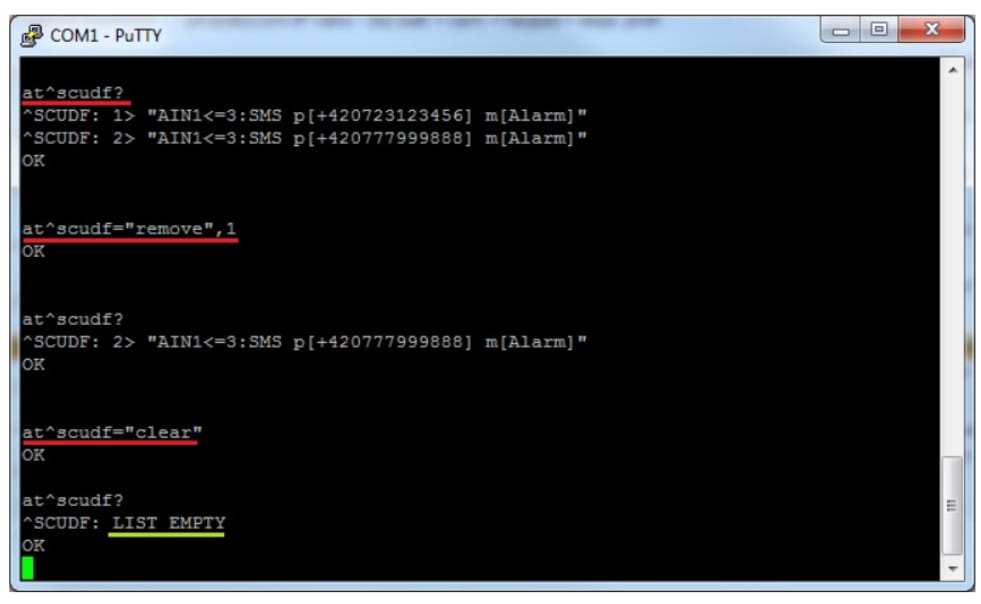
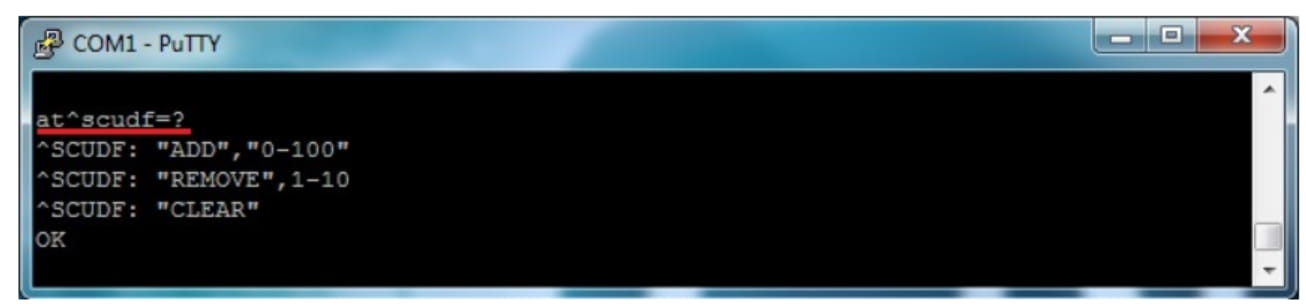
You can see two more AT commands in the picture above which are used once you need to remove the existing condition with selected ID from the terminal memory or to clear complete memory.
at^scudf=”remove”,1 ... delete the condition with ID=1 (first row in the table)
at^scudf=”clear” ... delete complete memory
Note: important command is the one which displays supported settings options:
at^scudf=?
Example #1
Let´s imagine that you have 2N SmartCOM COM terminal which is supplied from standard power adapter (5-50V). Next to that you have also connected there a gel–lead–acid accumulator as a power supply backup. This will ensure that once the terminal loose the power, it is still powered from backup power supply for a while and this power lost can be detected on a specific input (you will use analog input where you can have 0V – 10V). You can be informed about that via SMS. In this example you will monitor the analog input 1 and once the value on this input is lower than 3 (depends on the calibration of A/D converter - check next FAQ on the link below) and it is detected for 300sec then SMS message is sent to GSM number +420777234567.

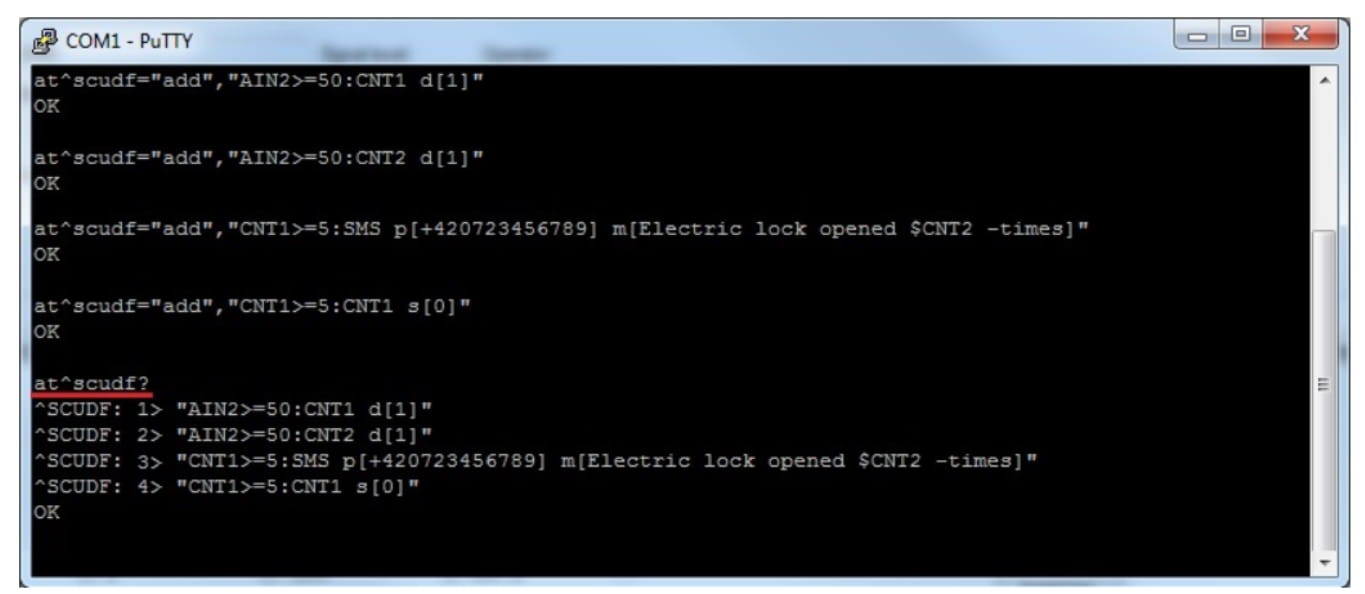
Example #2
In this example will be described situation when you need to be informed about the situation which occurred repeatedly – five times in this scenario. It can be exceeding of limit value on the second analog input. Let´s set this value to 50 (you can specify different value – it depends on the settings of A/D convertor) and if the current value is higher than this constant then the counter CNT1 increase its value by one. Once this situation occurred five-times the SMS message is sent to your GSM number. In the incoming message you will see also how many times the value was exceeded (total number counted in CNT2). Finally you have to reset the counter CNT1 to the default state (set 0 value). All commands are shown in the picture below.