The steps in this article require using the web interface of a 2N device. Please follow this manual in case this is your first time using the web interface.
You can backup and restore setting of 2N Access Commander using its database.
You can only backup or restore complete settings, all at once:
Backup and restore of settings in 2N® Access Commander
Local Backup
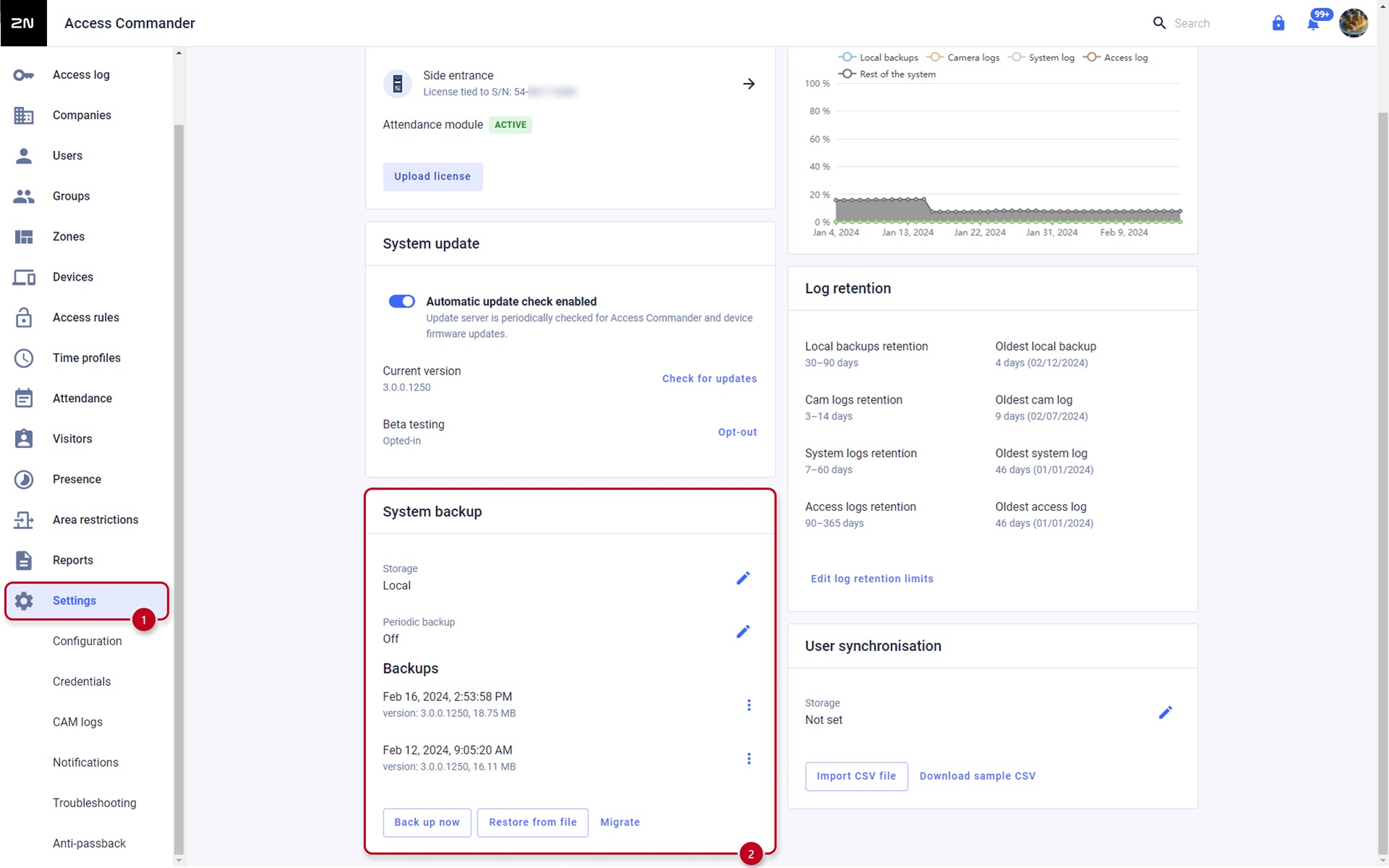
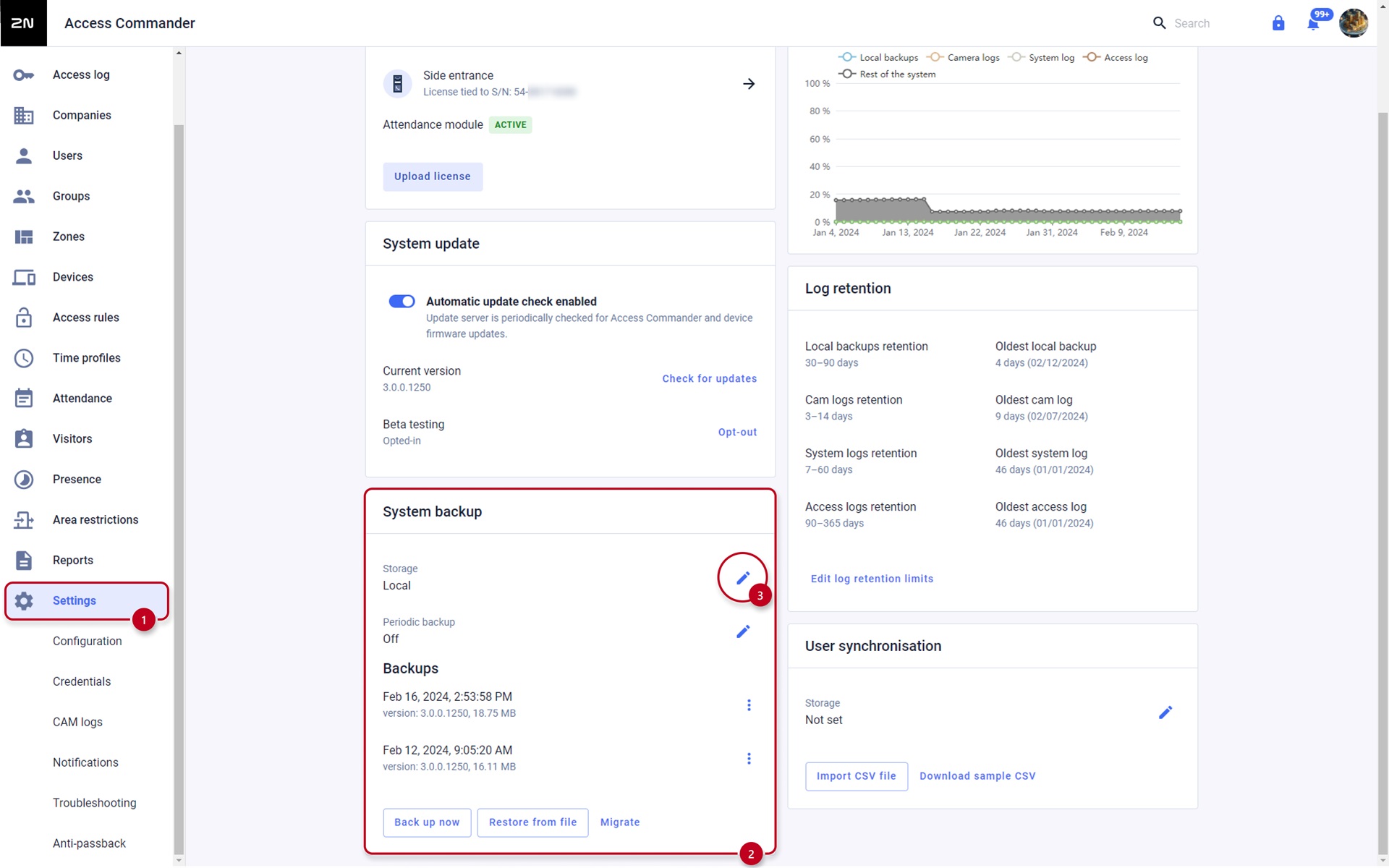
- In the web interface of the 2N Access Commander go to Settings and locate "System backup":
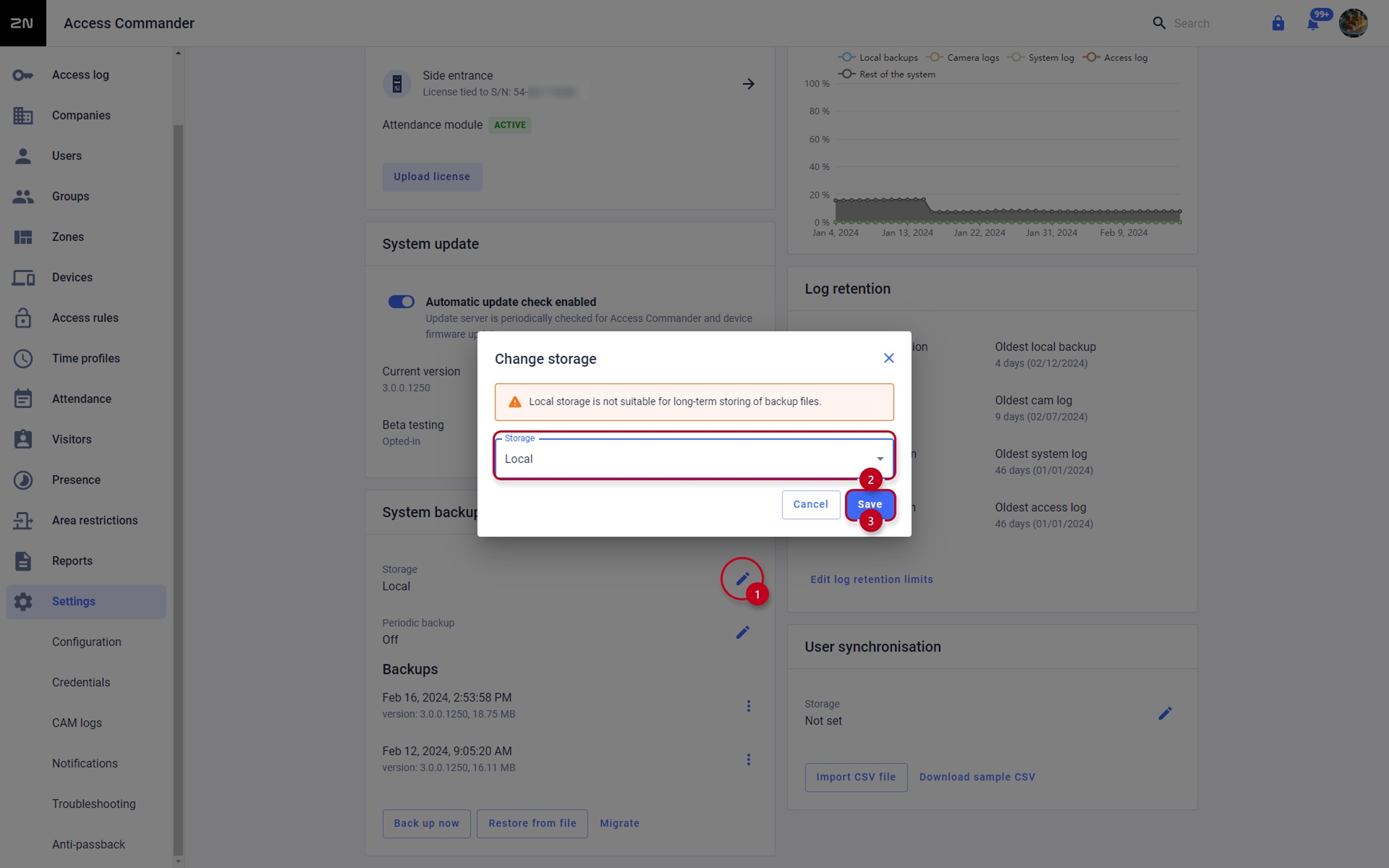
- Then click on the pencil icon in Storage, choose "Local" Storage and confirm by clicking on "Save":
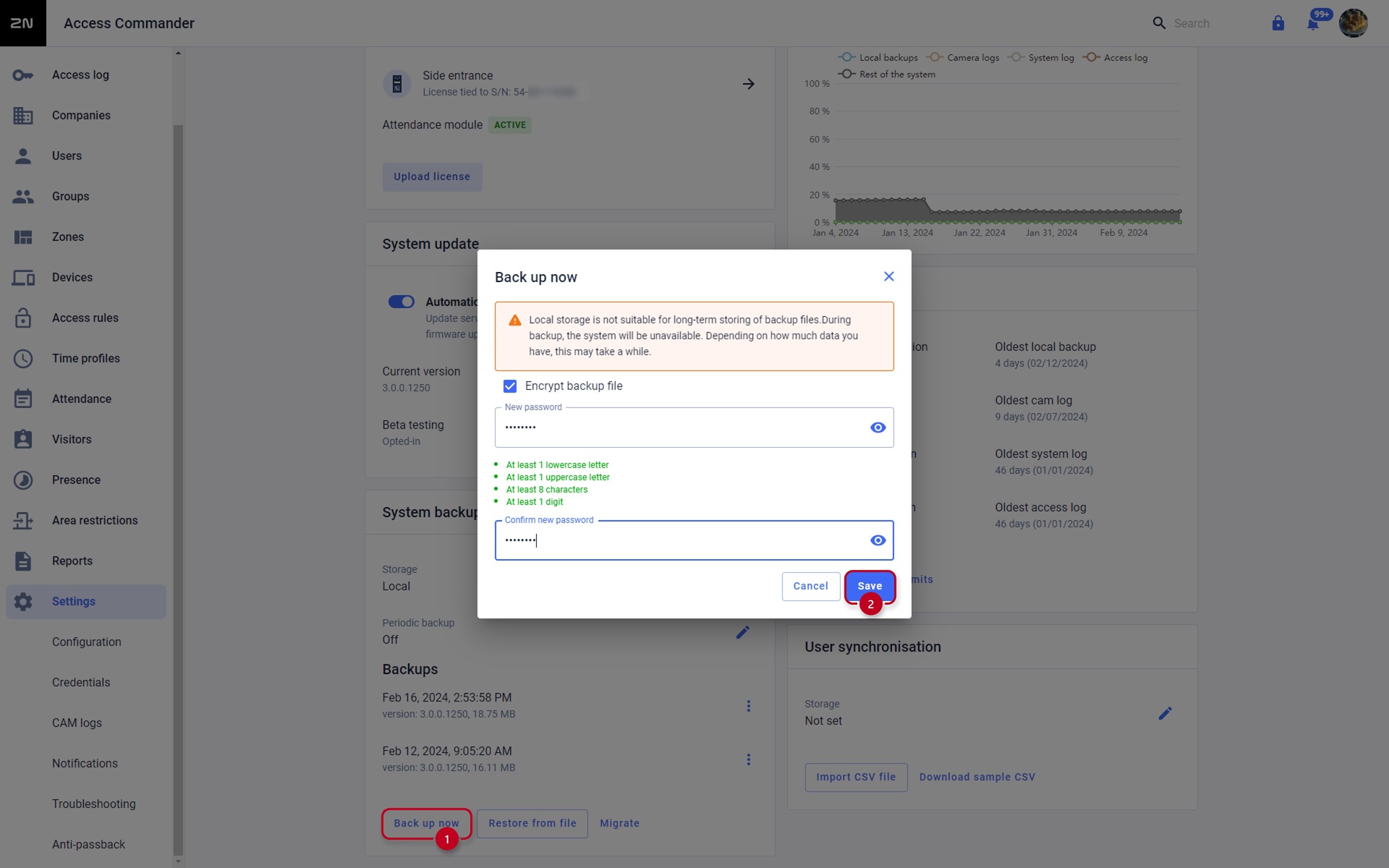
- Then click on "Back up now", you can set password for the back-up file, and confirm by "Save":
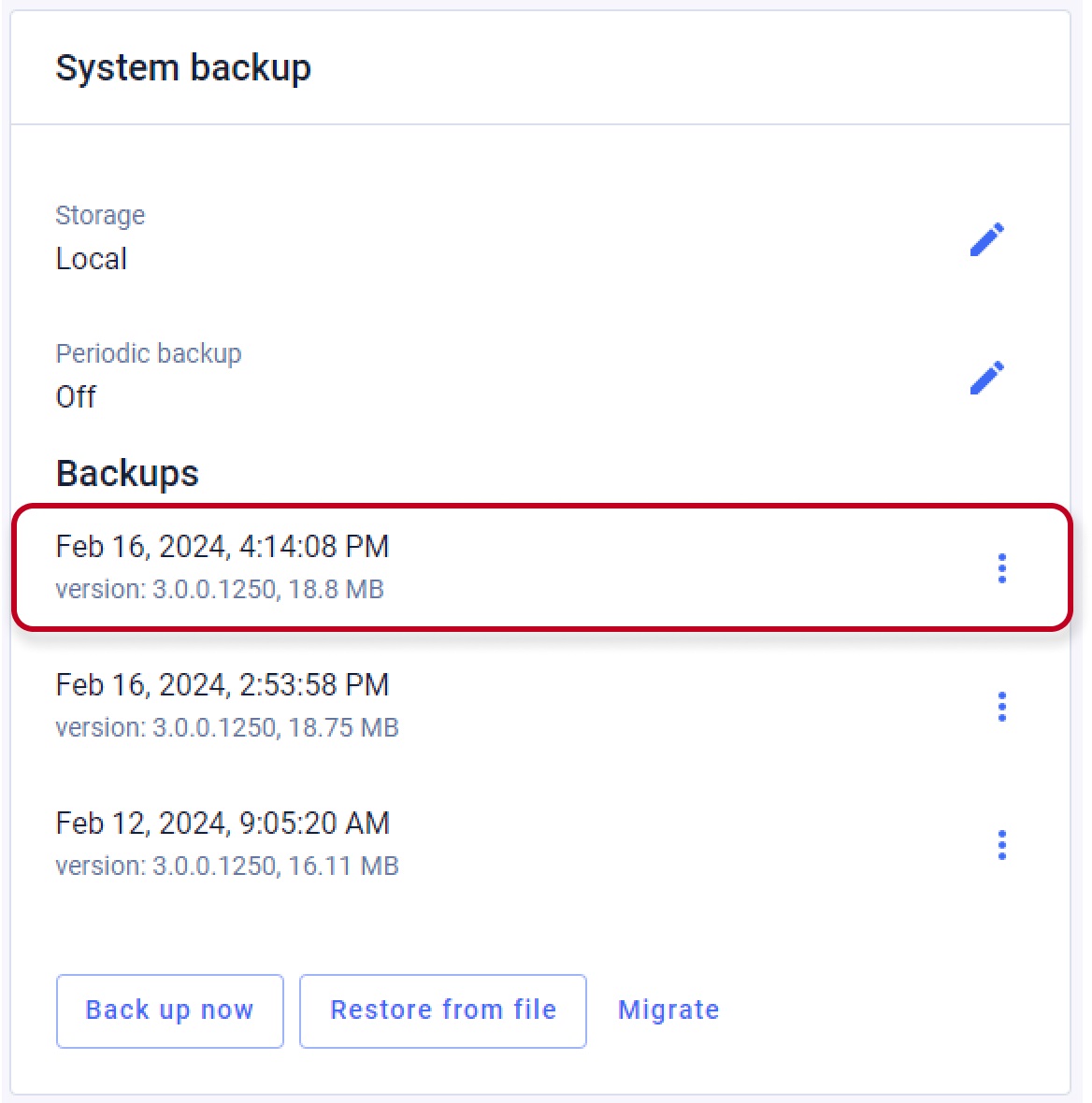
- Then after the backup process and logging into the web interface you will see the note about a successful local backup, together with its date/time, size and version of the software:
Samba Server backup
- In the web interface of the 2N Access Commander go to Settings and locate "System backup":
Samba Server Configuration
Following part explains how to configure the connection to the Samba server (of the Computer or Shared Network Folder)
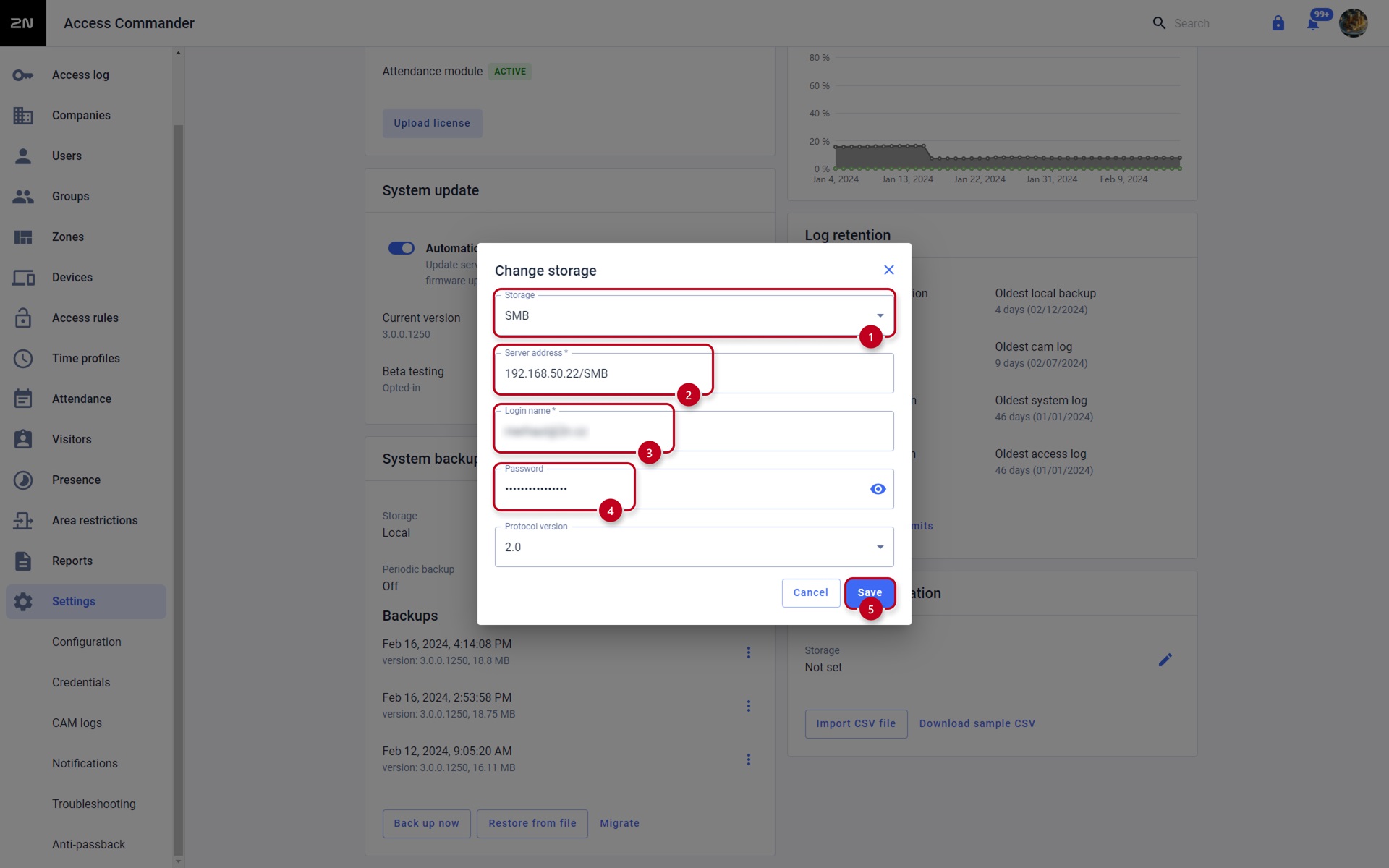
- Click on the pencil icon to edit Storage, choose "SMB" Storage:
- Under "Server Address" input the IP Address of the Samba server (of the Computer/Shared Network Folder)
- Under "Login name" input the login name (of the Computer/Shared Network Folder)
- Under "Password" input the login password (of the Computer/Shared Network Folder)
- Finally confirm by clicking on "Save":
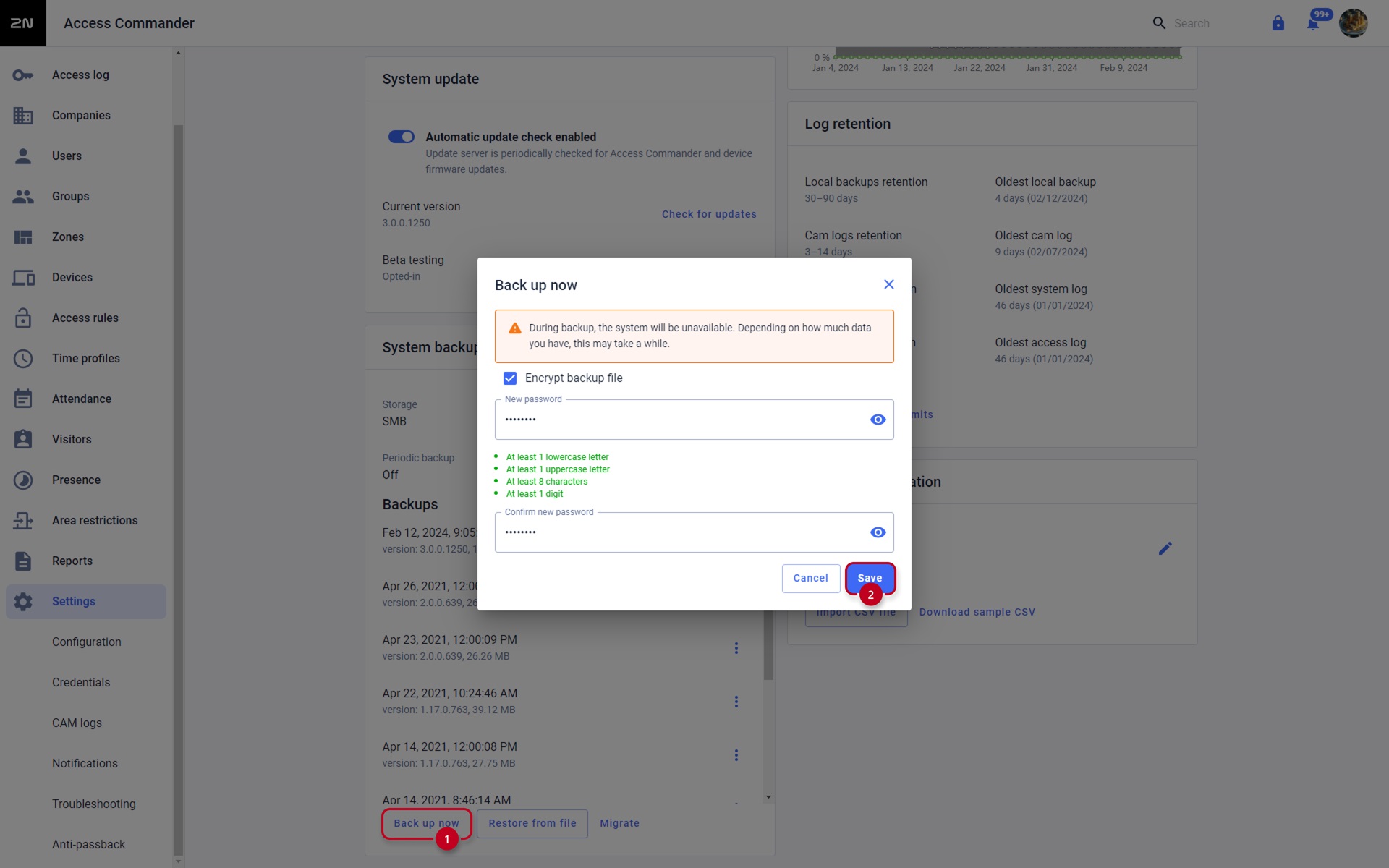
- Then click on "Back up now", you can set password for the back-up file, and confirm by "Save":
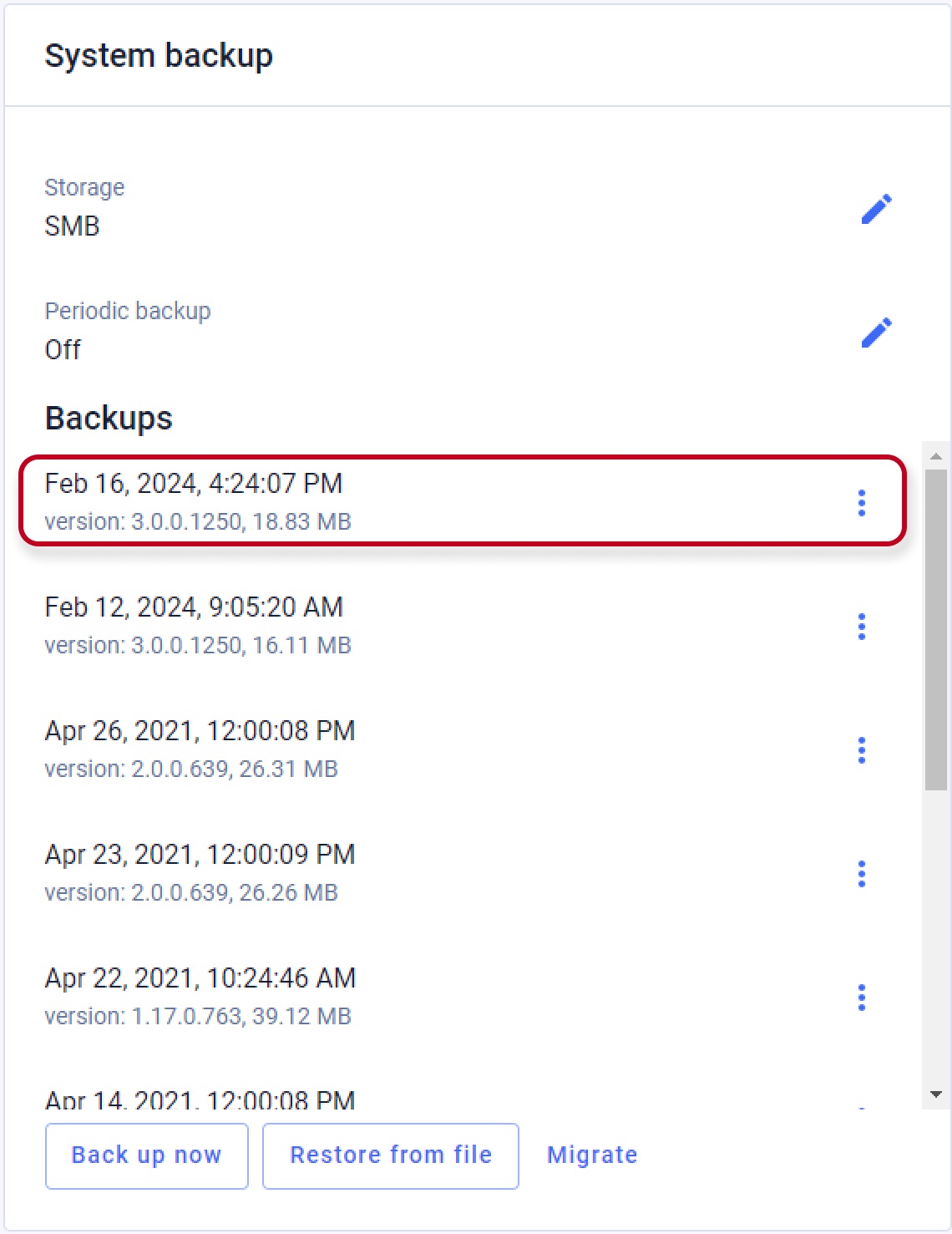
- After the update process and ogging back into the web interface you will see the note about a successful "Smb" backup, together with its date/time, size and version of the software:
Periodic Backup
If you have set up a "Local", or "Samba", backup Storage - according to one of the previous 2 chapters, you can set to be it saving periodically.
- In the web interface of the 2N Access Commander go to Settings and click on pencil icon to set the Periodic backup:
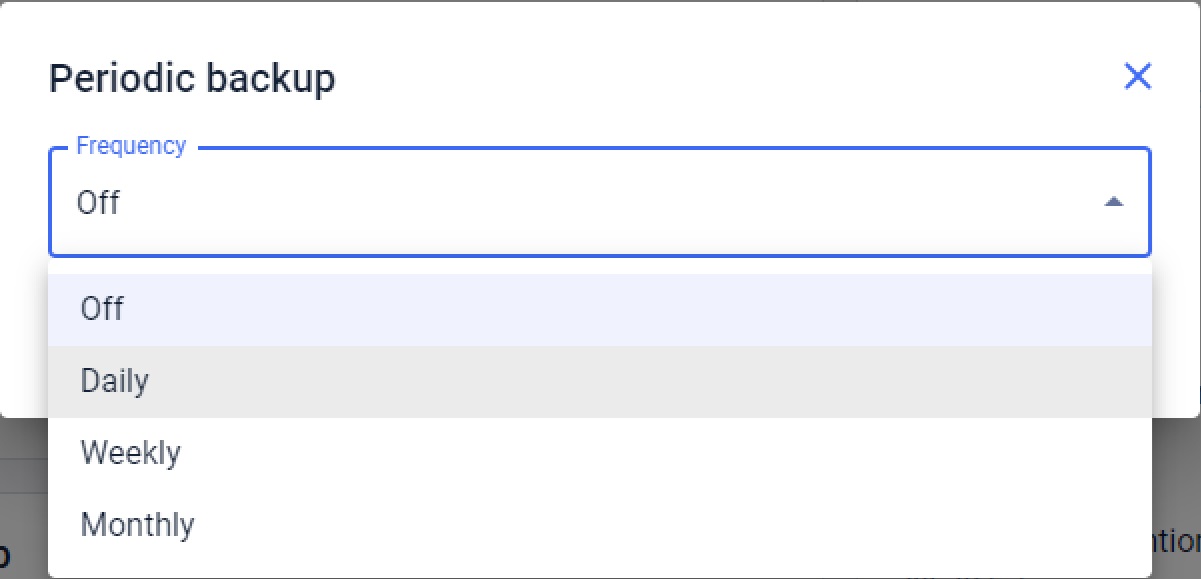
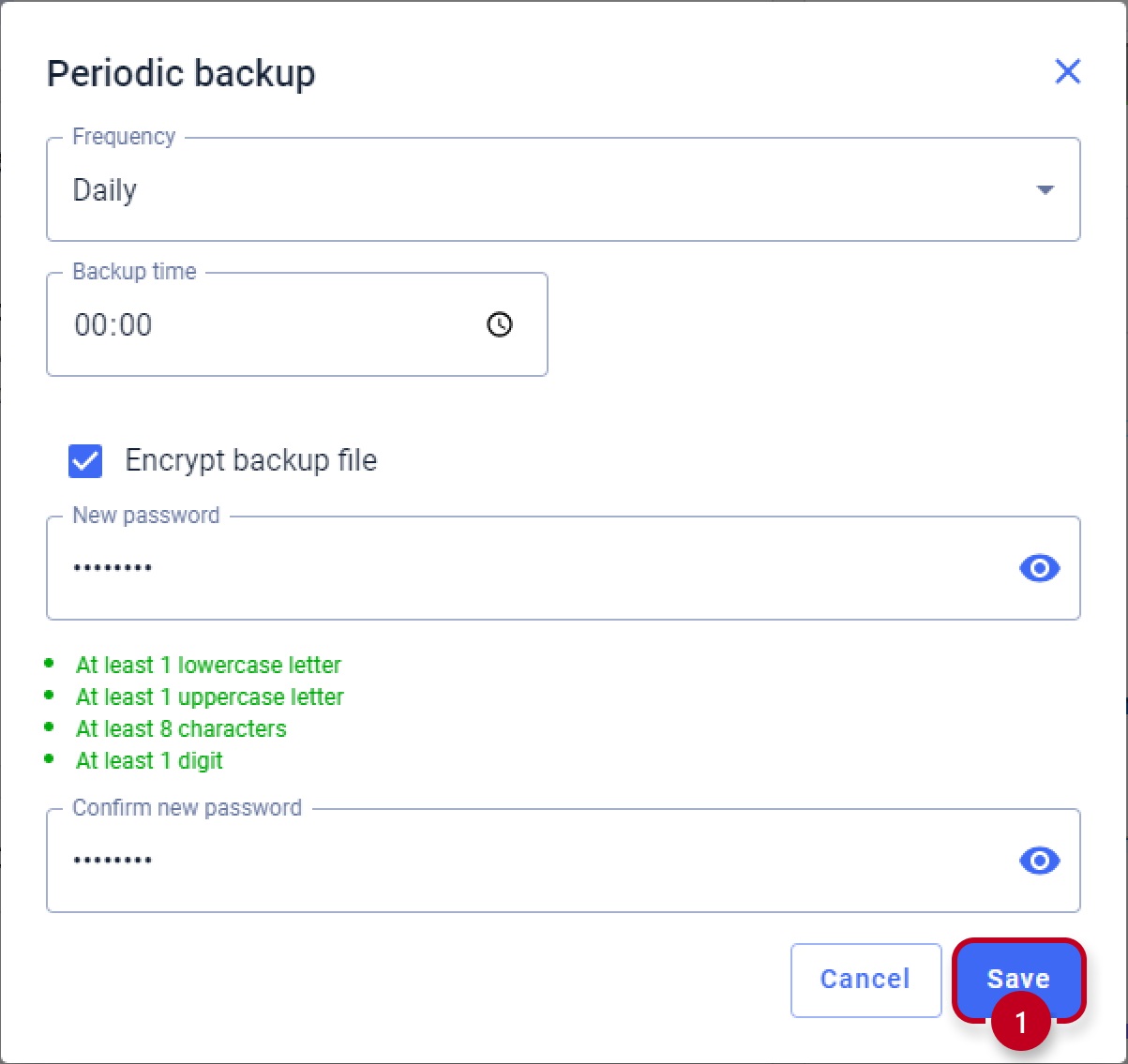
Here you define the frequency (monthly / weekly / daily), day of the week and backup time. You can also set a password for the file.
- Finally confirm by clicking on SAVE:
Restore the backup file
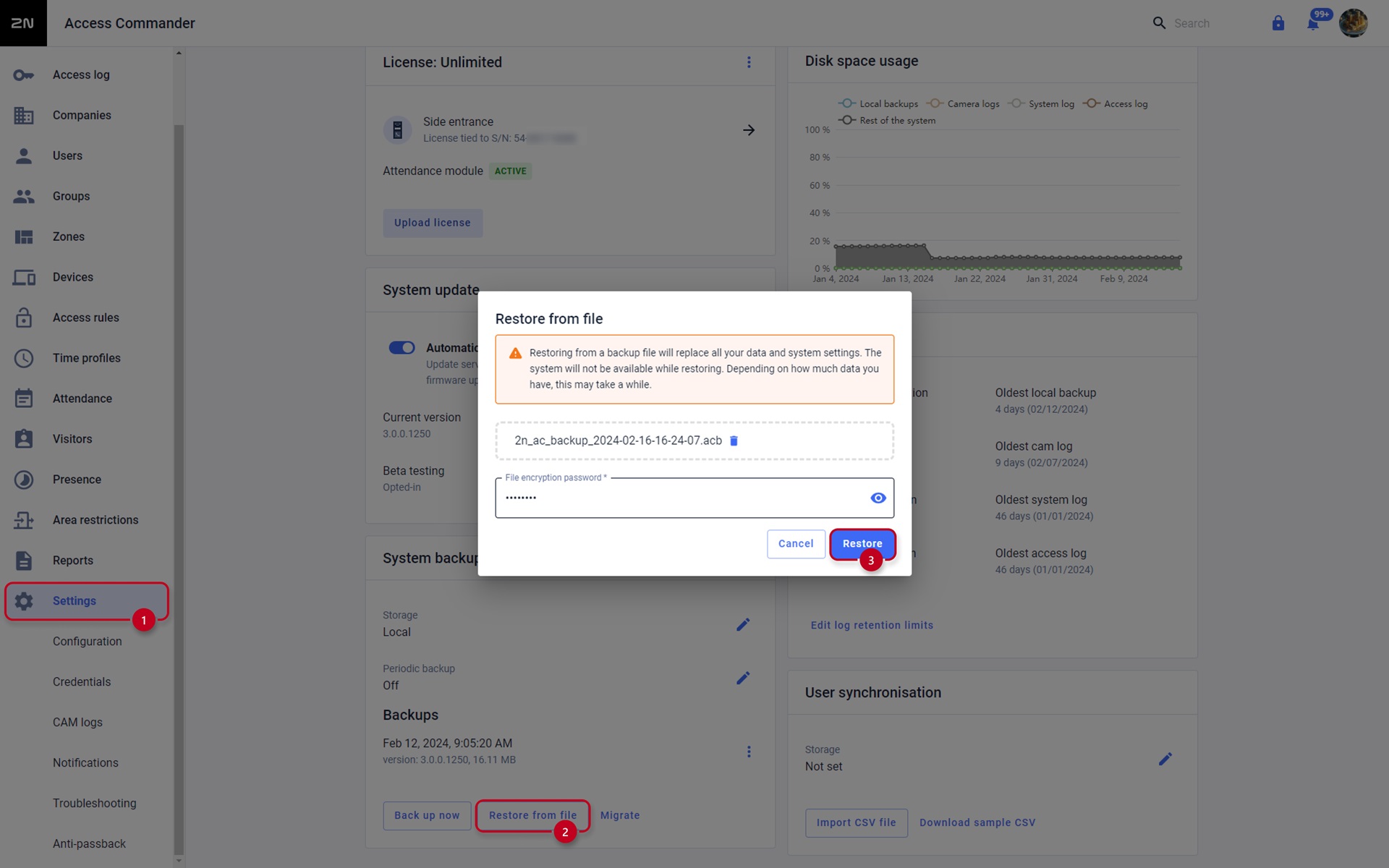
In the web interface of the 2N Access Commander go to Settings and click on "Restore from file".
- Then you click on SELECT FILE to choose the backup file from directory or drag and drop the file, fill in the backup password and confirm by clicking on the RESTORE button: