Call logs - How to use them in 2N Access Commander
Requirements:
- Access Commander 3.6 and later (It is recommended to use the latest version)
- IP intercoms with firmware 2.50 and later (It is recommended to use the latest firmware version)
- Please note that it might work with older firmware too but some information such as "Call duration" or "Peer" would not appear
- Permanent operation of Access Commander. Connection between Access Commander and devices must be ensured.
Description:
Call Logs is a feature of Access Commander that allows the administrator to see what calls were made through intercoms or from outside devices to intercoms, along with related details. Note that this is only a call log and it is not possible to use this feature to actually make and store recordings of the calls.
This feature enhances installation security and allows the administrator to track calls and especially doors opened through remote DTMF codes. Call logs are available for all SIP intercoms and Lift communications but not for Answering units.
NOTE: This feature is only accessible by administrator.
Information:
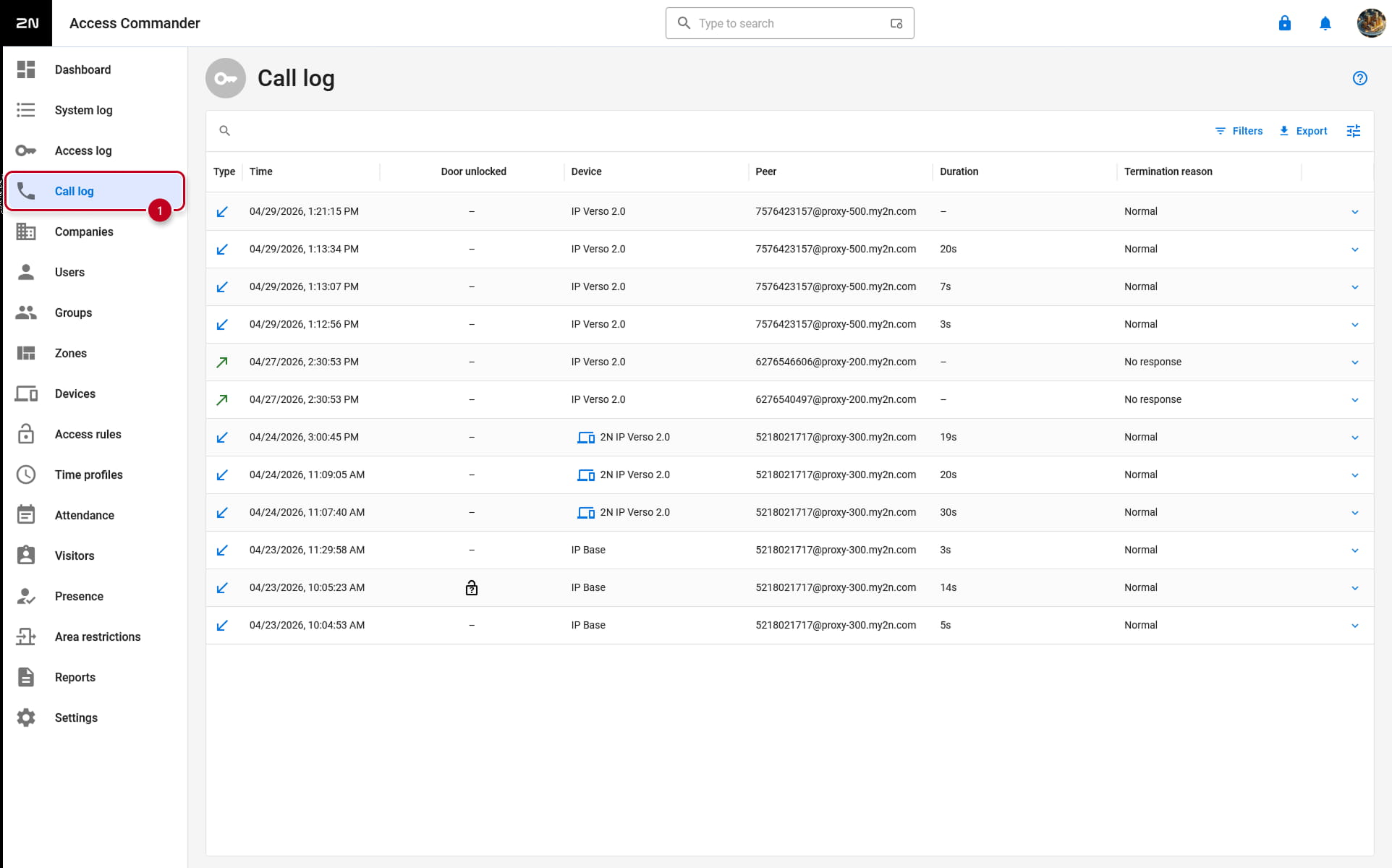
On the Call Log page, you can see an entry for each call with multiple details about them. Please note that a new entry is shown only after the call has ended.
Type - Direction of the call. It is symbolized by either blue arrow pointing down for incoming call or green arrow pointing up for outgoing calls.
Time - what time was call registered
Doors unlocked - if there was DTMF signal sent to unlock the door during the call
Device - 2N intercom, by clicking on device name or blue icon next to it you can go directly to the device details in Access Commander
Peer - Who is the source of direction of the call. It can be an user on the site where you have an option to go to the user information by clicking on the name or blue user icon next to the name or it can be sip number
Duration - how long have call lasted, only shows a number if the call was successful
Termination reasons - this shows the status of the call. Its can be normal when the call was successfully answered. Rejected for call that were manually rejected. No response for calls that were not picked up and Failure if some problem occurred.
By opening individual logs you can see some additional information:

Here you can find more detailed information about the call, such as: SIP Call-ID, SIP Account, Session detail, Device time.
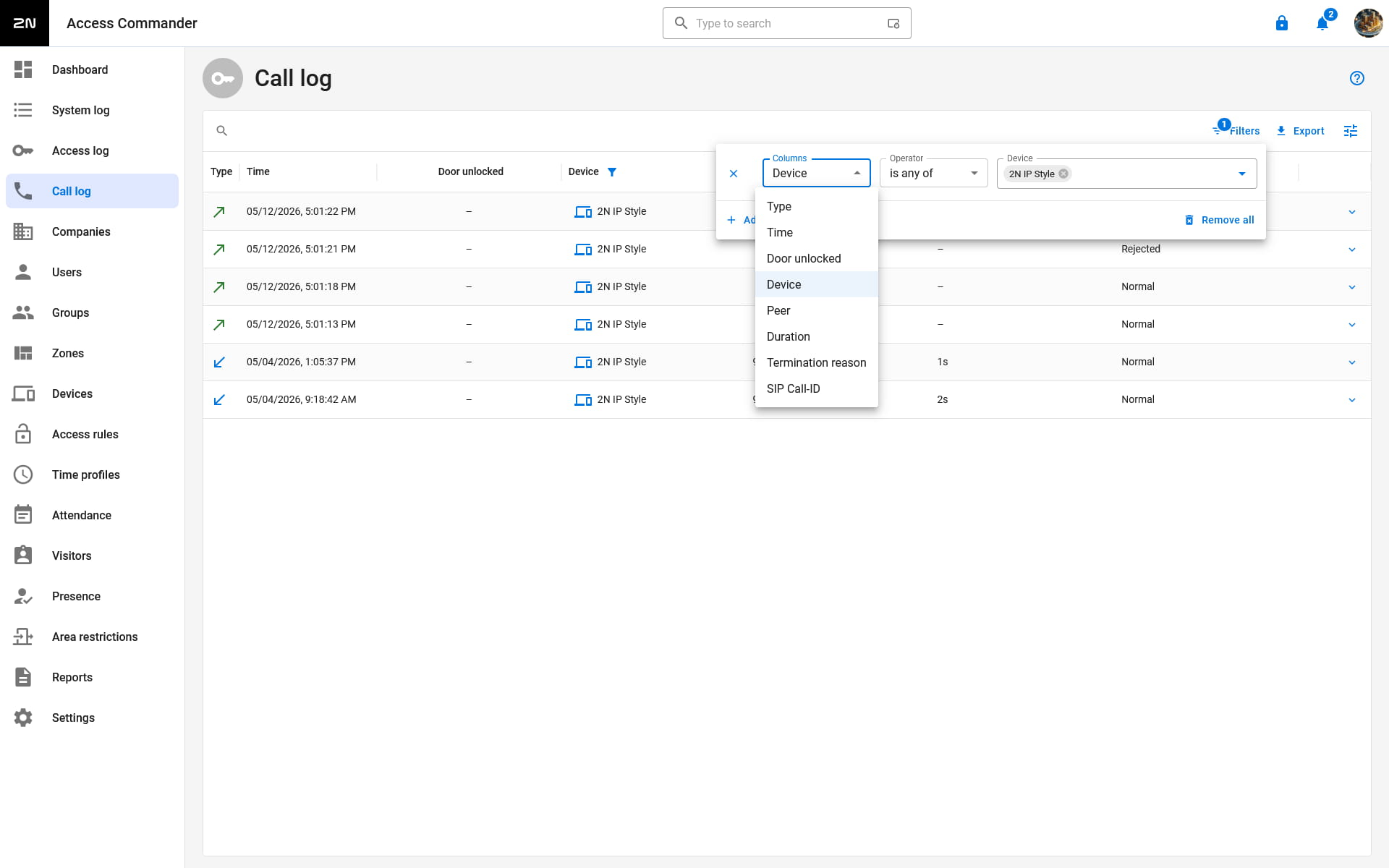
There are available tools to filter logs, export logs and to manage columns in the top right corner.
You can filter logs based on all available attributes by setting up filters. You can then export these logs as a CSV file. There is also an option to manage the columns, where you can choose what information is displayed.
Its possible to set maximum retention time for call logs separate from other Access Commander logs and you can setup this period in Access Commander Settings -> Log retention -> Edit log retention limits