Offline Pairing - How to set it up
To be able to use BT in My2n App, you have 2 different ways to pair your mobile with another 2N intercom or another 2N Access Unit. Online Pairing and Offline Pairing.
We do recommend using cloud pairing exclusively as you can then easily manage all credential types for all users in My2N at one place. But you can use Offline pairing, for example, if some users have some old mobiles (Android 8 or 9 , or iOS 15). However, Offline Pairing cannot be done using Access Commander .
For a brand new site in My2N - Start with offline pairing first! And always use the very same device for all offline paired users. Once you have your offline paired users, you can also create online paired users from the platform. You will need to go to Site Settings/Access/Configure and then choose Manage via My2N then Yes, and I want it to keep working - you will find the device which has been used for Offline pairing, so choose it. And finally Configure. All users which will have Enable My2N App Access enabled and which will be part of an or more access rules will be online paired.
| Minimum required iOS / Android version | |||
| Android version | My2n App version | iOS version | My2n App version |
|---|---|---|---|
| 10 and higher* | 3.0.0 and higher | iOS 16 and higher* |
3.0.0 and higher |
* Using Android 8 or 9, or iOS 15 will partially work, advanced features will not be available.
Functions
Bluetooth is used for exchanging information between two devices for a short distance. This identification is provided by a unique code of the end devices that contains this technology, like almost every smartphone these days. There is a communication between the smartphone and 2N® IP Verso intercom (or 2N Access Unit) equipped with a Bluetooth module. This communication is secure and based on public and private keys that are exchanged (we use RSA-1028 asymmetric encryption and AES-128 symmetric encryption).
Requirement
2N IP Verso with firmware until 2.50, 3.0 only give PIN code and newer one gives QR codes.
Bluetooth module (order no. 9155046) connected to 2N® IP Verso (or to 2N Access Unit) via internal Verso bus cable.
My2n App app version 3.0.0 for iOS and Android, for QR code pairing 4.1.0 on Android and 4.4.0 on iOS are the minimum versions
Bluetooth enabled on the phone
Location enabled on phone (for Android only)
*Xiaomi Poco phones may not be compatible with WaveKey when app is on background
Step by step guide - How to setup Offline Pairing between My2n App and 2N IP Intercom
To improve the user experience and streamline the device pairing process, we have introduced a new QR code-based pairing method. This update is part of our ongoing effort to enhance usability and security, particularly in scenarios where using PIN could be riskier. QR code pairing simplifies the process while increasing strong cryptographic verification, supporting offline pairing use-case. Online pairing remains unchanged.
Users can now pair their device with an intercom by scanning a QR code that contains the intercom’s public key information. This QR-based pairing method is accessible directly from the main dashboard and is added next to the the existing PIN code method.
1)
Please open web configuration of 2N IP Intercom and navigate:
In the Old Web Interface to section Hardware --> Extenders and locate Bluetooth module.
Launch Authentication by "On device" is selected and you can specify the distance (Signal Range) within which your smartphone will communicate with the Bluetooth module
In Pressing the Bluetooth symbol, you will be able to open the door by tapping the Bluetooth icon on the Bluetooth module.
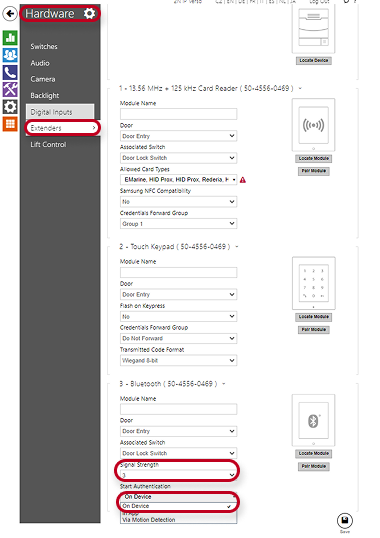
In the New Web Interface to section Access --> Modules --> Bluetooth
Launch Authentication by "On device" is selected and you can specify the distance (Signal Range) within which your smartphone will communicate with the Bluetooth module
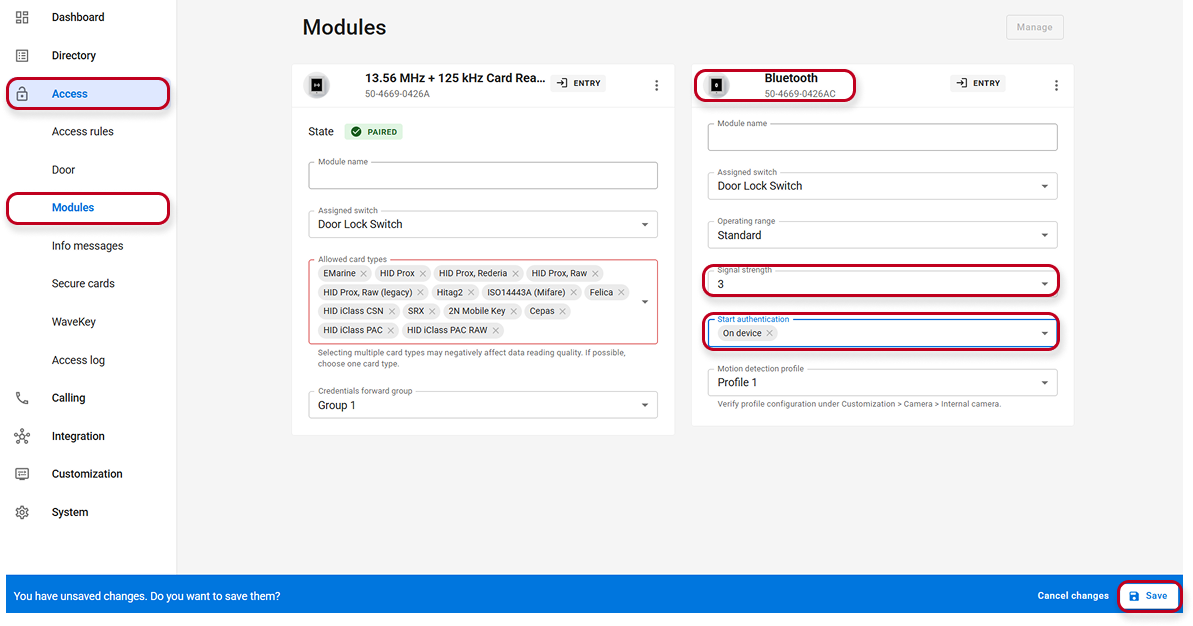
2) Install My2n APP app from the official OS store (Google Play, iTunes) to the mobile device of the user you wish to assign Bluetooth access to.
3) In the intercom's web configuration, please navigate to section Directory --> Users (1) and create the user you wish to grant Bluetooth access for.
Fill in a username and scroll down to the User WaveKey parameter(2). Click on the Bluetooth icon as shown on the picture below to pair via this device, to the Bluetooth module with the app on the mobile phone.
Firmware 2.32 to 3.0.2
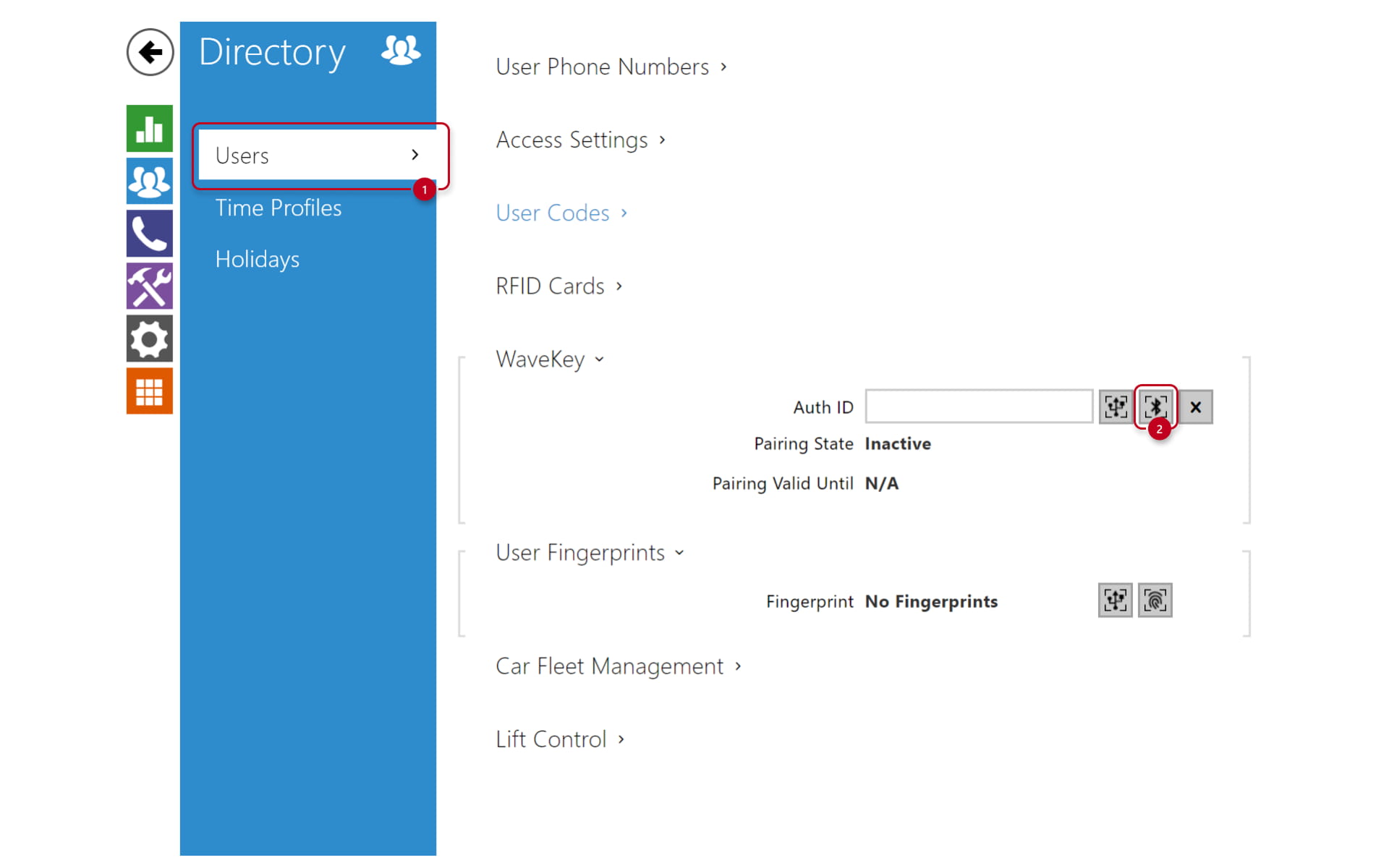
Once you do, a PIN code and a QR code for pairing with the app in a phone will be generated as shown on the image below: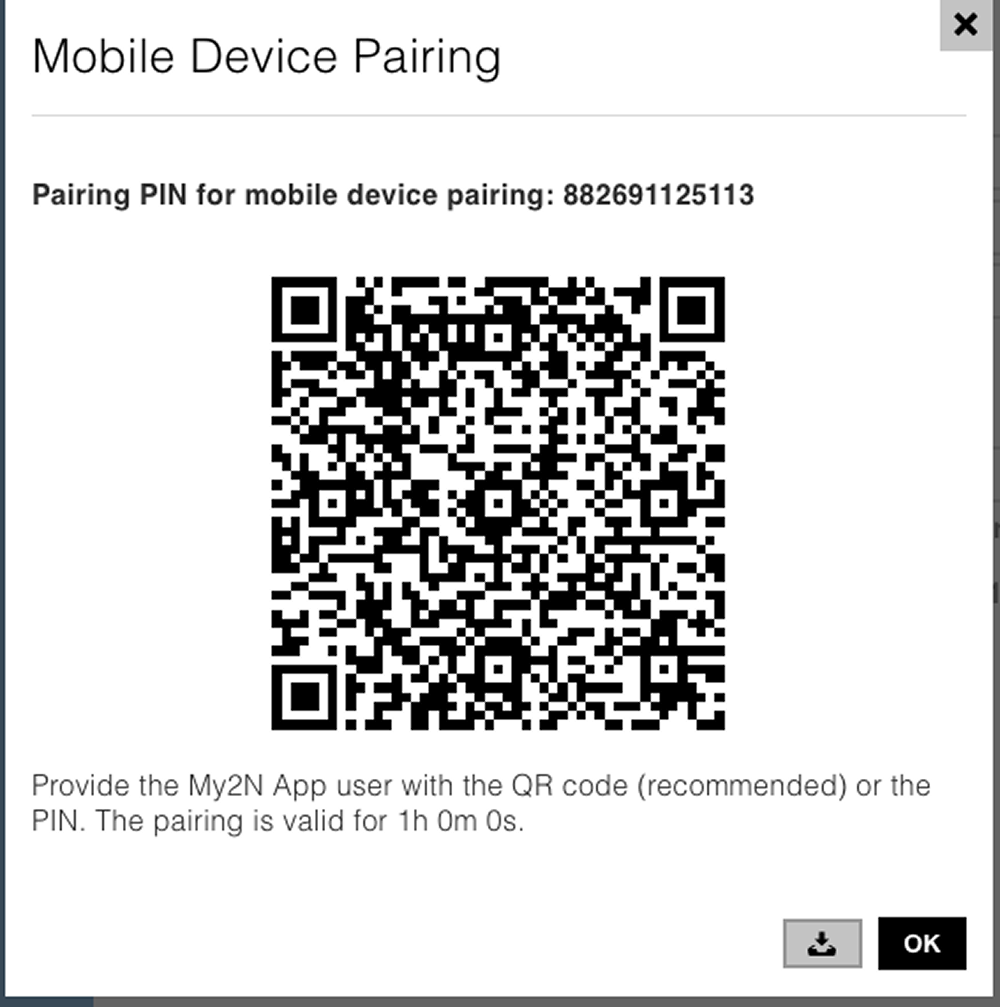
Default PIN validity is 1 hour. You need to pair a mobile phone before this time expires.
Note: PIN validity can be changed in section "Services --> WaveKey --> Pairing Mode Settings". The lenght of the PIN code is not changeable. It just has been increased for security reason
4) Please go to close proximity (1-2 meters) of the 2N IP Intercom you just configured for pairing with the app.
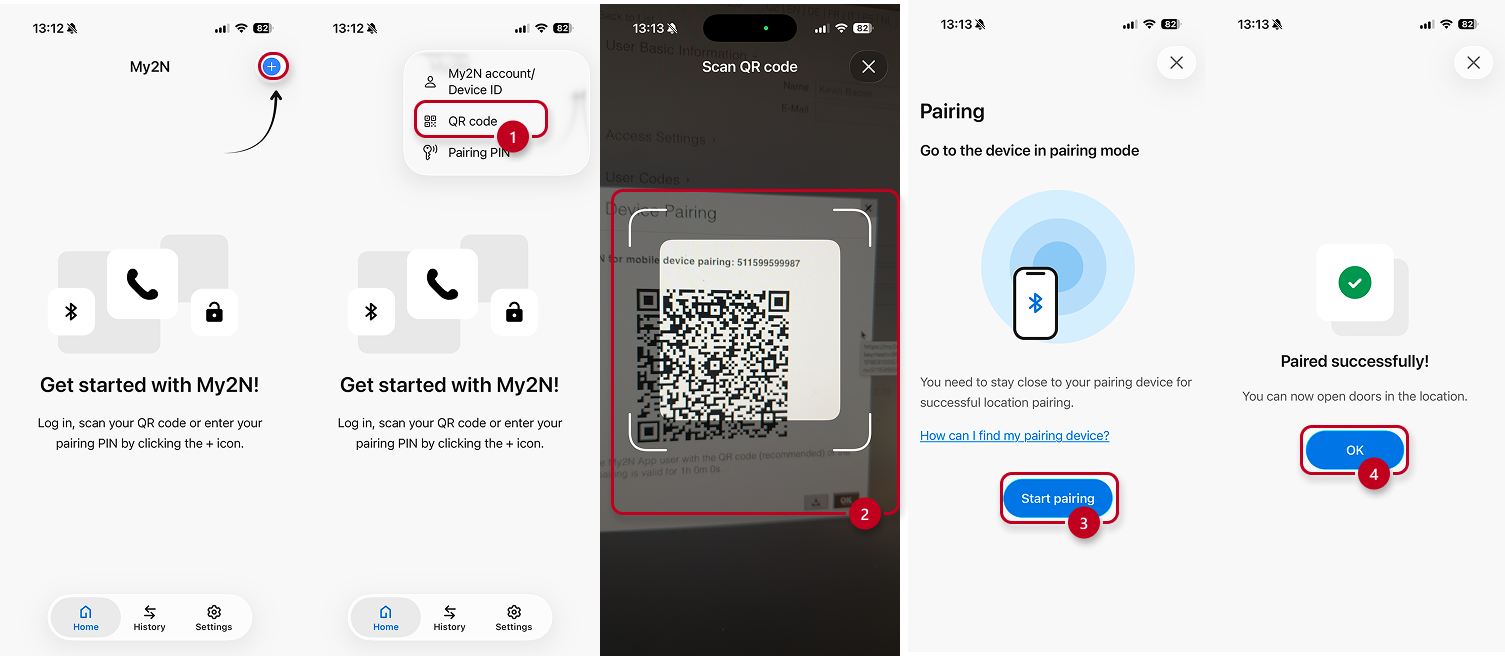
5) When in close proximity to 2N IP Intercom equipped with a Bluetooth module, run the application and tap the + sign and then The QR Code option (1), Scan the QR code obtained from the device's web interface (2), Click on Start Pairing (3) and once done, confirm by hitting OK (4)
If you choose to use the PIN option:
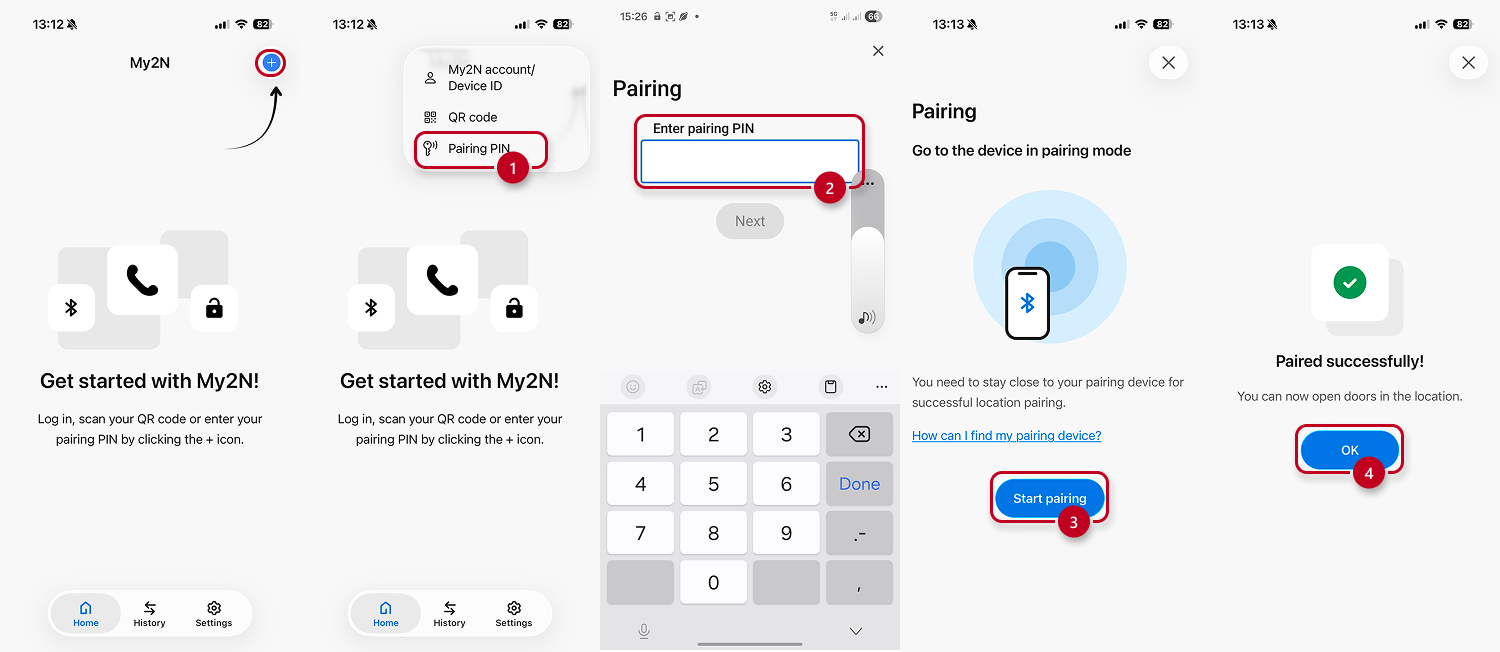
tap the + sign and then The QR Code option (1), Enter the pairing PIN provided by the intercom or from Access Commander (2), Click on Start Pairing (3) and once done, confirm by hitting OK (4)
6) The app will start searching for devices in proximity. Please note that if the Bluetooth is in touch mode, you need to touch the Bluetooth reader first to trigger the pairing sequence.
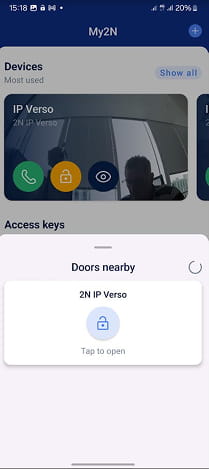
From now, If you are using Offline or Online Pairing, you will see the devices you are paired with.
Here is the link for Online pairing : How to set up My2N app access