The steps in this article require using the web interface of a 2N device. Please follow this manual in case this is your first time using the web interface.
We will show you, how to resolve no video during a call from 2N IP Intercom.
Prerequisites
- 2N IP Intercom with a camera and the latest firmware,
no additional license is required. - SIP video phone to be called by 2N IP Intercom.
Resolving the issue
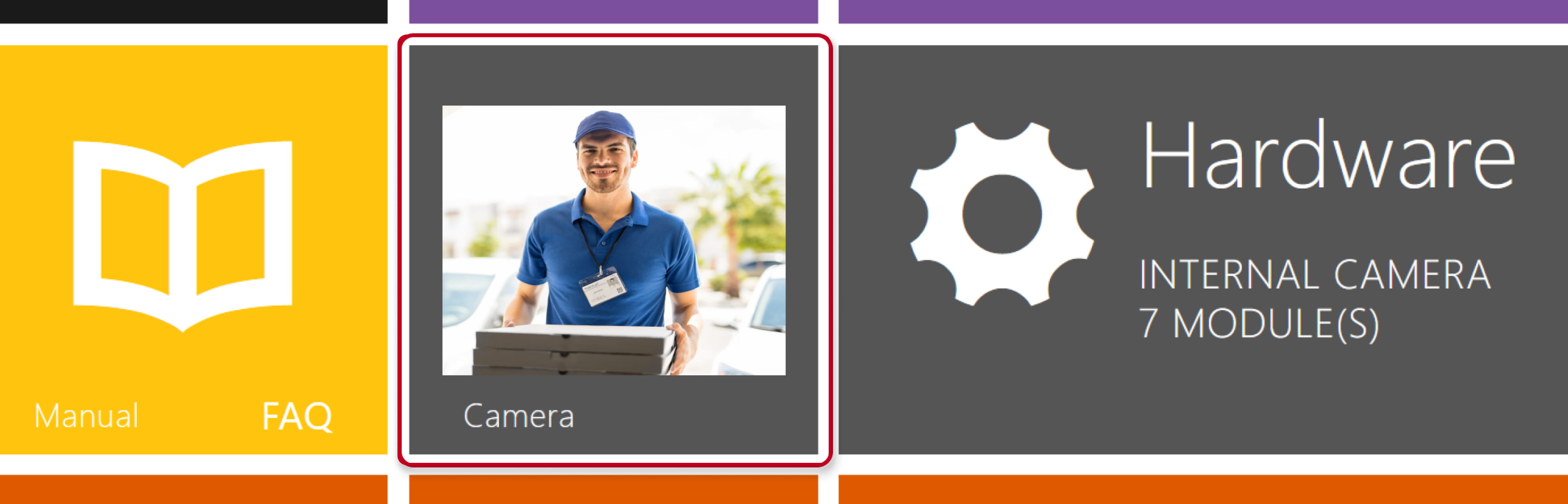
- Go to 2N IP Intercom web interface - homepage.
Can you see the video preview from the camera?

-
- If the answer is no video, please check, if your device should be really equipped by a camera;
and eventually continue to this article: 2N IP Intercoms - Diagnostics and Troubleshooting
- If the answer is no video, please check, if your device should be really equipped by a camera;
-
- If the answer is yes, the video works there properly, please continue with next steps.
- Call to another SIP video phone.
Disconnect 2N IP Intercom from your SIP proxy (if it is connected to any)
and call directly to your SIP video phone which supports codecs H.264 or H.263.
If you can see the video now, please check settings of H.264 (or H.263, H.263+) codecs in your SIP proxy.
More information in this article: Direct call without SIP Proxy registration
- Try a lower resolution.
Go to 2N IP Intercom web interface, section Calling - SIP 1 (call by sip:IPaddress) or Local Calls (call by device:DeviceID),
in tab Video, set CIF resolution for the used codec, save and check the difference.

- In the same section, check the Payload type settings.
For example, Cisco CUCM requires payload type set to 98 or 99.
In the Advanced SDP Settings, enable Use sendrecv Attribute for Video.

- Are you familiar with PCAP (network packet capturing)?
Then capture a network trace (more information in this article: 2N IP Intercoms - Diagnostics and Troubleshooting )
and check the RTP packet flow. -
If you still have troubles with video transmission, please continue to this article:
2N IP Intercoms - Diagnostics and Troubleshooting