Requirements:
The E-mail (SMTP) functionality is available only with the Gold license
The 2N IP Intercom supports these ports:
-
25
-
587
Seznam mail configuration
Seznam account settings
Utilizing the Sezman SMPT function requires the account to have 2-Factor Authentication enabled. Once the 2-Factor Authentication is enabled, an additional password will have to be created which will be used for SMTP services.
For enabling 2-Factor Authentication please follow the Seznam guides found here: 2-Factor - Seznam or here: CalDAV / SMTP - Seznam
Creating a password for CalDAV / SMTP
- Go the Seznam.cz profile, select "Seznam Account" (1) and then "Account Security" (2):

- Select "Add authentication device" (3):

- Fill out the password of your own Seznam account (4):

- Enter a "Device Name" (5):

- Use an Authenticator to scan the QR code/enter the key (6):

- Check if your phone number is correct a confirm (7):

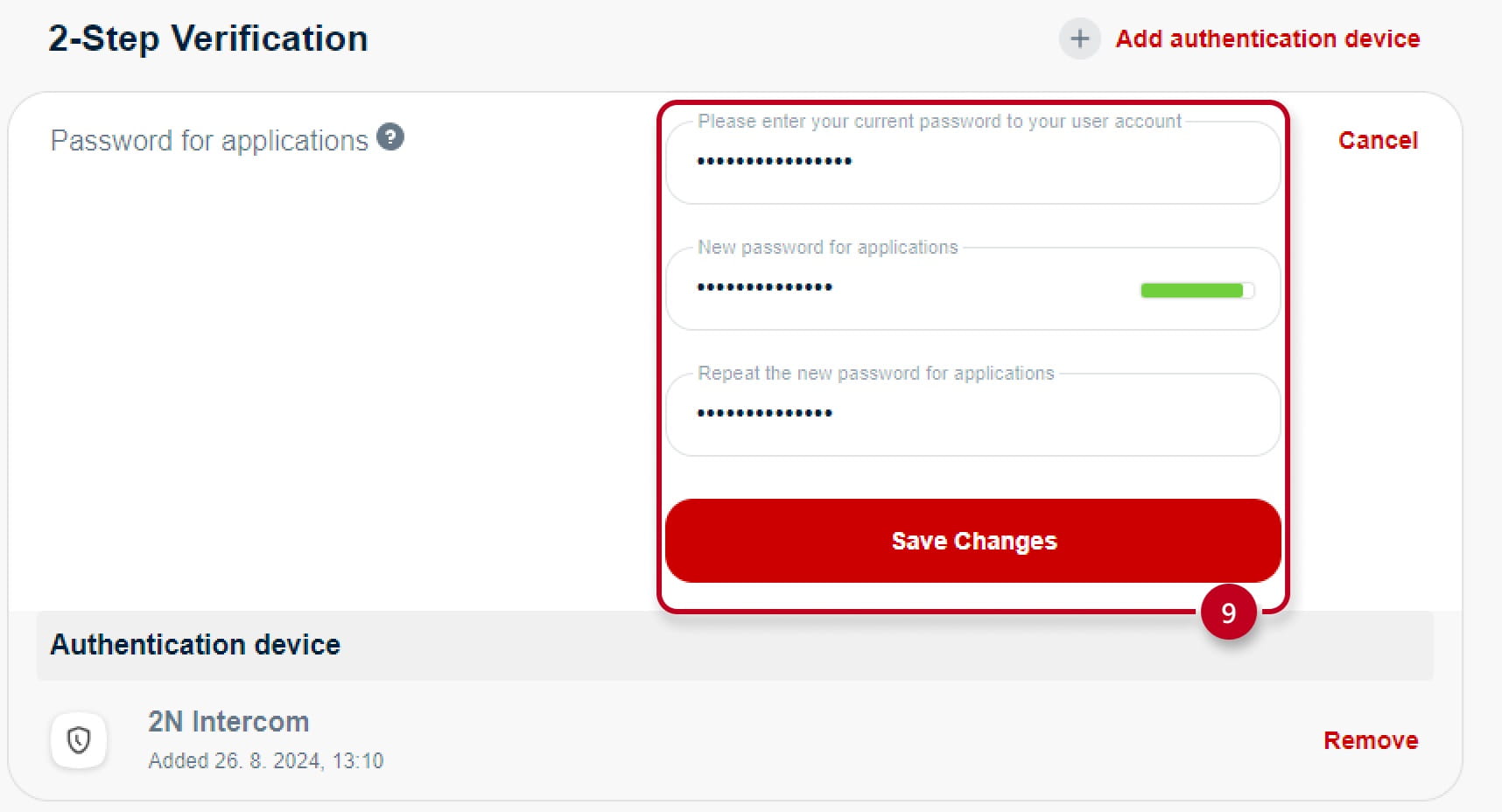
- Locate "Password for applications" and click on "Set" (8):

- Fill out the "2-Step Verification" (9):

- And then click on "Save Changes" (9):
2N IP Intercom Configuration
After completing the new password for the CalDAV protocols, you will need to configure the SMTP server on the 2N Intercom.
-
First, enable the SMTP Service (10) and enter the Server Address and Server Port, in this case, the SMTP server is smtp.seznam.cz and port 25 (STARTTLS) or port 587 (TLS Secured)
-
The next step is input and logs into the server with your credentials
-
The Username is your full e-mail address including the domain, then enter the CalDAV protocol password you created in the Password field (in step 9)
-
The From Address settings will be the same e-mail address that you entered in the credentials
-
You can verify the credentials and settings by clicking on "Apply & Test" (11):

-
If you get a message Test email FAILURE, please double check the validity of entered credentials to this manual, otherwise please contact our support: Technical Support - 2N
-
Make sure you have a Gold License activated, otherwise you can activate a Trial License (limited to 800 hours) to test out the features (System - License - Activate Trial License)