In case you have found some issue with 2N OS device, please report it to Technical Support. If you do not have access information, contact your account manager.
Or you can report your issue by creating a ticket - here. The reported issue should contain the following information:
- Describe us the issue in a close detail, so that we will be able to replicate the behavior at 2N Tech Support.
-
Send us the description of the LAN topology, NATs, IP addresses, etc.
-
If your issue can be clearly visible or heard e.g. LED blinking or bad sound quality, please take a picture or record a video (e.g. on a phone) and send us this behavior.
You can attach it to the e-mail or upload it to e.g. WeTransfer, Dropbox, Google Drive and send us the download link.
-
-
Know the Device Information
The serial number and the current FW version of your 2N OS device.
It is highly recommended to use always the newest FW version available on 2N web page - here
-
Backup the Configuration
Send us the current configuration of the device - in the pictures below there is shown how to do that.
-
Capture the Wireshark trace
Catch the Wireshark trace on 2N OS device. Here first of all activate the capturing by "Start" button, make a call and deactivate the capturing by "Stop" button. Then download hiptrace.pcap file and send it to the support. Because the buffer for trace is limited, it is really necessary to start the trace right before you will make a test call.
-
Capture an internal Syslog on 2N OS device.
If 2N Tech support asks you for a Syslog they usually want the setting that is shown in the picture below. Unlike in Wireshark trace the buffer is not limited by size but time.
Please set the Required Saving Time + Severity level according to 2N Tech support needs.
After setting press the "Start" button and the Syslog will automatically stop after the time you defined in Required Saving Time, then save the syslog.txt file and send it to us.
6. Capture an external Syslog on 2N OS device.
The external syslog is often use to capture syslog messages immediately after rebooting the device which often can't be done by internal Syslog.
Please fill the Severity Level according to 2N Tech support needs. You will need a syslog server where the messages from the device will be sent.
Set the Server Address in our example we use 192.168.1.15 - IP Address of a PC where SyslogWatcher is installed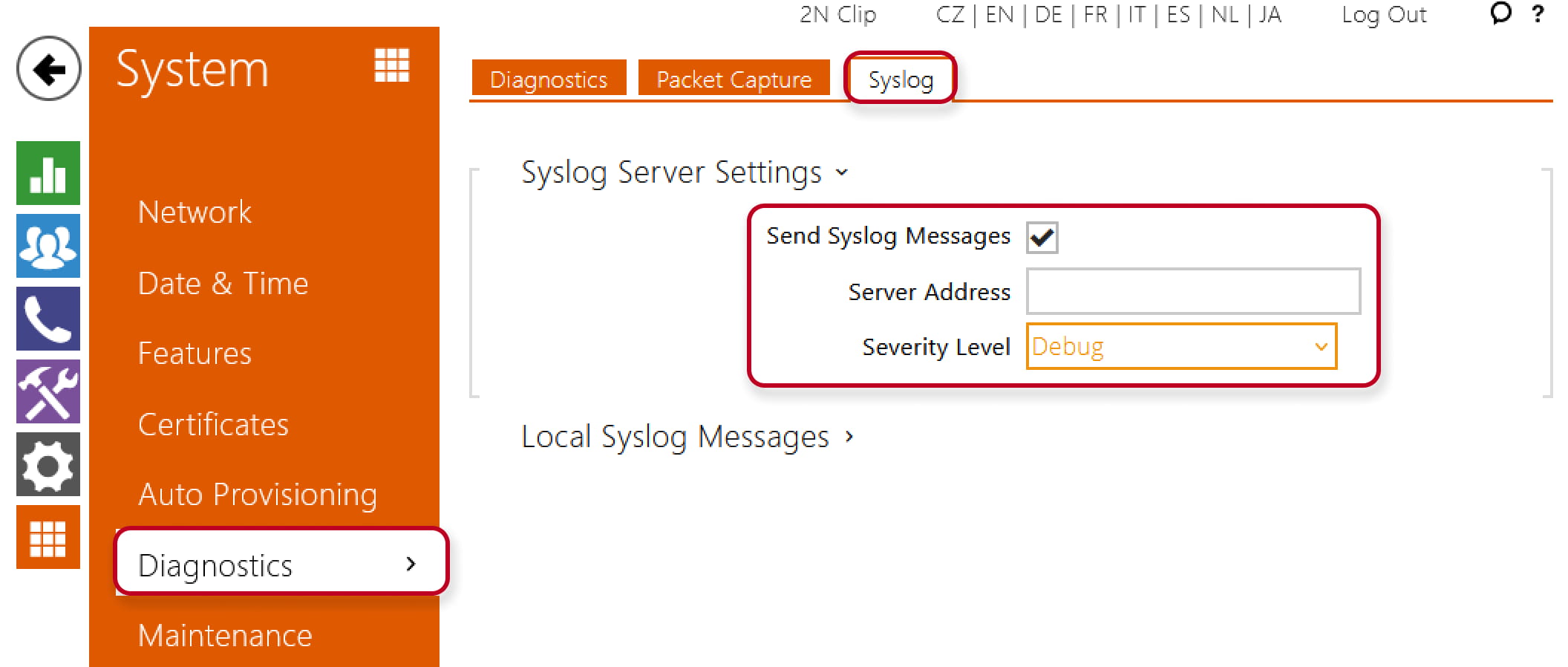
7. Using SyslogWatcher - download here
Start the server - it will take a few seconds until you see any messages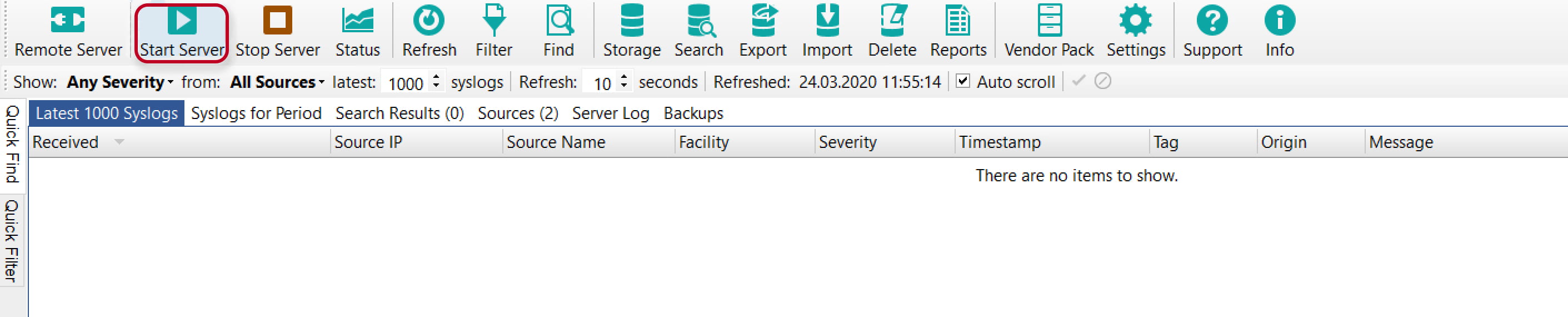
Stop server - press after you are done with capturing
Export - press this button to export messages to file
Export Settings - Choose the time from/to according to what 2N Tech support demands (1h, 24h)
Custom files (CSV/XML/TXT/JSON/etc.) - type of file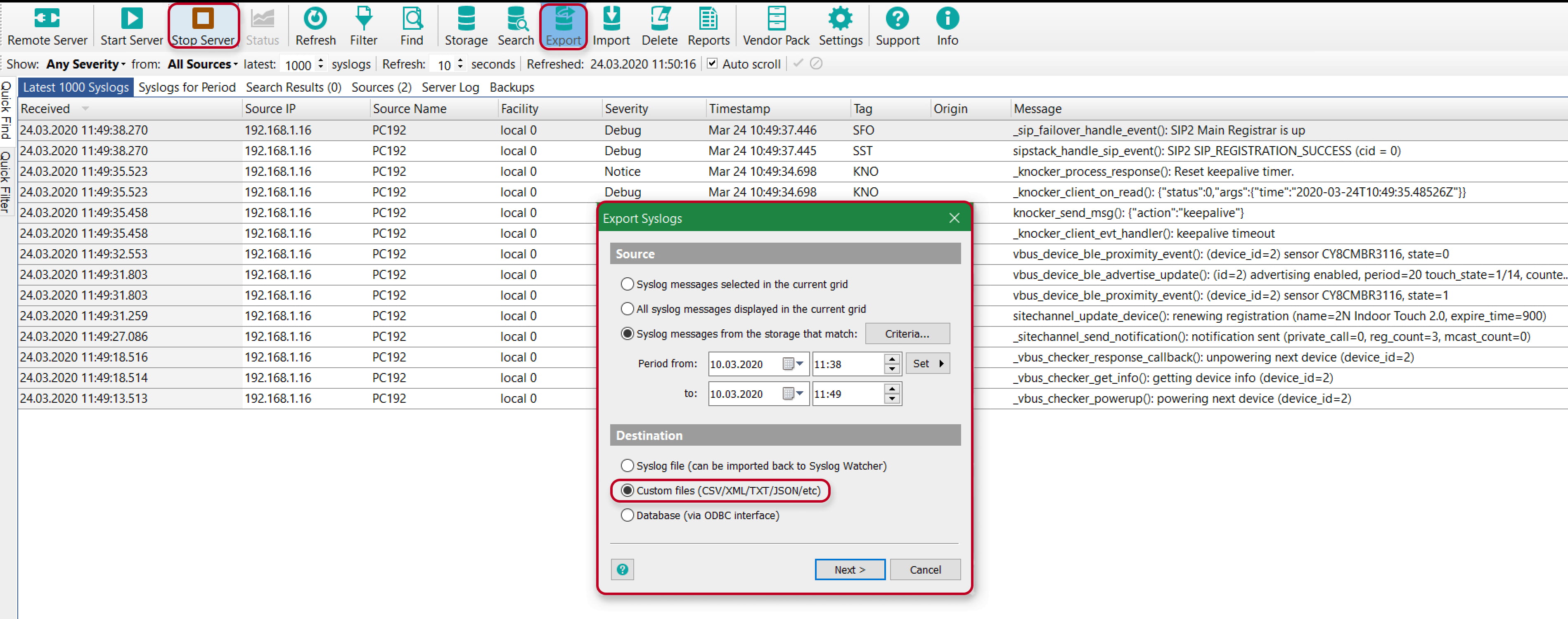
Export folder - choose path to save the file
Filename - name of the file (in default it is date of Syslog capturing) -> export the file with .txt suffix and send it to us