How to connect external Axis Camera to Sentrio
The steps in this article require using the web interface of a 2N device. Please follow this manual in case this is your first time using the web interface.
Pre-requisites:
- Axis Camera
- Axis IP Utility Software, Click here to download
- PC or Laptop on the same Network as the Lift Gate or Axis and Sentrio
Setting up Axis Camera
- Start AXIS IP Utility. All available devices on the network show up in the list automatically.

- Left-click the device in the list and select IP Settings Button.
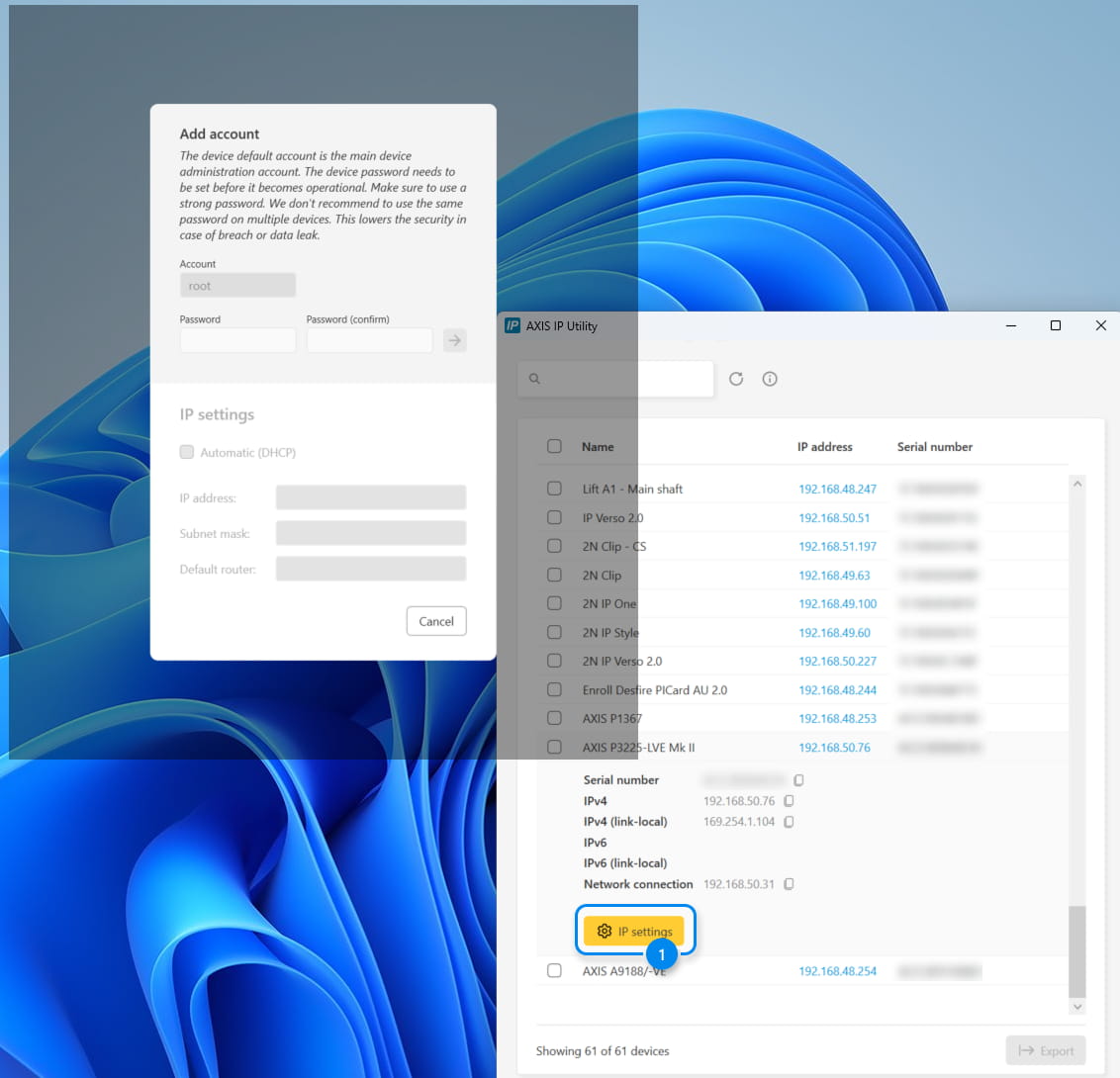
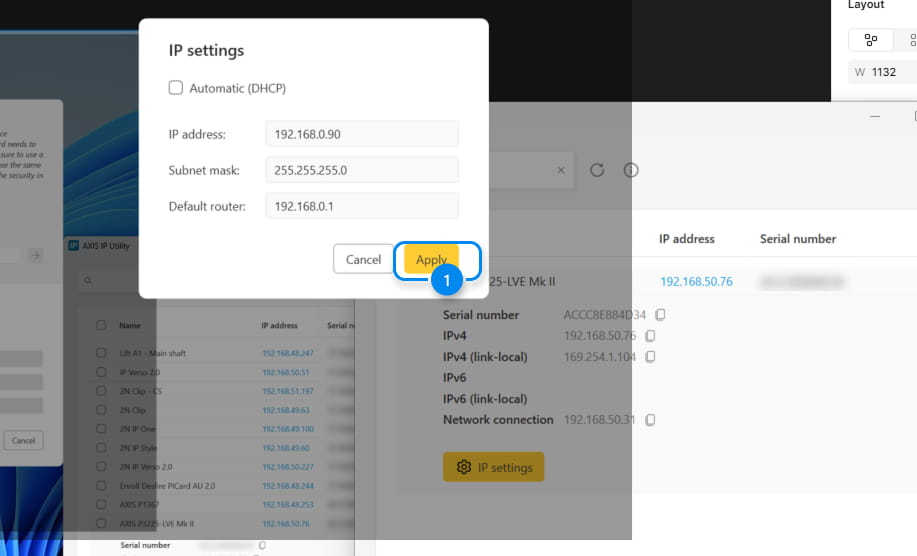
- On the pop-up that opens after clicking the IP Settings button, enter the account name as "root" and confirm with the desired password. In the IP settings, uncheck Automatic (DHCP) to enter your static IP address, subnet mask, and default router. Once the details are entered, click Apply.
Adding an external camera stream for 2N Intercom
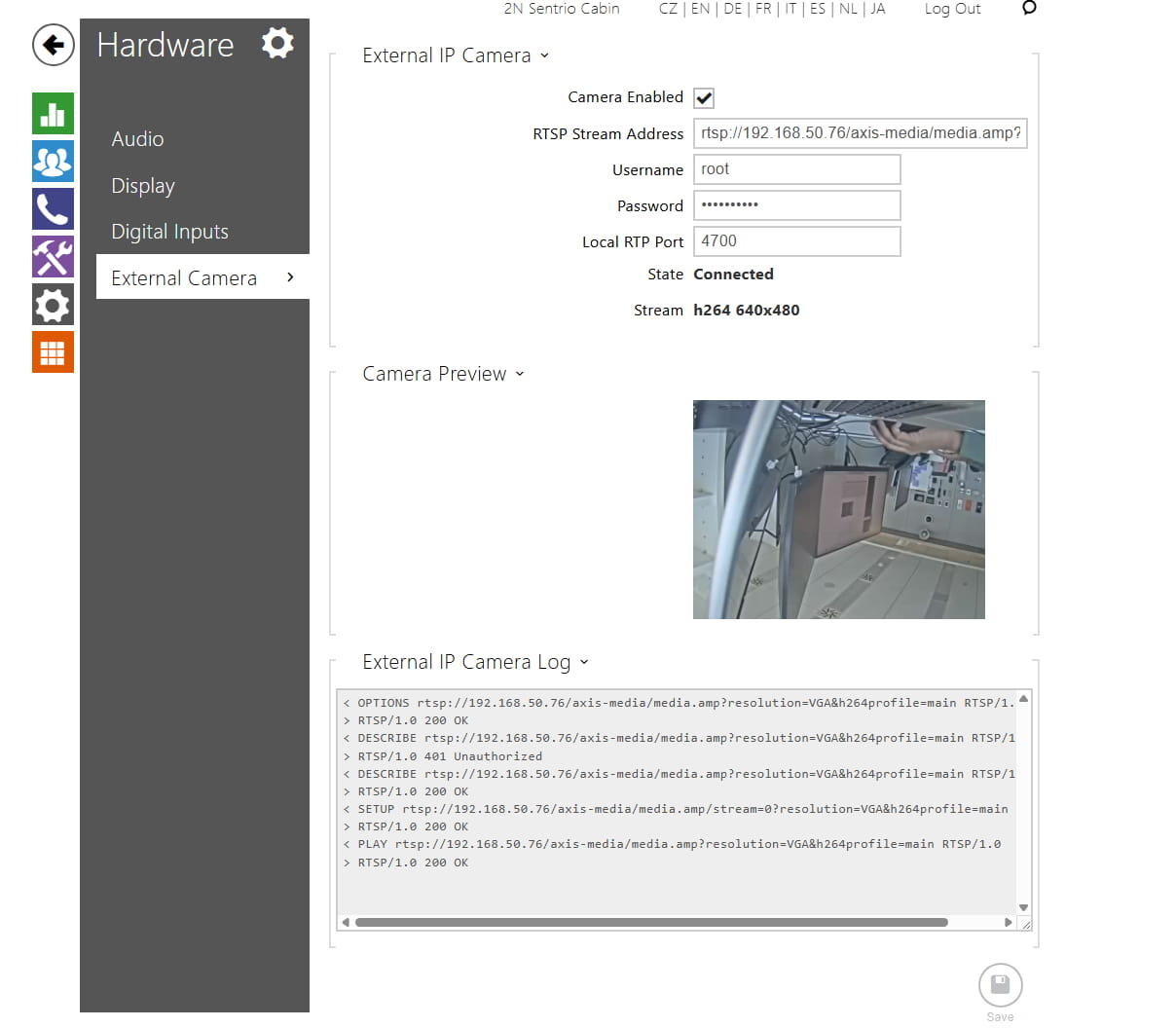
- Go to 2N IP Intercom web interface, section Hardware - Camera - External Camera
- Enable the feature
- Fill in RTSP stream address in the following format: rtsp://IP_adress_of_camera/axis-media/media.amp?resolution=VGA&h264profile=main
- Fill in the Username "Root" and the Password of the Axis IP Camera you have created
- After saving, you should be able to see Camera Preview if you configured everything correctly.
|
Note: Use the following format of RTSp if VGA is not available. VGA is unavailable, use numeric value, which the camera supports, f.e. 480x480 rtsp://IP_adress_of_camera/axis-media/media.amp?resolution=480*480profile=main |