Our intercoms use HTTPS protocol for accessing their web interface. HTTPS unlike HTTP requires a certificate for authentication.
The certificates for 2N devices are signed by the device itself (self-signed) and not by the certification authority hence the browser will mark it as a potential threat.
macOS 10
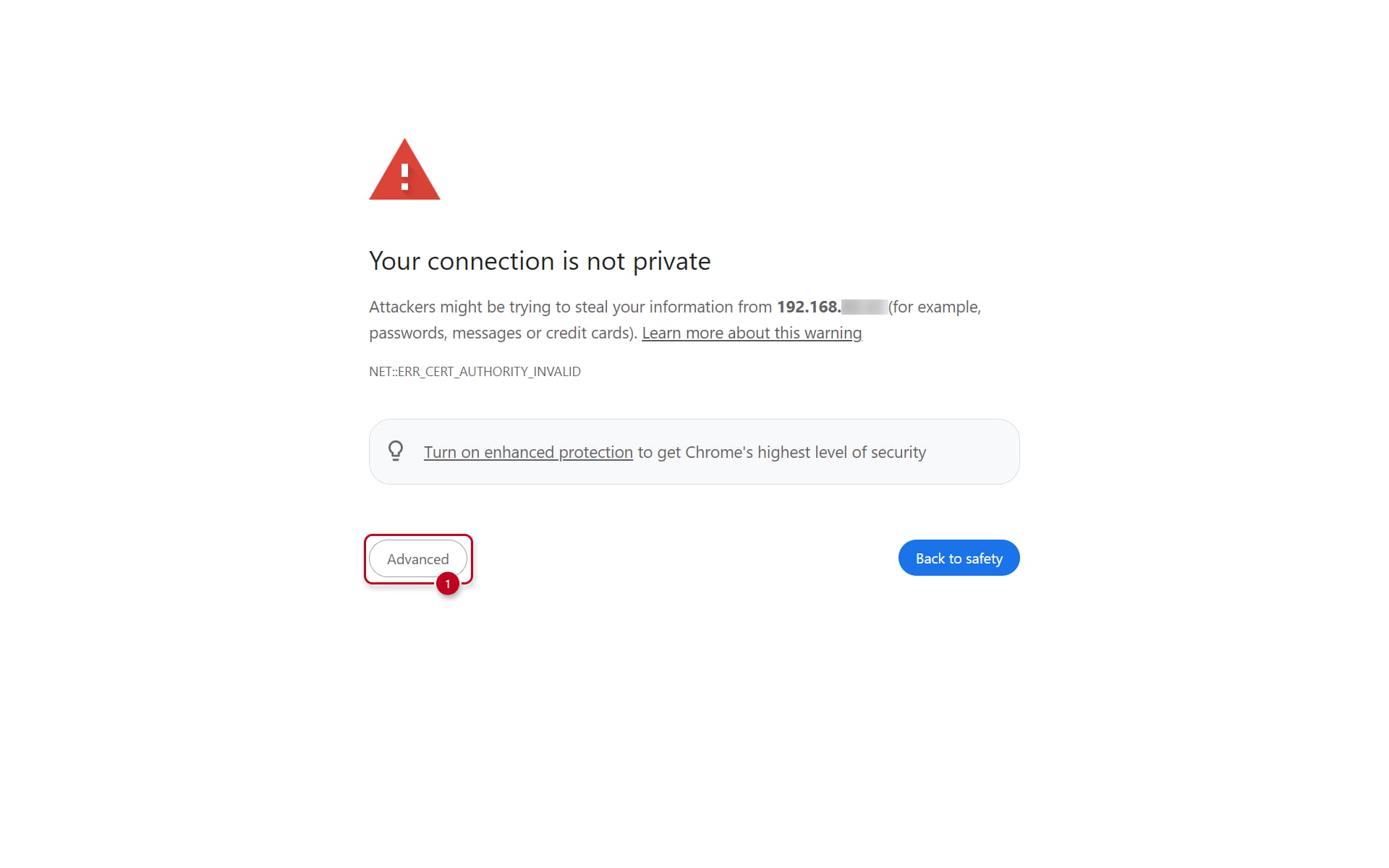
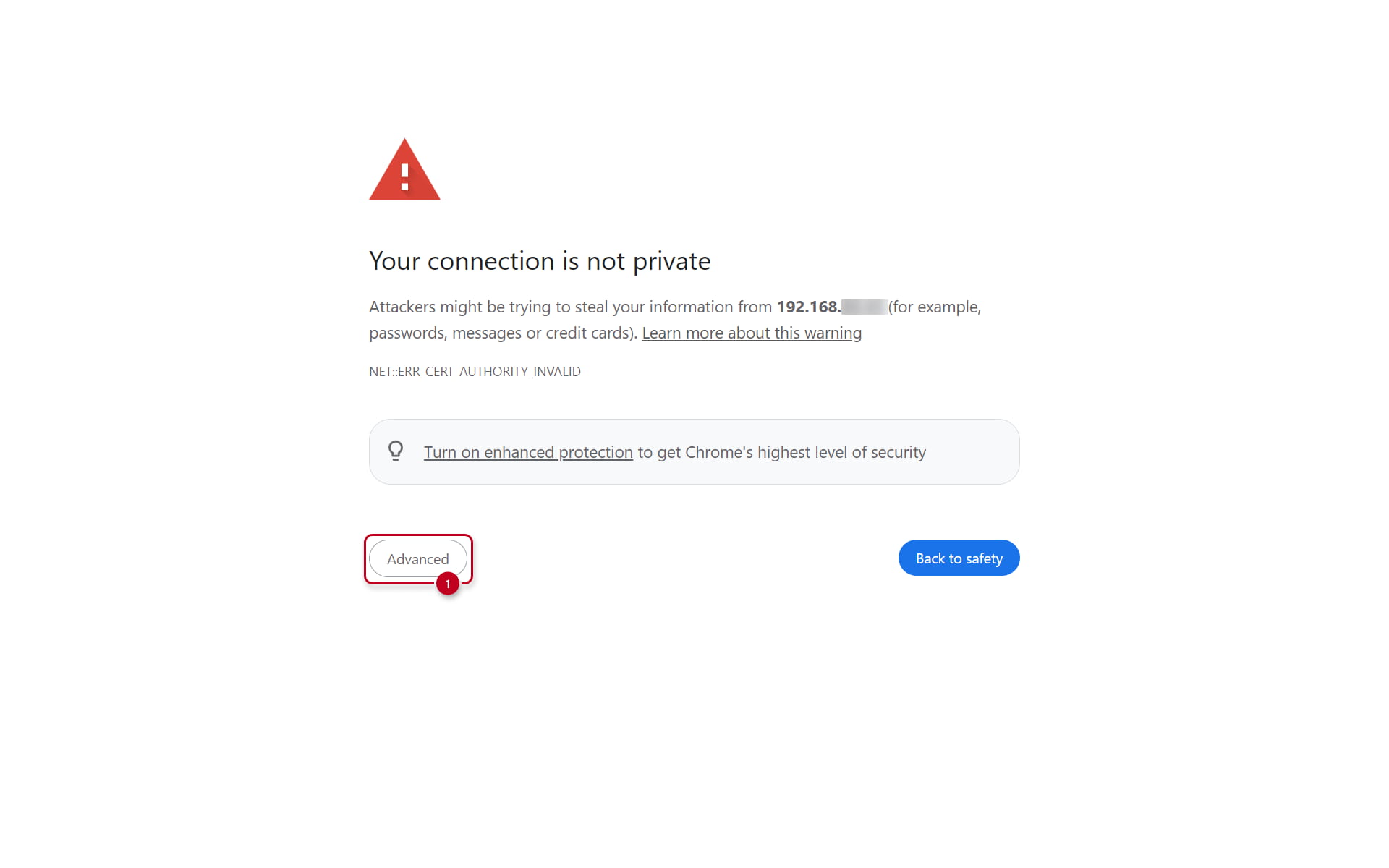
In macOS 10 when you entered the IP address of your 2N device you would have been presented with "Your connection is not private" as shown below.
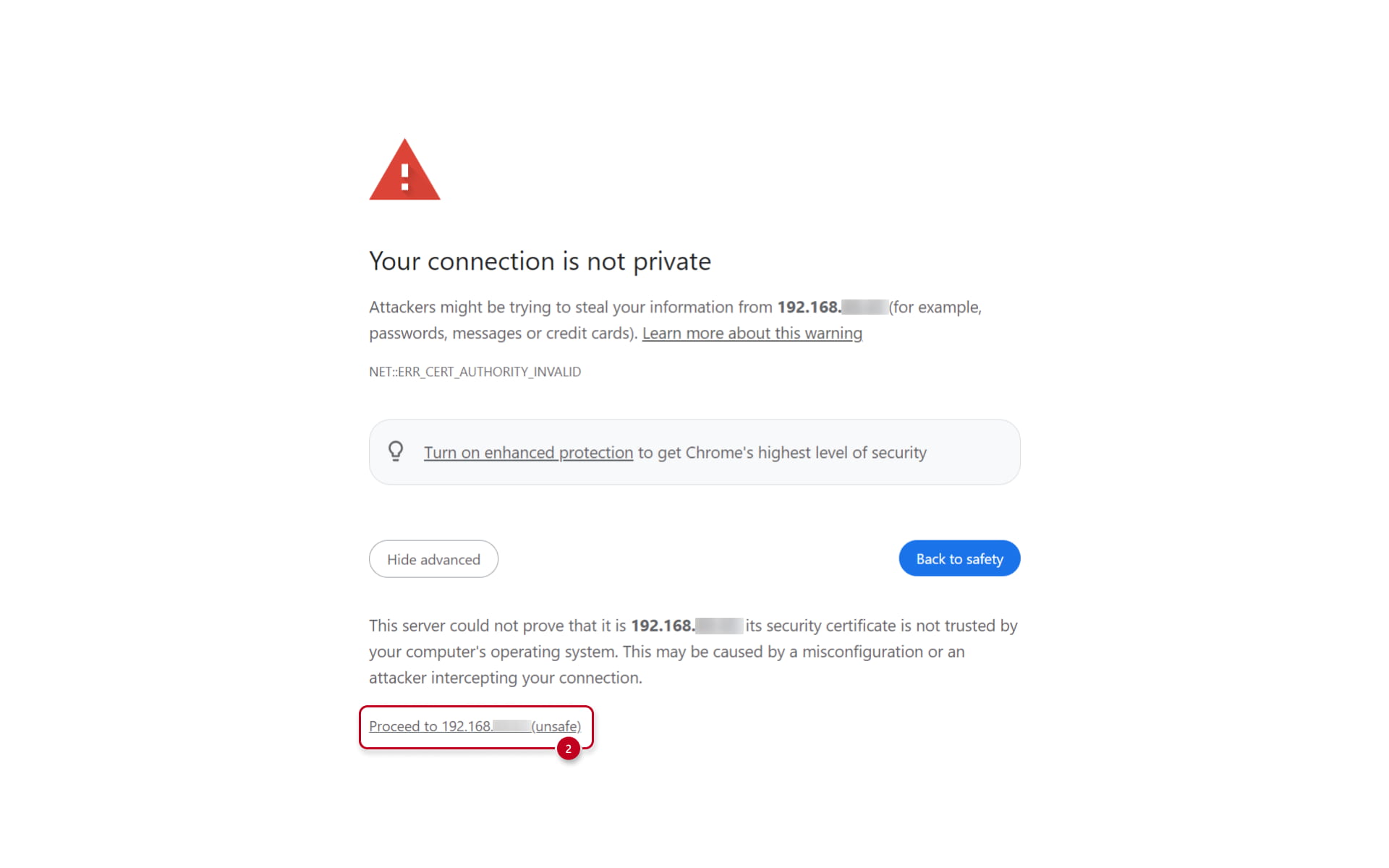
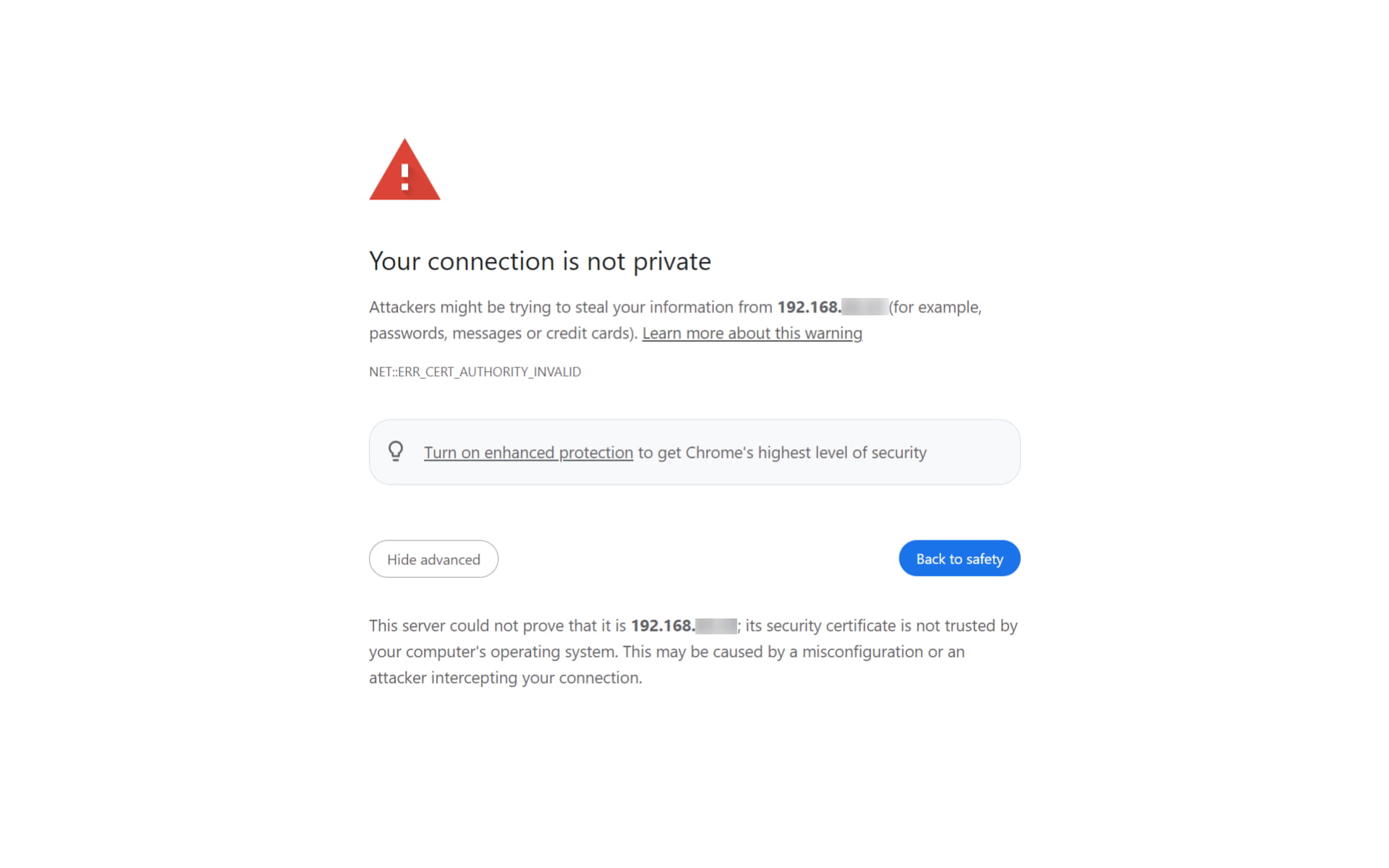
This had a simple solution -> click on Advanced -> Proceed to IP address (unsafe) and you were taken to the webpage of your 2N device:
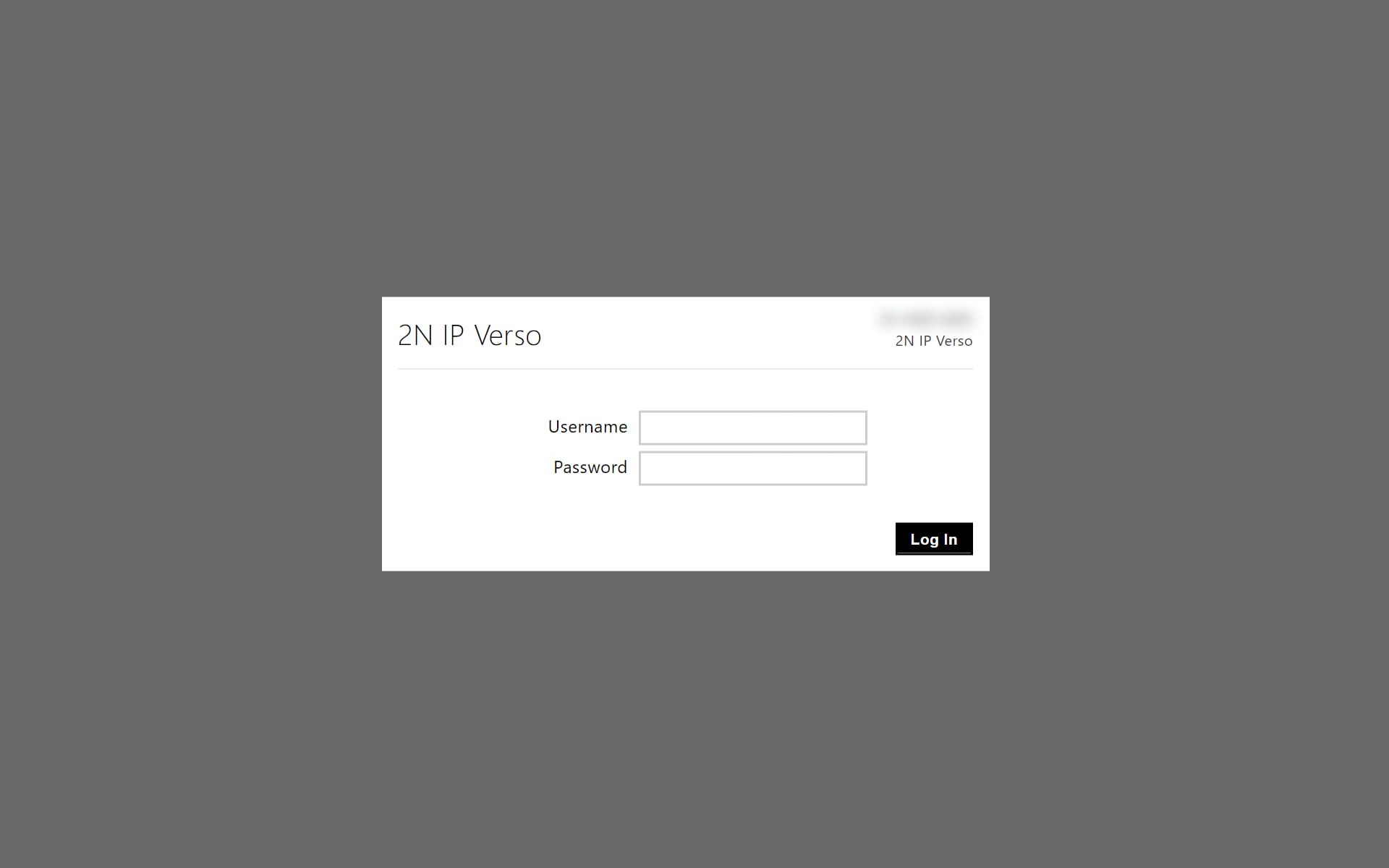
macOS 11 Big Sur and newer (12 Monterey, 13 Ventura, 14 Sonoma, 15 Sequoia)
With the new macOS update 11, you will not be given the option to Proceed to IP address (unsafe).
But there is a workaround for you if you are using a chromium-based web browser e.g. Google Chrome.
Workaround: Click anywhere on the blank background and type thisisunsafe on your keyboard and you will be taken to the login webpage of 2N Device
In order to access the web interface of our devices, they need to be on firmware version 2.31 and newer. If you don't own a Windows or a Linux machine, hence you don't have a way how to upgrade the unit, you can upgrade the firmware via a Remote Configuration tool iny My2N. This is a best optin to access the configuration using iOS or iPadOS.
Remote Configuration
You can access the web interface via Remote Configuration in our My2N service. The Remote Configuration feature is free for any number of devices and is usable on both macOS and iOS devices. Here are the steps needed:
1. Create an account (if you don't have one yet) here.
2. Log in to your My2N account, click Devices, then ADD DEVICE and select 2N Device.
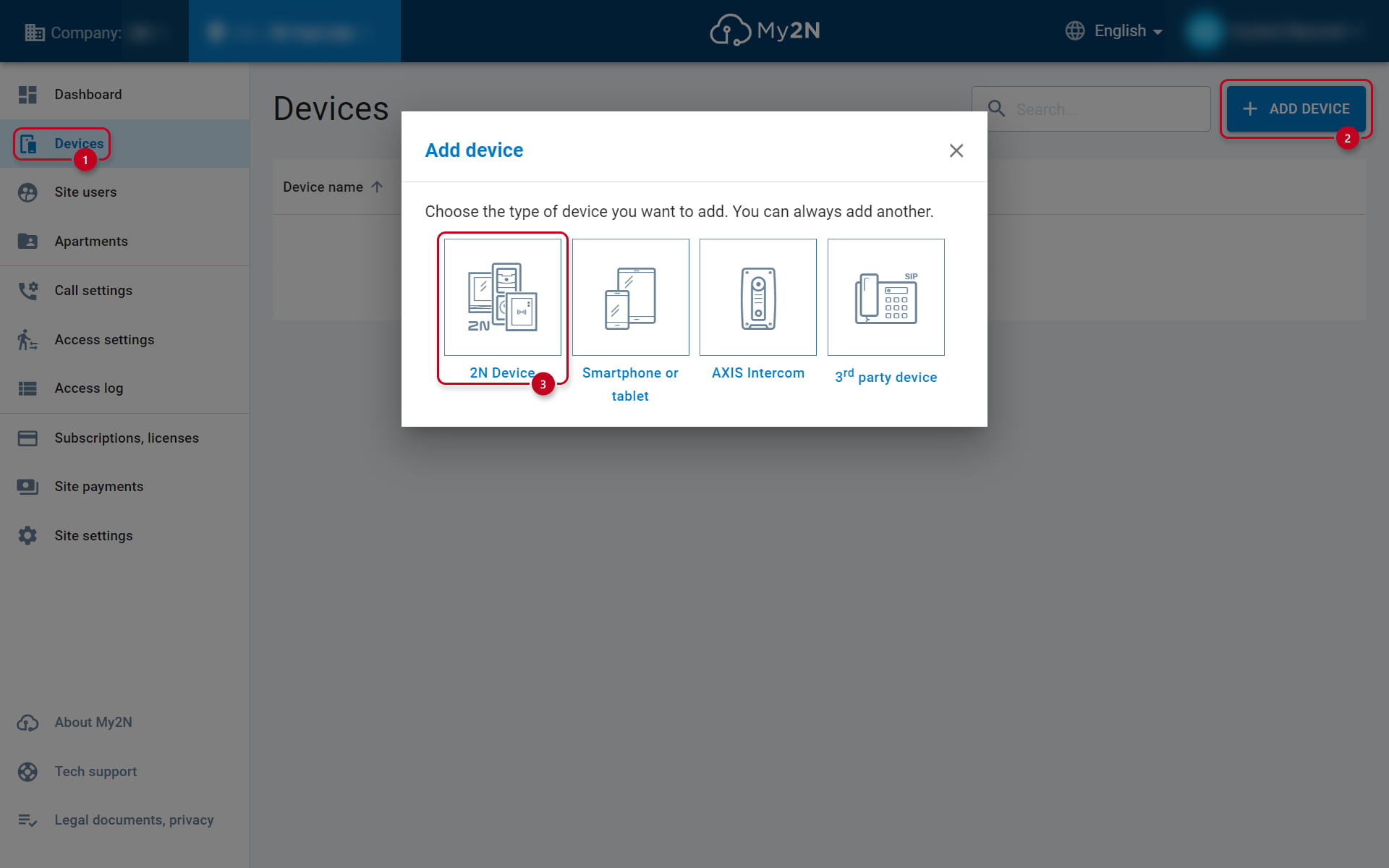
3. Enter the serial number and security code of the device. If you lost your paper card with the Security Code, this option is not available for you (the Security Code could be found only in the web configuration):
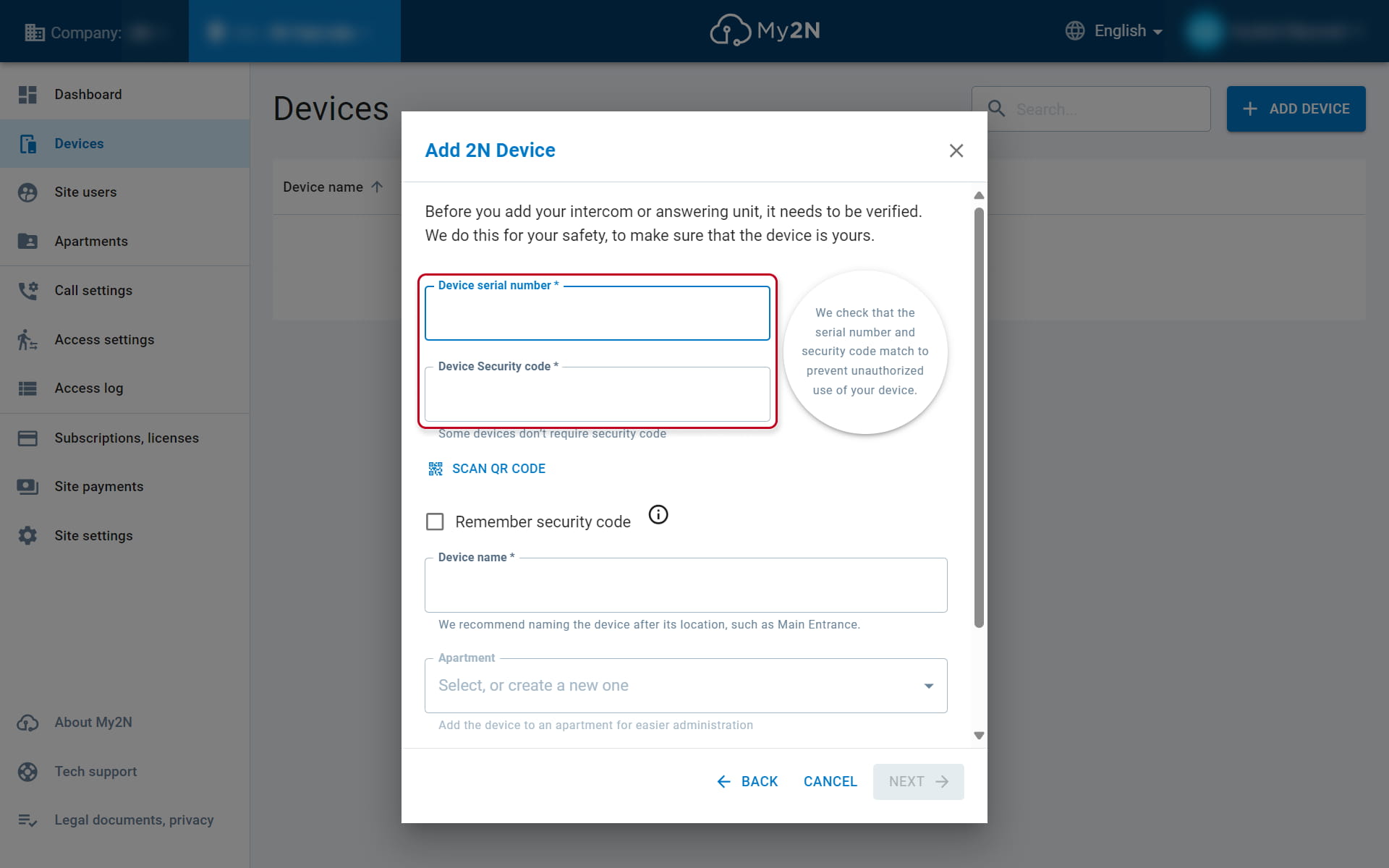
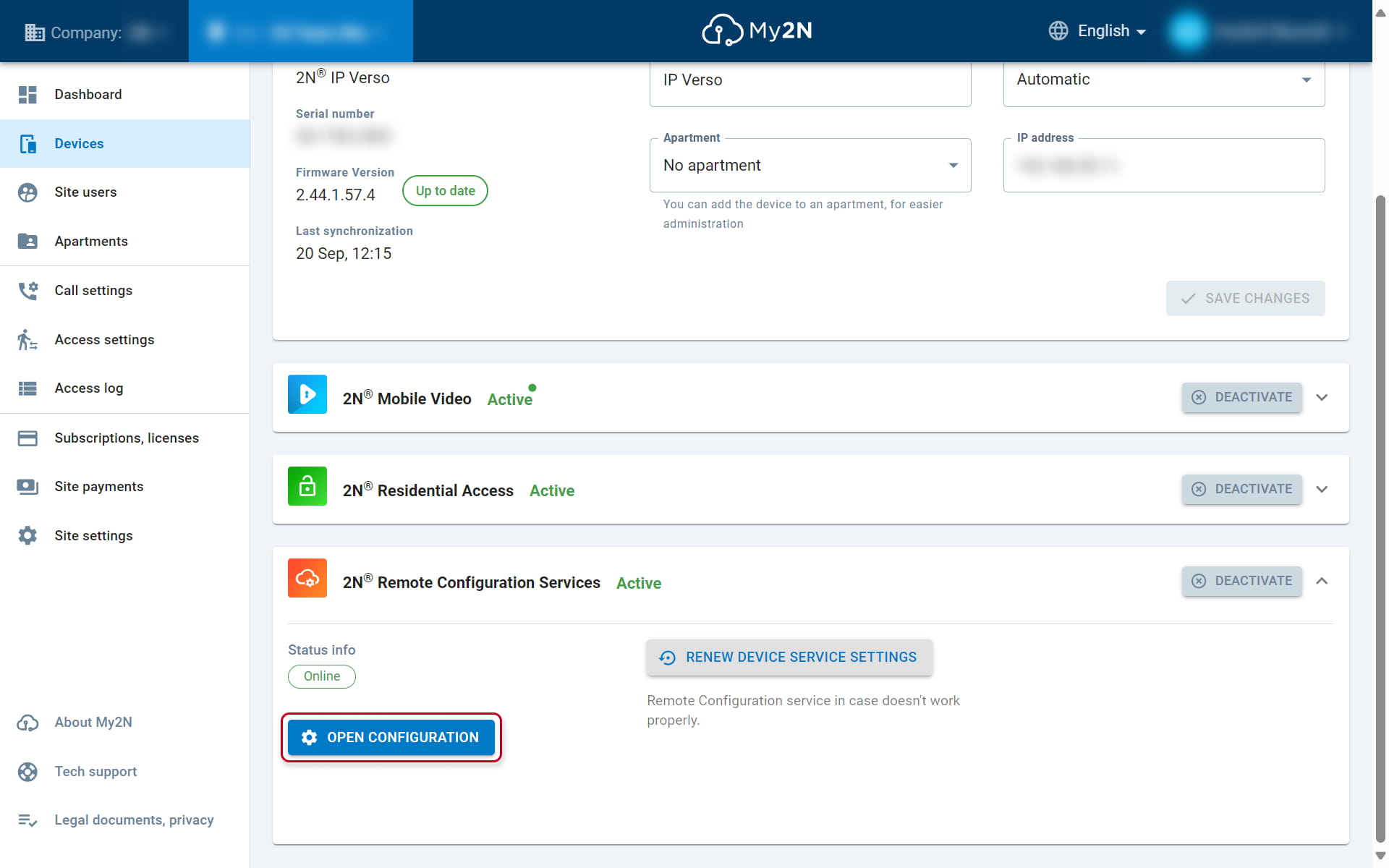
6. Now select the device in the Devices List. At the bottom of the page, you will see Remote Configuration Services.
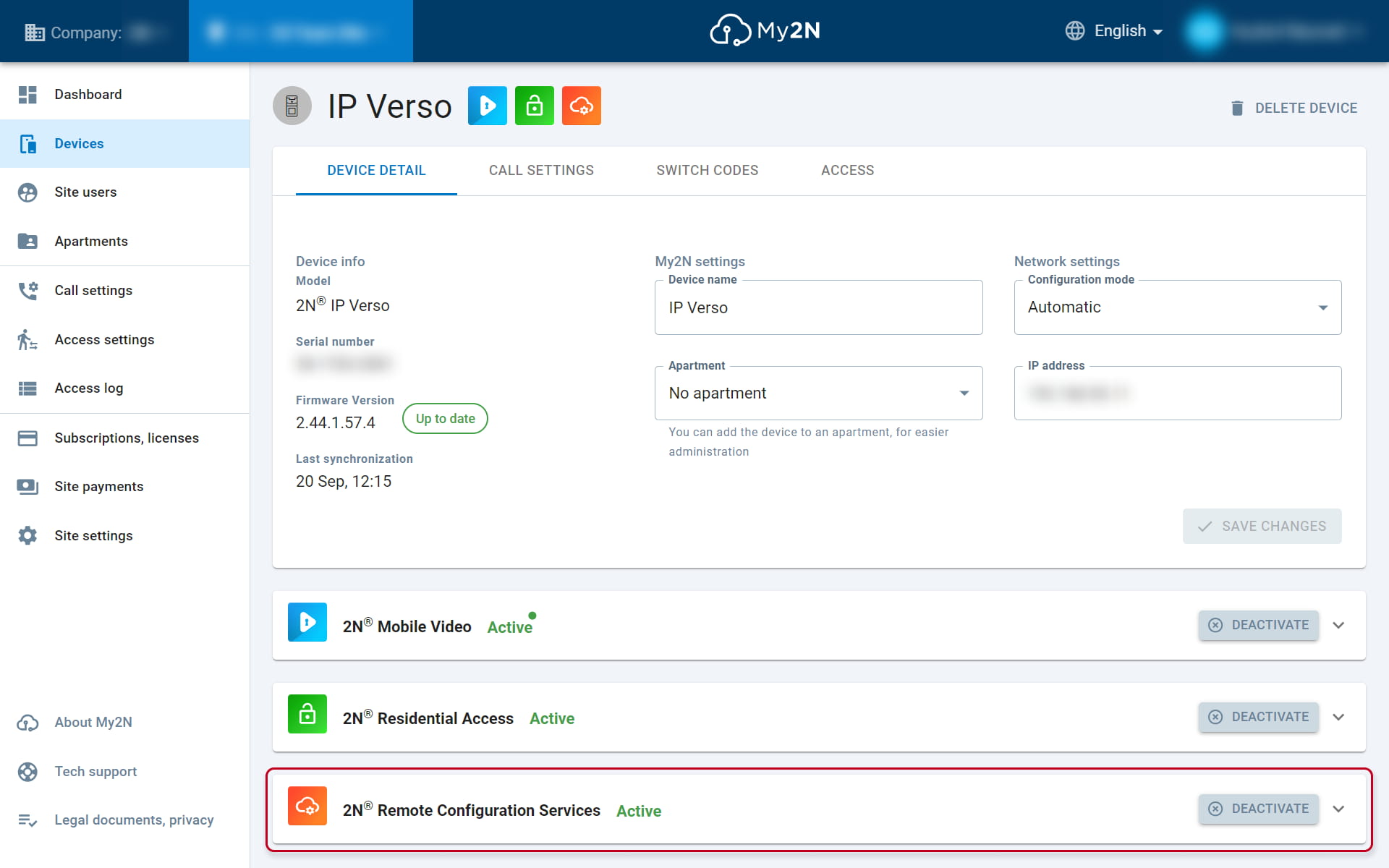
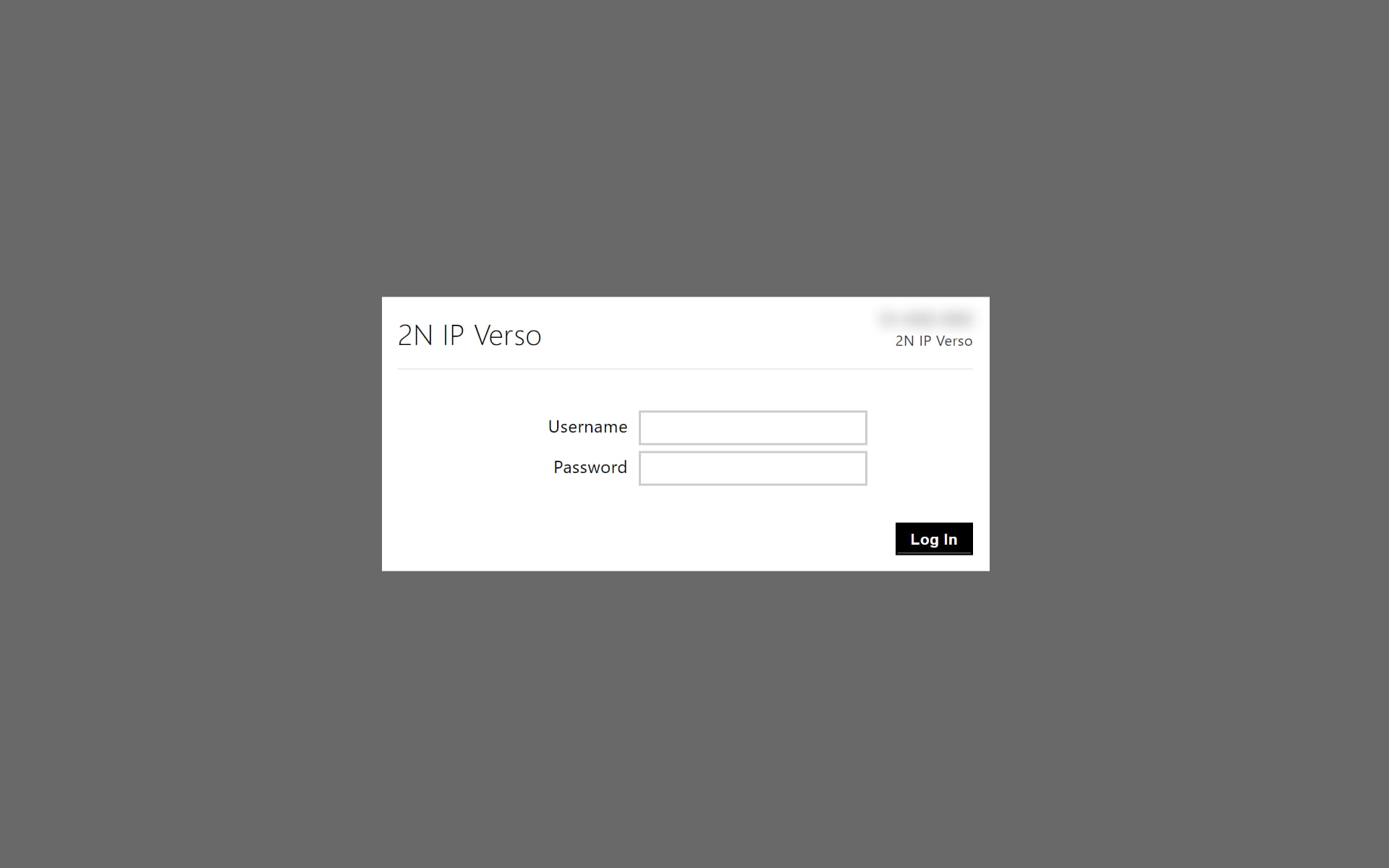
5. When you click on the rectangle with the Remote Configuration Services, two options will appear. Click on Open configuration. The login page of the intercom will be open on a new tab.