Logs management
In the 2N Access Commander, it is possible to see certain logs with the possibility to export them with a specific time zone. By default, the log time is in Coordinated Universal Time (UTC). More detailed description can be found in the 2N Access Commander manual.
The logs are also part of the 2N Access Commander backup file. If the backup of the 2N Access Commander is imported, all the logs are imported as well. More information about the 2N Access Commander backup can be found in this FAQ article.
Log types
System log
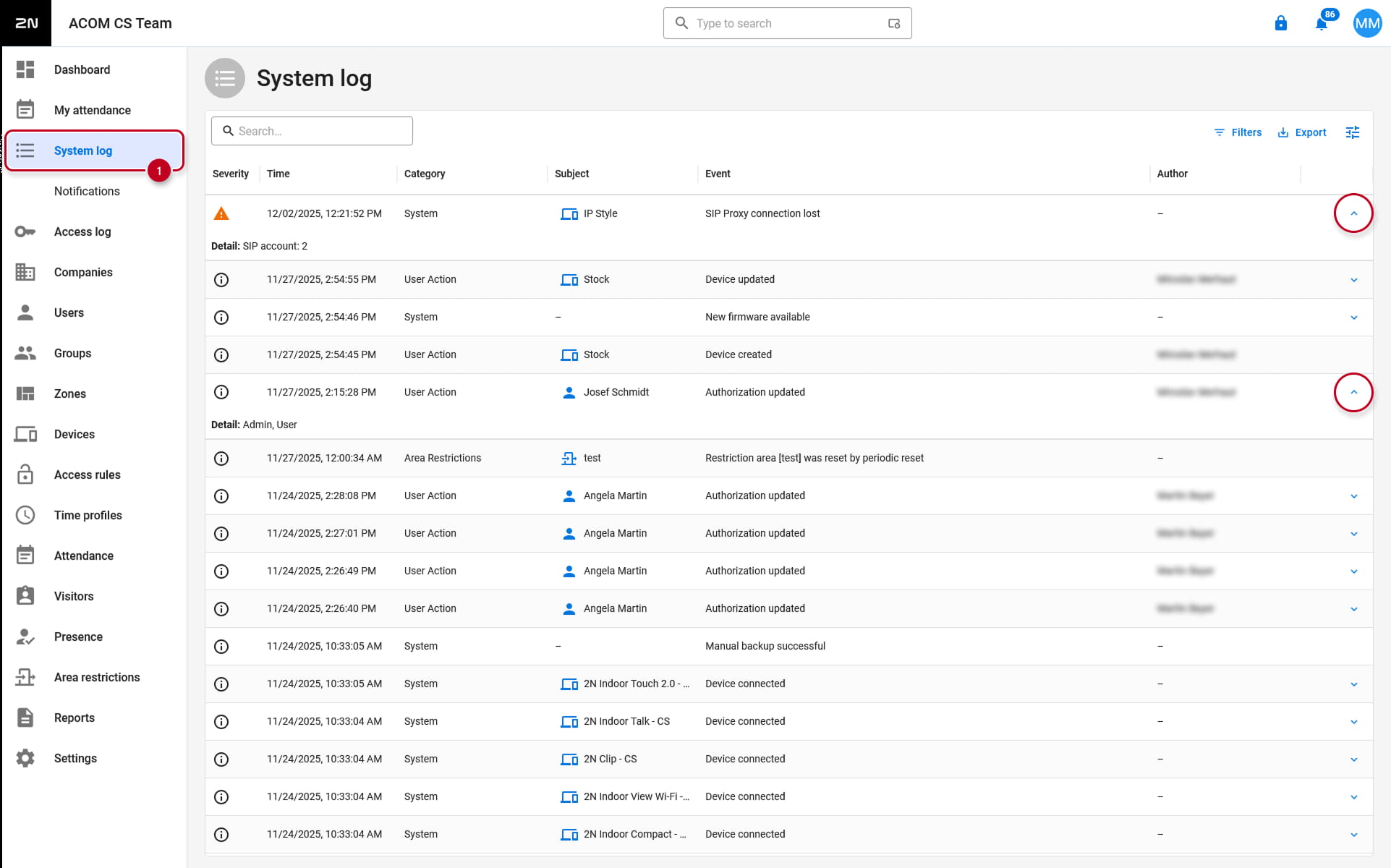
The System Logs page shows a list of events and notifications that have been generated. It can be found in the "System log" section of the web interface.
The system log list provides the following data on each event and notification:
- Severity (info, warning, error)
- Time of the event.
- Category to which the action falls (Device state, Import, User synchronisation, System, User actions, Area limits)
- Entity concerned (device, user, zone, visitor...)
- Brief description of the event
- Author
Click the row to open detailed information on the selected record.
|
Note
|
Access Log
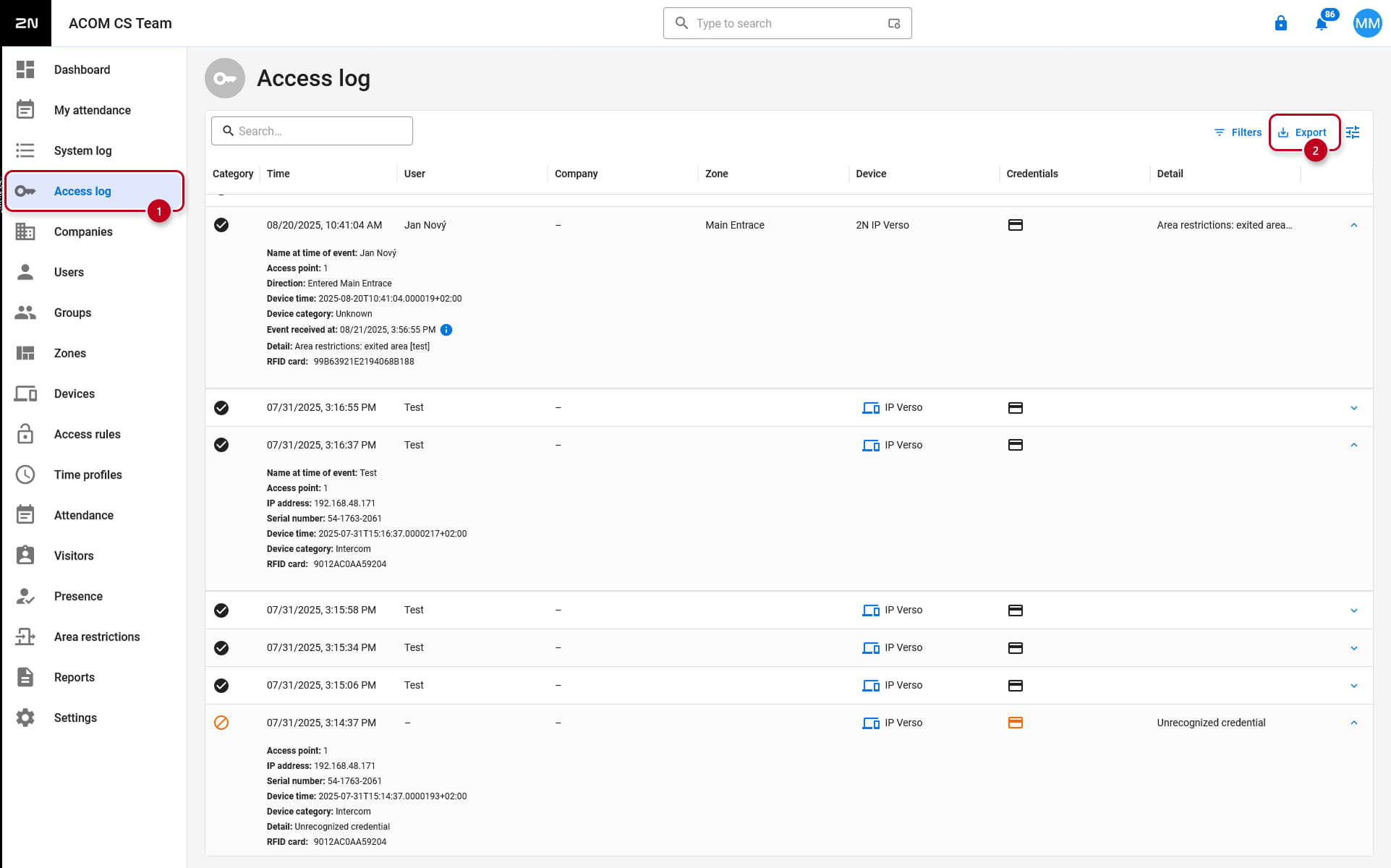
The Access Logs page shows records of successful/unsuccessful authentication attempts and emergency lockdown records. It can be found in the "Access log" section of the web interface.
The Access log list includes:
- Category
- Access enabled
- Access denied
- Public Access
- Locking – device lockdown
- Time of the event
- User who executed the action
- Given the user’s company
- Zone where the action happened
- Device on which the action happened
- Authentication used for the attempt (PIN, QR code, etc.)
-
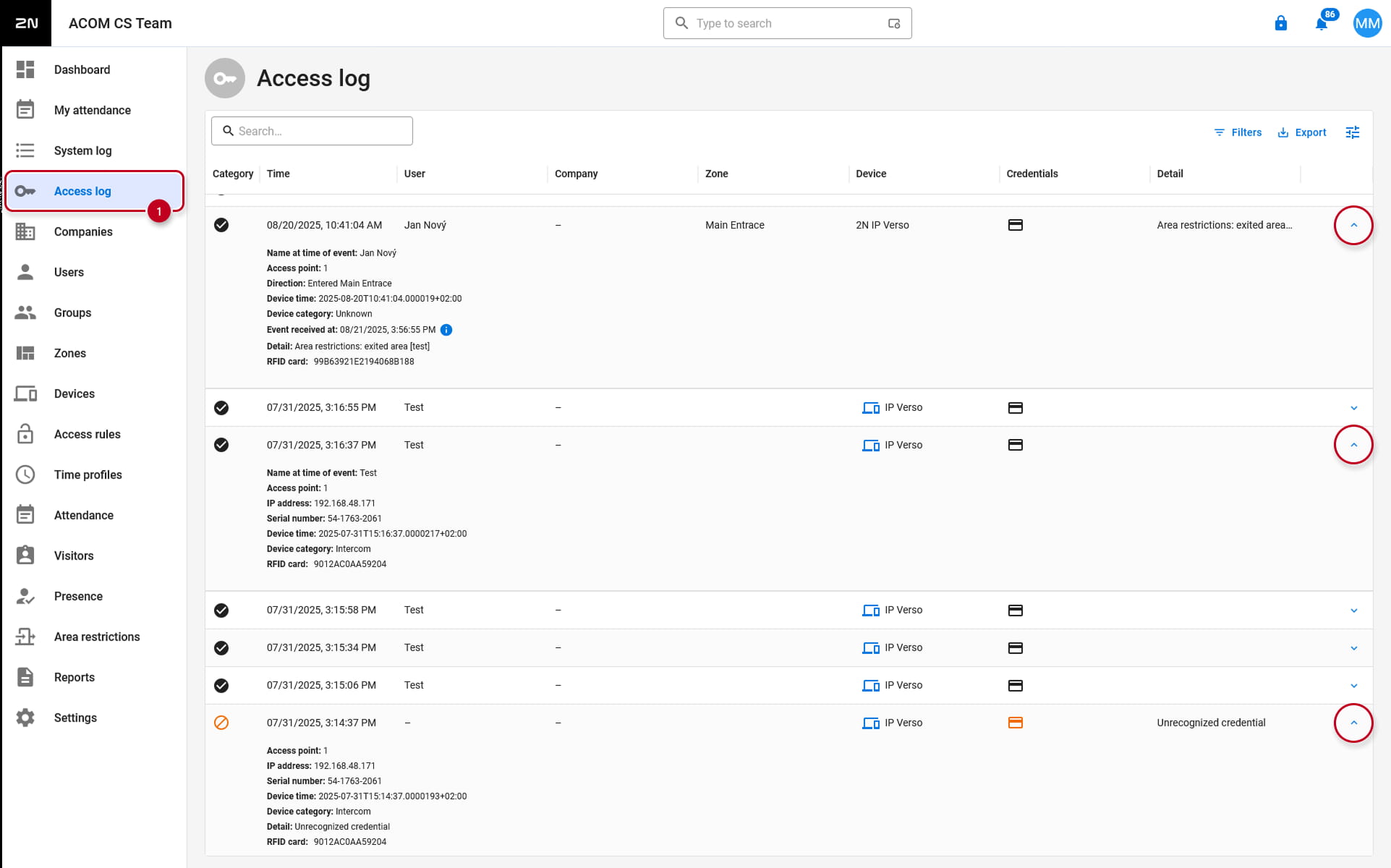
Click the row to open detailed information on the selected record.
|
Note
|
Export
Log export date and time settings
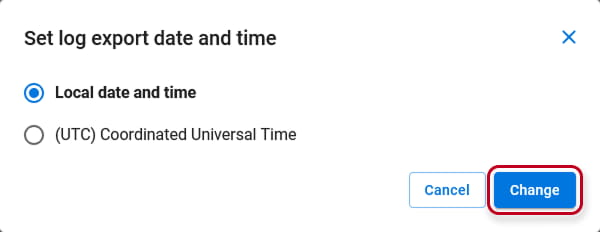
Since the 2N Access Commander version 3.5, it is possible to configure the Log export date and time, which will be shown in the exported CSV file.
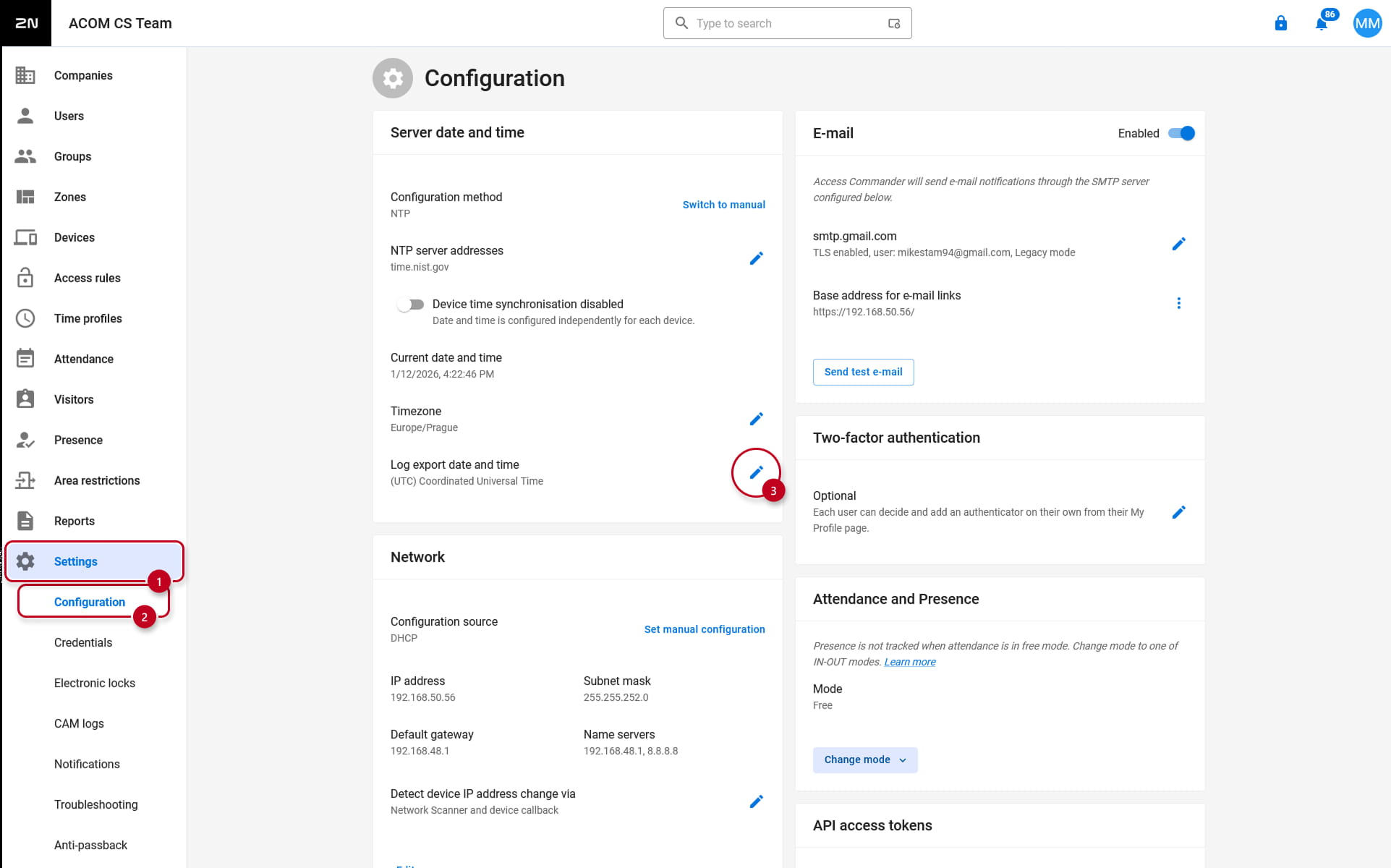
The setting can be found in the "Settings -> Configuration -> Server date and time" section of the web interface.
Simply edit the parameter, select if you want to use the Coordinated Universal Time (UTC) or a locally configured time for the 2N Access Commander and confirm the selection.
Log export
To export the logs, click on Export above the list to download the list in a CSV file.
The export will be shown in the selected time.