Since 2N Access Commander version 2.2 you are able to configuration SSH, time and IP address directly from the web interface, next to the Linux console.
Configuration setup via the web interface
-
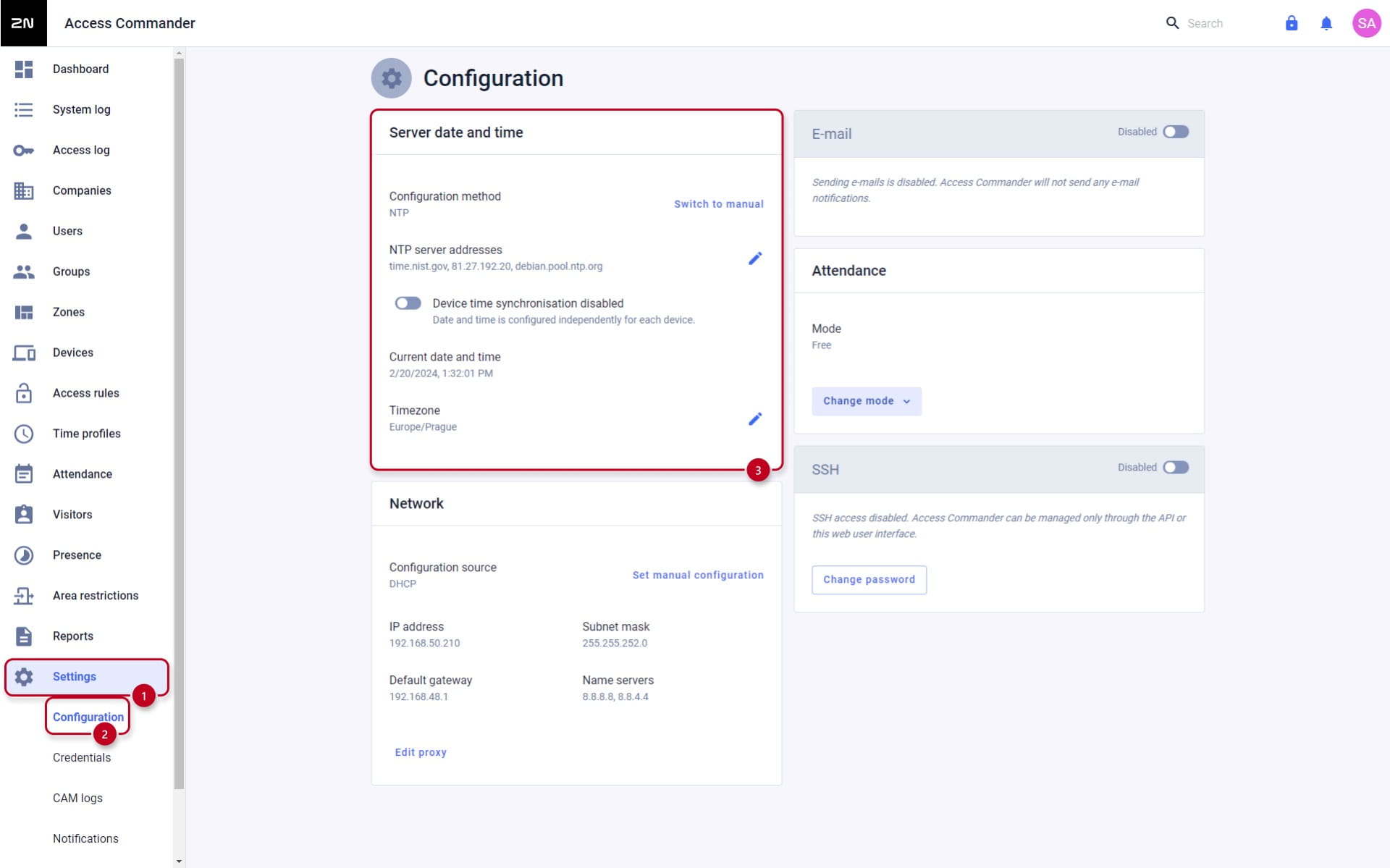
In section Settings → Configuration you can see the Server date and time section where you can configure the details (NTP/Manual tiem setting, device time synchronisation, Timezone, ...):
-
Configuration setup via the linux interface:
You can access 2N® Access commander's operating system (Linux) via console or SSH. While logged in you will see blue Access Commander configuration console, which offers access to various settings including, but not limited to time settings.
-
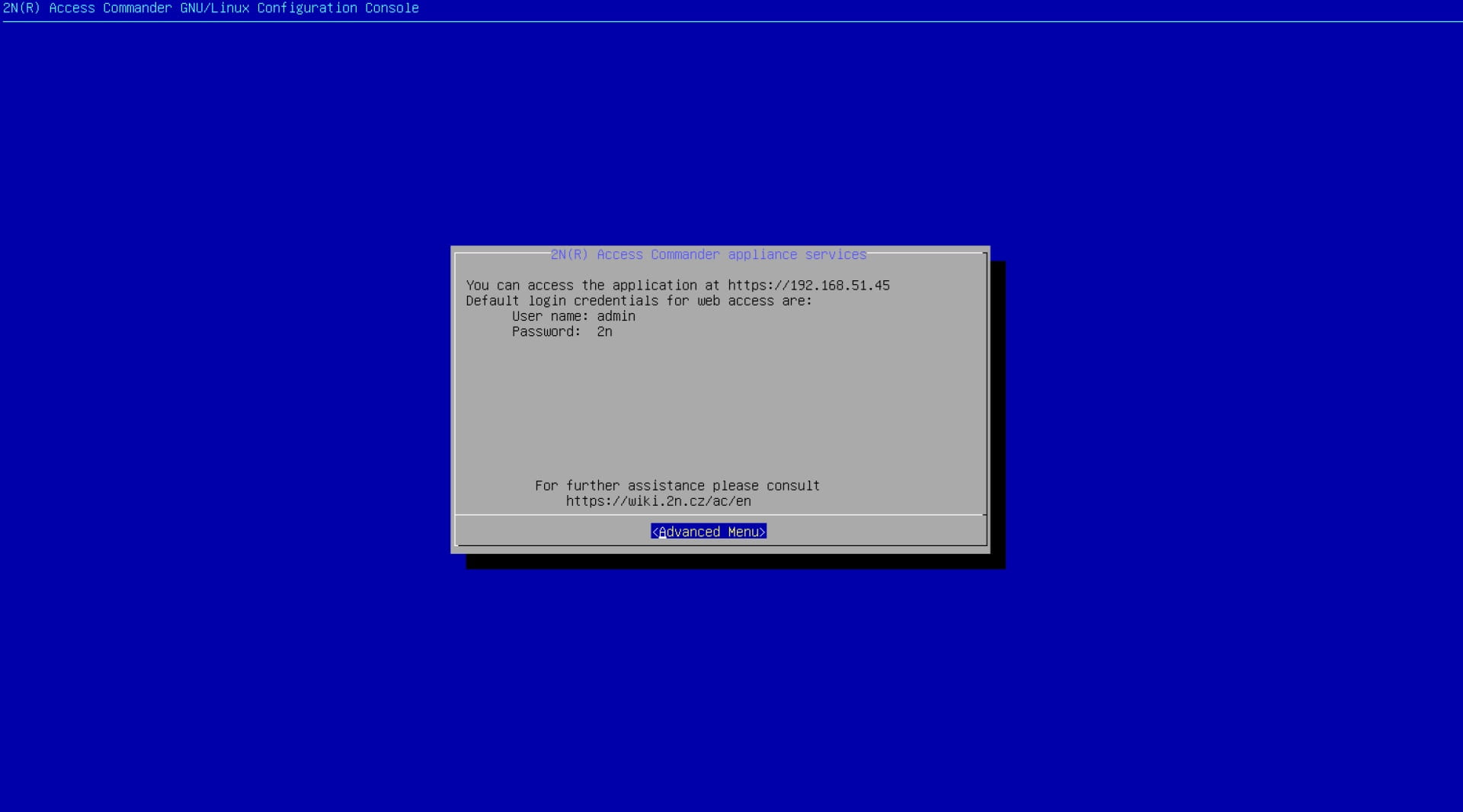
Choose Advanced Menu in the Access Commander console:
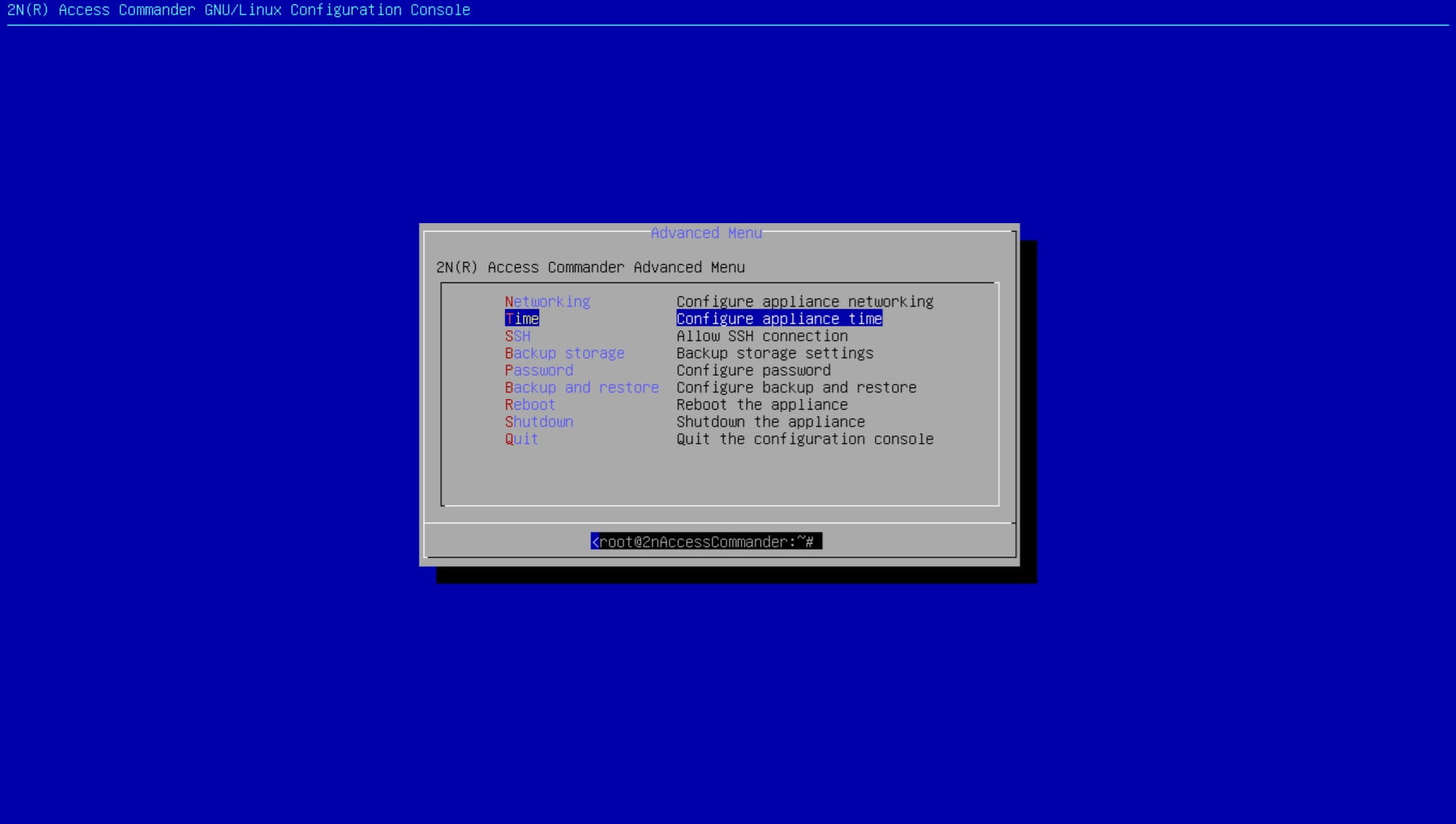
- Then select Time:
-
Select Time zone and use a button Select:
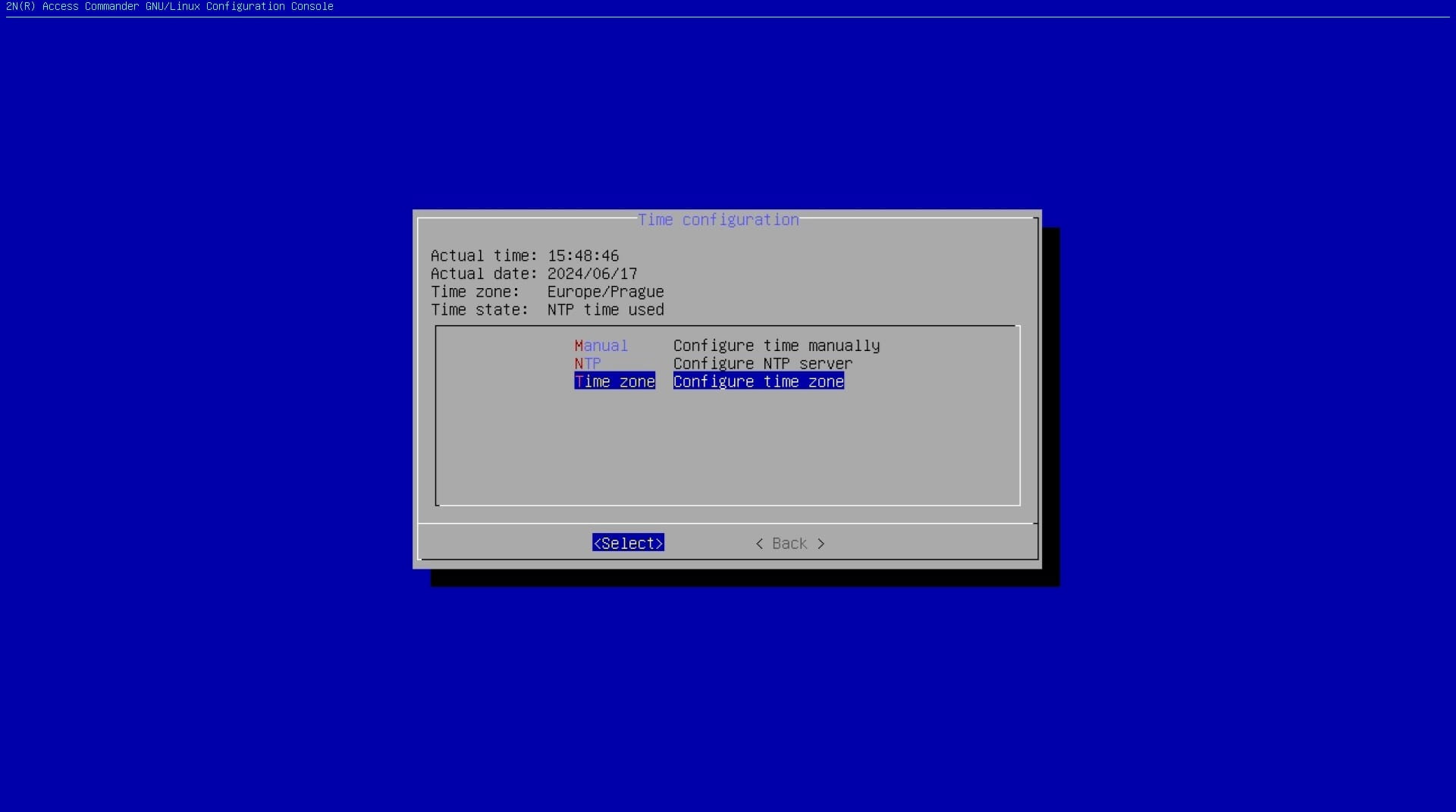
- Select a desired time zone. First, choose the correct area:
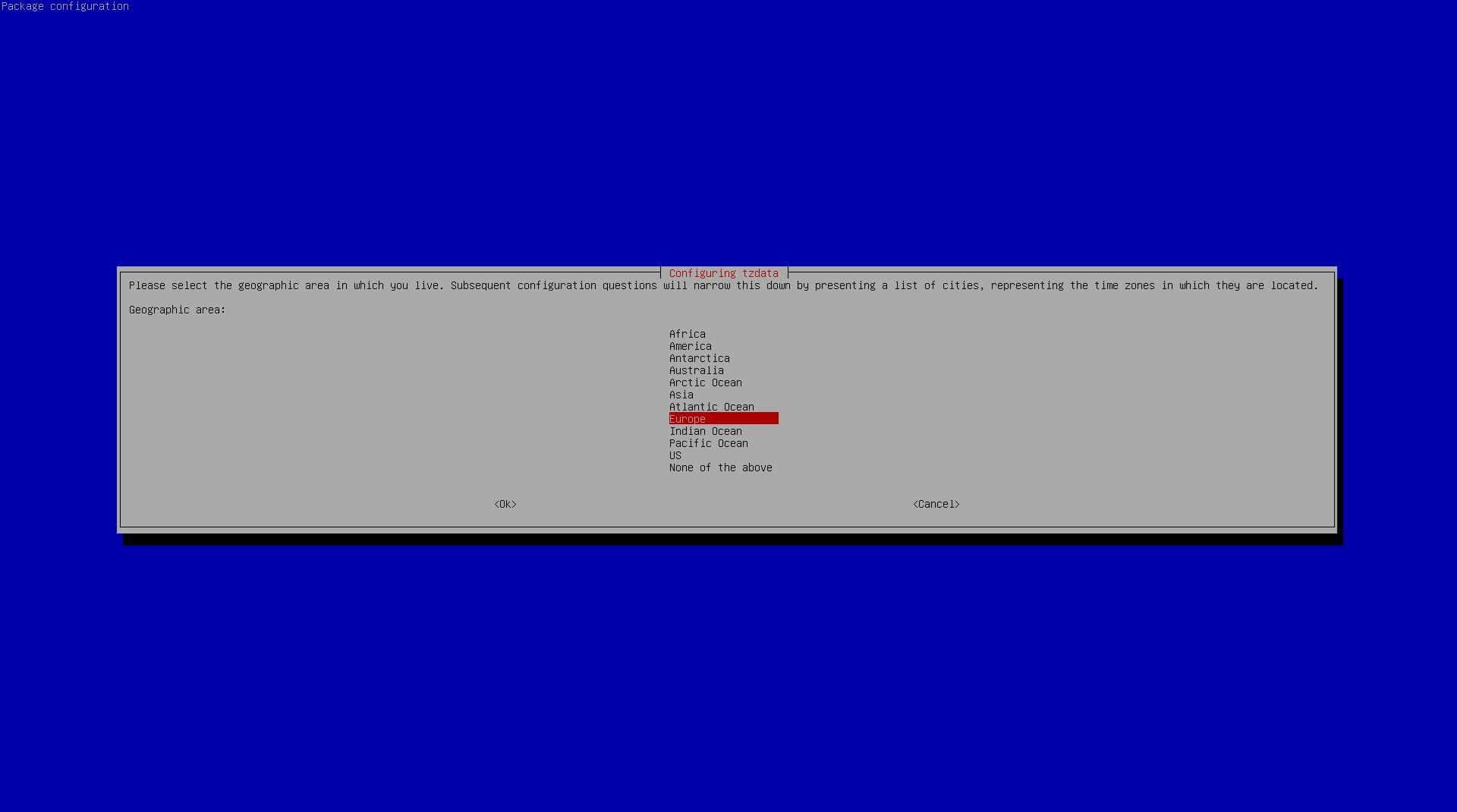
- Then select the city:
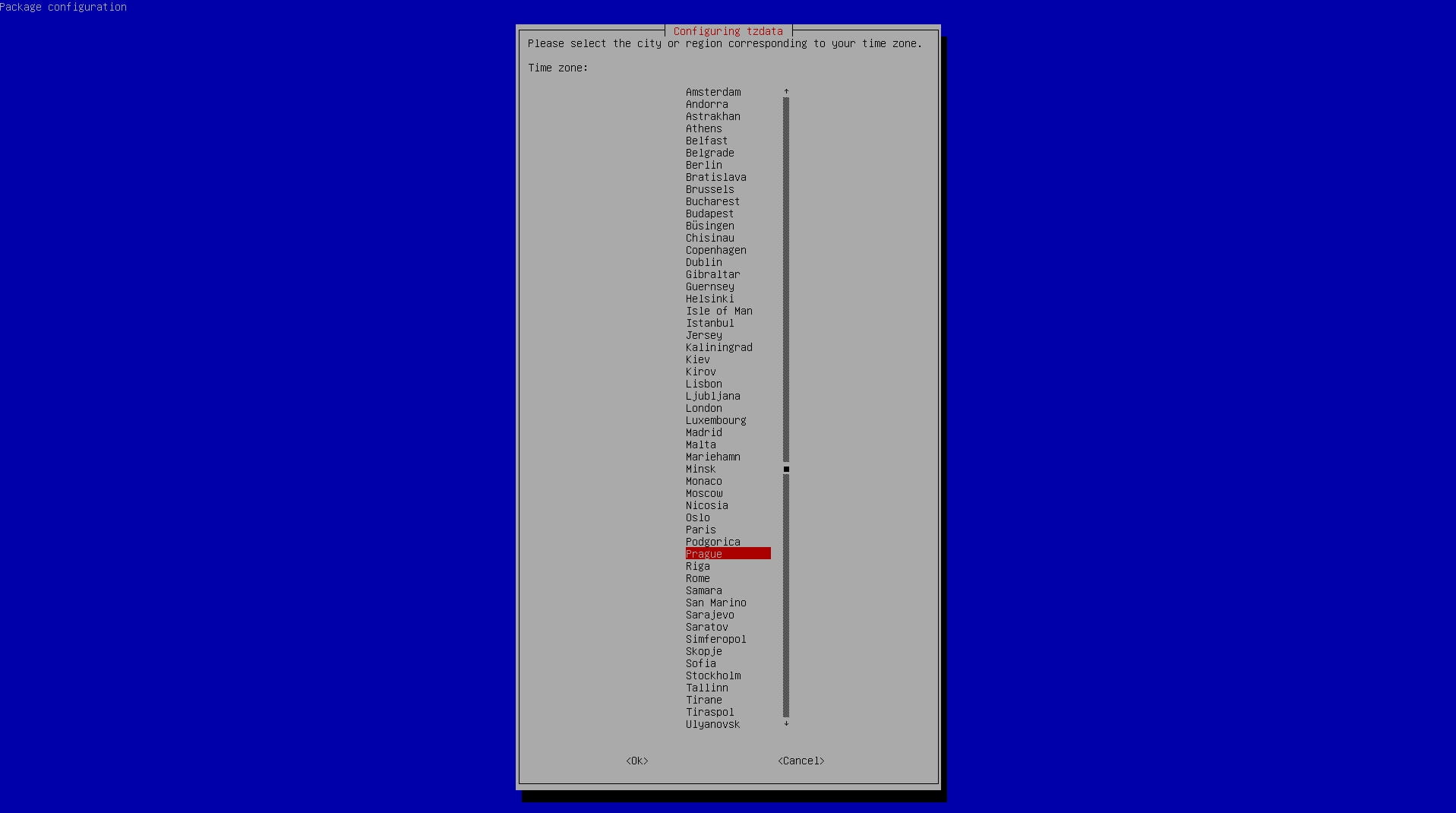
How to setup time automatically using NTP server:
-
Select NTP and press the button Select:
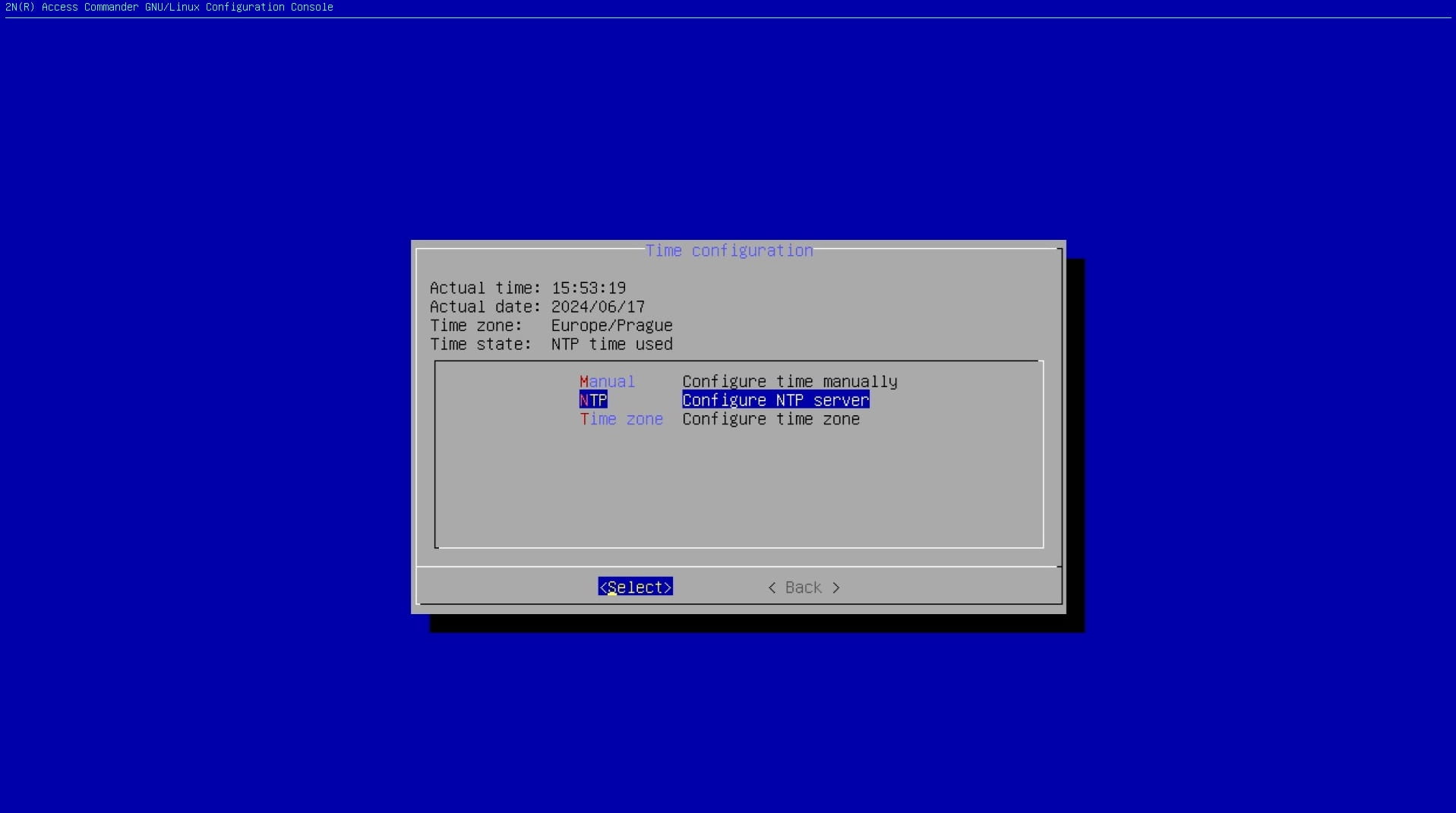
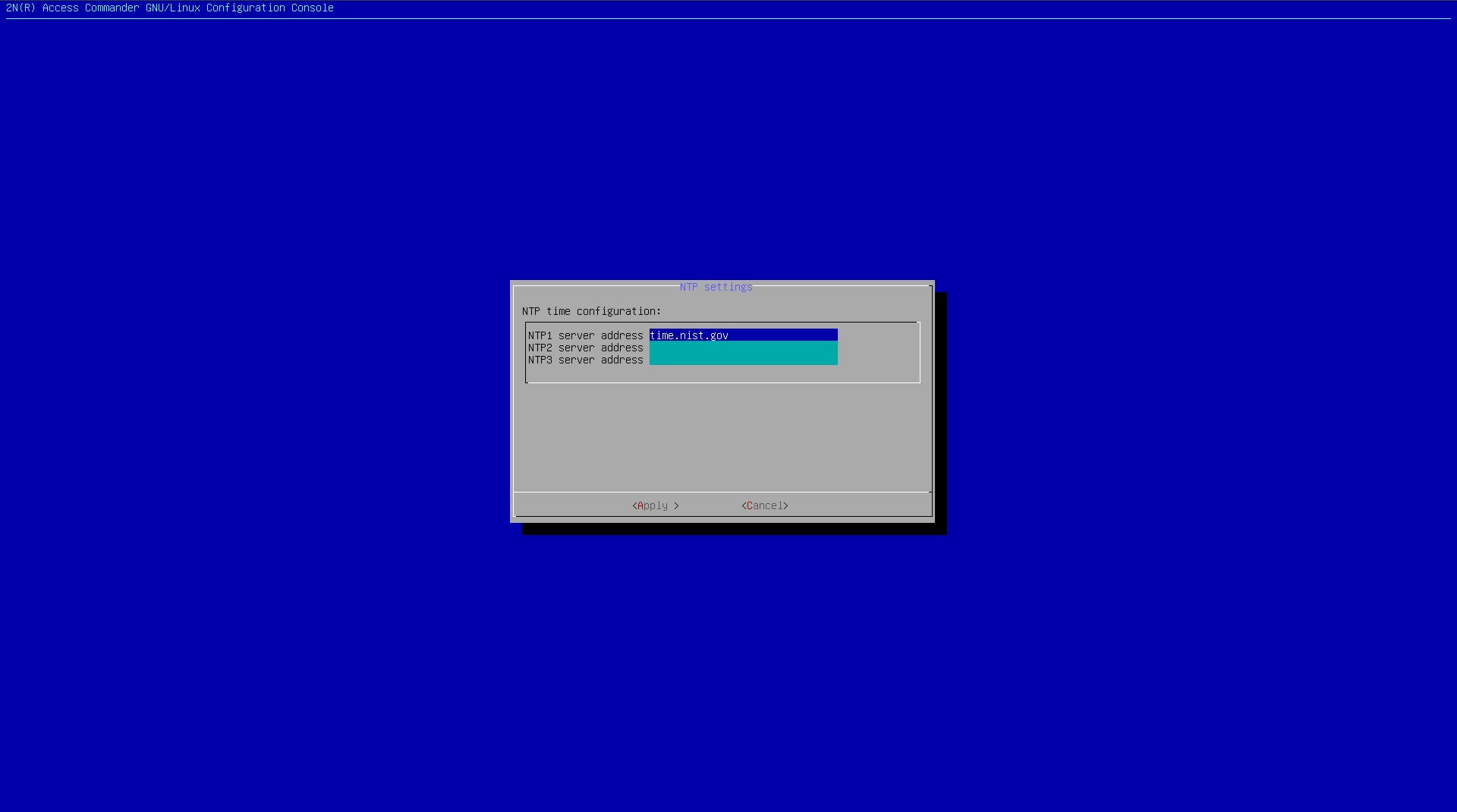
Specify the address of the NTP server you would like to download the time from:
A few examples:
ntp1.sh.cvut.cz or use an IP address: 147.32.127.250
chronos.csr.net or use an IP address: 194.35.252.7
time-a-g.nist.gov or use an IP address: 129.6.15.28
How to setup time manually
-
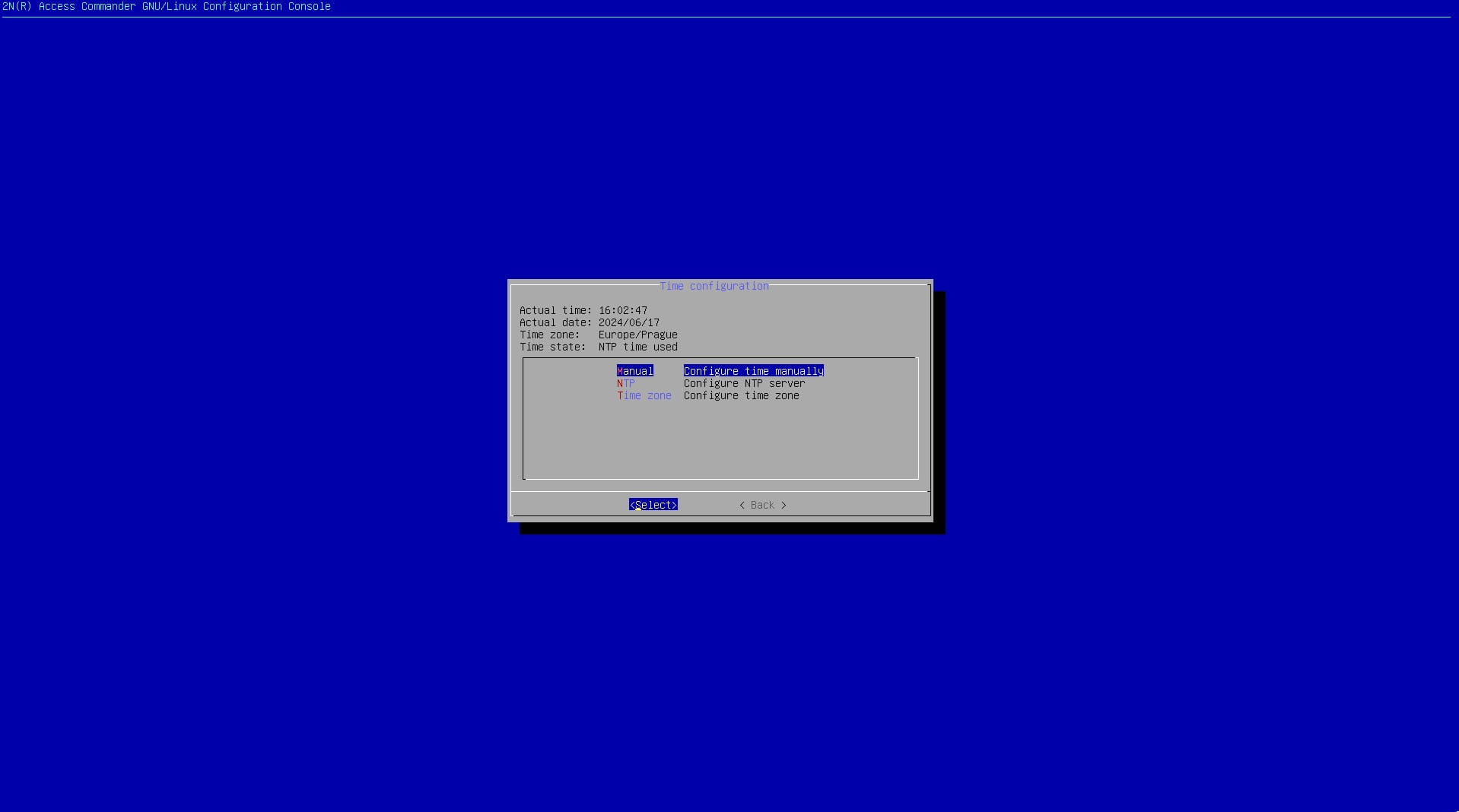
Select Manual and press the button Select:
-
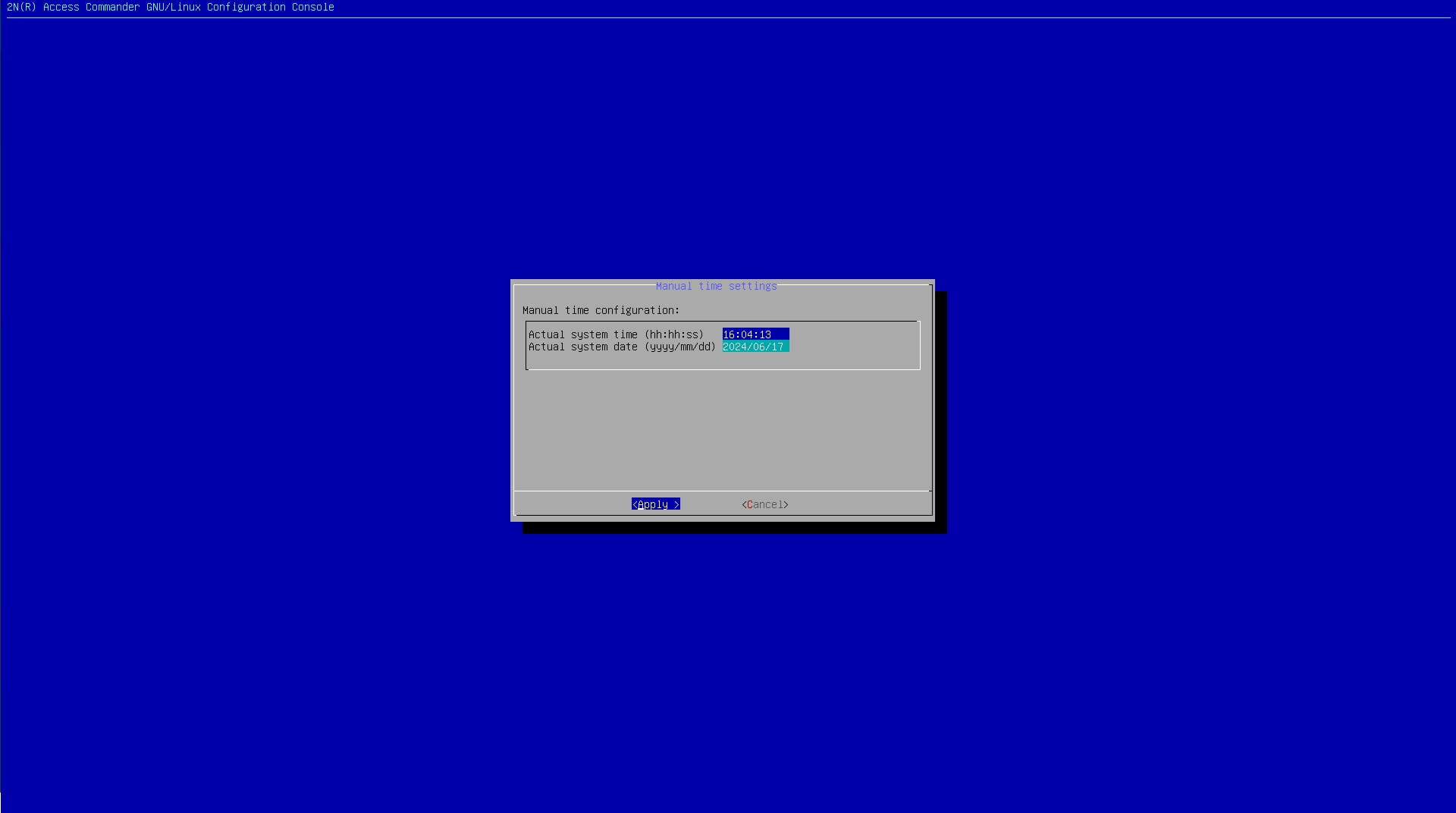
Setup the correct time and choose Apply: