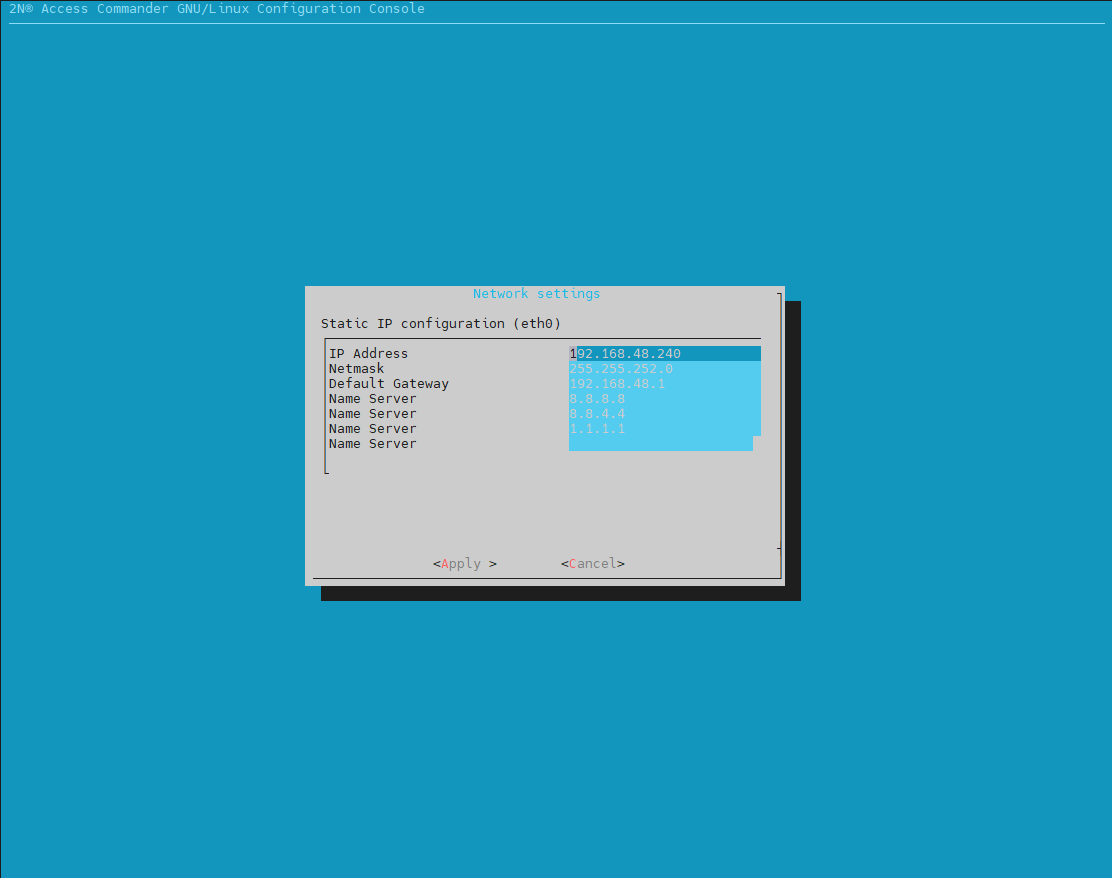
2N Access Commander is set in default to obtain an IP address from DHCP server. If you don´t have DHCP server in your network or if you require to set static IP address for your 2N Access Commander installation, then you need to do following:
Login to web of 2N Access Commander or connect to the Linux terminal of 2N Access Commander.
Web of Access Commander settings
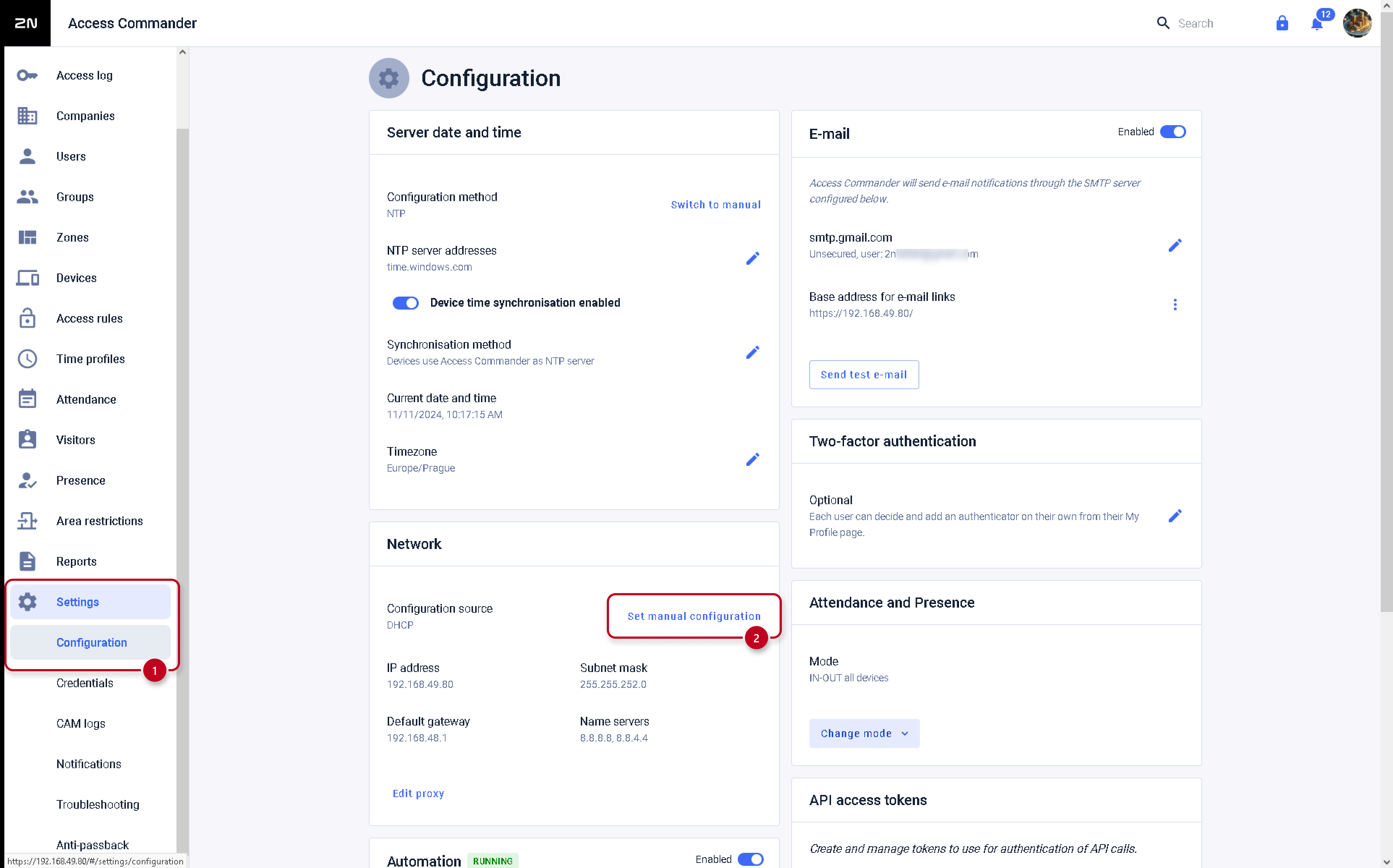
You can access the option to set the static IP address in Network settings.
The option is available once you login in to Access Commander web as an admin or user with admin privileges.
Please navigate to Settings - Configuration (1) and on Network settings, please choose to Set manual configuration (2).
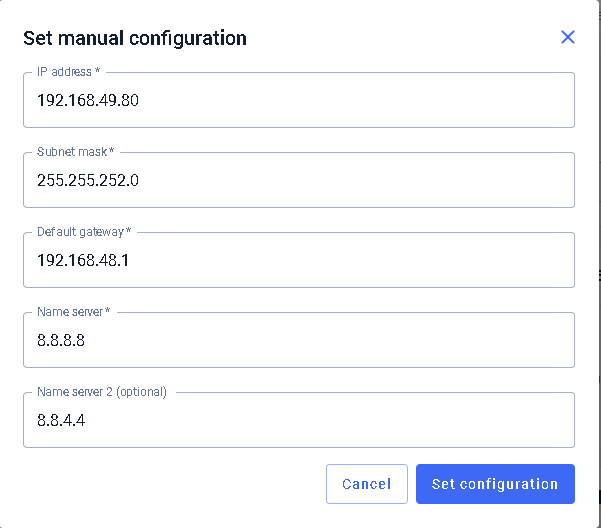
Set requested IP address and relevant parameters according to your network and Set configuration settings
Linux of 2N Access Commander settings
In case of virtual machine you can do that by accessing the virtual machine terminal from virtualization or by using SSH connection.
In case of BOX or BOX 2.0 you can do that by connecting display and keyboard to the computer or by using SSH connection.
In both cases you need to login to the Linux as root user.
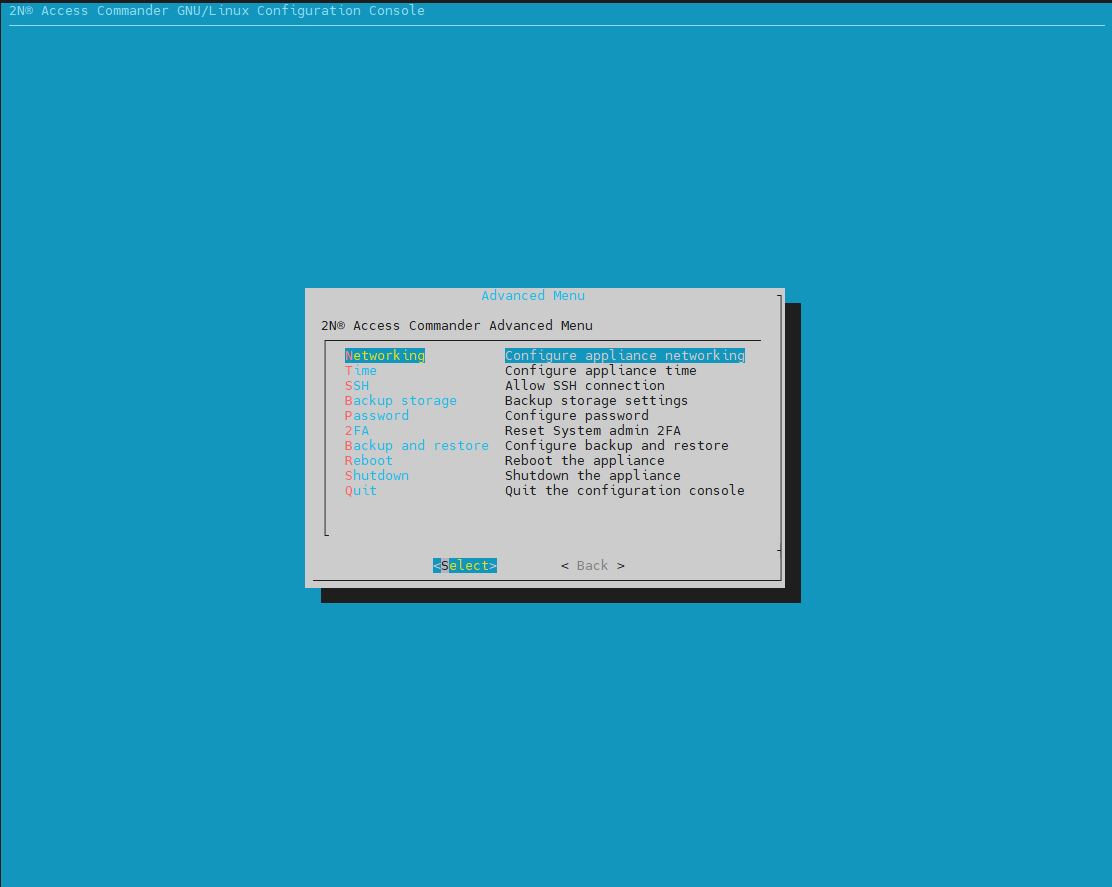
After logging in, please Select Advanced Menu in GNU/Linux Configuration Console
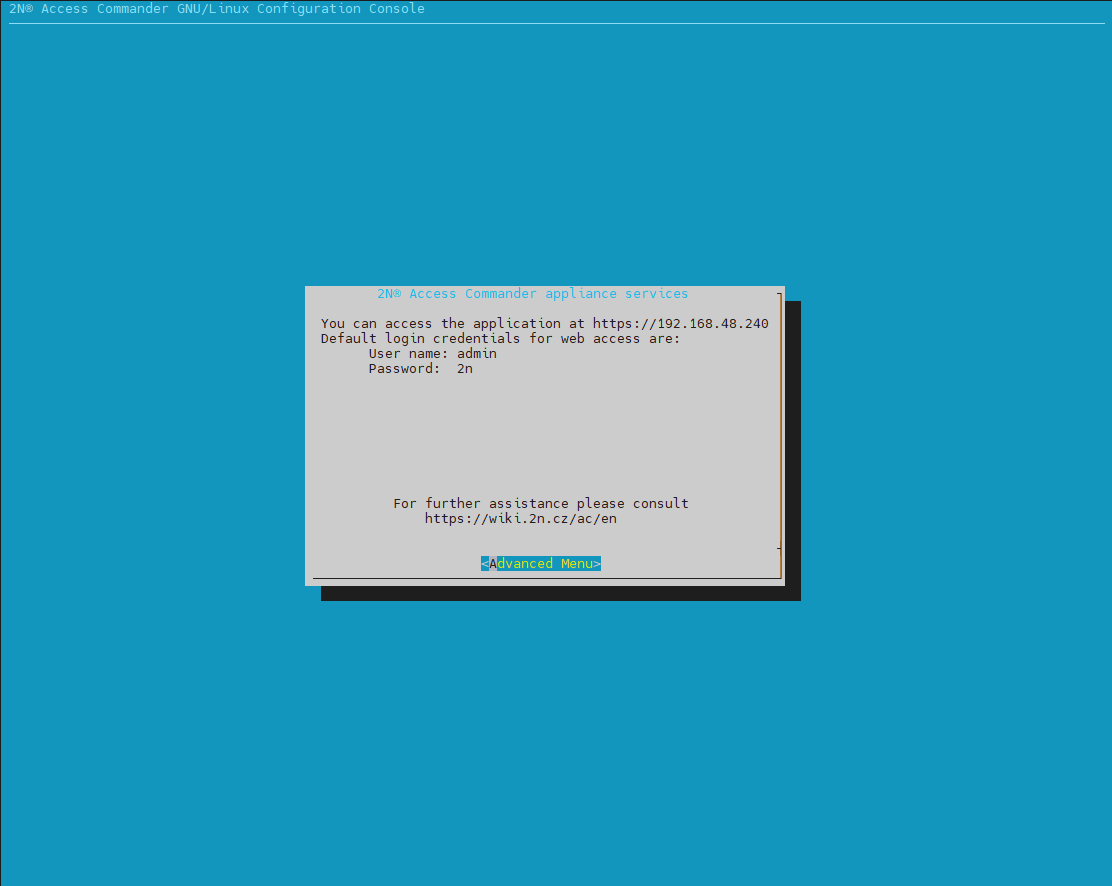
Choose Networking
Select Static IP
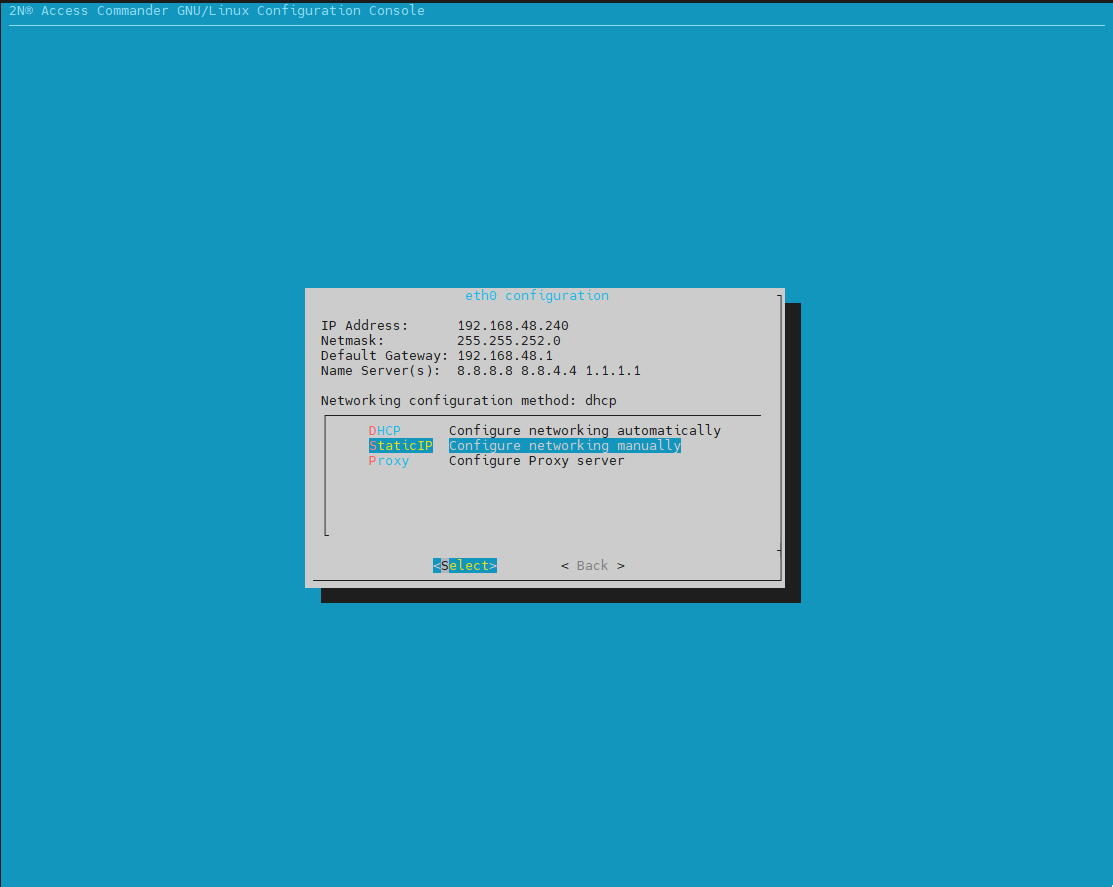
Set requested IP address and relevant parameters according to your network and Apply settings