Cannot add a device to My2N/move a device to a different My2N account
The steps in this article require using the web interface of a 2N device. Please follow this manual in case this is your first time using the web interface.
- A notification will show up, explaining the possible cause

The Serial Number does not exist
The serial number you have entered does not relate to any device, please double-check the validity of the number, correct any typo:
-
The serial number can be found on the back of most units, inside the web interface and on the CERTIFICATE OF OWNERSHIP (included in the box of our units):

The device is already added
If the device is already added elsewhere, you must first delete it from the old My2N account to add it to yours
- If the device has been used by a previous owner, try contacting them and ask about deleting the device from their My2N account
Generating a new My2N Security Code
If you do not have access to the old My2N account, please follow the steps below:
-
Click on the "System" (1) tab
-
Open the section "Auto Provisioning" (2)
-
Generate a new security code by clicking on the "Generate New" (3) button
-
This action will generate a new My2N security code
-
The old My2N security code is therefore no longer valid
In the Old Web Interface:
-

In the New Web Interface:
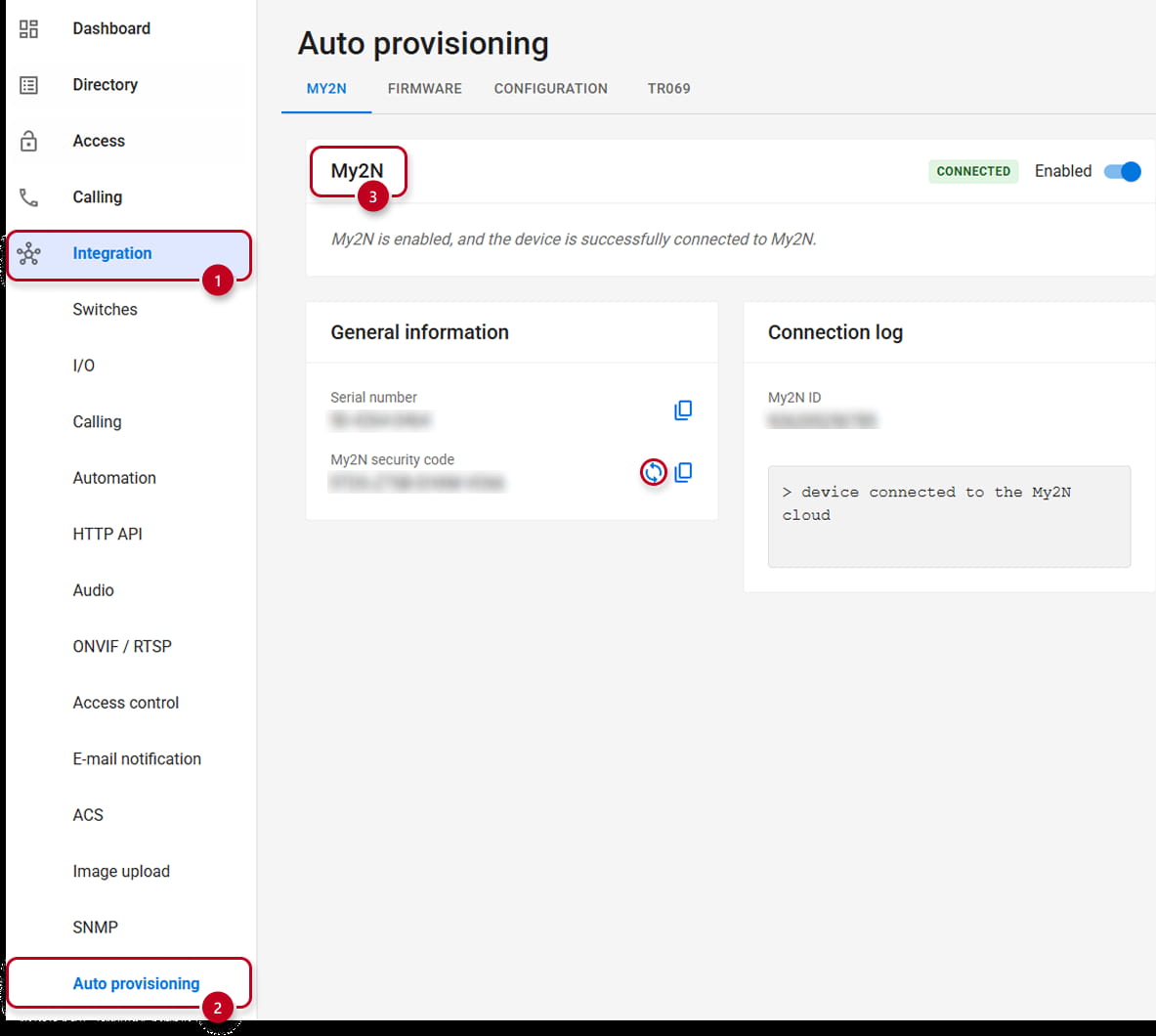
- Go to Integration (1)-->Autoprovisionning (2)-->My2N (3)
- Generate a new Security Code, The old one is therefore, no longer valid:
Performing a software factory reset
If you would like to keep the configuration, now is the time to make a backup, in the Old Web Interface:-
You can do so under the "Maintenance" (4) tab and "Backup configuration" (5)
- Reset the password for the device configuration (optional) and then click "Download"
Proceed to perform a software factory reset the device:
-
Click on the "Reset Configuration" (6) and "Network Settings and Certificates" (7)
-
Press the "Yes" (8) button to proceed
-
Once the Reset is done, the configuration of the device will be set to default values, including the network settings
-

In the New Web Interface:
- Go to System (4)-->Maintenance (5)
- Reset the device to default (6)-->Choose to reset everything and confirm the Reset (7)

You can now login back with the default credentials(admin/2n), choose a new password and register the device in your own new site following instructions from page: 2N IP intercom into My2N