Factory reset - How to do factory reset for 2N Fortis devices
Since the Access Commander 3.5 version, it is possible to configure 2N Fortis Electronic locks with the 2N Fortis Commander software.
The 2N Fortis Commander software can be downloaded from the 2N Download Centre.
The link is available in the "Settings -> Electronic locks -> Fortis Commander -> Download app" section of the Access Commander's web interface as well.
Using 2N Fortis Commander you can perform factory reset of the 2N Fortis Cylinder or 2N Fortis Handle.
To do so, you need to have correct Lock setup & service card for the 2N Fortis device.
Lock setup & service card can be created in Access Commander in Settings - Electronic locks - Maintenance cards.
To program Lock setup & service card please make sure you have 2N USB driver installed and 2N External USB RFID reader connected.
This card will have correct decryption keys which will allow it to enable bluetooth communication on programmed 2N Fortis devices.
Once you have Lock setup & service card and 2N Fortis Commander ready, please follow next steps to reset each 2N Fortis device one by one.
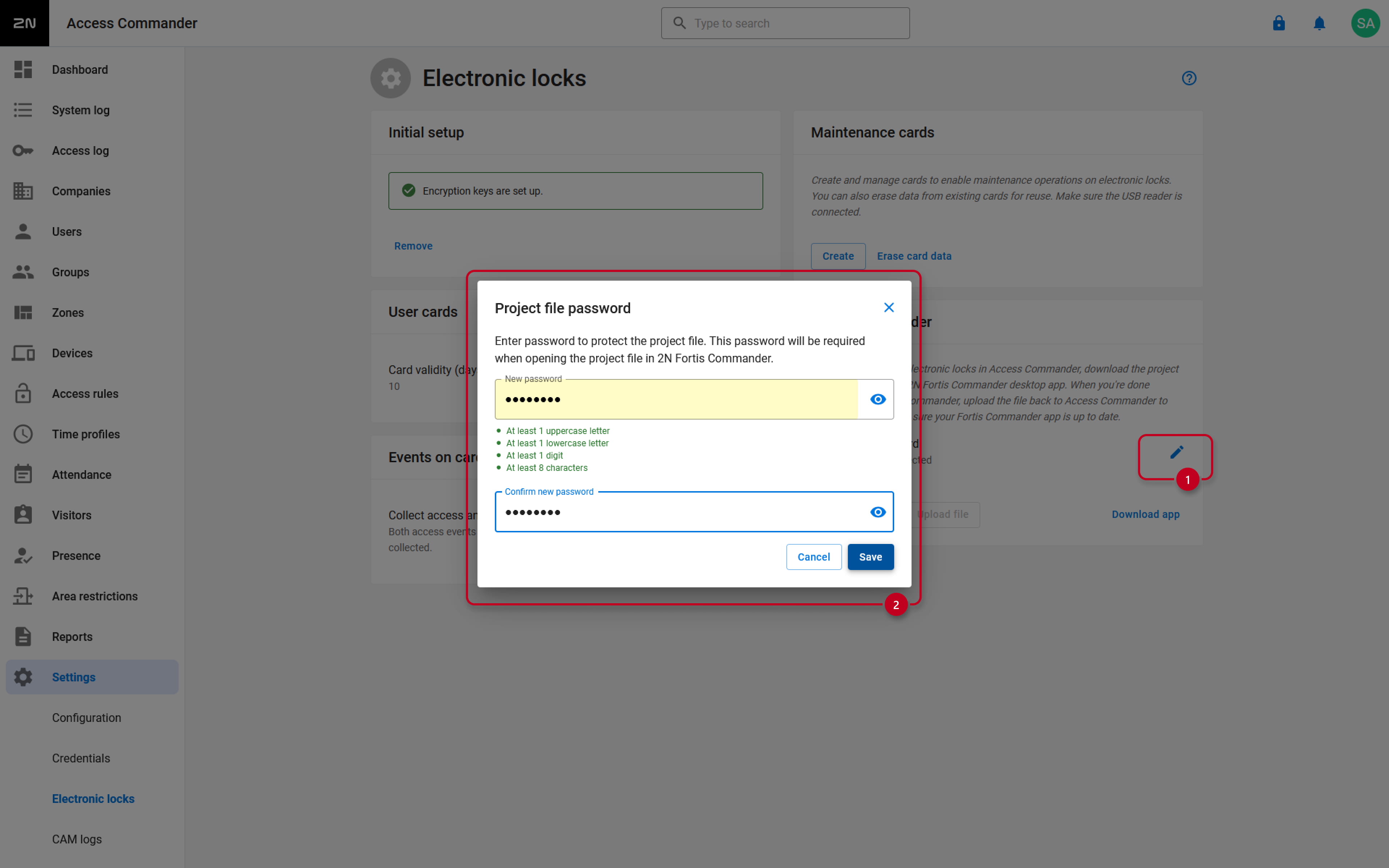
- If not already present in 2N Fortis Commander, go to 2N Access Commander and protect the Fortis file by password (Settings - Electronic locks - Fortis Commander).
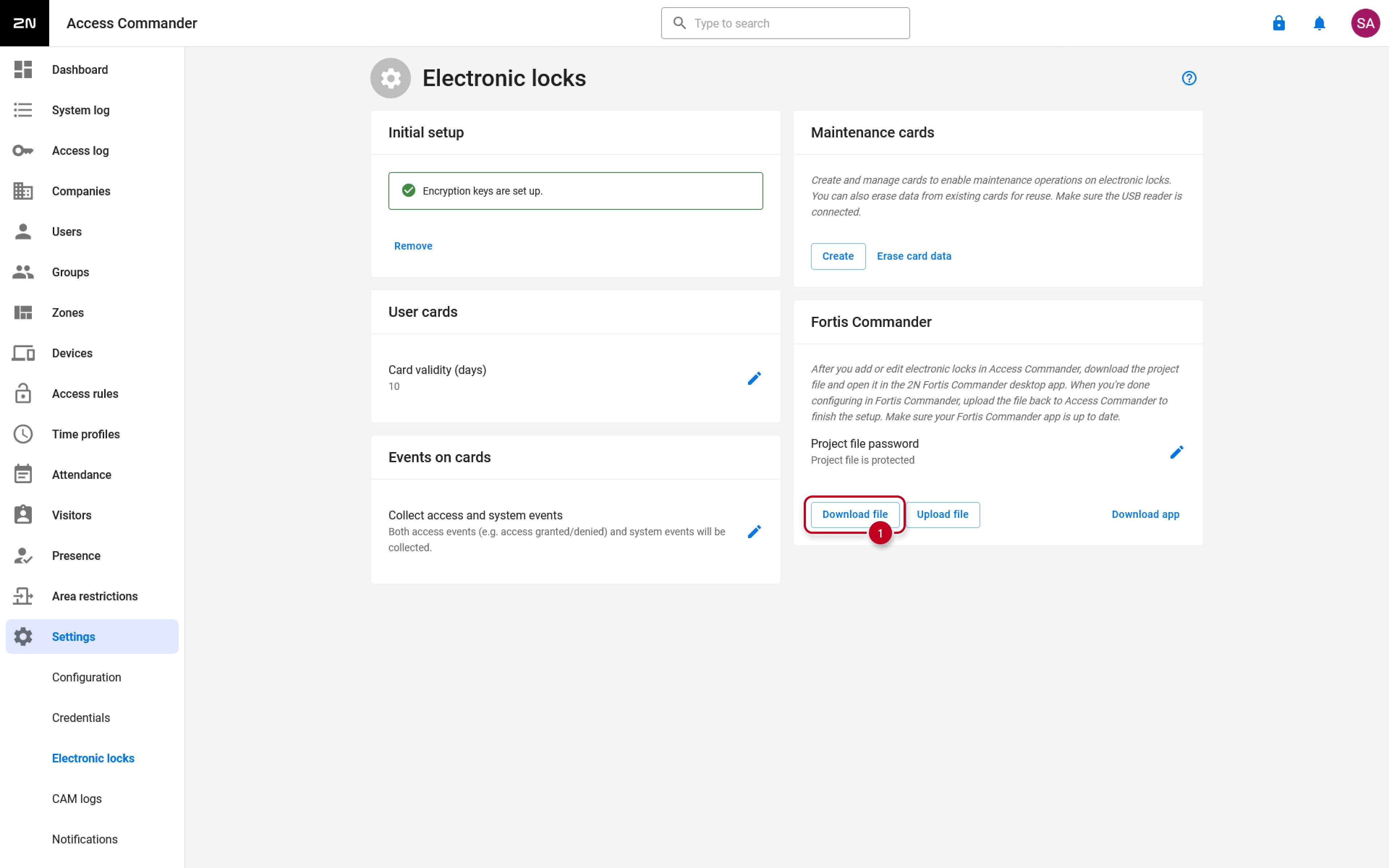
- Continue by downloading the file with information about 2N Fortis devices from 2N Access Commander (Settings - Electronic locks - Fortis Commander).
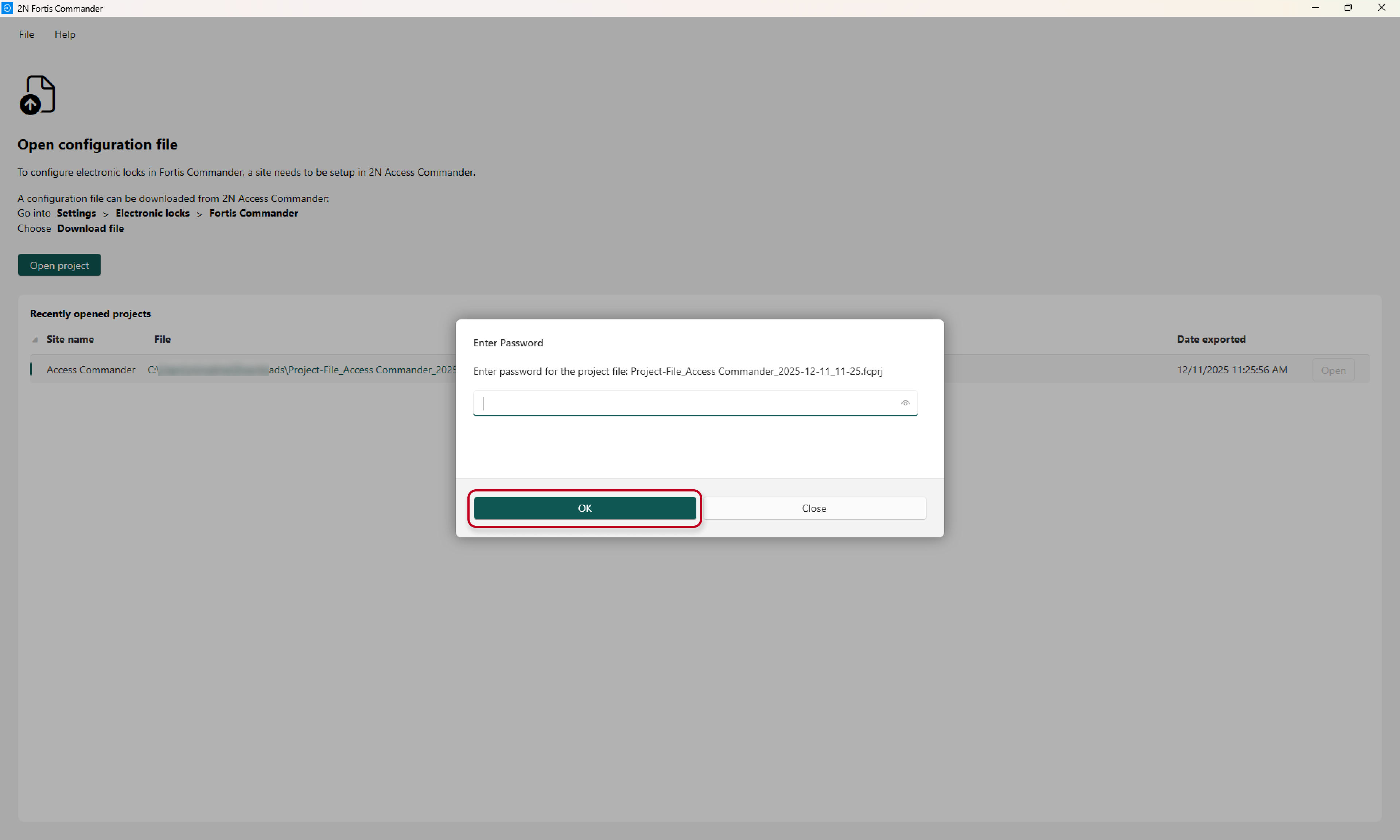
- Open downloaded file in 2N Fortis Commander (use the password to unlock the file in 2N Fortis Commander)
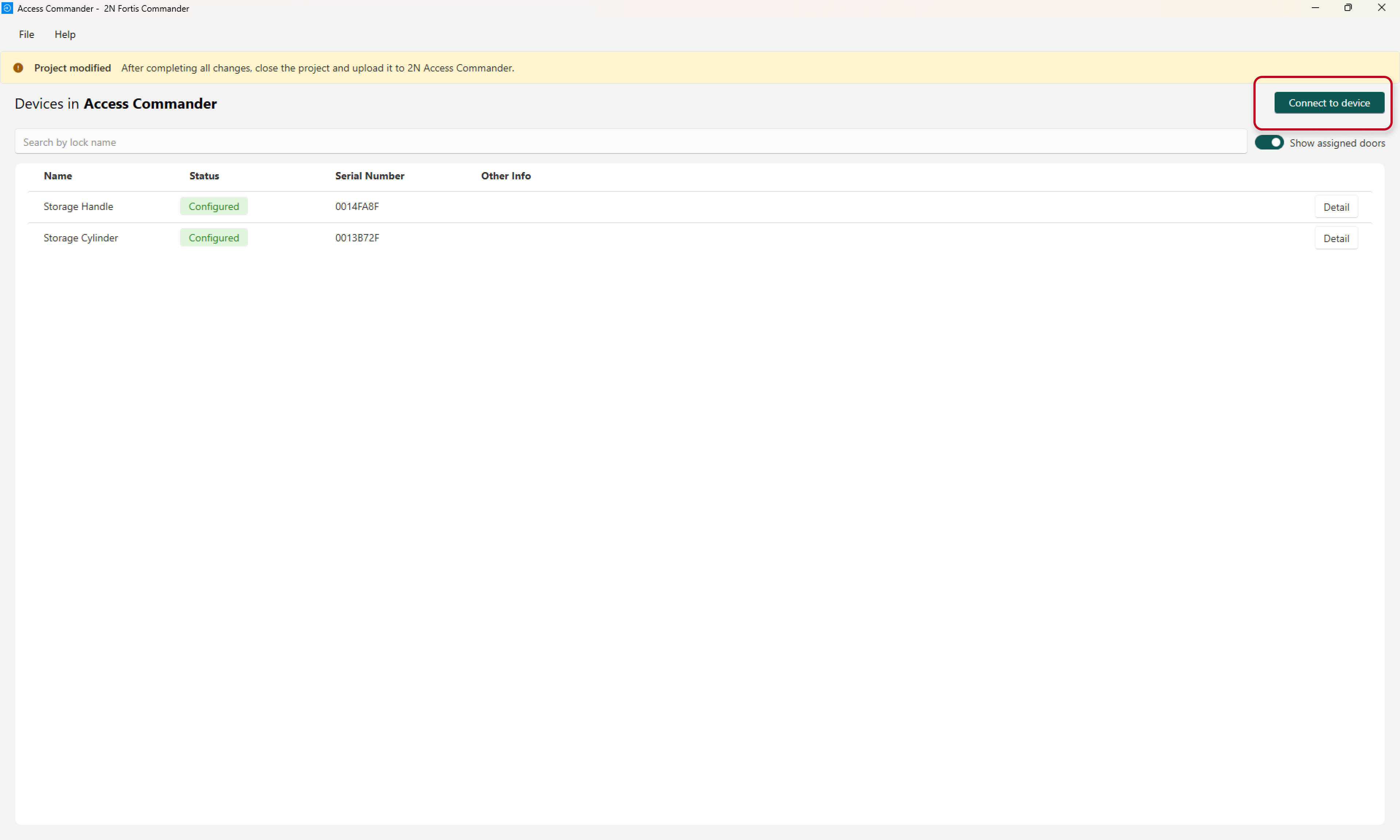
- Click Connect to device button
- Swipe Lock setup & service card over 2N Fortis device you want to reset. It shall start blinking blue. Please do just one 2N Fortis device at any given time.
- After 2N Fortis Commander connects to device, use Factory reset button to reset it.
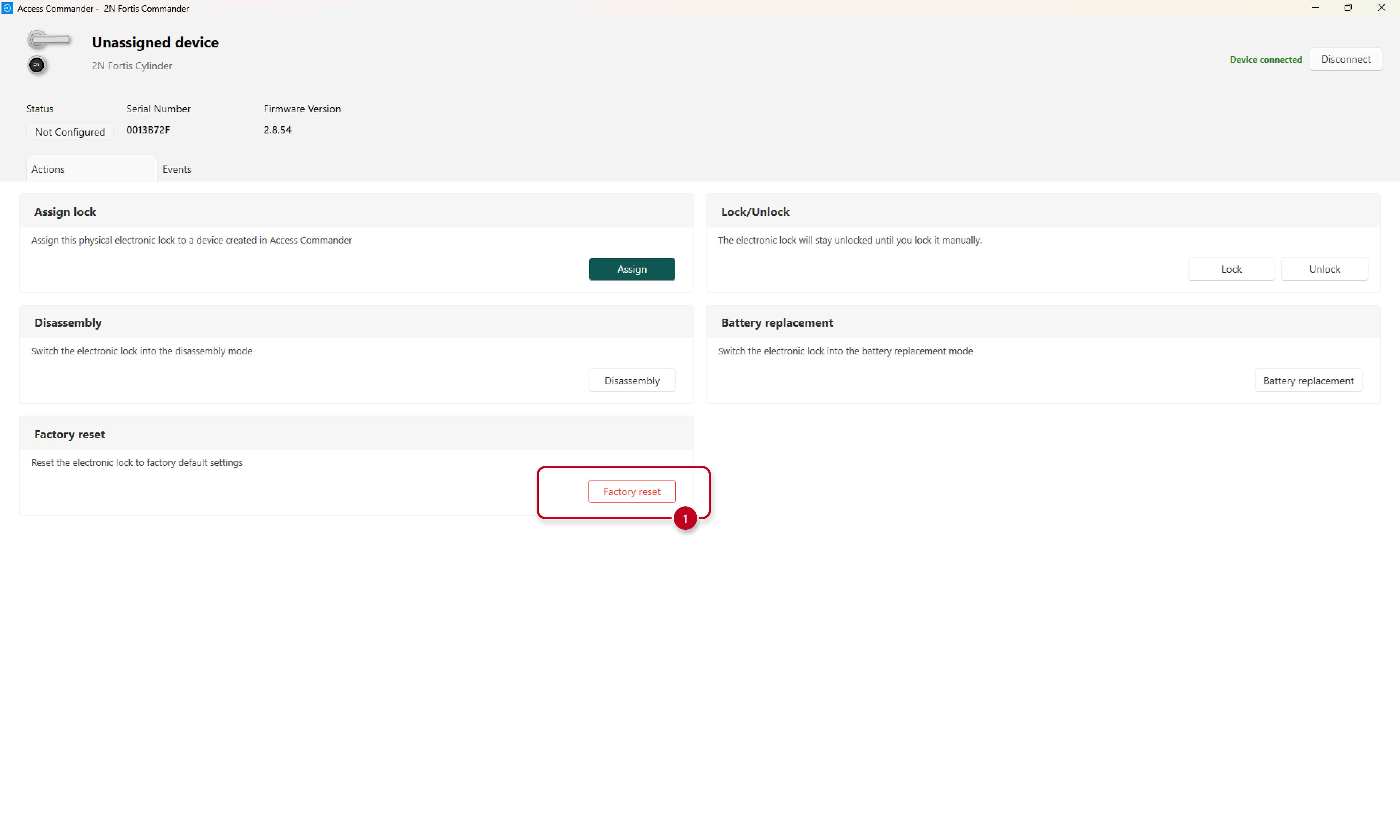
- Disconnect from the device
Please repeat the steps 3-6 for every device you want to reset to 2N factory default values.