MS Teams Integration with 2N IP Sentrio and Lift IP
The steps in this article require using the web interface of a 2N device. Please follow this manual if this is your first time using the web interface.
This integration will allow you to make audio calls from our intercoms to linked MS Teams accounts and is handled by the Microsoft SIP Gateway; for more details, please see https://learn.microsoft.com/en-us/microsoftteams/devices/sip-gateway-plan
Requirements:
- 2N IP Device with firmware version 2.46.1 or newer
- MS Teams license* (this license is not part of the standard GOLD license and needs to be purchased separately)
- EMEA license number: 9137921
- AXIS license number: 03160-001
- MS Teams account (https://learn.microsoft.com/en-us/microsoftteams/devices/sip-gateway-plan)
For a single 2N device, it's recommended to use a Microsoft Teams Shared device license.
Microsoft Teams Shared Devices licensing - Microsoft Teams | Microsoft Learn
*MS Teams license is only required for 2N IP Intercoms and SIP Audio Devices
Step by step guide for direct MS Teams integration
Configuring Intercoms to connect to MS Teams provisioning server
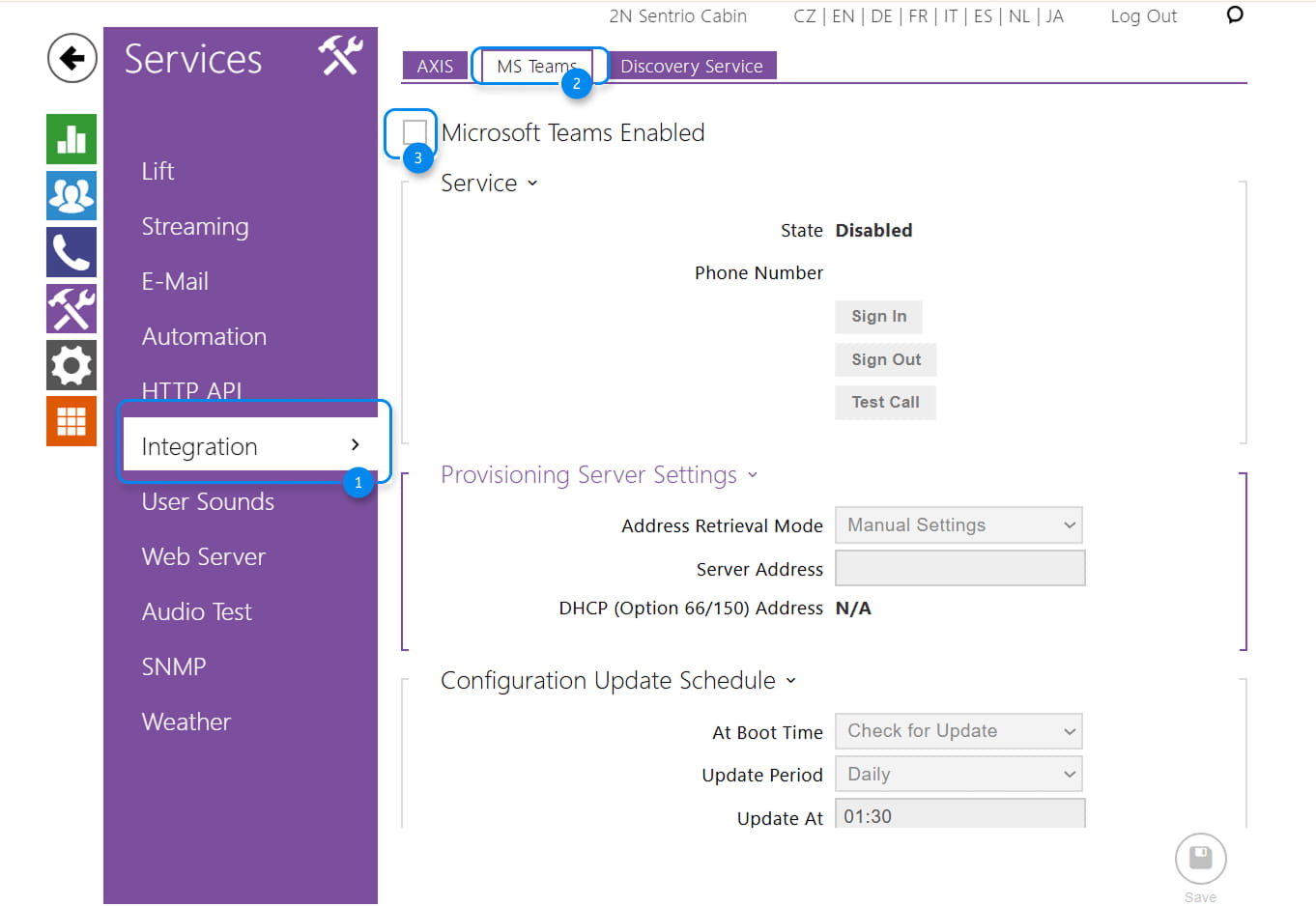
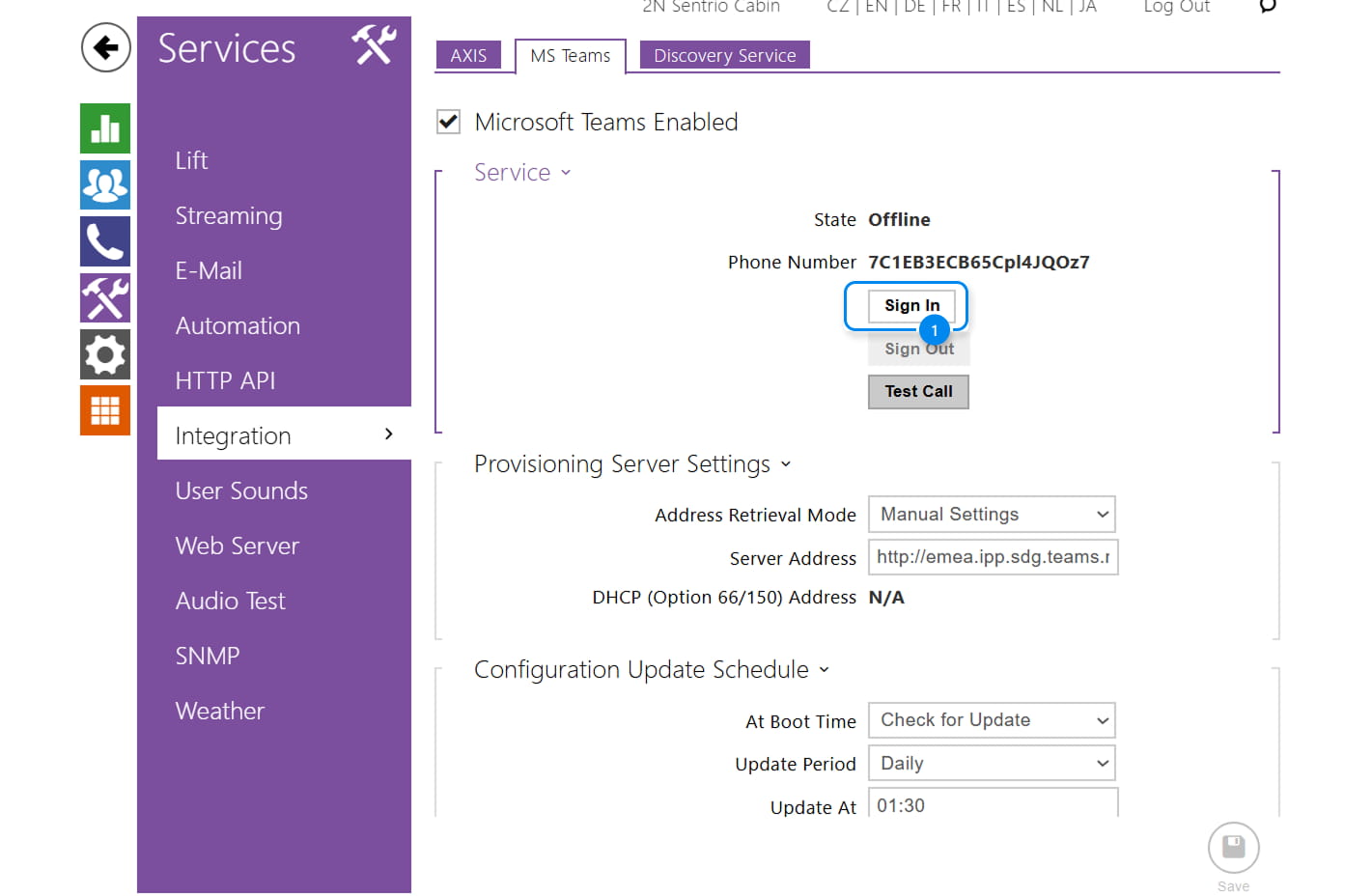
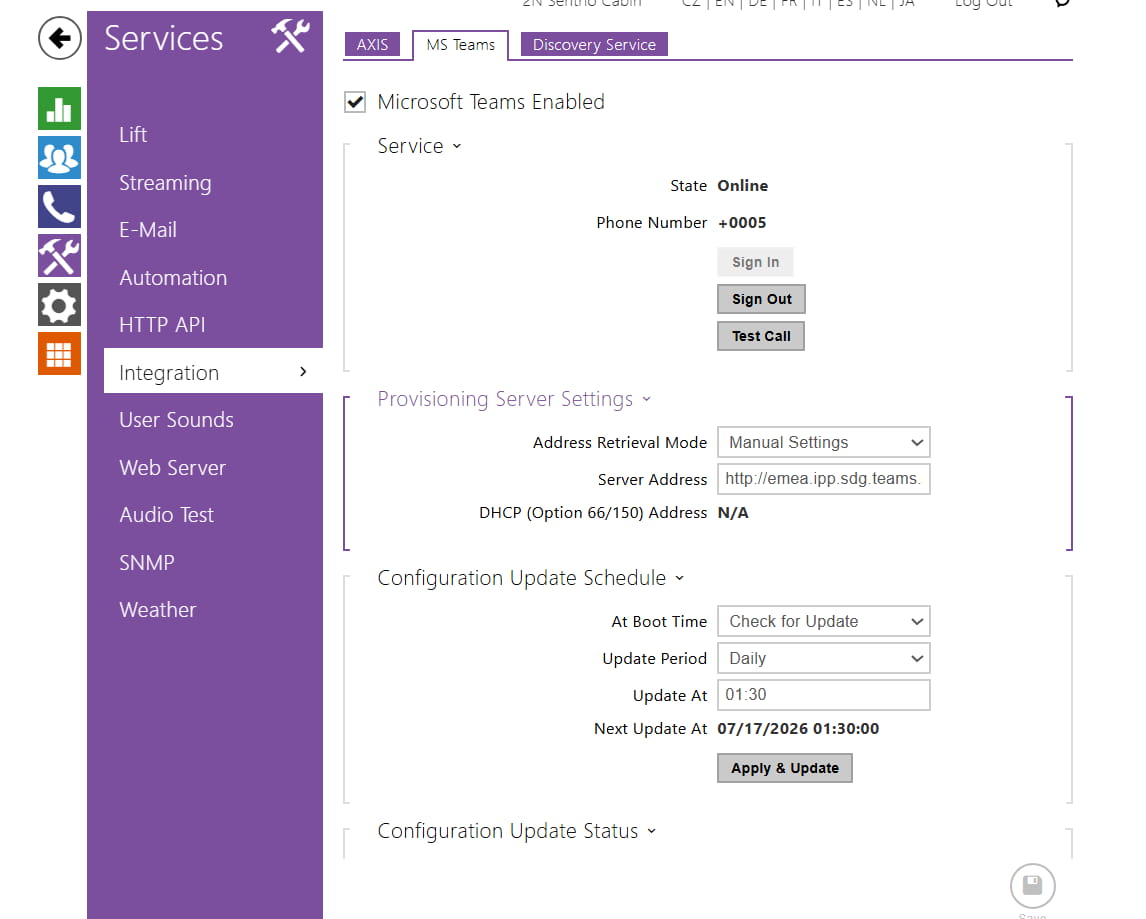
- In the Web UI of the device, please navigate to theServices > Integration > MS Teams and enable "Microsoft Teams Enabled"
-
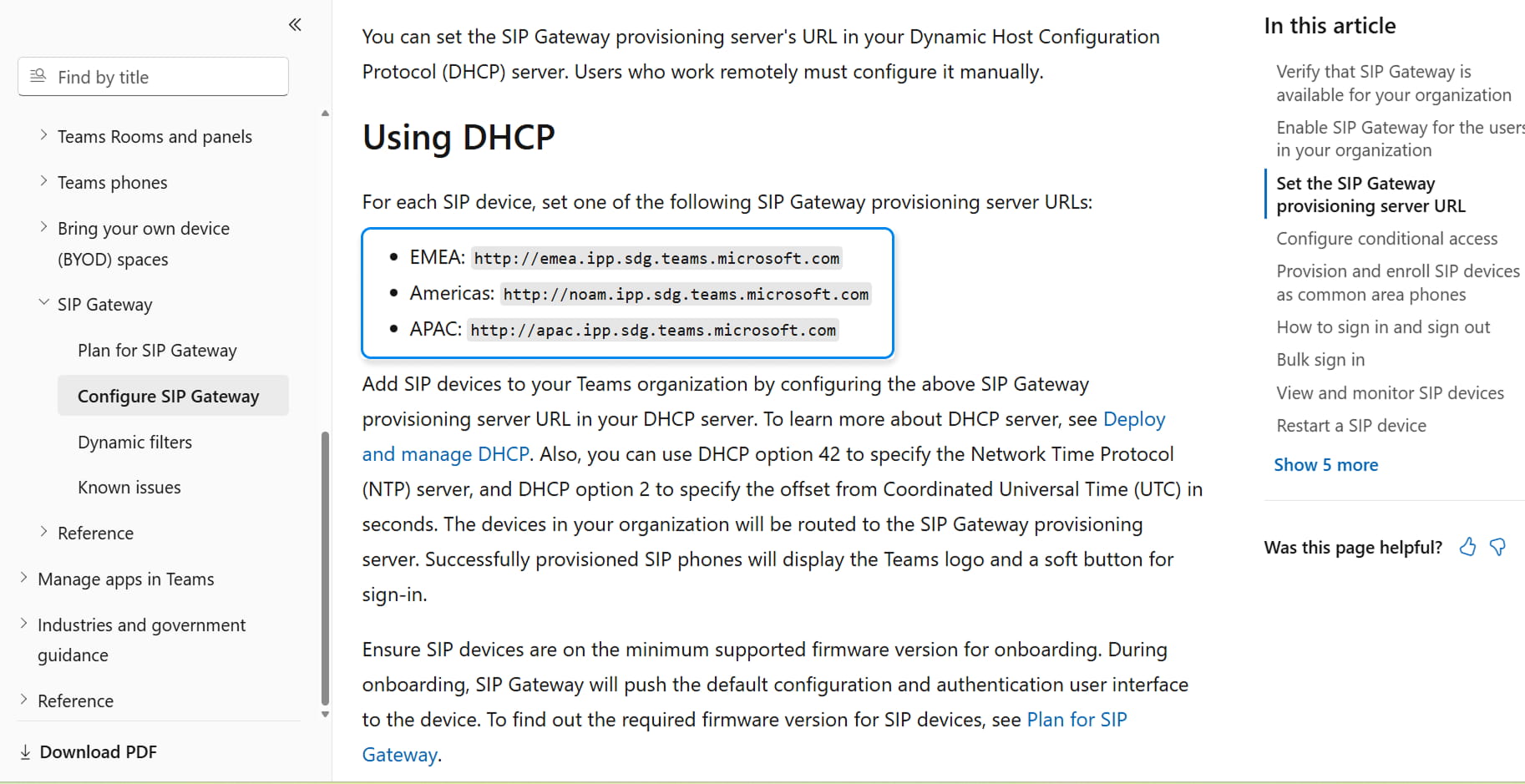
You need to get a provisioning address specific to your region (your region will be based on where your intercom will connect from; the region in which the MS Teams user is located can be different).
This address can be found at official Microsoft webpage: https://learn.microsoft.com/en-us/microsoftteams/devices/sip-gateway-configur
- Afterward, navigate to Provisioning Server Settings and enter your specific provisioning address in the Server Address field. Then click on Save to save changes made to the page.
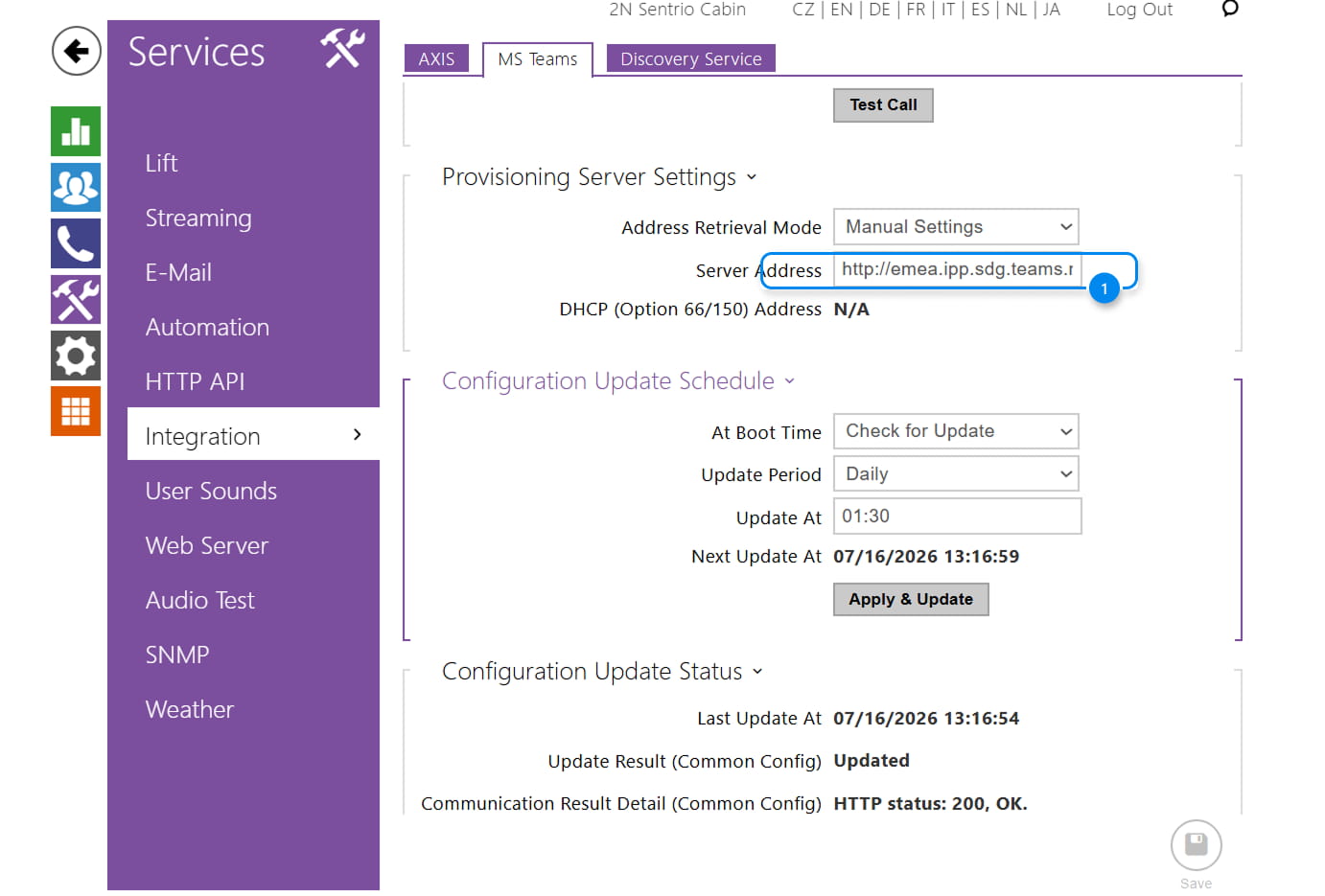
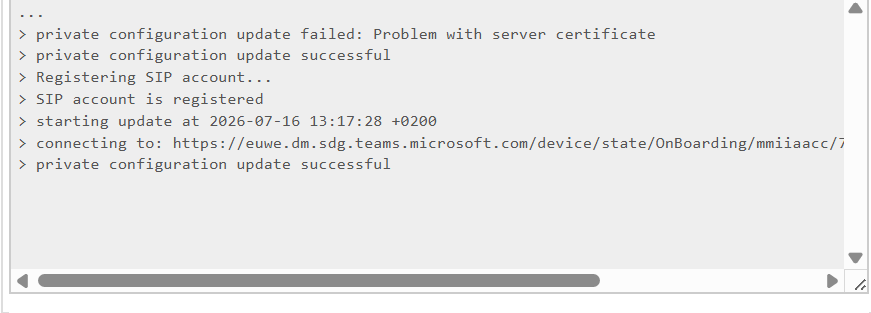
- You can view the boarding process in the Configuration Update Status. You should have the status Updated in both the common config and private config parts
- Sign In button will now become available on top of the page, in the section Service.
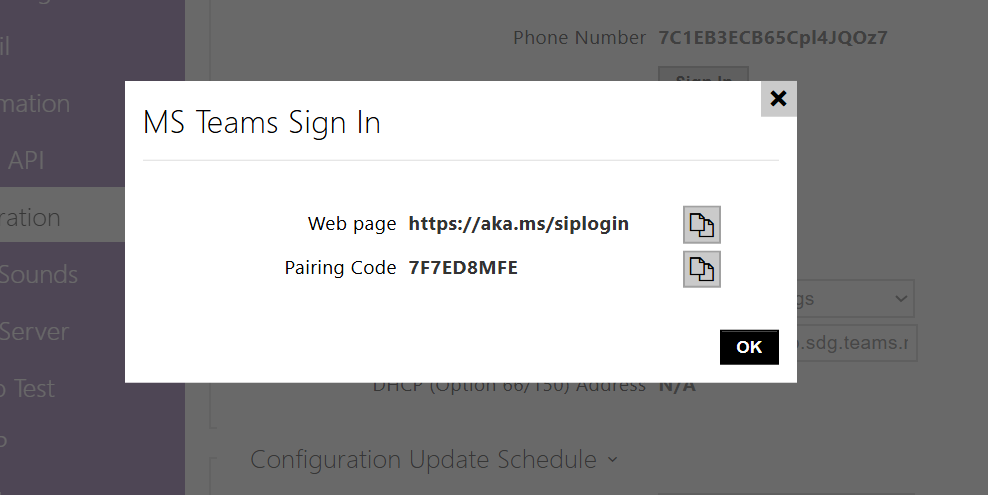
- Click on Sign In button. This should bring up link to MS Teams website and pairing code.
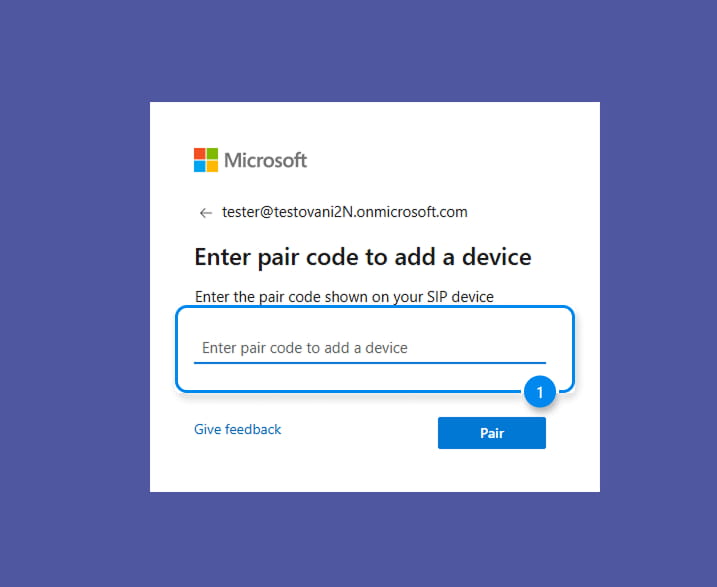
- Open website link in your web browser and copy Pairing code into marked field. Then click on Pair button
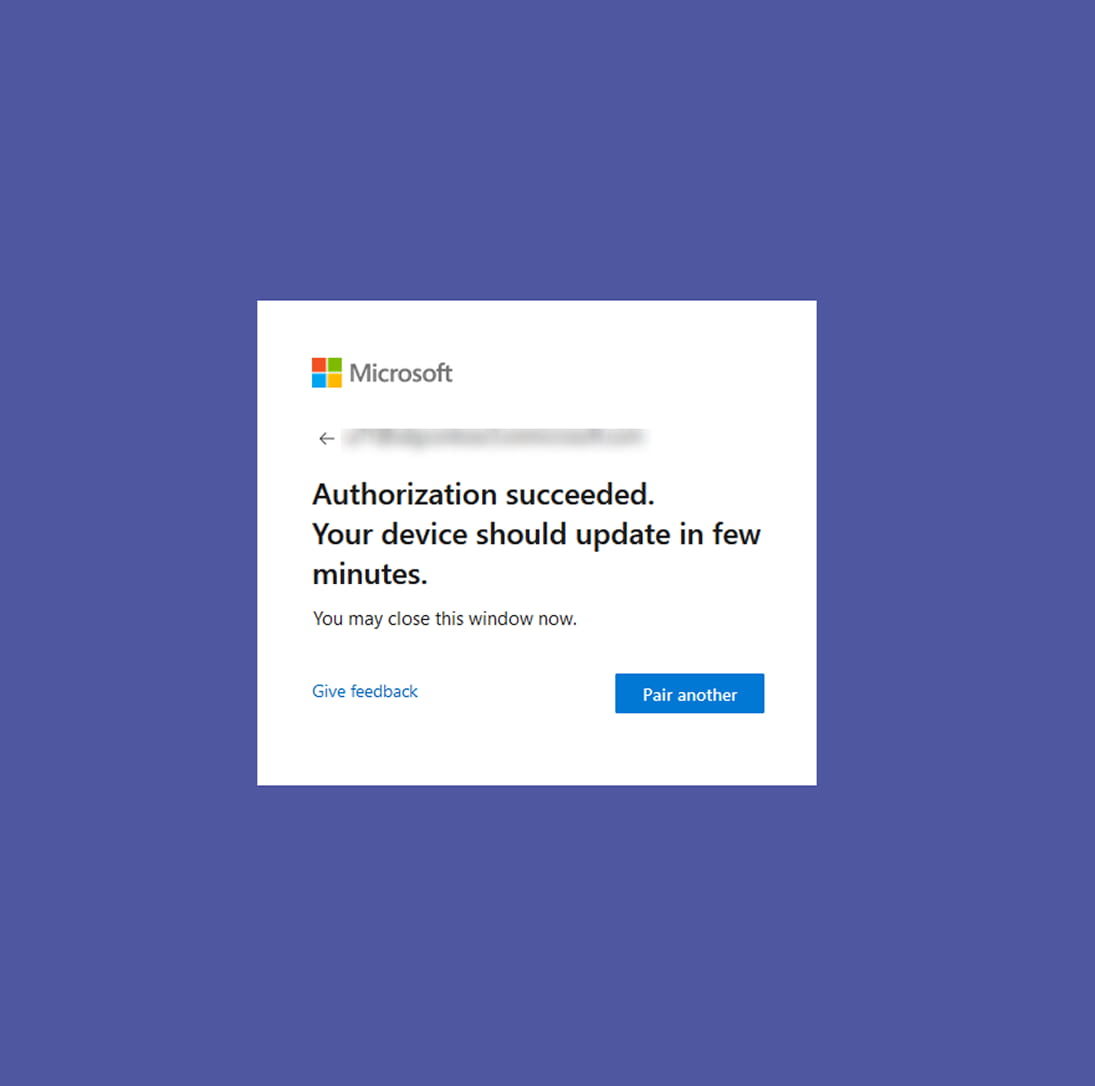
- You should receive successful authorization message. If not, try to go back into your intercom web interface, close window with the pairing code and then open it again. This will generate new pairing code for you which you can try to input into pairing website again.
- On your intercom web interface, you should now see your intercom in Online status and a notification about successful registration to the terminal SIP server. You can also view a phone number that is assigned to your intercom by the MS Teams service. If the registration does not go through, you can click on the Update button and wait.
How to make an MS Teams Alarm Call?
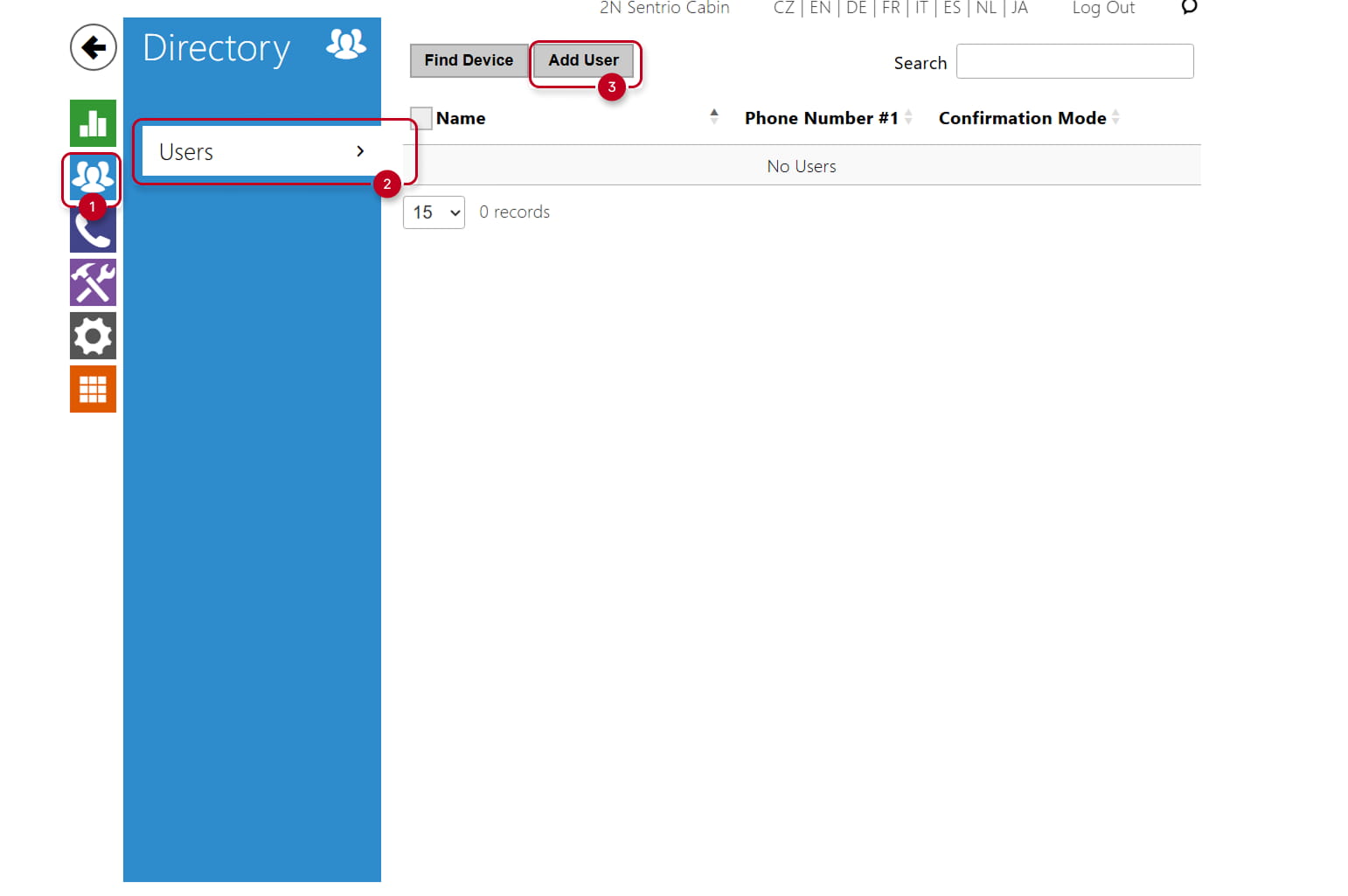
- Navigate to Directory > Users and left-click the "Add User" button
- Enter the MS Teams number in the Phone Number field using the format
msteams:number(for example,msteams:0005) and select the required Call Confirmation Type from the dropdown menu.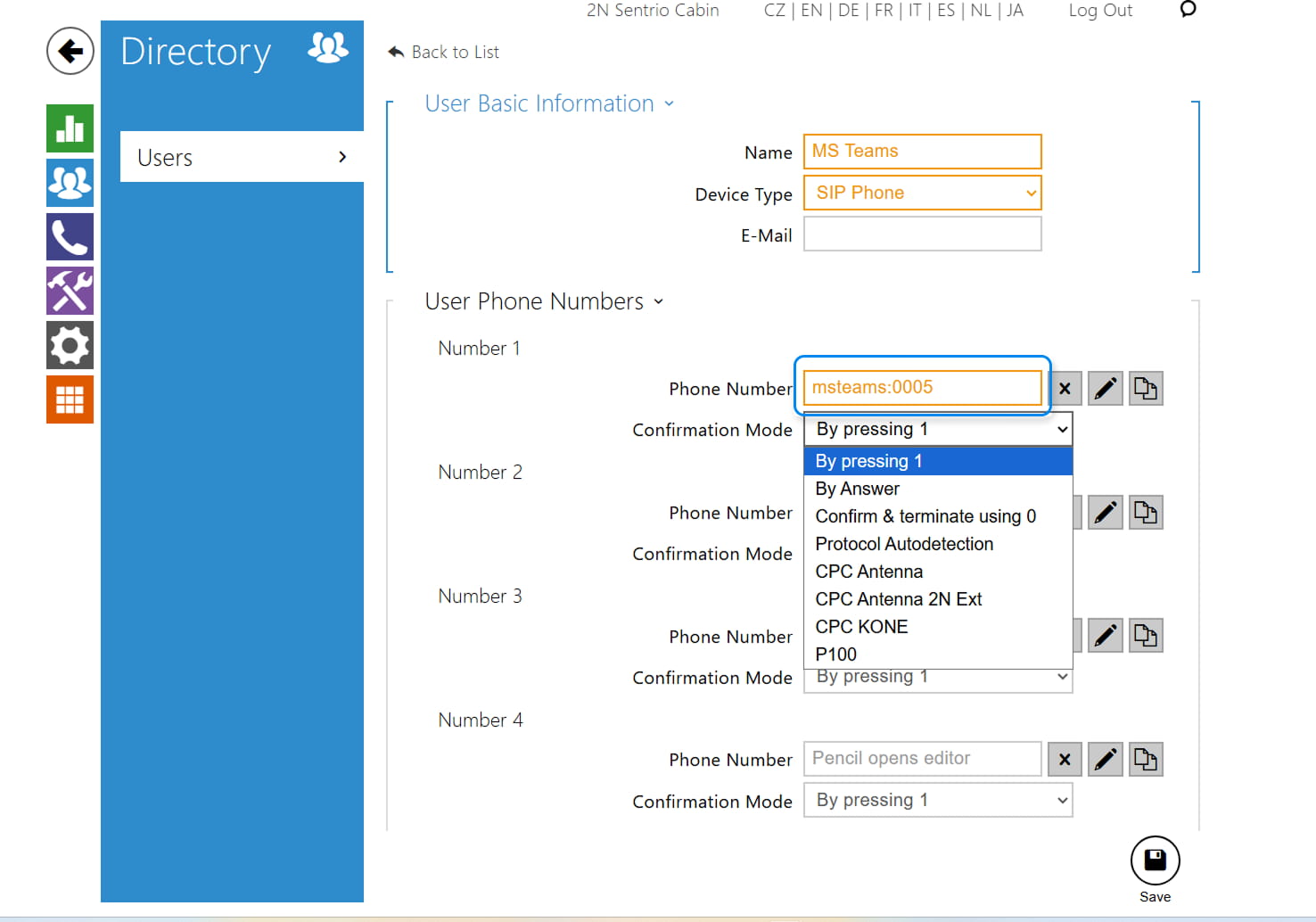
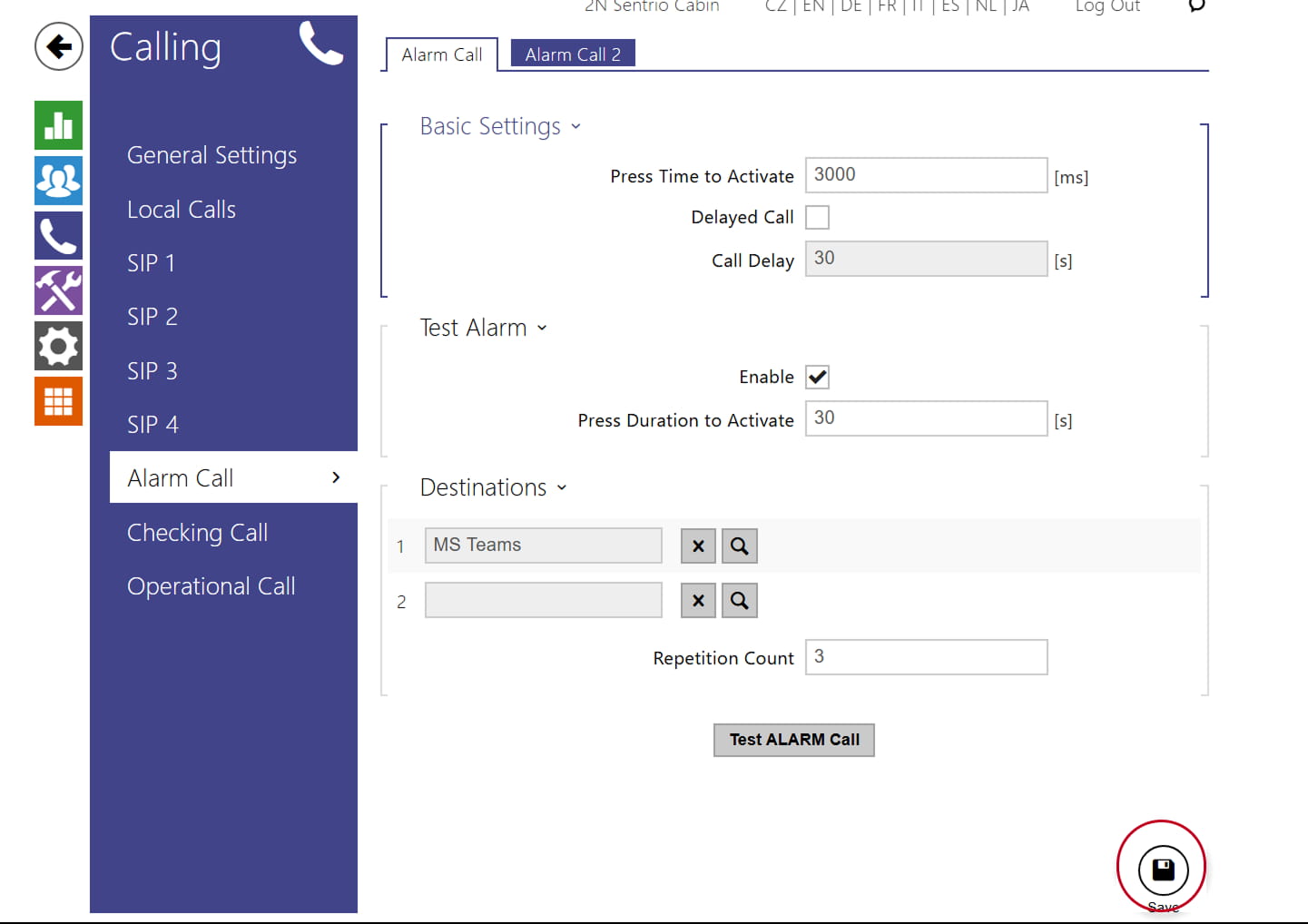
- To set an Alarm Call destination, go to Calling → Alarm Call, then click the Search button in the Destinations section to select the required destination.
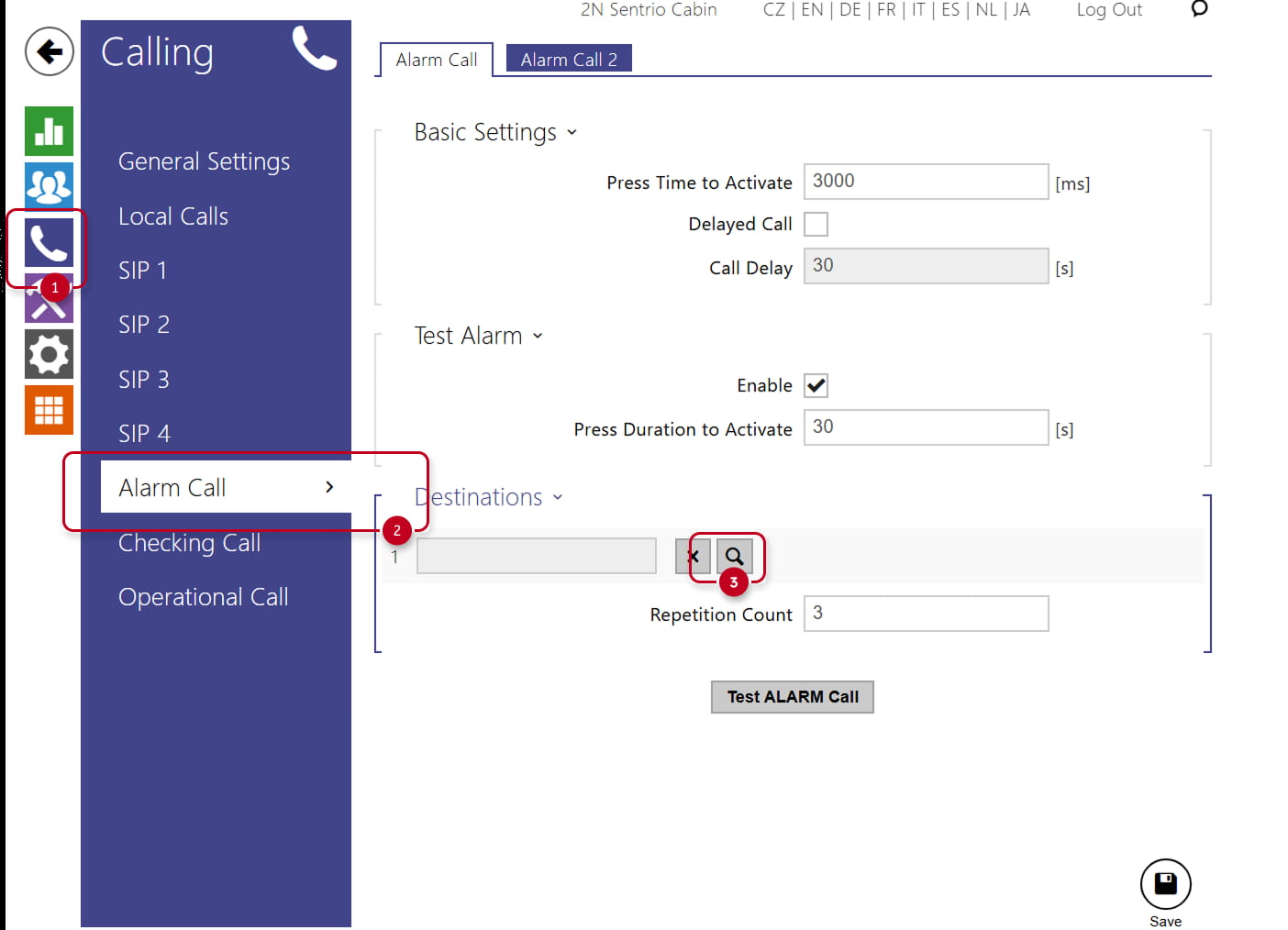
- Select the desired destination from the search results, then click Save to confirm the configuration.