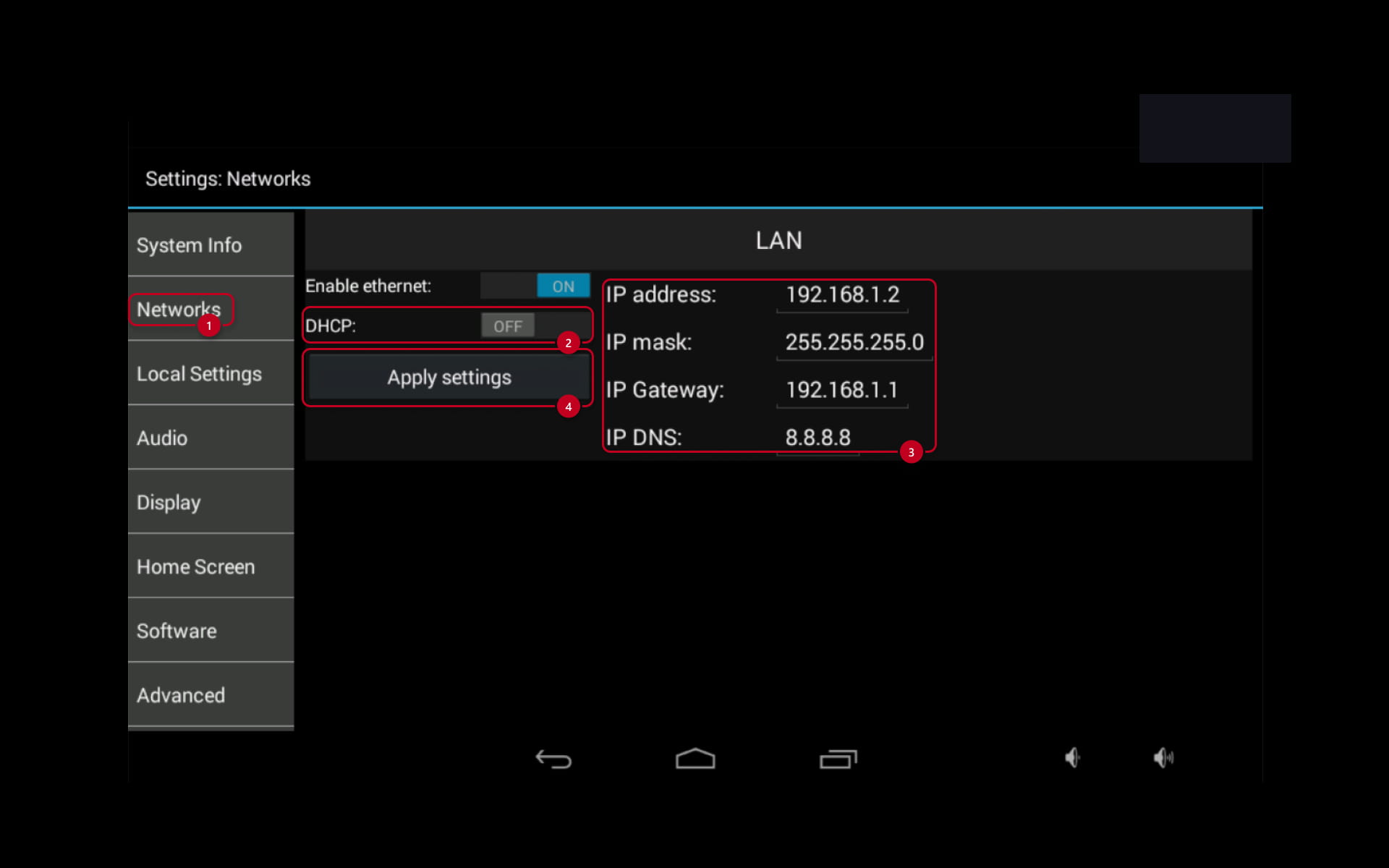
2N Indoor Touch 2.0 has the DHCP client enabled in default, so it expects to get an IP address from a local DHCP server dynamically.
If you would like to assign some static IP address manually, please follow the steps below:
Web Interface
-
Access devices's web interface, the default ceredtials are Username: admin and Password: 2n.
-
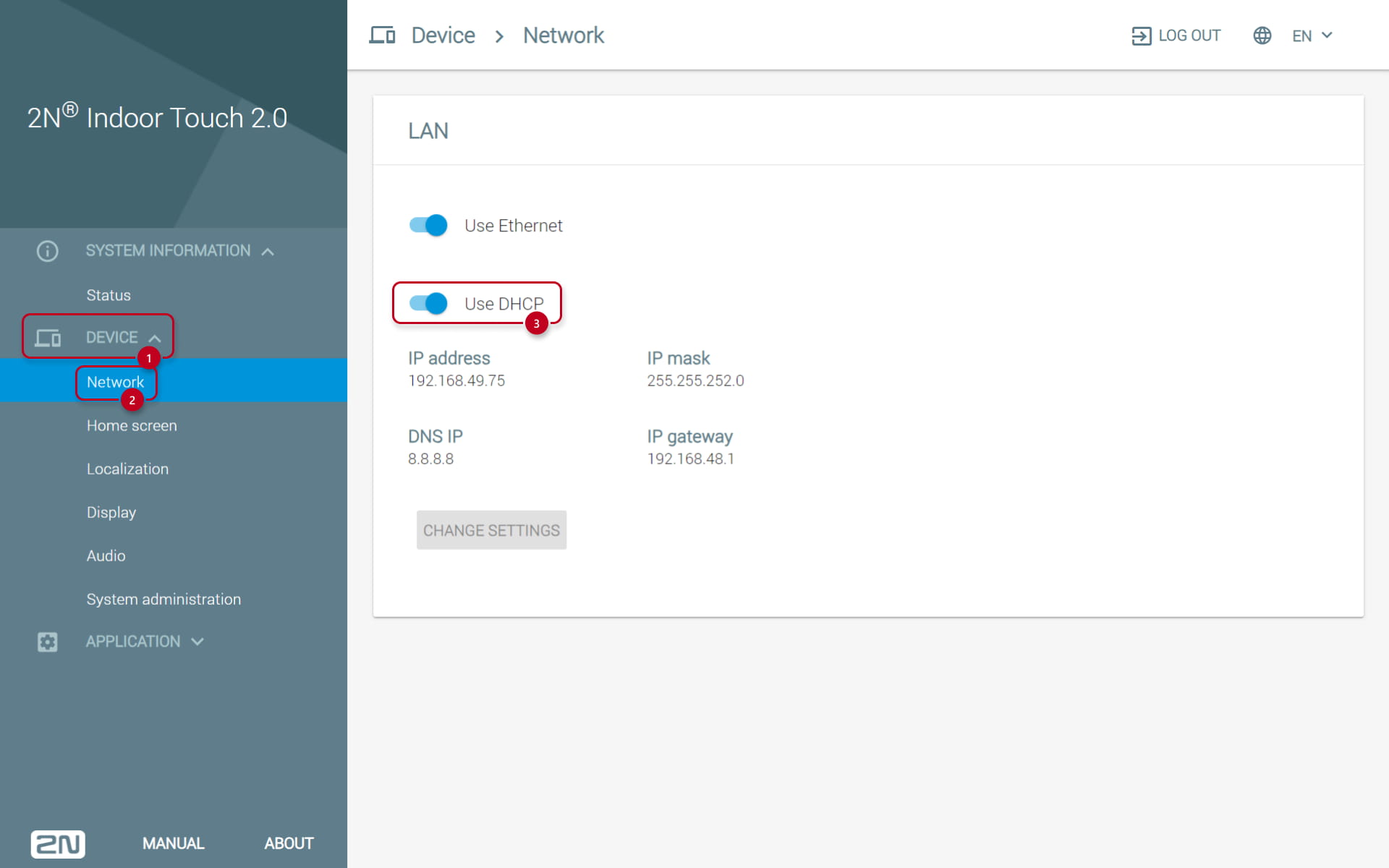
Navigate to the section Device -> Network.
-
In order to activate static IP settings, you have to set DHCP to OFF state.
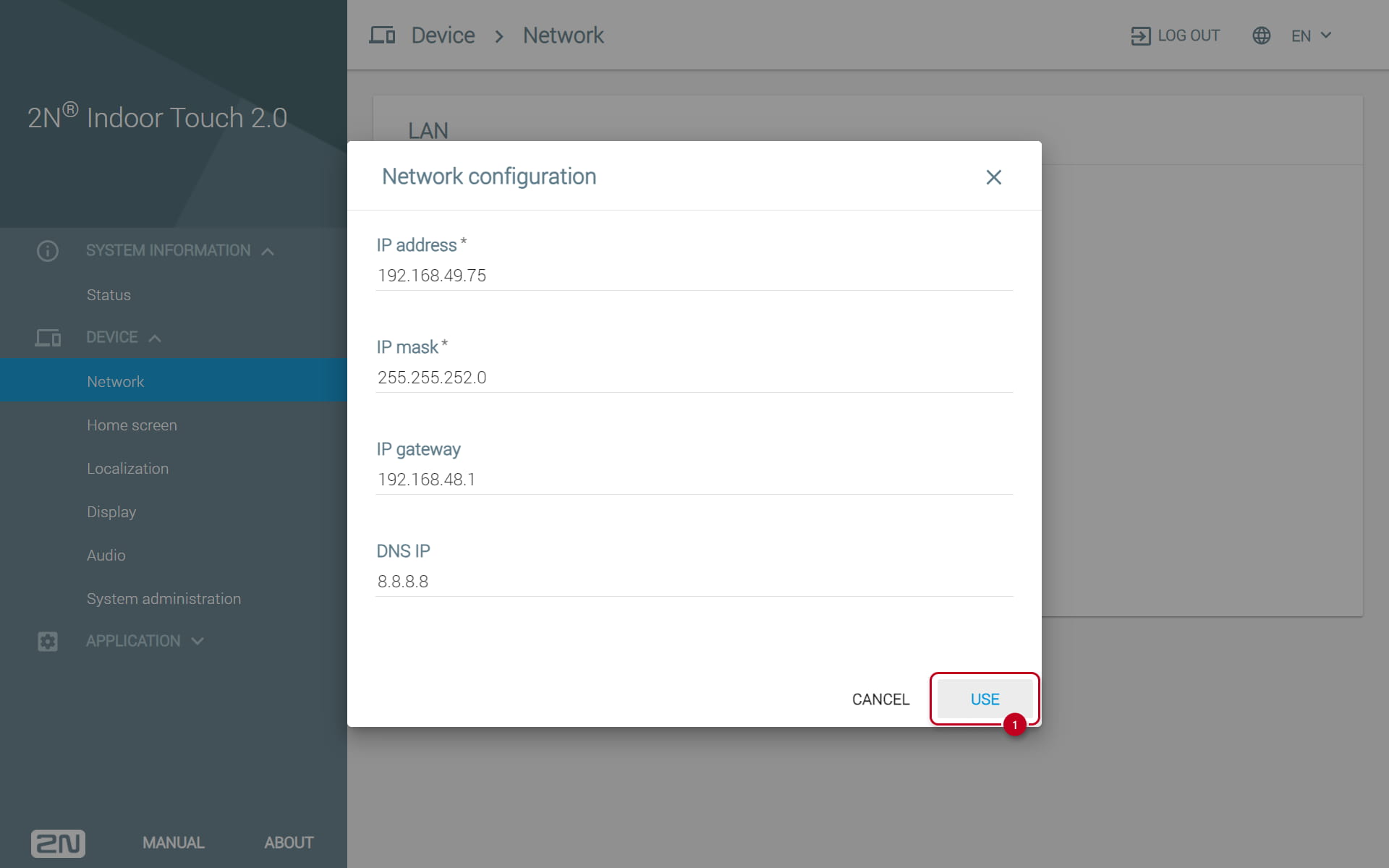
Once the DHCP is turned off, a chart will appear. In there, you can fill in all the necessary values such as IP address, Mask, Gateway and DNS, then click Use.
On the device
On the home screen click on the Settings icon and log in, the default password is 2n.


-
Tap on Networks to edit the network settings.
-
In order to activate static IP settings, you have to set DHCP to OFF state.
-
Enter the IP address, network mask, IP Gateway, IP DNS and tap on Apply settings