-
Once you have set up 2N VoiceBlue MAX, the simplest way to test basic functionality is to make some test calls from you PC.
-
In this guide you will find the instructions for making a direct call to the 2N VoiceBlue MAX from X-Lite and SJphone
X-Lite Configuration
-
In the X-Lite menu Softphone -> Account Setting set up the user account

-
The only important thing which should be set up correctly is Proxy Address; it should be the IP address of the 2N® VoiceBlue MAX. User ID and Domain are mandatory parameters but it does not matter what you fill in these fields.
-
Then just dial number without IP address.

-
For incoming calls it is necessary to set up range of ports allowed for incoming SIP messages.
SJphone Configuration
-
In SJphone Options -> Profiles section choose SIP Direct. This account is basically available in default configuration.

-
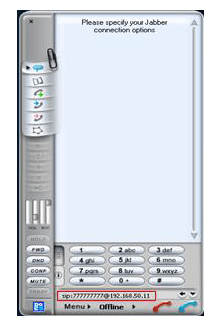
Dial the number in format sip:called_number@VBM_ip_address
Settings on the 2N® VoiceBlue MAX side.
-
The IP address of you PC should be inserted into the SIP Proxy list (Gateway configuration -> VoIP Parameters -> SIP proxy (IP -> GSM) -> Alternative. Note that you can fill in up to 9 IP addresses from which you can receive SIP traffic. If SIP proxy (IP -> GSM) is 0.0.0.0, 2N VoiceBlue MAX can accept SIP traffic from any host.
-
To allow incoming calls from GSM to IP it is necessary to fill in the SIP proxy (GSM -> IP).
