The steps in this article require using the web interface of a 2N device. Please follow this manual in case this is your first time using the web interface.
This FAQ describes how to use 2N Indoor Touch HTTP API on a device and how to configure it. 2N Indoor Touch HTTP API is an application interface designed for control of selected 2N Indoor Touch functions with the HTTP commands. It enables 2N Indoor Touch to be integrated easily with third party products, such as home automation, security, monitoring systems, etc.
|
Requirements
|
Tips&Tricks at the beginning
-
Here is an example how you can change parameters of the 2N Indoor Touch device via HTTP API. In manual you will find all commands for a device.
Manual
For more information please follow the user guide here.
-
Communication is made with the HTTPS protocol, which runs on standardized port 443. Authentication requires login and password data to be transmitted in the first connection.
-
The HTTP API license is needed to enable this feature support. Order number of the HTTP API license is 91378395.
How to use HTTP API on the 2N Indoor Touch
-
There are two possibilities how to access the HTTP API. You can use your application or any web browser.
-
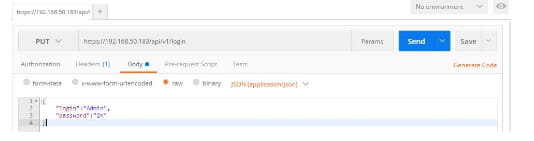
For a demonstration we will use an application Postman. User needs to authenticate wit login command. For login you need to use PUT method. After authentication use any commands from manual with GET method.
-
Second option is to use a web browser. Connect to the 2N Indoor Touch, use your username and password to log in. It is important for authentication. Without login HTTP API will not work. For more information please follow the manual. here

-
After the authentication, you can use different commands. Structure of a command must be like this: https://<IP>/api/v1/<subsystem>?<parameters>
-
IP is the 2N Indoor Touch IP address
-
<subsystem> designates the system part to be controlled
-
<parameters> includes request details
Example: https://192.168.50.183/api/v1/maintenance/resetdevice
Results: {
"data":{}
}
How to switch IO on the 2N Indoor Touch via HTTP API
-
After you log in to the device. Use the special HTTP API command to switch relay.
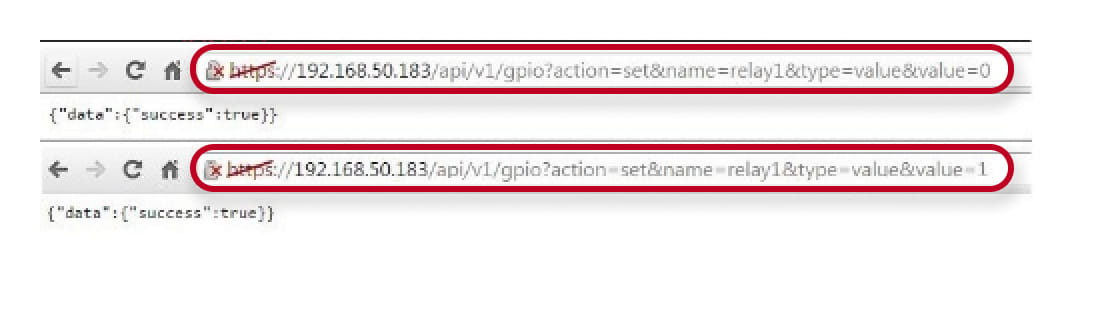
- structure of the command is https://<IP>/api/v1/gpio?action=set&name=<string>&type=<string>&value=<bit>, where you will define name, type and value
|
Manual For more information please follow the user guide here: https://wiki.2n.com/hseit/api/latest/en/4-http-api/4-2-prikazy/4-2-2-gpio/4-2-2-3-nastaveni-hodnoty-vystupu |
How to activate door lock in application 2N IP Mobile via HTTP API
-
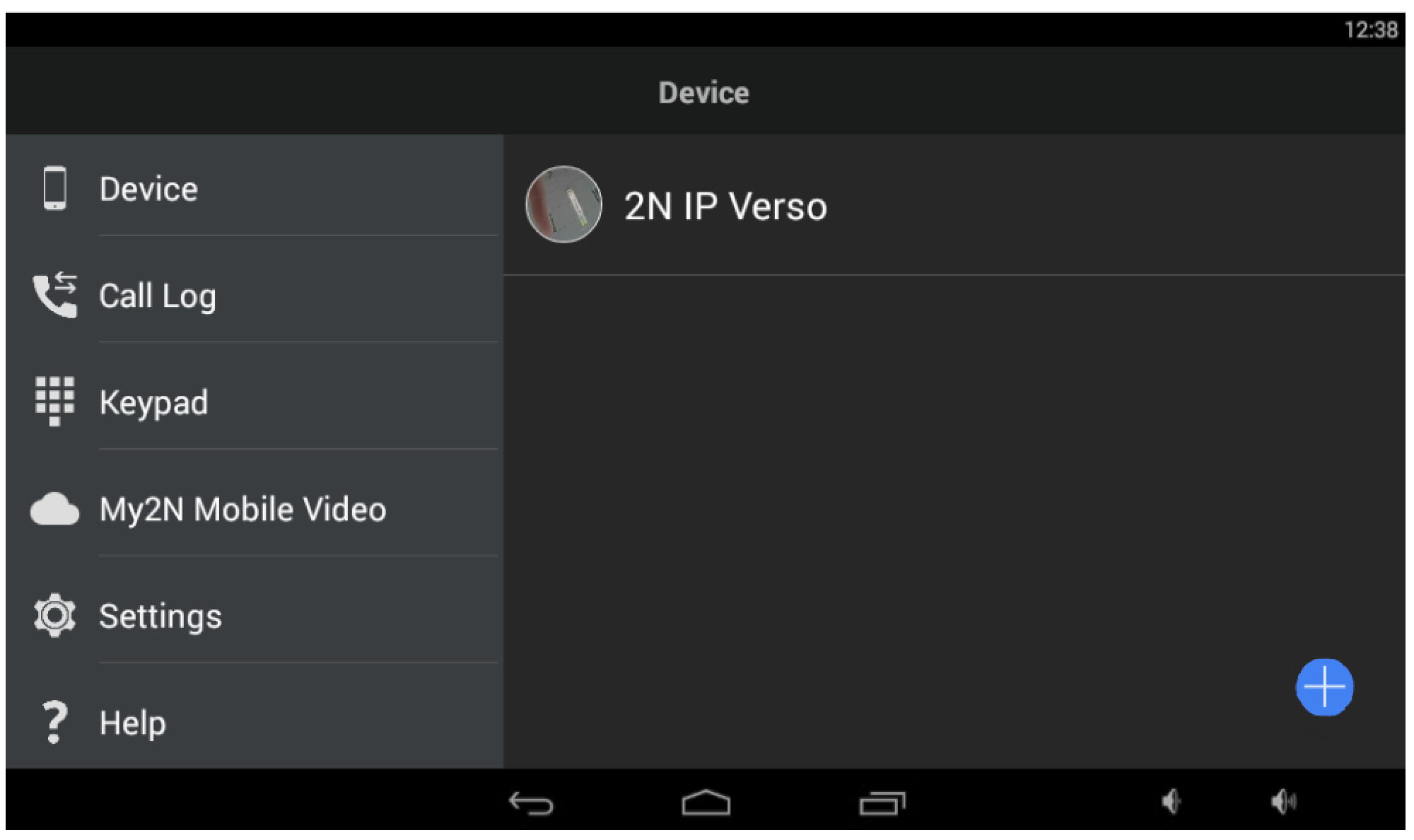
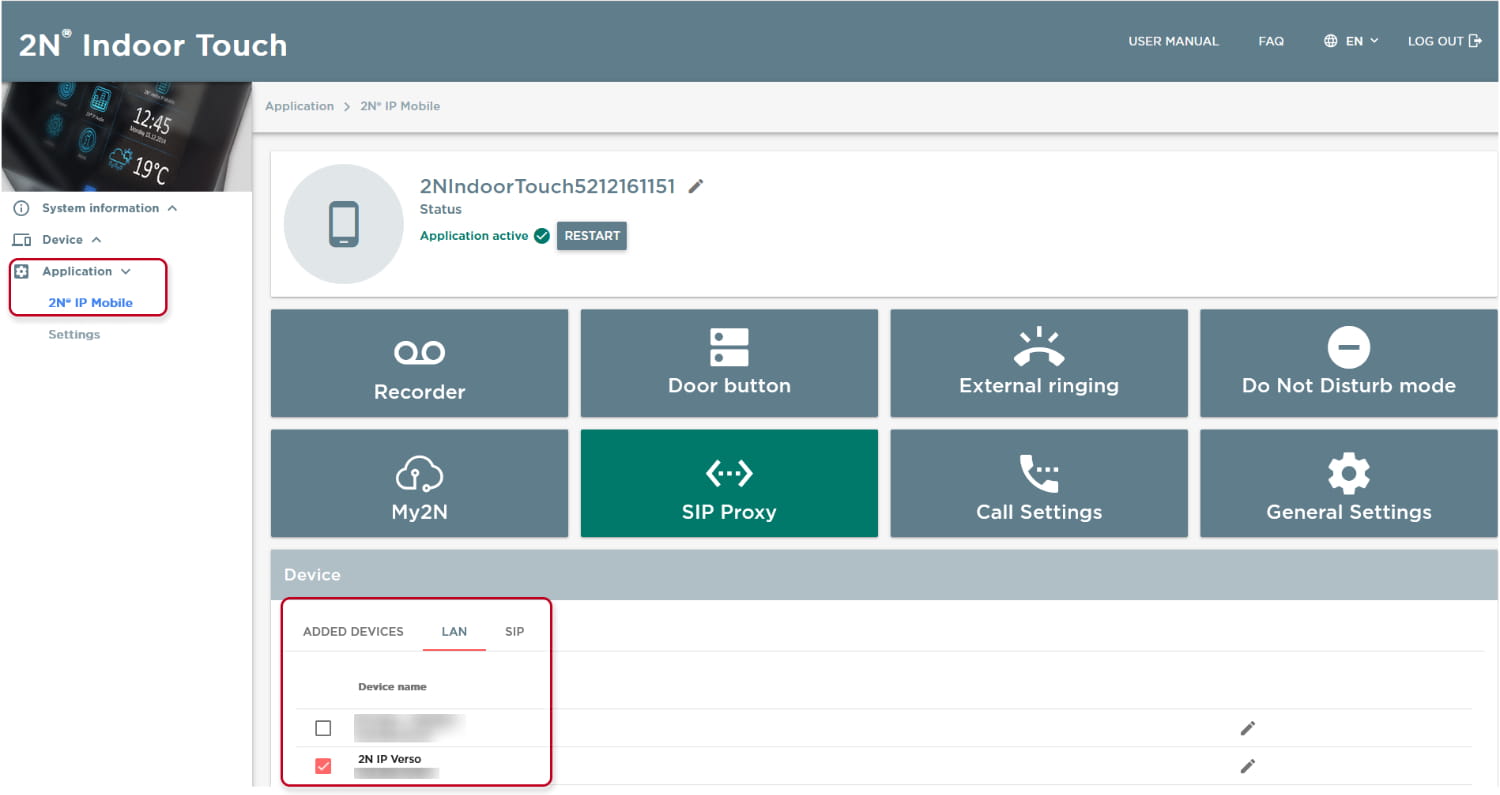
After you log in to the device, add your 2N IP intercom to 2N IP Mobile application.. You can do it both ways from the web browser or from the application.
-
Use the special HTTP API command to activate a door lock in 2N IP Mobile application. Part of the command is a serial number of a saved device and ID of the switch that you would like to use.

|
Manual For more information please follow the user guide here. |